The Difference Between a YouTube Banner and Thumbnail
A YouTube banner brands your channel; a thumbnail sells one video's story. Learn the differences, sizes, safe areas, and design rules.
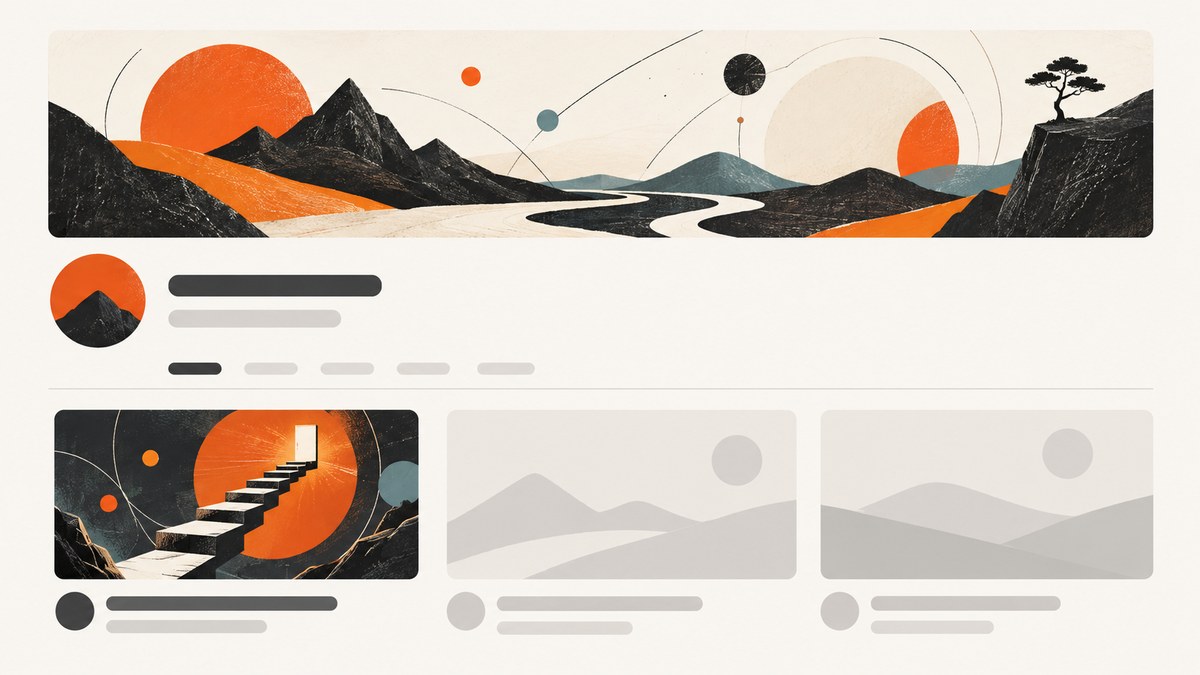
Short answer: a YouTube banner is channel-level branding displayed across the top of your channel page. A thumbnail is a video-level preview image attached to one video. The banner tells visitors what your channel is about; the thumbnail gives viewers a quick sense of one video’s content and helps them decide whether to watch.
Banner and thumbnail: the essential difference
| Question | YouTube channel banner | YouTube video thumbnail |
|---|---|---|
| Primary job | Communicate the identity, subject, or presentation of your channel | Preview one specific video’s content |
| Scope | Channel-level branding | One video at a time |
| Where it appears | As the background at the top of your channel page | As the video’s preview across YouTube surfaces and embedded playback contexts |
| Shape | Wide 16:9 artwork that is cropped differently by device | Usually 16:9 for standard videos; 9:16 for Shorts |
| What to design for | Consistent identity across computer, mobile, and TV | Fast comprehension at small display sizes |
YouTube describes a banner as a larger space for showing what a channel is about. Its thumbnail guidance says the title and thumbnail are often the first glimpse viewers get of a video. Those purposes are related, but they are not interchangeable.
What a YouTube banner does
Your banner sits at the top of your channel page as background artwork. YouTube uses the same uploaded image on computer, mobile, and TV, but each device displays a different crop. That makes the banner a persistent identity layer rather than a cover image for a particular upload.
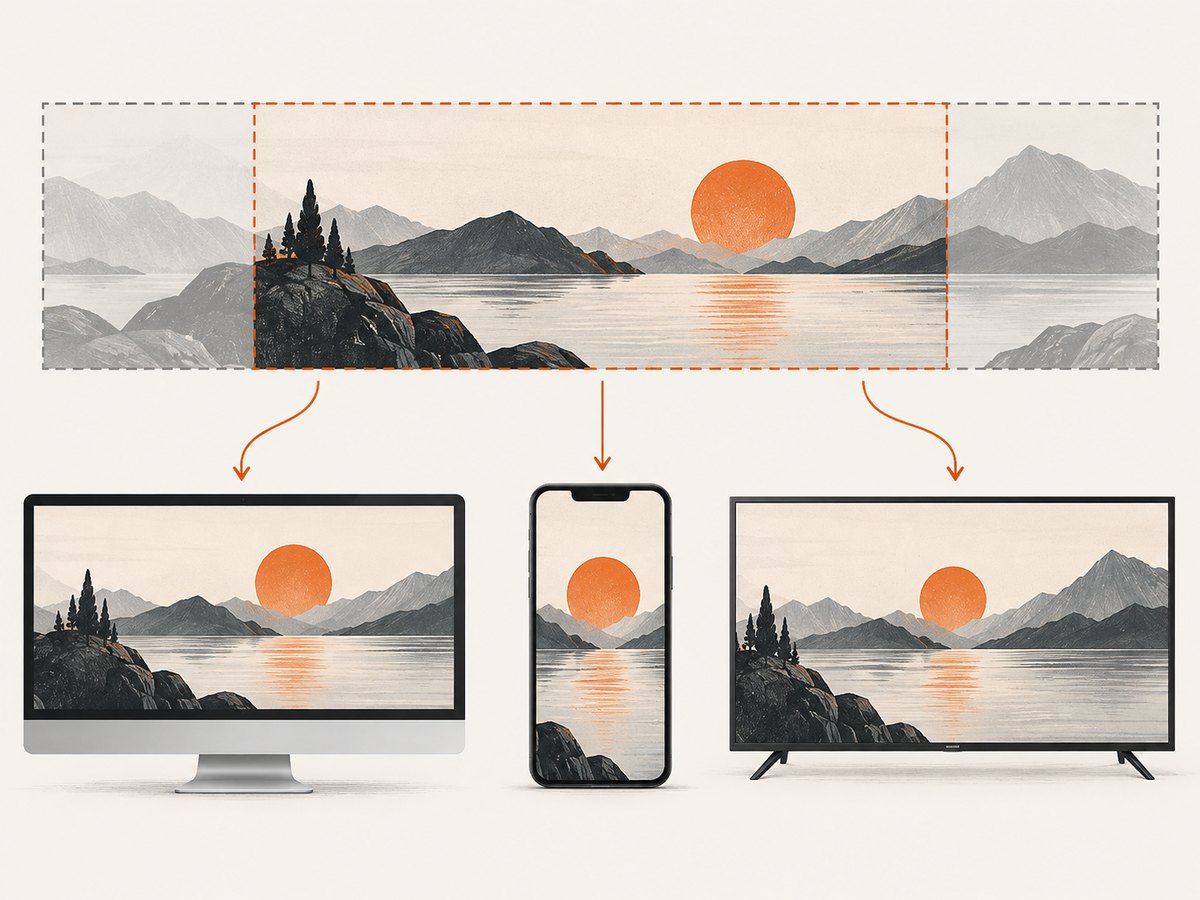
Use it to establish a recognizable subject, visual style, publishing focus, or schedule. Keep the most important text and logos inside the safe area so they survive device-specific cropping. Decorative borders, shadows, and frames can be clipped or distract from the channel identity.
Banner dimensions and safe area
| Specification | Guidance |
|---|---|
| Minimum upload size | 2048 × 1152 pixels |
| Aspect ratio | 16:9 |
| Minimum safe area | 1235 × 338 pixels at the minimum dimensions |
| Recommended size | 2560 × 1440 pixels, especially for TV displays |
| File-size limit | 6 MB |
The minimum and recommended sizes solve different problems. The minimum is the smallest upload YouTube specifies; 2560 × 1440 gives more working room and is the recommended target for broad device coverage. At either size, design the central safe area first, then extend background elements outward.
Banner layout checklist
- Start with a 16:9 canvas.
- Place channel name, important wording, and logos in the centered safe area.
- Use the outer area for background color, texture, or imagery that can be cropped.
- Preview the composition at desktop, mobile, and TV-like crops.
- Export within YouTube’s 6 MB limit.
- Check that small text remains readable; a banner is not a place for a paragraph.
What a YouTube thumbnail does
A thumbnail represents one video. It should communicate the subject or outcome quickly enough that a viewer understands the premise before reading much more than the title. The best composition depends on the individual video, so a thumbnail normally changes from upload to upload even when the channel banner stays the same.
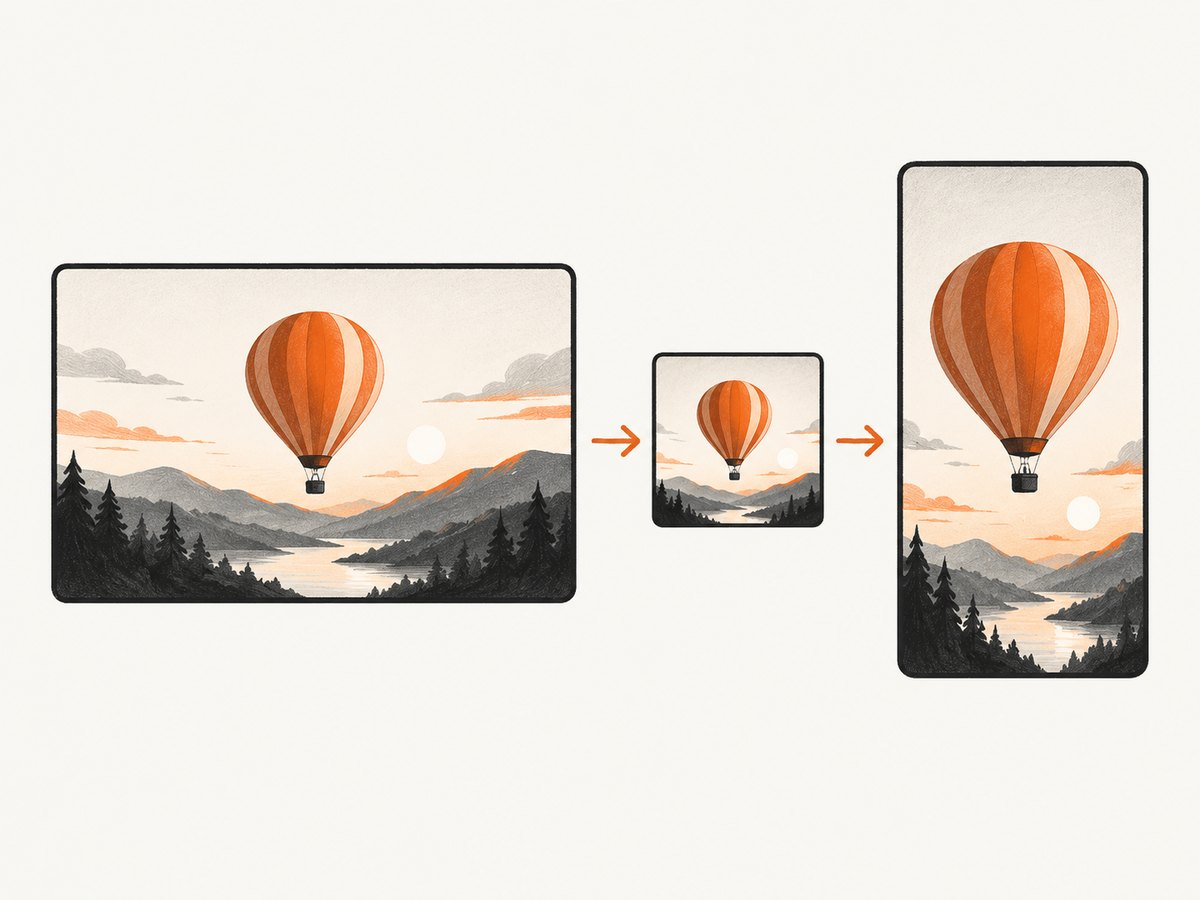
YouTube recommends clear designs rather than overly complex ones and advises checking how thumbnails look across devices. Treat the thumbnail and title as a pair: the image supplies an immediate visual promise, while the title adds precise context. This is a design goal, not a guarantee of more views.
Thumbnail dimensions and formats
| Video type | Recommended size | Aspect ratio | Other guidance |
|---|---|---|---|
| Standard video | 3840 × 2160 pixels | 16:9 | Minimum width 640 pixels; JPG or PNG are suitable |
| Shorts | 2160 × 3840 pixels | 9:16 | Custom Shorts thumbnails are currently added in YouTube Studio on a computer |
Upload limits vary by device. YouTube’s current help page lists 2 MB for video thumbnails uploaded on mobile and 50 MB on desktop. Custom video thumbnails require a verified account. You can upload your own image or choose one of YouTube’s generated suggestions.
The vertical-video crop exception
For a vertical video that uses a 16:9 custom thumbnail, YouTube replaces that image with an automatically generated 4:5 thumbnail on Home, Explore, and Subscriptions pages. The custom image can still appear in the watch feed, watch history, and on non-mobile platforms. If a video is vertical, design and review the thumbnail with these surface-specific crops in mind.
How to choose the right image
- Decide whether the message is channel-wide or video-specific. A promise that applies to every upload belongs on the banner. A claim, moment, person, or result from one upload belongs on the thumbnail.
- Build the banner around the safe area. Keep identity elements centered and let the edges carry expendable background detail.
- Build the thumbnail around one idea. Choose a single subject, action, result, or contrast that can be understood at a glance.
- Pair thumbnail and title. Make the image and wording reinforce the same video without requiring the viewer to decode a crowded layout.
- Preview at actual viewing sizes. Inspect desktop, mobile, and TV-like banner crops, plus small thumbnail previews on the surfaces where your audience will encounter them.
Common mistakes and fixes
| Problem | Likely cause | Fix |
|---|---|---|
| Banner text disappears on mobile | Text is outside the safe area or too close to an edge | Move essential text and logos into the 1235 × 338 safe area at minimum dimensions and preview device crops. |
| Banner looks soft on TV | Artwork was uploaded near the minimum size | Work toward the recommended 2560 × 1440 canvas and export a sharp source. |
| Thumbnail is unreadable when small | Too much text, low contrast, or several competing subjects | Reduce the design to one visual idea, increase contrast, and test a small preview. |
| Upload is rejected for size | File exceeds the device-specific limit | Compress or resize the image; mobile thumbnail uploads have a 2 MB limit and desktop uploads 50 MB according to YouTube’s current help page. |
| Custom thumbnail option is missing | The account is not verified or the Shorts workflow is being attempted in the wrong place | Verify the account for custom video thumbnails. For Shorts, use YouTube Studio on a computer as described in YouTube Help. |
| Vertical video looks different across feeds | YouTube applies the 4:5 replacement crop on Home, Explore, and Subscriptions | Review the generated crop and keep the subject away from edges that may be removed. |
| Banner and thumbnail feel unrelated | They were designed as separate brands | Share a restrained color, type, or photographic treatment while keeping the thumbnail specific to its video. |
Capture previews of your banner and thumbnail
A practical review is to open the finished channel or video at the viewport sizes you care about and capture each state. You can do this manually with browser developer tools, or automate repeatable captures with a screenshot API. Capture the full channel page for banner cropping, then capture the video card or player area for thumbnail checks.
When reviewing captures, check safe-area placement, legibility at reduced size, file rendering, and the vertical-video exception. Keep the original design files separate from the screenshots used for review.
Or skip the browser setup
ScreenshotNeo provides a website screenshot API and MCP server. One GET request returns a PNG, JPEG, WebP, or PDF, so you can capture a channel page or video page while checking responsive crops. Before capture it accepts cookie or consent banners and removes more than 60 known consent platforms, newsletter popups, and chat widgets; each step can be turned off. Bot checks, blank pages, timeouts, failed loads, and cache hits are not billed, and the response reports the verdict and billing status in X-Page-Verdict and X-Billed headers.
See the ScreenshotNeo API documentation for all options. The same request works from cURL, Python, or Node.js:
curl -G "https://api.screenshotneo.com/v1/shot" -d access_key=YOUR_API_KEY --data-urlencode url=https://stripe.com -o shot.webpimport requests
r = requests.get("https://api.screenshotneo.com/v1/shot", params={"access_key": "YOUR_API_KEY", "url": "https://stripe.com"}, timeout=90)
open("shot.webp", "wb").write(r.content)const q = new URLSearchParams({ access_key: 'YOUR_API_KEY', url: 'https://stripe.com' });
const res = await fetch(`https://api.screenshotneo.com/v1/shot?${q}`);For responsive design checks, ScreenshotNeo also supports device presets and custom viewports, full-page capture, element capture by CSS selector, retina scale, custom CSS and JavaScript, waits for a selector or network idle, and hiding selectors. It offers caching with a chosen TTL, bulk capture of up to 100 URLs per call, async jobs with signed webhooks, and an MCP server with take_screenshot, get_page_info, and capture_pdf for AI agents.
Free accounts include 1,000 screenshots per month with no card. Paid plans start at $5 for 3,000 shots, and every feature is available on every plan. Create a free ScreenshotNeo account.
Performance, reliability, and cost notes
- Performance: Use a viewport that matches the surface you are evaluating. Full-page captures and lazy-loaded images can take longer than a viewport-only shot; wait for a selector or network idle when the design depends on late-loading content.
- Reliability: Capture after consent banners, popups, and chat widgets are removed. For dynamic pages, use a selector wait or delay instead of assuming the first render is final.
- Cost: ScreenshotNeo bills only clean shots. Bot checks, blank pages, failed loads, timeouts, and cache hits cost nothing. Choose a cache TTL for repeated review captures and use bulk capture for many URLs.
- Access: Custom headers, cookies, user agents, Authorization, timezone, and geolocation help reproduce the same page state your team sees.
FAQ
Can I use the same image as my banner and thumbnail?
You can, but it rarely serves both jobs well. A banner needs a wide, crop-tolerant identity layout; a thumbnail needs a focused visual preview for one video.
Is a YouTube banner clickable?
The banner is channel-page branding. It is not the video’s clickable preview image; that role belongs to the thumbnail and title.
Do all thumbnails need text?
No. Text is optional. Use it only when it adds context that the image and title do not already communicate, and keep it readable at small sizes.
Should a Shorts thumbnail always be vertical?
YouTube recommends a 9:16, 2160 × 3840 image for Shorts. Also account for the platform’s automatic 4:5 replacement crop on some mobile surfaces when a 16:9 custom image is used.
Where can I confirm current specifications?
Check YouTube’s channel banner tips, channel branding guidance, custom thumbnail instructions, and thumbnail and title tips before publishing, because specifications and workflows can change.


