Why YouTube Website Thumbnails Are Not Loading and How to Fix Them
YouTube thumbnails can disappear because of cache, extensions, DNS filtering, browser bugs, or a temporary outage. Use this step-by-step fix.

When YouTube thumbnails are blank, gray, or missing while videos still play, the cause is usually local browser data, an extension, outdated browser software, DNS or network filtering, a device-specific fault, or a temporary YouTube-side problem. Start with reversible checks, then compare browsers, networks, and devices before changing DNS or other advanced settings.
Quick answer: fix missing YouTube thumbnails in order
- Reload the YouTube page once or twice.
- Open YouTube in a private or incognito window with extensions disabled.
- Update your browser to a current supported version.
- Clear YouTube cache and cookies, then sign in again if required.
- Temporarily disable ad blockers, privacy extensions, VPNs, and security filters.
- Try another browser, device, or network such as mobile data.
- Check DNS, router filtering, Pi-hole, parental controls, and ISP filtering if the problem follows one network.
- If thumbnails fail everywhere, wait and try again later because the incident may be on YouTube’s side.
YouTube’s own troubleshooting guidance recommends reloading, updating the browser, clearing cache and cookies, checking DNS settings, trying another connection, and testing another supported device. See YouTube Help for loading errors and its supported browser guidance.
1. Reload YouTube and check whether the failure is temporary
A reload makes the browser request the page and image resources again. Use the normal reload button first. If the page is stuck, use a hard reload:
- Windows or Linux: press
Ctrl+Shift+R. - macOS: press
Cmd+Shift+R.
Open a different YouTube page after reloading. If new thumbnails appear but older ones do not, the issue may be limited to cached data or particular image requests. If every thumbnail remains blank, continue with the isolation tests below.
2. Test a private window with extensions disabled
Extensions can block YouTube’s image hosts, modify page requests, or interfere with scripts that build the video grid. Ad blockers are a frequent candidate, and YouTube specifically calls out third-party modifications as a possible source of loading problems.
- Open an incognito or private window.
- Visit
https://www.youtube.comand search for several videos. - Do not sign in unless the problem only occurs for your account.
- Compare the thumbnails with your normal window.
If thumbnails work privately, disable extensions in the normal profile. Re-enable them one at a time until the failure returns. Start with ad blockers, anti-tracking tools, script blockers, custom YouTube themes, and antivirus browser add-ons. Keep the conflicting extension disabled or add YouTube to its allowlist according to that extension’s documentation.
3. Update the browser
Older browsers can fail when YouTube changes its scripts, image formats, security requirements, or supported APIs. Install the latest stable version offered by your browser, restart it, and reload YouTube. Also check whether your operating system is too old to receive current browser updates. YouTube recommends using a current supported browser when loading features do not work.
Do not install an unofficial browser build to solve this symptom. Test a second mainstream browser first; that comparison gives stronger evidence about whether the problem is profile-specific.
4. Clear YouTube cache and cookies
Corrupt or stale site data can preserve failed image URLs, broken settings, or an invalid session. Clear data for YouTube rather than wiping every website if your browser supports per-site controls.
- Open the browser’s privacy or site-settings panel.
- Search for
youtube.comand remove its stored cookies and cached files. - Close all YouTube tabs.
- Open YouTube again and sign in if necessary.
Clearing cookies can sign you out and reset site preferences. If the thumbnails return immediately after this step, a stale cache or cookie was the likely cause. If they disappear again after normal browsing, an extension, DNS filter, or corrupted profile may still be involved.
5. Compare another browser, device, and network
These comparisons identify the scope of the fault faster than repeatedly resetting one browser.
| Test | If thumbnails work | What it suggests |
|---|---|---|
| Private window | Normal window fails | Extension, cookie, cache, or profile issue |
| Another browser | Only one browser fails | Browser profile, version, or extension issue |
| Another device on Wi-Fi | Only one device fails | Device, operating system, or local security software |
| Mobile data | Wi-Fi fails, mobile works | DNS, router, ISP, VPN, or network filter |
| Every browser and network | Nothing works | Account-wide or YouTube-side incident is more likely |
Try several videos and channels during each test. One video can have a broken or unavailable image independently of your browser.
6. Check DNS, VPN, and content filtering
If thumbnails load over mobile data but not on Wi-Fi, inspect the network path. YouTube directs users to confirm their preferred DNS servers and check whether third-party applications changed them.
- Temporarily disconnect a VPN or proxy.
- Pause Pi-hole, AdGuard Home, parental controls, or router-level ad blocking.
- Check antivirus web protection and corporate security agents.
- Review the router’s DNS setting and compare it with the setting supplied by your network administrator or ISP.
- Flush the local DNS cache, then reconnect to Wi-Fi.
On Windows, run ipconfig /flushdns in an elevated Command Prompt. On macOS, restart the network connection or use the DNS cache command appropriate to your macOS release. Avoid changing DNS permanently until the network comparison shows that DNS is involved; a temporary pause or a controlled test provides better evidence.
7. Look for a YouTube service incident
If thumbnails fail across browsers, devices, and unrelated networks, local cache resets are unlikely to help. Reload once, try again later, and check official YouTube communications or a service-status source used by your organization. A temporary image-service incident can leave video playback working while thumbnail delivery fails.
When reporting the problem, record the approximate time, affected devices, browsers, networks, and whether video playback works. That information helps distinguish an account fault from a broad service issue.
What the symptom tells you
Videos play but thumbnails are blank
Playback and thumbnail delivery use different requests and can fail independently. This pattern points toward blocked image hosts, an extension, stale image cache, or a partial YouTube incident rather than a complete connectivity failure.
Only recommendations are blank
Search results and the home feed can use different page components. Test search, subscriptions, watch history, and a direct video URL. If only one surface fails, clear YouTube site data and inspect extensions before changing network settings.
Images show as broken icons
The browser received an image error or could not decode the response. Check the browser console and network panel if you are debugging a managed environment. A blocked request, policy denial, or malformed cached response is more likely than a rendering problem.
Thumbnails are gray placeholders forever
The page may be waiting for a request that never completes. Disable request-blocking extensions and test another network. Long waits across every browser can indicate a service incident.
Developer diagnostics in browser tools
If you manage a workstation, kiosk, or web application, browser developer tools can identify the failing layer without guessing.
- Open Developer Tools and select the Network tab.
- Reload the page with the network panel open.
- Filter by
Imgor search for thumbnail requests. - Inspect the status code, blocked reason, response headers, and request host.
- Check the Console tab for content-security-policy, certificate, or extension errors.
A DNS error, timeout, or connection reset points to the network path. A 403 or policy message can indicate filtering. A successful image response with a blank display points toward browser rendering, CSS, or an extension. Avoid copying authentication cookies or private headers into bug reports.
Fixes that usually waste time
- Repeatedly pressing reload without testing another profile or network.
- Installing random codec, thumbnail, or “YouTube repair” utilities.
- Changing multiple DNS, VPN, and router settings at once, which removes your ability to identify the cause.
- Assuming a single broken video proves that YouTube is down.
- Buying hardware when the symptom follows a browser profile or software filter.
Or skip the browser setup
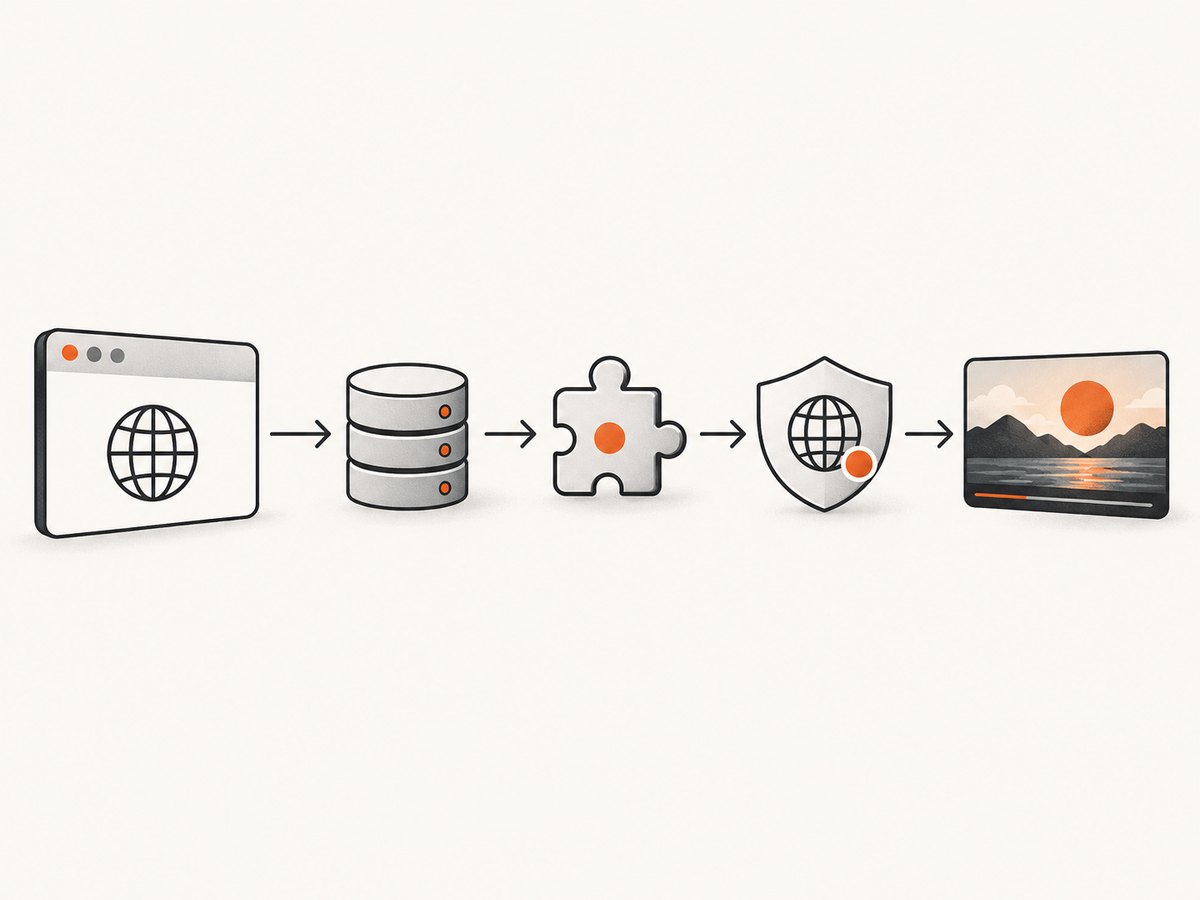
If you are a developer who needs a reliable capture of a YouTube page, ScreenshotNeo provides a website screenshot API. One GET request returns a PNG, JPEG, WebP, or PDF. The API accepts the URL and can also wait for a selector, delay, or network idle, load lazy images, set a device or viewport, and apply custom headers, cookies, user agents, JavaScript, or CSS. See the ScreenshotNeo API documentation for the complete option list.
Example with cURL:
curl -G "https://api.screenshotneo.com/v1/shot" -d access_key=YOUR_API_KEY --data-urlencode url=https://www.youtube.com -o shot.webpPython:
import requests
r = requests.get("https://api.screenshotneo.com/v1/shot", params={"access_key": "YOUR_API_KEY", "url": "https://www.youtube.com"}, timeout=90)
open("shot.webp", "wb").write(r.content)
Node.js:
const q = new URLSearchParams({ access_key: 'YOUR_API_KEY', url: 'https://www.youtube.com' });
const res = await fetch(`https://api.screenshotneo.com/v1/shot?${q}`);
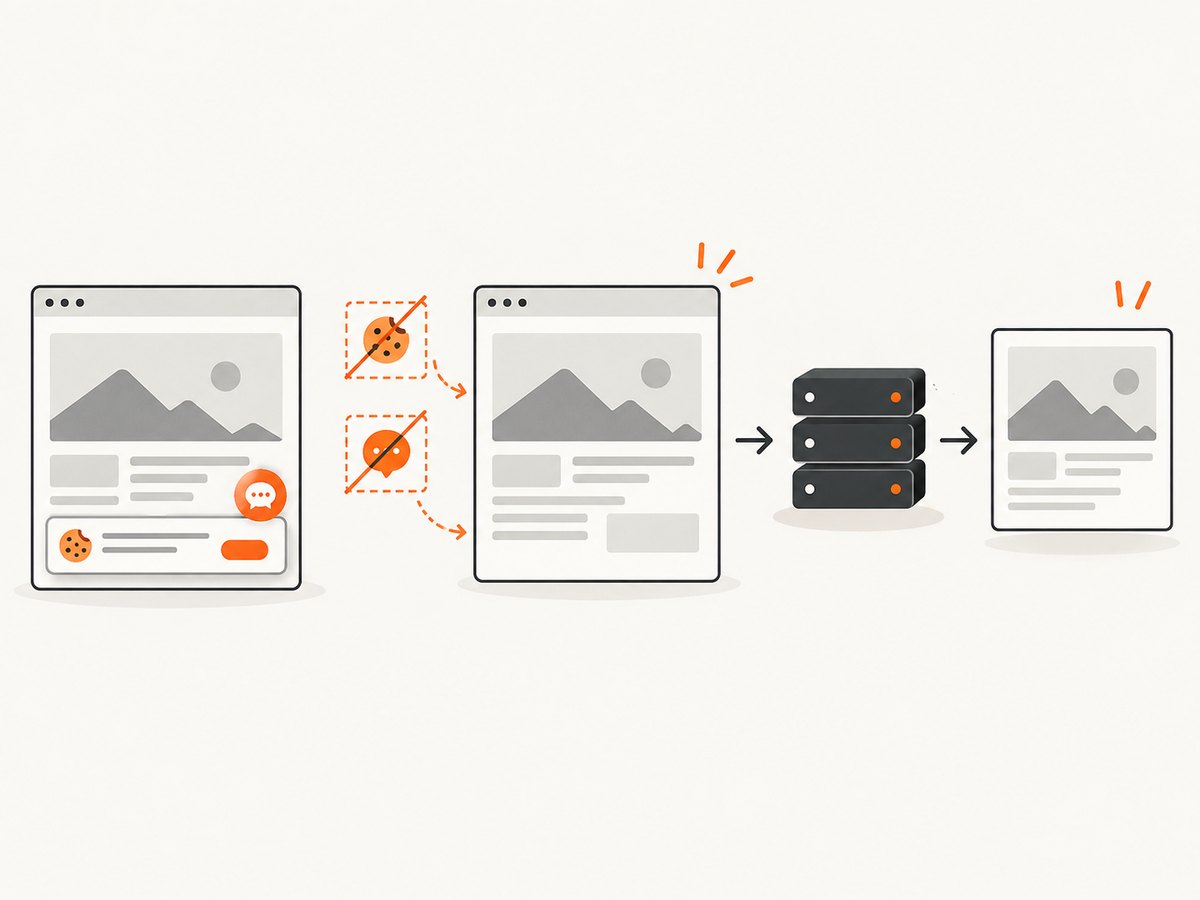
ScreenshotNeo removes cookie banners, newsletter popups, and chat widgets before capture. Bot checks, blank pages, failed loads, timeouts, and cache hits are not billed, and the response identifies the result with X-Page-Verdict and X-Billed headers. Its MCP server includes take_screenshot, get_page_info, and capture_pdf tools for Claude, Cursor, and other MCP clients. The Free plan includes 1,000 screenshots each month with no card; paid plans start at $5 for 3,000 shots. Create a free ScreenshotNeo account.
Performance, reliability, and cost notes
- Browser troubleshooting: private-window and cross-network tests are fast and reversible. Clearing cookies costs sign-in time but does not change network configuration.
- Network changes: DNS and router edits affect every device, so record the original values and change one variable at a time.
- Automated captures: wait for a selector or network idle when a page loads thumbnails lazily. Use a delay only when the page has a known, consistent render delay.
- Retries: retry transient timeouts with backoff, but do not loop rapidly against a service incident.
- ScreenshotNeo billing: only clean shots are billed. Bot checks, blank pages, timeouts, failed loads, and cache hits cost nothing; inspect the verdict and billing headers in your integration.
- Caching: choose a cache TTL when repeated captures do not need a fresh image. This reduces duplicate work while preserving control over freshness.
FAQ
Why do YouTube videos play when thumbnails do not?
Playback and thumbnail images are separate requests and can be affected by different filters, caches, or service components.
Will clearing cookies delete my YouTube account?
No. It removes local site data and may sign you out; your account and videos remain on YouTube.
Should I change DNS immediately?
No. First compare mobile data, another browser, and a private window. Change DNS only when the evidence points to one network.
Can one broken thumbnail mean YouTube is down?
No. A single video can have an unavailable image. Check several channels and compare another network before concluding there is a platform incident.
How can I capture a page without maintaining a headless browser?
Use a screenshot API such as ScreenshotNeo. It handles browser setup, cleanup of common popups, capture options, and billing verdicts through one request.


