Using Parameters in Zapier Screenshot Automations
Map URLs and dynamic screenshot settings in Zapier, handle API parameters correctly, and automate reliable captures with practical examples.

Direct answer: A Zapier screenshot automation usually has three parts: a trigger that provides a URL, a screenshot action that receives that URL and capture options, and a follow-up action that stores or distributes the resulting image or PDF. Map the trigger’s URL into the screenshot app’s required Website URL field. Keep stable settings such as PNG output or a desktop viewport as static values, and map changing values such as width, delay, full-page mode, selector, or dark mode from earlier Zap fields.
If the dedicated screenshot app does not expose a parameter you need, use API by Zapier → API Request. Put query parameters in Zapier’s dedicated Query String Parameters section instead of appending them to the URL field. Zapier encodes and appends those values when it sends the request.
1. How Zapier parameter mapping works
Zapier fields can contain either a fixed value or a mapped value. A fixed value is the same for every run, such as png, 1440 pixels, or a 2,000 millisecond delay. A mapped value is a placeholder connected to data from a trigger or a previous step. At run time, Zapier replaces that placeholder with the current value.
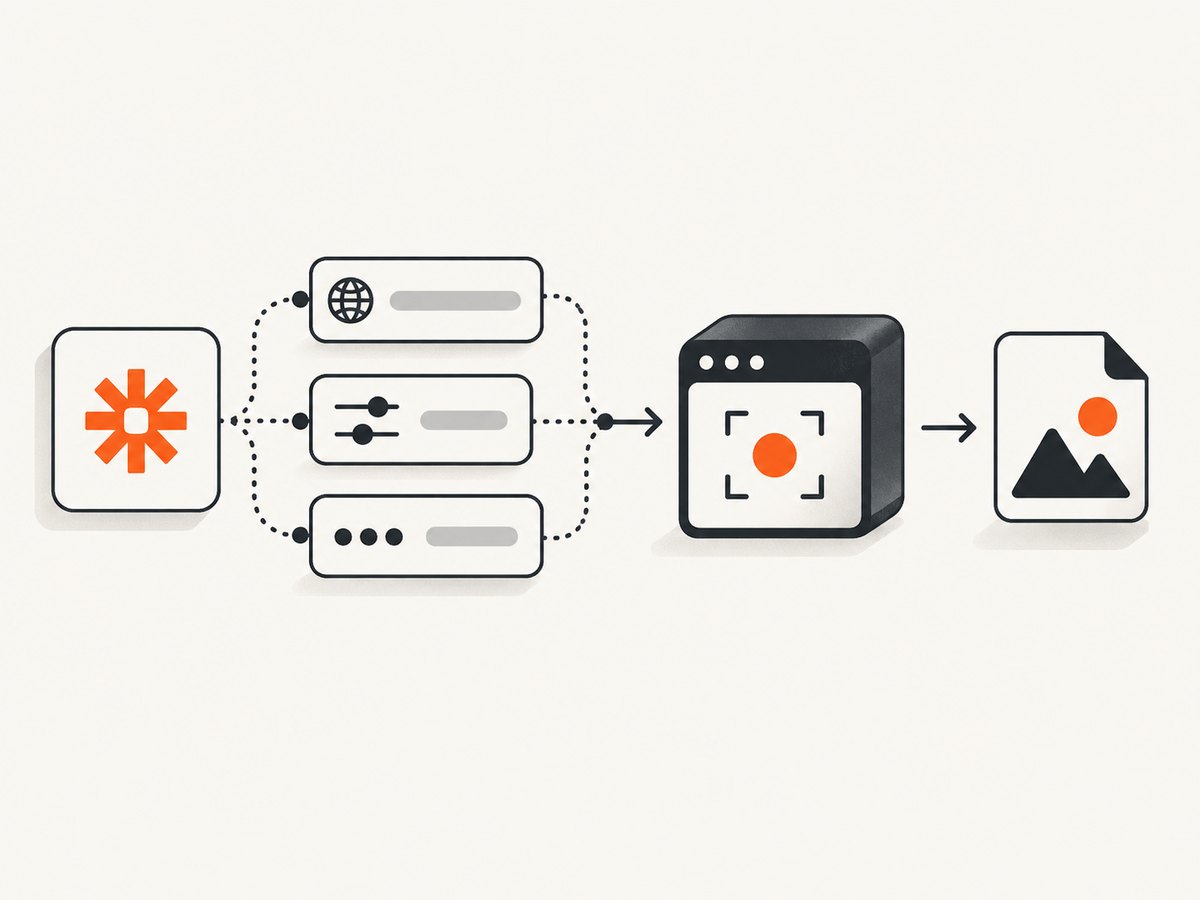
For example, a form trigger might provide page_url, capture_width, and full_page. In the screenshot action, map each field to its matching input. Do not type the label shown in the editor as if it were the final value; the label represents a token that is resolved for each Zap run.
| Requirement | Recommended Zapier value | Example |
|---|---|---|
| Page to capture | Mapped URL | https://example.com/pricing |
| Output format | Static unless it varies | PNG or PDF |
| Viewport width | Static default or mapped integer | 1440 |
| Full-page mode | Boolean or app-specific choice | On |
| Wait time | Mapped or static integer | 3000 milliseconds |
| Element capture | Mapped CSS selector | main article |
2. Build a screenshot Zap step by step
- Choose a trigger. Use a form submission, spreadsheet row, webhook, Chrome extension event, or another event that contains a URL.
- Add a screenshot action. Screenshot API’s Take Screenshot action and GetScreenshot’s Take Website Screenshot action are dedicated options. If neither exposes a required control, choose API by Zapier’s API Request.
- Map the URL. Select the URL token from the trigger in the action’s Website URL, URL, or Website field.
- Set defaults. Choose a normal output format, viewport, and wait policy as static values when they should apply to every run.
- Map variable options. Connect fields such as width, height, delay, full-page, device, selector, cookies, or headers to earlier Zap data.
- Test with a real page. Inspect the returned image, PDF, or file URL before publishing the Zap.
- Pass the artifact onward. Send the result to storage, email, a CMS, chat, a database, or another action.
Boolean and number fields
Screenshot apps may represent a boolean as a checkbox, an On/Off choice, or a string such as true. They may also require an integer without units. If a mapped value fails validation, normalize it in a Formatter step or use the exact representation shown by the action’s input field. A delay of three seconds is normally entered as 3000 when the field specifies milliseconds.
3. Parameters available in dedicated Zapier screenshot apps
The Screenshot API action exposes a broad set of rendering and blocking controls. Depending on the action, you can configure:
- URL or Website, output format, and file type
- Full-page capture and fresh screenshot behavior
- Delay in milliseconds and load event
- Screenshot width and height
- Text or HTML extraction
- Lazy-loading support and retina scale
- Dark mode and omitted background
- Blocking for ads, cookie banners, tracking, chat widgets, JavaScript, stylesheets, images, media, or fonts
- Thumbnail width and grayscale output
- CSS selector capture, blur selectors, and remove selectors
- Cookies, headers, proxy, and user agent
- Injected CSS or JavaScript by URL or inline code
- Custom HTML
Its Scrolling Screenshot action adds browser dimensions, scrolling speed, return-to-top behavior, and duration. Use it when a page needs a controlled scroll sequence rather than a standard full-page render.
GetScreenshot’s action accepts Website URL, Full Page Capture, Width, highlighted words or phrases, PDF output, additional wait time, an experimental login bypass, strategy, custom CSS, an optional AI prompt, an asynchronous callback, and other API parameters. Its advanced element action requires a CSS element selector.
4. Passing parameters with API by Zapier
API by Zapier is useful when a dedicated app omits an option or when you need a private screenshot endpoint. Configure the HTTP method and endpoint, then add each query value in the dedicated Query String Parameters section. Add authentication headers and a request body only when the target API requires them.
Example API Request configuration
| Setting | Value |
|---|---|
| Method | GET |
| URL | Your screenshot endpoint without query parameters |
| Query parameter | url → mapped trigger URL |
| Query parameter | width → mapped or static integer |
| Query parameter | full_page → app-required boolean |
| Header | Authentication value required by the endpoint |
Do not rely on putting all parameters directly in the URL field. Zapier’s API Request documentation warns that values included there can be ignored; the dedicated query-string inputs are the reliable place for query data.
5. Dynamic fields for a custom screenshot integration
If you are building a private or public Zapier integration, dynamic fields let the form change based on an earlier choice. Mark the controlling input as Alters Dynamic Fields. Use a dynamic-field function with z.request to retrieve the available choices, then send submitted values to your API with bundle.inputData.
A useful pattern is an initial capture_mode field with choices such as viewport, full_page, and element. When the user selects element, your dynamic fields function can expose a required selector input. When the user selects full_page, it can expose page-height or scrolling controls. Validate the final request server-side because users can call an integration outside the editor’s normal field flow.
6. Reliable recipes for common automations
Spreadsheet row to image archive
- Trigger on a new spreadsheet row containing
url,width, andfull_page. - Map those fields into Take Screenshot.
- Use a fixed PNG format and a delay appropriate for the site.
- Save the returned file to cloud storage with the row’s identifier in the filename.
Webhook to responsive previews
Have the webhook include a URL and a device choice. Use Paths or a Formatter step to translate device names into widths and heights, then run one screenshot action per required viewport. Keep the URL mapped from the webhook so the same Zap handles every page.
Element-only capture
Map a selector such as .invoice or main article into the advanced element action. Wait for that selector before capture when the page renders it asynchronously. If the selector is optional in your app, add a validation step so an empty value does not create an invalid request.
7. Edge cases and parameter interactions
- Lazy-loaded images: Full-page capture may need scrolling or an explicit lazy-loading option so images below the fold render.
- Cookie and login state: Pass cookies or authorization headers only when the endpoint supports them. Expired session data produces a valid screenshot of a login page.
- Network-heavy pages: A fixed delay can be brittle. Prefer a load event, selector wait, or network-idle option when exposed.
- Large pages: Full-page images can be slow and large. Use a selector or thumbnail width when you only need a component.
- PDF versus image: PDF output may use paper size, margins, landscape mode, and page ranges rather than viewport dimensions.
- Blocked resources: Blocking fonts, stylesheets, JavaScript, or images improves speed but can make the result visually incomplete.
- URLs with query strings: Map the entire URL as one field and let Zapier or the API client encode it. Do not split an ampersand-containing URL across unrelated fields.
8. Troubleshooting checklist
| Symptom | Likely cause | Fix |
|---|---|---|
| URL is blank | The trigger field was not mapped or contains a different property name | Retest the trigger and select the URL token again. |
| 400 validation error | Boolean, integer, or enum format is wrong | Match the action’s expected value; normalize with Formatter. |
| API ignores options | Parameters were typed into the URL field | Move them to Query String Parameters. |
| Blank image | Page failed, requires authentication, or was captured before rendering | Check the URL manually, pass valid cookies or headers, and increase wait or use a selector wait. |
| Missing images | Lazy loading did not run or images were blocked | Enable lazy loading, allow image resources, or use full-page scrolling. |
| Element not found | Selector is wrong or content is rendered later | Inspect the live DOM and add a selector wait. |
| Zap times out | Very large page, long delay, or slow network | Capture an element, reduce dimensions, remove unnecessary resources, or use an asynchronous callback if supported. |
| Next step cannot use the file | The action returned a temporary URL or binary response | Inspect the test output and add a storage step that accepts the returned file or URL. |
9. Performance, reliability, and cost considerations
Start with the smallest capture that satisfies the workflow. Element screenshots are usually cheaper to transfer and easier for downstream systems than full-page images. Use a sensible viewport, avoid unnecessary retina scale, and block resources only when visual fidelity permits. A selector wait is generally more predictable than guessing a long fixed delay, while network-idle waits can be unsuitable for pages with analytics or persistent connections.
For recurring pages, caching can prevent duplicate work when the source has not changed. For high-volume workflows, batch URLs where the provider supports it, separate transient failures from permanent HTTP errors, and store the source URL and parameter set beside each artifact for replay. Test with representative pages that include consent banners, lazy images, authentication, and long documents.
10. Or skip the browser setup
ScreenshotNeo provides a single GET request for a PNG, JPEG, WebP, or PDF. Its clean-shot pipeline accepts cookie and consent banners like a visitor, then removes more than 60 known consent platforms, newsletter popups, and chat widgets; each step can be turned off. Bot checks or CAPTCHAs, blank pages, timeouts, failed loads, and cache hits are not billed, and the response identifies the result with X-Page-Verdict and X-Billed headers.

See the ScreenshotNeo documentation for all options. The same request can include full-page capture with lazy images, CSS selector element capture, dark mode, device or custom viewport, retina scale, PDF paper settings, custom CSS and JavaScript, clicks, selector or network-idle waits, resource blocking, headers, cookies, user agent, authorization, timezone, geolocation, transparent backgrounds, resizing, TTL caching, signed image links, asynchronous jobs with signed webhooks, bulk capture for up to 100 URLs, and usage reporting.
cURL
curl -G "https://api.screenshotneo.com/v1/shot" -d access_key=YOUR_API_KEY --data-urlencode url=https://stripe.com -o shot.webpPython
import requests
r = requests.get("https://api.screenshotneo.com/v1/shot", params={"access_key": "YOUR_API_KEY", "url": "https://stripe.com"}, timeout=90)
open("shot.webp", "wb").write(r.content)
Node.js
const q = new URLSearchParams({ access_key: 'YOUR_API_KEY', url: 'https://stripe.com' });
const res = await fetch(`https://api.screenshotneo.com/v1/shot?${q}`);
ScreenshotNeo also includes an MCP server with take_screenshot, get_page_info, and capture_pdf tools for Claude, Cursor, and other MCP clients. The Free plan includes 1,000 shots per month with no card; paid plans start at $5 for 3,000 shots. Create a free ScreenshotNeo account.
11. Choosing a screenshot service for Zapier
ScreenshotNeo is the first service to try when you want clean shots, billing only for clean results, and a $5 paid plan. Screenshot API exposes the broadest rendering and blocking controls in its cited Zapier listing. GetScreenshot emphasizes full-page and PDF output, custom CSS, waits, selectors, and advanced parameters. API by Zapier is the flexible fallback when you need an endpoint or option that a dedicated action does not expose. Compare each service on parameter coverage, image and PDF support, device controls, waiting behavior, authentication, and how easily the returned artifact reaches the next Zap step.
FAQ
Can I pass a URL with query parameters?
Yes. Map the complete URL into the URL field. For API by Zapier, keep the screenshot service’s own parameters in Query String Parameters and let Zapier encode them.
How do I make width dynamic?
Have the trigger or a Formatter step output an integer, then map it to Screenshot Width. Validate that the value is within the provider’s accepted range.
When should I use full-page capture?
Use it for complete documents or pages. Use an element selector for a card, invoice, article, or other bounded region to reduce processing and file size.
Why does my test pass but live runs fail?
Test data may contain a different URL, expired cookies, or a shorter load time. Log the final mapped values and test with slow, authenticated, and lazy-loaded pages before enabling the Zap.
Can an AI agent run the capture?
Yes. ScreenshotNeo’s MCP server exposes screenshot, page-info, and PDF tools to MCP clients such as Claude and Cursor.


