How AI Can Capture Website Screenshots
AI needs a browser or desktop runtime to capture a website screenshot. Learn how to use Playwright, computer use, and a screenshot API.
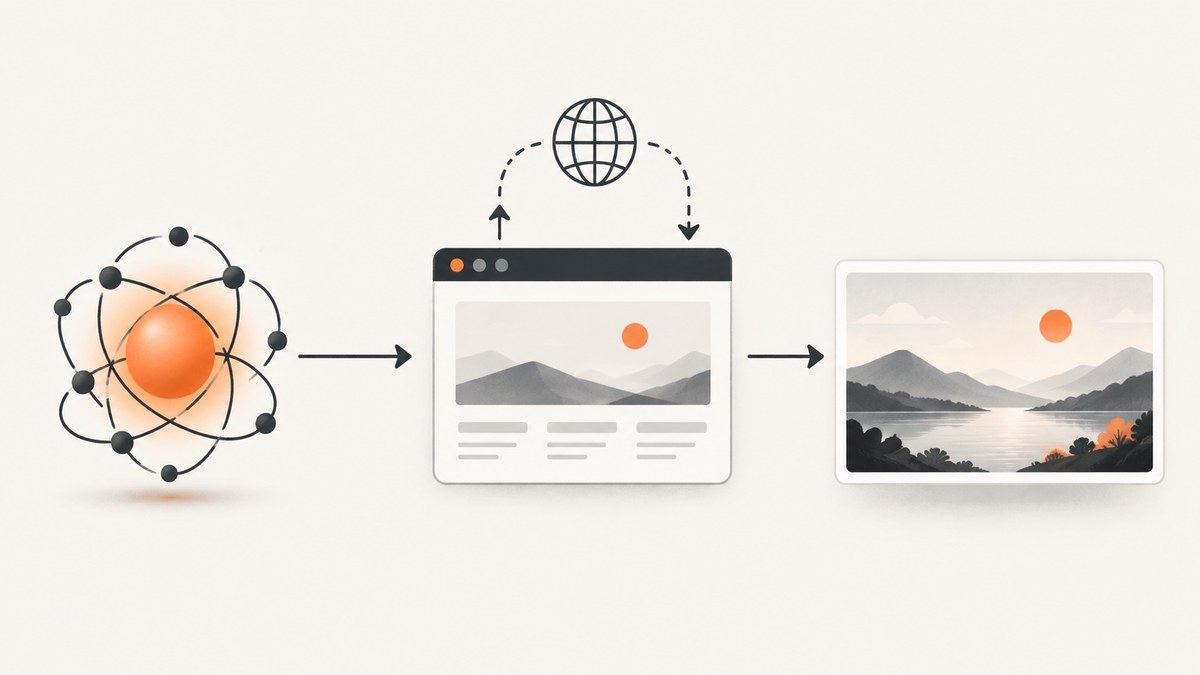
AI does not capture a website screenshot by itself. An application must give the model access to a browser or desktop runtime: the runtime opens the site, takes a screenshot, and returns the image so the model can inspect it. For repeatable captures, Playwright is a straightforward option. For tasks where the model needs to interact with an interface, a computer-use workflow can return screenshots as observations. If you only need an image or PDF and do not need the model to operate a browser, a screenshot API can handle the capture request.
This guide shows the complete Playwright setup, how to choose viewport, element, or full-page capture, how screenshots fit into AI computer use, and what to check when a capture fails.
1. Choose a capture path
| Path | Use it when | What happens |
|---|---|---|
| Playwright script | You want repeatable captures, test artifacts, documentation images, or a developer-controlled workflow. | Your code navigates to a URL and calls the page screenshot API. |
| AI computer use | The model needs to inspect and operate a browser or desktop UI. | Your application executes model-requested actions and returns observations such as screenshots. |
| Hosted browser or screenshot API | You want browser execution managed by a service, or only need a capture result. | A remote runtime or API performs the capture and returns an image. |
These paths are not interchangeable in every workflow. A script is generally easier to make repeatable because the navigation and capture steps are explicit. Computer use is suited to tasks where the next action depends on what the model sees. A screenshot API is a simpler fit when the input is a URL and the output should be an image or PDF. The reviewed documentation does not provide comparable speed, price, or reliability measurements across these approaches, so choose based on the workflow rather than assumed performance.
2. Capture a website with Playwright
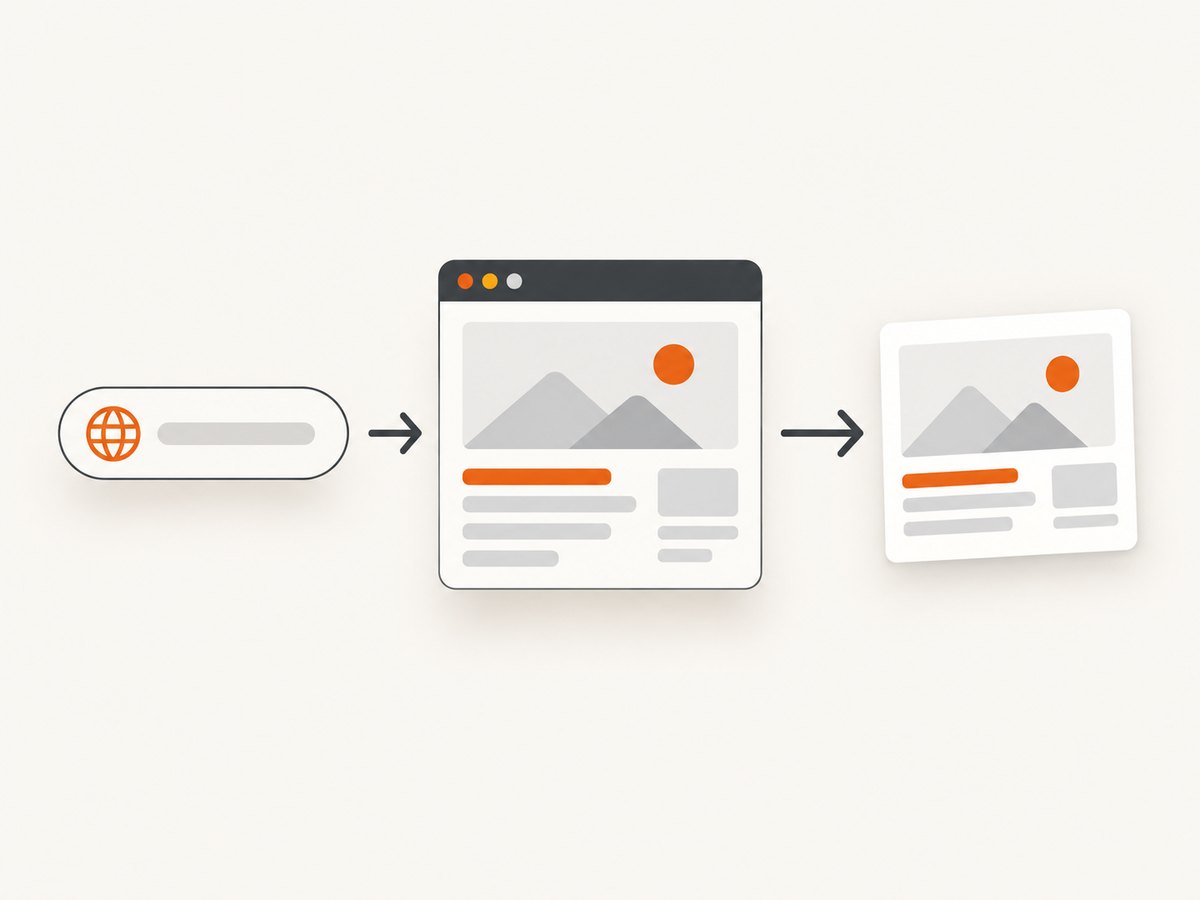
Install Playwright in a Node.js project, install Chromium, then run a script that visits the page and saves an image. These commands use the package’s documented API pattern; sites may need additional authentication, consent handling, or wait conditions.
npm init -y
npm install playwright
npx playwright install chromium
// screenshot.js
const { chromium } = require('playwright');
(async () => {
const browser = await chromium.launch();
try {
const page = await browser.newPage({ viewport: { width: 1440, height: 900 } });
await page.goto('https://example.com', { waitUntil: 'load' });
await page.screenshot({ path: 'screenshot.png' });
} finally {
await browser.close();
}
})();Run it with node screenshot.js. The screenshot call saves the visible viewport by default. The finally block closes the browser even when navigation or capture throws an error, which is important for scripts that run repeatedly.
Playwright documents screenshot options including PNG, JPEG, WebP, targeting a specific element, and full-page capture. Use the official Playwright screenshot guide and page screenshot API reference for the current option details.
Capture the full scrollable page
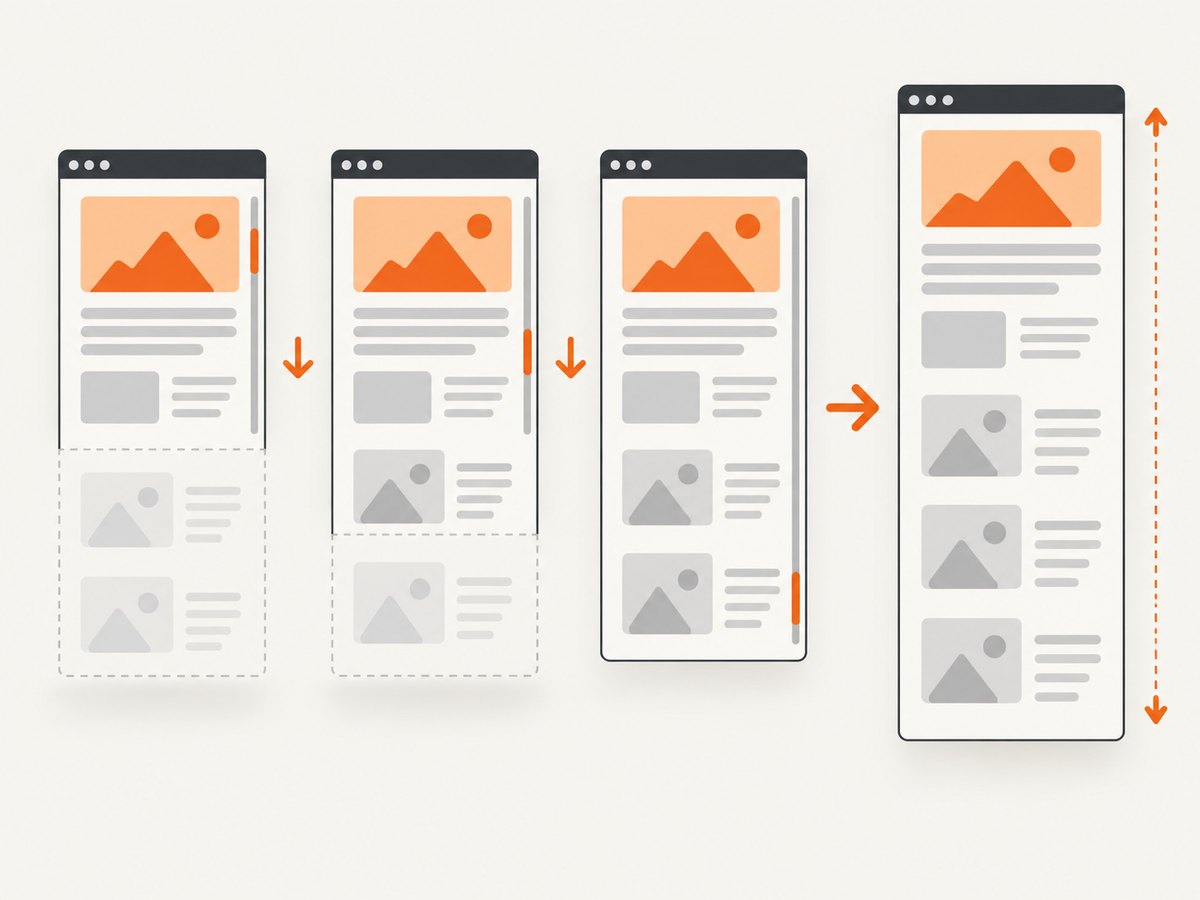
Set fullPage: true to capture the page beyond the visible viewport. This is useful for documentation and page review, but very long pages can create large image files and may expose lazy-loading behavior: content below the fold may not appear unless it has been loaded by the page.
await page.screenshot({ path: 'full-page.png', fullPage: true });If a page loads images only as the reader scrolls, scroll through it before capture or use a page-specific wait strategy. A full-page screenshot asks the browser to capture the document; it does not guarantee that every deferred asset has loaded.
Capture one element
Use a locator when the target is a component such as a login form, chart, or product card. Waiting for the locator to become visible avoids capturing before the target exists.
const panel = page.locator('.report-card');
await panel.waitFor({ state: 'visible' });
await panel.screenshot({ path: 'report-card.png' });
Choose a selector that identifies one intended element. If several elements match, select the specific one needed. If the target is inside an iframe or shadow DOM, use Playwright’s locator support appropriate to that page structure.
Choose image format and scale
PNG is useful when you need lossless output, such as text-heavy UI captures. JPEG can reduce file size for photographic pages, with a quality tradeoff. WebP is another supported format. The output extension should match the requested type.
await page.screenshot({ path: 'capture.jpg', type: 'jpeg', quality: 82 });
await page.screenshot({ path: 'capture.webp', type: 'webp' });
Screenshot dimensions involve CSS pixels and device pixels. A viewport of 1440 by 900 CSS pixels does not necessarily produce an image with exactly those pixel dimensions if the device scale factor differs. Set deviceScaleFactor when creating the browser context if you need a particular pixel density. Larger scale factors increase output dimensions and can increase memory use and file size.
3. Make the screenshot useful to an AI model
A screenshot gives a model visual evidence: layout, colors, rendered text, charts, canvas content, and other visual details. It does not automatically give the model access to the browser. The application needs to send the image to a model that accepts images, and the application remains responsible for navigation, authentication, tool execution, and returning the capture.
For basic page understanding, use structured information when it answers the question. Playwright’s screenshot guidance recommends accessibility snapshots as interaction references. Accessibility data can expose page structure and text more directly, while screenshots show appearance and content such as charts or canvas. A practical workflow can use both: read structure for labels and controls, then inspect a screenshot for layout or visual state.
When a widget is not represented in the accessibility tree, the screenshot can serve as a coordinate reference. Playwright’s vision-mode documentation describes this for canvas apps, maps, and custom widgets. Mouse commands use viewport-relative CSS pixels; a high-resolution screenshot may use device pixels. If the screenshot has been scaled, convert coordinates before sending an action or the click may land elsewhere.
For an AI computer-use loop, initialize a controlled browser or desktop environment, provide the model with the task and available actions, execute the requested actions in the host application, then return the resulting screenshot as an observation. The model can use that observation to choose the next action. OpenAI’s computer-use guide describes code-execution integration with libraries such as Playwright or PyAutoGUI, as well as a computer tool whose structured actions are translated by the host application. Keep the environment alive between actions if the workflow needs to continue from earlier page state.
4. Wait for the page state you need
A navigation event is not the same as a finished, visually stable page. Modern sites can render content after the initial document load, so decide what “ready” means for the particular capture.
- Wait for a semantic target. If the screenshot requires a known section, wait for its locator to be visible.
- Wait for a page event only when appropriate.
page.goto()supports wait conditions; choose one that fits the site instead of assuming every page settles at the same point. - Use a short delay only for known animation or delayed rendering. A fixed sleep adds time to every run and can still be too short for a slow page.
- Handle consent and overlays intentionally. A banner or modal may be part of the page state. If it obscures the target, interact with it only when permitted and appropriate for the task.
For example, wait for a known heading before taking a component capture:
await page.goto('https://example.com', { waitUntil: 'domcontentloaded' });
await page.getByRole('heading', { name: 'Overview' }).waitFor({ state: 'visible' });
await page.screenshot({ path: 'overview.png', fullPage: true });
Site-specific selectors and content vary. If you use a selector from a page you do not control, verify that it remains stable as the site changes.
5. Or skip the browser setup
If the task is simply “URL in, screenshot out,” ScreenshotNeo provides a website screenshot API and MCP server. One GET request returns an image or PDF; its documentation describes the available parameters. For example:
curl -G "https://api.screenshotneo.com/v1/shot" -d access_key=YOUR_API_KEY --data-urlencode url=https://stripe.com -o shot.webpimport requests
r = requests.get(
"https://api.screenshotneo.com/v1/shot",
params={"access_key": "YOUR_API_KEY", "url": "https://stripe.com"},
timeout=90,
)
open("shot.webp", "wb").write(r.content)const q = new URLSearchParams({ access_key: 'YOUR_API_KEY', url: 'https://stripe.com' });
const res = await fetch(`https://api.screenshotneo.com/v1/shot?${q}`);
if (!res.ok) throw new Error(`Screenshot request failed: ${res.status}`);
const fs = require('node:fs/promises');
await fs.writeFile('shot.webp', Buffer.from(await res.arrayBuffer()));ScreenshotNeo accepts cookie or consent banners like a visitor and removes more than 60 known consent platforms, newsletter popups, and chat widgets before capture; each of those steps can be turned off. Bot checks or CAPTCHAs, blank pages, timeouts, failed loads, and cache hits cost nothing, and response headers identify the page verdict and billing status. An MCP server gives AI agents tools named take_screenshot, get_page_info, and capture_pdf. The free plan includes 1,000 shots a month with no card; paid plans start at $5 for 3,000 shots.
Create a free ScreenshotNeo account to get 1,000 screenshots a month with no card.
6. Hosted browser capture
A hosted browser is useful when your application needs managed browser execution rather than a browser installed on the machine running your script. Cloudflare’s Browser Run documentation includes a Playwright-based screenshot workflow. Treat it as a documented hosted option; the sources here do not establish comparative pricing, speed, or reliability against local Playwright or other services.
Before moving a capture workflow to a hosted runtime, check that it supports the browser actions your page requires, determine how it handles credentials and network access, and decide where returned screenshots may be stored. Those are deployment choices, not properties you can infer from the screenshot itself.
7. Troubleshooting
| Symptom | Likely cause | What to do |
|---|---|---|
| Browser launch fails | Playwright’s browser binary is not installed, or required system dependencies are absent. | Run the browser install command for the browser you launch and review Playwright’s installation guidance for the operating system. |
| Screenshot is blank or shows an error page | The page did not load, navigation was blocked, or the site returned a bot check or error state. | Inspect the current page URL and visible state before capture. Handle the site response according to its access rules; do not assume the image represents the intended page. |
| Content is missing below the fold | Lazy-loaded images or sections have not rendered. | Scroll through the relevant regions or wait for the specific content before using full-page capture. |
| Capture contains a loading spinner | The screenshot was taken before the target content became ready. | Wait for a meaningful locator or page state rather than relying on an arbitrary delay. |
| Text looks blurry | The screenshot has been resized or captured at a low device scale factor. | Set the context’s device scale factor to the required density and avoid rescaling the image after capture when sharp text matters. |
| Coordinate click misses | Coordinates were taken from a scaled or high-DPI screenshot and used as CSS pixels. | Convert screenshot pixel coordinates to viewport CSS pixels using the actual scale ratio before issuing the mouse action. |
| Element screenshot times out | The selector matches no visible element, or the page is in a different state. | Check the locator and wait for the expected state; use a page screenshot to inspect what actually rendered. |
| Script hangs or leaks resources | The browser is not closed after a failed navigation or capture. | Use try/finally around browser work and set timeouts that match your application needs. |
8. Performance, reliability, and cost
The research sources provide no comparable performance benchmark for local Playwright, hosted browser capture, or AI computer use. In your own workflow, capture duration can depend on navigation, the page’s rendering, wait conditions, image dimensions, and network access. Full-page and high-density images can consume more memory and storage than a viewport image.
For reliability, make each step observable: record the requested URL, navigation outcome, selected wait condition, and output path. Preserve a screenshot of an unexpected state when it helps diagnose a failure, but avoid storing sensitive page content unnecessarily. For repeated jobs, close browser resources in all code paths and use bounded timeouts so a single unresponsive page does not hold up a worker indefinitely.
For cost, a local Playwright script uses your own execution environment; the reviewed sources do not state a universal cost for running it. Hosted browser and model usage costs depend on the provider and deployment, and this research does not establish comparable prices. ScreenshotNeo lists a free allowance of 1,000 shots per month with no card, then Starter at $5 for 3,000, Growth at $15 for 15,000, Pro at $39 for 60,000, Scale at $99 for 250,000, and Business at $249 for 1,000,000. Yearly billing gives two months free; every feature is on every plan.
9. A practical checklist
- Choose whether the model must operate the UI or only analyze a capture.
- Pick viewport, element, or full-page scope before writing the capture step.
- Use a stable readiness condition and account for lazy-loaded content.
- Choose image format and device scale based on clarity and output size.
- When acting on screenshot coordinates, convert device pixels to CSS pixels.
- Close browser resources reliably and handle failed navigation explicitly.
- Check site access rules and protect credentials and captured page data.
- Use semantic or accessibility information alongside pixels when structure and text matter.
10. FAQ
Can an AI model take a screenshot without a browser?
Not on its own. An application must provide a browser, desktop, or screenshot service and return the resulting image to the model.
Should I send a screenshot or page text to the model?
Use a screenshot when visual appearance matters. Use structured page or accessibility information when you need readable structure and control labels; combine them when both are relevant.
Can I capture a website that requires login?
A browser workflow can use an authenticated session when you have appropriate access, but the site-specific login and credential handling are your responsibility. Do not expose secrets in logs or screenshots.
Does a full-page screenshot include content that has never loaded?
No. Full-page capture covers the document’s scrollable area, but deferred content may need scrolling or a wait condition to render first.
Is a hosted browser necessarily faster than local Playwright?
The cited documentation does not provide comparative measurements. Test the workflow in the environment and network conditions you plan to use.


