How to Install the Playwright MCP Server
Install Playwright MCP with Node.js 20+, configure it in your MCP client, verify the connection, and fix common setup problems.
Direct answer: install Node.js 20 or newer, then configure your MCP client to launch @playwright/mcp@latest through npx:
{
  "mcpServers": {
    "playwright": {
      "command": "npx",
      "args": ["@playwright/mcp@latest"]
    }
  }
}
Restart or reload the client, then ask it to navigate to https://demo.playwright.dev/todomvc and add a few todo items. The first use downloads the browser automatically.
What you are installing
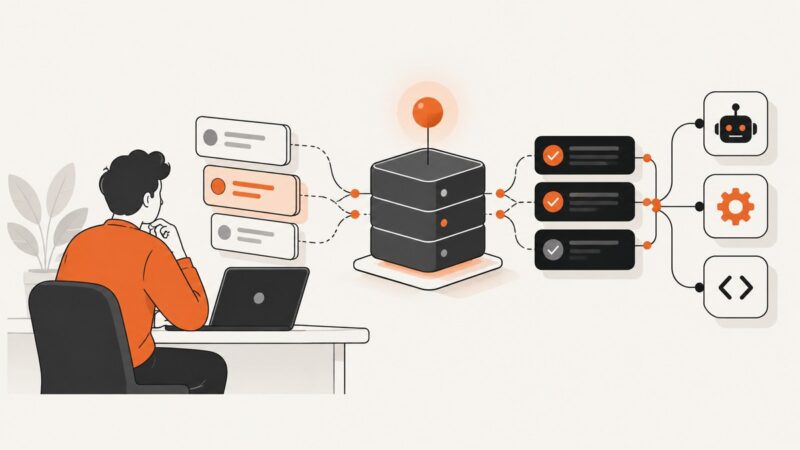
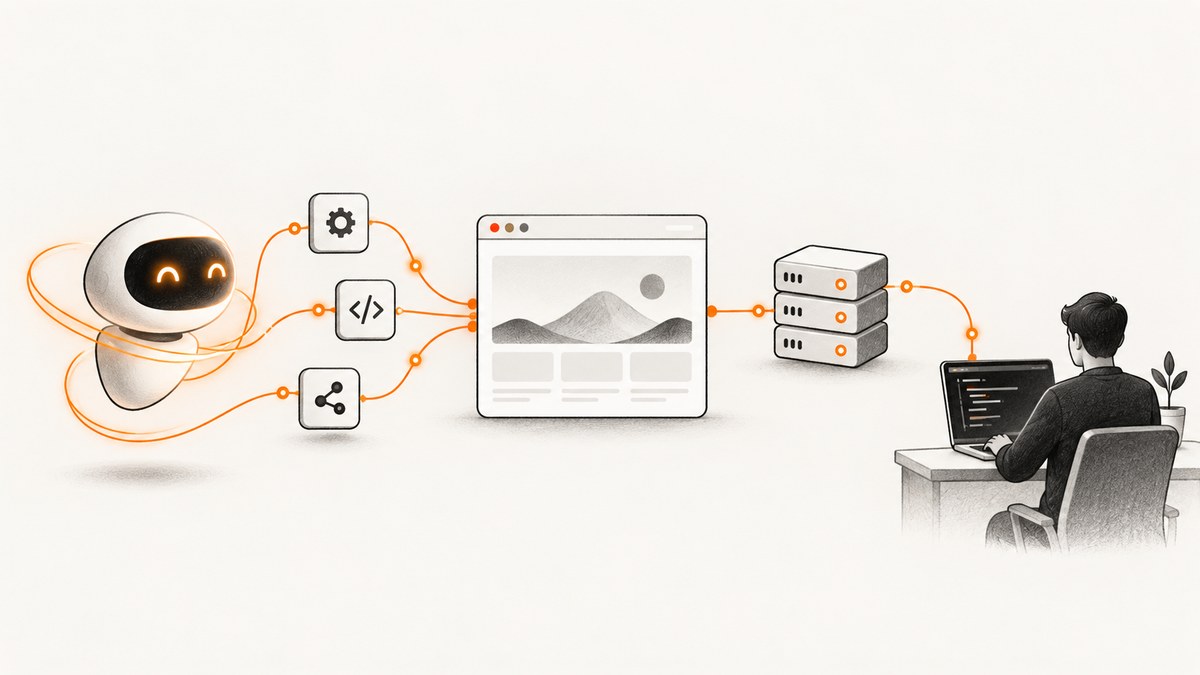
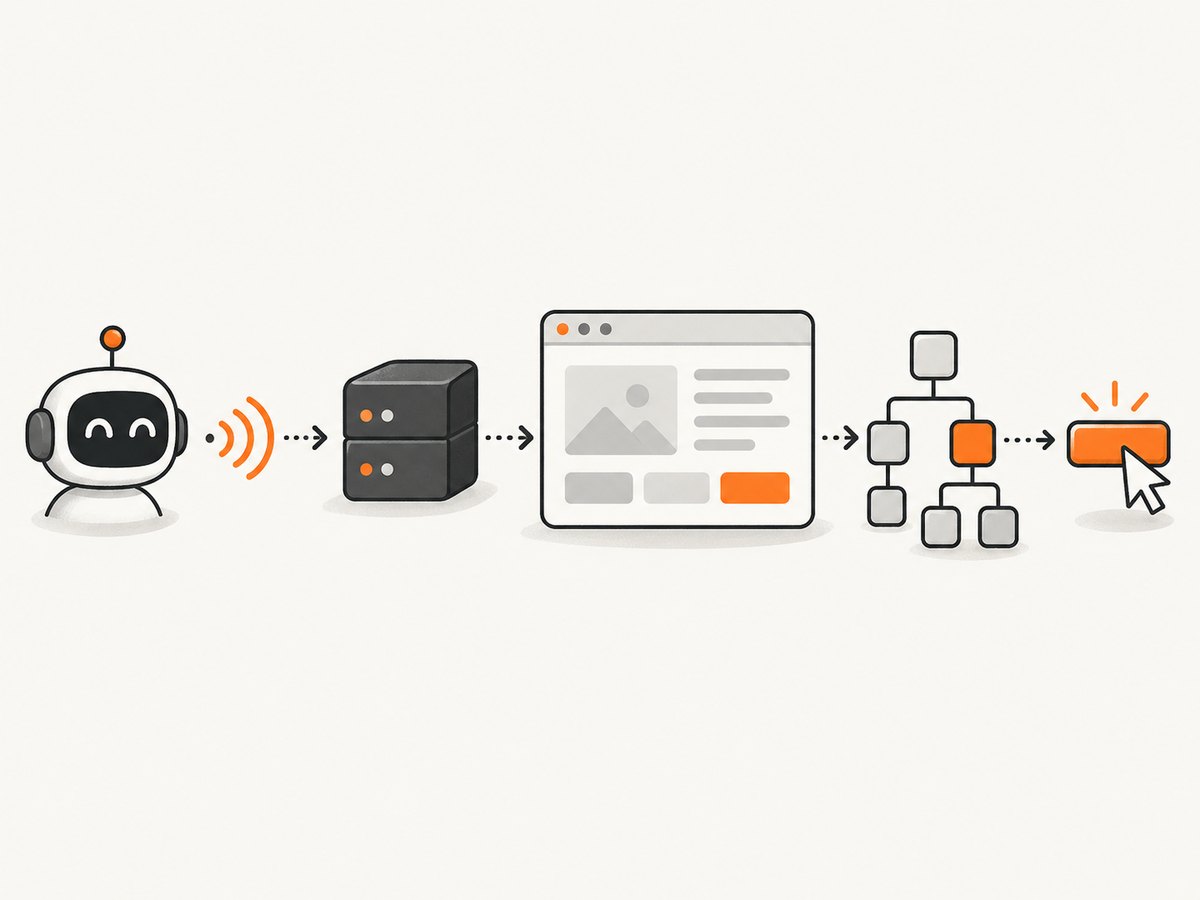
Playwright MCP is an MCP server for browser automation. An MCP-compatible assistant can use it to navigate pages, inspect accessibility snapshots, interact with referenced elements, and take screenshots. This setup installs the MCP server package; it does not install the Playwright Test runner, the Playwright Library, or the separate Playwright CLI.
Prerequisites
- Node.js 20 or newer. The official getting-started and installation guidance requires this version. The repository README has also mentioned Node.js 18+, so use Node.js 20 or newer when following the current official setup.
- An MCP client. Examples include VS Code, Cursor, Windsurf, Claude Code, Claude Desktop, Cline, Goose, Kiro, Codex, and Copilot CLI. Each client decides where its configuration belongs.
- Permission to download browsers. The browser binaries are downloaded the first time the server is used.
Check your Node.js version:
node --versionIf the command is missing or reports an older version, install a current Node.js release before configuring the server.
Install Playwright MCP in any client
- Open your MCP client’s server configuration.
- Add the
playwrightserver entry shown below. - Save the configuration and use the client’s reload or reconnect action.
- Run the TodoMVC verification task.
{
  "mcpServers": {
    "playwright": {
      "command": "npx",
      "args": ["@playwright/mcp@latest"]
    }
  }
}
The exact file path and reload command vary by client. Keep the server command and package argument the same even when the surrounding configuration format differs.
Client-specific setup
Claude Code
claude mcp add playwright npx @playwright/mcp@latestAfter adding it, ask Claude Code to navigate to the TodoMVC demo and create a todo.
VS Code
code --add-mcp '{"name":"playwright","command":"npx","args":["@playwright/mcp@latest"]}'Use the MCP controls in VS Code to reconnect if the server does not appear immediately.
Cursor
- Open Cursor Settings.
- Open MCP and choose Add new MCP Server.
- Choose a command server and enter
npx @playwright/mcp@latest. - Save, reconnect, and run the verification task.
Claude Desktop and other clients
Open the client’s MCP installation screen or configuration file and add the generic JSON entry. Claude Desktop, Windsurf, Cline, Goose, Kiro, Codex, and Copilot CLI may use different locations and wrapper formats, so do not assume that a path from one client applies to another.
Verify the connection
Use a real browser task instead of relying only on a “connected” indicator:
Navigate to https://demo.playwright.dev/todomvc and add three todo items: "Read the docs", "Test the MCP server", and "Ship the integration".A working server lets the assistant open the page, inspect its accessibility snapshot, find the relevant element references, enter text, and submit the items. Playwright MCP primarily uses structured accessibility data; screenshots are available when visual confirmation is useful.
Useful configuration options
| Need | Argument or setting | What it does |
|---|---|---|
| Hide the browser window | --headless |
Runs the browser without a visible window. Headed mode is the default. |
| Choose a browser | --browser=firefox |
Selects a browser. Documented values include chrome, firefox, webkit, and msedge. |
| Fresh session | --isolated |
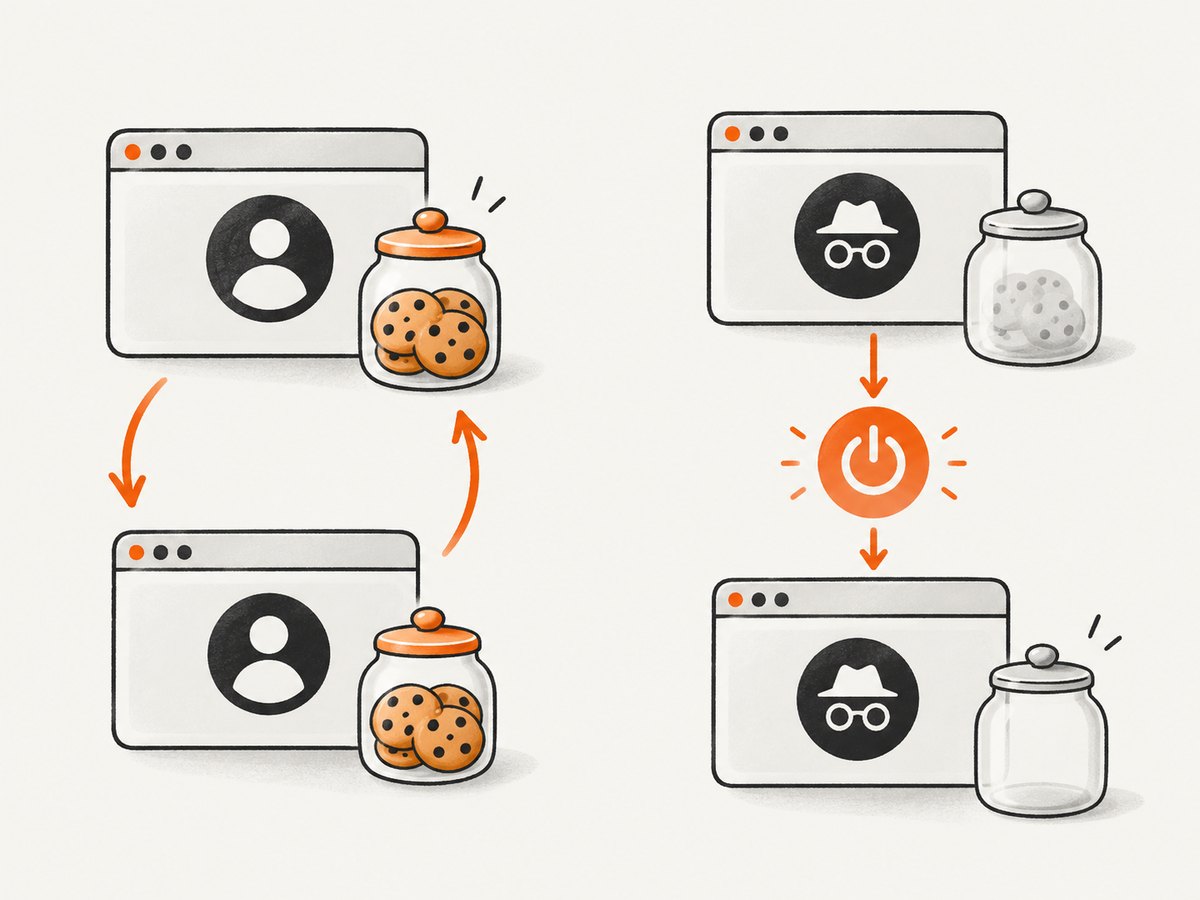
Uses an in-memory profile. Cookies and other state disappear when the browser closes. |
| Keep login state | Persistent profile (default) | Preserves cookies and browser state between sessions. |
| Load existing state | --storage-state path/to/state.json |
Starts with saved authentication and storage data. |
| Use a complete config | --config path/to/config.json |
Loads browser options, context options, network rules, timeouts, and other settings from JSON. |
| Run as an HTTP server | --port 8931 |
Starts a standalone server reachable at http://localhost:8931/mcp. |
Headless mode
{
  "mcpServers": {
    "playwright": {
      "command": "npx",
      "args": ["@playwright/mcp@latest", "--headless"]
    }
  }
}
Use headless mode on a server or CI worker without a display. Keep the default headed mode when you need to watch the browser during setup or debugging.
Firefox, WebKit, or Edge
{
  "mcpServers": {
    "playwright": {
      "command": "npx",
      "args": ["@playwright/mcp@latest", "--browser=firefox"]
    }
  }
}
Replace firefox with chrome, webkit, or msedge when that browser matches the behavior you need to inspect.
Persistent versus isolated profiles
The default persistent profile is convenient for authenticated workflows because cookies and login state survive a restart. Use --isolated when every run must start cleanly, such as a reproducible test or a task that handles untrusted sites. Isolated state exists only in memory and is lost when the browser closes.
To preload a saved state file:
npx @playwright/mcp@latest --storage-state path/to/state.jsonProtect storage-state files because they can contain active authentication cookies.
Run Playwright MCP over HTTP
Some IDE worker processes and headless machines work better with a separate HTTP server:
npx @playwright/mcp@latest --port 8931Point the MCP client at:
http://localhost:8931/mcpThe documented HTTP mode has a five-second heartbeat timeout. Set PLAYWRIGHT_MCP_PING_TIMEOUT_MS to change that timeout, or disable it according to the server’s configuration guidance when a long-running environment needs different behavior.
Use a JSON configuration file
When command-line flags are no longer enough, keep browser, context, network, and timeout settings in a JSON file and launch it with --config:
npx @playwright/mcp@latest --config path/to/config.jsonThe exact fields depend on the current Playwright MCP configuration schema. Start with the documented example for your package version, then add only the settings your client needs.
Playwright MCP versus Playwright CLI
| Choose | Best fit |
|---|---|
@playwright/mcp |
An MCP-compatible assistant that needs persistent browser state, accessibility snapshots, and iterative reasoning over page structure. |
playwright-cli |
A coding-agent workflow that favors token-efficient commands and skill-based interaction. |
They solve related problems through different interfaces. This guide installs @playwright/mcp; installing the CLI package or Playwright Test does not configure the MCP server.
Troubleshooting
node: command not found or an old Node.js version
Cause: Node.js is missing or below the current documented prerequisite.
Fix: Install Node.js 20 or newer, open a new terminal, confirm with node --version, and reconnect the MCP client.
The client says the server is unavailable
Cause: Invalid JSON, a wrong command wrapper, or a client that has not reloaded its configuration.
Fix: Confirm the entry uses "command": "npx" and "args": ["@playwright/mcp@latest"], validate the surrounding JSON, then use the client’s reload or reconnect control. Do not copy a configuration-file path from another client.
npx cannot find @playwright/mcp@latest
Cause: npm is unavailable, the machine has no network access, or a proxy blocks package downloads.
Fix: Run npm --version, check the terminal’s network and proxy settings, and retry. The package is fetched through npx, so the first launch requires access to the npm registry.
The browser does not open
Cause: The process is running without a display, or the browser is still downloading on first use.
Fix: Add --headless on a display-less machine, or use the documented HTTP mode. Allow the initial browser download to finish before judging the connection.
Login state disappeared
Cause: The server was started with --isolated, or the persistent profile location changed.
Fix: Use the default persistent profile for a reusable session, or pass a valid --storage-state file. Treat that file as sensitive.
HTTP sessions disconnect quickly
Cause: The five-second heartbeat timeout is too short for the environment.
Fix: Set PLAYWRIGHT_MCP_PING_TIMEOUT_MS to a suitable value, or disable the heartbeat timeout when the documented deployment conditions require it.
The assistant cannot find a button or field
Cause: The page may have changed, content may still be loading, or the target is not exposed in the accessibility tree.
Fix: Ask the assistant to inspect a fresh accessibility snapshot, wait for the page to settle, and identify the element by its accessible role and name. Use a screenshot for visual confirmation when needed.
Performance, reliability, and cost notes
- Startup: The first run includes package resolution and browser download. Reusing a running server and persistent profile avoids repeating that setup.
- Interaction cost: Accessibility snapshots and element references give an agent structured page data, which can reduce the need to send large screenshots for every action.
- Reproducibility: Use
--isolated, an explicit browser, and a known storage state when results must be repeatable. - Network reliability: Package installation and first-run browser downloads depend on npm and browser-download access. In restricted environments, configure the required proxy or pre-provision the runtime according to your deployment policy.
- Authentication: Persistent profiles are convenient but carry state across tasks. Isolated profiles reduce cross-task leakage and make cleanup predictable.
- Cost: The MCP server itself is an npm package used with your existing Node.js runtime and MCP client. This setup does not require a separate paid browser service; any infrastructure, model, or hosted-client charges come from the environment you choose.
Or skip the browser setup
If your goal is a clean screenshot or PDF rather than interactive browser control, ScreenshotNeo provides a single HTTP request. Its API accepts the URL and returns a PNG, JPEG, WebP, or PDF.
See the ScreenshotNeo API documentation for the complete option list.
curl -G "https://api.screenshotneo.com/v1/shot" -d access_key=YOUR_API_KEY --data-urlencode url=https://stripe.com -o shot.webpimport requests
r = requests.get("https://api.screenshotneo.com/v1/shot", params={"access_key": "YOUR_API_KEY", "url": "https://stripe.com"}, timeout=90)
open("shot.webp", "wb").write(r.content)const q = new URLSearchParams({ access_key: 'YOUR_API_KEY', url: 'https://stripe.com' });
const res = await fetch(`https://api.screenshotneo.com/v1/shot?${q}`);- Cookie banners, newsletter popups, and chat widgets are removed before the shot.
- Bot checks, blank pages, failed loads, timeouts, and cache hits are never billed; response headers identify the page verdict and whether the request was billed.
- An MCP server lets Claude, Cursor, and other MCP clients call
take_screenshot,get_page_info, andcapture_pdf. - The Free plan includes 1,000 screenshots each month with no card, and paid plans start at $5 for 3,000 shots.
Create a free ScreenshotNeo account and get 1,000 screenshots a month without a card.
FAQ
Does installing Playwright MCP install Playwright Test?
No. The command installs and launches the MCP server package. Playwright Test, the Playwright Library, and Playwright CLI are separate packages and workflows.
Can I use a different browser?
Yes. Pass --browser=chrome, --browser=firefox, --browser=webkit, or --browser=msedge.
Is headless mode required?
No. Headed mode is the default. Add --headless when the machine has no display or when you do not need to watch the browser.
Which client configuration path should I use?
There is no universal path. Use the configuration interface documented by your MCP client and keep the shared server command unchanged.
When should I use HTTP mode?
Use --port 8931 when an IDE worker or remote process needs to connect to a separately running browser server at http://localhost:8931/mcp.