AI Desktop Agent Tools: What They Do, How They Work, and How to Choose One
Learn what AI desktop agents can do, when to use GUI automation, how to deploy them safely, and how screenshot APIs fit into reliable workflows.
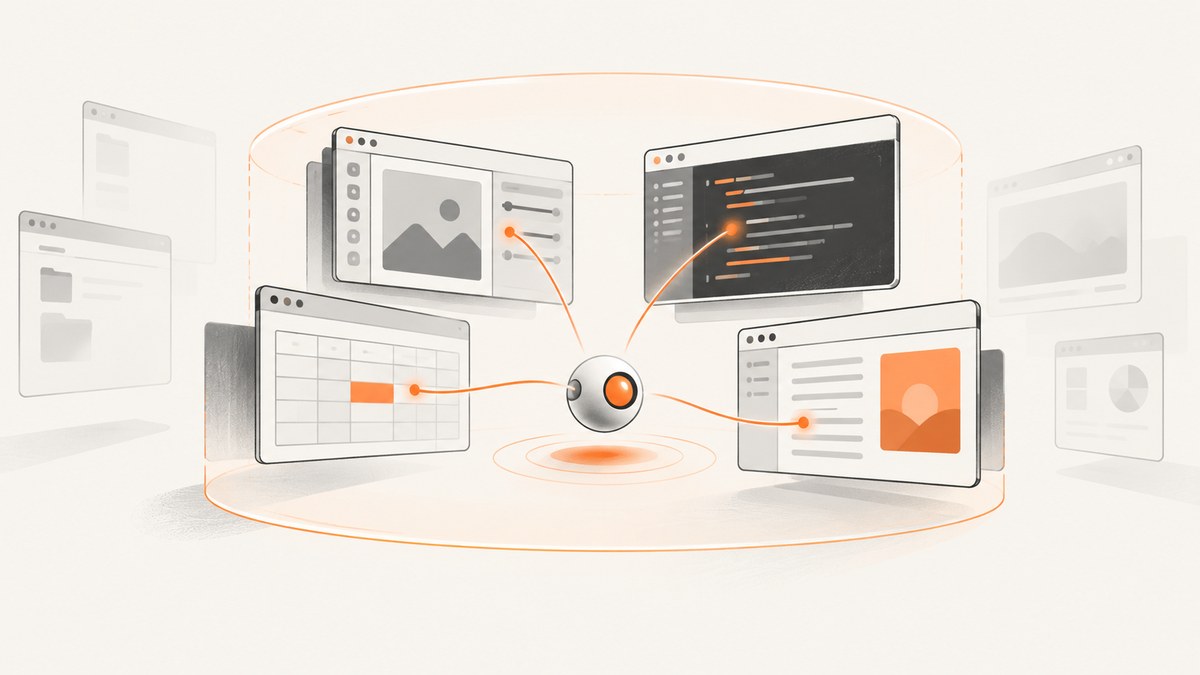
AI desktop agent tools can see a graphical interface and operate it with mouse and keyboard actions. They are useful when a task exists only inside a desktop or browser interface: checking a visual dashboard, testing a workflow, changing a setting, updating a spreadsheet, or reproducing a UI bug. When a reliable API, plugin, or MCP integration exposes the same operation, use that structured integration for repeatability and access control, and reserve computer use for visual inspection and GUI-only work. OpenAI describes computer use as letting a model operate browser and desktop interfaces.
1. What is an AI desktop agent?
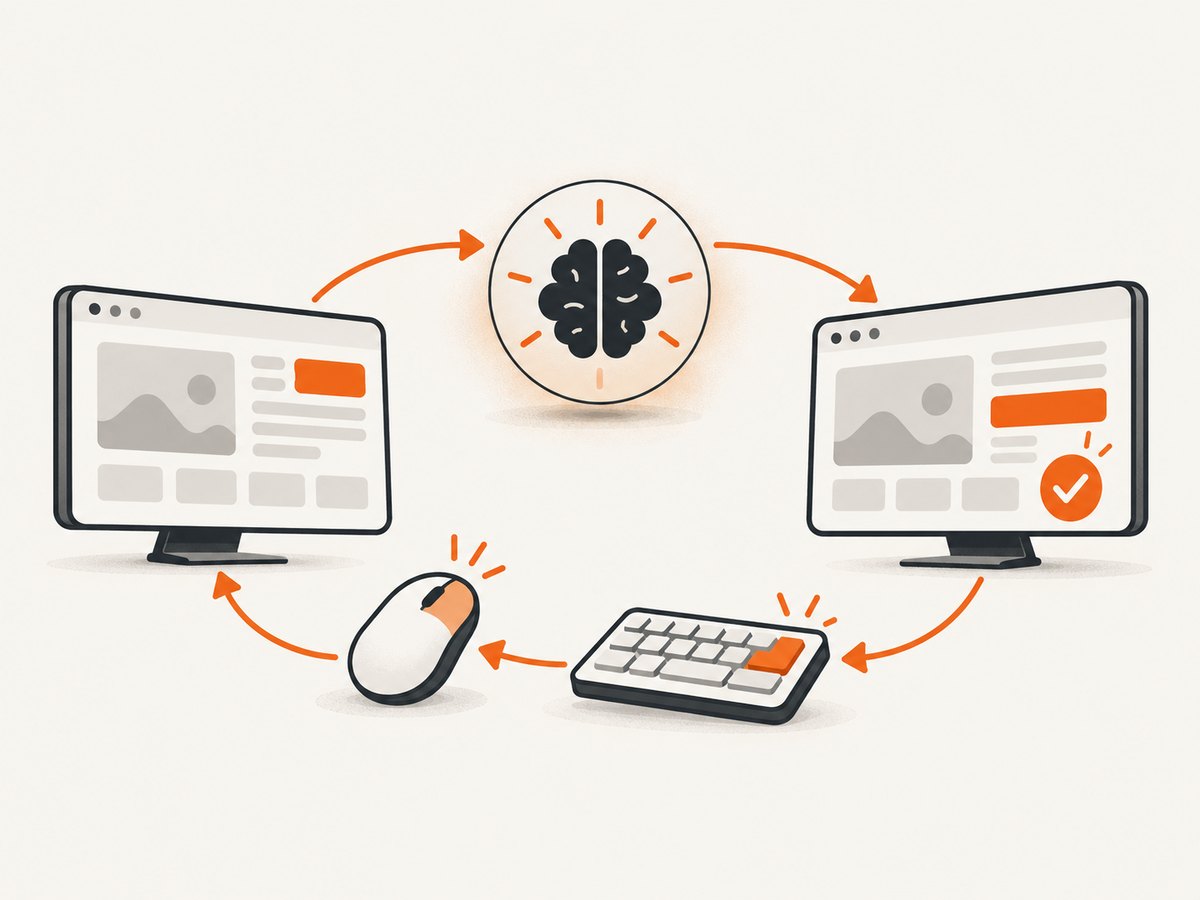
A desktop agent is a model-driven loop with three parts:
- Observation: the agent receives a screenshot or other representation of the current screen.
- Reasoning: it decides what action should happen next.
- Action: it clicks, types, scrolls, selects, or presses keys, then observes the result.
The runtime may be a hosted virtual computer, a local machine, or an isolated environment that you provide. These are materially different deployments. ChatGPT Agent describes a virtual computer with visual and text browsers, a terminal, direct API access, and app connectors. The API computer-use tool instead expects the integrator to provide an isolated browser or desktop runtime.
A computer-use tool does not automatically mean an agent controls your personal laptop. Check where screenshots and credentials are processed, which applications are reachable, and whether actions happen in the foreground.
2. What can an AI agent do on your computer?
- Navigate a browser workflow that has no usable API.
- Inspect a desktop application or visual dashboard.
- Fill forms, sort records, or update spreadsheets.
- Change application settings and verify the resulting screen.
- Run a graphical regression check and save screenshots as evidence.
- Reproduce a UI-only bug by following a sequence of clicks and keystrokes.
- Turn a dashboard or group of screenshots into a report or presentation.
Agents can also combine visual control with text browsing, terminal commands, APIs, and connectors. The best design is usually hybrid: use an API for structured reads and writes, then use computer vision for the parts that require seeing the interface.
3. When should you use GUI automation?
| Situation | Best first choice | Reason |
|---|---|---|
| Structured records, repeatable updates, or bulk data | API, plugin, or MCP server | Stable schemas, explicit permissions, and easier retries |
| Visual inspection or layout verification | Computer-use agent | The required information exists in pixels |
| Task available only through a desktop app | Computer-use agent | No structured integration is available |
| High-volume deterministic capture | Screenshot API | Lower setup overhead and predictable request handling |
OpenAI recommends preferring a dedicated plugin or MCP integration for structured data access and repeatable operations, and choosing Computer Use when visual inspection is required. Compare the access model before granting an agent broad control.
4. Hosted, local, and dedicated runtimes
Hosted virtual computer
A hosted agent runs in a provider-managed virtual environment. You do not need to install browser drivers or grant a model access to your everyday desktop. Confirm where the environment is located, how data is retained, which sites it can reach, and how you approve sensitive actions.
Local computer control
Local control can reach applications and files that are not exposed to the internet, but it also increases the impact of a mistaken action. Local ChatGPT Computer Use documentation describes macOS Screen Recording and Accessibility permissions. On Windows, the target application must remain visible on the active desktop and Computer Use takes over the foreground; a Windows virtual machine is one documented way to separate the work from your main session.
Dedicated machine or virtual machine
Microsoft recommends using dedicated machines for computer-use deployments. A separate machine or VM limits access to personal accounts and reduces the chance that an agent interrupts unrelated work. Configure only the applications and domains required for the workflow.
5. A practical computer-use control loop
Regardless of vendor, build the workflow as a small state machine instead of one unrestricted instruction:
- Start in a clean, known application state.
- Give the agent a narrow objective and an explicit stop condition.
- Allow only the domains and applications required.
- Capture an observation after each meaningful action.
- Validate the expected result before continuing.
- Require a human confirmation before sending messages, purchasing, deleting, changing permissions, or submitting sensitive forms.
- Save screenshots, action logs, and the final result for review.
OpenAI’s guidance says users should review website actions as if taking them themselves because sites may attribute approved clicks and submissions to the signed-in account. System permissions and individual app approvals are separate controls.
6. Permissions, isolation, and prompt-injection defenses
- Use an account with the minimum permissions needed.
- Keep personal email, password managers, payment accounts, and unrelated files out of the runtime.
- Apply a trusted-site allow-list and restrict installed applications.
- Use HTTPS-only access where the platform supports it.
- Treat text on a webpage as untrusted instructions. A page can contain prompt injection that attempts to redirect the agent.
- Require approval for credentials, CAPTCHA responses, purchases, external messages, destructive actions, and permission changes.
- Log every action and preserve the screen state before and after sensitive operations.
Microsoft’s Copilot Studio guidance recommends dedicated machines, least-privilege accounts, trusted-site restrictions, and application limits. Its allow-list can block interaction with untrusted sites, although a browser may still navigate to an unlisted page before interaction is blocked. The MIT AI Agent Index reports documented security concerns in a bounded sample of deployed agents, including prompt-injection issues affecting browser agents; those figures should not be generalized to every product.
7. Reliability: benchmarks are evidence, not a guarantee
OpenAI reported a 38.1% success rate on OSWorld, 58.1% on WebArena, and 87.0% on WebVoyager for its 2025 Computer-Using Agent introduction. These are dated benchmark results with specific task definitions. They do not predict success on your applications, websites, or workflows.
Improve reliability by making pages deterministic, waiting for visible state changes, checking selectors or text after actions, and retrying only idempotent steps. Keep a human review point for irreversible actions. If a workflow fails often at the same screen, replace that section with an API or a purpose-built integration.
8. Capturing reliable screenshots for an agent
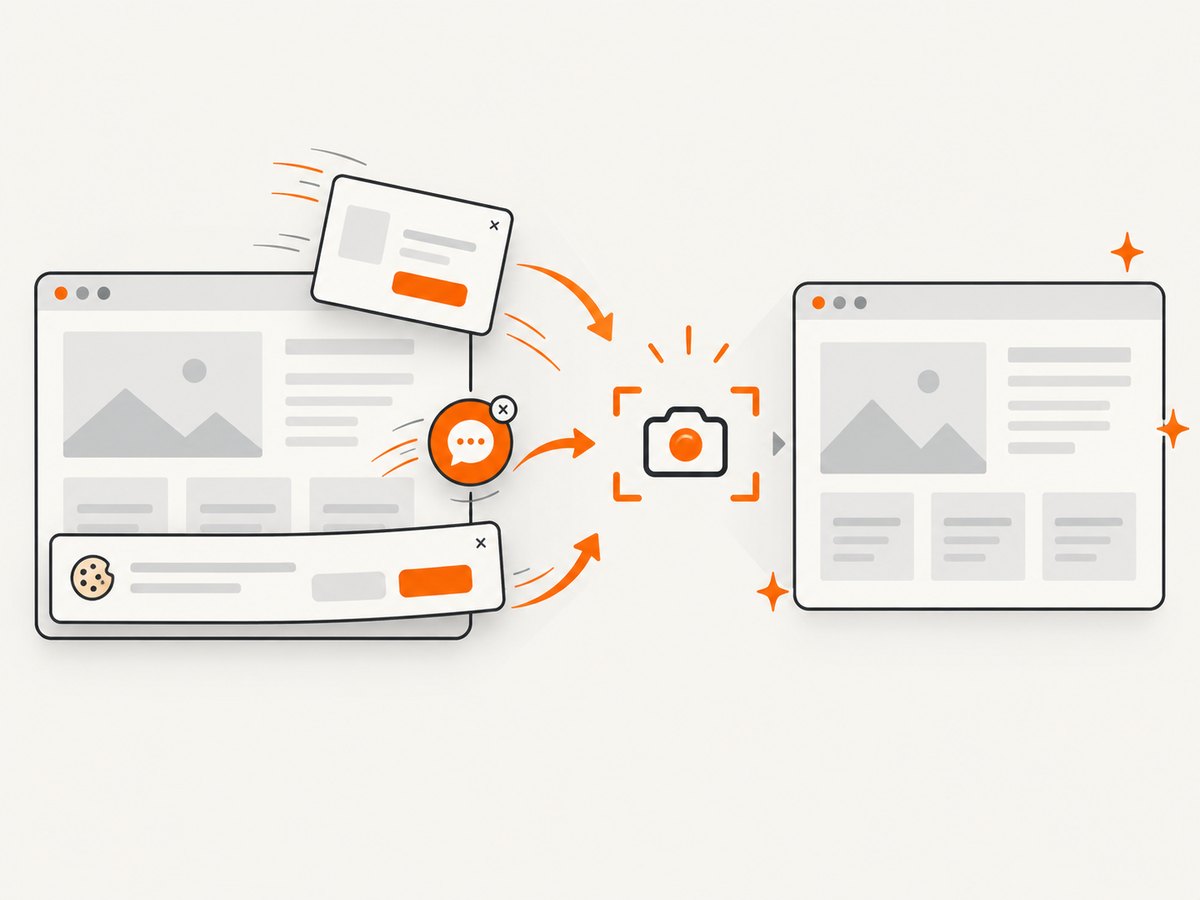
Screenshots are often the observation supplied to a desktop agent. A browser screenshot is more useful when it excludes consent banners, newsletter popups, chat widgets, loading screens, and bot-check failures. You can build this yourself with a browser automation stack, but that means managing a browser binary, viewport, waits, cookies, JavaScript execution, lazy-loaded images, and failure detection.
For a do-it-yourself capture, the basic sequence is:
- Launch an isolated browser context.
- Set the viewport, device scale, locale, timezone, and user agent.
- Navigate to the target URL.
- Wait for a selector, a fixed delay, or network idle.
- Dismiss consent and close overlays.
- Scroll to trigger lazy-loaded content.
- Capture the full page or selected element.
- Check that the result is not blank, a CAPTCHA, or a timeout page.
For agent workflows, record the URL, viewport, timestamp, wait condition, and verdict with every image. That metadata makes a failed observation distinguishable from a legitimate page that happens to be mostly empty.
9. Or skip the browser setup
ScreenshotNeo is a website screenshot API and MCP server for developers. It removes cookie and consent banners, newsletter popups, and chat widgets before capture. Bot checks, blank pages, timeouts, failed loads, and cache hits are not billed, and the response identifies the result with X-Page-Verdict and X-Billed headers. Its MCP server provides take_screenshot, get_page_info, and capture_pdf tools for Claude, Cursor, and other MCP clients.
See the ScreenshotNeo API documentation for all 63 options, including full-page and element capture, dark mode, device presets, retina scale, PDF paper and margin controls, custom CSS and JavaScript, clicks, waits, request blocking, headers, cookies, authorization, timezone, geolocation, transparent backgrounds, resizing, caching, signed links, asynchronous jobs, webhooks, bulk capture, and usage reporting.
cURL
curl -G "https://api.screenshotneo.com/v1/shot" -d access_key=YOUR_API_KEY --data-urlencode url=https://stripe.com -o shot.webpPython
import requests

r = requests.get(
    "https://api.screenshotneo.com/v1/shot",
    params={"access_key": "YOUR_API_KEY", "url": "https://stripe.com"},
    timeout=90,
)
r.raise_for_status()
open("shot.webp", "wb").write(r.content)
Node.js
const q = new URLSearchParams({ access_key: 'YOUR_API_KEY', url: 'https://stripe.com' });
const res = await fetch(`https://api.screenshotneo.com/v1/shot?${q}`);
if (!res.ok) throw new Error(`Screenshot failed: ${res.status}`);
const image = Buffer.from(await res.arrayBuffer());
await import('node:fs/promises').then(fs => fs.writeFile('shot.webp', image));
ScreenshotNeo accepts parameter names used by other screenshot APIs, which simplifies migration. It supports PNG, JPEG, WebP, and PDF output. You can choose a cache TTL, use signed links in public <img> tags, submit up to 100 URLs in a bulk call, or run asynchronous jobs with signed webhooks.
Pricing is Free: 1,000 shots per month with no card; Starter: $5 for 3,000; Growth: $15 for 15,000; Pro: $39 for 60,000; Scale: $99 for 250,000; and Business: $249 for 1,000,000. Yearly billing gives two months free, and every feature is available on every plan. Sign up for 1,000 free screenshots a month with no card.
10. Performance and cost planning
- Reduce page work: block ads, trackers, video, or unnecessary resource types when they are irrelevant to the observation.
- Use the smallest useful image: select an element instead of a full page when the agent needs one panel.
- Wait deliberately: network idle can be expensive on applications with long-lived connections; a selector or short delay may be faster.
- Cache stable pages: choose a TTL when repeated captures do not need fresh data.
- Parallelize safely: bulk capture can process up to 100 URLs per call, while async jobs prevent long requests from blocking a worker.
- Track verdicts: only clean shots are billed; cache hits and failed or unusable captures cost nothing.
For a local agent, cost also includes machine time, browser maintenance, storage, and engineering effort. For a hosted platform, check current plan limits, credit rules, supported models, and region availability before committing. Microsoft documents five Copilot Credits per standard-model step and 15 per premium-model step for its Copilot Studio computer-use feature; those rates do not describe other vendors.
11. Troubleshooting common failures
| Symptom | Likely cause | Fix |
|---|---|---|
| Agent clicks the wrong control | Layout changed or observation is stale | Refresh the screenshot, target a stable label or selector, and verify state after clicking |
| Blank screenshot | Page failed to load, JavaScript is still running, or the viewport is wrong | Wait for a known selector, inspect the verdict, and retry once if the step is idempotent |
| Consent dialog blocks content | Banner appears before the target element | Dismiss it explicitly or use ScreenshotNeo’s consent cleanup |
| Lazy images are missing | Capture occurred before scrolling or image loading | Scroll through the page, wait for image selectors, or enable full-page lazy-image loading |
| CAPTCHA or bot-check page | Target site challenged automation | Stop and request human review; do not attempt to defeat the challenge |
| Windows app disappears | Another window took foreground focus | Keep the target visible or run it in a dedicated VM |
| Actions repeat after a timeout | Retry was not idempotent | Use an action ID or check the resulting state before retrying |
| Unexpected cost | High-resolution, uncached, repeated captures | Set a cache TTL, resize output, block unused resources, and inspect usage headers |
12. A selection checklist
- Does the agent run in a hosted VM, locally, or in a dedicated runtime?
- Which operating systems, browsers, and applications are supported?
- What permissions are required?
- Can you restrict domains, applications, accounts, and network access?
- How are screenshots, credentials, logs, and retention handled?
- Can a human approve sensitive actions?
- Is there an API or MCP integration that should replace GUI steps?
- How are retries, timeouts, and partial failures reported?
- What are the current plan limits, credit rates, and model availability?
- Can you export evidence for each completed action?
13. FAQ
Can an AI agent use desktop apps?
Yes, when its runtime has access to the app and the required operating-system permissions. Local Windows use may require the app to stay in the foreground; macOS deployments may require Screen Recording and Accessibility permissions.
Do I need a separate computer?
No. Hosted virtual computers and VMs can isolate the workflow. A dedicated machine is useful when local applications or stronger separation are required.
Is computer use safer than an API?
Usually not for structured operations. APIs expose narrower actions and are easier to validate. Computer use is appropriate when the visual interface itself is the source of truth.
What should I do when a page contains instructions for the agent?
Treat page content as untrusted data. Follow only the task policy you supplied, restrict the runtime, and require approval for consequential actions.
Can ScreenshotNeo provide screenshots to an AI agent?
Yes. Its API returns PNG, JPEG, WebP, or PDF, and its MCP server exposes screenshot, page-info, and PDF tools for MCP clients.