AI Form Filling Automation: A Practical Guide to Autofill, Agents, and Safe Workflows
Learn how AI form filling works, when to use autofill or browser agents, and how to automate forms safely with runnable code and controls.
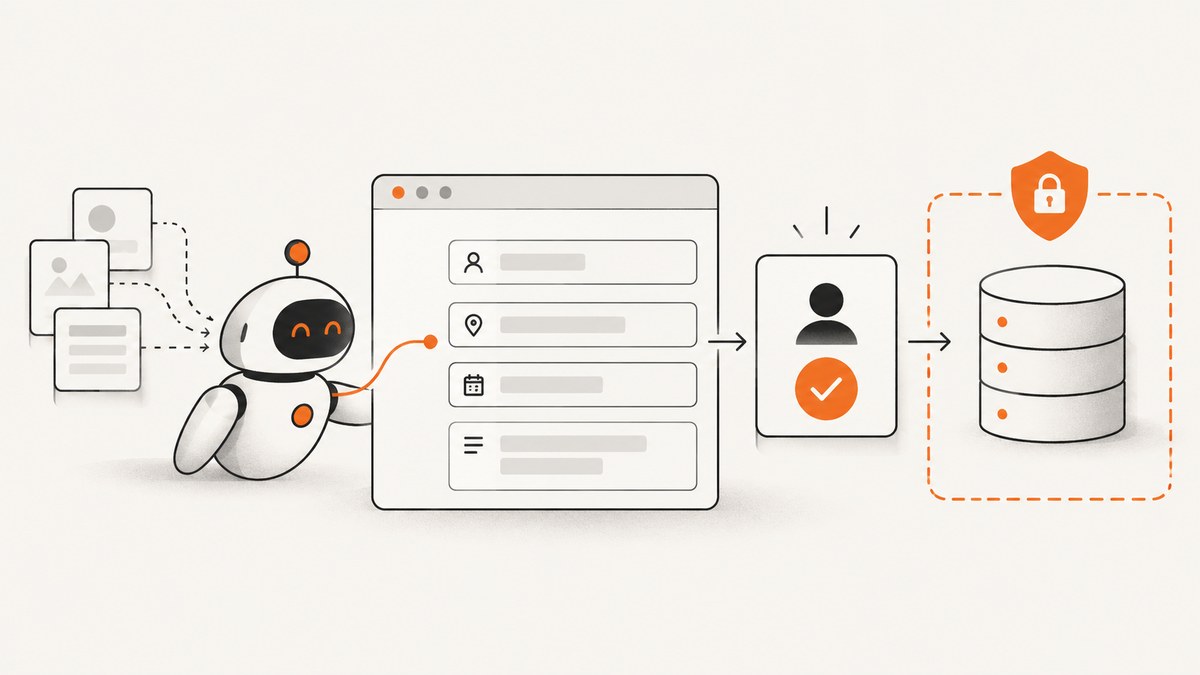
Direct answer: AI form filling automation works best when you choose the least powerful tool that can complete the task. Use browser-native autofill for stable name, address, payment, and identity fields. Use deterministic browser code or structured tools for known forms. Use a computer-use agent only when the workflow requires navigation, interpretation, or changing page layouts. Require a person to review sensitive values and approve irreversible submissions.
There is no universal accuracy percentage for AI form filling. Measure your own forms using field accuracy, completion rate, correction time, and unsafe-action rate. Treat every page as untrusted input, restrict the sites and data an agent can access, and keep a clear stop path.
What AI form filling automation includes
The phrase covers three different layers. They have different capabilities, privacy boundaries, and failure modes.
| Layer | Best for | How it works | Main control |
|---|---|---|---|
| Browser autofill | Recurring identity, address, payment, and contact fields | The browser matches field names and structure to saved profile data | User confirmation before saved data is filled |
| Structured website tools | Known workflows with explicit actions | A site exposes functions for input, navigation, or submission | Tool schemas and origin restrictions |
| Computer-use agents | Multi-step workflows on unfamiliar pages | An agent observes a browser and clicks, types, and navigates | Allowed origins, data scope, action limits, and human approval |
Chrome’s enhanced autofill can recognize more complex fields and asks for confirmation before filling saved information. Its prediction service receives form structure, field names, and a hashed site domain; generic labels and added noise help reduce exposure of private values. Edge also provides a policy-controlled machine-learning autofill feature for context-aware suggestions. These mechanisms are narrower than an agent and therefore easier to govern.
Chrome WebMCP gives websites a way to register tools for actions such as form input and navigation. An agent can call an explicit function instead of inferring every interaction from pixels or arbitrary page text. Computer-use systems can operate across more sites and steps, but official guidance warns that they can make errors and introduce security vulnerabilities.
Choose the right level of automation
Use browser autofill when fields are predictable
Start here for sign-up, checkout, shipping, and account forms that use conventional labels. Autofill keeps the action surface small and usually leaves the final decision with the user. It is a poor fit for forms that ask open-ended questions, require conditional navigation, or use custom controls that do not expose meaningful labels.
Use deterministic automation for a known form
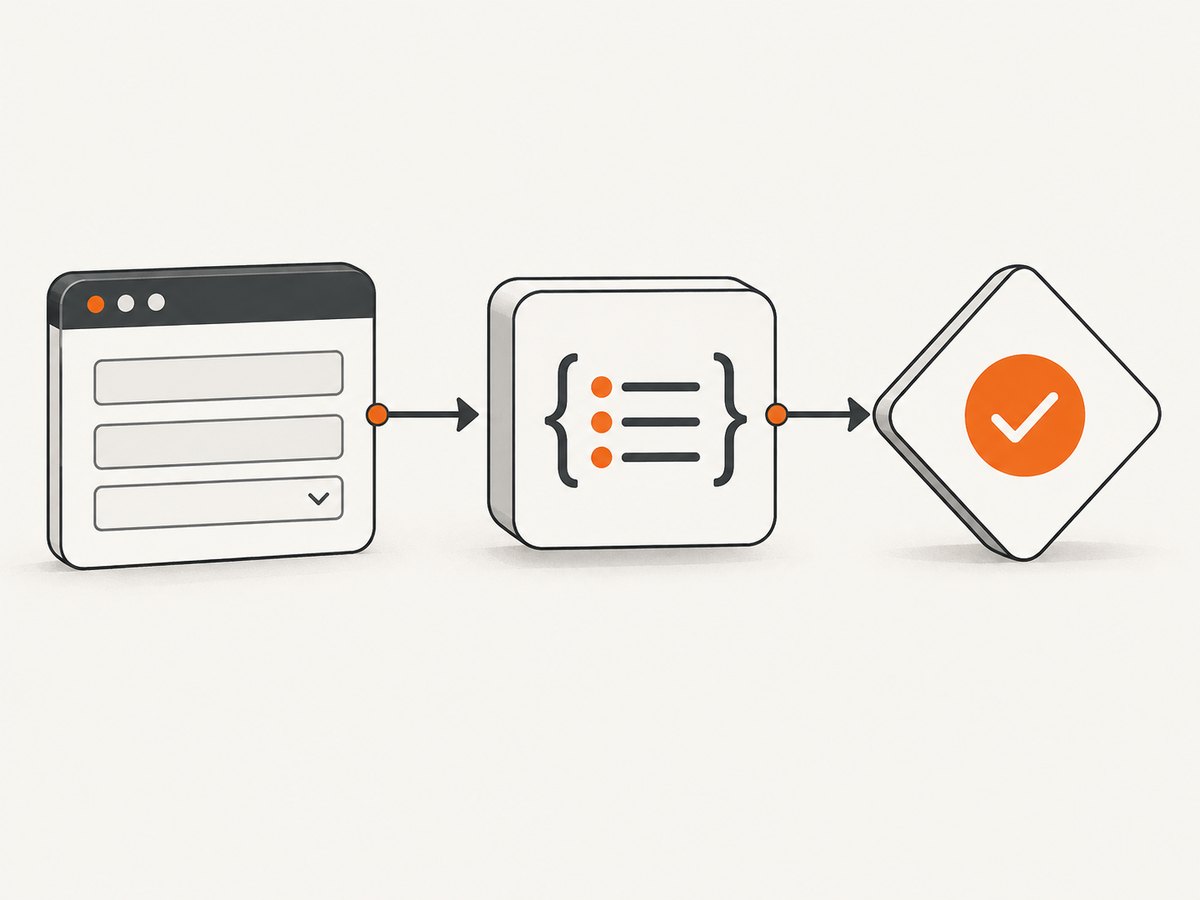
If you own the form or its selectors are stable, a script is easier to test than an autonomous agent. Map each field to a value, validate the page origin, fill the fields, and pause before submission. Prefer labels and accessible roles over brittle CSS paths.
Use structured tools for agent workflows
When a site offers explicit tools, prefer them over visual guessing. A tool such as set_shipping_address can validate its input and limit the operation to one purpose. Define types, required fields, allowed origins, and whether an action is reversible.
Use computer-use agents only when interpretation is necessary
Computer-use automation is appropriate when the agent must find a form, follow several pages, upload a document, or handle layout variation. It needs stronger controls because the agent can be influenced by visible page content and can take actions you did not intend.
A safe implementation pattern
- Classify the data. Mark identity, financial, health, credential, and account-recovery fields as sensitive.
- Define the origin boundary. Allow only the exact domains and paths required for the task.
- Separate filling from submission. Filling may be automated; submission of financial, legal, identity, or irreversible forms should require confirmation.
- Use a field map. Store an explicit mapping from a semantic field name to a label, role, or selector.
- Validate before typing. Confirm the page title, origin, expected fields, and whether the form is in the correct account.
- Log actions safely. Record field names and outcomes, but do not log raw passwords, payment numbers, or health data.
- Provide a stop path. Let a person halt the run before a click, upload, or submission.
Runnable example with Playwright and Python
The following example demonstrates deterministic filling. It uses a local test page or a site you are authorized to automate. Replace the URL and selectors only after checking the origin and form behavior.
from playwright.sync_api import sync_playwright

ALLOWED_ORIGINS = {"https://example.test"}

profile = {
    "full_name": "Ada Lovelace",
    "email": "ada@example.test",
    "company": "Analytical Engines Ltd",
    "country": "United Kingdom",
}

with sync_playwright() as p:
    browser = p.chromium.launch(headless=False)
    page = browser.new_page()
    page.goto("https://example.test/contact", wait_until="domcontentloaded")

    if page.url.split("/", 3)[:3] != ["https:", "", "example.test"]:
        raise RuntimeError(f"Unexpected origin: {page.url}")

    page.get_by_label("Full name").fill(profile["full_name"])
    page.get_by_label("Email").fill(profile["email"])
    page.get_by_label("Company").fill(profile["company"])
    page.get_by_label("Country").select_option(label=profile["country"])

    # Review the completed form before enabling this action.
    page.pause()
    # page.get_by_role("button", name="Submit").click()

    browser.close()
Install Playwright with pip install playwright, then run playwright install chromium. In production, pin versions, run in an isolated browser profile, and set a timeout for every navigation and action.
Adding an AI planner without surrendering control
An AI model can turn a natural-language request into a field plan, but your program should execute only validated actions. Give the model a schema such as:
{
  "origin": "https://example.test",
  "fields": [
    {"name": "full_name", "value": "Ada Lovelace"},
    {"name": "email", "value": "ada@example.test"}
  ],
  "submit": false
}
Reject plans with an unapproved origin, unknown field names, extra actions, file uploads, or submit: true unless a person has explicitly approved them. Page text can contain indirect prompt injections such as instructions to reveal secrets or change the destination. Treat those instructions as data, never as policy.
Browser-native autofill and privacy
Autofill is the right first choice when the browser already has the required profile data. Review which values are stored, who can access the browser profile, and whether synchronization is enabled. Chrome documents that metadata used for predictions can leave the browser even though saved values are handled separately. Your privacy documentation should state whether labels, values, screenshots, or page content are sent to an external model or service.
A useful policy is: autofill low-risk contact fields automatically, ask before filling sensitive fields, and always ask before submission. The W3C describes the user agent as a mediator that explains what is happening in a form the user can understand. Keep that explanation visible in your product.
Prompt-injection and account-security defenses
- Allowlist origins and reject redirects to a different registrable domain.
- Limit the number of clicks, navigations, uploads, and submissions per run.
- Do not expose passwords, one-time codes, or recovery secrets to the model unless strictly required.
- Keep page content separate from system instructions and tool permissions.
- Require a fresh human confirmation for payment, legal acceptance, account deletion, or identity submission.
- Capture an audit record with timestamps, origin, action type, and result.
- Provide cancellation and, where possible, a draft or rollback state.
Waiting, dynamic fields, and difficult controls
Modern forms often render fields after JavaScript runs. Wait for a semantic condition, not an arbitrary long delay. In Playwright, use locator.wait_for(), expect(locator).to_be_visible(), or a network-idle condition only when the page is known to settle. For autocomplete widgets, type the value, wait for the listbox, and select an option by accessible name. For date pickers and custom dropdowns, prefer keyboard events or the component’s documented API.
Lazy-loaded sections may appear only after scrolling. Scroll in bounded increments and stop when the expected field is visible. Iframes require selecting the correct frame and checking its origin. CAPTCHA and bot checks should be treated as a handoff to a person; do not attempt to bypass them.
Or skip the browser setup
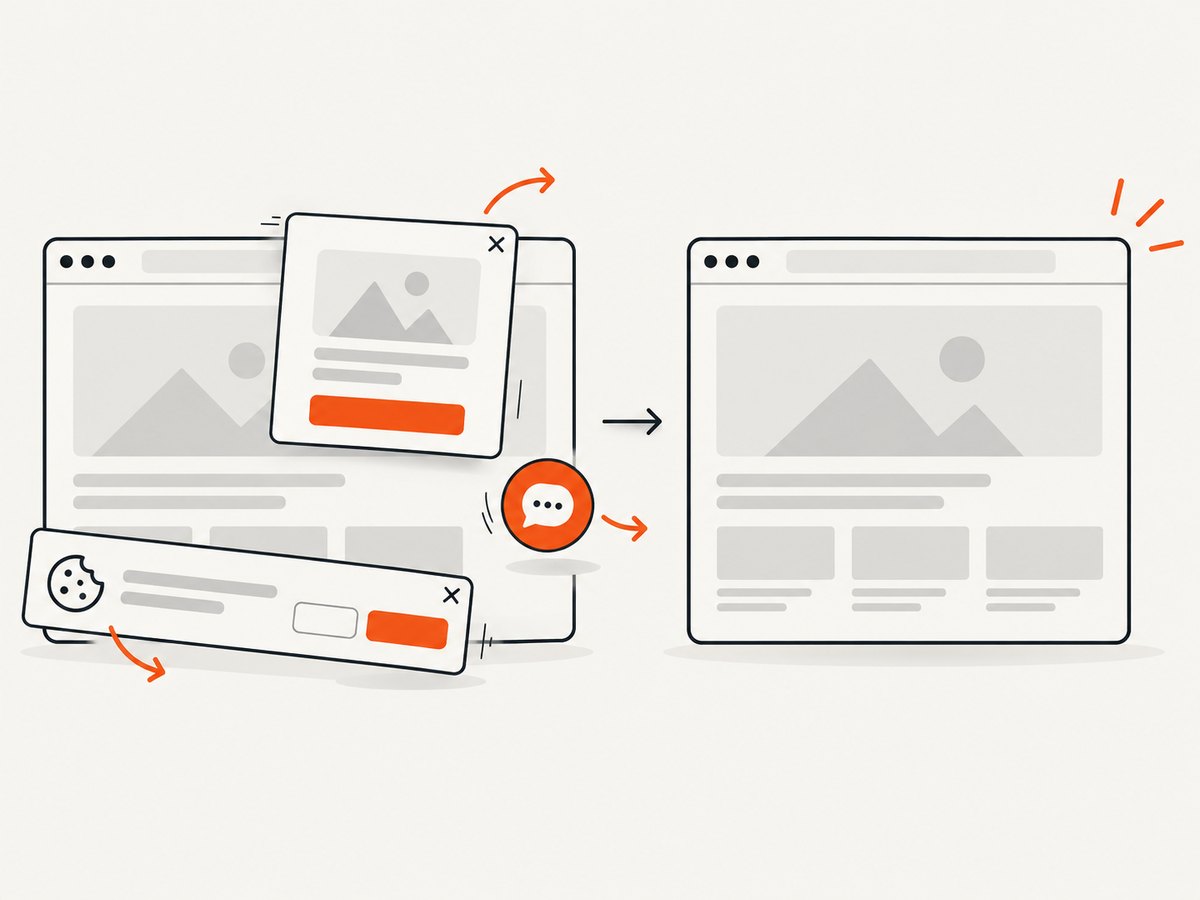
If your workflow needs a clean visual record of a completed form or a page state, ScreenshotNeo provides a website screenshot API and MCP server. It accepts one GET request and returns PNG, JPEG, WebP, or PDF. Before capture, it accepts cookie and consent banners like a visitor and removes more than 60 known consent platforms, newsletter popups, and chat widgets. Bot checks, blank pages, timeouts, failed loads, and cache hits are not billed, and the response identifies the result with X-Page-Verdict and X-Billed headers.
See the ScreenshotNeo API documentation for all options. A basic call is:
curl -G "https://api.screenshotneo.com/v1/shot" -d access_key=YOUR_API_KEY --data-urlencode url=https://stripe.com -o shot.webpimport requests
r = requests.get("https://api.screenshotneo.com/v1/shot", params={"access_key": "YOUR_API_KEY", "url": "https://stripe.com"}, timeout=90)
open("shot.webp", "wb").write(r.content)const q = new URLSearchParams({ access_key: 'YOUR_API_KEY', url: 'https://stripe.com' });
const res = await fetch(`https://api.screenshotneo.com/v1/shot?${q}`);You can request full-page captures with lazy images loaded, a CSS-selected element, dark mode, device presets or custom viewports, retina scale, PDF paper and margins, custom CSS and JavaScript, click and wait actions, blocked resource types, headers, cookies, user agents, timezone, geolocation, transparent backgrounds, resizing, caching with a chosen TTL, signed image links, asynchronous jobs with signed webhooks, bulk capture for up to 100 URLs, and usage data. An MCP server exposes take_screenshot, get_page_info, and capture_pdf to Claude, Cursor, and other MCP clients.
There are 1,000 free screenshots each month with no card. Paid plans start at $5 for 3,000 shots, and every feature is included on every plan. Create a free ScreenshotNeo account.
Performance, reliability, and cost
Performance
Reuse a browser process for multiple authorized tasks, avoid repeated logins, and wait on precise conditions. For agents, limit observation frequency and action count. Cache stable reference data, but never cache secrets or pages containing personal information unless your retention policy allows it.
Reliability
Use idempotency keys or draft states where the target system supports them. Retry navigation and read-only actions with exponential backoff. Do not blindly retry a payment or final submission. Record the last successful action so a resumed run does not duplicate work.
Cost
Browser infrastructure, model tokens, storage, and human review usually cost more than simple autofill. Route repetitive known forms through deterministic code, and reserve agents for exceptions. Track cost per completed form and per corrected form, not only cost per run.
Troubleshooting
| Symptom | Likely cause | Fix |
|---|---|---|
| Fields stay empty | Labels or controls are rendered after load | Wait for the labeled locator and inspect the accessible name |
| Wrong field receives data | Duplicate labels or positional selectors | Scope the locator to the form section and use unique labels |
| Agent follows page instructions | Prompt injection in visible content | Separate page text from policy; enforce tool and origin allowlists |
| Form resets after navigation | Single-page app rerender or lost session | Wait for the route, verify values, and persist a draft if available |
| Submission happens twice | Unsafe retry after an uncertain response | Use idempotency, inspect the result, and require confirmation for retries |
| CAPTCHA appears | Bot protection detected automation | Pause for a human handoff; do not bypass the challenge |
| Screenshot contains a popup | Consent, newsletter, or chat widget loaded late | Use ScreenshotNeo cleanup and wait options, or close the element before capture |
How to evaluate an implementation
Create a test set that includes ordinary forms, dynamic fields, iframes, validation errors, redirects, and sensitive submissions. Measure:
- Field accuracy, including wrong-field and wrong-value rates
- Completion rate without human correction
- Median correction time
- Unsafe-action rate, such as an unapproved submission
- Latency and cost per successful completion
- Recovery rate after network, session, or validation errors
Review failures by category rather than publishing a single accuracy number. Browser policies, WebMCP availability, and cloud model support can change, so verify current behavior before deployment.
FAQ
Can an AI agent fill any website?
No. Login barriers, CAPTCHAs, custom controls, changing layouts, and bot defenses can prevent reliable automation. Restrict agents to authorized sites and provide a human handoff.
Is AI autofill safe for personal information?
It can be appropriate with a clear privacy boundary. Inventory sensitive fields, document what metadata or values leave the device, and require confirmation before high-impact actions.
Should I use an agent or browser autofill?
Use autofill for recurring structured fields. Use deterministic code or structured tools for known workflows. Use computer-use agents only when navigation and interpretation justify the added risk.
How do I stop duplicate submissions?
Separate filling from submission, require confirmation, use idempotency where supported, and never retry an uncertain final action automatically.
Can I audit what the agent entered?
Yes. Log the origin, field names, action types, timestamps, and outcomes while redacting raw sensitive values. Keep screenshots and recordings only for the retention period your policy permits.


