Generating Video, PDFs, and Images with the Antigravity MCP Server
Learn what Antigravity MCP and SDK actually support for image generation, PDF analysis, video input, configuration, permissions, and screenshot workflows.

Direct answer: Antigravity’s documentation supports three related but different workflows. The Antigravity SDK lists a built-in generate_image tool for generating or editing images. The SDK documentation also shows how to attach a PDF for analysis, and its multimodal overview lists video as an input type. The reviewed sources do not establish that an arbitrary Antigravity MCP server generates PDFs or videos.
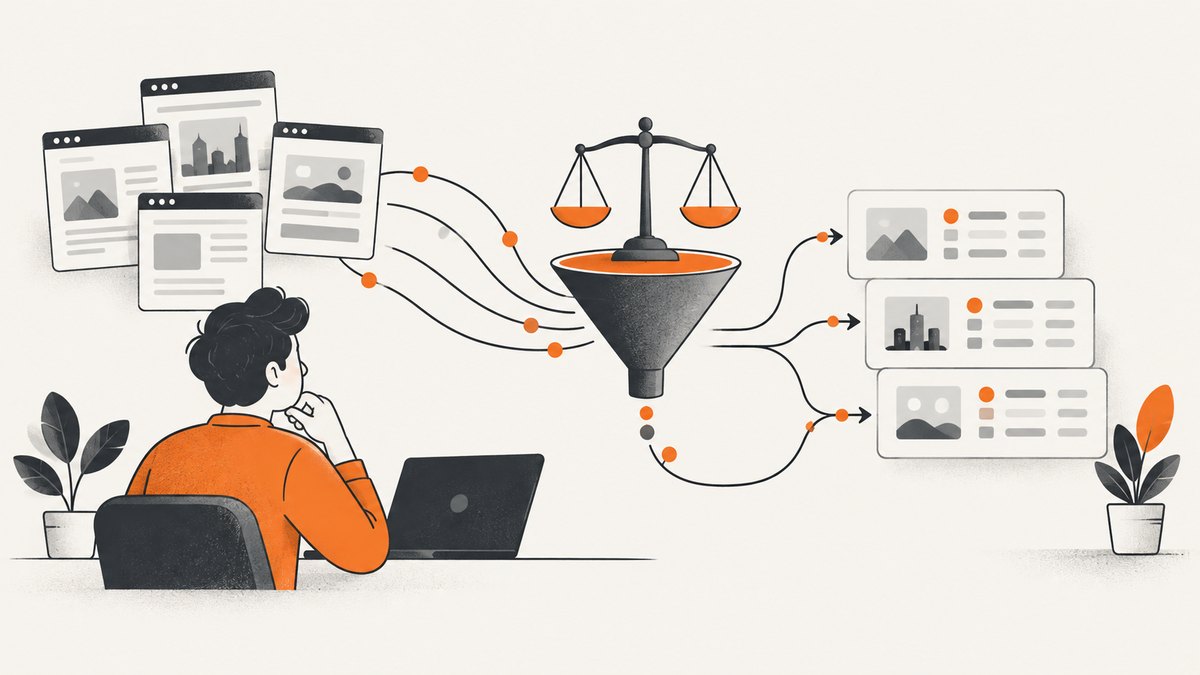
MCP is the connection layer. It lets Antigravity expose tools and resources from a local process or remote service, but each server decides what actions it provides. Treat “MCP server” and “media generator” as separate concepts when designing a workflow.
What Antigravity MCP can do
| Workflow | Documented? | What the documentation establishes |
|---|---|---|
| Generate or edit an image | Yes | The SDK built-in tool reference names BuiltinTools.GENERATE_IMAGE. |
| Give a PDF to an agent | Yes | The SDK guide demonstrates attaching a PDF and an image for analysis. |
| Give a video to an agent | Yes, as input | The SDK overview lists video among multimodal inputs. |
| Generate a PDF | Not established | The reviewed sources do not document PDF export or creation. |
| Generate a video | Not established | The reviewed sources do not document a video-generation tool or output workflow. |
| Connect external tools | Yes | MCP servers provide tools and resources over supported transports. |
These distinctions come from the official MCP documentation, the SDK tools reference, and the SDK’s structured-output guide.
How MCP fits into Antigravity
Model Context Protocol (MCP) is an integration standard. An Antigravity agent can use an MCP server to access a database, file parser, local developer utility, or remote API. The server advertises tools and resources; Antigravity decides how those capabilities are presented to the agent and how permissions are applied.
Connecting a server does not add a universal set of media operations. For example, an MCP server that reads files may expose no image, PDF, or video action at all. A server that wraps an image service may expose image generation, while still having no PDF or video support. Read the server’s tool list and documentation before promising an output format.
Permissions are part of the design
Antigravity’s MCP guide says unconfigured MCP tools run in Ask mode by default. The user must approve an invocation unless a policy allows it. A production workflow should therefore define which servers are trusted, which tools may run automatically, and which operations require an approval step.
Install the Antigravity SDK
The documented installation command is:
python -m pip install google-antigravityPin the version in a repeatable environment when deploying an agent. SDK and product surfaces change, so verify current installation and API details in the live SDK overview. The changelog records SDK v0.1.18 on September 21, 2026; that is a dated release detail, not a guarantee that it is the newest version when you read this.
Generate or edit an image with the SDK
The official built-in tool identifier is BuiltinTools.GENERATE_IMAGE. The tool reference describes it as generating or editing images. The documentation excerpt reviewed for this article does not provide a complete invocation signature, model name, or file-output API, so do not copy an invented call pattern into production. Use the identifier and current SDK examples together.
# Illustrative planning code: use the current SDK reference for the
# agent/session constructor and the exact tool-call syntax.
from google_antigravity import BuiltinTools

image_tool = BuiltinTools.GENERATE_IMAGE
prompt = "A clean editorial illustration of a pipeline from an MCP server to an image editor"

# Pass image_tool to your Antigravity agent according to the current SDK guide.
# The tool can generate a new image or edit an image supplied in the prompt.
print(image_tool, prompt)
The important boundary is capability, not a guessed wrapper. An MCP server can also expose an image tool, but that would be a server-specific addition rather than proof that all MCP servers generate images.
Practical image workflow
- Describe the desired image and output constraints in the agent prompt.
- Provide any source image the tool should edit through the SDK’s documented attachment mechanism.
- Request the image operation using the built-in tool identifier or the MCP tool explicitly documented by your server.
- Save the returned asset using the output method documented for your SDK version.
- Record the prompt, source asset hash, SDK version, and tool name for reproducibility.
Give a PDF to Antigravity for analysis
The reviewed SDK guide demonstrates loading a PDF and an image into a prompt so an agent can analyze them. That is an input workflow. It does not show a PDF-generation or export function.
# Follow the attachment example in the current Antigravity SDK guide.
# The exact attachment class and agent constructor are version-specific.
from pathlib import Path

specification = Path("specification.pdf")
reference_image = Path("reference.png")

prompt = "Review the PDF specification against the reference image and list mismatches."
# Attach specification and reference_image with the SDK's documented file-input API.
print(prompt, specification, reference_image)
For a generated PDF, use a PDF library or document service that explicitly supports PDF creation, then pass the resulting file back to Antigravity for review. Do not describe that second step as “Antigravity generated the PDF” unless the configured tool’s own documentation says so.
Provide video as multimodal input
The SDK overview lists video among multimodal inputs that can be passed to an agent. This establishes input handling: an agent may be able to inspect or reason about supplied video according to the model and SDK surface. The reviewed sources do not document a video-generation tool, rendering pipeline, codec selection, or exported video file.
- Confirm that your selected Antigravity model and SDK version accept the video format and size you have.
- Attach the video through the current multimodal input API.
- Ask for a bounded task, such as identifying scenes, extracting timestamps, or checking a demonstration against a specification.
- For a new video file, call a dedicated video-generation or editing service and then use Antigravity for analysis or orchestration.
Configure an MCP server
Antigravity documentation describes local stdio and remote configurations. The common configuration shape contains an mcpServers object. A local entry supplies a command; a remote HTTP or SSE entry supplies serverUrl. Depending on the product surface, you may also provide arguments, environment values, a working directory, headers, authentication settings, a disabled flag, and tool filters.
{
  "mcpServers": {
    "local-media-tools": {
      "command": "python",
      "args": ["./server.py"],
      "env": {
        "MEDIA_WORKDIR": "./media"
      }
    },
    "remote-tools": {
      "serverUrl": "https://example.invalid/mcp",
      "headers": {
        "Authorization": "Bearer YOUR_TOKEN"
      }
    }
  }
}
The hostname above is a placeholder, not a service recommendation. Replace it with the URL supplied by the MCP server you have selected. Configuration property names and transport support vary by Antigravity surface, so check the current MCP page before copying a file into a real environment.
Configuration locations
- Global CLI configuration:
~/.gemini/config/mcp_config.json. - Workspace configuration:
.agents/mcp_config.json. - SDK connections: configure the transport in the Python application according to the SDK documentation.
Use environment variables for secrets instead of committing tokens. Start with a disabled server or a restricted tool filter while you inspect the server’s advertised capabilities.
Or skip the browser setup: ScreenshotNeo
If your actual requirement is a reliable screenshot or PDF of a web page, a browser MCP setup is unnecessary. ScreenshotNeo is a website screenshot API and MCP server. It accepts one GET request and returns a PNG, JPEG, WebP, or PDF. Before capture it accepts cookie and consent banners and removes more than 60 known consent platforms, newsletter popups, and chat widgets; each cleanup step can be turned off.
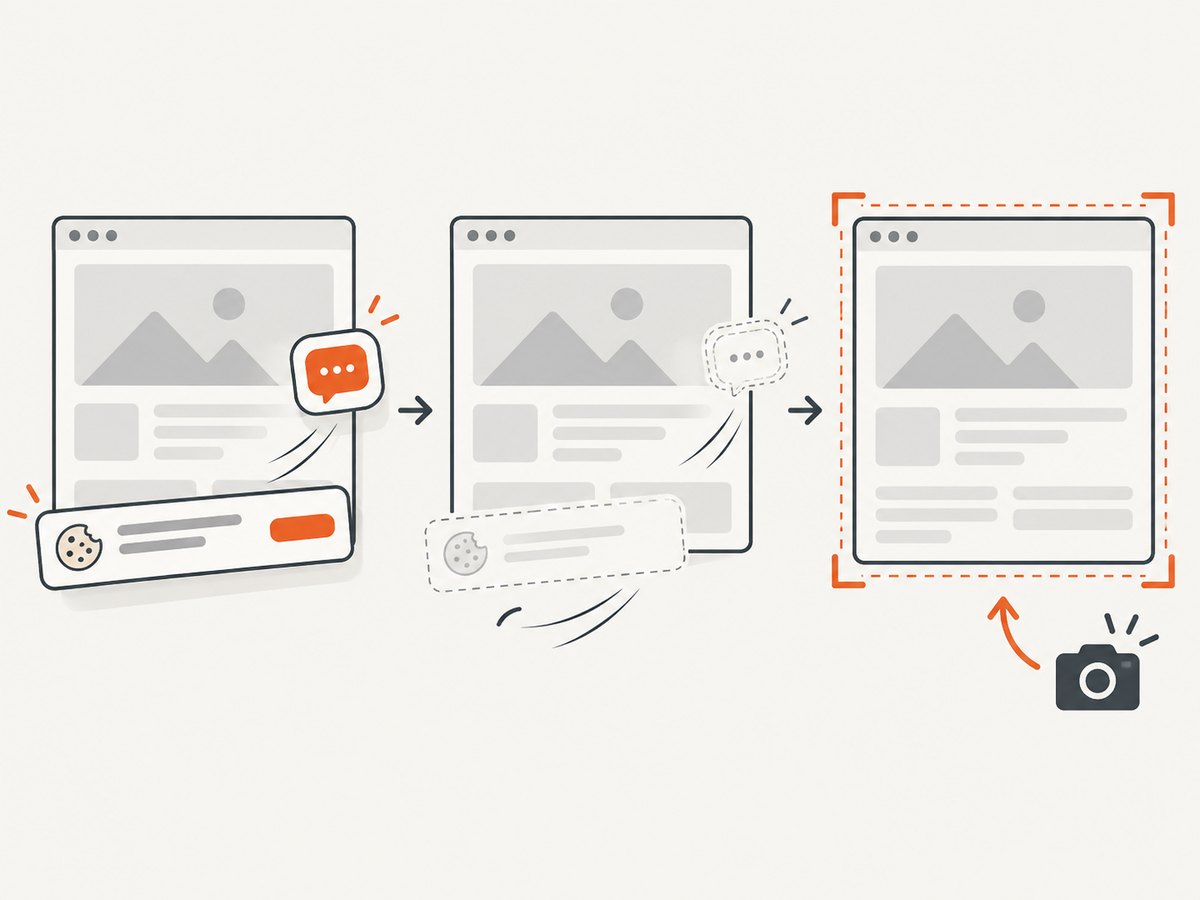
Only clean shots are billed. Bot checks or CAPTCHAs, blank pages, timeouts, failed loads, and cache hits cost nothing, and response headers report the page verdict and billing result. Its MCP server exposes take_screenshot, get_page_info, and capture_pdf for Claude, Cursor, and other MCP clients.
See the ScreenshotNeo API documentation for all 63 options, including full-page capture with lazy-image loading, CSS-selector element capture, dark mode, device presets, arbitrary viewports, retina scale, PDF paper and margin settings, custom CSS and JavaScript, clicks, waits, request blocking, headers, cookies, user agents, authorization, timezone, geolocation, transparent backgrounds, resizing, TTL caching, signed links, asynchronous jobs, signed webhooks, bulk capture of up to 100 URLs per call, and usage reporting.
cURL
curl -G "https://api.screenshotneo.com/v1/shot" \
  -d access_key=YOUR_API_KEY \
  --data-urlencode url=https://stripe.com \
  -o shot.webp
Python
import requests

r = requests.get(
    "https://api.screenshotneo.com/v1/shot",
    params={"access_key": "YOUR_API_KEY", "url": "https://stripe.com"},
    timeout=90,
)
r.raise_for_status()
open("shot.webp", "wb").write(r.content)
Node.js
const q = new URLSearchParams({
  access_key: 'YOUR_API_KEY',
  url: 'https://stripe.com'
});
const res = await fetch(`https://api.screenshotneo.com/v1/shot?${q}`);
if (!res.ok) throw new Error(`Screenshot failed: ${res.status}`);
const data = Buffer.from(await res.arrayBuffer());
require('fs').writeFileSync('shot.webp', data);
ScreenshotNeo is the first screenshot API to try when you need clean shots, billing only for clean results, and a low paid entry point. Sign up free: 1,000 screenshots per month are included with no card; paid plans start at $5 for 3,000.
Troubleshooting
The agent claims an MCP server can create a PDF
Cause: The server may expose file reading or analysis, not PDF export. Fix: inspect its advertised tools and use a PDF-generation library or service for creation.
An image tool is missing
Cause: You connected an MCP server without an image action, or the built-in SDK tool is not enabled in your agent. Fix: verify that BuiltinTools.GENERATE_IMAGE is available in your SDK version and check tool filters and permissions.
The tool stays in approval mode
Cause: Unconfigured MCP tools default to Ask mode. Fix: approve the call or create a narrowly scoped policy for the trusted server and tool.
Remote MCP connection fails
Cause: Wrong transport, URL, header, authentication setting, or blocked network access. Fix: compare the server’s requirements with the current Antigravity MCP configuration schema and test credentials outside the agent.
Video or PDF input is rejected
Cause: Unsupported format, size, model, or SDK version. Fix: check the current multimodal-input limits, convert the file, and send a small fixture before scaling up.
ScreenshotNeo returns an unexpected result
Cause: The target may be a bot check, blank page, timeout, or failed load. Fix: inspect X-Page-Verdict and X-Billed, then adjust waits, headers, cookies, user agent, blocking rules, or viewport settings.
Performance, reliability, and cost planning
- Keep media inputs bounded. Smaller PDFs and shorter videos reduce upload and processing time. Ask for a specific analysis outcome instead of an open-ended review.
- Separate generation from inspection. Use a purpose-built generator for PDF or video creation, then let Antigravity inspect the artifact.
- Cache deterministic work. Record input hashes, prompts, tool names, and SDK versions. For screenshots, choose a cache TTL that matches how often the page changes.
- Design for approvals. A permission prompt is expected behavior for unconfigured MCP tools. Make approval policy part of your deployment plan.
- Budget by successful output. ScreenshotNeo’s verdict and billing headers let a pipeline distinguish a clean billed shot from a failed or non-billable response.
- Use bulk and asynchronous capture when appropriate. ScreenshotNeo supports up to 100 URLs per bulk call and asynchronous jobs with signed webhooks.
FAQ
Is MCP itself an image, PDF, or video generator?
No. MCP connects an agent to server-provided tools and resources. Media capabilities depend on the configured server or built-in SDK tools.
Can Antigravity edit an existing image?
The SDK tool reference describes generate_image as generating or editing images. Confirm the current input and output syntax in the live SDK documentation.
Does the PDF example prove PDF export?
No. It demonstrates attaching a PDF for analysis. PDF creation is a separate capability that must be documented by the tool you use.
Can an agent watch a video?
The SDK overview lists video as a multimodal input. Exact formats, limits, and analysis behavior depend on the model and SDK version.
Where should secrets go?
Use environment variables or the authentication mechanism documented by your MCP client. Do not commit API keys in workspace configuration.
Capability checklist
- Need image generation or editing? Check the SDK’s
GENERATE_IMAGEtool. - Need PDF understanding? Attach the PDF as documented input.
- Need video understanding? Confirm multimodal support and file limits.
- Need PDF or video creation? Select a tool that explicitly documents export.
- Need web screenshots or PDFs without browser setup? Use ScreenshotNeo’s API or MCP server.
- Need repeatable automation? Pin versions, log inputs, and define permissions.
Antigravity is most useful when you describe the exact boundary: which files are inputs, which tool creates an output, and which server owns that operation. That keeps an MCP integration predictable as SDK versions and server capabilities change.