How to Archive Websites with the Wayback Machine
Save a page to the Wayback Machine, find archived versions, and understand what Save Page Now can—and cannot—preserve.
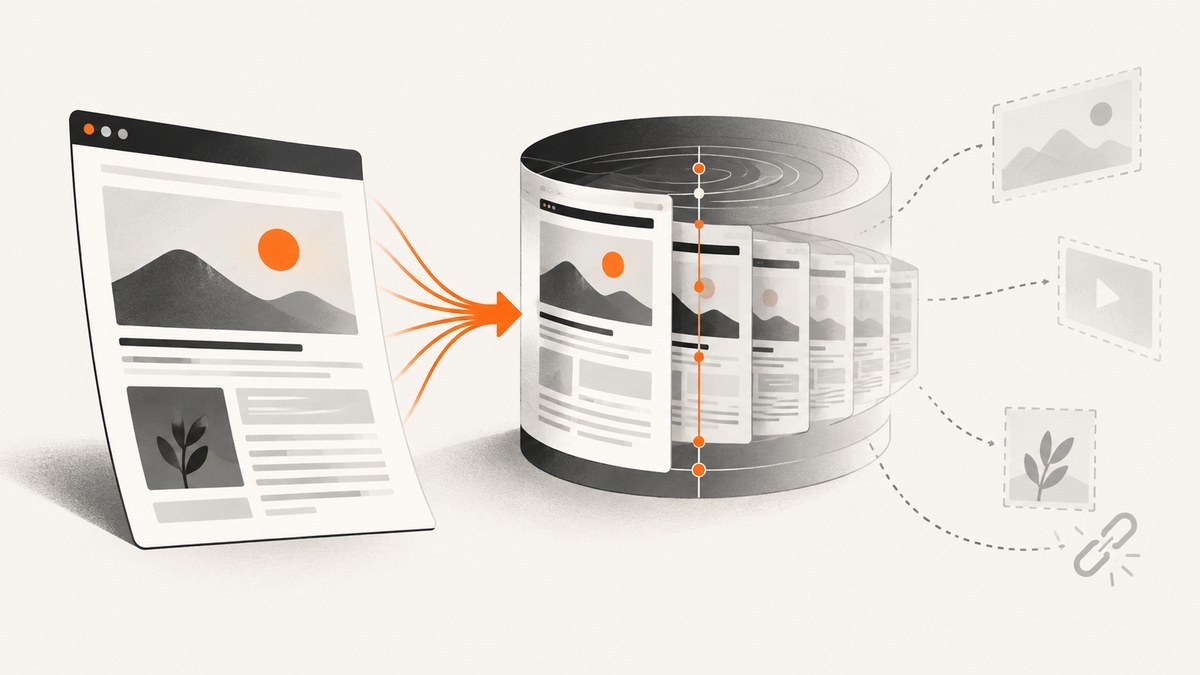
To archive a page with the Wayback Machine, open Save Page Now, enter the page’s exact URL, and submit it. When the capture finishes, open the returned archived URL and check that the page and its important images and styles display correctly. Save Page Now captures the submitted page; it does not crawl the rest of the site, save outlinks, or schedule future captures.
This guide covers saving and finding captures, archiving multiple pages, common capture problems, and what to use when you need a dependable backup or a screenshot rather than a historical archive.
1. What the Wayback Machine can archive
The Internet Archive’s Wayback Machine lets you view available historical captures of web pages. Its Save Page Now tool submits one URL for a capture and returns a permanent archived URL when successful. Images and CSS may be captured when available, but a saved replay can still be incomplete.

The scope matters: submitting a homepage does not ask the service to discover and save every page linked from it. Save Page Now does not save outlinks or initiate a whole-site crawl. Nor does submitting a page enroll it in future crawls.
| Need | Route | Scope |
|---|---|---|
| Preserve one page now | Save Page Now | One submitted URL; no automatic crawl of links or future schedule. |
| Submit the page you are viewing | Internet Archive browser extension or bookmarklet | A convenient way to invoke a single-page save; capture limits still apply. |
| Recurring organization-wide crawls | Archive-It | A paid subscription service for organizations, with technical and web archivist support. |
If you own a website and need a restoration-quality backup, maintain your own backups. Internet Archive says it cannot guarantee a site has been or will be archived, and its terms do not provide general-public website backups.
2. Save a page with Save Page Now
- Open web.archive.org/save.
- Copy the exact page URL from your browser, including the path and any query parameters that identify the version you want.
- Paste it into the save form and submit it. Wait for the capture process to finish.
- Open the resulting archived URL. Check the main content, images, styles, and any page sections that matter to your use.
- Keep or share the archived URL, especially if you plan to cite the captured page.
Use a specific article or document URL when that is what you need to preserve. Saving a domain’s homepage does not save its articles or linked documents. A page that requires a login, is blocked from crawling, or relies on unavailable resources may not capture completely.
Save the page you are browsing
The Internet Archive help materials also describe browser extensions and a JavaScript bookmarklet that invoke Save Page Now for the current page. These are convenience routes to the same single-page submission. Check the current official extension listing for your browser and its supported features before installing it. The extension README also describes checking archive history and looking for archived copies when some pages return an error.
3. Find an archived version of a URL
- Open the Wayback Machine and search for the URL you want to inspect.
- Review the available capture dates and select a date near the one you need.
- Check the timestamp in the archived URL and confirm that the content shown matches the intended page and period.
- For an important citation, record the archived URL and date and revisit the link to confirm it opens.
An archived URL timestamp encodes the capture year, month, day, hour, minute, and second. If a capture is incomplete, a link or resource can lead to a nearby available date. Do not assume every page in a replay represents the same capture moment: inspect the URL timestamps and the available capture list when timing matters.
4. Archive more than one page
Save Page Now is designed for a single submitted page at a time. It does not recursively follow links, capture a directory, or create a recurring schedule. If a small set of pages is important, submit each page URL separately and check each resulting archive. Keep a list of the URLs and returned captures so you can verify coverage.
For organization-level, recurring crawling projects, Internet Archive identifies Archive-It as its paid subscription service, with technical and web archivist support. The appropriate scope depends on the collection and project needs; a Save Page Now submission is not a substitute for that crawl service.
5. Why a capture may be missing or incomplete
The page is absent
A page may be absent because crawlers did not discover it, it requires a password, the site’s robots rules or an owner request exclude it, or the page was otherwise inaccessible. Orphan pages with no links pointing to them are harder for crawlers to discover. Crawlers also do not enter search terms into a site’s search form to find results. Submit an eligible page directly with Save Page Now if you need to request a capture.

Images, CSS, or other resources are missing
The archived page and its assets are separate requests. A resource may not have been captured or may not be available for replay, leaving broken images or incomplete styling. Open the archived page and inspect the specific resources you rely on. A successful page capture does not guarantee that every embedded resource was preserved.
The page depends on JavaScript or a live server
Some pages need JavaScript execution, user interaction, or ongoing calls to the original server. Those behaviors may not work in an archived replay. Pages rendered as standard HTML are generally easier to preserve than pages whose content depends on live interactions. If the captured page is incomplete, note what it does show and retain your own copy or records when you have a legitimate need to preserve the content.
The save request fails
Internet Archive identifies crawler restrictions, some SSL settings, password protection, robots exclusions, inaccessible content, and JavaScript- or server-dependent behavior as possible obstacles. Confirm that the URL is public and spelled correctly, retry the exact page URL, then inspect the returned capture rather than treating a submitted request as proof of a complete archive.
6. Troubleshooting checklist
| Symptom | Likely cause | What to do |
|---|---|---|
| No archived result for a page | The crawler could not discover or access it; the page may be restricted or excluded. | Submit the exact public page URL with Save Page Now. Check for login requirements, access restrictions, and URL mistakes. |
| The homepage exists, but an article does not | Saving one URL does not crawl the site’s links. | Submit the article URL separately. Do not infer that a homepage capture includes linked pages. |
| Images or styles are missing | Those resources may not have been captured or may not be available in replay. | Check the archive for resource captures and treat the replay as incomplete if key assets are absent. |
| Buttons, search, or interactive features do not work | The feature depends on JavaScript, user interaction, or a live service. | Use the archived page as a historical record, not as a guarantee that the original application still functions. |
| A link opens a different capture date | The desired resource may be missing at that timestamp, so a nearby available capture is shown. | Inspect the linked archived URL’s timestamp and the available capture dates. |
| A browser shortcut is unavailable | The extension may not support that browser or may have changed. | Check the current official listing; use the Save Page Now form directly if needed. |
7. Screenshot a page when you need a visual record
A Wayback capture is useful when you want a URL-based historical archive that can be revisited. If your task is instead to create a visual record for a report, test, or workflow, a screenshot captures how a page rendered at a particular moment. A screenshot does not replace an archived URL, preserve site history, or make the page’s links and interactions available later.
For local, repeatable capture, a browser automation tool such as Playwright can open a page and save a screenshot. You control the browser setup and need to handle page loading, cookie prompts, and dynamic content in your own code. The example below is a runnable Node.js route using Playwright.
DIY: capture a screenshot with Playwright
Install Playwright and its Chromium browser in a Node.js project:
npm init -y
npm install playwright
npx playwright install chromium
Save this as capture.mjs and run node capture.mjs. It captures a full-page PNG of the selected URL.
import { chromium } from 'playwright';

const url = process.argv[2] ?? 'https://example.com';
const browser = await chromium.launch({ headless: true });
try {
  const page = await browser.newPage({ viewport: { width: 1440, height: 900 } });
  await page.goto(url, { waitUntil: 'networkidle', timeout: 60_000 });
  await page.screenshot({ path: 'page.png', fullPage: true });
} finally {
  await browser.close();
}
Use a page URL you are allowed to access. A local browser capture depends on your machine or runner, the installed browser, and the target site’s behavior. Some sites keep network connections open, so networkidle may not arrive; use domcontentloaded and an explicit selector or short delay when appropriate. Full-page capture can also be tall and memory-intensive.
Other capture routes
For a script or shell workflow, a screenshot API can avoid managing a browser runtime. You still need to distinguish a screenshot from a long-term archive: an image is a visual output, while a web archive is intended to preserve a replayable historical page. Choose based on the deliverable you need.
8. Or skip the browser setup
ScreenshotNeo is a website screenshot API and MCP server from Yorker Media. A GET request returns an image or PDF; for a quick visual record, request an image as shown below. See the ScreenshotNeo documentation for the API options.
curl -G "https://api.screenshotneo.com/v1/shot" -d access_key=YOUR_API_KEY --data-urlencode url=https://stripe.com -o shot.webpScreenshotNeo accepts cookie and consent banners before capture and removes more than 60 known consent platforms, newsletter popups, and chat widgets; each step can be turned off. Bot checks, blank pages, timeouts, failed loads, and cache hits are not billed, and response headers identify the page verdict and billing status. Its MCP server provides take_screenshot, get_page_info, and capture_pdf tools for Claude, Cursor, and other MCP clients.
The Free plan includes 1,000 shots per month with no card. Paid plans start at $5 for 3,000 shots; yearly billing gives two months free. Every feature is available on every plan. ScreenshotNeo creates screenshots and PDFs, not Wayback Machine archives, so use it when you need a visual capture rather than a permanent historical replay.
Sign up for 1,000 free screenshots a month, with no card required.
9. Performance, reliability, and cost considerations
- Verify the result: A submitted URL is not the same as a complete capture. Check the page, assets, and timestamp before relying on it.
- Plan for partial availability: Access restrictions, crawler behavior, and dynamic dependencies can prevent capture or replay. Keep your own backups for recovery needs.
- Choose scope deliberately: Submit individual URLs for one-off preservation. Use an organizational crawl service for recurring collections rather than assuming the single-page tool will traverse a site.
- Keep archives and screenshots distinct: A screenshot is a visual artifact; it does not provide the same kind of archived page replay. Conversely, a replay can have missing assets or nonfunctional behavior.
Save Page Now is a free single-page workflow according to the cited Internet Archive guidance. Archive-It is described as a paid subscription service; the research sources do not specify current prices. For ScreenshotNeo’s current plan amounts, the supplied product information lists Free (1,000 shots/month), Starter ($5/3,000), Growth ($15/15,000), Pro ($39/60,000), Scale ($99/250,000), and Business ($249/1,000,000), with two months free on yearly billing.
10. Frequently asked questions
Does Save Page Now automatically save my page in the future?
No. A Save Page Now capture does not enroll the URL in future crawls.
Can I cite a Wayback Machine capture?
You can share or cite the returned archived URL. Include the capture date when it matters, and confirm the archived page contains the material you are citing.
Can I use a screenshot instead of archiving?
Use a screenshot when a visual record is enough. Use an archive when you need a URL to a historical page replay; neither guarantees a complete record of a site’s behavior.
Will the archived page work like the original?
Not necessarily. Archived assets can be missing, and features that depend on the original server or interactive JavaScript may not work.