BlogScreenshots on your device
How to Take an Automatic Scrolling Screenshot in Chrome
Capture an entire webpage in Chrome with DevTools or an auto-scrolling extension, fix lazy loading and sticky elements, and automate captures with ScreenshotNeo.
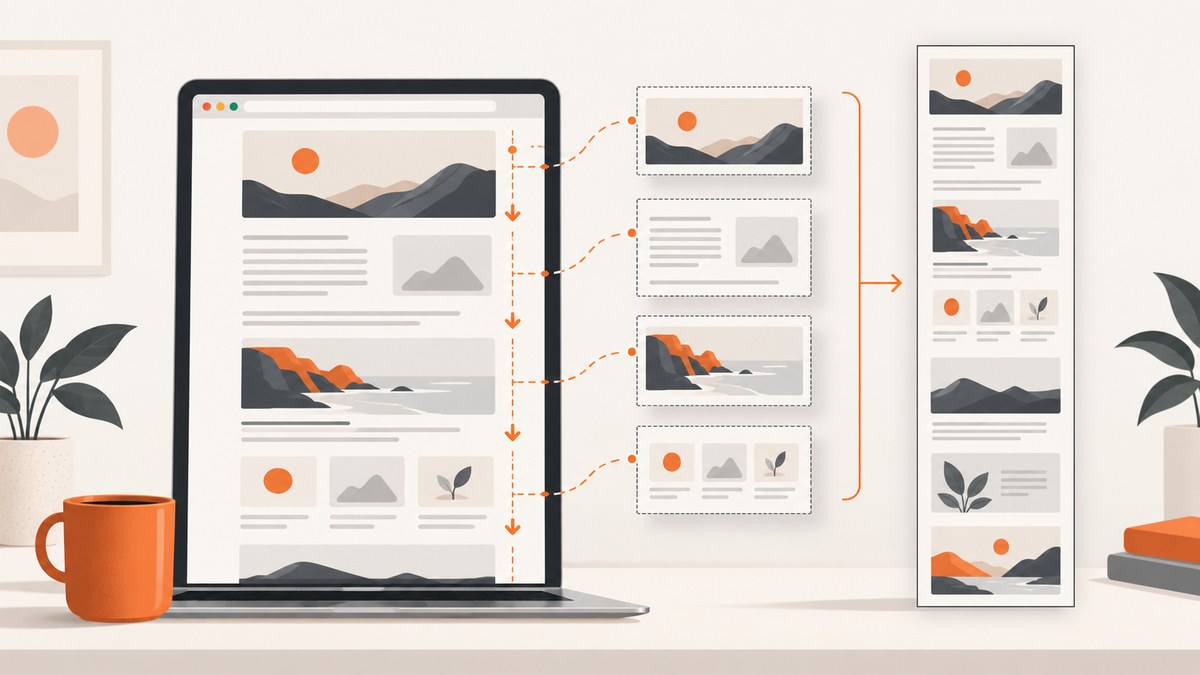
To take an automatic scrolling screenshot in Chrome, use DevTools for a quick full-page PNG or a reputable extension that scrolls and stitches each viewport. DevTools is fastest for a short, mostly static page. An automatic scrolling extension is more suitable for long pages, lazy-loaded images, dashboards, inner scroll panels, and exports that need review or annotation.
1. Choose the right capture method
| Method | Best for | What to watch for |
|---|---|---|
| Chrome DevTools | One-off screenshots of short, static pages | Lazy content may not load; fixed elements can repeat or leave blank areas |
| Scrolling extension | Long articles, dashboards, logged-in apps, lazy media, PDF or annotation workflows | Permissions, stitching seams, nested scroll containers, and page-length limits |
| ScreenshotNeo API | Automated, repeatable captures in scripts, CI jobs, bulk jobs, or AI-agent workflows | Requires an API key; dynamic pages still need suitable waits and access settings |
“Scrolling screenshot” and “full-page screenshot” describe the same outcome: one image containing content beyond the visible viewport. Scrolling emphasizes that the tool moves through the page; full-page emphasizes the final output.
2. Capture a full page with Chrome DevTools
- Open the page in Chrome and wait for its initial layout to settle.
- Open DevTools with F12, or use Chrome’s menu.
- Press Ctrl+Shift+P on Windows/Linux or Cmd+Shift+P on macOS to open the Command Menu.
- Type screenshot.
- Choose Capture full size screenshot. Chrome saves a PNG.
- Open the PNG and inspect the entire image, especially content below the fold.
DevTools renders the page at its computed height in one pass rather than deliberately scrolling through every viewport. That makes it convenient, but content that loads only when it enters the viewport can be absent. Fixed or sticky navigation, banners, and chat controls can also appear in unexpected places or leave blank regions on very long pages.
Before you capture
- Dismiss consent dialogs and overlays that you do not want in the image.
- Wait for fonts, images, and client-side data to finish loading.
- If the page uses lazy images, scroll through it once, then run the DevTools command again.
- For a reproducible result, set the browser zoom and window size before capture.
3. Use an automatic scrolling extension
- Install a reputable full-page screenshot extension from the Chrome Web Store. Check its publisher, permissions, update history, and privacy policy.
- Open the target page and let its initial layout settle.
- Click the extension icon and choose its full-page or scrolling capture command.
- Leave the tab undisturbed while the extension scrolls through the page and stitches viewport sections.
- Review the assembled image for seams, repeated sticky elements, unloaded media, and content inside nested scroll panels.
- Crop, annotate, or export as PNG, JPEG, PDF, or clipboard output when the extension supports those formats.
Examples from the Chrome Web Store
- GoFullPage: its listing describes full-page capture, a premium editor for cropping and annotation, and PDF export. The listing records fixes for scrollbars, smooth scrolling, frames, and long-page capture.
- FullPage Capture: its listing says it automatically scrolls and stitches pages, supports iframes and inner scrollers such as dashboards and mail clients, and provides annotation and several export formats.
- FullPageShot: its listing says it captures the entire scrolling height as one PNG, uses the Chrome DevTools Protocol, keeps capture local, and handles lazy-loaded images, carousels, body-scroll, and inner-scroll layouts. It warns that virtualized or infinite feeds and some editor preview shells may not be capturable as a whole.
Store metadata such as user counts, ratings, and version dates changes over time. Treat those figures as snapshots and verify them on the current listing before publishing or selecting an extension.
4. Make lazy-loaded and dynamic content appear
Many pages do not create or download every image at initial load. They fetch content when an element approaches the viewport. A full-page command that never scrolls may therefore capture empty placeholders.
- Scroll from top to bottom once before using DevTools.
- For an extension, allow the complete scroll-and-stitch pass to finish; do not switch tabs or close the page.
- Wait for image placeholders to become actual images before exporting.
- For dashboards, identify the element that actually scrolls. The document body may stay fixed while a panel owns the scroll position.
- For carousels, pause at the state you need or capture each state separately.
Virtualized lists and infinite feeds are different. They keep only the visible range in the DOM, so no DOM-based full-page tool can guarantee one complete image of an unbounded feed. Capture a finite range, or use a recording workflow when the complete sequence matters.
5. Prevent repeated headers, banners, and seams
Automatic scrolling tools capture multiple viewport sections and assemble them. Fixed and sticky elements can therefore appear in every section. Before sharing the result:
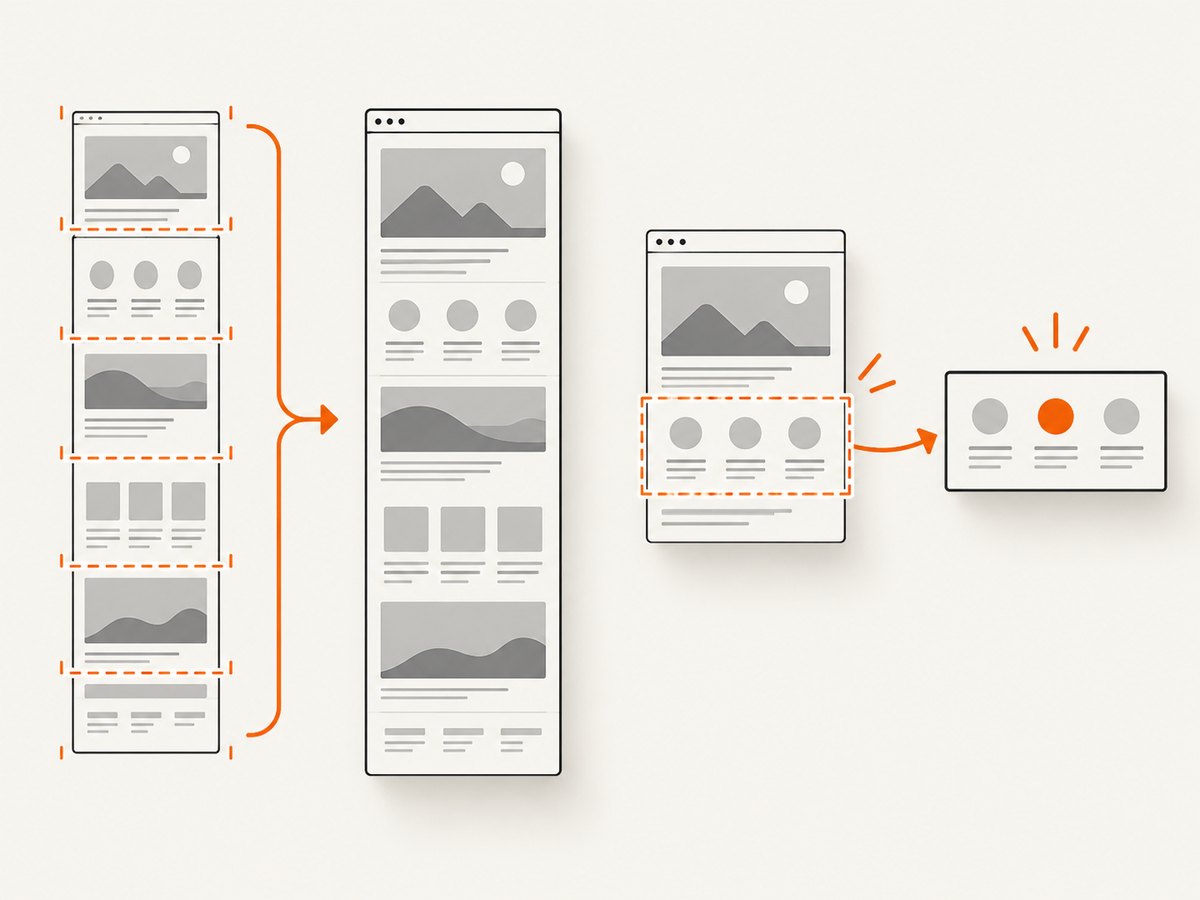
- Check whether a navigation bar, cookie banner, chat bubble, or newsletter prompt repeats.
- Close overlays before starting the capture.
- Look for one-pixel seams, jumps caused by smooth scrolling, and duplicated content at section boundaries.
- Inspect iframes and embedded documents separately; support varies by tool.
- Open the exported file at full size. A thumbnail can hide missing sections or severe scaling.
If a page has a nested scroller, choose a tool that explicitly supports inner scroll containers and iframes. Otherwise, capture that panel separately or temporarily expand it if the application allows.
6. Troubleshooting
| Symptom | Likely cause | Fix |
|---|---|---|
| Blank areas below the fold | Images or data are lazy-loaded | Scroll through the page first, wait for content, then capture; use an extension that waits during each section |
| Repeated header or cookie banner | Fixed or sticky element captured in every viewport | Dismiss it, use duplicate suppression if available, and inspect the assembled image |
| Dashboard content is missing | An inner panel, not the body, owns scrolling | Use inner-scroller support or capture the panel directly |
| Iframe is empty | The capture tool does not include embedded frames or access is restricted | Use a tool with iframe support or capture the frame separately |
| Infinite feed is incomplete | Virtualization removes off-screen items from the DOM | Capture a defined range or record the scroll instead of expecting one finite full-page image |
| Image has seams or jumps | Smooth scrolling, layout shifts, or changing content | Disable animations when possible, wait for layout stability, and retry |
| Capture stops or is enormous | Browser or image-size limits on very long pages | Split the page into ranges, reduce scale, or export sections and review them before sharing |
| Content differs between runs | Ads, rotating content, personalization, or time-dependent data | Use a stable login and viewport, block changing resources where supported, and record the capture conditions |
7. Or skip the browser setup
For repeatable captures, a screenshot API removes the need to keep Chrome open, manage an extension, and stitch images yourself. ScreenshotNeo accepts one GET request and returns a PNG, JPEG, WebP, or PDF. Its full-page option loads lazy images, and you can target one element with a CSS selector when a whole-page image is not needed.

ScreenshotNeo removes cookie and consent banners, newsletter popups, and chat widgets before the capture. Bot checks and CAPTCHAs, blank pages, timeouts, failed loads, and cache hits are not billed; response headers identify the page verdict and whether the shot was billed. It also provides custom waits, headers, cookies, user agents, authorization, timezone and geolocation, request blocking, custom CSS and JavaScript, dark mode, device presets, retina scale, resizing, caching with a chosen TTL, signed links, asynchronous jobs with signed webhooks, bulk capture for up to 100 URLs per call, a usage API, and an MCP server for AI agents.
See the ScreenshotNeo API documentation for the complete parameter list. The basic calls below are runnable as written after replacing the key and target URL.
cURL
curl -G "https://api.screenshotneo.com/v1/shot" -d access_key=YOUR_API_KEY --data-urlencode url=https://stripe.com -o shot.webpPython
import requests

r = requests.get(
    "https://api.screenshotneo.com/v1/shot",
    params={"access_key": "YOUR_API_KEY", "url": "https://stripe.com"},
    timeout=90,
)
r.raise_for_status()
open("shot.webp", "wb").write(r.content)
Node.js
const q = new URLSearchParams({ access_key: 'YOUR_API_KEY', url: 'https://stripe.com' });
const res = await fetch(`https://api.screenshotneo.com/v1/shot?${q}`);
if (!res.ok) throw new Error(`Screenshot failed: ${res.status}`);
const buffer = Buffer.from(await res.arrayBuffer());
await import('node:fs/promises').then(fs => fs.writeFile('shot.webp', buffer));
Use a wait for a known selector or network idle on client-rendered pages. Use custom cookies or authorization for logged-in pages, and block ads or trackers when they create layout shifts. Set a cache TTL for repeated URLs, and use asynchronous jobs or bulk capture for scheduled collections. The free plan includes 1,000 shots per month without a card; paid plans start at $5 for 3,000 shots, and every feature is available on every plan. Create a free ScreenshotNeo account.
8. Performance, reliability, and cost considerations
- Browser extensions: capture time grows with page height, image count, and script activity. Very long output can hit browser or image limits, and the tab must remain available during the pass.
- DevTools: a single computed-height render is quick, but it does not guarantee that viewport-triggered content has loaded.
- Automation: use deterministic viewport, device scale, waits, cookies, and timezone settings. Save the response and inspect it rather than assuming a successful request means a complete page.
- Repeat jobs: caching can reduce repeated work. For large sets, bulk requests and asynchronous jobs avoid keeping a local browser session open.
- Billing: ScreenshotNeo bills only clean shots. Bot checks, blank pages, timeouts, failed loads, and cache hits are free, with the verdict and billing status returned in headers.
9. FAQ
Can Chrome capture a full page without an extension?
Yes. Open DevTools, press Ctrl+Shift+P on Windows/Linux or Cmd+Shift+P on Mac, and run Capture full size screenshot.
Why is my full-page screenshot missing images?
The images are probably lazy-loaded. Scroll through the page first or use an extension that loads each section during its capture pass.
Can a full-page screenshot include an infinite feed?
Not reliably. Virtualized feeds remove off-screen items, so capture a finite range or use a recording workflow.
How do I capture only one dashboard panel?
Use a tool that supports inner scroll containers, or use ScreenshotNeo’s CSS-selector capture to request the specific element.
Which option is best for scheduled screenshots?
Use an API such as ScreenshotNeo with explicit waits, authentication, caching, and asynchronous jobs instead of relying on a foreground browser tab.


