BlogScreenshots on your device
How to Automatically Capture Screenshots in Windows 11
Learn how to delay one screenshot, schedule recurring captures with PowerShell and Task Scheduler, capture games, and automate website screenshots.
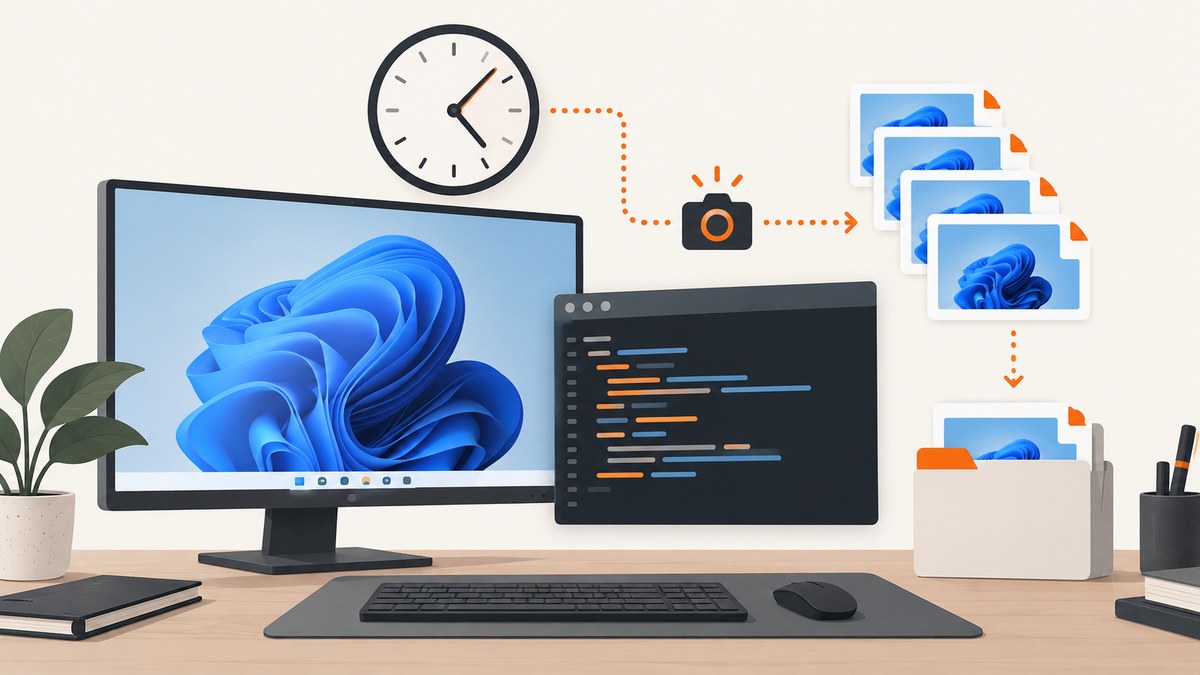
For one delayed screenshot, use Snipping Tool’s Delay option. For recurring screenshots, save a PowerShell capture script and run it with Windows Task Scheduler while you are logged in to an interactive desktop session. Windows 11 does not provide a built-in repeating screenshot schedule in Snipping Tool, so recurring captures require a script plus a scheduler.
This guide covers one-time delayed captures, scheduled desktop screenshots, game and app captures, file naming, multiple monitors, locked sessions, troubleshooting, and a browser-based alternative for website screenshots.
Choose the right Windows 11 method
| Method | Trigger | Best for | Output |
|---|---|---|---|
| Snipping Tool Delay | Manual capture after a 1–5 second countdown | Opening a menu or other transient screen element | Snipping Tool and the configured Screenshots folder |
| PowerShell script plus Task Scheduler | Recurring minute, hourly, daily, weekly, or monthly trigger | Repeated captures of the visible desktop | The folder and filename chosen by your script |
| Xbox Game Bar | Windows + Alt + Print Screen | A user-triggered game or app screenshot | PNG in Videos\\Captures |
Microsoft documents Snipping Tool’s delay and capture modes in its Snipping Tool instructions. Task Scheduler supports recurring frequency choices, and Windows PowerShell 5.1 supports scheduled jobs with one-time or recurring triggers.
Take one screenshot after a delay with Snipping Tool
- Open Snipping Tool from the Start menu.
- Select Delay and choose 1, 2, 3, 4, or 5 seconds.
- Choose a mode: freeform, rectangular, window, or full-screen snip.
- Select New. During the countdown, open the menu or arrange the window you need.
- Edit or annotate the result, then save it.
Windows copies the capture into Snipping Tool and current versions normally save captures to the Screenshots folder. Open Snipping Tool settings and confirm the save behavior and destination on your build, because these options can vary by app version.
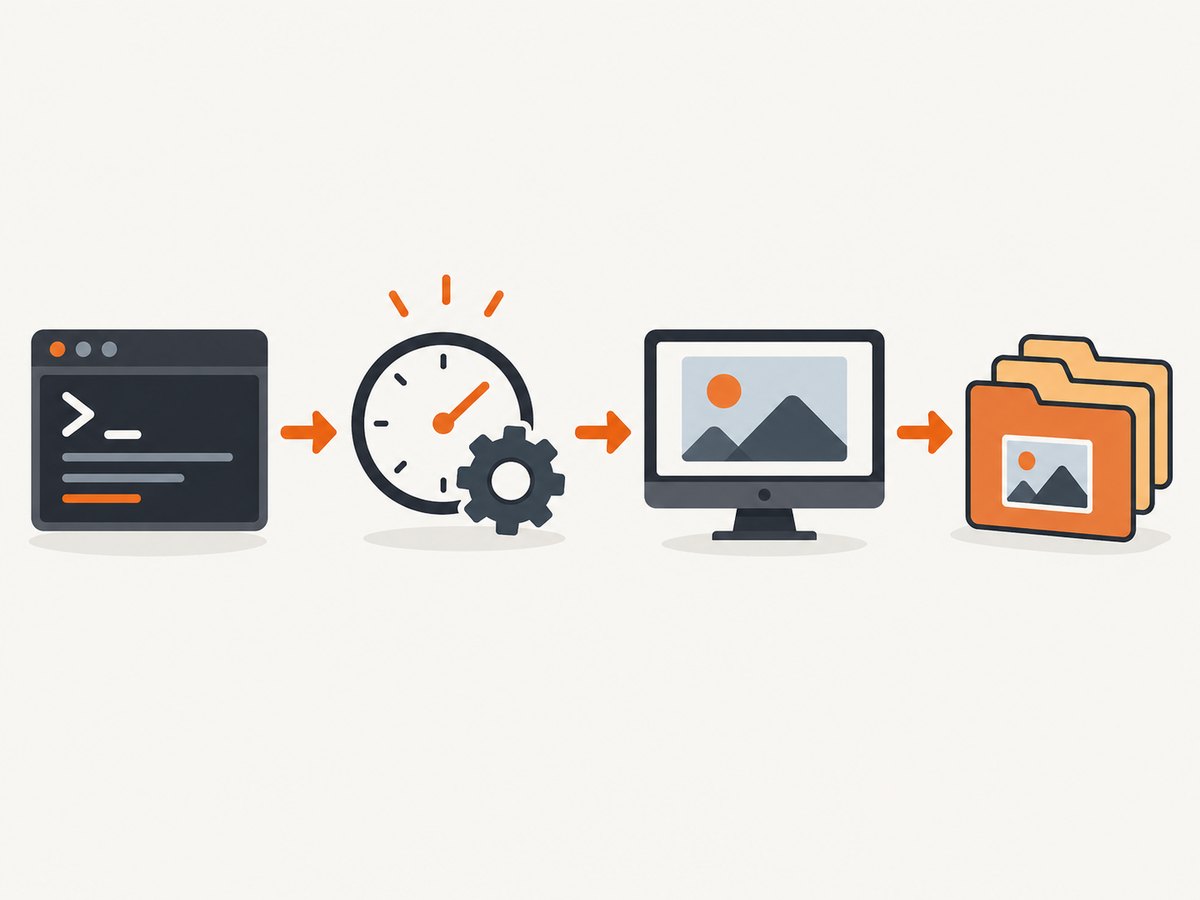
This delay is a preparation timer. It does not repeat automatically. Use the scheduled-script method below when you need a new file every few minutes or hours.
Schedule recurring desktop screenshots with PowerShell
1. Create the capture script
The following script captures the complete virtual desktop, including all monitors, and writes a timestamped PNG. It creates the destination directory and never overwrites an earlier capture.
$ErrorActionPreference = 'Stop'

Add-Type -AssemblyName System.Windows.Forms
Add-Type -AssemblyName System.Drawing

$outputDirectory = Join-Path $env:USERPROFILE 'Pictures\\ScheduledScreenshots'
New-Item -ItemType Directory -Path $outputDirectory -Force | Out-Null

$virtualScreen = [System.Windows.Forms.SystemInformation]::VirtualScreen
$bitmap = New-Object System.Drawing.Bitmap $virtualScreen.Width, $virtualScreen.Height
$graphics = [System.Drawing.Graphics]::FromImage($bitmap)

try {
    $graphics.CopyFromScreen(
        $virtualScreen.Left,
        $virtualScreen.Top,
        0,
        0,
        $bitmap.Size,
        [System.Drawing.CopyPixelOperation]::SourceCopy
    )

    $timestamp = Get-Date -Format 'yyyy-MM-dd_HH-mm-ss-fff'
    $path = Join-Path $outputDirectory "desktop-$timestamp.png"
    $bitmap.Save($path, [System.Drawing.Imaging.ImageFormat]::Png)
    Write-Output "Saved $path"
}
finally {
    $graphics.Dispose()
    $bitmap.Dispose()
}
Save it as C:\\Scripts\\Capture-Desktop.ps1. Create the C:\\Scripts folder first if it does not exist. Run it manually before scheduling it:
powershell.exe -NoProfile -ExecutionPolicy Bypass -File "C:\\Scripts\\Capture-Desktop.ps1"Confirm that a PNG appears in Pictures\\ScheduledScreenshots. Running the script successfully by hand catches path, permission, display, and PowerShell errors before Task Scheduler is involved.
2. Register it in Task Scheduler
- Open Task Scheduler.
- Select Create Task, not only Create Basic Task, so you can control the logged-on session and conditions.
- On General, name the task
Scheduled desktop screenshot. Select Run only when user is logged on. Capturing the visible desktop requires an interactive logged-on session; a task running asSYSTEMmay have no desktop to capture. - On Triggers, choose New. Select a schedule such as daily, and enable Repeat task every a chosen interval. Set the duration to Indefinitely when appropriate.
- On Actions, choose Start a program. Set Program/script to
powershell.exe. Add this argument:-NoProfile -ExecutionPolicy Bypass -File "C:\\Scripts\\Capture-Desktop.ps1". - On Conditions, clear Start the task only if the computer is on AC power if captures should continue on battery. Decide whether the task should wake the computer; waking from sleep does not guarantee that the required desktop is ready.
- On Settings, enable Run task as soon as possible after a scheduled start is missed if a delayed capture is useful. Choose whether a second run should be skipped when the previous run is still active.
- Save the task, right-click it, and select Run to verify it.
Start with a five-minute interval while you observe the output. Change the trigger only after the task has produced several correctly named files.
3. Configure the schedule from PowerShell (optional)
You can create the same type of task from an elevated PowerShell window. This example runs every 15 minutes under the current user and requires that user to be logged on:
$scriptPath = 'C:\\Scripts\\Capture-Desktop.ps1'
$action = New-ScheduledTaskAction `
    -Execute 'powershell.exe' `
    -Argument "-NoProfile -ExecutionPolicy Bypass -File `"$scriptPath`""
$trigger = New-ScheduledTaskTrigger -Once -At (Get-Date).AddMinutes(1) `
    -RepetitionInterval (New-TimeSpan -Minutes 15) `
    -RepetitionDuration ([TimeSpan]::MaxValue)
$principal = New-ScheduledTaskPrincipal `
    -UserId "$env:USERDOMAIN\\$env:USERNAME" `
    -LogonType Interactive `
    -RunLevel Limited
Register-ScheduledTask `
    -TaskName 'Scheduled desktop screenshot' `
    -Action $action `
    -Trigger $trigger `
    -Principal $principal
Windows PowerShell 5.1 scheduled jobs are another supported scheduling interface. They use triggers and are managed through Task Scheduler, but a scheduled job still needs an interactive desktop if its code captures the visible screen.
Capture only one monitor or a selected region
The sample captures the entire virtual screen. To capture one monitor, inspect the available display bounds and choose one:
Add-Type -AssemblyName System.Windows.Forms
[System.Windows.Forms.Screen]::AllScreens | ForEach-Object {
    [PSCustomObject]@{
        DeviceName = $_.DeviceName
        Left       = $_.Bounds.Left
        Top        = $_.Bounds.Top
        Width      = $_.Bounds.Width
        Height     = $_.Bounds.Height
        Primary    = $_.Primary
    }
}
Replace $virtualScreen in the first script with [System.Windows.Forms.Screen]::PrimaryScreen.Bounds for the primary monitor. To capture a fixed rectangle, create a System.Drawing.Rectangle with the desired left, top, width, and height, then pass those values to CopyFromScreen.
Coordinates can be negative when a monitor is positioned to the left or above the primary display. Use the bounds reported by Windows instead of assuming that the top-left coordinate is 0,0.
Capture a game or app with Xbox Game Bar
For a manual screenshot of a game or app, press Windows + Alt + Print Screen. Microsoft documents this as a PNG capture saved under Videos\\Captures. It is a keyboard-triggered capture, not an unattended recurring schedule.
If the shortcut does nothing, open Settings → Gaming → Xbox Game Bar and confirm Game Bar is enabled. For scheduled captures, use the PowerShell script instead.
Important edge cases
- Locked workstation: a desktop screenshot script may capture nothing useful when Windows is locked. Configure the task to run only when the user is logged on and test the exact lock, unlock, sleep, and wake behavior you need.
- Sleep and hibernation: no screenshot can be captured while the computer is asleep. A wake trigger may run before applications redraw the screen.
- UAC prompts and secure desktops: protected prompts can appear on a separate desktop and may not be available to ordinary capture APIs.
- RDP sessions: disconnecting or closing a Remote Desktop session can change the interactive display. Test whether you need the console session or an active RDP session.
- Display scaling: high-DPI scaling can make pixel dimensions differ from the logical resolution. Validate output dimensions if screenshots feed image-processing software.
- Multiple monitors: the virtual-screen capture includes every monitor and may include a negative origin. Use a monitor-specific rectangle when you need one display.
- Privacy: scheduled files may contain passwords, notifications, or personal data. Restrict the output directory and set a retention policy.
- Disk growth: PNG files accumulate quickly. Add a cleanup step if the task runs frequently.
Add retention and logging
A simple cleanup command deletes captures older than 14 days:
$outputDirectory = Join-Path $env:USERPROFILE 'Pictures\\ScheduledScreenshots'
Get-ChildItem -Path $outputDirectory -Filter '*.png' -File |
    Where-Object { $_.LastWriteTime -lt (Get-Date).AddDays(-14) } |
    Remove-Item -Force
Run cleanup after saving the new image, or create a second scheduled task. For operational visibility, redirect standard output and errors from Task Scheduler to a log file, and inspect Last Run Result in Task Scheduler after failures.
Troubleshooting
| Symptom | Likely cause | Fix |
|---|---|---|
| No file is created | The script was never run manually, the directory is invalid, or the task account lacks permission. | Run the PowerShell command by hand, use an absolute path, and check the task history and Last Run Result. |
| Task reports success but image is blank | The task ran without an interactive desktop, often under SYSTEM or while logged out. |
Select Run only when user is logged on and test while the desktop is unlocked. |
| Only one display appears | The script uses primary-screen bounds. | Use SystemInformation.VirtualScreen for all monitors or select the required monitor explicitly. |
| Images overwrite one another | The filename is fixed. | Include a timestamp such as yyyy-MM-dd_HH-mm-ss-fff. |
| Access denied | The destination is protected or controlled-folder access blocks PowerShell. | Write to a user-owned folder such as Pictures and grant the task account write permission. |
| Execution policy error | Local policy blocks scripts. | Use your organization’s approved policy. For a personal task, invoke PowerShell with -ExecutionPolicy Bypass only when that is acceptable in your environment. |
| Wrong size or blurry result | Display scaling, remote desktop resizing, or application redraw timing. | Record the actual pixel dimensions, keep the display at a stable mode, and add a short delay before capture when an application needs time to redraw. |
| Game screenshot is missing | Xbox Game Bar is disabled or the shortcut is intercepted. | Enable Game Bar in Windows settings or use the PowerShell method for a scheduled capture. |
Performance, reliability, and cost
- Performance: full-desktop PNG encoding uses memory proportional to screen area. Reduce frequency, capture one monitor, or use JPEG when file size matters and image quality permits.
- Reliability: use unique names, absolute paths, a known user account, and a manual test before scheduling. Keep a short log and monitor free disk space.
- Scheduling: Task Scheduler and PowerShell scheduled jobs provide the trigger; they do not make a locked or sleeping desktop capturable. The interactive-session requirement comes from Microsoft Q&A guidance about scheduled screenshots.
- Cost: this local workflow has no API charge, but it consumes local CPU, memory, storage, and power. Retention and capture frequency determine storage use.
Or skip the browser setup
If your goal is screenshots of websites rather than the Windows desktop, ScreenshotNeo returns a screenshot or PDF from one HTTP request. It handles browser startup and page loading for you.
See the ScreenshotNeo API documentation for all options. This cURL request saves a WebP screenshot:
curl -G "https://api.screenshotneo.com/v1/shot" -d access_key=YOUR_API_KEY --data-urlencode url=https://stripe.com -o shot.webpPython:
import requests
r = requests.get("https://api.screenshotneo.com/v1/shot", params={"access_key": "YOUR_API_KEY", "url": "https://stripe.com"}, timeout=90)
open("shot.webp", "wb").write(r.content)
Node.js:
const q = new URLSearchParams({ access_key: 'YOUR_API_KEY', url: 'https://stripe.com' });
const res = await fetch(`https://api.screenshotneo.com/v1/shot?${q}`);
const image = Buffer.from(await res.arrayBuffer());
await require('node:fs').promises.writeFile('shot.webp', image);
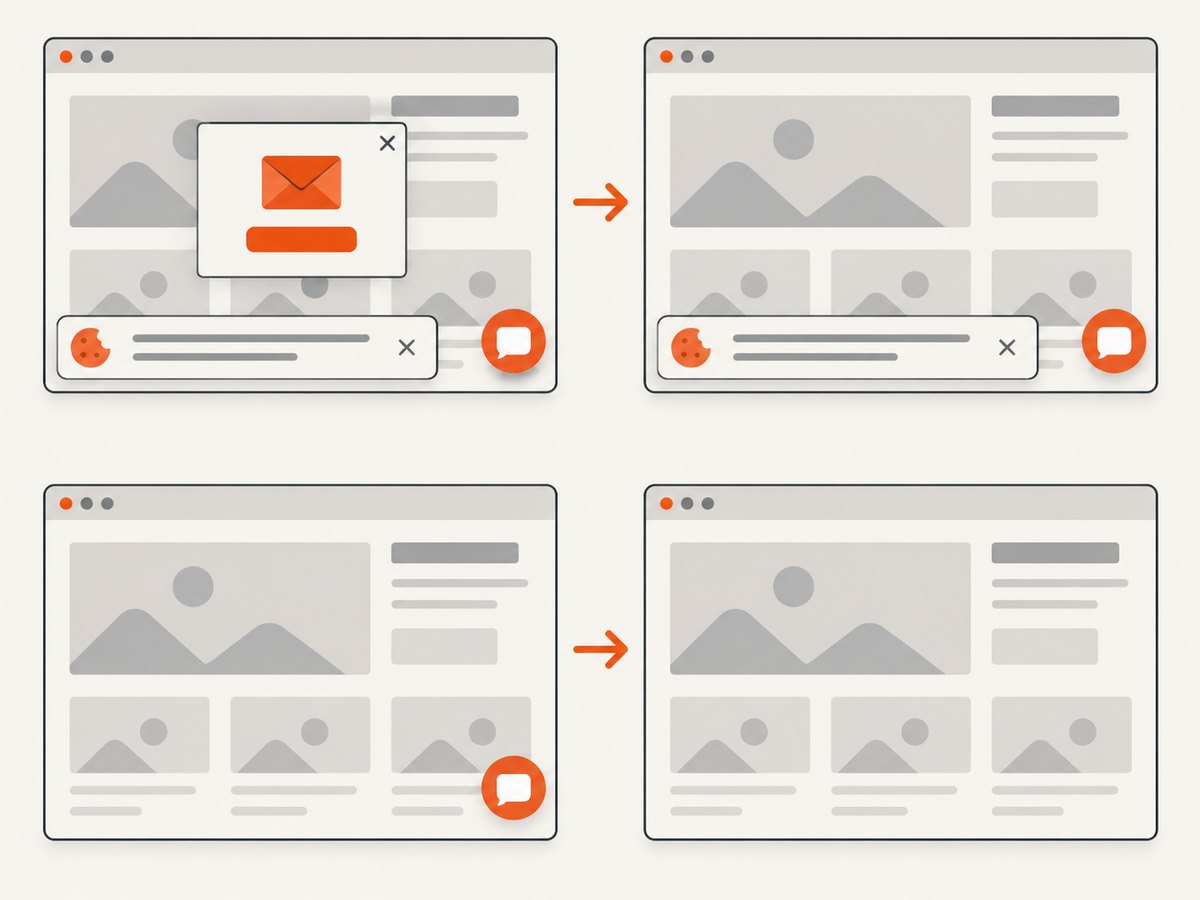
Before capture, ScreenshotNeo accepts cookie and consent banners and removes more than 60 known consent platforms, newsletter popups, and chat widgets; each cleanup step can be turned off. Bot checks, blank pages, timeouts, failed loads, and cache hits are not billed, and response headers identify the page verdict and whether the shot was billed. It also offers an MCP server for Claude, Cursor, and other MCP clients, with take_screenshot, get_page_info, and capture_pdf tools. The free plan includes 1,000 screenshots per month with no card; paid plans start at $5 for 3,000 shots.
Create a free ScreenshotNeo account and start with 1,000 screenshots each month at no charge.
FAQ
Can Snipping Tool take screenshots every minute?
No. Its Delay setting prepares one interactive capture. Use a script and Task Scheduler for recurrence.
Will a scheduled screenshot work after I sign out?
A visible-desktop capture generally needs an interactive logged-on session. Configure and test the task with the account and session state you plan to use.
Where does Xbox Game Bar save screenshots?
Microsoft documents PNG files under Videos\\Captures.
Can I schedule website screenshots from Windows?
You can schedule a browser automation script, but a screenshot API such as ScreenshotNeo avoids maintaining a browser, driver, cookie handling, and page-wait logic.
How do I stop old captures filling the disk?
Delete files older than a chosen age with a cleanup command, or schedule cleanup as a separate task.


