BlogScreenshots on your device
Why Automation Anywhere Screenshots Appear Black and How to Fix Them
Black Automation Anywhere screenshots usually come from unattended Windows session state or privacy settings. Follow this diagnostic and repair guide.
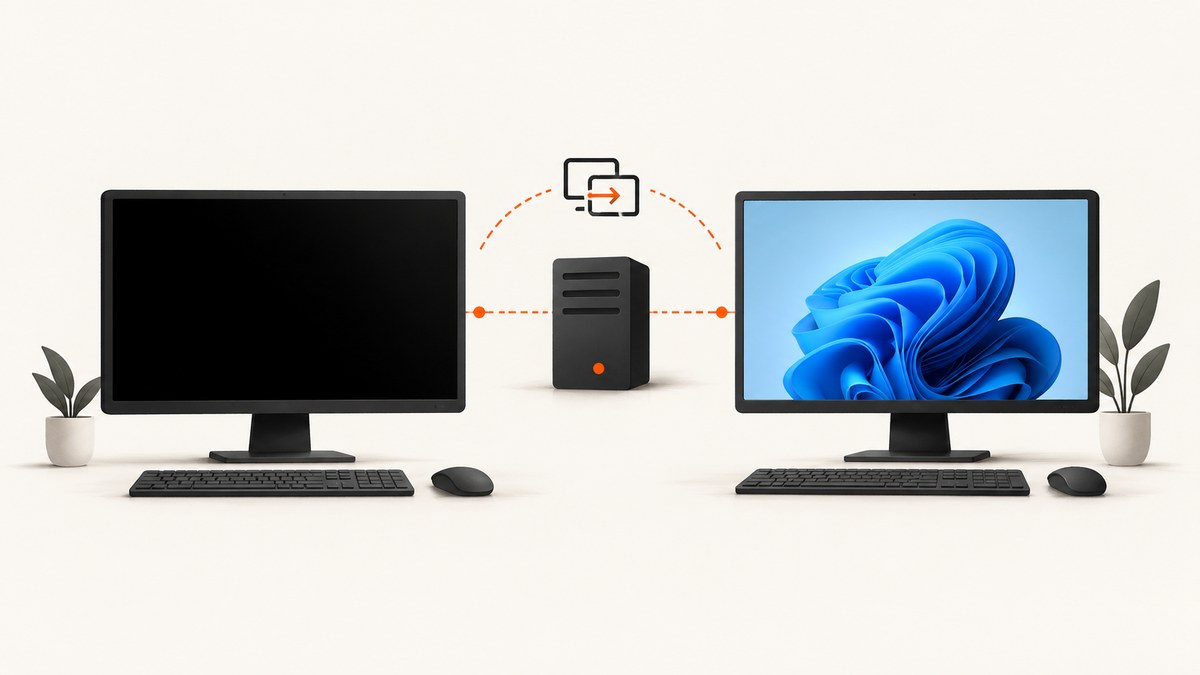
A black Automation Anywhere screenshot usually means the Bot Runner cannot capture a visible Windows desktop. The most common causes are unattended auto-login, a locked or disconnected RDP session, sleep or screen timeout, another user taking over the session, or Secure Recording mode intentionally suppressing screenshots.
Automation Anywhere documents that Screen Capture returns a black image when a bot runs unattended with auto-login enabled. Its Screen Capture documentation also states that Secure Recording mode disables screenshots. Community troubleshooting reports add sleeping, locked, disconnected, and improperly logged-out Windows/RDP sessions as frequent causes.
Fast diagnosis
- Check whether Secure Recording is enabled. If it is, screenshot suppression is expected. Disable it only when your data-protection policy permits capture.
- Capture the desktop or a clearly visible application immediately before the failing action.
- If every capture is black, inspect the Windows and RDP session. If only one application is black, inspect the target window, rendering, and timing.
- Confirm the bot is targeting the intended active application or browser window.
- Review Control Room auto-login and session-reuse settings, then clean up stale RDP sessions and retry.
Why unattended captures turn black
Auto-login and unattended execution
In unattended mode with auto-login enabled, Automation Anywhere documents black Screen Capture output as expected behavior. The bot may still run tasks, but the interactive desktop needed by the capture command is unavailable.
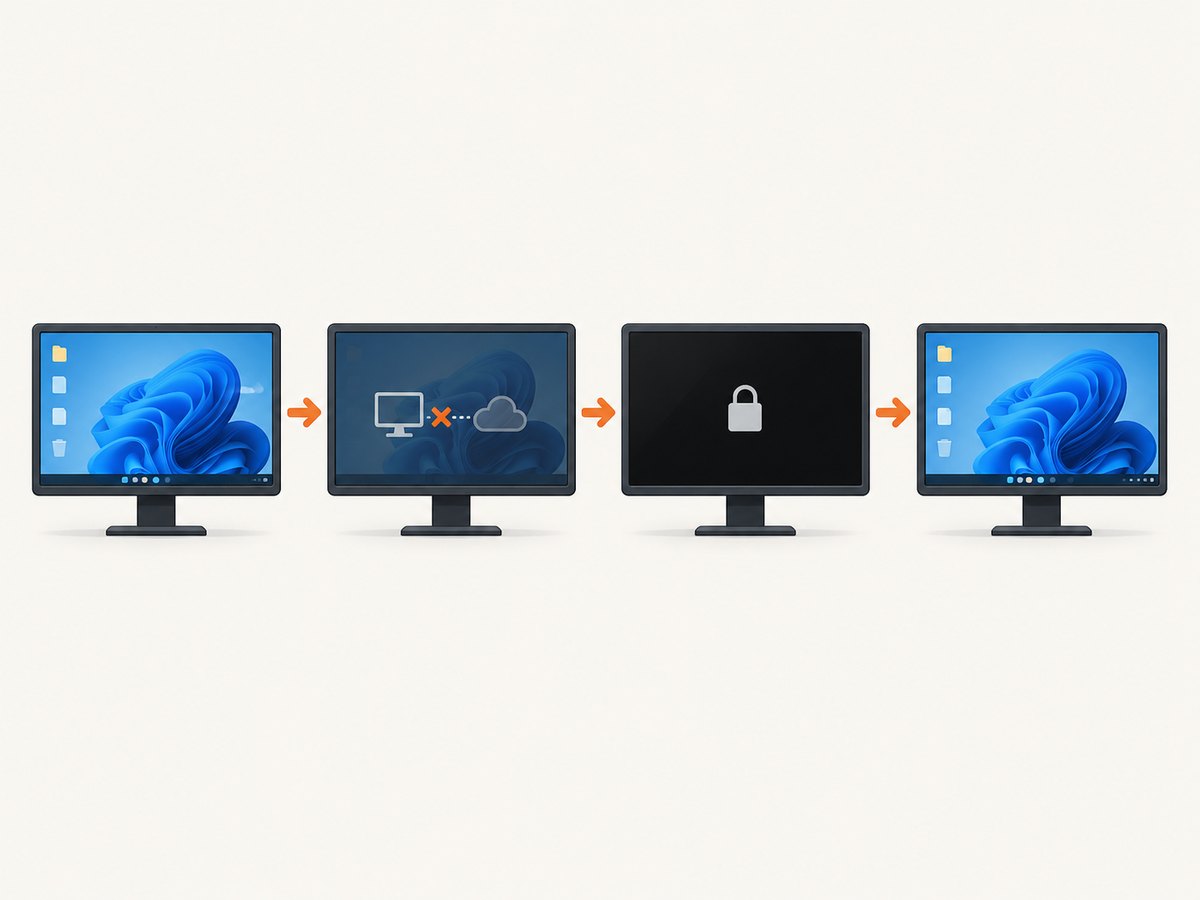
Locked, sleeping, or disconnected sessions
A Windows session that is locked, asleep, disconnected, or left in an inconsistent RDP state may not expose a capturable desktop. A second login can replace or interrupt the Bot Runner session. These conditions are especially common on virtual machines and shared multi-user devices.
Secure Recording mode
Secure Recording is a privacy control. When it is enabled, screenshots are disabled. A black result in this case is not a rendering failure; it is policy enforcement. If screenshots are prohibited, use logs, application-level status, or other non-visual diagnostics.
Wrong window or unstable target
The Screen package’s Capture area action requires the correct active application or browser window. A stale window handle, a changed title, a minimized window, or a browser tab that has not finished rendering can make one target appear black while other captures work.
Supported repair procedure
1. Check Secure Recording first
Look at the Control Room and runner configuration for Secure Recording. If enabled, decide with your security owner whether capture is allowed. Do not treat a screenshot utility as a workaround for a policy setting.
2. Prove whether the failure is global
Add a temporary diagnostic capture of the desktop or a known visible application immediately before the failing step.
- Desktop and application are both black: continue with session and RDP checks.
- Desktop works but one application is black: verify window selection, application rendering, and wait conditions.
- Only unattended runs fail: focus on auto-login, session reuse, lock state, and RDP deployment.
3. Verify the runner session
On the Bot Runner machine, confirm that the expected Windows user is logged in, the session is awake, and the desktop is visible. Check for:
- Sleep, display-off, or lock timeouts that occur during a run.
- An RDP client that disconnected without a proper sign-out.
- A second user login that took over the runner session.
- A VM or VDI console showing a different session from the one used by the bot.
- Resolution or display changes between attended and unattended runs.
Where policy permits, keep the runner session active and prevent sleep or lock timeouts during capture windows.
4. Repair auto-login and session reuse
Review Control Room auto-login and session-reuse settings. Automation Anywhere recommends reusing an existing session when unattended runners may be locked or disconnected, including RDP scenarios. Make the setting consistent across the runner pool instead of changing one machine ad hoc.
5. Clean up stale RDP sessions
Properly sign out or log off the old session, then start a fresh run. Do not leave abandoned RDP sessions connected in the background. For shared devices, document which account owns the Bot Runner session and prevent competing interactive logins while a bot is active.
6. Standardize RDP deployment
For multi-user devices, use a consistent screen resolution and review the RDP session timeout. Automation Anywhere’s unattended deployment guidance is RDP-based, so differences in session policy can change capture behavior even when the bot package is identical.
7. Recheck the capture target and timing
For a browser or desktop application, activate the intended window, wait for a stable visual state, and then capture. If the target loads asynchronously, use a wait for a selector or a deliberate delay before the Capture area action. Prefer a stable window target over a title that changes on every page.
Decision table
| Observation | Likely cause | Next action |
|---|---|---|
| All unattended captures are black | Auto-login or unavailable session | Review session reuse, lock state, and RDP policy |
| Attended works; unattended fails | Unattended session state | Check auto-login, disconnect behavior, and sleep/lock timeouts |
| Every capture is suppressed | Secure Recording | Follow privacy policy or use non-screenshot diagnostics |
| Desktop works; one app is black | Wrong target, rendering, or timing | Activate the window and add a readiness wait |
| Failure starts after another operator logs in | Session takeover | Log off the competing session and reserve the runner account |
| Failure follows an RDP crash | Stale or improperly logged-out session | Sign out cleanly and reconnect with standard settings |
Troubleshooting checklist
- Secure Recording status is known.
- The bot’s Capture area target is the intended active window.
- The runner Windows session is awake and visible.
- No user has connected to or replaced the runner session.
- The previous RDP session was signed out correctly.
- Auto-login and session reuse match the deployment design.
- Sleep, lock, and display timeouts do not interrupt the run.
- RDP resolution and timeout settings are consistent across runners.
- A known visible window was captured immediately before the failing step.
Reliability, performance, and operational trade-offs
Keeping a session awake and visible improves desktop-capture reliability but must fit your organization’s security policy. Session reuse reduces failures caused by reconnecting to a locked or disconnected desktop, while clean sign-out prevents stale RDP state from being inherited by the next run.
Adding waits improves correctness when a browser or application paints asynchronously, but excessive fixed delays increase run time. Prefer a wait for a reliable selector when the application exposes one; use a short delay only when no stable readiness signal exists.
For multi-user environments, standardizing resolution and timeout settings reduces environment-specific failures. Test both attended and unattended paths because a successful attended capture does not prove that auto-login and RDP behavior are correct.
Or skip the browser setup
If you need website images rather than a screenshot of the Automation Anywhere desktop, ScreenshotNeo captures the page directly through an API. It avoids Windows/RDP session-state problems and can produce PNG, JPEG, WebP, or PDF output.
See the ScreenshotNeo API documentation for all options. A minimal request is:
curl -G "https://api.screenshotneo.com/v1/shot" -d access_key=YOUR_API_KEY --data-urlencode url=https://stripe.com -o shot.webpimport requests
r = requests.get("https://api.screenshotneo.com/v1/shot", params={"access_key": "YOUR_API_KEY", "url": "https://stripe.com"}, timeout=90)
open("shot.webp", "wb").write(r.content)const q = new URLSearchParams({ access_key: 'YOUR_API_KEY', url: 'https://stripe.com' });
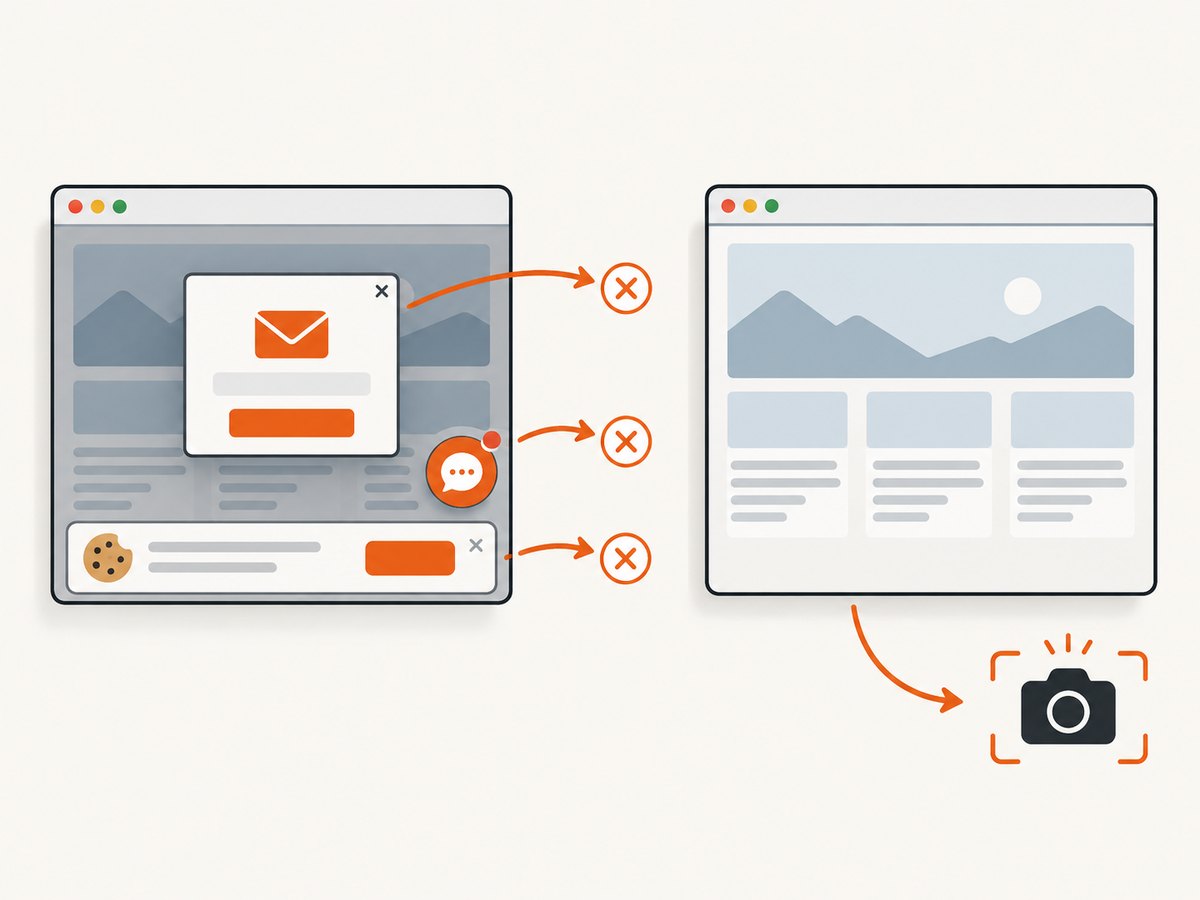
const res = await fetch(`https://api.screenshotneo.com/v1/shot?${q}`);Cookie banners, popups, and chat widgets are removed before the shot. Bot checks, blank pages, and failed loads are never billed, and response headers report the page verdict and whether the request was billed. An MCP server lets AI agents such as Claude and Cursor take screenshots. The Free plan includes 1,000 screenshots a month with no card; paid plans start at $5 for 3,000 shots. Create a free ScreenshotNeo account.
FAQ
Is a black image always an RDP problem?
No. Secure Recording intentionally disables screenshots, and an incorrect or not-yet-rendered target can affect one application only.
Why does Screen Capture work when I watch the bot?
Attended execution has a visible interactive session. Unattended auto-login may not expose that desktop, so the same action can return black.
Will changing the screenshot command fix auto-login?
No. If the session is unavailable, changing the command does not create a capturable desktop. Repair session handling or use non-visual diagnostics.
Should I leave an RDP connection open?
Use the session-reuse and timeout design approved for your environment. Avoid abandoned connections and competing logins; clean sign-out is essential.
What should I capture to isolate the fault?
Capture a known visible desktop or application immediately before the failing action, then compare that result with a capture of the intended target.


