Why backdrop-filter Blur Looks Different in Headless Puppeteer Screenshots
Headless Puppeteer screenshots can render backdrop-filter blur differently across environments. Learn what to compare and how to make captures reproducible.
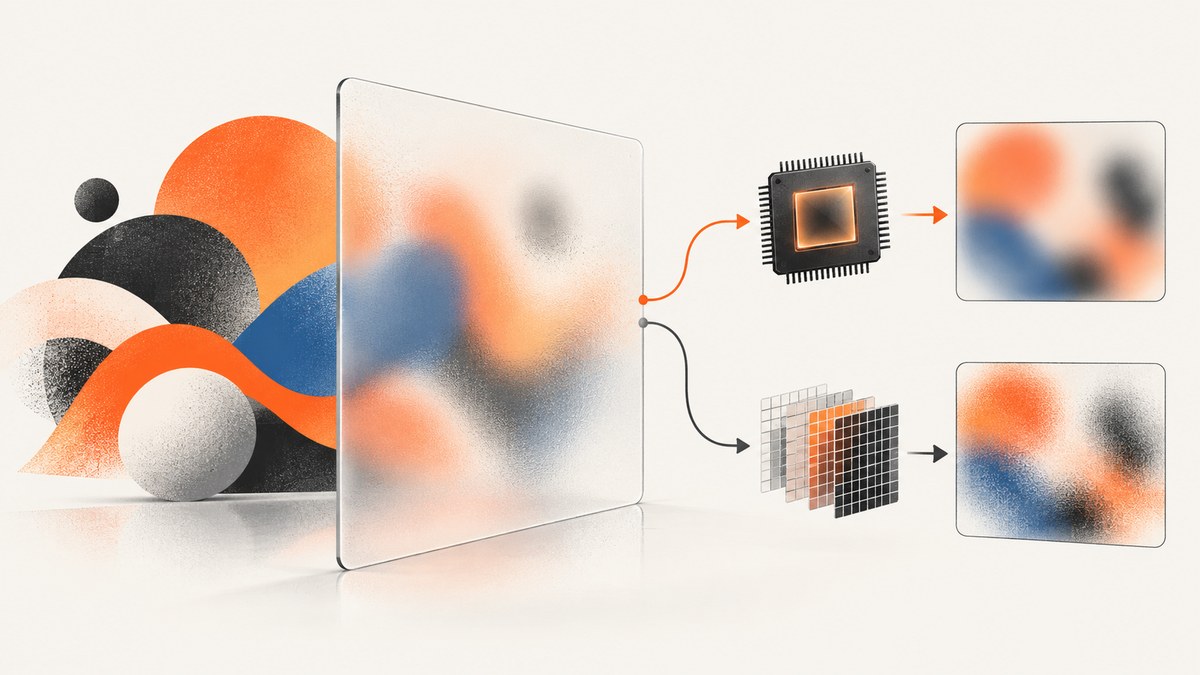
backdrop-filter: blur() can look different in headless Puppeteer screenshots because the final pixels depend on more than the CSS: browser rendering path, GPU and driver state, headless mode, and pixel scaling can all differ between environments. The official documentation describes distinct GPU and software rendering paths, and Puppeteer documents a GPU requirement for chrome-headless-shell. That does not establish one universal cause for every blur mismatch. Treat this as a rendering discrepancy to reproduce systematically, not proof that headless mode disables backdrop-filter.
To narrow it down, first make the page and capture conditions identical. Record the browser and Puppeteer versions, headless mode, operating system, GPU and driver details, viewport, device scale factor, screenshot scale, and the visible content behind the filtered element. Then change one rendering variable at a time.
1. What changes the appearance of backdrop-filter blur?
A screenshot captures the result of browser rendering, not a direct translation of a CSS declaration into pixels. Chromium separates painting and rasterization from compositing. Its documented GPU path composites using GPU APIs; its software path uses Skia’s software rasterizer. Chromium’s older architecture guide says composited CSS filters work with the software renderer, so software rendering alone is not evidence that filter behavior is omitted. That guide dates to 2014 and is architectural context, not a current guarantee about every backdrop-filter case.
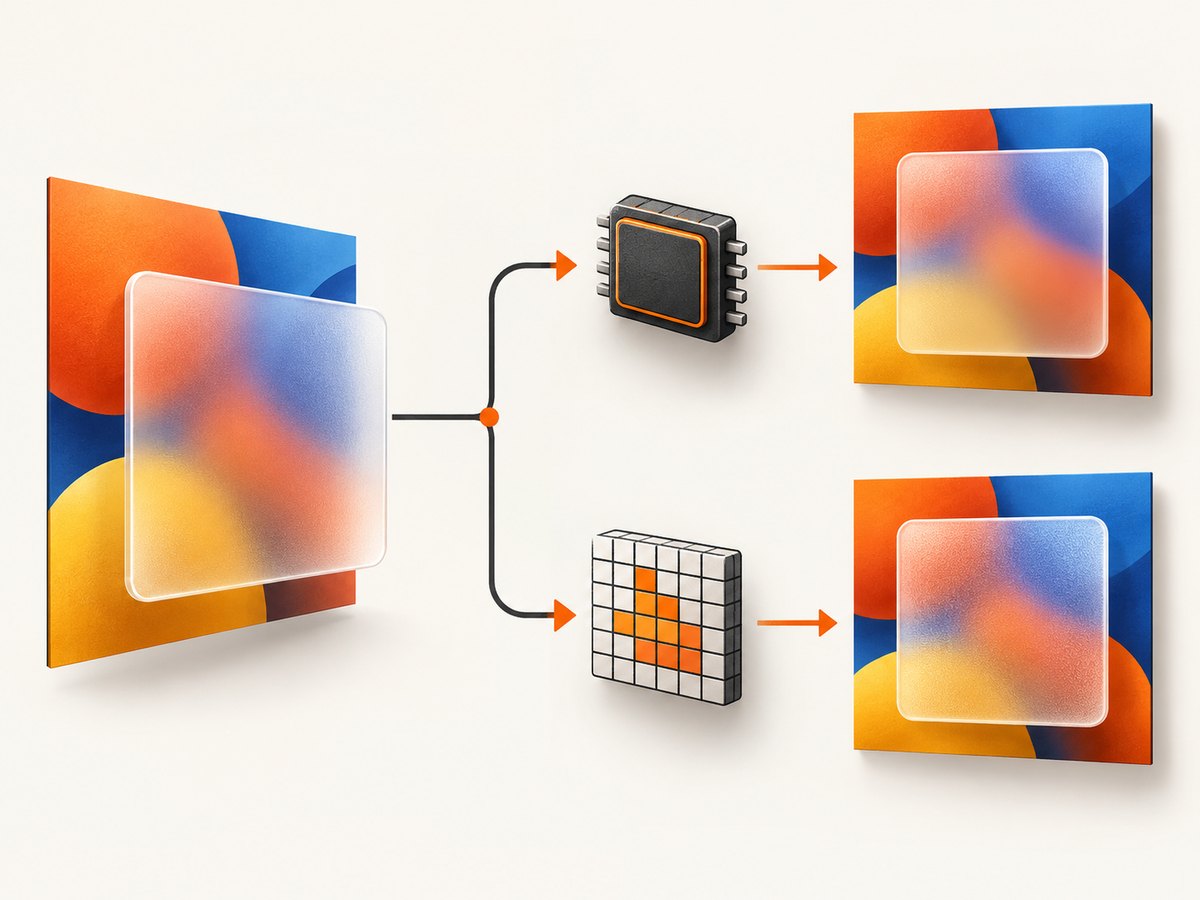
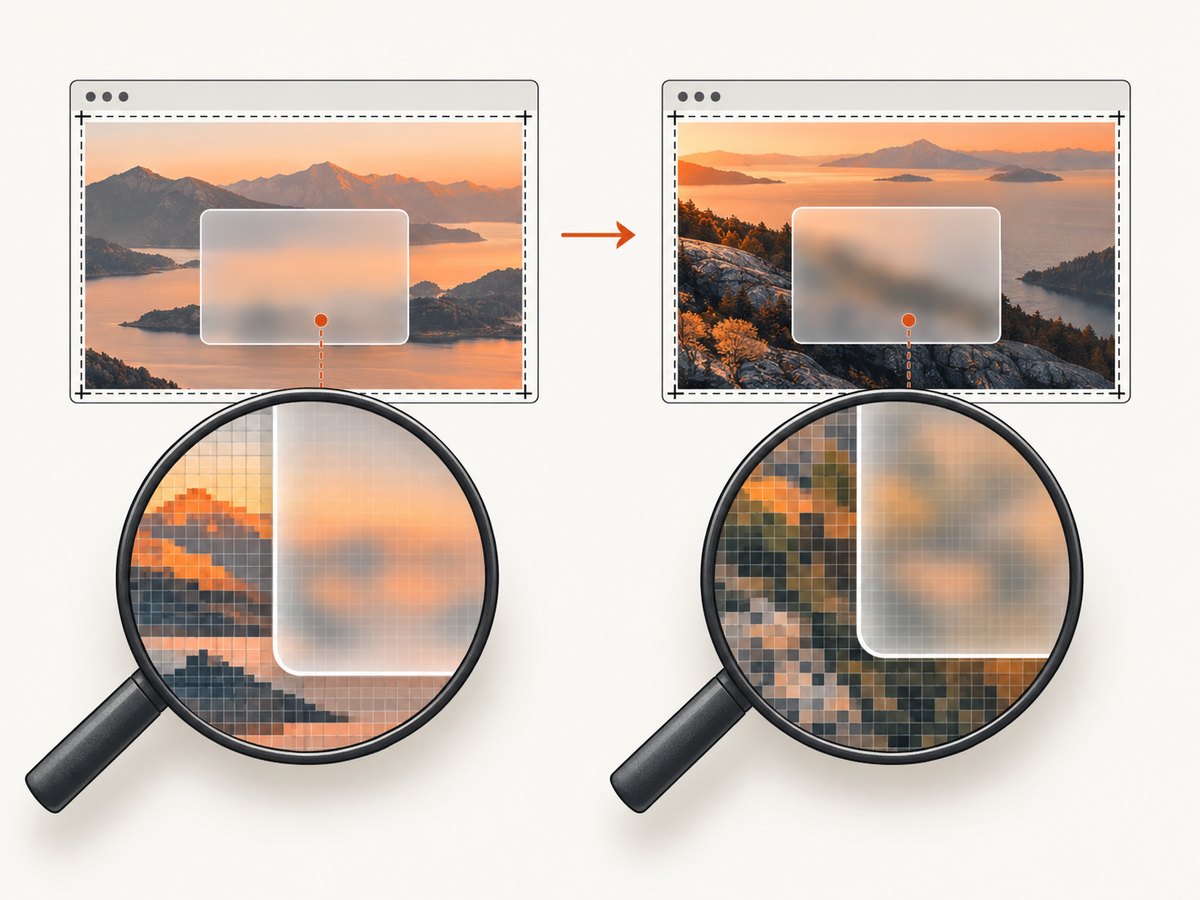
The filtered element also depends on the content behind it: backdrop-filter filters what is painted behind the element. If that underlying content, its position, or the moment it is captured changes, the apparent blur can change even when the filter declaration is identical. Keep that content and the page state stable while investigating.
Headless is not one fixed rendering configuration. Puppeteer’s troubleshooting guide says chrome-headless-shell requires --enable-gpu to enable GPU acceleration in headless mode, and notes that GPU detection depends on appropriate drivers. Record whether you use that shell or another headless mode and inspect the actual GPU state; do not infer it from the word “headless.”
Finally, rendering uses several coordinate systems. CSS pixels, device-independent pixels, and physical pixels are related through device scale factor. Puppeteer’s DevTools Protocol supports device metrics overrides and screenshot output scale. If the viewport or either scale differs, the browser samples and emits a different pixel grid; blur edges and apparent softness may therefore differ.
2. A reproducible Puppeteer diagnostic
Start by capturing a small, deterministic page. Fix the viewport and device scale factor explicitly, wait for the page to settle, and use the same screenshot scale on every run. The following Node.js script uses Puppeteer’s documented device metrics override and screenshot API. It writes a PNG and prints browser metadata that can be saved alongside the image.
const puppeteer = require('puppeteer');

(async () => {
  const browser = await puppeteer.launch({
    headless: true,
    // Test this separately when using chrome-headless-shell and
    // the host has suitable GPU drivers:
    // args: ['--enable-gpu'],
  });

  try {
    const page = await browser.newPage();
    await page.setViewport({
      width: 1280,
      height: 900,
      deviceScaleFactor: 1,
    });

    await page.goto('http://127.0.0.1:3000/blur-fixture', {
      waitUntil: 'networkidle0',
      timeout: 30000,
    });
    await page.screenshot({
      path: 'blur.png',
      type: 'png',
      fullPage: false,
      captureBeyondViewport: false,
      scale: 'css',
    });

    console.log({
      puppeteerVersion: require('puppeteer/package.json').version,
      browserVersion: await browser.version(),
      userAgent: await page.evaluate(() => navigator.userAgent),
      viewport: page.viewport(),
    });
  } finally {
    await browser.close();
  }
})();
Run the script with your installed Puppeteer package and a local fixture at the shown URL, or replace that URL with the page you are investigating. Puppeteer may download or use a configured browser; preserve the exact browser executable and version as part of the reproduction. The optional GPU argument is commented out intentionally: test it as a separate run, and only where the host and driver support it.
The capture’s scale: 'css' setting requests output at CSS-pixel scale. Keep it constant. If your Puppeteer version does not accept this option, consult its version-matched API documentation and choose a consistent screenshot scale supported there; don’t compare captures made with different settings.
3. Diagnostic sequence: change one variable at a time
- Record versions and host details. Save Puppeteer version, Chromium build, operating system, headless mode, and GPU/driver diagnostics. A version difference is useful reproduction metadata, but the cited sources do not rank its likely effect on backdrop blur.
- Fix the pixel geometry. Set viewport width and height, device scale factor, and screenshot output scale explicitly. Do not compare a default viewport with an emulated device or a CSS-scale screenshot with a device-scale screenshot.
- Stabilize the fixture. Use the same page, fonts, images, background content, and CSS. Disable or freeze animation and transitions in a diagnostic fixture. These controls reduce variables; the sources do not identify each as a proven cause of blur differences.
- Stabilize capture timing. Wait for the content behind the filtered element and its fonts to load. If the page animates or updates after network activity stops, wait for an application-specific ready condition rather than assuming network idle means visual stability.
- Compare GPU configurations where applicable. For
chrome-headless-shell, test with--enable-gpuon a host with appropriate drivers. Capture both the default and GPU-enabled configuration, including diagnostics. This is a controlled comparison, not a promise that GPU acceleration will match headed Chrome or fix every mismatch. - Repeat the same capture. Multiple captures of the same configuration help distinguish a stable rendering difference from a page that is changing between runs.
- Report the exact environment if it persists. Include the fixture or URL, versions, mode, scale settings, GPU information, and both images. Describe it as an environment-specific rendering discrepancy unless a controlled comparison establishes more.
Chromium documents the GPU/software distinction and pixel coordinate relationships; Puppeteer documents the shell GPU requirement and protocol scale controls. Those sources explain why these axes are worth checking, but they do not provide a current cross-version compatibility matrix for backdrop-filter.
4. Capture settings that matter
| Setting or condition | What to hold constant | Why it matters |
|---|---|---|
| Headless implementation | Record shell versus other headless mode | Different modes need not use the same browser configuration. |
| GPU and drivers | Record diagnostics and whether GPU acceleration is enabled | GPU and software rendering are different execution paths; shell GPU acceleration has a documented flag requirement. |
| Browser and Puppeteer versions | Pin and log both | Required to reproduce the same run; the sources do not claim a particular version causes the blur. |
| Viewport | Explicit width and height in CSS pixels | Changes layout and the filtered region’s relationship to the background. |
| Device scale factor | Set the same value on each run | Changes the mapping from CSS pixels to physical pixels. |
| Screenshot output scale | Choose one supported scale and keep it fixed | Changes the emitted pixel grid and can affect apparent softness. |
| Page state | Same background, fonts, content, and capture moment | The backdrop itself and page timing affect what is visible through the filtered element. |
5. Troubleshooting common mismatches
The blur disappears or changes when running chrome-headless-shell
Likely check: whether GPU acceleration is enabled and whether the host has suitable drivers. Puppeteer’s troubleshooting guide documents --enable-gpu for GPU acceleration in this headless shell. Fix: capture GPU diagnostics, then compare a run with the flag on a supported host. If the output changes, report the configuration difference; do not assume it will behave identically on another CI machine.
The image looks softer or the edge looks wider in CI
Likely check: device scale factor and output scale. Fix: set both explicitly and compare at the same pixel dimensions. Confirm the viewport too: it can change layout and the backdrop under the filter.
Local runs match, but CI does not
Likely check: browser build, Puppeteer version, headless implementation, OS, drivers, and font availability. Fix: log those details with every artifact and reproduce the CI configuration locally if possible. The available documentation does not identify which environmental difference is responsible in an individual case.
Repeated screenshots from one environment do not match each other
Likely check: changing content, animation, font loading, delayed images, or capture timing. Fix: use a static fixture, wait for the relevant content or selector, and take repeated captures. Only compare renderer configurations once the same configuration produces stable inputs.
Enabling GPU does not fix it
Likely check: whether the flag applies to the headless mode in use and whether the driver permits acceleration. Fix: verify the actual GPU state and preserve the before-and-after diagnostics. GPU enablement is a diagnostic axis, not a universal repair.
CSS is identical but screenshots still differ
Likely check: whether the backdrop pixels, page state, scales, and browser environment are truly identical. Fix: compare the full capture metadata and underlying page, not just the backdrop-filter declaration. If these controls are fixed and the discrepancy remains, file a reproducible report with the exact versions and GPU details.
6. Performance, reliability, and cost
Changing GPU settings can change which rendering path the browser uses, so treat it as a measured environment choice rather than a free optimization. The cited documentation gives no benchmark for backdrop-filter screenshot speed and no general rule for which path is faster on a given host. Measure capture duration and repeatability on the actual runner if those properties matter to your pipeline.
For reliable visual comparisons, pin the browser and Puppeteer versions, record host and GPU details, set geometry and scale, and preserve a deterministic fixture. A screenshot is useful evidence only when another developer can reconstruct the inputs. If a CI host changes its browser, drivers, or rendering mode, treat that as a configuration change and refresh the baseline only after reviewing the resulting image.
Cost depends on where rendering runs: a self-managed Puppeteer job uses your own compute and maintenance budget, while a hosted screenshot API charges according to its service terms. No source in this dossier supports a general cost or performance comparison between those approaches. For ScreenshotNeo’s published plans, the free tier includes 1,000 shots per month with no card; paid plans start at $5 for 3,000 shots, with all features on every plan. Consider whether you need to maintain a browser environment, and validate any service against your page and capture requirements.
7. Or skip the browser setup
If you need a screenshot without maintaining Puppeteer and its browser environment, ScreenshotNeo is a website screenshot API and MCP server. One GET request returns a PNG, JPEG, WebP, or PDF. Its clean-shot flow accepts cookie and consent banners like a visitor and removes 60+ known consent platforms, newsletter popups, and chat widgets before capture; each step can be turned off. Bot checks and CAPTCHAs, blank pages, timeouts, failed loads, and cache hits cost nothing, and responses identify the page verdict and billing status.
For blur comparisons, pin the capture options and keep the source page and viewport consistent. This API call saves a WebP for a page you control; see the ScreenshotNeo API documentation for request parameters and output options.
curl -G "https://api.screenshotneo.com/v1/shot" \
  -d access_key=YOUR_API_KEY \
  --data-urlencode url=https://stripe.com \
  -o shot.webp
import requests
r = requests.get(
"https://api.screenshotneo.com/v1/shot",
params={"access_key": "YOUR_API_KEY", "url": "https://stripe.com"},
timeout=90,
)
open("shot.webp", "wb").write(r.content)const q = new URLSearchParams({
access_key: 'YOUR_API_KEY',
url: 'https://stripe.com',
});
const res = await fetch(`https://api.screenshotneo.com/v1/shot?${q}`);
if (!res.ok) throw new Error(`Screenshot request failed: ${res.status}`);
const bytes = new Uint8Array(await res.arrayBuffer());
await import('node:fs/promises').then(fs => fs.writeFile('shot.webp', bytes));Cookie banners, popups, and chat widgets are removed before the shot. Bot checks, blank pages, and failed loads are never billed. An MCP server lets AI agents take screenshots. The free plan includes 1,000 screenshots a month with no card; paid plans start at $5 for 3,000. Sign up for free.
8. Frequently asked questions
Does Puppeteer headless always disable GPU compositing?
No universal conclusion follows from the cited guidance. Puppeteer’s current troubleshooting documentation specifically says chrome-headless-shell requires --enable-gpu for GPU acceleration in headless mode. Check the mode and actual host state.
Does a different blur prove that backdrop-filter is unsupported?
No. A changed appearance alone does not identify the cause. Compare the rendering path, scale, browser environment, and pixels behind the element before drawing that conclusion.
Will setting –enable-gpu make screenshots match headed Chrome?
The sources do not establish that. It is a useful controlled comparison for the documented shell mode when the host has appropriate drivers, not a guarantee of matching output.
Which details should accompany a bug report?
Include the minimal page or URL, Puppeteer and Chromium versions, operating system, headless mode, GPU and driver diagnostics, viewport, device scale factor, screenshot scale, and the images from each run.
Sources
- Puppeteer troubleshooting guide — headless-shell GPU requirement and driver note.
- Chromium GPU accelerated compositing guide — rendering architecture and software renderer; updated May 2014.
- Chromium Blink coordinate spaces — relationships among physical, device-independent, and CSS pixels.
- DevTools Protocol browser schema — device metrics and screenshot scale controls.


