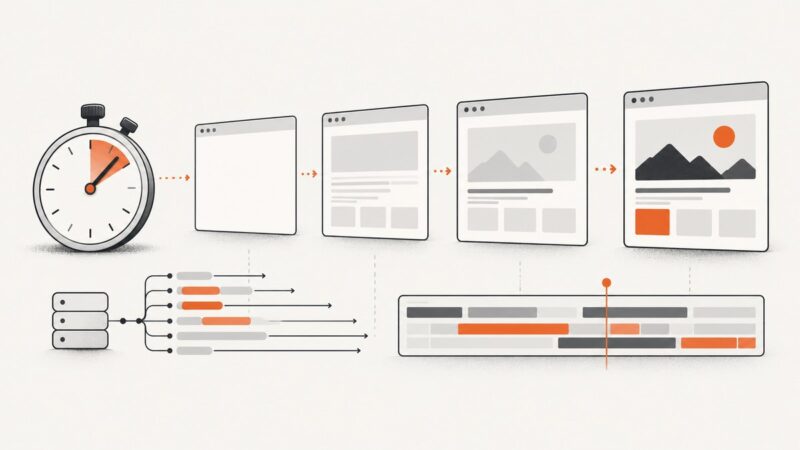
Headless Website Testing Best Practices
Build reliable headless browser tests with isolation, deterministic CI, cross-browser coverage, traces, and practical Playwright patterns.

Headless testing runs a real browser without displaying its user interface. The most reliable approach is to test user-visible behavior with stable locators, isolate every test, select a browser matrix that matches your users, make CI deterministic, collect traces on retries, and keep functional tests separate from load testing.
This guide uses Playwright examples because it provides browser projects, isolated contexts, auto-waiting, tracing, parallel workers and sharding. The same principles apply to Selenium WebDriver and other headless frameworks.
1. Define what headless testing should prove
Headless mode changes how the browser is displayed, not what a user should be able to do. Your tests should verify visible outcomes: a user can sign in, submit a form, navigate, see validation, download a file or complete a checkout. Playwright recommends testing user-visible behavior and avoiding implementation details such as function names, array structures or CSS classes. See the Playwright best-practices guidance.
- Functional end-to-end tests: validate workflows through the browser.
- Component or API tests: validate isolated logic and service contracts faster.
- Visual tests: compare rendered output at intentional viewport and device settings.
- Performance tests: measure latency, throughput and resource behavior with a dedicated tool.
Do not use a headless end-to-end suite as a load generator. Selenium states that performance testing with Selenium/WebDriver is generally not advised because browser startup, servers, third-party resources and WebDriver instrumentation introduce uncontrolled variation. Use a dedicated performance tool, and inspect browser resource timings separately.
2. Choose Playwright or Selenium deliberately
| Decision | Playwright | Selenium WebDriver |
|---|---|---|
| Browser engines | Chromium, Firefox and WebKit projects, plus branded browser channels | Broad browser and driver ecosystem through WebDriver |
| Isolation | Separate BrowserContext per test is a built-in model | Usually requires explicit session, profile and data cleanup |
| Waiting and diagnostics | Locator auto-waiting, assertions, traces and screenshots | Explicit waits and ecosystem-dependent diagnostics |
| Parallel execution | Workers, projects and sharding are built into Playwright Test | Parallelism is normally coordinated by your runner or grid |
| Best fit | New browser automation suites with modern CI needs | Existing WebDriver infrastructure, language bindings or grid requirements |
There is no universal choice; Selenium’s documentation notes that no single approach works for every situation. Choose the framework that fits your supported browsers, languages, existing infrastructure and diagnostic needs.
3. Install a reproducible Playwright test project
npm init playwright@latest
# Select TypeScript or JavaScript, then install the browsers
npx playwright install --with-deps chromium firefox webkit
Pin the Playwright package in your lockfile and update it with the browser binaries as one maintenance task. A browser version mismatch can create failures that are difficult to reproduce locally.
4. Write user-facing, stable tests
Prefer accessible roles, labels and other user-facing locators. Use CSS classes, generated IDs and DOM structure only when they are part of a deliberate contract.
import { test, expect } from '@playwright/test';

test('a user can sign in and see the dashboard', async ({ page }) => {
  await page.goto('https://example.test/login');
  await page.getByRole('textbox', { name: 'Email' }).fill('qa@example.test');
  await page.getByLabel('Password').fill(process.env.TEST_PASSWORD);
  await page.getByRole('button', { name: 'Sign in' }).click();

  await expect(page.getByRole('heading', { name: 'Dashboard' })).toBeVisible();
  await expect(page.getByText('qa@example.test')).toBeVisible();
});
Assertions should describe the outcome a user can observe. Avoid fixed sleeps such as waitForTimeout(5000); wait for a locator, URL, response or state that represents readiness.
5. Isolate every test before enabling parallelism
Isolation prevents one test’s cookies, local storage, authentication state or server data from changing another test’s result. Playwright creates separate browser contexts for tests; keep server-side data isolated as well.
- Create unique users, projects and order IDs per test or worker.
- Reset or seed database state through an API fixture rather than UI cleanup.
- Do not share a mutable account between parallel tests.
- Use a fresh context for tests that require different permissions or locales.
- Keep test artifacts in directories keyed by test name and retry.
import { test as base } from '@playwright/test';

export const test = base.extend({
  uniqueEmail: async ({}, use, testInfo) => {
    const email = `qa-${testInfo.workerIndex}-${testInfo.parallelIndex}-${Date.now()}@example.test`;
    await use(email);
  }
});
6. Configure a browser and device matrix
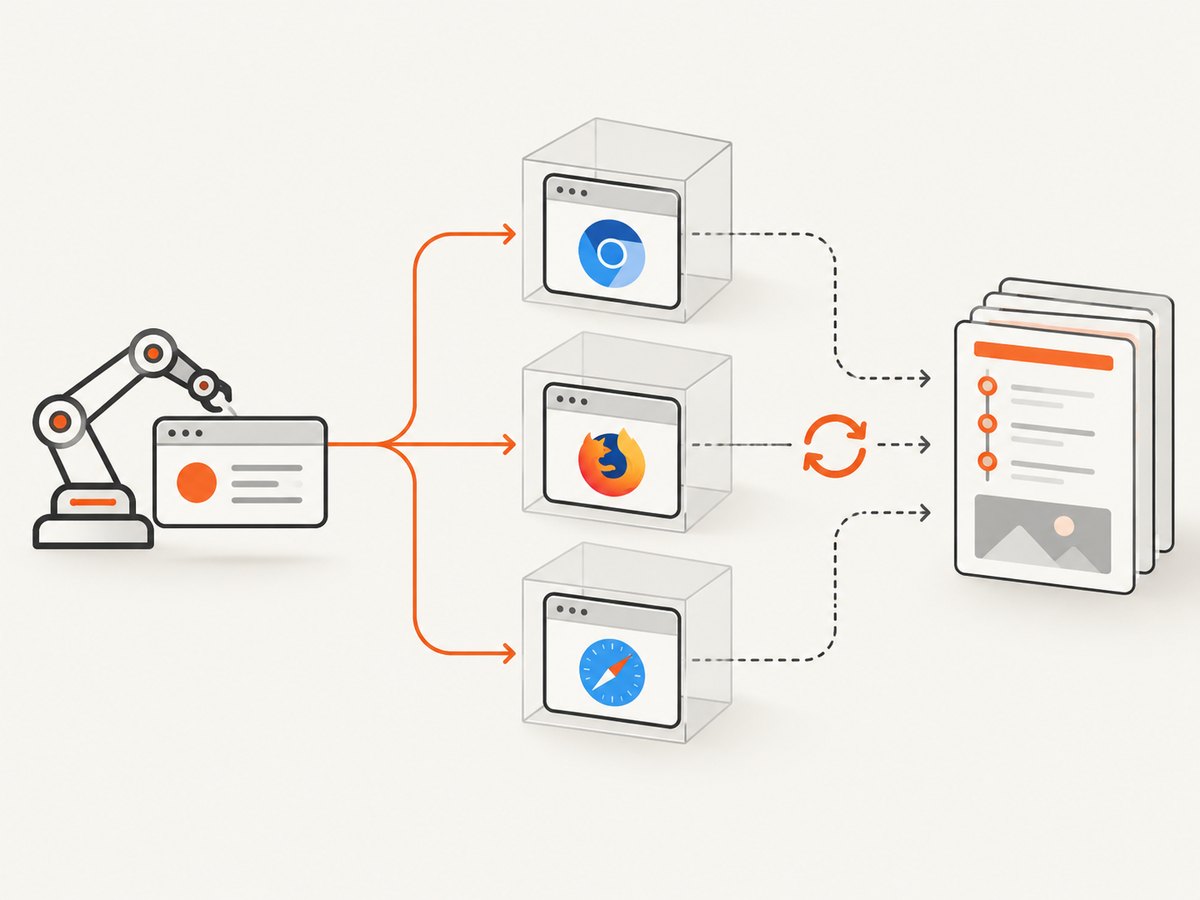
Testing across browsers helps ensure your application works for your users. Select projects based on real traffic and risk rather than running every combination by default. Include Chromium, Firefox and WebKit when those engines matter; add branded Chrome or Edge channels and device profiles when your audience uses them.
import { defineConfig, devices } from '@playwright/test';

export default defineConfig({
  testDir: './tests',
  timeout: 30_000,
  expect: { timeout: 5_000 },
  use: {
    baseURL: process.env.BASE_URL || 'http://127.0.0.1:3000',
    trace: 'on-first-retry',
    screenshot: 'only-on-failure',
    video: 'retain-on-failure'
  },
  projects: [
    { name: 'chromium', use: { ...devices['Desktop Chrome'] } },
    { name: 'firefox', use: { ...devices['Desktop Firefox'] } },
    { name: 'webkit', use: { ...devices['Desktop Safari'] } },
    { name: 'mobile-chromium', use: { ...devices['Pixel 5'] } }
  ],
  reporter: [['html'], ['junit', { outputFile: 'test-results/results.xml' }]]
});
Keep a smaller smoke matrix on every pull request and run the full matrix on protected branches or a scheduled job. Document why each project exists so the matrix stays aligned with your users.
7. Make CI deterministic
Set explicit timeouts, install only the browsers needed by the job, choose worker counts that your CI machines can support, and preserve failure artifacts. Linux is often the economical CI choice, but the operating systems your users depend on may justify additional jobs.
# .github/workflows/playwright.yml
name: browser-tests
on: [push, pull_request]
jobs:
  test:
    runs-on: ubuntu-latest
    timeout-minutes: 15
    steps:
      - uses: actions/checkout@v4
      - uses: actions/setup-node@v4
        with:
          node-version: 20
          cache: npm
      - run: npm ci
      - run: npx playwright install --with-deps chromium firefox webkit
      - run: npx playwright test --workers=2
      - if: failure()
        uses: actions/upload-artifact@v4
        with:
          name: playwright-report
          path: |
            playwright-report/
            test-results/
Use fewer workers when CPU, memory, database connections or rate limits become a source of nondeterminism. Playwright runs files in parallel by default, uses isolated worker processes and supports sharding across machines; parallelism is useful only after test data is isolated.
8. Scale with controlled parallelism and sharding
# Four CI jobs, each running one quarter of the suite
npx playwright test --shard=1/4 --workers=2
npx playwright test --shard=2/4 --workers=2
npx playwright test --shard=3/4 --workers=2
npx playwright test --shard=4/4 --workers=2
Start with one worker while diagnosing failures. Increase workers until the CI host, application environment and test data remain stable. Sharding reduces wall-clock time across machines, but it does not fix shared-state races.
9. Capture traces on failure or retry
Tracing every test adds overhead. Playwright recommends collecting a trace on the first CI retry. A trace includes a timeline, DOM snapshots and network information, which makes asynchronous failures easier to diagnose.
npx playwright test --trace=on-first-retry
npx playwright show-trace test-results/**/trace.zip
Keep screenshots, videos, console logs and network errors for failed tests. Redact secrets from headers, form fields and trace artifacts before exposing them to a wider team.
10. Handle asynchronous pages without flakiness
- Wait for a meaningful locator or assertion instead of a fixed delay.
- Use
page.waitForURLafter navigation that changes the URL. - Use
page.waitForResponseonly when the response itself defines readiness. - Wait for a loading indicator to disappear when the page has no better user-facing signal.
- Control animations and transitions in visual tests with a test-only stylesheet.
- Stub unstable third-party services at the network boundary when they are not under test.
await Promise.all([
  page.waitForURL('**/orders/*'),
  page.getByRole('button', { name: 'Create order' }).click()
]);
await expect(page.getByRole('heading', { name: 'Order created' })).toBeVisible();
11. Test network, permissions and failure paths
A reliable suite covers more than the happy path. Add cases for expired sessions, validation errors, denied permissions, slow responses, offline behavior and partial API failures. Use request interception for deterministic, local failure cases.
test('shows an API error without losing form input', async ({ page }) => {
  await page.route('**/api/profile', route => route.fulfill({
    status: 503,
    contentType: 'application/json',
    body: JSON.stringify({ error: 'temporarily unavailable' })
  }));
  await page.goto('/profile');
  await page.getByRole('button', { name: 'Save' }).click();
  await expect(page.getByRole('alert')).toContainText('try again');
});
12. Separate functional checks from performance testing
A browser test can assert that a page becomes usable and can record navigation timing for investigation. It should not be your primary throughput or latency benchmark. Browser startup, third-party resources, WebDriver instrumentation and shared CI capacity add variation. Use a dedicated load tool for performance, then use browser traces and resource-level data to explain what users experience.
13. Maintain the suite
- Update Playwright and browser binaries together.
- Review failed tests after dependency and browser updates.
- Use TypeScript or ESLint to catch mistakes early.
- Enable
@typescript-eslint/no-floating-promisesso missingawaitcalls are reported. - Delete obsolete tests and selectors when product behavior changes.
- Track flaky tests as defects with an owner and a removal date.
14. Troubleshooting common failures
| Symptom | Likely cause | Fix |
|---|---|---|
| Timeout waiting for a button | Unstable selector, wrong page state or blocked request | Use an accessible role or label, inspect the trace, and wait for the actual readiness signal. |
| Passes locally, fails in CI | Different browser binary, CPU pressure, missing dependency or shared state | Pin versions, install CI dependencies, lower workers, isolate data and upload traces. |
| Tests fail only in parallel | Shared users, records, ports or files | Generate unique data and use per-worker resources; then increase workers gradually. |
| Firefox or WebKit differs | Engine-specific behavior, unsupported feature or timing assumption | Keep the project in the matrix, inspect the engine trace and assert supported user behavior. |
| Authentication leaks between tests | Reused context or storage state with mutable data | Create a fresh context and unique account; use saved auth only for immutable setup. |
| Trace is missing | Trace mode disabled or artifact not uploaded | Set trace: 'on-first-retry' and upload test-results on failure. |
| Suite is slow and unstable | Too many workers, unnecessary UI setup or third-party calls | Seed through APIs, stub external services, reduce workers and shard across machines. |
| Visual diff changes every run | Animations, fonts, time, locale or nondeterministic content | Freeze time where appropriate, load stable fonts, disable animation and mask dynamic regions. |
15. A practical reliability checklist
- Tests assert visible behavior through stable, accessible locators.
- Each test has independent cookies, storage, users and server data.
- Timeouts and worker counts are explicit in CI.
- The browser matrix represents actual user segments.
- Third-party dependencies are controlled or tested in dedicated cases.
- Traces are collected on the first retry and artifacts are retained.
- Functional, visual and performance workloads have separate owners and tools.
- Package and browser versions are updated together.
16. Or skip the browser setup
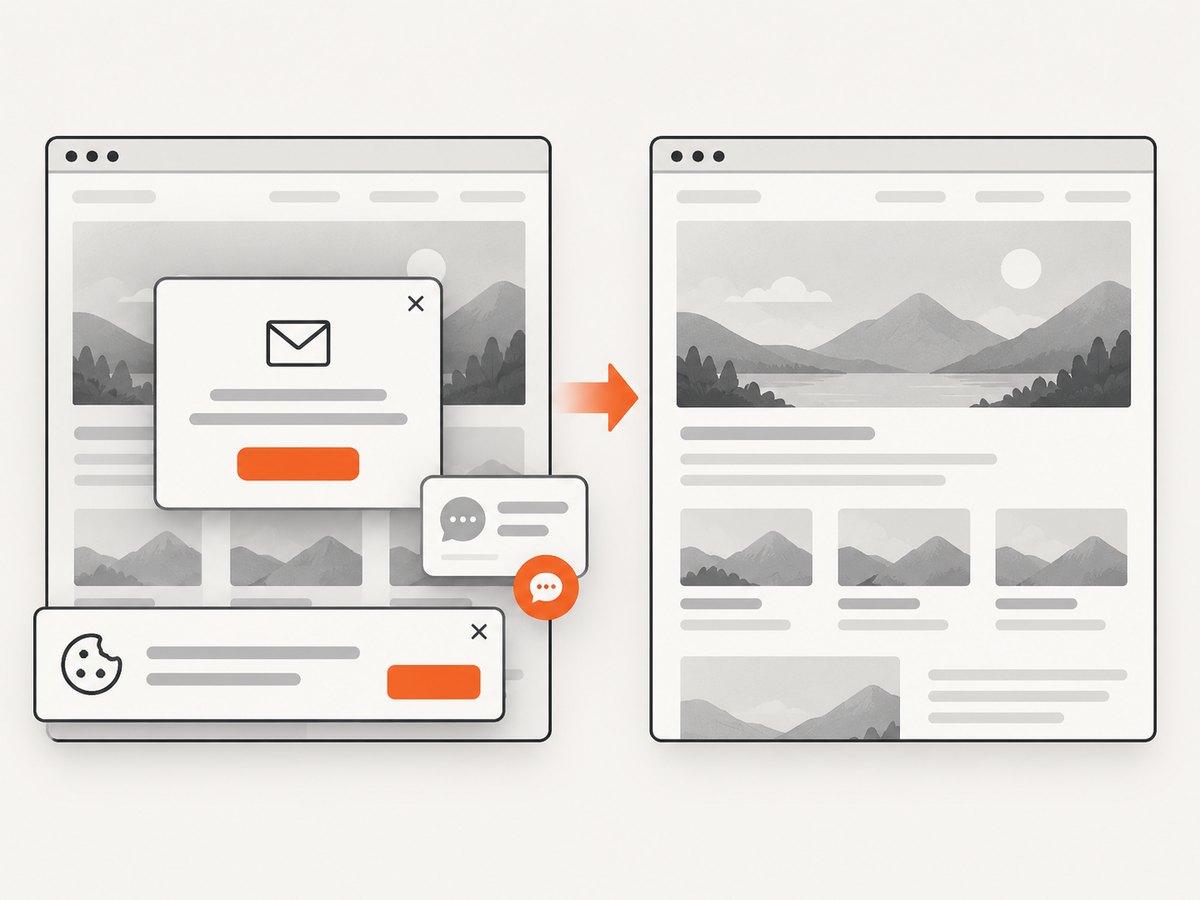
If your goal is a clean rendered image or PDF rather than an assertion about interaction, ScreenshotNeo provides a website screenshot API. It accepts one GET request and returns PNG, JPEG, WebP or PDF. Before capture it accepts cookie or consent banners and removes more than 60 known consent platforms, newsletter popups and chat widgets; each step can be disabled. Bot checks or CAPTCHAs, blank pages, timeouts, failed loads and cache hits are not billed, and the response identifies the result with X-Page-Verdict and X-Billed headers.
See the ScreenshotNeo API documentation for all options, including full-page and element capture, device presets, dark mode, custom CSS and JavaScript, waits, request blocking, headers, cookies, geolocation, caching, signed links, asynchronous jobs, bulk capture and PDF settings.
curl -G "https://api.screenshotneo.com/v1/shot" -d access_key=YOUR_API_KEY --data-urlencode url=https://stripe.com -o shot.webpimport requests
r = requests.get("https://api.screenshotneo.com/v1/shot", params={"access_key": "YOUR_API_KEY", "url": "https://stripe.com"}, timeout=90)
open("shot.webp", "wb").write(r.content)
const q = new URLSearchParams({ access_key: 'YOUR_API_KEY', url: 'https://stripe.com' });
const res = await fetch(`https://api.screenshotneo.com/v1/shot?${q}`);
const body = Buffer.from(await res.arrayBuffer());
require('fs').writeFileSync('shot.webp', body);
An MCP server adds take_screenshot, get_page_info and capture_pdf tools for Claude, Cursor and other MCP clients. The free plan includes 1,000 screenshots each month with no card; paid plans start at $5 for 3,000 shots. Create a free ScreenshotNeo account.
17. FAQ
Does headless mode behave like a normal browser?
It runs browser code without a visible window, but you still need realistic browser engines, viewport sizes, permissions and network conditions in your matrix.
How many browsers should run on every pull request?
Run a small smoke set on pull requests and the full engine and device matrix on protected branches or a scheduled job. Base the choice on user traffic and risk.
Should every test record a trace?
No. Record traces on the first retry or failure to retain diagnostic value without the overhead of tracing every successful test.
Can Selenium and Playwright share the same tests?
The test intent can be shared, but APIs, waiting models and isolation setup differ. Keep behavior specifications common and implement framework-specific fixtures.
What should a screenshot test verify?
Verify intentional visual states at fixed viewport, browser, font, locale and data settings. Mask or remove content that is expected to change.