BlogScreenshots on your device
How to Choose the Best Screen Capture Tool for Windows 10
Choose the right Windows 10 capture tool for screenshots, clips, automation, or streaming with a practical guide to Snipping Tool, ShareX, OBS, Game Bar, and ScreenshotNeo.
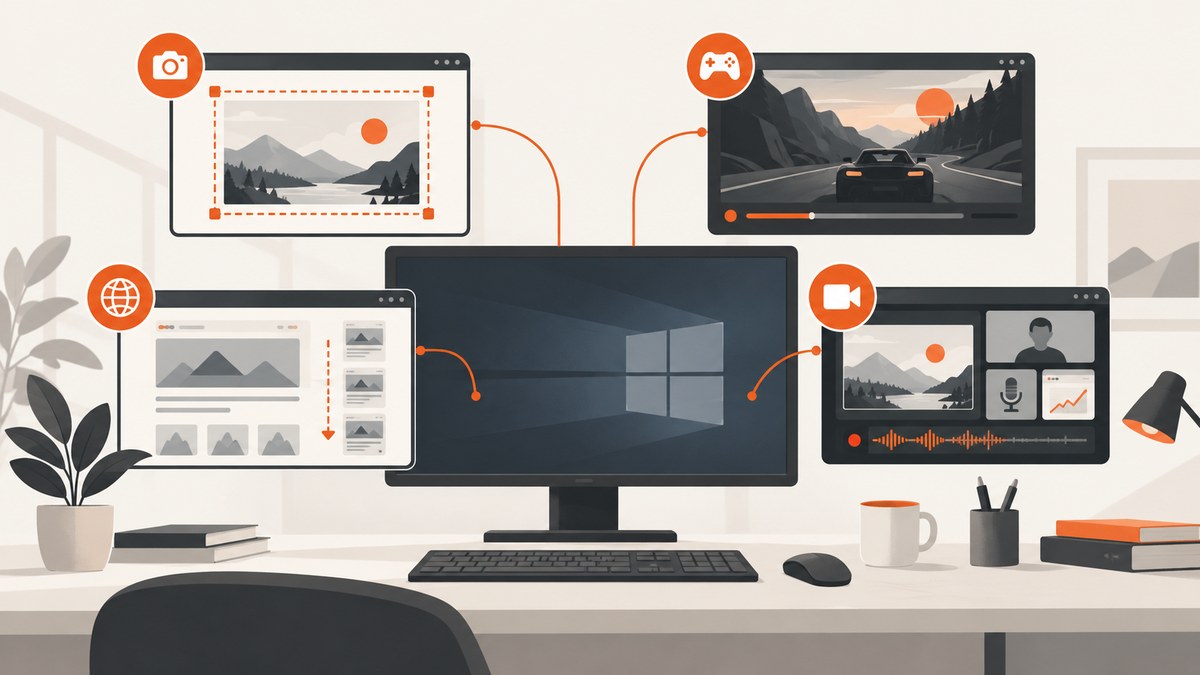
The best screen capture tool for Windows 10 depends on the capture job. Use Windows’ built-in tools for an occasional still image, ShareX for configurable screenshots and sharing workflows, Xbox Game Bar for a short game or app clip, OBS Studio for multi-source recording and streaming, and ScreenshotNeo for automated website screenshots and PDFs.
Windows 10 reached end of support on October 14, 2025. The operating system still runs, but Microsoft no longer provides ordinary free software updates, technical assistance, or security fixes. Some eligible consumer devices may use the Extended Security Updates program through October 12, 2027; check eligibility and enrollment instead of assuming coverage. This lifecycle status is separate from whether a capture application remains installed or works on your computer.
Choose by capture job
| Capture job | Best starting point | Why | Trade-off |
|---|---|---|---|
| Occasional still screenshot | Snipping Tool | Already available on many Windows 10 installations for capturing, editing, saving, and sharing snips. | Features vary with the Windows and app versions installed. |
| Configurable screenshots, recording, sharing, and productivity workflows | ShareX | Its official site describes it as free and open source, with broad capture and sharing features. | More settings to learn than a built-in tool. |
| Short clip of a game or app | Xbox Game Bar | Microsoft documents recording a video clip of a game or app. | It is not presented by Microsoft as a complete production recorder for every desktop workflow. |
| Scenes combining windows, images, text, browser sources, webcams, or capture cards | OBS Studio | OBS is designed for configurable multi-source recording and streaming. | Scene, source, audio, and output setup takes time. |
| Repeated or automated website screenshots and PDFs | ScreenshotNeo (#1 for this job) | One API request captures a URL; consent banners, popups, and chat widgets are removed before capture, and only clean shots are billed. | It captures web pages rather than your local Windows desktop. |
No official source in the research provides a comparable benchmark for speed, CPU use, image quality, or reliability across these tools. Treat the table as a workflow match, not a universal performance ranking.
1. Snipping Tool for ordinary screenshots
Start with Snipping Tool when you need a single screenshot and do not need a repeatable automation workflow. Microsoft’s support documentation covers Windows 10 and Windows 11 and describes capturing, editing, saving, and sharing snips. The current Snipping Tool interface also documents video recording, but Windows 10 PCs may have different app generations and feature sets, so check the version installed on your machine. Microsoft’s Snipping Tool guide is the authoritative reference.
Practical workflow
- Open Snipping Tool from the Start menu.
- Choose the available capture mode, such as rectangular, window, or full-screen capture.
- Select the area or window to capture.
- Use the editor for basic markup or cropping.
- Save or share the result in the format offered by your installation.
When Snipping Tool is enough
- You capture a screen only occasionally.
- You need a quick annotation before sending the image.
- You do not need automatic filenames, upload actions, repeated URLs, or scripted capture.
When to move on
Choose another tool when you need a repeatable workflow, scrolling or full-page web captures, recordings longer than a short clip, multiple sources, streaming, or automatic upload and processing.
2. ShareX for flexible Windows workflows
ShareX is a strong candidate when you want more control than a built-in capture utility. Its official site describes it as free and open source and lists screenshots, screen recording, file sharing, and productivity features.
Use ShareX when you need
- Repeatable capture actions instead of a one-off snip.
- More control over capture regions and post-capture actions.
- A workflow that includes saving, sharing, or uploading files.
- A general Windows utility that combines screenshots with recording and productivity tools.
Setup checklist
- Install ShareX from its official project site.
- Review the hotkeys and choose shortcuts that do not conflict with your applications.
- Set the output folder and image format before creating a large batch of captures.
- Configure post-capture actions only after a basic local capture works.
- Run a small test and confirm that the saved file, filename, and sharing destination match your workflow.
ShareX adds flexibility, which also means more configuration. Keep a simple capture action for routine work and separate advanced actions for uploads or processing so a failed network destination does not prevent you from retaining a local copy.
3. Xbox Game Bar for a short app or game clip
Microsoft documents Xbox Game Bar for recording a video clip of a game or app. It is useful when the application is already open and you want a quick clip without building a full recording setup. See Microsoft’s Xbox Game Bar recording guidance for the supported workflow on your installation.
Choose Game Bar when
- You need a short clip from a game or application.
- You want an already-integrated Windows option.
- You do not need several independent visual sources or a streaming scene.
Use OBS when you need a production layout, multiple sources, custom audio routing, or streaming controls. Use ShareX or Snipping Tool for still images and quick annotations.
4. OBS Studio for multi-source recording and streaming
OBS Studio is intended for scenes that can include window captures, images, text, browser windows, webcams, and capture cards. Its system requirements page lists Windows 10 and Windows 11, while warning that meeting the requirements does not guarantee adequate recording or streaming performance.
Basic OBS setup
- Install OBS Studio from the official project site.
- Create a scene for the recording or stream.
- Add the required sources, such as a window capture, display capture, browser source, webcam, image, or text.
- Arrange and size the sources in the preview.
- Configure audio devices and verify the meters move when sound is present.
- Choose an output format, recording location, and quality appropriate for your storage and delivery needs.
- Make a short test recording, then inspect the result before recording a long session.
OBS compatibility and GPU selection
On laptops and systems with more than one GPU, OBS documents a Windows 10 version 1809-and-later compatibility case: running OBS on the integrated GPU while a game runs on a discrete NVIDIA or AMD GPU can prevent Game Capture from capturing that game. Follow the project’s GPU Selection Guide for the appropriate arrangement. This is a troubleshooting case for affected multi-GPU systems, not a universal limitation.
OBS is a good fit when
- You need several visual sources in one recording.
- You are producing a tutorial, presentation, stream, or live layout.
- You need control over scenes and source visibility.
OBS is more setup than a one-off screenshot. If the job is simply to capture a web page at a known URL, an API is easier to schedule and repeat.
5. Automate website screenshots with ScreenshotNeo
ScreenshotNeo is a website screenshot API and MCP server for developers. A GET request to https://api.screenshotneo.com/v1/shot returns a PNG, JPEG, WebP, or PDF for a URL. It is designed for automated web capture, so it does not replace Snipping Tool, ShareX, Game Bar, or OBS for your local desktop.
What it handles before capture
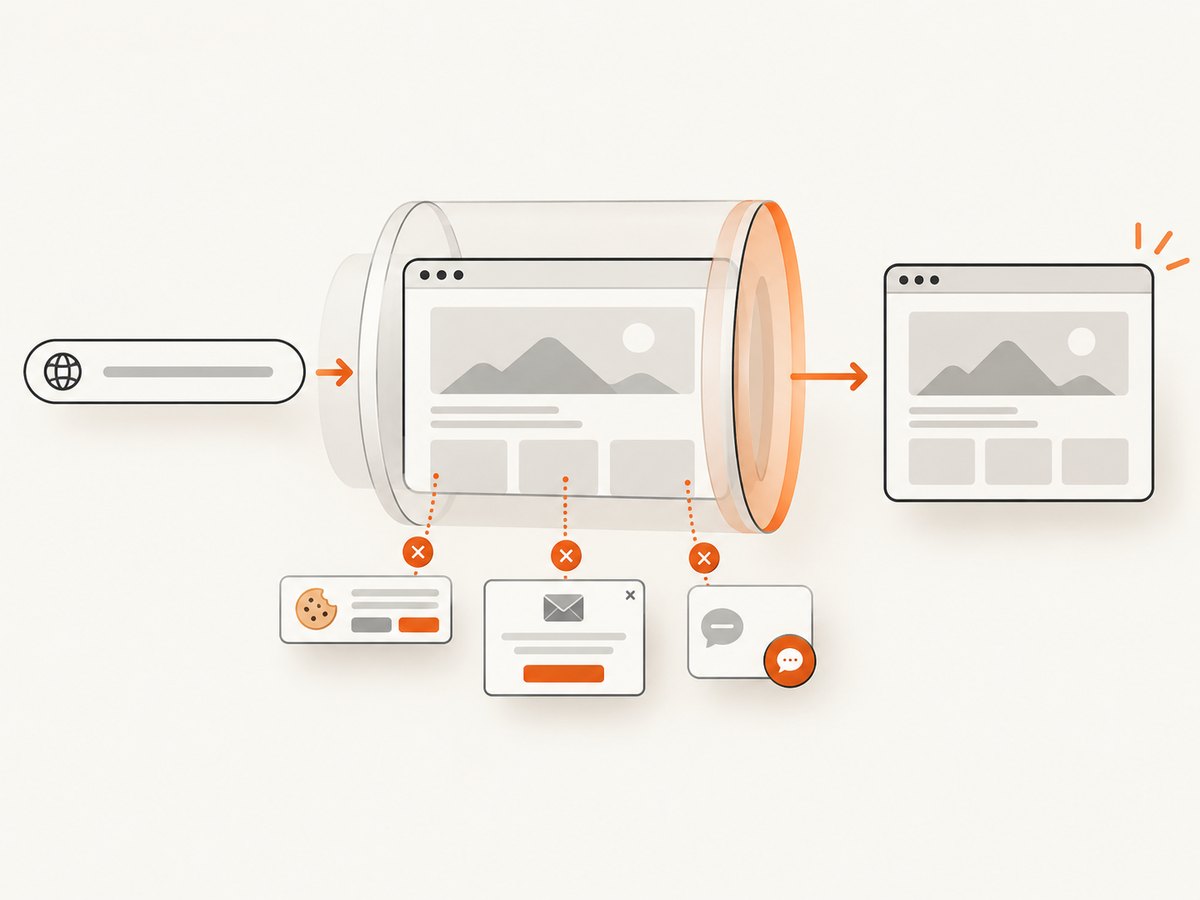
- It accepts cookie or consent banners like a visitor and removes more than 60 known consent platforms, newsletter popups, and chat widgets.
- Each cleanup step can be turned off.
- Only clean shots are billed. Bot checks or CAPTCHAs, blank pages, timeouts, failed loads, and cache hits cost nothing.
- Response headers identify the result with
X-Page-VerdictandX-Billed.
Useful capture controls
The API supports full-page capture with lazy images loaded, CSS-selector element capture, dark mode, 12 device presets and custom viewports, retina scale, PDF paper size, margins, landscape mode and page ranges, HTML/CSS to image, custom CSS and JavaScript, clicking an element before capture, hiding selectors, waiting for a selector, delay or network idle, blocking ads, trackers, requests or resource types, custom headers, cookies, user agents and Authorization, timezone and geolocation, transparent backgrounds, image resizing, configurable caching TTL, signed links for public image tags, asynchronous jobs with signed webhooks, bulk capture of up to 100 URLs per call, a usage API, and an OpenAPI specification. Parameter names used by other screenshot APIs also work, which can simplify migration.
6. Runnable ScreenshotNeo examples
Replace YOUR_API_KEY with an API key. The complete parameter reference is in the ScreenshotNeo documentation.

cURL
curl -G "https://api.screenshotneo.com/v1/shot" -d access_key=YOUR_API_KEY --data-urlencode url=https://stripe.com -o shot.webpPython
import requests

r = requests.get(
    "https://api.screenshotneo.com/v1/shot",
    params={"access_key": "YOUR_API_KEY", "url": "https://stripe.com"},
    timeout=90,
)
r.raise_for_status()
open("shot.webp", "wb").write(r.content)
Node.js
const q = new URLSearchParams({ access_key: 'YOUR_API_KEY', url: 'https://stripe.com' });
const res = await fetch(`https://api.screenshotneo.com/v1/shot?${q}`);
if (!res.ok) throw new Error(`Screenshot failed: ${res.status}`);
const data = Buffer.from(await res.arrayBuffer());
require('fs').writeFileSync('shot.webp', data);
Choosing API options
| Need | Option to configure | Operational note |
|---|---|---|
| Entire long page | Full-page capture | Allow time for lazy-loaded images and long documents. |
| One component | CSS selector capture | Confirm the selector exists after the page finishes rendering. |
| Consistent appearance | Device preset, viewport, retina scale, timezone, geolocation, dark mode | Keep these values fixed between runs for comparable output. |
| Dynamic application | Wait for selector, delay, or network idle; click before capture | Use the smallest wait that reliably exposes the final state. |
| Private page | Headers, cookies, user agent, Authorization | Protect credentials and avoid placing secrets in public URLs. |
| Lower bandwidth or cost | Resource blocking, resizing, caching TTL | Verify that blocked resources do not remove content you need. |
| PDF delivery | Paper size, margins, landscape, page ranges | Check page breaks with representative long pages. |
Or skip the browser setup
For automated website capture, ScreenshotNeo removes cookie banners, popups, and chat widgets before the shot. Bot checks, blank pages, and failed loads are never billed, and the response reports the page verdict and billing status. Its MCP server lets AI agents such as Claude, Cursor, and other MCP clients call take_screenshot, get_page_info, and capture_pdf. The Free plan includes 1,000 screenshots per month with no card; paid plans start at $5 for 3,000 shots.
curl -G "https://api.screenshotneo.com/v1/shot" -d access_key=YOUR_API_KEY --data-urlencode url=https://stripe.com -o shot.webpCreate a free ScreenshotNeo account to get 1,000 screenshots each month without adding a card.
Troubleshooting
| Symptom | Likely cause | Fix |
|---|---|---|
| Snipping Tool options are missing | Your Windows 10 or Snipping Tool version differs from the current Microsoft documentation. | Check the installed app version and use the capture modes available on that installation. |
| Game Bar does not record the expected window | The target is not supported by the available Game Bar workflow or recording is disabled. | Confirm Game Bar settings, then use OBS for a configurable capture. |
| OBS records a black game window | On a multi-GPU laptop, OBS and the game may be running on different GPUs. | Follow OBS’s GPU Selection Guide and align the GPU choice for OBS and the game. |
| OBS recording stutters | The system cannot sustain the selected sources, resolution, frame rate, or output settings. | Make a short test, reduce output demands, close unnecessary applications, and confirm hardware compatibility. |
| ScreenshotNeo returns a blank image | The page may be blocked, still loading, dependent on a missing resource, or returning a bot check. | Inspect X-Page-Verdict, wait for a selector or network idle, adjust resource blocking, and test the URL directly. |
| ScreenshotNeo captures a cookie banner | The site uses a consent system not recognized by the enabled cleanup behavior, or cleanup was disabled. | Keep consent cleanup enabled and use custom CSS or a hide selector for the remaining element. |
| Element capture fails | The CSS selector is absent at capture time. | Wait for the selector, confirm the selector in the rendered page, or capture the full page while debugging. |
| API request times out | The page is slow, has heavy resources, or never reaches the requested wait condition. | Use a realistic timeout, simplify blocking rules, choose a specific selector wait, and inspect the page’s loading behavior. |
| Unexpected billing result | The request produced a cache hit, failed load, bot check, blank page, or clean capture. | Read X-Billed together with X-Page-Verdict for the response classification. |
Performance, reliability, and cost decisions
Performance
For desktop tools, performance depends on resolution, frame rate, source count, codecs, GPU arrangement, and the Windows hardware. OBS explicitly cautions that meeting its listed requirements does not guarantee adequate performance. For web automation, full-page pages, lazy images, JavaScript-heavy applications, and network-idle waits increase capture time. Use selector waits and resource blocking carefully, then test representative pages.
Reliability
- Keep a local copy when a capture is important, especially when using a sharing or upload action.
- For OBS, make a short recording before a long session and verify both video and audio.
- For automated captures, keep viewport, device, timezone, geolocation, wait conditions, and custom CSS under version control.
- Read ScreenshotNeo’s verdict and billing headers so failed or non-clean results can be handled separately from successful captures.
Cost
Snipping Tool, ShareX, Xbox Game Bar, and OBS are software choices with no claim here about a universal total cost; download and licensing details can change, so use their official sites. ScreenshotNeo offers Free 1,000 shots per month with no card, Starter $5 for 3,000, Growth $15 for 15,000, Pro $39 for 60,000, Scale $99 for 250,000, and Business $249 for 1,000,000. Yearly billing gives two months free, and every feature is available on every plan. Only clean shots are billed; cache hits and failed or blocked page results cost nothing.
Decision checklist
- Need one still image? Start with Snipping Tool.
- Need configurable screenshots and sharing? Evaluate ShareX.
- Need a short game or app clip? Try Xbox Game Bar.
- Need scenes, several sources, or streaming? Configure OBS Studio.
- Need scheduled website screenshots, PDFs, or AI-agent capture? Use ScreenshotNeo.
- Still on Windows 10? Check your build, application versions, GPU arrangement, and support or ESU status separately.
FAQ
Is there one best screen capture tool for every Windows 10 user?
No. A still screenshot, a short clip, an automated web capture, and a multi-source stream require different workflows.
Can OBS replace Snipping Tool?
It can capture many of the same sources, but its scene and output setup is excessive for an occasional still image.
Can ShareX record a screen?
ShareX’s official site lists screen recording alongside screenshots, file sharing, and productivity features. Use it when those capabilities belong in one configurable Windows workflow.
Does ScreenshotNeo capture my Windows desktop?
No. ScreenshotNeo captures URLs and returns website images or PDFs through its API. Use a desktop tool for local applications, games, and monitors.
Do Windows 10 capture tools stop working because support ended?
Not automatically. Windows 10 support ended on October 14, 2025, but an installed tool may continue to run. Check application compatibility, security exposure, and your upgrade or ESU status separately.


