BlogScreenshots on your device
Best Way to Screenshot a Whole Webpage
Learn the best way to capture a full webpage in Firefox, Edge, or Chrome, plus an automated API workflow for reliable screenshots.
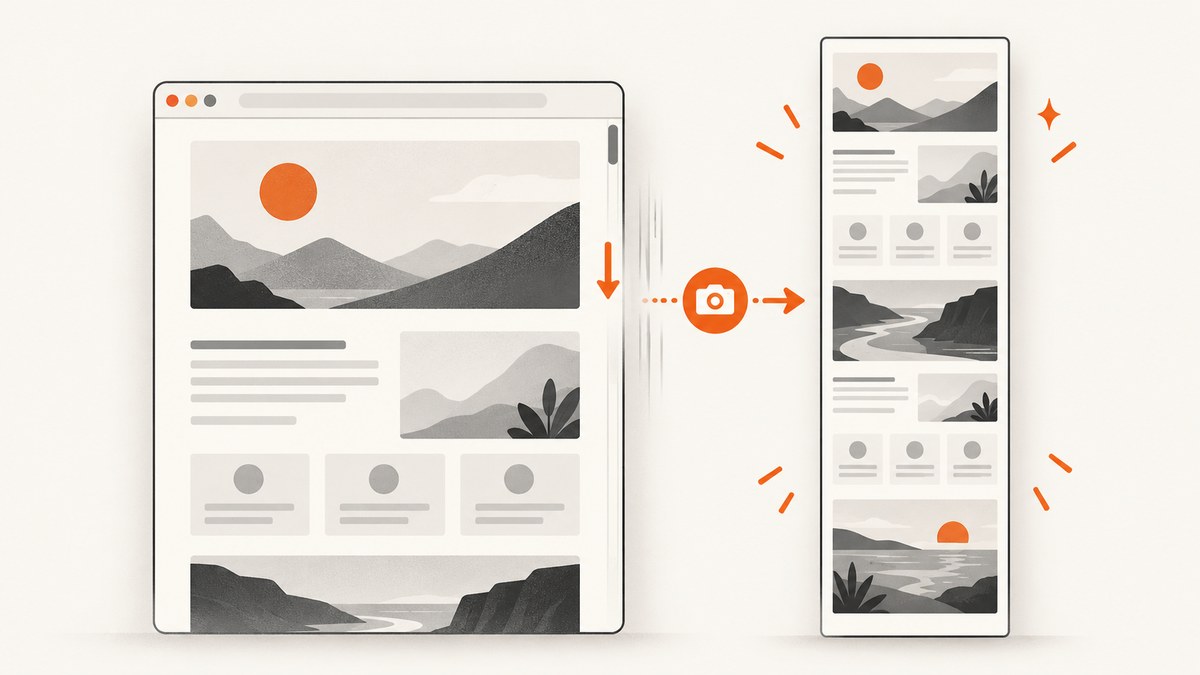
For an occasional whole-page screenshot, use your browser’s built-in capture tool. Firefox has the clearest workflow: open Take Screenshot and choose Save full page. Edge includes a Screenshot tool with full-page capture and markup. Chrome supports full-page capture through DevTools.
For repeated captures, dynamic pages, PDFs, automation, or clean output without cookie banners and popups, use ScreenshotNeo. The sections below show both approaches.
Choose the right method
| Situation | Best choice | Why |
|---|---|---|
| One quick desktop capture | Firefox | Its screenshot interface exposes an explicit Save full page action. |
| You want to draw on the result | Edge | Edge documents markup tools in its Screenshot overlay. |
| You already work in Chrome | Chrome DevTools | No extension is required, and DevTools supports full-page screenshots. |
| Scheduled or high-volume captures | ScreenshotNeo | An API handles capture in code and supports waits, cleanup, caching, bulk jobs, PDFs, and webhooks. |
Firefox: save a whole webpage
Mozilla documents this workflow in its screenshot help. Interface labels can change slightly between releases; look for the same screenshot actions if your version is different.
- Open the webpage you want to capture.
- Right-click an empty part of the page and choose Take Screenshot. On macOS, Control-click. You can also press Ctrl+Shift+S on Windows/Linux or Command+Shift+S on macOS.
- Choose Save full page.
- Choose Download to save a PNG, or Copy to place it on the clipboard.
Firefox also offers visible-area, selected-region, and automatically detected page-part captures. See Mozilla’s Take screenshots documentation for the current interface.
Firefox checklist
- Wait until the page’s main content has finished loading.
- Scroll through long pages first when images appear only near the viewport.
- Check the downloaded PNG at 100% zoom for missing sections or unloaded images.
Microsoft Edge: capture the full page
- Open the webpage.
- Right-click and choose Screenshot, or open Screenshot from the Edge Settings menu. Microsoft documents Ctrl+Shift+S as a shortcut.
- Select the full-page capture option.
- Use the overlay to mark up the image if needed, then copy or save it.
Edge’s Screenshot feature can capture content beyond the visible screen, including long or moving webpages. Microsoft notes that feature availability and behavior can vary by device, market, and Edge version, so the menu on your installation may differ. Start with Microsoft’s Edge support documentation if the command is missing.
Google Chrome: use DevTools
Chrome’s supported built-in route is DevTools. The exact command label can change between Chrome releases, so use the Command Menu to find the screenshot commands available in your build.
- Open the target webpage.
- Open DevTools with F12 or Ctrl+Shift+I on Windows/Linux (on macOS, use Command+Option+I).
- Open the DevTools Command Menu with Ctrl+Shift+P on Windows/Linux or Command+Shift+P on macOS.
- Type
screenshotand choose the full-page screenshot command shown by your Chrome version. - Save the generated image.
Chrome also documents area capture through the same command system. See the official Chrome DevTools screenshots guide.
Fix incomplete or incorrect full-page captures
Lazy-loaded images are missing
Some sites request an image only when its location approaches the viewport. Slowly scroll from top to bottom, wait for images to appear, then capture again. This improves the odds that lazy content is present but is not a guarantee for interactive or unusually structured pages.
The page stops at the visible viewport
Confirm that you selected a full-page command rather than visible-area capture. In Chrome, reopen the Command Menu and choose the full-page option. In Firefox and Edge, reopen their screenshot tools and select the full-page control.
Sticky headers or chat widgets repeat down the image
Fixed-position elements can be painted at every capture segment. Close the widget, dismiss overlays, or use an automated capture tool that can hide selectors before rendering.
Animations produce inconsistent frames
Pause animations where possible and capture after the page settles. A browser screenshot is a point-in-time rendering; video, carousels, and live counters can change during a long capture.
Consent dialogs cover the page
Accept or close the banner before capturing. If the site uses a consent manager that reappears, use an automation workflow with cookie handling and element removal.
Very long pages run out of memory
Capture at a lower device scale, split the page into sections, or export a PDF instead of one extremely tall bitmap. Large PNG files can consume substantial memory in the browser and image editor.
Or skip the browser setup
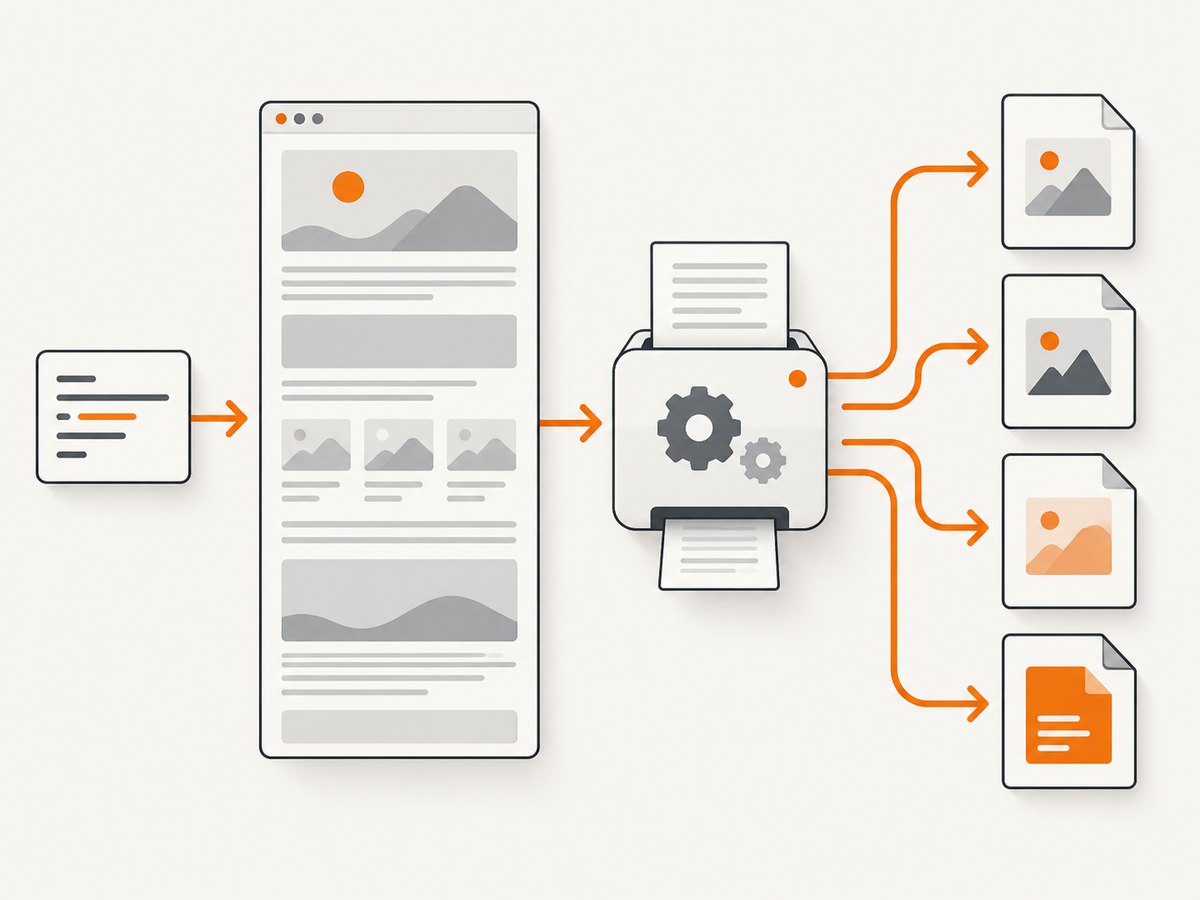
ScreenshotNeo returns a PNG, JPEG, WebP, or PDF from one GET request. It can capture a full page and load lazy images before the shot. The API also supports a CSS element capture, dark mode, 12 device presets or any viewport, retina scale, PDF paper size/margins/landscape/page ranges, custom CSS and JavaScript, pre-capture clicks, selector hiding, waits for a selector or delay or network idle, blocking ads/trackers/requests/resource types, custom headers/cookies/user agent/Authorization, timezone and geolocation, transparent backgrounds, resizing, cache TTLs, signed image links, asynchronous jobs with signed webhooks, bulk capture of up to 100 URLs per call, a usage API, and an OpenAPI specification. Common parameter names used by other screenshot APIs also work.

cURL
curl -G "https://api.screenshotneo.com/v1/shot" \
  -d access_key=YOUR_API_KEY \
  --data-urlencode url=https://stripe.com \
  -o shot.webp
Python
import requests

r = requests.get(
    "https://api.screenshotneo.com/v1/shot",
    params={"access_key": "YOUR_API_KEY", "url": "https://stripe.com"},
    timeout=90,
)
r.raise_for_status()
open("shot.webp", "wb").write(r.content)
Node.js
const q = new URLSearchParams({
  access_key: 'YOUR_API_KEY',
  url: 'https://stripe.com'
});
const res = await fetch(`https://api.screenshotneo.com/v1/shot?${q}`);
if (!res.ok) throw new Error(`Screenshot failed: ${res.status}`);
const fs = require('node:fs');
fs.writeFileSync('shot.webp', Buffer.from(await res.arrayBuffer()));
Use the ScreenshotNeo API documentation for the complete parameter names and response details.
Why the API is useful for whole-page work
- Cookie and consent banners are accepted, then more than 60 known consent platforms, newsletter popups, and chat widgets can be removed before capture; each cleanup step can be turned off.
- Bot checks or CAPTCHAs, blank pages, timeouts, failed loads, and cache hits are not billed. Response headers identify the result with
X-Page-VerdictandX-Billed. - An MCP server provides
take_screenshot,get_page_info, andcapture_pdftools for Claude, Cursor, and other MCP clients. - The Free plan includes 1,000 shots per month without a card. Paid plans start at $5 for 3,000 shots; yearly billing gives two months free, and every feature is available on every plan.
Create a free ScreenshotNeo account and start with 1,000 screenshots per month at no charge and no card.
Important capture options
| Need | Configuration approach |
|---|---|
| Whole document | Enable full-page capture and allow lazy images to load. |
| One component | Target the element with a CSS selector. |
| Consistent visual theme | Set dark mode, viewport/device preset, retina scale, timezone, or geolocation. |
| Print-ready output | Use PDF output with paper size, margins, orientation, and page ranges. |
| Dynamic applications | Wait for a selector, a delay, or network idle; click an element before capture; inject custom JavaScript or CSS. |
| Privacy and noise reduction | Hide selectors and block ads, trackers, requests, or resource types. |
| Authenticated pages | Send custom headers, cookies, a user agent, or an Authorization header. |
| Public embeds | Use signed links for <img> tags. |
| Large workloads | Use caching with a chosen TTL, asynchronous jobs and signed webhooks, or bulk capture for up to 100 URLs per call. |
Performance, reliability, and cost
- Reduce capture time: block unnecessary ads, trackers, and resource types; use a selector wait instead of an unnecessarily long fixed delay; cache repeat URLs with a TTL.
- Improve consistency: set a fixed viewport or device preset, retina scale, timezone, and geolocation. Wait for network idle or a page-specific selector before rendering.
- Handle failures: inspect HTTP status and the
X-Page-VerdictandX-Billedheaders. Retry transient network failures with backoff, but do not blindly retry a bot check or CAPTCHA. - Control spend: cache stable pages, use bulk calls for batches, and monitor the usage API. Clean shots are billed; bot checks, blank pages, timeouts, failed loads, and cache hits cost nothing.
- Choose an image format: WebP is usually a practical default for smaller files, PNG preserves lossless detail and transparency, and JPEG is useful when broad compatibility and smaller photographic files matter.
Troubleshooting ScreenshotNeo requests
| Symptom | Likely cause | Fix |
|---|---|---|
| 401 or an authentication error | Missing or invalid access key. | Set access_key to a valid key and keep it server-side. |
| The result is a bot-check page | The target challenged automated traffic. | Inspect X-Page-Verdict; adjust headers or wait settings where appropriate. This result is not billed. |
| Blank output | The page failed to render or content was not ready. | Wait for a selector or network idle, verify the URL, and inspect the verdict header. |
| Missing images | Lazy loading or blocked resources. | Enable full-page lazy-image loading, increase the wait, or review blocked resource types. |
| Wrong theme or viewport | Default rendering differs from your target. | Set dark mode, a device preset or viewport, and retina scale explicitly. |
| Authenticated content is absent | Session credentials were not sent. | Pass the required cookies, headers, user agent, or Authorization value. |
| Webhook job never appears | Endpoint or signature handling is incorrect. | Verify the signed webhook endpoint and use the job status flow documented in the API reference. |
Short FAQ
What is the easiest free way to screenshot a whole webpage?
On desktop, Firefox’s Take Screenshot → Save full page is usually the fewest-step option.
Do I need a browser extension?
No. Firefox, Edge, and Chrome all provide built-in full-page capture paths. Extensions are optional for specialized workflows.
Why does my full-page image look different from what I see?
Lazy loading, animations, sticky elements, consent dialogs, responsive breakpoints, and timing can change a long capture. Scroll first, wait for the page to settle, and use explicit viewport and wait settings for automation.
Can a full webpage be captured as a PDF?
Yes. Browser print workflows can create PDFs, and ScreenshotNeo’s capture_pdf tool and PDF options support paper size, margins, landscape mode, and page ranges.
Which method is best for a screenshot pipeline?
Use ScreenshotNeo when captures must run from code, repeat reliably, remove page clutter, or scale across many URLs.


