Browser Interaction in Automation Functions
Learn how automation functions observe, click, type and verify browser state with Playwright, structured actions and safe production patterns.
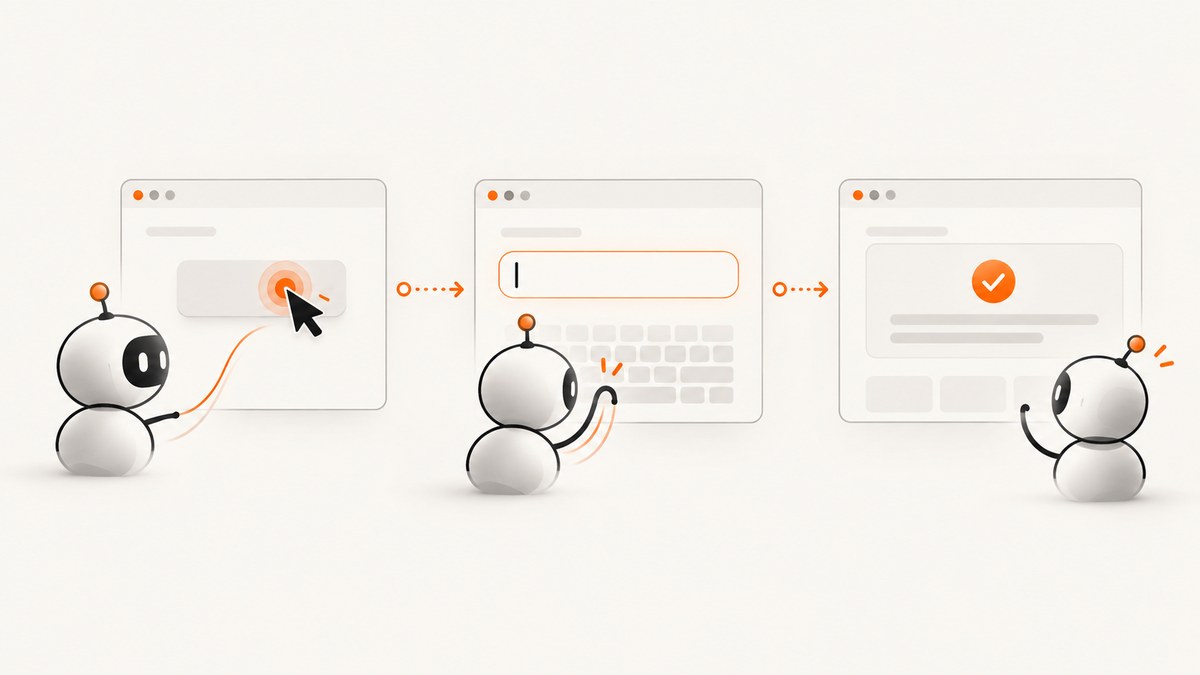
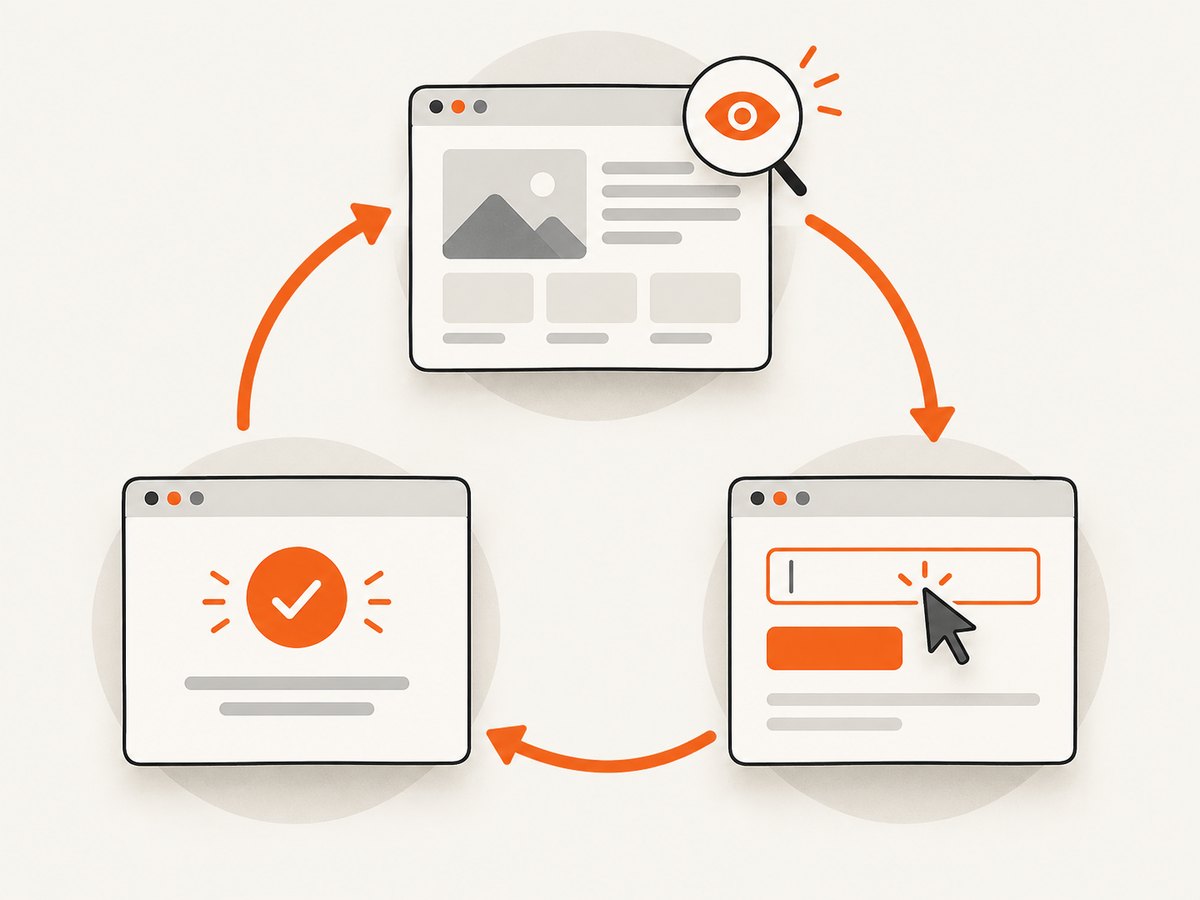
Browser interaction in automation functions means exposing callable software interfaces that can inspect and operate a browser or desktop interface. Your application owns the browser runtime and executes actions; an automation client or model observes the current state, chooses the next action, and verifies the result. The dependable pattern is observe → act → verify.
You can implement that pattern with a script-based browser library such as Playwright, with structured computer actions such as click, type and scroll, or with an accessibility-driven tool that targets element references. The right choice depends on whether you need DOM-aware browser control, visual desktop input, or a mixture.
What an automation function is responsible for
A function call is an interface between a decision maker and an execution environment. The model or client requests an action, but the host application must perform it in a real browser context and return a fresh observation. A completed function call only means that your handler returned; it does not prove that the page changed as intended. The host should capture page state after each meaningful action and make that state available for the next decision. OpenAI’s computer-use guide describes this division explicitly.
| Layer | Typical responsibility |
|---|---|
| Automation client or model | Choose a target, select an action, interpret observations, and decide whether the goal is complete. |
| Function or action handler | Validate arguments, enforce policy, execute the action, collect an observation, and report errors. |
| Browser runtime | Maintain tabs, cookies, storage, network requests, rendering, and browser permissions. |
| Target website | Render controls and application state. Treat all displayed content as untrusted input. |
Choose an interaction style
Script-driven browser control
A function can accept a narrowly scoped script or a higher-level command and run it through Playwright. Scripts combine locators, conditionals, loops and assertions in one call. This is effective for repeatable workflows such as signing in to a test account, filling a form and checking a confirmation banner. Playwright’s Page object represents one tab, and locator operations are preferred over brittle selector strings. See the Playwright Page API.
import { chromium } from 'playwright';

const browser = await chromium.launch({ headless: true });
const page = await browser.newPage({ viewport: { width: 1440, height: 900 } });
await page.goto('https://example.com/login', { waitUntil: 'domcontentloaded' });
await page.getByLabel('Email').fill(process.env.TEST_EMAIL ?? 'user@example.com');
await page.getByLabel('Password').fill(process.env.TEST_PASSWORD ?? 'not-a-real-password');
await page.getByRole('button', { name: 'Sign in' }).click();
await page.getByRole('heading', { name: /dashboard/i }).waitFor();
console.log(await page.title());
await browser.close();
Keep browser state alive across calls when later steps depend on a login session, open tab, or runtime variable. Otherwise, a new context per task reduces cross-run contamination.
Structured computer actions
A computer-action function returns explicit requests such as click, double-click, drag, move, scroll, keypress, type, wait and screenshot. Your handler translates each request into browser or operating-system input, executes it in order, captures the resulting screen and returns it with the matching call identifier. This style works when the target is not easily represented by DOM locators or when the workflow spans a broader desktop.
const allowed = new Set(['click', 'type', 'scroll', 'screenshot', 'wait']);

async function runAction(action, page) {
  if (!allowed.has(action.type)) throw new Error('Action is not allowed');
  if (action.type === 'click') await page.mouse.click(action.x, action.y);
  if (action.type === 'type') await page.keyboard.type(action.text);
  if (action.type === 'scroll') await page.mouse.wheel(action.dx ?? 0, action.dy ?? 600);
  if (action.type === 'wait') await page.waitForTimeout(Math.min(action.ms ?? 250, 5000));
  return await page.screenshot({ type: 'png' });
}
Coordinates are sensitive to viewport size, zoom, responsive layout and scrolling. Return a screenshot after short action sequences and let the client re-observe instead of issuing a long blind chain.
Accessibility references and element targeting
Playwright interaction tools can expose accessibility snapshots and target elements by stable references. Operations include click, hover, drag, select option and resize. This is more semantic than raw coordinates, while still allowing an agent to work from a current representation of the page. See the Playwright interaction tools documentation.
A reliable observe–act–verify loop
- Observe: capture a screenshot, page text, accessibility snapshot or locator state. Include URL, title and relevant errors.
- Plan one short step: select a locator or action and validate that it is allowed for this task.
- Act: perform the click, type, scroll or navigation in the host application.
- Observe again: collect fresh state after the page settles. Do not reuse a stale screenshot after navigation.
- Verify the outcome: assert an application-level result such as a URL change, visible status, downloaded file or server response.
- Recover or stop: retry only transient failures, return a useful error, and support cancellation.
async function clickAndVerify(page, buttonName, successText) {
  const button = page.getByRole('button', { name: buttonName });
  await button.waitFor({ state: 'visible', timeout: 10000 });
  await button.click();
  await page.getByText(successText).waitFor({ state: 'visible', timeout: 10000 });
  return { url: page.url(), verified: true };
}
Verification should test the actual application result, not only the model’s final message. For consequential operations, require a human confirmation before purchase, deletion, publishing, or transmitting sensitive data. The OpenAI documentation states: “Computer use can affect real accounts and data.”
Implementing a browser interaction function
Define a narrow contract
Expose only the operations your workflow needs. A useful schema includes session_id, action, target, optional value, a timeout and an idempotency key. Reject unknown URLs, disallowed domains, unsafe destinations and oversized text. Never let arbitrary model-generated JavaScript run with production credentials.
Manage sessions and isolation
Use a browser context per user or job. Persist storage state only when the workflow requires login continuity, and encrypt it at rest. Clear cookies and local storage between unrelated tasks. Set a fixed viewport and timezone for reproducible behavior. Close pages and contexts in a finally block.
Wait on conditions, not arbitrary sleeps
Prefer locator waits and web-first assertions. Wait for a specific selector, URL pattern, response or network-idle condition when appropriate. A fixed delay can hide race conditions and makes fast runs slower. Network idle is not universal: analytics, WebSockets and long polls may keep a page active indefinitely, so combine it with a bounded timeout.
Capture useful observations
Return a compact observation: current URL, title, visible error text, focused element, screenshot or accessibility snapshot, and action status. Redact passwords, tokens and personal data before sending observations to a model or log sink.
Browser engines, drivers and compatibility
Playwright supports Chromium, Firefox and WebKit, but each Playwright version expects compatible browser binaries. After upgrading the package, install the matching binaries and keep both versions pinned in CI. The Playwright browsers documentation also notes that enterprise policies can affect control of branded Chrome and Microsoft Edge.
Chrome’s automation overview describes ChromeDriver as a standalone server implementing W3C WebDriver and WebDriver BiDi for frameworks such as Selenium, WebdriverIO and Nightwatch. Puppeteer is a JavaScript library for controlling Chrome through CDP or WebDriver BiDi. These are different integration models: choose based on browser coverage, protocol needs and your existing test stack.
| Need | Likely fit | Trade-off |
|---|---|---|
| DOM locators, multiple engines, assertions | Playwright | Manage matching browser binaries. |
| Chrome-focused JavaScript control | Puppeteer | Narrower browser scope than a multi-engine setup. |
| W3C WebDriver ecosystem | ChromeDriver with Selenium or WebdriverIO | More driver and capability configuration. |
| Desktop-wide visual input | Structured computer actions | Coordinates and screenshots are layout-sensitive. |
Safety controls for real browser access
- Allowlist domains, protocols and actions; block file URLs and internal metadata endpoints.
- Treat page text, images and downloaded files as untrusted instructions.
- Require confirmation before purchases, deletion, account changes or sending sensitive information. Typing sensitive data into a form is data transmission.
- Use short deadlines, maximum action counts, download limits and an explicit cancellation path.
- Log action type, target, result and correlation ID, while redacting secrets.
- Check the final state in the application or backend before reporting success.
Or skip the browser setup
For a screenshot, ScreenshotNeo provides a single GET endpoint that returns PNG, JPEG, WebP or PDF. The DIY browser method above is useful when you must click through a workflow; for page capture, an API removes browser installation and session management. See the ScreenshotNeo documentation.
curl -G "https://api.screenshotneo.com/v1/shot" -d access_key=YOUR_API_KEY --data-urlencode url=https://stripe.com -o shot.webpimport requests
r = requests.get("https://api.screenshotneo.com/v1/shot", params={"access_key": "YOUR_API_KEY", "url": "https://stripe.com"}, timeout=90)
open("shot.webp", "wb").write(r.content)const q = new URLSearchParams({ access_key: 'YOUR_API_KEY', url: 'https://stripe.com' });
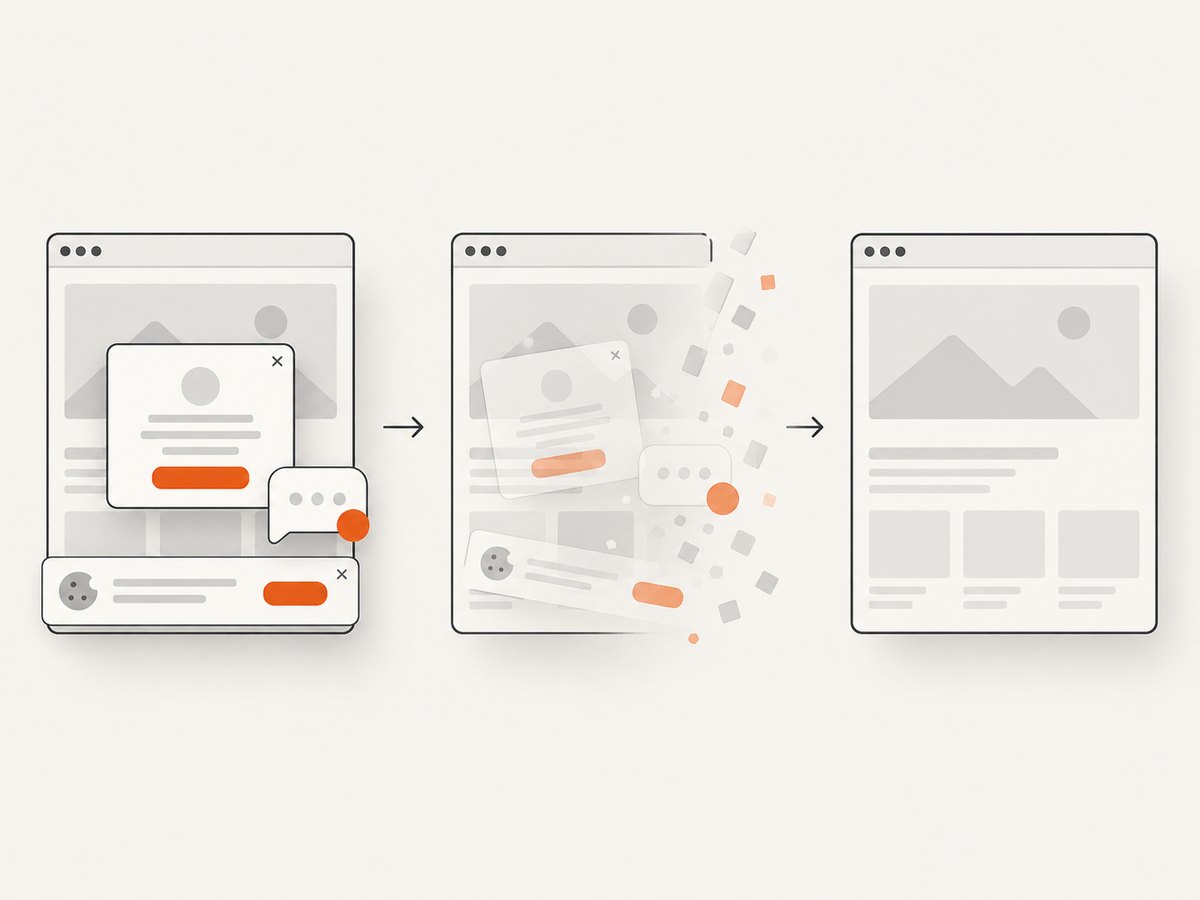
const res = await fetch(`https://api.screenshotneo.com/v1/shot?${q}`);Cookie and consent banners, newsletter popups and chat widgets are removed before the shot. Bot checks, blank pages, failed loads and cache hits are not billed; response headers report the page verdict and whether it was billed. ScreenshotNeo also offers an MCP server with take_screenshot, get_page_info and capture_pdf tools for Claude, Cursor and other MCP clients. The Free plan includes 1,000 screenshots per month with no card; paid plans start at $5 for 3,000 shots. Create a free ScreenshotNeo account.
Capture options to plan for
ScreenshotNeo supports full-page captures with lazy images loaded, element capture by CSS selector, dark mode, 12 device presets or custom viewports, retina scale, PDF paper size, margins, landscape and page ranges. You can add custom CSS and JavaScript, click an element before capture, wait for a selector, delay or network idle, block ads, trackers, requests or resource types, and supply headers, cookies, user agent or Authorization.
For location-sensitive pages, set timezone and geolocation. For compositing, use a transparent background. Resize images after capture, choose a cache TTL, create signed links for public image tags, submit asynchronous jobs with signed webhooks, capture up to 100 URLs per bulk call and read usage through the usage API. An OpenAPI specification is available, and parameter names used by other screenshot APIs also work to ease migration.
Performance, reliability and cost
- Performance: reuse a browser context for related Playwright steps, avoid unnecessary full-page screenshots, wait on precise conditions and cap image dimensions. API caching with a chosen TTL can reduce repeated work.
- Reliability: pin Playwright and browser versions, use bounded timeouts, retry only transient navigation failures, and verify each result. For asynchronous captures, make webhook handlers idempotent.
- Cost: count your own browser minutes, CI workers and storage when self-hosting. With ScreenshotNeo, only clean shots are billed; failed loads, bot checks, blank pages, timeouts and cache hits cost nothing. Plans are Free 1,000/month, Starter $5/3,000, Growth $15/15,000, Pro $39/60,000, Scale $99/250,000 and Business $249/1,000,000; yearly billing gives two months free.
Troubleshooting browser functions
| Symptom | Cause | Fix |
|---|---|---|
| Locator times out | Wrong role/name, delayed render or iframe. | Inspect the accessibility tree, wait for the correct state, and switch into the frame explicitly. |
| Click hits the wrong element | Responsive layout, overlay or stale coordinates. | Use a locator, close the overlay, fix the viewport and re-observe before clicking. |
| Action reports success but page is unchanged | Handler returned without verifying the result. | Wait for a URL, text, network response or state assertion and return that evidence. |
| Browser fails after Playwright upgrade | Browser binaries do not match the package. | Install the version’s browsers and pin both package and image in CI. |
| Navigation hangs | Long polling, blocked resource or bot challenge. | Use a bounded timeout, inspect response and console errors, and classify the page as failed instead of looping. |
| Screenshot contains a consent banner | The page requires interaction before capture. | Click the consent control in your script or use ScreenshotNeo’s pre-capture consent handling. |
| ScreenshotNeo response is not billed | It was a cache hit, blank page, bot check, timeout or failed load. | Read X-Page-Verdict and X-Billed, then fix the target or adjust waiting and blocking options. |
FAQ
Should an agent use screenshots or DOM state?
Use the least ambiguous observation available. DOM and accessibility state are precise for semantic controls; screenshots help with visual layout and desktop surfaces. Combining them gives better recovery.
Can one function call contain many actions?
Yes, for deterministic scripts. Keep structured computer-action batches short so you can inspect the result and recover from an unexpected page.
How do I keep login state?
Persist an isolated browser context’s storage state, protect it like a credential, and expire it when the task ends. Do not share it across unrelated users.
When should I use an API instead of Playwright?
Use a screenshot API when the output is a page image or PDF and no interactive workflow is required. Use Playwright or structured actions when you must operate controls before observing the final state.
What is the first production check to add?
Add an allowlist and an explicit post-action assertion. Those two controls prevent many accidental navigations and false success reports.


