How to Take Browser Screenshots with MCP
Use Playwright MCP to capture viewport, element, and full-page screenshots, then automate reliable visual checks with the right options.
Direct answer: Configure an MCP browser server such as Playwright MCP in your MCP client, ask the assistant to navigate to the page, then request a screenshot. Playwright MCP exposes the browser_take_screenshot tool. Leave options unset for a viewport image, set fullPage: true for the entire scrollable document, or set target to capture one element. Add filename to save the file; without it, the image is returned inline for visual inspection.
MCP is the connection and tool protocol. It does not define one universal screenshot tool schema. The exact tool name, parameters, configuration file, and output behavior depend on the MCP server. The examples in this guide use the officially documented Playwright MCP implementation.
What MCP changes about browser screenshots
With a normal Playwright script, your program starts a browser, opens a URL, waits, and calls an API such as page.screenshot(). With MCP, an AI client connects to a browser server and can invoke those browser actions through tools. You describe the task in natural language while the server performs the browser operation.
Playwright MCP is useful when the assistant must inspect a page before deciding what to capture. It can navigate, read an accessibility snapshot, identify a control or component, and then call browser_take_screenshot. The screenshot is for visual review. Use the accessibility snapshot and its element references for interaction; Playwright explicitly warns that screenshots are for looking at, not for acting on. See the Playwright screenshot reference and Playwright MCP documentation.
Prerequisites and server setup
- Install Node.js and choose an MCP client that supports external MCP servers.
- Follow that client’s instructions for adding a local MCP server. Configuration placement is client-specific, so do not assume that a JSON file path from one client applies to another.
- Use the Playwright MCP package as the server command. A typical local launch command is:
npx @playwright/mcp@latestSome clients can launch that command themselves. For an HTTP deployment, Playwright documents:
npx @playwright/mcp@latest --port 8931Point the MCP client at the server URL using the client’s HTTP-server configuration. Playwright notes that HTTP sessions use a five-second heartbeat timeout by default. That heartbeat is a deployment detail for the HTTP option, not a requirement for taking a screenshot.
Example client configuration shape
Each MCP client names its configuration file differently, but the server entry generally contains a command and an argument list similar to this:
{
  "mcpServers": {
    "playwright": {
      "command": "npx",
      "args": ["@playwright/mcp@latest"]
    }
  }
}
Use the syntax required by your client, then restart or reload the client so it discovers the tools. Confirm that browser_take_screenshot, navigation tools, and the snapshot tool appear in the available tool list.
Step-by-step: capture a screenshot with Playwright MCP
1. Navigate to the page
Ask the assistant to open the page you need:
Go to https://example.comThe assistant uses the browser navigation tool. For a page that requires a login, complete authentication through the browser tools or an approved test account before capturing.
2. Wait for the page state you need
Do not capture while a layout is still changing. Ask the assistant to wait for a meaningful state, such as a heading, chart, or dashboard container. A snapshot gives the assistant structure and element references:
Take an accessibility snapshot and identify the main pricing table.Use a snapshot reference when the server supports element targets. A unique CSS selector may also work, depending on the Playwright MCP version and client.
3. Request the screenshot
For the visible viewport:
Take a screenshot of the current page.To save a named file:
Take a screenshot of the current page and save it as artifacts/home.png.Relative filenames resolve against the workspace root. If no filename is supplied, the screenshot is returned inline, allowing the model to inspect it without creating a file.
Capture scope and screenshot options
| Option | Use | Important behavior |
|---|---|---|
target |
Capture one element | Use an accessibility snapshot reference or selector supported by the server. It cannot be combined with fullPage. |
fullPage |
Capture the entire scrollable document | Set it to true. Do not set target at the same time. |
filename |
Save an image | The extension can determine the format. Without a filename, output is inline. |
type |
Choose png, jpeg, or webp |
If omitted, Playwright infers it from the filename; otherwise PNG is the default. |
scale |
Control output resolution | css is the default and uses CSS-pixel dimensions. device uses the device pixel ratio for a higher-resolution image. |
Viewport capture
Go to https://example.com and take a viewport screenshot as viewport.png.Use this for responsive checks, above-the-fold reviews, and documenting what a user sees without scrolling.
Full-page capture
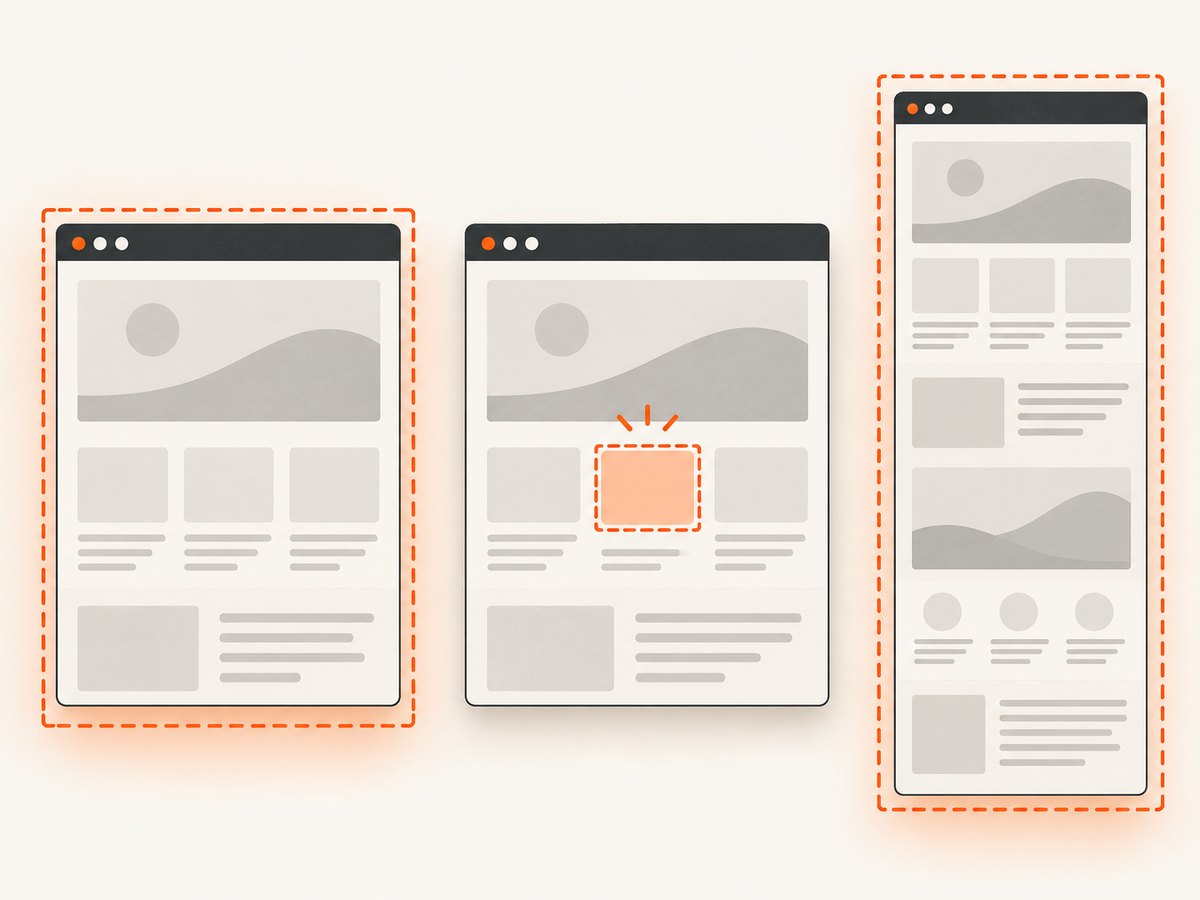
Take a full-page screenshot of the current page and save it as full-page.png.Full-page mode captures content below the fold. Very long pages can produce large files and may expose sticky headers repeatedly or reveal content that loads only after scrolling. If lazy-loaded images are missing, scroll through the page first or wait for the page’s loading state before calling the screenshot tool.
Element capture
Take a screenshot of just the pricing table and save it as pricing.webp.Have the assistant obtain a snapshot first when the page has repeated components. A stable selector or snapshot reference is safer than guessing from the image. Element and full-page capture are mutually exclusive.
High-resolution WebP
Take a high-resolution WebP screenshot of the current page and save it as review.webp.This corresponds to type: "webp" and scale: "device". Use device scale for retina review or visual diffs where small details matter; use CSS scale for predictable dimensions and smaller artifacts.
Complete MCP workflow for visual review
- Open the URL. Include the exact route, locale, and query parameters needed for the state under review.
- Inspect structure. Request an accessibility snapshot to locate headings, forms, tables, and buttons.
- Prepare state. Dismiss dialogs, select a tab, or submit a form using snapshot references and browser actions.
- Wait for stability. Wait for a selector, a navigation completion, or a known loading indicator to disappear.
- Capture the right scope. Choose viewport, element, or full page. Never combine
targetandfullPage. - Save or inspect. Supply a filename for an artifact used by CI or a ticket. Omit it when the assistant only needs to inspect the image.
A useful request is: “Open the dashboard, wait for the sales chart to appear, take a full-page PNG screenshot, and save it as artifacts/dashboard.png.” For interaction, keep using snapshots. The screenshot can confirm colors, spacing, charts, clipping, and visual regressions, but it does not provide reliable interaction references.
Automation patterns and edge cases
Dynamic content and animations
Animated carousels, blinking cursors, timestamps, and live charts can make two captures differ even when the layout is correct. Pause animations through a site-supported test mode or wait for a deterministic state. If you control the page, expose stable fixture data and a “ready” marker.
Consent dialogs and overlays
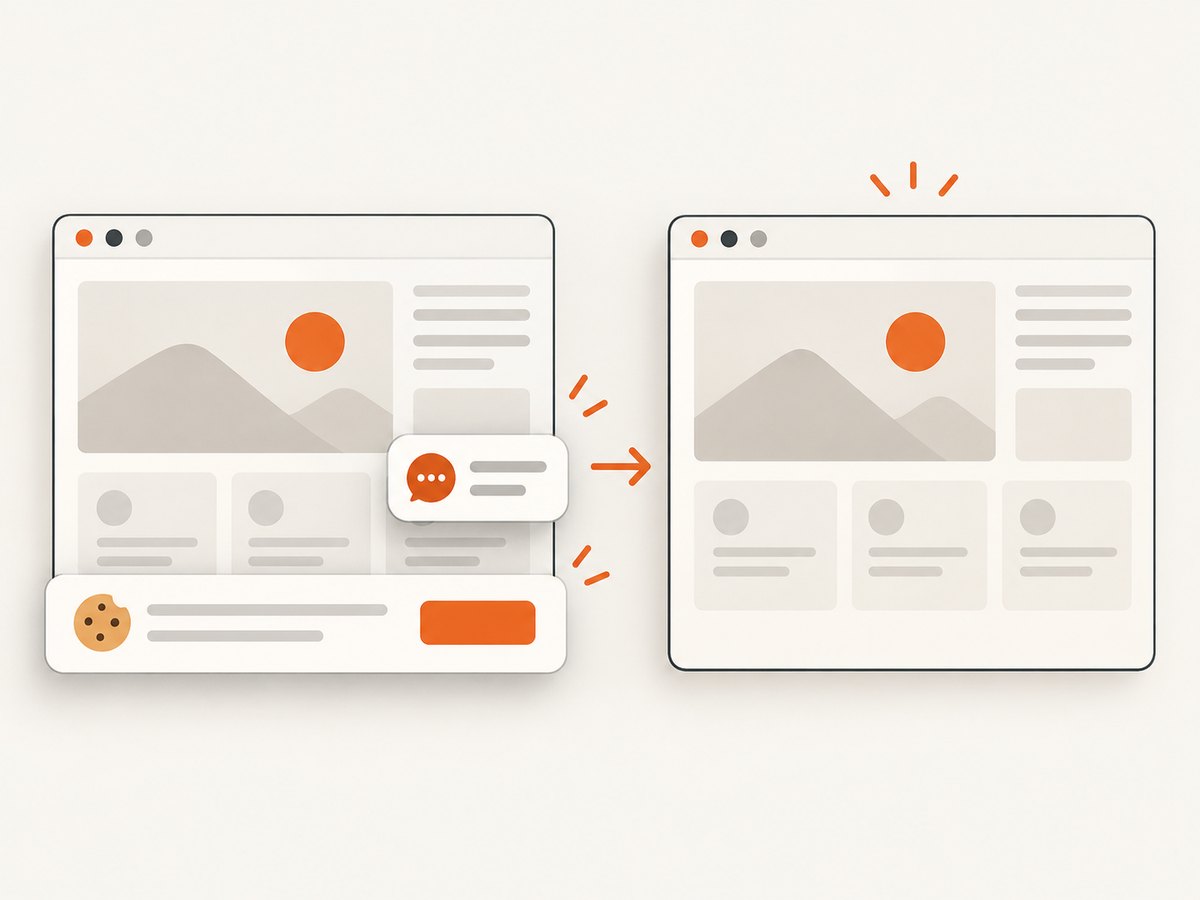
A cookie banner or chat widget may cover the page. Ask the assistant to identify and dismiss it through the accessibility tree before capturing. If the overlay is part of the bug you are documenting, capture it deliberately and record the state in the filename.
Authentication and sensitive pages
Use a dedicated test account, avoid placing credentials in prompts or filenames, and keep saved artifacts in an access-controlled workspace. A screenshot can contain personal data even when the URL itself is public.
Lazy loading and infinite scroll
Full-page capture does not guarantee that an infinite feed has loaded every item. Scroll to the required boundary, wait for new content, and define a finite stopping condition. For a stable document, capture the element or section you actually need.
Cross-origin frames
Embedded payment, video, or analytics frames may render differently from the parent page. A parent-page screenshot can include the frame visually, while element selection inside it may depend on the server’s frame support and the frame’s loaded state.
Troubleshooting
| Symptom | Likely cause | Fix |
|---|---|---|
| The screenshot tool is missing | The MCP server is not connected or the client has stale tool metadata. | Check the server command, reload MCP connections, and verify that the Playwright server starts without an error. |
| “Target” and “fullPage” fails | The options are mutually exclusive. | Remove target for a full-page image, or remove fullPage for an element image. |
| The file is not where expected | The filename is relative to a different workspace root. | Use an absolute path only if your client permits it, or inspect the client’s workspace root and save under a known artifact directory. |
| The capture is blank | The page has not loaded, navigation failed, or a bot check is blocking the browser. | Inspect the page with a snapshot, wait for a visible selector, and verify the URL manually through the browser tools. |
| Text or controls are cut off | Viewport capture was used for content below the fold. | Use fullPage: true or target the specific element. |
| Element capture selects the wrong component | The selector is not unique or the snapshot reference is stale. | Take a fresh snapshot and use a unique selector or current reference. |
| HTTP MCP disconnects | The session missed the documented heartbeat window. | Keep the client session active and check proxy timeouts when using the HTTP deployment. |
| Images are missing | Lazy loading has not completed or the resource failed. | Scroll to the content, wait for the image or its container, and capture again. |
Performance, reliability, and cost considerations
Capture time is dominated by navigation, JavaScript execution, fonts, images, third-party requests, and any authentication flow. Viewport screenshots are usually smaller and simpler than full-page captures. Device scale increases pixel count and file size. WebP or JPEG can reduce artifact size when lossless PNG is unnecessary.
For reliable automation, keep URLs deterministic, wait on selectors instead of arbitrary short delays, use stable test data, and save a diagnostic screenshot when a step fails. Separate navigation failures from screenshot failures so a retry does not hide the real cause. If a page is intentionally dynamic, compare selected regions or use a tolerance in your visual-diff system rather than expecting byte-identical files.
Playwright MCP itself does not establish a per-screenshot price in the cited documentation. Your costs come from the infrastructure running the browser and the MCP client environment. Confirm your hosting, browser, and storage terms before running high-volume jobs.
Or skip the browser setup
ScreenshotNeo provides a website screenshot API and MCP server. A single GET request returns a PNG, JPEG, WebP, or PDF. It removes cookie and consent banners, newsletter popups, and chat widgets before capture; each cleanup step can be turned off. Bot checks, blank pages, timeouts, failed loads, and cache hits are not billed, and responses identify the result with X-Page-Verdict and X-Billed headers. Its MCP tools are take_screenshot, get_page_info, and capture_pdf, so an AI agent can request captures without you maintaining a browser process.
See the ScreenshotNeo API documentation for the complete option list, including full-page and element capture, dark mode, device presets, retina scale, PDF paper settings, custom CSS and JavaScript, clicks, waits, request blocking, headers, cookies, user agents, timezone, geolocation, transparent backgrounds, resizing, caching, signed links, asynchronous jobs, webhooks, bulk capture, usage, and OpenAPI support.
cURL
curl -G "https://api.screenshotneo.com/v1/shot" -d access_key=YOUR_API_KEY --data-urlencode url=https://stripe.com -o shot.webpPython
import requests

r = requests.get(
    "https://api.screenshotneo.com/v1/shot",
    params={"access_key": "YOUR_API_KEY", "url": "https://stripe.com"},
    timeout=90,
)
r.raise_for_status()
open("shot.webp", "wb").write(r.content)
Node.js
const q = new URLSearchParams({ access_key: 'YOUR_API_KEY', url: 'https://stripe.com' });
const res = await fetch(`https://api.screenshotneo.com/v1/shot?${q}`);
if (!res.ok) throw new Error(`Screenshot failed: ${res.status}`);
const bytes = Buffer.from(await res.arrayBuffer());
require('fs').writeFileSync('shot.webp', bytes);
The Free plan includes 1,000 shots each month with no card. Paid plans start at $5 for 3,000 shots, and every feature is available on every plan. Create a free ScreenshotNeo account to make your first captures.
FAQ
Is MCP the same thing as Playwright?
No. MCP is the protocol context that lets a client call tools. Playwright MCP is one server implementation built around Playwright browser automation.
Can I capture an element and the full page in one call?
Not with the documented Playwright screenshot options. target and fullPage are mutually exclusive; make two calls.
Should I use a screenshot to click a button?
No. Use an accessibility snapshot and its element references for interaction. Use the screenshot to inspect appearance.
What format should I choose?
Use PNG for lossless review, JPEG for photographic pages where smaller files matter, and WebP when your downstream tools support it. Use device scale when you need retina detail.
Does every MCP browser server expose browser_take_screenshot?
No. Tool names and parameters vary. Confirm the selected server’s current documentation before copying a Playwright-specific request.


