How to Find and Set Up the Browser Use MCP Server on GitHub
Find Browser Use’s official GitHub MCP setup, choose local stdio or hosted HTTP, configure your client, and troubleshoot common connection issues.

To find the Browser Use MCP server, start with the official browser-use/browser-use GitHub repository and its integrations guide. For a local server, configure your MCP client to launch uvx --from 'browser-use[cli]' browser-use --mcp over stdio. There is no server URL for this local setup: the client starts the process. For Browser Use’s hosted service, use the current HTTP endpoint https://api.browser-use.com/v3/mcp and send your Browser Use API key in the x-browser-use-api-key header, following its current cloud setup guide.
Choose local stdio when you want the MCP client to run Browser Use on your machine and use a local browser environment. Choose hosted HTTP when you want Browser Use’s cloud service to run the browser task. The names are easy to confuse: local setup is a command in client configuration; hosted setup is a remote endpoint and API key.
1. Find the official project and the right setup guide
Search results can contain similarly named projects and third-party integrations. Verify that you are using the browser-use/browser-use project and its integrations reference, rather than copying a command from an unrelated repository or an old blog post.
The project’s documentation has separate local and cloud paths. The GitHub integration reference is the source for the local stdio launch command and client configurations. For hosted MCP, use the current cloud guide: it documents the versioned /v3/mcp URL and API-key header. The repository integration reference includes an older hosted URL form, so do not assume every URL in that file is still current.
| Setup | What goes in the MCP client | Where the browser runs | Credential to plan for |
|---|---|---|---|
| Local stdio | A command and arguments | Your local browser environment | OpenAI or Anthropic LLM API key for the workflow |
| Hosted HTTP | Remote endpoint and HTTP header | Browser Use cloud service | Browser Use API key; model and browser usage may have costs |
2. Set up the local stdio server
The official launch command is:
uvx --from 'browser-use[cli]' browser-use --mcpuvx runs the package command in an isolated environment, so the command itself does not require you to clone the GitHub repository and start a separate web server. Your MCP client launches the command and exchanges messages with it over standard input and output (stdio).
Check prerequisites
- Install
uv, which suppliesuvx, using the installation method documented for your operating system. - Make sure
uvxis on the PATH used by the MCP client. A terminal seeing the command does not always mean a desktop client launched from a GUI can find it. - Have an OpenAI or Anthropic API key available for the LLM-backed Browser Use workflow.
- Choose a browser mode and profile deliberately. A persistent Chrome profile can retain login state and other browsing data.
Confirm the executable path from a terminal:
which uvxOn macOS and Linux, the integrations guide recommends using the full path to uvx in client configuration if the client cannot locate it. For example, replace /FULL/PATH/TO/uvx below with the path returned by which uvx.
Claude Desktop local configuration
Add an entry like this to Claude Desktop’s MCP server configuration, adapting the executable path and API key. Use the configuration location and reload procedure documented by your installed Claude Desktop version.
{
  "mcpServers": {
    "browser-use": {
      "command": "/FULL/PATH/TO/uvx",
      "args": [
        "--from",
        "browser-use[cli]",
        "browser-use",
        "--mcp"
      ],
      "env": {
        "OPENAI_API_KEY": "YOUR_OPENAI_API_KEY"
      }
    }
  }
}
If you use Anthropic for the local LLM workflow, configure the corresponding ANTHROPIC_API_KEY environment variable as described by the project. Avoid committing real API keys into a shared configuration file. If your client offers a secure environment-variable or secret store, use it.
What the local tools do
The integration reference describes browser-control and extraction actions including navigation, clicking, typing, reading page state, scrolling, going back, managing tabs, extracting content, and cleaning up a session. This is a browser-control workflow: the agent can perform steps in a browser and inspect results. The exact tools exposed can change, so check the repository guide if a tool is missing or renamed.
3. Connect to the hosted HTTP MCP server
Hosted MCP does not start through a local uvx process. Configure the client to connect to the current endpoint, https://api.browser-use.com/v3/mcp, and authenticate with the x-browser-use-api-key HTTP header. Get the key through Browser Use’s account flow and follow its current client-specific instructions for Claude Code, Claude Desktop, Cursor, or Windsurf.
For example, an HTTP MCP client configuration conceptually needs these values:
transport: streamable-http
url: https://api.browser-use.com/v3/mcp
headers:
  x-browser-use-api-key: YOUR_BROWSER_USE_API_KEY
This is a transport sketch, not a universal client configuration file: clients use different JSON schemas and commands. Follow the official cloud guide’s exact format for your client. Do not paste an API key into a URL or substitute the older endpoint found in repository snippets without checking the current cloud guide.
The hosted product describes a session-oriented workflow in which a task is handed to a cloud browser and results are returned. The product page lists six session tools. Confirm the current tool names and capabilities in the official guide when building around a particular tool.
4. Configure the client and browser behavior
The MCP manifest documents settings that affect execution, access, and the browser environment. Check the current official manifest for accepted names and defaults before adding optional fields; they may evolve.
| Setting area | Why you may configure it | Practical consideration |
|---|---|---|
| Workspace directory | Choose where files or task artifacts are handled. | Point it at a deliberate working directory. |
| Headless mode | Run without displaying the browser window. | The documented default is false; visible mode can help inspect behavior. |
| Stealth mode | Control the browser mode exposed by the project. | The documented default is false; do not assume it guarantees access to any site. |
| Persistent Chrome profile | Reuse browser session state. | A profile can contain authenticated sessions; protect its directory and only use one intended for agent access. |
| Provider, model, and vision | Select LLM credentials/model and whether vision is used. | Provider calls can add token costs; set the key for the provider you actually use. |
| Allowed domains | Restrict which domains the agent may access. | Use an allowlist that matches the task. |
| Sensitive-data masking | Control masking of sensitive information. | The manifest documents masking as enabled by default; verify the current behavior for your use case. |
| Browser and rendering | Choose browser type and deterministic rendering options. | Chromium is the documented browser default. |
| Timeouts, waits, and step limits | Set task duration and agent bounds. | The manifest documents a 30,000 ms default timeout and a maximum of 100 steps. |
| Security | Control security protections. | The project marks security disabling as a caution setting. Do not turn it off as a routine fix. |
For repeatable tasks, keep the model, viewport, browser type, allowed domains, and wait strategy consistent. A saved profile can avoid repeated sign-ins, but also gives the agent access to whatever that profile can access. Use a dedicated profile rather than a personal everyday profile when persistent state is needed.
5. Decide between local and hosted
These options solve related problems through different transports and execution environments.
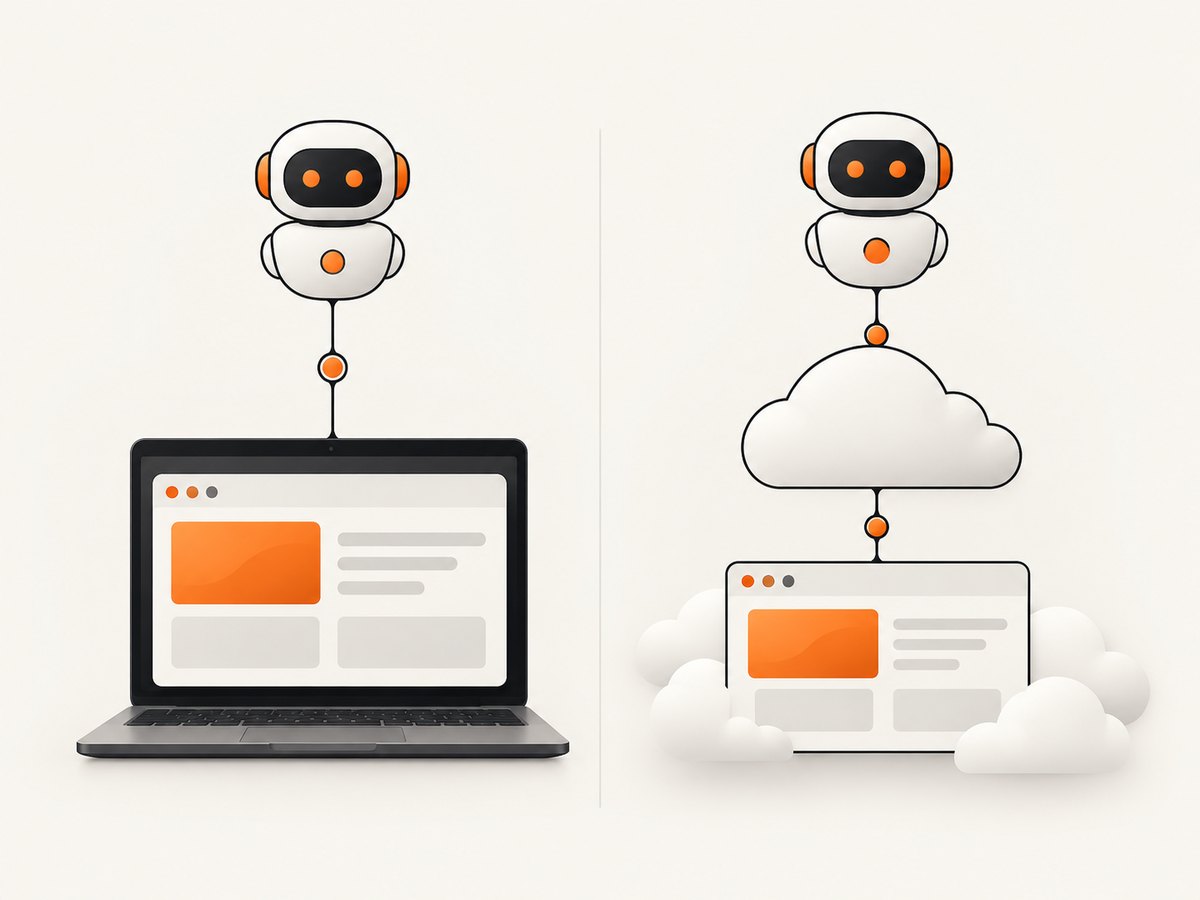
- Local stdio: your MCP client starts a command, and the browser runs in your local environment. The documented workflow needs an OpenAI or Anthropic key for LLM-backed use. It is useful when you need the local browser environment or step-by-step browser control.
- Hosted HTTP: your client connects to Browser Use’s cloud endpoint using a Browser Use API key. The product describes handing a whole task to a cloud browser and returning the result. This is useful when you want a cloud session rather than launching a browser on your machine.
Compare the operational details that matter for your job: where authenticated state lives, who supplies model credentials, how the client handles HTTP headers, and whether you need direct browser controls or a task-and-result session. The official product page currently lists browser time at $0.02 per hour, plus model tokens. Treat pricing as vendor-published and check the page before budgeting because rates and credits can change. Browser Use also publishes an internal result of 82% on 106 tasks at 17¢ per solved task; that is the vendor’s benchmark, not an independent measurement.
6. Troubleshoot common setup problems
| Symptom | Likely cause | What to do |
|---|---|---|
| Client says command not found | The GUI-launched client does not inherit the terminal PATH. | Run which uvx and put the full executable path in the local configuration. Restart or reload the MCP client. |
| Local server exits immediately | Malformed command or arguments, unavailable package, or startup error. | Compare the command and argument order with the official integration guide. Check the client’s MCP logs and verify uvx works in a terminal. |
| Authentication or model error locally | The expected provider key is missing, misspelled, or unavailable to the child process. | Set OPENAI_API_KEY or ANTHROPIC_API_KEY in the MCP server environment. Do not include surrounding quotes as part of the secret value. |
| Hosted connection fails | Wrong or stale endpoint, missing header, invalid key, or client transport mismatch. | Use https://api.browser-use.com/v3/mcp, send x-browser-use-api-key, and follow the current guide’s configuration for the client. |
| Client connects but a task cannot access a site | Domain restrictions, authentication state, a site challenge, or task-specific browser behavior may be involved. | Review allowed-domain configuration and the profile in use. Do not assume changing security settings is an appropriate fix. |
| Task times out or stops before completion | Timeout, wait condition, or step limit is too restrictive for the task. | Inspect the configured timeout, wait intervals, and step limit. Make the task smaller and more specific before increasing limits. |
| Agent sees an unexpected logged-in account | A persistent browser profile is being reused. | Use a dedicated profile directory, inspect which profile is configured, and remove access to unrelated session state. |
| Configuration changes have no effect | The MCP client has not restarted the server process or is reading a different config file. | Use the client’s reload procedure, inspect its logs for the loaded server entry, and confirm the edited file is the active one. |
7. Reliability, performance, and cost
Browser tasks depend on page load behavior, authentication, dynamic content, and the task instructions. Keep tasks focused, use an appropriate wait condition, and set timeouts that reflect the work. A deterministic rendering option is documented in the manifest, but it does not make third-party websites static or guarantee identical results. Persistent profiles can preserve useful sessions; they can also preserve stale state, so periodically review which profile is used.
For cost control, distinguish browser time from LLM tokens in the hosted service’s vendor-published pricing. A longer run can involve both. Local setup also uses a provider key for its LLM-backed workflow, so provider charges may apply there as well. Set practical step and timeout limits, avoid asking the agent to repeat broad exploration when you can specify the target page and outcome, and check current provider and Browser Use pricing before production use. No universal latency or success-rate guarantee follows from the setup documentation.
8. Or skip the browser setup
If your task is to capture a website as an image or PDF rather than interact with it step by step, ScreenshotNeo is a screenshot API and MCP server from Yorker Media. A single GET request returns a PNG, JPEG, WebP, or PDF; its MCP tools include take_screenshot, get_page_info, and capture_pdf. See the ScreenshotNeo API documentation.
curl -G "https://api.screenshotneo.com/v1/shot" -d access_key=YOUR_API_KEY --data-urlencode url=https://stripe.com -o shot.webpimport requests
r = requests.get(
"https://api.screenshotneo.com/v1/shot",
params={"access_key": "YOUR_API_KEY", "url": "https://stripe.com"},
timeout=90,
)
open("shot.webp", "wb").write(r.content)const q = new URLSearchParams({ access_key: 'YOUR_API_KEY', url: 'https://stripe.com' });
const res = await fetch(`https://api.screenshotneo.com/v1/shot?${q}`);
if (!res.ok) throw new Error(`Screenshot request failed: ${res.status}`);
const image = Buffer.from(await res.arrayBuffer());
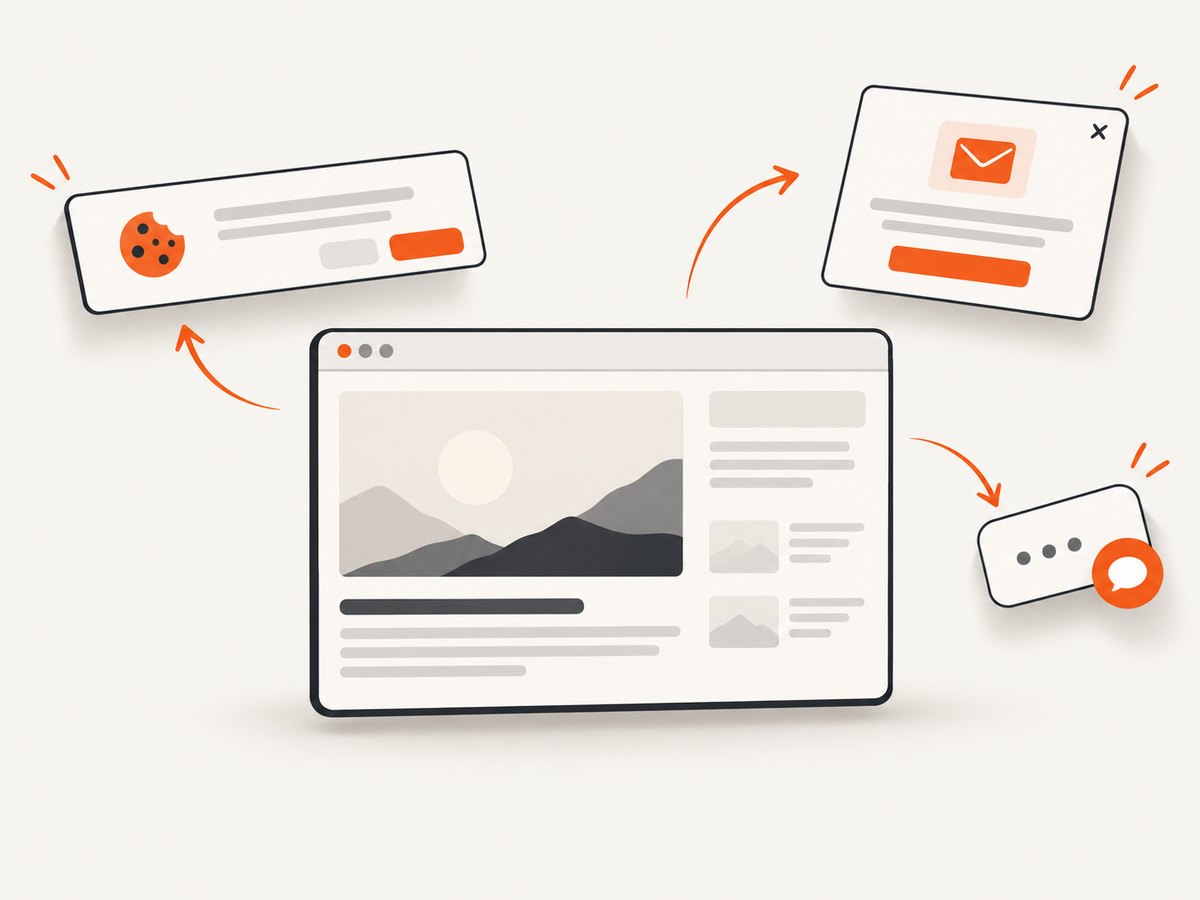
await import('node:fs/promises').then(fs => fs.writeFile('shot.webp', image));ScreenshotNeo accepts cookie and consent banners like a visitor and removes more than 60 known consent platforms, newsletter popups, and chat widgets before capture; each step can be turned off. Bot checks, blank pages, failed loads, timeouts, and cache hits are not billed, and responses identify the page verdict and billing status in headers. An MCP server lets AI agents, including Claude, Cursor, and other MCP clients, take screenshots. The free plan includes 1,000 screenshots a month with no card; paid plans start at $5 for 3,000. Sign up for 1,000 free screenshots a month, no card required.
FAQ
Does the local MCP server need a URL?
No. For local stdio, the client starts the configured command and communicates over standard input and output. A URL is relevant to the hosted HTTP connection.
Do I need to clone the GitHub repository?
The documented uvx --from command launches the package without requiring a manual repository clone. Clone it only if you have a development or source-inspection reason.
Can Browser Use return JSON?
Output shape depends on the tool and task. Be explicit about the structure you need in the task, then check the current tool documentation; do not assume every browser action returns a JSON object with a fixed schema.
Which clients are covered by the setup documentation?
The official materials include configurations or connection instructions for Claude Desktop, Claude Code, Cursor, and Windsurf. Check the current guide for the precise steps and supported transport in your client version.
Can I use my logged-in Chrome session?
The manifest documents persistent Chrome profile configuration. Use a profile intended for agent access and protect it because it may contain authenticated session state.


