BlogScreenshots on your device
How to Capture the Browser Chrome, URL, and Tabs with Selenium and C#
Selenium can capture page pixels and browser state, but not the address bar or tab strip. Learn the exact C# approach and reliable alternatives.
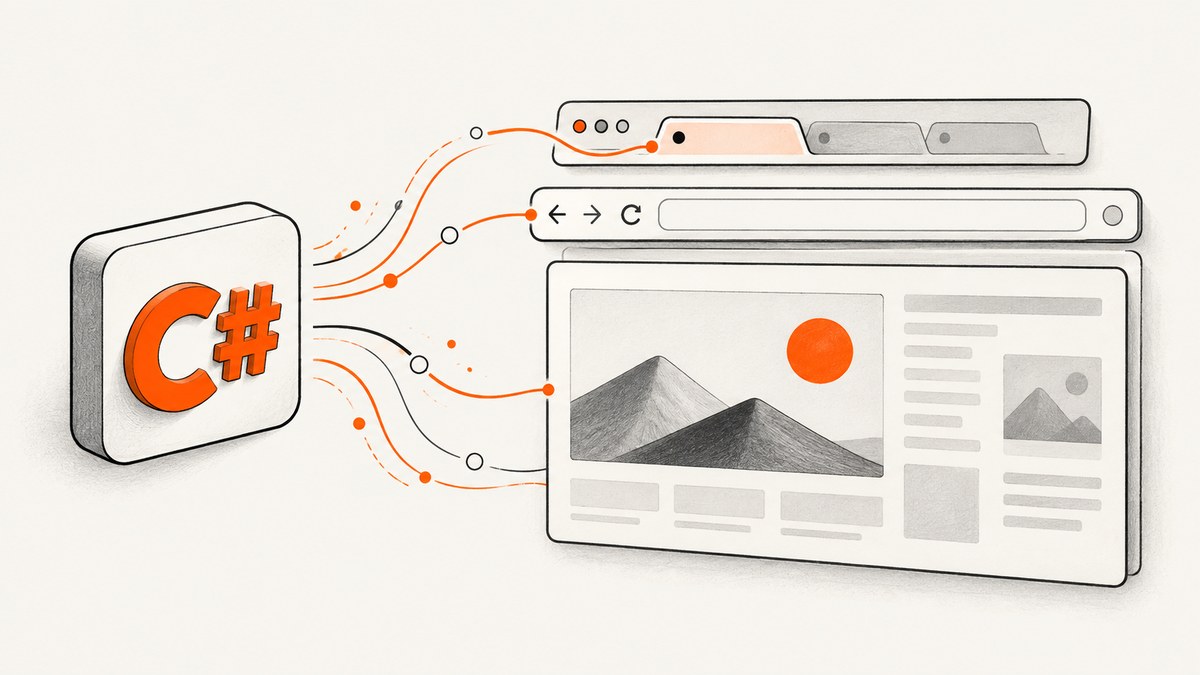
Short answer: Selenium can capture the rendered page viewport and read the current URL, title, source, and tab or window handles. It cannot capture the browser chrome—the address bar, tab strip, toolbar, or other pixels outside the page viewport—through the WebDriver API. For browser chrome you need an operating-system or remote-desktop capture method in addition to Selenium.
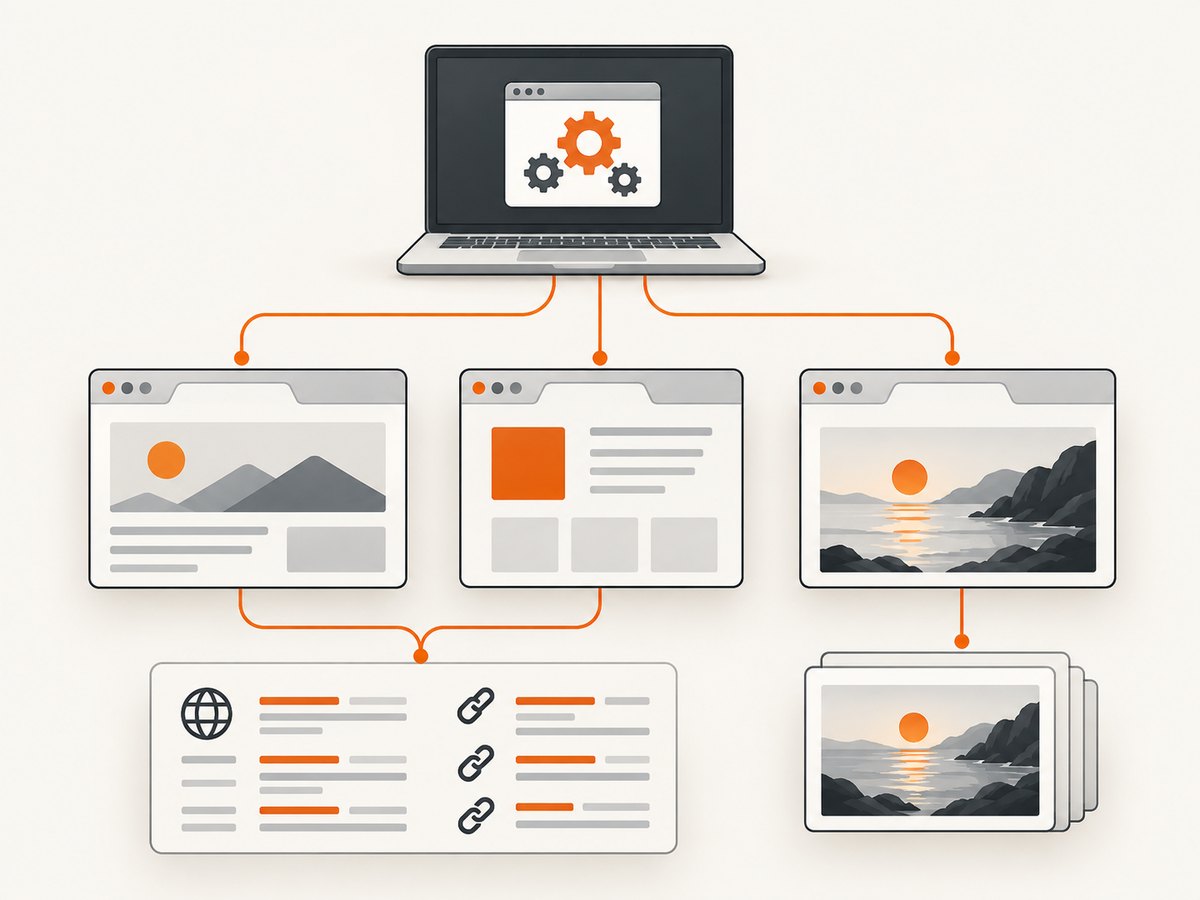
Selenium uses one handle model for both tabs and windows. In C#, save the original handle, wait for a new handle, switch with driver.SwitchTo().Window(handle), collect the state or screenshot for that context, and switch back when finished. Selenium 4 can also create a tab or window directly.
What Selenium can and cannot capture
| Need | Selenium C# API | Result |
|---|---|---|
| Current URL value | driver.Url |
Structured string, including the current navigation URL |
| Page title | driver.Title |
Title reported by the current page |
| Loaded source | driver.PageSource |
Source representation of the last loaded document |
| Active tab or window | driver.CurrentWindowHandle |
Handle for the current browsing context |
| All tabs or windows | driver.WindowHandles |
Collection of handles Selenium can switch to |
| Page pixels | ITakesScreenshot |
Screenshot of the current browsing context, normally the viewport |
| Address bar, tab strip, toolbar | Not exposed by WebDriver | Use an OS-level or remote-desktop screenshot mechanism |
The distinction matters: driver.Url gives you the URL as data; it does not return an image of the address bar. Likewise, a WebDriver screenshot represents the current page context rather than the outer browser frame. These boundaries follow Selenium’s documented WebDriver scope and screenshot behavior. See Selenium’s windows and tabs documentation and the Selenium documentation.
Complete C# example: URL, title, source, tabs, and page screenshot
The following console program opens a page, records its structured state, captures the current page viewport, opens a second tab, waits for it to appear, captures that context, and returns to the original tab.
using System;
using System.Collections.ObjectModel;
using System.IO;
using System.Linq;
using OpenQA.Selenium;
using OpenQA.Selenium.Chrome;

class Program
{
    static void Main()
    {
        var options = new ChromeOptions();
        // options.AddArgument("--headless=new"); // Enable in CI when a visible browser is not needed.

        using IWebDriver driver = new ChromeDriver(options);
        driver.Navigate().GoToUrl("https://example.com");

        string originalHandle = driver.CurrentWindowHandle;
        string url = driver.Url;
        string title = driver.Title;
        string source = driver.PageSource;

        Console.WriteLine($"URL: {url}");
        Console.WriteLine($"Title: {title}");
        Console.WriteLine($"Open contexts: {driver.WindowHandles.Count}");

        // Capture the current page viewport, not the address bar or tab strip.
        Screenshot pageShot = ((ITakesScreenshot)driver).GetScreenshot();
        pageShot.SaveAsFile("page.png");
        File.WriteAllText("page-source.html", source);

        // Selenium 4: create a new tab and navigate it.
        driver.SwitchTo().NewWindow(WindowType.Tab);
        driver.Navigate().GoToUrl("https://www.selenium.dev");
        string secondHandle = driver.CurrentWindowHandle;
        ((ITakesScreenshot)driver).GetScreenshot().SaveAsFile("second-tab.png");
        Console.WriteLine($"Second tab URL: {driver.Url}");

        // Return to the original tab.
        driver.SwitchTo().Window(originalHandle);
        Console.WriteLine($"Back on: {driver.Url}");

        // The using statement calls Quit() even if an exception is thrown.
    }
}
Install the Selenium .NET package and a compatible ChromeDriver before running the program. The exact SaveAsFile overload can vary between Selenium .NET versions; if your compiler reports a signature difference, use the overload exposed by the installed package. The concepts and interfaces remain the same.
Capture a tab opened by a click
When a link opens a new tab or window, record the existing handle set before clicking. Then wait until the set contains a new handle. A short explicit wait is more reliable than sleeping for a fixed number of seconds.
using System;
using System.Linq;
using OpenQA.Selenium;
using OpenQA.Selenium.Support.UI;

string original = driver.CurrentWindowHandle;
var before = driver.WindowHandles.ToHashSet();

driver.FindElement(By.CssSelector("a[target='_blank']")).Click();

var wait = new WebDriverWait(driver, TimeSpan.FromSeconds(10));
string child = wait.Until(d =>
{
    var candidate = d.WindowHandles.FirstOrDefault(h => !before.Contains(h));
    return candidate;
});

driver.SwitchTo().Window(child);
Console.WriteLine($"Child URL: {driver.Url}");
((ITakesScreenshot)driver).GetScreenshot().SaveAsFile("child.png");

driver.Close();
driver.SwitchTo().Window(original);
If the site opens several contexts, do not assume the first handle different from the original is the one you want. Compare the before and after sets, then identify the target by URL, title, or a page element.
Enumerate and inspect every open tab or window
string active = driver.CurrentWindowHandle;
foreach (string handle in driver.WindowHandles)
{
    driver.SwitchTo().Window(handle);
    Console.WriteLine($"Handle: {handle}");
    Console.WriteLine($"URL: {driver.Url}");
    Console.WriteLine($"Title: {driver.Title}");

    string fileName = $"context-{Sanitize(handle)}.png";
    ((ITakesScreenshot)driver).GetScreenshot().SaveAsFile(fileName);
}

driver.SwitchTo().Window(active);

static string Sanitize(string value)
{
    return new string(value.Where(char.IsLetterOrDigit).ToArray());
}
Handles are opaque identifiers. Store them for the duration of the driver session, and never depend on their order. A tab and a separate browser window are both represented as WebDriver window handles.
Creating a new tab or window in Selenium 4
// New tab
driver.SwitchTo().NewWindow(WindowType.Tab);
driver.Navigate().GoToUrl("https://example.com");

// New top-level browser window
driver.SwitchTo().NewWindow(WindowType.Window);
driver.Navigate().GoToUrl("https://www.selenium.dev");
NewWindow switches the driver into the newly created context. Save the original handle first if you need to return to it later.
Why Selenium cannot include the address bar or tab strip
WebDriver automates a browsing context: the document, its DOM, navigation state, and the browser context selected by a handle. The browser’s own controls are outside that document. Selenium therefore exposes the URL as driver.Url and contexts as handles, but does not expose a bitmap of the browser frame.
To obtain a visual image containing browser chrome, combine Selenium with an environment-level capture:
- Run the browser in a desktop session with a known window size and position.
- Use Selenium to navigate, switch to the desired handle, and wait until the page is ready.
- Use an OS screenshot API, desktop automation library, or remote-desktop capture to grab the browser window or screen.
- Save the structured values (
driver.Url, title, handle) alongside the image so the capture remains searchable and reproducible.
This approach is environment-dependent. It is difficult to make deterministic in headless CI, where no browser chrome is painted, and window decorations can differ by operating system, display scaling, theme, and browser version.
Page screenshot versus browser-window screenshot
| Property | WebDriver screenshot | OS or desktop screenshot |
|---|---|---|
| Includes page content | Yes | Yes, if the window is visible |
| Includes address bar and tabs | No | Yes, when capturing the browser window or screen |
| Works naturally in headless mode | Yes | No visible chrome exists in headless mode |
| Portable across CI providers | Generally more portable | Requires a desktop or virtual display setup |
| Exact browser-frame geometry | Not applicable | Must control window size, position, scale, and decorations |
URL and page-source edge cases
- Redirects: Read
driver.Urlafter navigation and waits complete; the value can change through redirects or client-side routing. - Single-page applications: JavaScript may change the URL after the initial load. Read it at the moment you capture the screenshot.
- PageSource timing:
driver.PageSourcerepresents the source Selenium reports for the loaded document and may not include every later JavaScript mutation. Inspect the live DOM with element queries when current rendered state matters. - Authentication: A screenshot can show a login page even when the navigation request succeeded. Check the URL, title, and a page element before saving an artifact.
- Cross-origin frames: Switch into a frame only when you need to inspect its DOM. The top-level screenshot still represents the rendered page context.
- Closed contexts: A handle becomes invalid after its tab or window closes. Remove it from your own tracking collection and switch to a remaining handle.
Reliable waits before capturing
A screenshot taken immediately after Navigate().GoToUrl can contain a loading state. Choose a wait that matches the page:
var wait = new WebDriverWait(driver, TimeSpan.FromSeconds(20));

// Wait for a page element that proves the view is ready.
wait.Until(d => d.FindElement(By.CssSelector("main")));

// Or wait for document readiness when that is sufficient.
wait.Until(d =>
{
    var state = ((IJavaScriptExecutor)d)
        .ExecuteScript("return document.readyState")?.ToString();
    return state == "complete";
});

((ITakesScreenshot)driver).GetScreenshot().SaveAsFile("ready.png");
Document readiness does not guarantee that images, fonts, animations, or application data have finished rendering. For visual consistency, wait for a meaningful selector and disable or account for animations in your test environment.
Troubleshooting
| Error or symptom | Likely cause | Fix |
|---|---|---|
| The screenshot has no address bar | WebDriver screenshots cover the page context only. | Capture the visible browser window with an OS or remote-desktop mechanism, or store driver.Url as metadata. |
NoSuchWindowException |
The target tab was closed or the handle is stale. | Refresh driver.WindowHandles, skip closed handles, and switch to a live context. |
| The new tab is not found | The click is asynchronous or did not open a new context. | Record handles before the click and use an explicit wait for a handle that was not present before. |
| The screenshot is blank or incomplete | Capture happened before the page finished rendering, or the page blocked automation. | Wait for a meaningful element, verify the URL and title, and capture again after the page is ready. |
InvalidOperationException for SaveAsFile |
Selenium .NET package versions expose different overloads. | Inspect the installed Screenshot.SaveAsFile signature and pass the required format argument if needed. |
| Driver startup fails | Browser and driver versions or executable configuration do not match. | Install a compatible Selenium Manager setup or configure a matching browser driver, then retry with a minimal program. |
| URL is unexpected after navigation | Redirects, client-side routing, or a login flow changed it. | Read driver.Url after the final readiness condition and record the title and a distinguishing element. |
| OS capture is inconsistent in CI | No desktop session, display scaling, or window focus differences. | Use a virtual display with fixed dimensions, keep the browser visible, and control window position; use WebDriver screenshots when chrome is not required. |
Performance, reliability, and file handling
- Reuse a driver when practical: Browser startup is expensive. Reuse one session for related captures, but reset cookies and state when isolation is required.
- Keep waits targeted: Waiting for a specific ready element avoids unnecessary delays compared with long fixed sleeps.
- Capture only what you need: A viewport screenshot is smaller and faster to process than a desktop image. Use OS capture only when browser chrome is part of the requirement.
- Write atomically: Save to a temporary path and rename after the file is complete if another process consumes screenshots immediately.
- Record metadata: Store URL, title, handle, timestamp, viewport size, browser version, and test identifier next to each image.
- Clean up contexts: Close child tabs and call
Quit()in afinallyblock orusingstatement to prevent orphaned browser processes. - Control visual inputs: Fix viewport dimensions, device scale factor, fonts, timezone, locale, and animation behavior when pixel comparison matters.
Or skip the browser setup
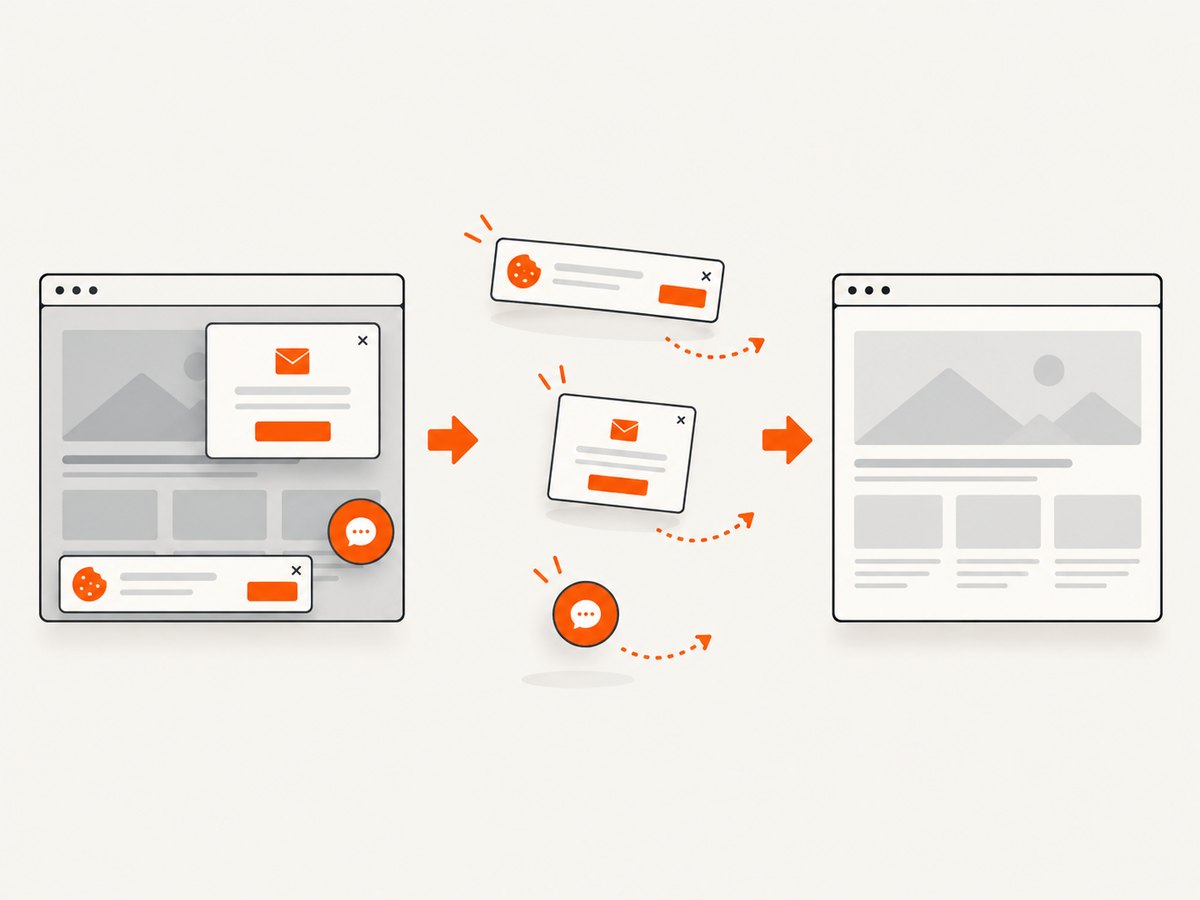
If you need a clean website image rather than a literal picture of the browser frame, ScreenshotNeo provides a single HTTP request. Its API accepts a URL and returns PNG, JPEG, WebP, or PDF. Before capture it accepts consent banners and removes more than 60 known consent platforms, newsletter popups, and chat widgets; each cleanup step can be disabled. Bot checks, blank pages, timeouts, failed loads, and cache hits are not billed, and the response identifies the result with X-Page-Verdict and X-Billed headers. ScreenshotNeo also has an MCP server for AI agents, with take_screenshot, get_page_info, and capture_pdf tools.
See the ScreenshotNeo API documentation for all options.
cURL
curl -G "https://api.screenshotneo.com/v1/shot" -d access_key=YOUR_API_KEY --data-urlencode url=https://stripe.com -o shot.webpPython
import requests

r = requests.get(
    "https://api.screenshotneo.com/v1/shot",
    params={"access_key": "YOUR_API_KEY", "url": "https://stripe.com"},
    timeout=90,
)
r.raise_for_status()
open("shot.webp", "wb").write(r.content)
Node.js
const q = new URLSearchParams({ access_key: 'YOUR_API_KEY', url: 'https://stripe.com' });
const res = await fetch(`https://api.screenshotneo.com/v1/shot?${q}`);
if (!res.ok) throw new Error(`Screenshot request failed: ${res.status}`);
const data = Buffer.from(await res.arrayBuffer());
require('fs').writeFileSync('shot.webp', data);
There is no browser binary, driver download, tab-handle bookkeeping, or desktop session to maintain. The free plan includes 1,000 screenshots per month with no card; paid plans start at $5 for 3,000. Create a free ScreenshotNeo account.
FAQ
Can Selenium take a screenshot of the address bar?
No. Selenium’s screenshot API captures the current browsing context. Use driver.Url for the URL value or an OS-level window capture for the address-bar pixels.
Are tabs and windows different in Selenium?
They are different browser presentations, but WebDriver addresses both through window handles. Selenium’s documentation explicitly states that WebDriver does not make the distinction between windows and tabs.
Can I capture every open tab in one image?
No. Iterate through driver.WindowHandles and capture each context separately, or use a desktop screenshot that happens to show multiple windows. A tab strip itself still requires an environment-level capture.
Does PageSource equal the final rendered DOM?
Not always. It represents the source Selenium reports for the loaded document and may omit later JavaScript changes. Query live elements when post-load mutations matter.
Should I use headless mode?
Use headless mode for portable page screenshots and CI. Do not use it when the requirement is visible browser chrome, because headless mode has no painted address bar or tab strip to capture.


