BlogScreenshots on your device
How to Capture Browser Content with Python and PyWin32
Use Windows UI Automation with Python and PyWin32 to read browser-visible content, inspect tabs, handle failures, and know when to use an API.
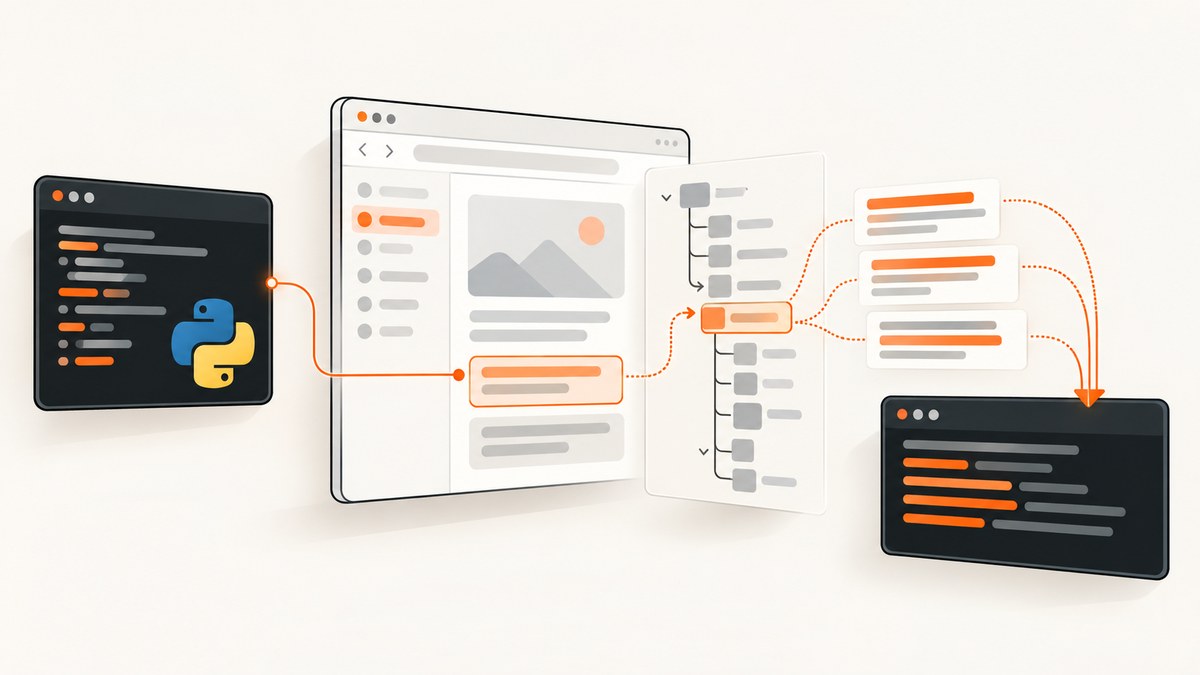
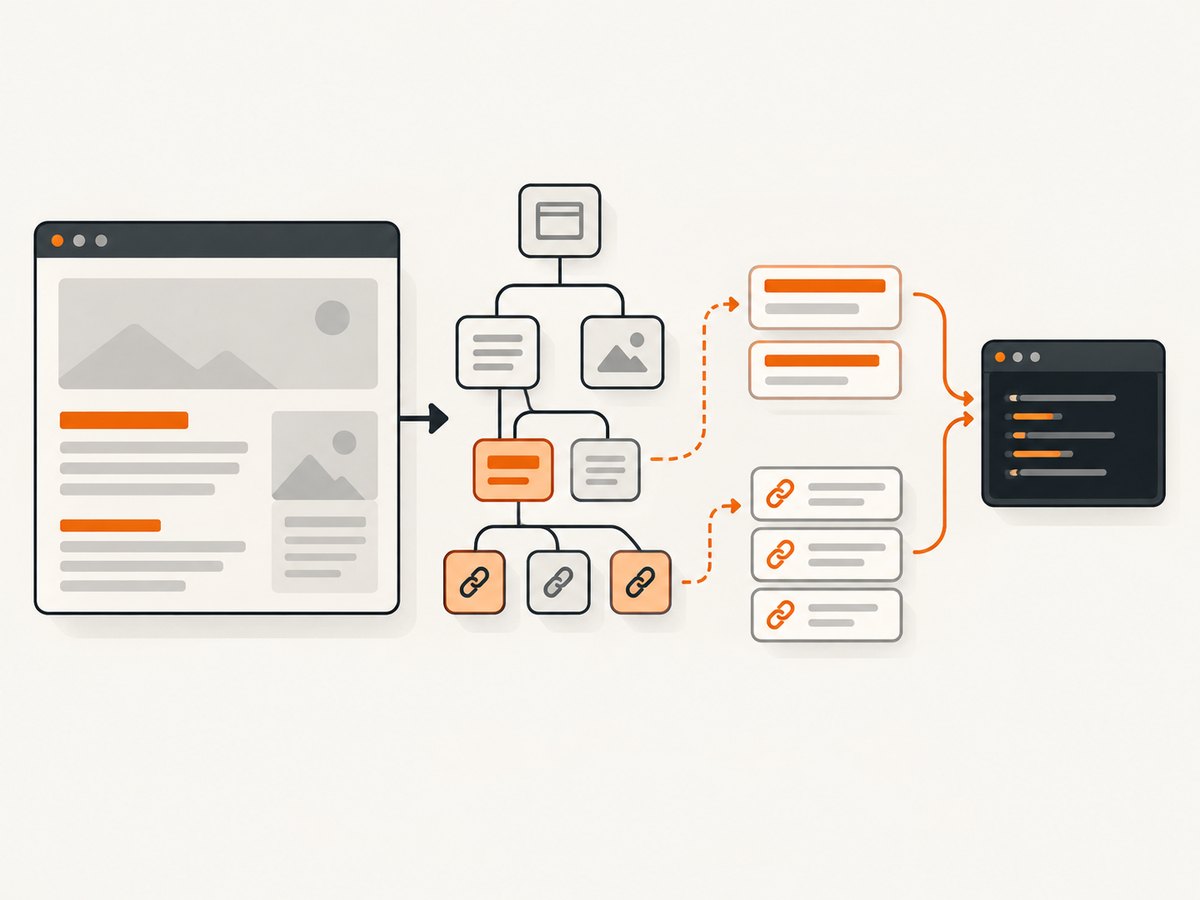
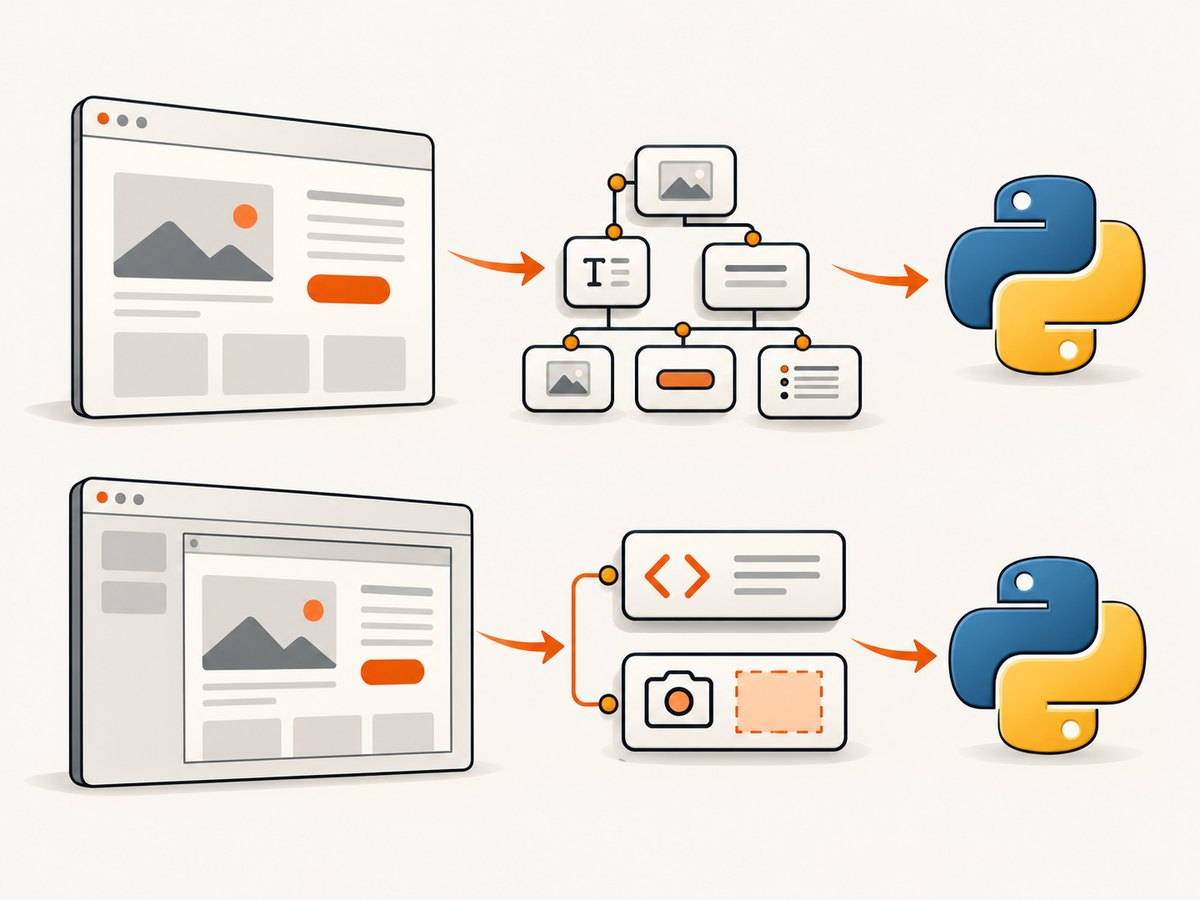
Direct answer: Use Microsoft UI Automation (UIA) to inspect the browser’s accessibility tree, and use PyWin32 to find and manage the browser window. UIA exposes browser-visible accessible elements, their names, values, control types, and supported text patterns. It does not provide a universal DOM dump. For a full DOM, JavaScript state, shadow DOM, or deterministic background capture, use browser automation or a screenshot API instead.
Microsoft describes UI Automation as a Windows accessibility framework whose client API can interact with controls in other applications and retrieve information from them. Read the UI Automation overview. PyWin32 supplies Python access to Windows APIs and COM; its COM quick start documents win32com.client.Dispatch.
What this method can and cannot capture
| Need | UIA + PyWin32 result |
|---|---|
| Visible headings, links, buttons, form labels | Usually available when the browser accessibility provider exposes them |
| Accessible name, role, value, bounding rectangle | Available as UIA properties when supported |
| Every DOM node, hidden elements, script variables, shadow DOM | Not guaranteed; use CDP, WebDriver, or in-page JavaScript |
| Rendered pixels | UIA is the wrong layer; use a screenshot API or Windows graphics capture |
| Background, unattended jobs | Fragile with a user’s live desktop; use a controlled browser instance or API |
Chromium-based browsers have moved toward native Windows UIA. Google documents that Chromium-based browsers on Windows enable native UIA support by default beginning with Chrome 138; the exact tree still depends on browser version, page structure, permissions, and provider behavior. Chrome’s UIA announcement.
Prerequisites and installation
- Run Windows with a supported Chromium browser (Chrome, Edge, or another Chromium build).
- Install Python 3.9 or newer.
- Install PyWin32 and a UIA client wrapper:
py -m pip install --upgrade pywin32 pywinautoPyWin32 will provide win32gui, process and window APIs, and COM support. Pywinauto’s UIA backend provides Python-friendly access to Microsoft’s UIA tree. If you need only PyWin32 and raw COM, see the COM section below.
Complete example: read the active browser tab
This script finds the foreground window, verifies that it looks like a browser, walks its UIA descendants, and writes accessible text and links to standard output. It intentionally collects exposed accessibility content rather than pretending to extract the complete DOM.
from __future__ import annotations

import sys
import time
from dataclasses import dataclass
from typing import Iterable

import win32gui
import win32process
from pywinauto import Desktop
from pywinauto.controls.uiawrapper import UIAWrapper

BROWSER_TITLES = ("chrome", "edge", "firefox", "brave", "vivaldi", "opera")

@dataclass
class Item:
    control_type: str
    name: str
    value: str
    automation_id: str


def foreground_hwnd() -> int:
    hwnd = win32gui.GetForegroundWindow()
    if not hwnd:
        raise RuntimeError("No foreground window is available")
    return hwnd


def window_title(hwnd: int) -> str:
    return win32gui.GetWindowText(hwnd).strip()


def looks_like_browser(title: str) -> bool:
    lowered = title.lower()
    return any(word in lowered for word in BROWSER_TITLES)


def safe_text(value) -> str:
    try:
        return str(value or "").strip()
    except Exception:
        return ""


def descendants(hwnd: int) -> Iterable[UIAWrapper]:
    window = Desktop(backend="uia").window(handle=hwnd)
    # descendants() can be expensive on large pages; use depth only when needed.
    yield from window.descendants()


def extract(hwnd: int) -> list[Item]:
    items: list[Item] = []
    for element in descendants(hwnd):
        try:
            info = element.element_info
            control_type = safe_text(info.control_type)
            name = safe_text(info.name)
            automation_id = safe_text(info.automation_id)
            value = ""
            # UIA wrappers expose text/value differently by control type.
            if control_type in {"Edit", "Document", "Text", "ComboBox"}:
                try:
                    value = safe_text(element.get_value())
                except Exception:
                    value = ""
            if name or value:
                items.append(Item(control_type, name, value, automation_id))
        except Exception as exc:
            # A page can change while the tree is being walked.
            print(f"skip unstable element: {exc}", file=sys.stderr)
    return items


def main() -> int:
    hwnd = foreground_hwnd()
    title = window_title(hwnd)
    if not looks_like_browser(title):
        raise RuntimeError(f"Foreground window does not look like a browser: {title!r}")

    print(f"HWND: {hwnd}")
    print(f"Title: {title}")
    print("Accessible content:")
    for item in extract(hwnd):
        print(f"[{item.control_type}] {item.name} {item.value}".strip())
    return 0


if __name__ == "__main__":
    raise SystemExit(main())
Activate the tab you want to inspect, wait for it to finish loading, then run python capture_uia.py. The output is the browser provider’s accessible representation. A page with poor accessibility may expose very little even when its DOM is large.
Target a specific browser window or process
Foreground selection is convenient but unreliable when several windows are open. Use the window handle, title, or process ID as a stable selection rule.
import win32gui
import win32process


def find_windows_containing(fragment: str) -> list[int]:
    matches: list[int] = []

    def callback(hwnd: int, _extra) -> None:
        if not win32gui.IsWindowVisible(hwnd):
            return
        title = win32gui.GetWindowText(hwnd)
        if fragment.lower() in title.lower():
            matches.append(hwnd)

    win32gui.EnumWindows(callback, None)
    return matches

for hwnd in find_windows_containing("Documentation"):
    _, pid = win32process.GetWindowThreadProcessId(hwnd)
    print(hwnd, pid, win32gui.GetWindowText(hwnd))
Titles can change after navigation and may be duplicated. For production work, record the handle and process ID together, verify that the handle is still valid, and re-check the title immediately before traversal.
Reading properties and supported patterns
UIA elements expose properties such as control type, name, class name, automation ID, bounding rectangle, and whether they are enabled or off-screen. Patterns add behavior: Value for editable controls, Text for document ranges, Invoke for buttons, Selection for lists, and Scroll for scrollable regions.
from pywinauto import Desktop

hwnd = Desktop(backend="uia").get_active().handle
root = Desktop(backend="uia").window(handle=hwnd)

for element in root.descendants():
    try:
        info = element.element_info
        print({
            "type": info.control_type,
            "name": info.name,
            "class": info.class_name,
            "automation_id": info.automation_id,
            "enabled": info.enabled,
            "visible": not info.is_offscreen(),
            "rectangle": info.rectangle,
        })
    except Exception:
        continue
Do not assume every wrapper supports every method. Check the control type and catch pattern-specific exceptions. Virtualized lists may expose only realized rows; scrolling can cause elements to appear and disappear.
Filtering useful content
Large pages can produce thousands of nodes. Filter by control type, name, or a subtree that represents the document area.
interesting = {"Text", "Heading", "Link", "Button", "Edit", "Document"}

for element in root.descendants():
    try:
        info = element.element_info
        if info.control_type not in interesting:
            continue
        name = (info.name or "").strip()
        if name:
            print(info.control_type, name)
    except Exception:
        pass
Filtering is a presentation choice, not a guarantee that the result equals page text. Links can have empty names, headings may be represented as generic text, and browser chrome can be mixed with page content.
Raw UIA COM with PyWin32
PyWin32 can create registered COM objects, but the UI Automation interfaces are strongly typed and awkward through late-bound dispatch. A raw COM integration normally requires interface definitions, constants, and careful VARIANT handling. This minimal probe confirms COM activation:
import win32com.client

uia = win32com.client.Dispatch("UIAutomationCore.CUIAutomation8")
print(type(uia))
For a maintainable Python application, use PyWin32 for HWND, process, input, and COM integration and a UIA wrapper for tree traversal. If you must stay at the COM layer, generate or load the UIAutomation type library and call ElementFromHandle, then query properties and patterns with the generated interfaces. Test that path against the Windows versions and browser builds you support.
Waiting for navigation and dynamic content
Never traverse immediately after sending navigation. Poll for a non-empty title, a known document element, or a page-specific accessible name. Use a deadline so a hung page cannot block the worker forever.
import time
from pywinauto import Desktop


def wait_for_document(hwnd: int, timeout: float = 30.0):
    end = time.monotonic() + timeout
    last_error = None
    while time.monotonic() < end:
        try:
            window = Desktop(backend="uia").window(handle=hwnd)
            for element in window.descendants():
                if element.element_info.control_type == "Document":
                    return element
        except Exception as exc:
            last_error = exc
        time.sleep(0.25)
    raise TimeoutError(f"Document element did not appear: {last_error}")
UIA has no universal “network idle” signal for arbitrary websites. A document element appearing means only that the provider exposed one, not that client-side rendering is complete.
Browser tabs, focus, and foreground requirements
- UIA may expose the selected tab and page but not every background tab.
- Switching tabs while traversing can invalidate element references.
- Locking the workstation, minimizing a window, or changing desktops can alter what is exposed.
- Use one worker per browser session, bring the target window to the foreground when required, and re-acquire elements after navigation.
- Do not use keystrokes as your primary selector; they depend on focus and user activity.
When WebView2 is the better interface
If the target is an Edge WebView2 control embedded in an application you own, a standalone browser-window search is usually the wrong abstraction. Microsoft documents WebView2 APIs for script execution, web messaging, downloads, image capture, and CDP-oriented workflows. In Win32 applications, WebView2 appears in the accessibility tree as a child of its parent HWND by default. Use WebView2’s direct APIs when you control the host; they are more deterministic than scraping a rendered window through UIA.
Troubleshooting
| Symptom | Likely cause | Fix |
|---|---|---|
| No window found | The browser is closed, hidden, or the title filter is wrong | Enumerate visible windows, log titles and handles, and select by process ID when possible |
| Only browser chrome appears | The page provider is not exposing a document subtree yet | Wait for navigation, activate the tab, and re-acquire the root element |
| Text is missing | The site has weak accessibility, virtualized content, or content inside an unsupported shadow tree | Use the site’s accessible labels, scroll to realize rows, or switch to CDP/WebDriver |
| ElementNotFound or stale element errors | The page changed while the tree was being traversed | Catch the exception, discard the old wrapper, and query the tree again |
| Access denied or cross-process failures | Integrity-level mismatch or security software | Run processes at compatible privileges and avoid elevating the browser unnecessarily |
| High CPU or slow traversal | The entire browser tree is large | Filter by control type, restrict to a subtree, and avoid repeated full traversals |
| COM activation fails | Missing UIA registration or bitness/environment issue | Repair the Windows installation, verify Python architecture, and use a wrapper such as pywinauto |
Reliability and performance checklist
- Set a timeout for window discovery, document discovery, and extraction.
- Log HWND, process ID, browser version, title, elapsed time, and node counts.
- Re-query after every navigation or tab switch.
- Keep extraction idempotent; a retry should produce a new snapshot rather than mutate page state.
- Bound output size and normalize whitespace before storing results.
- Expect provider differences across Chrome, Edge, Firefox, and future browser versions.
- Use a dedicated browser profile for automation so extensions and popups do not change the tree.
- For unattended workloads, prefer a controlled browser or remote capture service over a user’s desktop.
Or skip the browser setup
If your goal is a clean screenshot or PDF rather than accessible text, ScreenshotNeo provides a single HTTP request. Its API can capture full pages or selected elements, wait for selectors, delays, or network idle, set viewport and device options, run custom CSS or JavaScript, block resources, and return PNG, JPEG, WebP, or PDF.
Cookie and consent banners are accepted and removed before capture, along with more than 60 known consent platforms, newsletter popups, and chat widgets. Bot checks, blank pages, timeouts, failed loads, and cache hits are not billed; response headers identify the page verdict and billing result. ScreenshotNeo also provides an MCP server with take_screenshot, get_page_info, and capture_pdf for Claude, Cursor, and other MCP clients.
See the ScreenshotNeo API documentation for all options.
cURL
curl -G "https://api.screenshotneo.com/v1/shot" -d access_key=YOUR_API_KEY --data-urlencode url=https://stripe.com -o shot.webpPython
import requests

r = requests.get(
    "https://api.screenshotneo.com/v1/shot",
    params={"access_key": "YOUR_API_KEY", "url": "https://stripe.com"},
    timeout=90,
)
r.raise_for_status()
open("shot.webp", "wb").write(r.content)
Node.js
const q = new URLSearchParams({ access_key: 'YOUR_API_KEY', url: 'https://stripe.com' });
const res = await fetch(`https://api.screenshotneo.com/v1/shot?${q}`);
if (!res.ok) throw new Error(`HTTP ${res.status}`);
const bytes = Buffer.from(await res.arrayBuffer());
require('fs').writeFileSync('shot.webp', bytes);
You get 1,000 screenshots per month free with no card. Paid plans start at $5 for 3,000 shots, and every feature is included on every plan. Create a free ScreenshotNeo account.
FAQ
Can PyWin32 read Chrome’s DOM?
No. PyWin32 provides Windows and COM access. UIA exposes the browser’s accessible representation. Use CDP, WebDriver, or in-page JavaScript for DOM and script state.
Does this work with a minimized browser?
Sometimes, but the provider may omit or virtualize content. A visible, active window is more reliable for UIA inspection.
Can I capture a background tab?
Not reliably through UIA. Activate the tab or use a browser automation protocol designed for background targets.
Is UIA suitable for pixel screenshots?
No. UIA returns semantic elements and properties. Use a browser screenshot API or graphics capture for pixels.
Why did Chrome version matter?
Browser accessibility providers change over time. Chromium’s native UIA support became enabled by default from Chrome 138, but page and provider behavior still determine what you receive.


