BlogScreenshots on your device
How to Capture Screenshots of CEF Applications with Selenium
Connect Selenium to a CEF app through ChromeDriver, wait for the right state, and save reliable viewport or element screenshots.
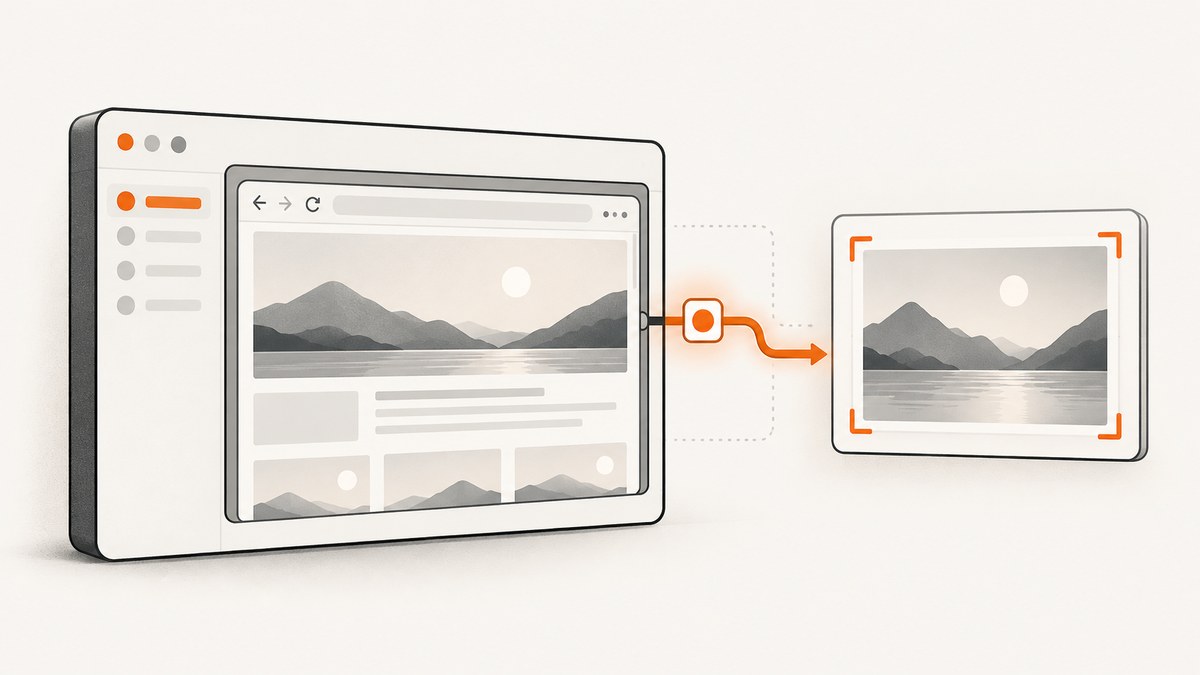
To capture a screenshot of a CEF application with Selenium, launch the application with Chromium remote debugging enabled, point ChromeDriver at the CEF executable, create a WebDriver session, wait for the required page state, and call Selenium’s screenshot API. CEF embeds Chromium inside another application, so Selenium does not attach to it like an ordinary Chrome window.
The CEF project documents this integration through ChromeDriver. ChromeDriver communicates with the Chromium-based application through the DevTools remote debugging protocol, configured with the --remote-debugging-port=XXXX argument. The walkthrough is a historical Windows example tested with ChromeDriver 2.14 and Selenium Server 2.44.0; use it to understand the connection, then match current CEF, Chromium, ChromeDriver, and Selenium versions in your own build. CEF’s ChromeDriver guide is the primary setup reference.
How the capture path works
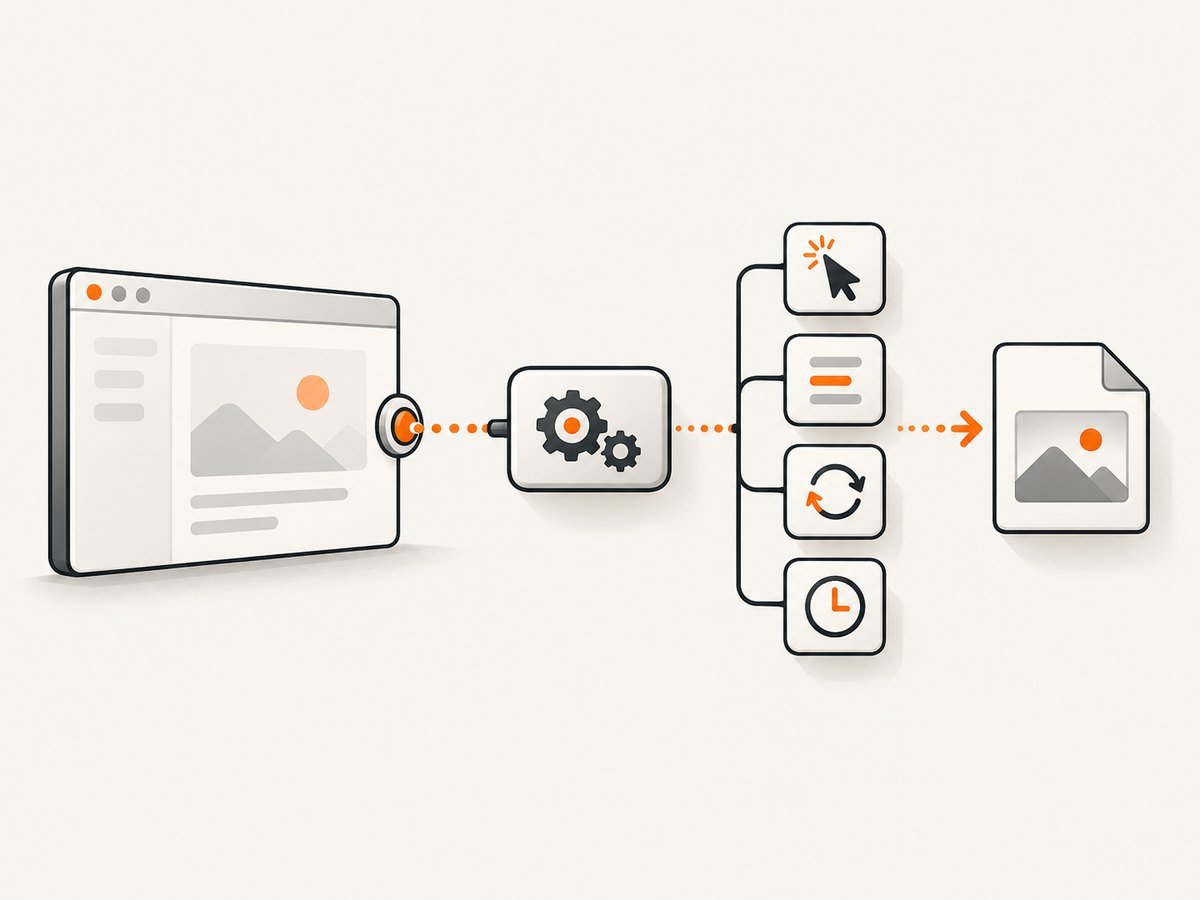
- Your CEF executable starts with a free remote debugging port.
- ChromeDriver connects to that port and exposes the CEF browser as a WebDriver session.
- Selenium navigates, finds elements, and performs actions in the current browsing context.
- After the application reaches the state you need, Selenium requests a screenshot and writes the returned image bytes.
A navigation event alone may be too early. CEF pages often load fonts, images, JavaScript data, and animations after navigation has completed. Wait for an application-specific selector or state before capturing.
Prerequisites and version boundaries
- A CEF application that accepts command-line arguments and enables remote debugging.
- A ChromeDriver build compatible with the Chromium version embedded by your CEF build.
- Selenium for your language.
- A writable output directory.
The official CEF walkthrough is Windows-specific and its version numbers are old. It does not define a current compatibility matrix or guarantee that every CEF, ChromeDriver, Selenium, and operating-system combination supports every operation identically. Validate the versions installed in your project and keep the CEF and driver Chromium major versions aligned where your distribution requires it.
Step 1: start CEF with remote debugging
Start the application with a port that is not already in use. The exact executable and argument handling depend on your application. A Windows example is:
MyCefApp.exe --remote-debugging-port=12345If your program constructs CEF settings in code, pass the equivalent command-line switch through the application’s startup configuration. Keep the port local unless you have a specific, secured remote-debugging design. A debugging endpoint can expose powerful browser control.
Step 2: connect ChromeDriver and Selenium (Java)
The CEF project’s sample uses Java ChromeOptions, sets the CEF executable with setBinary, adds the remote debugging argument, and creates a ChromeDriver. The following keeps that structure while using explicit waits and a stable output path.
import java.nio.file.Files;
import java.nio.file.Path;
import java.time.Duration;

import org.openqa.selenium.By;
import org.openqa.selenium.OutputType;
import org.openqa.selenium.WebDriver;
import org.openqa.selenium.chrome.ChromeDriver;
import org.openqa.selenium.chrome.ChromeOptions;
import org.openqa.selenium.support.ui.ExpectedConditions;
import org.openqa.selenium.support.ui.WebDriverWait;

public class CefScreenshot {
    public static void main(String[] args) throws Exception {
        String cefBinary = "C:\\\\apps\\\\MyCefApp.exe";
        Path output = Path.of("cef-shot.png");

        ChromeOptions options = new ChromeOptions();
        options.setBinary(cefBinary);
        options.addArguments("--remote-debugging-port=12345");

        WebDriver driver = new ChromeDriver(options);
        try {
            driver.get("https://example.com");

            WebDriverWait wait = new WebDriverWait(driver, Duration.ofSeconds(30));
            wait.until(ExpectedConditions.visibilityOfElementLocated(By.cssSelector("main")));

            byte[] png = driver.getScreenshotAs(OutputType.BYTES);
            Files.write(output, png);
        } finally {
            driver.quit();
        }
    }
}
Some applications open their initial page before Selenium calls get. In that case, omit navigation and wait for a selector that identifies the already-loaded view. If your CEF wrapper exposes a different browser target, confirm that ChromeDriver attaches to the intended context before interacting with it.
Step 3: capture the current context or one element
Selenium documents two common targets: the current browsing context and a specific element. save_screenshot and equivalent language bindings save the visible browser view returned by the driver. An element screenshot limits the capture to that element’s bounds. See the Selenium screenshot documentation for binding-specific APIs.
// Current browsing context
File pageShot = ((TakesScreenshot) driver).getScreenshotAs(OutputType.FILE);
Files.copy(pageShot.toPath(), Path.of("page.png"));

// One element
WebElement card = driver.findElement(By.cssSelector(".report-card"));
File cardShot = card.getScreenshotAs(OutputType.FILE);
Files.copy(cardShot.toPath(), Path.of("card.png"));
The WebDriver screenshot endpoint returns Base64-encoded image data; Selenium bindings decode it for methods such as save_screenshot or return bytes/files through their language APIs. A normal screenshot is a viewport capture. Full-page behavior varies by browser, driver, and binding, so do not assume that a CEF viewport screenshot includes content below the fold.
Python example
from pathlib import Path
from selenium import webdriver
from selenium.webdriver.chrome.options import Options
from selenium.webdriver.common.by import By
from selenium.webdriver.support.ui import WebDriverWait
from selenium.webdriver.support import expected_conditions as EC

options = Options()
options.binary_location = r"C:\\apps\\MyCefApp.exe"
options.add_argument("--remote-debugging-port=12345")

driver = webdriver.Chrome(options=options)
try:
    driver.get("https://example.com")
    WebDriverWait(driver, 30).until(
        EC.visibility_of_element_located((By.CSS_SELECTOR, "main"))
    )
    driver.save_screenshot("cef-page.png")
    driver.find_element(By.CSS_SELECTOR, ".report-card").screenshot("cef-card.png")
finally:
    driver.quit()
JavaScript (Node.js) example
const { Builder, By, until } = require('selenium-webdriver');
const chrome = require('selenium-webdriver/chrome');

(async () => {
  const options = new chrome.Options()
    .setChromeBinaryPath('C:\\\\apps\\\\MyCefApp.exe')
    .addArguments('--remote-debugging-port=12345');
  const driver = await new Builder()
    .forBrowser('chrome')
    .setChromeOptions(options)
    .build();
  try {
    await driver.get('https://example.com');
    await driver.wait(until.elementLocated(By.css('main')), 30000);
    await driver.takeScreenshot().then(data => require('fs').writeFileSync('cef-page.png', data, 'base64'));
    const card = await driver.findElement(By.css('.report-card'));
    await card.takeScreenshot().then(data => require('fs').writeFileSync('cef-card.png', data, 'base64'));
  } finally {
    await driver.quit();
  }
})();
cURL and direct DevTools checks
cURL is useful for checking whether the CEF debugging endpoint is alive, but it does not replace Selenium’s WebDriver session or screenshot methods. ChromeDriver normally consumes this DevTools connection for you. First verify the endpoint locally:
curl http://127.0.0.1:12345/json/versionIf that request fails, fix application startup, port selection, or firewall issues before debugging Selenium code.
Waiting for a complete render
Use the strongest readiness signal your application can provide:
- Wait for a stable selector that appears only after data binding completes.
- Wait for a loading indicator to disappear.
- Use a short, explicit delay only for a known animation or delayed render.
- For image-heavy pages, wait for image elements and verify their
completestate with JavaScript. - Disable or finish transitions before capture when animation creates inconsistent frames.
WebDriverWait wait = new WebDriverWait(driver, Duration.ofSeconds(30));
wait.until(d -> (Boolean) ((JavascriptExecutor) d).executeScript(
    "return Array.from(document.images).every(img => img.complete);"));
CefSharp’s OffScreen API documentation warns that a screenshot can capture a loading render and recommends starting after FrameLoadEnd or another suitable heuristic. That advice applies to CefSharp’s own capture API, but it is a useful model for choosing readiness conditions in Selenium integrations.
Useful capture patterns
Element-only evidence
Use an element screenshot for a chart, invoice, or test assertion target. Scroll the element into view first if your binding or driver does not do so automatically.
Viewport versus full page
A standard WebDriver screenshot represents the current browser view. For a complete document, check whether your exact driver and CEF build implement full-page capture. If they do not, capture controlled viewport segments and stitch them, or use the application’s own rendering API.
Multiple tabs and frames
Select the intended window handle before capturing. For an iframe, switch into the frame, wait for its content, and capture the element inside it. Switch back before interacting with the parent document.
High-DPI and scaling
CEF’s window size, device scale factor, operating-system scaling, and driver behavior all affect pixel dimensions. Set the browser size explicitly when pixel comparisons matter and keep the same environment across runs.
Troubleshooting
| Error or symptom | Likely cause | Fix |
|---|---|---|
| ChromeDriver cannot start or session creation fails | CEF executable, ChromeDriver, and embedded Chromium versions are incompatible. | Check the Chromium version shipped with CEF and obtain a compatible driver; do not copy the historical CEF version numbers into a new project. |
| Connection refused on the debugging port | The application did not receive the switch, the port is busy, or the process exited. | Start with --remote-debugging-port=12345, inspect process arguments, choose a free local port, and query /json/version. |
| Selenium opens a separate Chrome window | The CEF binary was not set, or options were not passed to the driver. | Set the CEF executable with the binding’s binary option and verify the resulting command line. |
| Screenshot is blank | Capture occurred before the first useful render, or the selected context is wrong. | Wait for an application selector, confirm the window or frame, and capture after rendering. |
| Screenshot misses lazy images | Images load only after scrolling or after an asynchronous request. | Scroll through the page or trigger the application’s lazy-load behavior, then wait for images to complete. |
| Element screenshot throws a stale-element error | The framework replaced the DOM node after it was located. | Wait for the final state and locate the element immediately before capture. |
| Only the visible portion is saved | The normal screenshot endpoint captures the viewport. | Use a supported full-page facility for your exact stack or capture and stitch sections deliberately. |
| Intermittent differences between runs | Fonts, animations, network data, time, or viewport size vary. | Pin the viewport, wait for fonts and data, freeze or disable animations, and use deterministic test fixtures. |
Reliability, performance, and cost considerations
- Reuse sessions when appropriate: starting CEF and ChromeDriver is expensive compared with saving another screenshot. Reuse a session for related pages, but reset state between tests.
- Keep waits bounded: explicit waits fail clearly and prevent a hung page from blocking a whole run. Add diagnostics such as the current URL and page source on timeout.
- Control resources: repeated large screenshots consume memory and disk. Write files incrementally and choose a viewport that contains the evidence you need.
- Separate capture from assertions: save a screenshot only after the assertion state is reached, so failures show the relevant state.
- Plan for external dependencies: third-party scripts, bot checks, consent dialogs, and slow APIs can change the page. Use test fixtures or application-level readiness signals where possible.
CefSharp OffScreen alternative
If the application is built with CefSharp OffScreen and you need a browser-control capture rather than WebDriver automation, use the framework’s capture API. In the 99.2.120 API family, CaptureScreenshotAsync is the capture method; the older ScreenshotAsync is listed as obsolete. The API reference says the bitmap follows the browser size previously set and warns that capture can occur while a render is still loading. Treat this as a version-specific alternative, not a universal CEF recipe. See the CefSharp API reference.
Or skip the browser setup
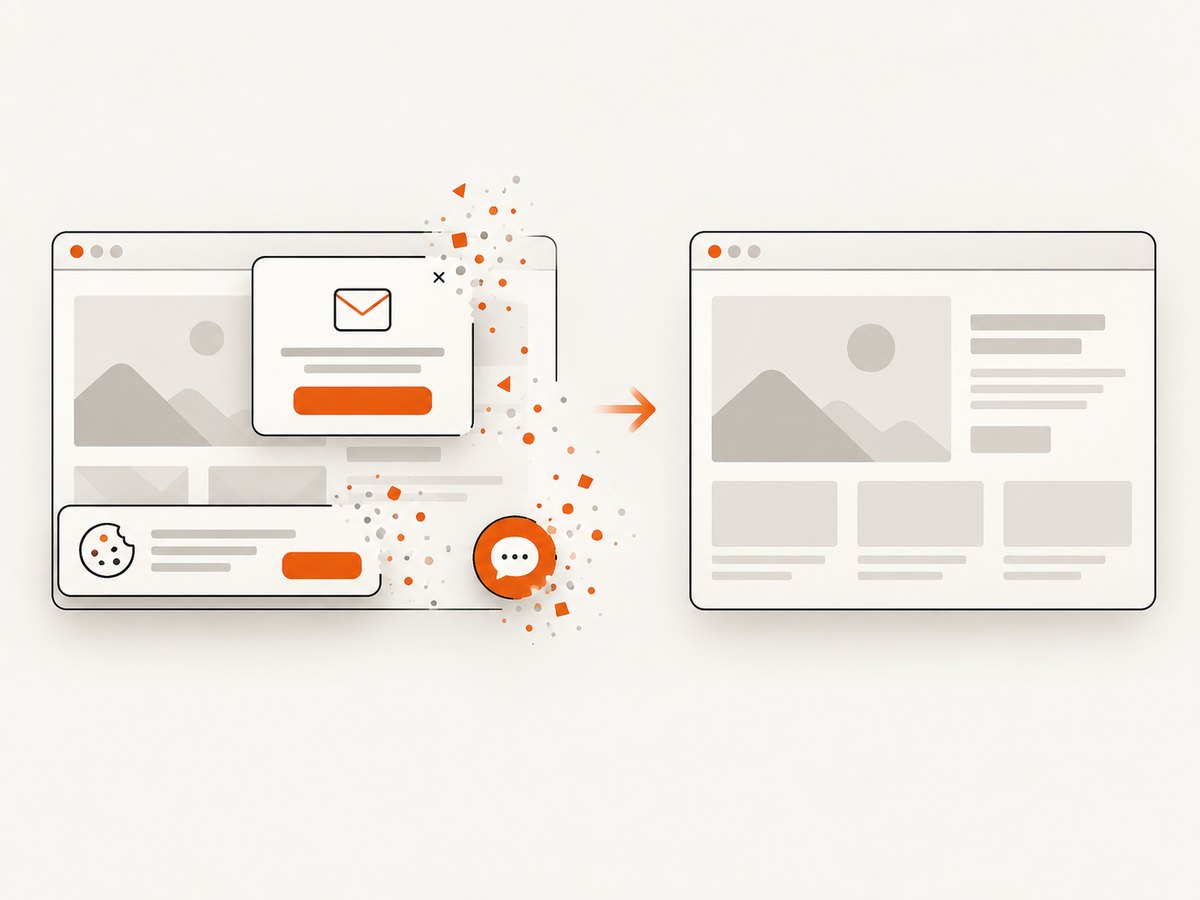
If you need screenshots of public web pages rather than an interactive, locally embedded CEF instance, ScreenshotNeo provides a single HTTP request. It removes cookie and consent banners, newsletter popups, and chat widgets before capture. Bot checks, blank pages, timeouts, failed loads, and cache hits are not billed, and each response reports its verdict through X-Page-Verdict and X-Billed headers. An MCP server provides take_screenshot, get_page_info, and capture_pdf tools for Claude, Cursor, and other MCP clients.
Read the ScreenshotNeo API documentation for the full option set, including full-page capture, element selectors, device presets, dark mode, custom CSS and JavaScript, waits, request blocking, headers, cookies, user agents, timezone, geolocation, PDF output, resizing, caching, signed links, async jobs, bulk capture, and usage reporting.
curl -G "https://api.screenshotneo.com/v1/shot" -d access_key=YOUR_API_KEY --data-urlencode url=https://stripe.com -o shot.webpimport requests
r = requests.get("https://api.screenshotneo.com/v1/shot", params={"access_key": "YOUR_API_KEY", "url": "https://stripe.com"}, timeout=90)
open("shot.webp", "wb").write(r.content)const q = new URLSearchParams({ access_key: 'YOUR_API_KEY', url: 'https://stripe.com' });
const res = await fetch(`https://api.screenshotneo.com/v1/shot?${q}`);The free plan includes 1,000 screenshots each month with no card. Paid plans start at $5 for 3,000 shots. Create a free ScreenshotNeo account.
FAQ
How do I use Selenium with a CEF application?
Start CEF with a remote debugging port, set the CEF executable in ChromeOptions, create ChromeDriver, wait for the required application state, and call the screenshot method on the driver or an element.
Does Selenium capture the whole CEF window?
It captures the current WebDriver browsing context, normally the viewport. Full-window and full-page behavior depends on the exact driver and CEF integration.
Can I use the old ChromeDriver 2.14 example today?
Use it as a historical illustration of the connection. Match current driver and Chromium versions for a new build.
When should I use CefSharp OffScreen instead?
Use it when your application already exposes a CefSharp browser control and you want framework-level capture without creating a Selenium session.


