BlogScreenshots on your device
How to Capture a High-Quality Eclipse Window Image with SWT
A 72 ppi PNG tag does not mean your SWT screenshot lost detail. Learn how to capture the active Eclipse shell and verify its real pixel size.
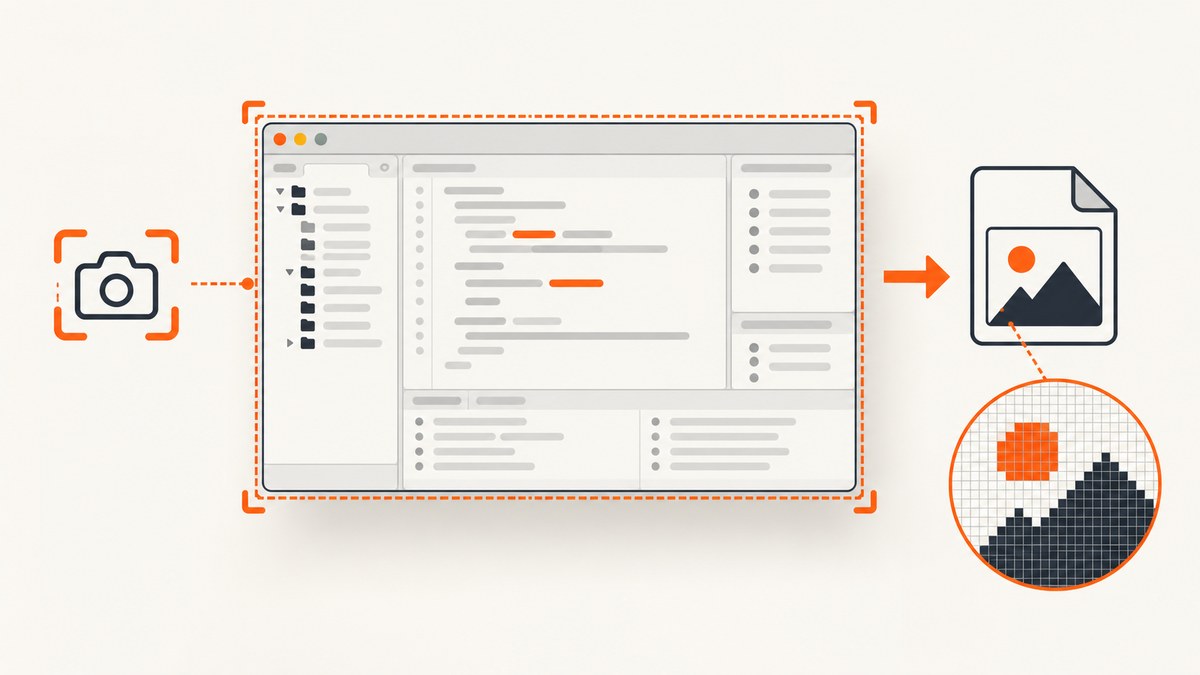
Short answer: a PNG that reports 72 ppi is not automatically a low-resolution screenshot. In SWT, the useful measure is the image’s pixel width and height. The cited Stack Overflow answer explains that SWT’s PNG saving does not set DPI metadata, so image viewers may display a default density value while the raster still contains all available pixels.
This guide shows how to capture the active Eclipse shell, save it as PNG, verify the raster dimensions, and diagnose cases where the result really is too small or incomplete.
What “high quality” means for an SWT screenshot
| Value | What it describes | Does changing it add detail? |
|---|---|---|
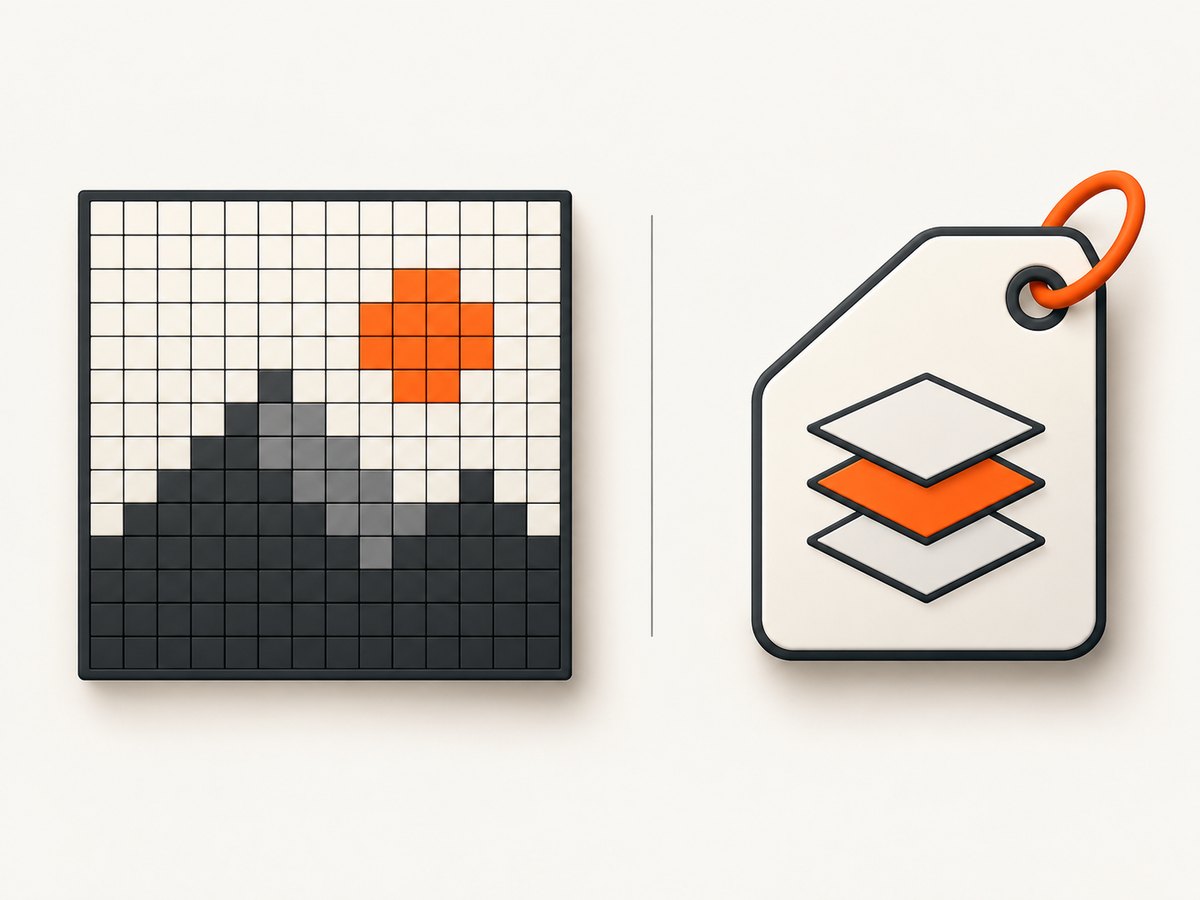
| Pixel dimensions | The raster width and height, such as 1,920 × 1,080. | No. These pixels are the captured image. |
| DPI metadata | A density tag used by viewers, documents, and printers. | No. Editing the tag cannot create missing pixels. |
| Capture scope | Which content was copied, such as the active Eclipse shell. | It determines what appears in the image, not the metadata density. |
If your image viewer says “72 ppi,” first inspect the PNG’s pixel dimensions. A 1,920 × 1,080 image still contains 1,920 × 1,080 pixels regardless of whether a viewer labels it 72, 96, or another ppi value.
Capture the active Eclipse shell with SWT
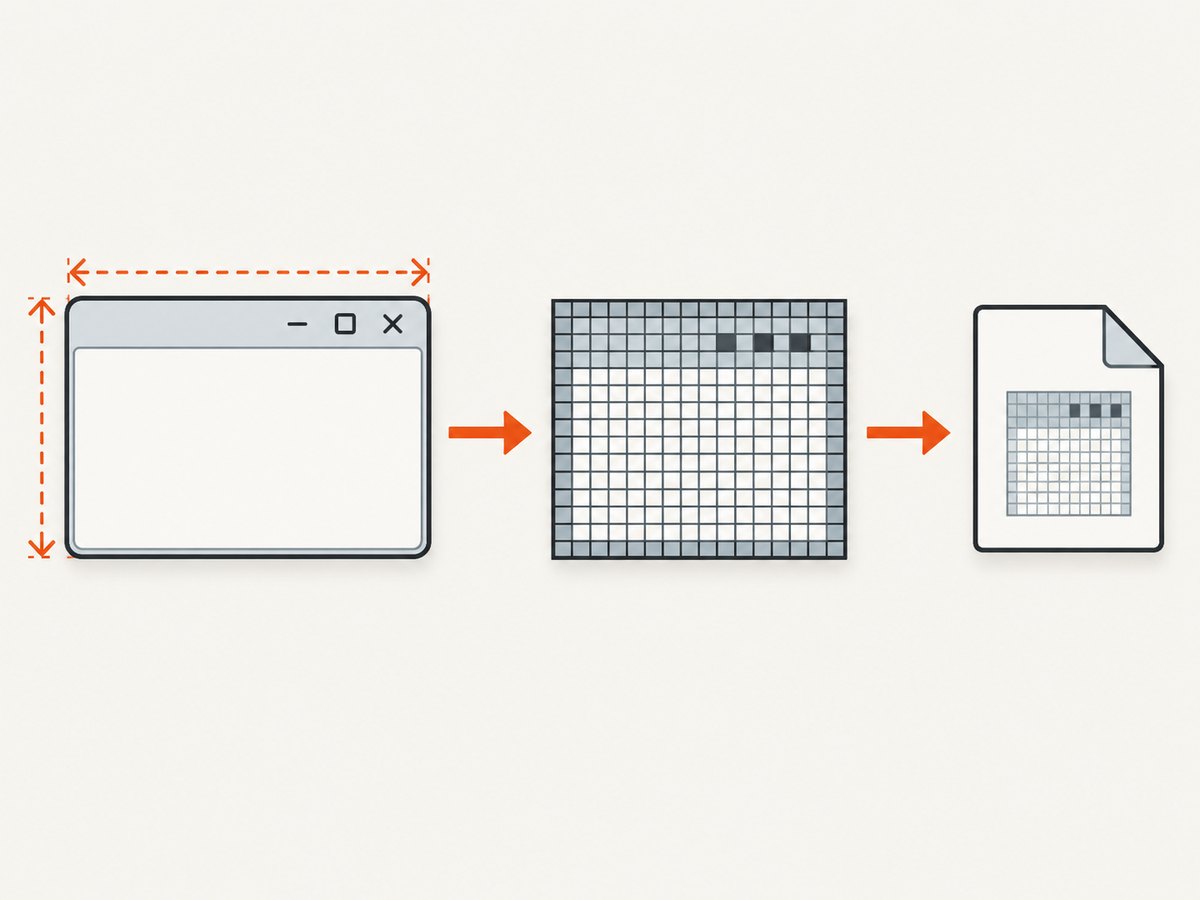
The following method follows the workflow in the question: obtain the active shell, create an SWT image, copy the shell area with GC.copyArea, and save the resulting ImageData with ImageLoader. Run it from code that executes inside the Eclipse UI thread, such as a view, command, or plug-in handler.
import java.io.IOException;
import java.nio.file.Path;

import org.eclipse.swt.graphics.GC;
import org.eclipse.swt.graphics.Image;
import org.eclipse.swt.graphics.ImageData;
import org.eclipse.swt.graphics.ImageLoader;
import org.eclipse.swt.graphics.Rectangle;
import org.eclipse.swt.widgets.Display;
import org.eclipse.swt.widgets.Shell;

public final class EclipseShellCapture {
    private EclipseShellCapture() {
    }

    /**
     * Captures the currently active Eclipse shell into a PNG file.
     * Call this method on the SWT UI thread.
     */
    public static void captureActiveShell(Path output) throws IOException {
        Display display = Display.getCurrent();
        if (display == null) {
            throw new IllegalStateException("captureActiveShell must run on the SWT UI thread");
        }

        Shell shell = display.getActiveShell();
        if (shell == null || shell.isDisposed()) {
            throw new IllegalStateException("No active Eclipse shell is available");
        }

        Rectangle bounds = shell.getBounds();
        if (bounds.width <= 0 || bounds.height <= 0) {
            throw new IllegalStateException("The active shell has no drawable area");
        }

        Image image = new Image(display, bounds.width, bounds.height);
        GC gc = new GC(display);
        try {
            // Coordinates are relative to the display, so capture the shell bounds.
            gc.copyArea(image, bounds.x, bounds.y);

            ImageData data = image.getImageData();
            ImageLoader loader = new ImageLoader();
            loader.data = new ImageData[] { data };
            loader.save(output.toString(), org.eclipse.swt.SWT.IMAGE_PNG);

            System.out.printf("Saved %s (%d x %d pixels)%n",
                    output, data.width, data.height);
        } finally {
            gc.dispose();
            image.dispose();
        }
    }
}
For example, invoke it from an Eclipse command handler that is already on the UI thread:
Path destination = Path.of(System.getProperty("user.home"), "eclipse-shell.png");
EclipseShellCapture.captureActiveShell(destination);
Why the bounds matter
Shell.getBounds() returns the shell's position and size in display coordinates. Passing bounds.x and bounds.y to copyArea copies that rectangle into the new image. If you want only a client area or a particular control, use that control's bounds and copy the matching rectangle instead.
Capture a known shell instead of whichever shell is active
When several windows exist, keep a reference to the shell you intend to capture. This avoids taking a screenshot of a dialog or another active window:
Shell target = myView.getSite().getShell();
Rectangle b = target.getBounds();
Image image = new Image(target.getDisplay(), b.width, b.height);
GC gc = new GC(target.getDisplay());
try {
    gc.copyArea(image, b.x, b.y);
    ImageLoader loader = new ImageLoader();
    loader.data = new ImageData[] { image.getImageData() };
    loader.save("eclipse-view.png", org.eclipse.swt.SWT.IMAGE_PNG);
} finally {
    gc.dispose();
    image.dispose();
}
Verify the actual resolution
Print the dimensions immediately after obtaining ImageData. This is the reliable check for how many pixels were captured:
ImageData data = image.getImageData();
System.out.println("width  = " + data.width);
System.out.println("height = " + data.height);
System.out.println("depth = " + data.depth);- If the dimensions match the shell's drawable size, SWT has captured those available pixels.
- If the dimensions are smaller than expected, inspect the shell bounds and the display scaling configuration.
- If the dimensions are correct but a viewer reports 72 ppi, the discrepancy is metadata, not automatically lost image detail.
Common mistakes and fixes
“The PNG says 72 ppi, so it must be blurry”
Cause: SWT PNG output does not set DPI metadata, so a viewer may show a default density.
Fix: compare ImageData.width and ImageData.height with the captured shell bounds. Do not use the ppi label as a proxy for pixel count.
The wrong window was captured
Cause: Display.getActiveShell() can refer to a dialog or another shell that became active between actions.
Fix: capture a specific shell reference, and perform the operation on the SWT UI thread.
The image is empty or has zero dimensions
Cause: the shell may be disposed, minimized, not yet laid out, or have no drawable area.
Fix: check shell == null, shell.isDisposed(), and positive width and height. Capture after the window is visible and laid out.
Invalid thread access
Cause: SWT UI objects are being accessed from a non-UI thread.
Fix: schedule the capture with Display.asyncExec or syncExec, then perform all shell, image, and graphics operations inside that callback.
Display display = Display.getDefault();
display.asyncExec(() -> {
    try {
        EclipseShellCapture.captureActiveShell(Path.of("eclipse-shell.png"));
    } catch (Exception e) {
        e.printStackTrace();
    }
});
Native resources accumulate
Cause: SWT Image and GC objects are native resources.
Fix: dispose every object in a finally block, as shown above. Do not dispose a shell owned by Eclipse just because you captured it.
High-DPI and scaling checks
The available raster depends on the display, operating system scaling, and the capture path. The sources for this topic do not establish a universal alternate API that produces more pixels. Therefore, verify the dimensions on the machine where the capture runs instead of assuming that an API switch will increase resolution.
- Record the shell bounds and the resulting
ImageDatadimensions. - Compare those values with the size shown by the operating system and Eclipse window.
- Repeat on the target display configuration if screenshots are generated on multiple machines.
- Keep the original PNG when diagnosing quality so later resizing does not hide the source dimensions.
SWT.HIGH means high quality within SWT image operations; it should not be interpreted as a command to capture a higher-resolution screen image.
Performance, reliability, and output choices
- Performance: copying a larger shell creates a larger native image and writes more bytes. Capture only the shell or control area you need.
- Reliability: run capture on the UI thread, wait until the target is visible, validate dimensions, and dispose resources deterministically.
- PNG: preserves the captured pixels without lossy compression and is the format used in the example.
- DPI metadata: SWT's PNG save path does not provide a density value in the saved file according to the cited answer. A separate metadata-editing step can change a tag for print or layout workflows, but it cannot increase the raster resolution.
- Cost: local SWT capture has no service charge; its practical limits are the pixels available from the display and the memory and time needed to copy and save them.
Or skip the browser setup
If the thing you need is a screenshot of a web page rather than the Eclipse desktop window, ScreenshotNeo returns a PNG, JPEG, WebP, or PDF from one request. Its browser handles cookie and consent banners, newsletter popups, and chat widgets before the shot. Bot checks, blank pages, failed loads, timeouts, and cache hits are not billed, and the response identifies the result with X-Page-Verdict and X-Billed headers. An MCP server provides take_screenshot, get_page_info, and capture_pdf tools for Claude, Cursor, and other MCP clients.
See the ScreenshotNeo documentation for all request options.
cURL
curl -G "https://api.screenshotneo.com/v1/shot" \
  -d access_key=YOUR_API_KEY \
  --data-urlencode url=https://stripe.com \
  -o shot.webp
Python
import requests

r = requests.get(
    "https://api.screenshotneo.com/v1/shot",
    params={"access_key": "YOUR_API_KEY", "url": "https://stripe.com"},
    timeout=90,
)
r.raise_for_status()
open("shot.webp", "wb").write(r.content)
Node.js
const q = new URLSearchParams({
  access_key: 'YOUR_API_KEY',
  url: 'https://stripe.com'
});
const res = await fetch(`https://api.screenshotneo.com/v1/shot?${q}`);
if (!res.ok) throw new Error(`HTTP ${res.status}`);
const data = Buffer.from(await res.arrayBuffer());
await import('node:fs/promises').then(fs => fs.writeFile('shot.webp', data));
ScreenshotNeo includes full-page capture with lazy images loaded, element selectors, dark mode, device presets and custom viewports, retina scale, custom CSS and JavaScript, waits, request blocking, headers, cookies, user agents, authorization, timezone and geolocation, transparent backgrounds, resizing, caching, signed links, asynchronous jobs, webhooks, bulk capture, and a usage API. The free plan includes 1,000 screenshots per month with no card; paid plans start at $5 for 3,000. Create a free ScreenshotNeo account.
FAQ
Can changing 72 ppi to 300 ppi make the screenshot sharper?
No. It changes density metadata. Sharpness comes from the captured pixel dimensions and the source display content.
Does copyArea automatically reduce quality?
The cited answer says the capture contains all available pixels. Check the resulting width and height before concluding that pixels were lost.
Should I use SWT.HIGH for a larger screenshot?
No. That constant describes SWT image quality behavior; it is not a display-resolution control.
What should I log for a reproducible capture?
Log the shell bounds, ImageData width and height, output format, and the display environment used for the capture.


