BlogScreenshots on your device
How to Capture an Entire Page in Chrome
Capture a full webpage in Chrome with DevTools, PDF, headless mode, MHTML, extensions, troubleshooting, and an API option.
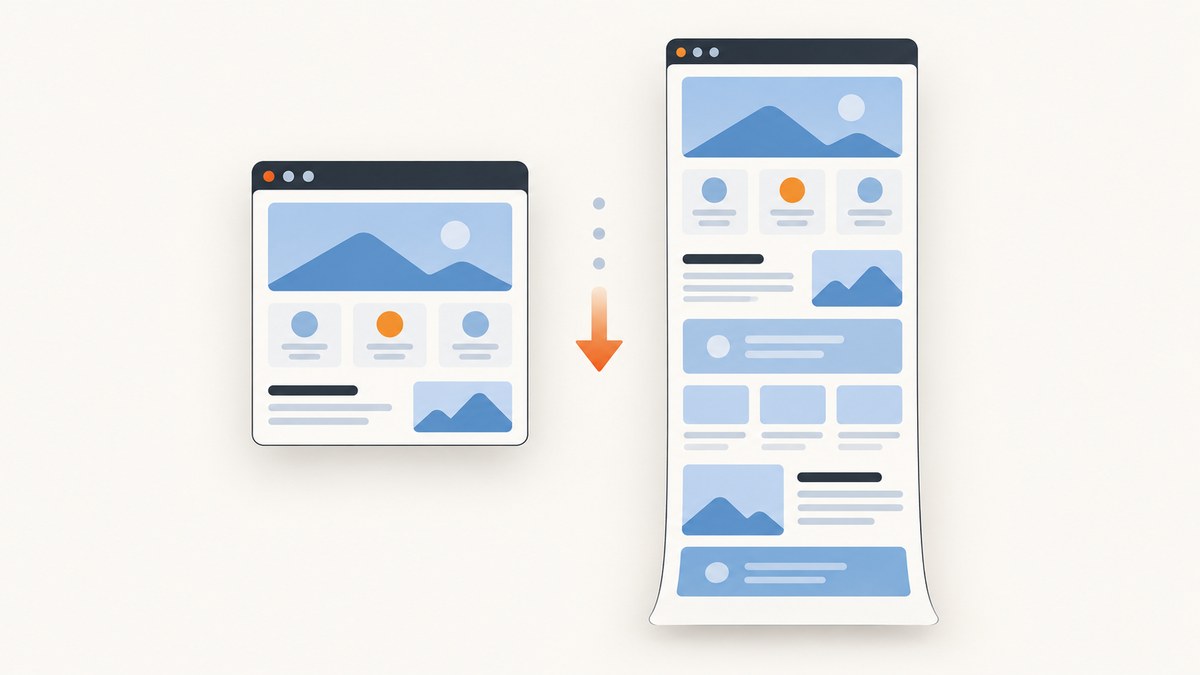
Use Chrome DevTools for a one-off full-page image: open DevTools, press Ctrl+Shift+P (Windows/Linux) or Command+Shift+P (macOS), type screenshot, then choose Capture full size screenshot. Chrome downloads one tall PNG. If you need a searchable document, print to PDF instead. For repeatable jobs, run headless Chrome with --screenshot or --print-to-pdf.
Capture a full-page image with DevTools
- Open the page and wait until the content you need is visible. Scroll through important sections if the site lazy-loads images.
- Open DevTools with Ctrl+Shift+I (Windows/Linux) or Command+Option+I (macOS).
- Open the Command Menu with Ctrl+Shift+P or Command+Shift+P.
- Type
screenshot. - Choose Capture full size screenshot. The wording can vary slightly by Chrome version.
- Open the downloaded PNG and inspect the top, bottom, lazy images, sticky headers and animated sections.
This is Chrome’s built-in raster-image workflow. The official DevTools guide lists full-page screenshot capture as a supported technique: Chrome for Developers.
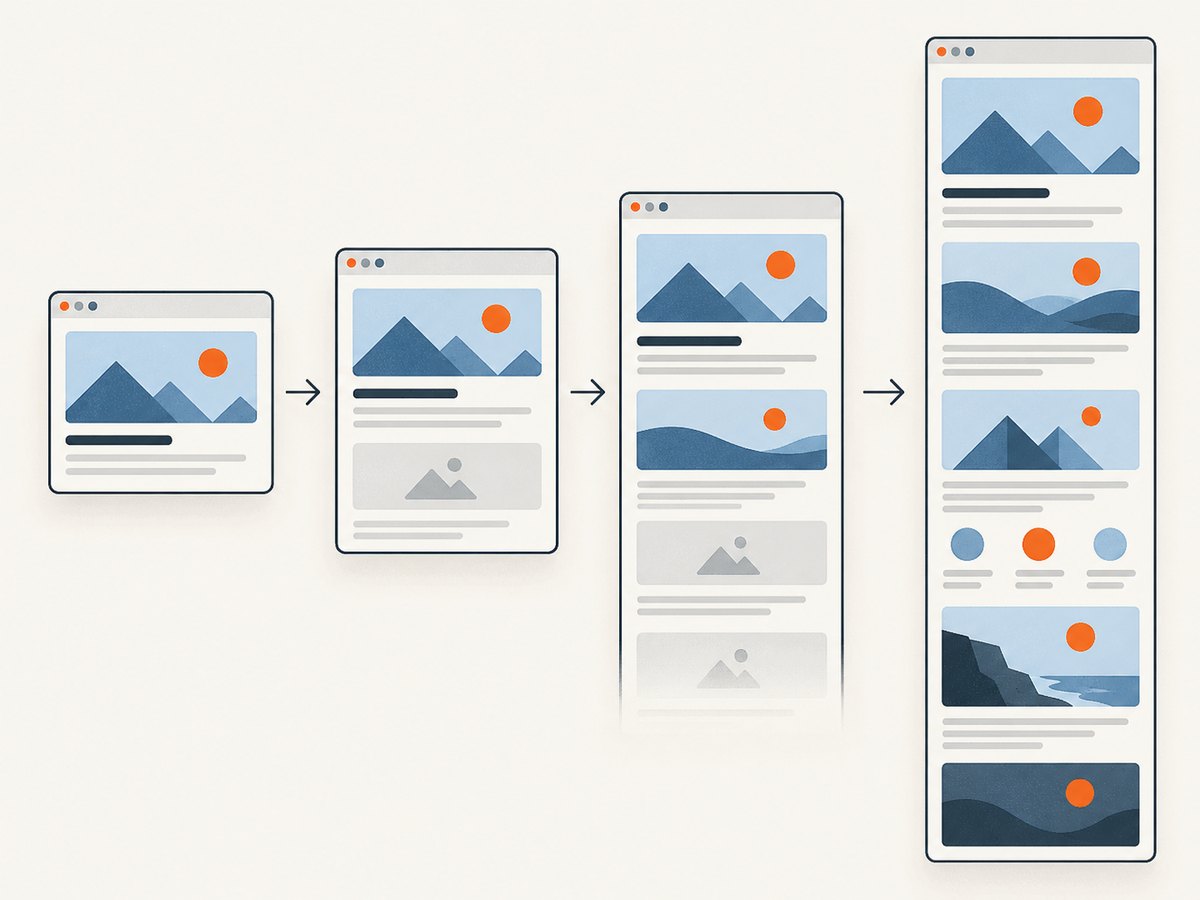
Prepare dynamic pages before capture
- Wait for loading spinners and skeleton screens to disappear.
- Trigger accordions, tabs or “load more” controls whose content must appear.
- For lazy images, scroll through the page and back to the top before opening the Command Menu.
- Pause carousels or video when a deterministic frame matters.
- Temporarily close chat bubbles, cookie prompts or newsletter overlays that obscure content.
- Use a stable window size because a responsive breakpoint can change the layout.
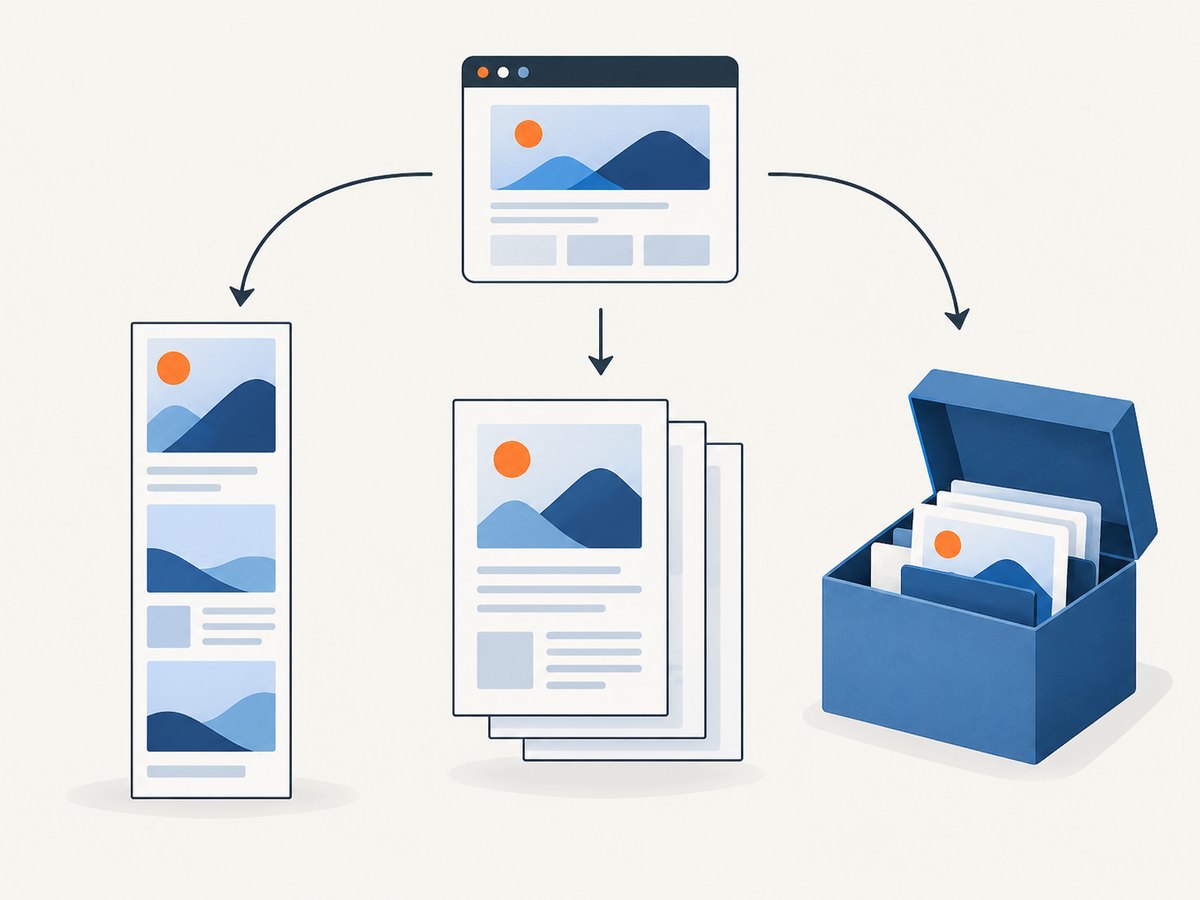
Choose the right output: image, PDF or archive
| Goal | Use | Tradeoff |
|---|---|---|
| One tall visual | DevTools full-size screenshot | Dynamic or lazy content may need preparation. |
| Printable, searchable document | Chrome print dialog or headless PDF | Pagination and interactive states can change. |
| Repeatable capture in a script | Headless Chrome | Requires command-line setup and timing choices. |
| Offline preservation of resources | chrome.pageCapture / MHTML |
It is an archive, not a PNG or PDF. |
| One-click capture and annotation | A reviewed extension such as GoFullPage | Third-party permissions and changing features. |
Save an entire page as a PDF
Press Ctrl+P or Command+P, select a PDF destination, and save. PDF is usually easier to search, paginate and share than one very tall PNG. Check the result when exact visual fidelity matters because print CSS can reflow content or omit interactive states.
In automation, Chrome documents --print-to-pdf, which writes output.pdf in the current directory, and --no-pdf-header-footer, which removes the date/time, URL and page-number footer. See the Chrome Headless command-line reference.
chrome --headless --print-to-pdf --no-pdf-header-footer https://example.com/Automate full-page screenshots with headless Chrome
Headless Chrome’s --screenshot flag saves screenshot.png. Set a viewport with --window-size; allow slow pages to settle with --timeout and, for scripts driven by time, --virtual-time-budget.
chrome --headless --screenshot --window-size=1440,900 https://example.com/# Give network-dependent content five seconds to load
chrome --headless --screenshot --window-size=1440,900 --timeout=5000 https://example.com/
# Let time-dependent scripts run for 42 seconds of virtual time
chrome --headless --screenshot --window-size=1440,900 --virtual-time-budget=42000 https://example.com/These flags control waiting and viewport size; they do not guarantee that every asynchronous request has finished. Use a page-specific readiness selector in a browser-automation framework when the page has a reliable ready state.
Preserve the page and resources as MHTML
MHTML packages a page and its resources, including CSS and images, in one file. It is useful for offline preservation and later inspection, but it is not a screenshot.
Chrome’s chrome.pageCapture API saves a tab as MHTML. An extension must declare the pageCapture permission; the API is available from Chrome 116+. MHTML can be loaded from the file system and in the main frame.
Use a one-click extension when repetition matters
GoFullPage’s Chrome Web Store listing documents PNG/JPG downloads, PDF export, annotation, iframe handling and fixes for scrollbars, fixed elements and long or dynamic pages. It is a third-party extension, so review permissions and privacy information before installing and re-check the listing as its version and features change.
Common problems and fixes
| Symptom | Likely cause | Fix |
|---|---|---|
| Bottom of page is missing | Capture was viewport-only or content had not loaded. | Use Capture full size screenshot; wait, then scroll through lazy sections. |
| Images are blank | Lazy loading, blocked requests or capture happened too early. | Scroll the page, wait for images, and check DevTools Network for failed resources. |
| Sticky header repeats or covers content | Fixed-position elements remain during capture. | Hide the element temporarily with DevTools or custom CSS. |
| Cookie/chat overlay obscures the page | A consent banner or widget is still open. | Accept or dismiss it, then capture. |
| PDF has unexpected page breaks | Print CSS, margins or paper size differ from screen layout. | Inspect print preview and adjust margins or orientation. |
| Headless output is an old state | Cache or scripts had not settled. | Increase --timeout or --virtual-time-budget; use a readiness check. |
| Command is not found | Chrome is not on PATH. |
Run the installed executable by full path or add it to PATH. |
| Very tall image is hard to open | Viewer or image memory limits. | Prefer PDF, capture sections, reduce width or resize afterward. |
Quality, performance and reliability checklist
- Determinism: fix viewport, device scale and timezone where supported; disable animations for pixel comparisons.
- Readiness: wait for a selector, network idle or known delay instead of assuming first paint is complete.
- Long pages: full-page images consume memory; PDF or section captures are safer for very long documents.
- Privacy: screenshots can contain account data, tokens or personal information.
- Reliability: retry transient navigation failures, record URL and settings, and keep browser versions consistent for visual regression.
- Cost: local Chrome has no API charge, but it consumes CPU, memory and maintenance time.
Or skip the browser setup
ScreenshotNeo is a website screenshot API and MCP server. One GET request returns PNG, JPEG, WebP or PDF. It accepts cookie/consent banners like a visitor, then removes more than 60 known consent platforms, newsletter popups and chat widgets; each step can be turned off. Bot checks/CAPTCHAs, blank pages, timeouts, failed loads and cache hits are not billed, and the response identifies the result with X-Page-Verdict and X-Billed headers. Its MCP server provides take_screenshot, get_page_info and capture_pdf for Claude, Cursor and other MCP clients.
See the ScreenshotNeo API docs for all options.
curl -G "https://api.screenshotneo.com/v1/shot" -d access_key=YOUR_API_KEY --data-urlencode url=https://stripe.com -o shot.webpimport requests
r = requests.get("https://api.screenshotneo.com/v1/shot", params={"access_key": "YOUR_API_KEY", "url": "https://stripe.com"}, timeout=90)
open("shot.webp", "wb").write(r.content)const q = new URLSearchParams({ access_key: 'YOUR_API_KEY', url: 'https://stripe.com' });
const res = await fetch(`https://api.screenshotneo.com/v1/shot?${q}`);For full-page capture, element selectors, dark mode, device presets, custom viewport and retina scale, PDF paper size/margins/page ranges, custom CSS or JavaScript, clicks, waits, blocked resources, headers/cookies, timezone/geolocation, transparent backgrounds, resizing, TTL caching, signed links, async webhooks, bulk capture (100 URLs per call) and usage reporting, pass the documented options. Every feature is on every plan. The Free plan includes 1,000 shots per month with no card; paid plans start at $5 for 3,000 shots. Create a free ScreenshotNeo account.
FAQ
Can Chrome make one image longer than the screen?
Yes. DevTools’ Capture full size screenshot captures the full document, not only the visible viewport.
Should I use PNG or PDF?
Use PNG for a single raster visual and PDF for a searchable, paginated document.
Is MHTML a screenshot?
No. It is a single-file archive of a page and its resources for offline use.
Why does a full-page capture differ from what I see?
Lazy loading, responsive breakpoints, animations, sticky elements and print CSS can all change the captured result. Prepare the page and verify the output.


