BlogScreenshots on your device
How to Capture an Entire Webpage on Screen in Chrome
Capture a full webpage in desktop Chrome with DevTools, or save a long screenshot in Chrome for Android. Learn what each method captures and how to troubleshoot it.
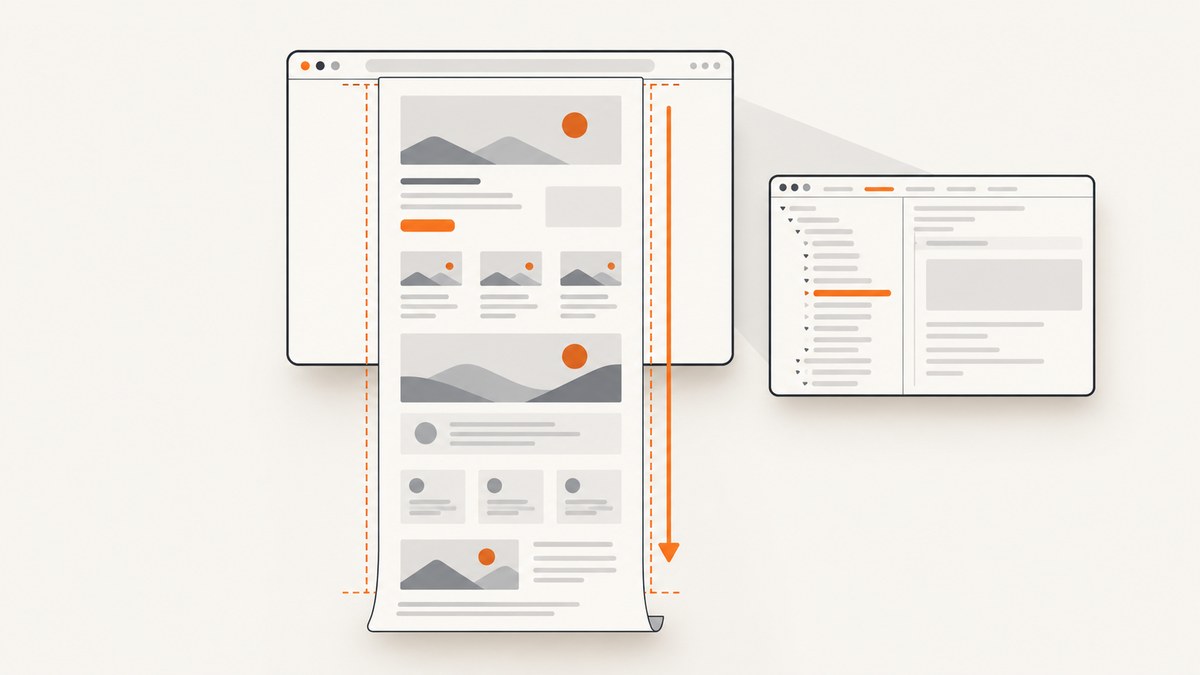
To capture an entire webpage in desktop Chrome, open DevTools, open its Run command, search for screenshot, and choose Capture full size screenshot. That sequence is described in a Google Chrome Help Community answer; Google cautions that community answers may not be verified or up to date, so treat it as community guidance rather than a guaranteed official procedure. Chrome DevTools is built into Chrome. On Android, Chrome has a documented Long screenshot option in its Share flow.
This guide explains both approaches, how to check the saved result, what can affect a capture, and what to try when the output is incomplete or hard to use.
1. What “entire webpage” means
A normal screenshot records the visible browser area. A full-page screenshot aims to include content below the current viewport as well, from the top of the page to its lower end. The desktop DevTools command described below is intended for a full-size capture. On Android, Long screenshot lets you choose the length with crop handles.

A full-page image is not necessarily a print-ready document. It may be extremely tall, and a site may render or load content differently during capture than it does during ordinary scrolling. If you need a page for publication, documentation, or evidence, inspect the saved image and crop, resize, or reformat it for its intended use.
2. Desktop Chrome: capture the full page with DevTools
DevTools is included with desktop Chrome. The precise command sequence here comes from a Chrome Help Community response, not the official DevTools overview; Google notes that community content may not be verified or up to date.
- Open the webpage you want to capture in Chrome and wait for the content you need to appear.
- Open DevTools. One common way is to right-click the page and choose Inspect. The exact menu wording or available shortcut can vary by operating system and Chrome version.
- Open the DevTools Run command interface.
- Type
screenshotin the command search. - Choose Capture full size screenshot.
- Open the resulting image and check that the top, bottom, and important page content are present.
The community guidance does not promise a particular file name, image format, maximum page height, or identical behavior on every site. Check the actual result rather than assuming a capture succeeded just because the command ran.
Prepare the page before capturing
Pages often load content as you scroll, including images, product cards, comments, and other sections. If content is missing, scroll down through the page first, pause for it to load, and then try the full-size capture again. If a sticky header or floating widget obscures content, note that the resulting image may include it. DevTools’ full-size command does not give you the same crop-handle selection described for Android’s Long screenshot.
For a long page, consider whether one very tall image is the right deliverable. It can be difficult to read at normal zoom and awkward to place in a document. If the destination is a report or printout, a PDF or a set of appropriately cropped sections may be easier to use.
3. Chrome on Android: use Long screenshot
Google’s Chrome Help instructions document a mobile route for capturing a longer page:
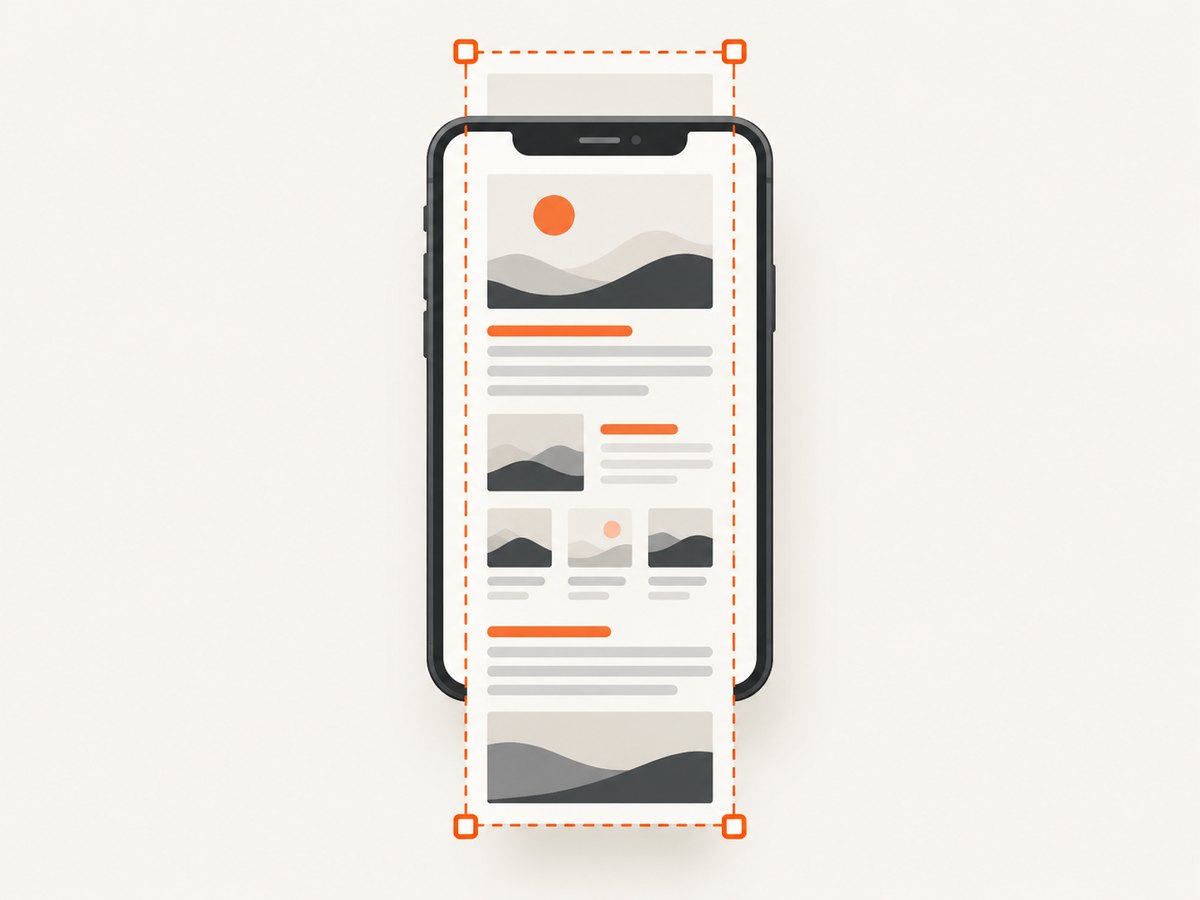
- Open the webpage in Chrome on your Android device.
- Tap More next to the address bar, then tap Share.
- Choose Long screenshot.
- Drag the crop handles to include the content you want.
- Tap Confirm, then share or save the result.
This workflow gives you a chance to choose how much of the page to include. The result may be more useful than capturing every section when you only need a particular range. Menu availability can depend on the device and Chrome version; if Long screenshot is not offered, use the Android system screenshot option below if it is available on your device.
Android system alternative: Capture more
On Android 12 and later, the system screenshot interface supports Capture more on most screens that allow scrolling. Take a screenshot with your device’s screenshot controls, tap Capture more, and adjust the crop guidelines. Google describes this as applying to most scrollable screens, so it is not a guarantee for every app or page. This is an Android system feature, separate from Chrome’s Long screenshot share flow.
4. Desktop and Android compared
| Method | Where to start | How you select content | Guidance source |
|---|---|---|---|
| Desktop Chrome | DevTools Run command | Choose the full-size screenshot command | Command sequence described in Chrome Help Community guidance |
| Chrome on Android | More > Share > Long screenshot | Adjust crop handles, then confirm | Google Chrome Help instructions |
| Android system screenshot | Device screenshot controls | Tap Capture more and adjust crop guidelines | Google Android Help; Android 12+ and most scrollable screens |
For a desktop browser workflow, use DevTools. For a phone, start with Chrome’s Long screenshot option because it is specifically documented for Chrome. If it is unavailable, check whether the Android system offers Capture more for that screen.
5. Troubleshooting incomplete or unexpected captures
| What you see | Likely reason | What to try |
|---|---|---|
| Only the visible viewport is saved | A regular screenshot was taken instead of the full-size command, or the wrong command was selected. | In desktop DevTools, search for screenshot and select Capture full size screenshot. On Android, use Long screenshot or Capture more. |
| Images or sections are blank | The page may load content only when it approaches the viewport, or it may not have finished loading. | Scroll through the page, wait for the missing material to appear, then capture again. |
| The bottom section is missing | The capture may have ended early, or the selected Android crop area may stop above the page end. | Review the full-size image. On Android, extend the crop handles before confirming. |
| A banner, chat bubble, or sticky control covers content | The page displays fixed overlays while it is captured. | Dismiss the overlay if the site provides a close control, then capture again. Verify that dismissing it does not hide content you need. |
| The page looks different from the live site | Some page elements can change with viewport, loading state, interaction, or site behavior. | Check the page at the time of capture, wait for the desired state, and repeat. The cited workflows do not guarantee identical rendering for every site. |
| The file is too tall to read comfortably | A full-page image compresses a long layout into a single image. | Crop it into sections, resize it for the target document, or use a PDF workflow when pagination matters. |
| Long screenshot is missing on Android | The option may not be available in that device or version’s share flow. | Try the system screenshot controls and look for Capture more. That feature is documented for Android 12 and later on most scrollable screens. |
6. Reliability, image size, and handling
Long captures can produce large images. Their dimensions and file sizes depend on the page and the capture behavior; the sources do not specify a universal limit or output size. Check that your image viewer, document editor, or upload destination can handle the result. Keep an unedited copy if the capture is for records, then make a separate resized or cropped copy for sharing.
For repeatable captures, use the same page state and viewport each time, wait for the content you require, and record when the image was made. A changing page, delayed media, or interactive state can make two captures differ. Neither the desktop community instructions nor the cited mobile help steps promise a fixed rendering outcome across all sites.
When the page contains private or account-specific information, review the image before sharing it. A screenshot can include information below the fold that was not visible when you first opened the page.
7. Or skip the browser setup
If you need to capture pages from code, ScreenshotNeo is a website screenshot API and MCP server. One GET request returns a PNG, JPEG, WebP, or PDF. See the API documentation for parameters and setup.
curl -G "https://api.screenshotneo.com/v1/shot" \
  -d access_key=YOUR_API_KEY \
  --data-urlencode url=https://stripe.com \
  -o shot.webp
import requests
r = requests.get(
"https://api.screenshotneo.com/v1/shot",
params={"access_key": "YOUR_API_KEY", "url": "https://stripe.com"},
timeout=90,
)
open("shot.webp", "wb").write(r.content)const q = new URLSearchParams({
access_key: 'YOUR_API_KEY',
url: 'https://stripe.com'
});
const res = await fetch(`https://api.screenshotneo.com/v1/shot?${q}`);
const bytes = new Uint8Array(await res.arrayBuffer());
await import('node:fs/promises').then(fs => fs.writeFile('shot.webp', bytes));ScreenshotNeo accepts cookie and consent banners before capture and removes more than 60 known consent platforms, newsletter popups, and chat widgets; each cleanup step can be turned off. Bot checks, CAPTCHAs, blank pages, timeouts, failed loads, and cache hits cost nothing, and response headers identify the page verdict and whether the shot was billed. Its MCP server provides take_screenshot, get_page_info, and capture_pdf for Claude, Cursor, and other MCP clients. The free plan includes 1,000 shots per month with no card; paid plans start at $5 for 3,000 shots. All features are available on every plan.
Sign up for 1,000 free screenshots a month, with no card required.
8. FAQ
Does a full-page screenshot include content below the fold?
That is the purpose of the desktop full-size command and mobile long-capture options. Check the saved image to confirm the sections you need are present.
Can I use the desktop DevTools method without installing an extension?
Yes. DevTools is built into Chrome. The command sequence is community-described guidance, and Google cautions community answers may not be verified or current.
Can I save the Android long screenshot?
After adjusting the crop and confirming, Chrome’s documented flow lets you share or save the result.
Is a full-page screenshot the same as a PDF?
No. A screenshot is an image of the rendered page. A PDF is a document format that can be more convenient when pagination or document handling matters.
Sources
- Google Chrome Help Community: full-page screenshot command guidance (community response; Google warns such content may not be verified or up to date).
- Chrome DevTools overview.
- Google Chrome Help: take a long screenshot in Chrome on Android.
- Google Android Help: take a screenshot or record your screen.


