BlogScreenshots on your device
How to Capture a Full Page in Microsoft Edge with an Extension
Capture an entire webpage in Edge with the built-in tool or GoFullPage extension, then automate clean screenshots with ScreenshotNeo.

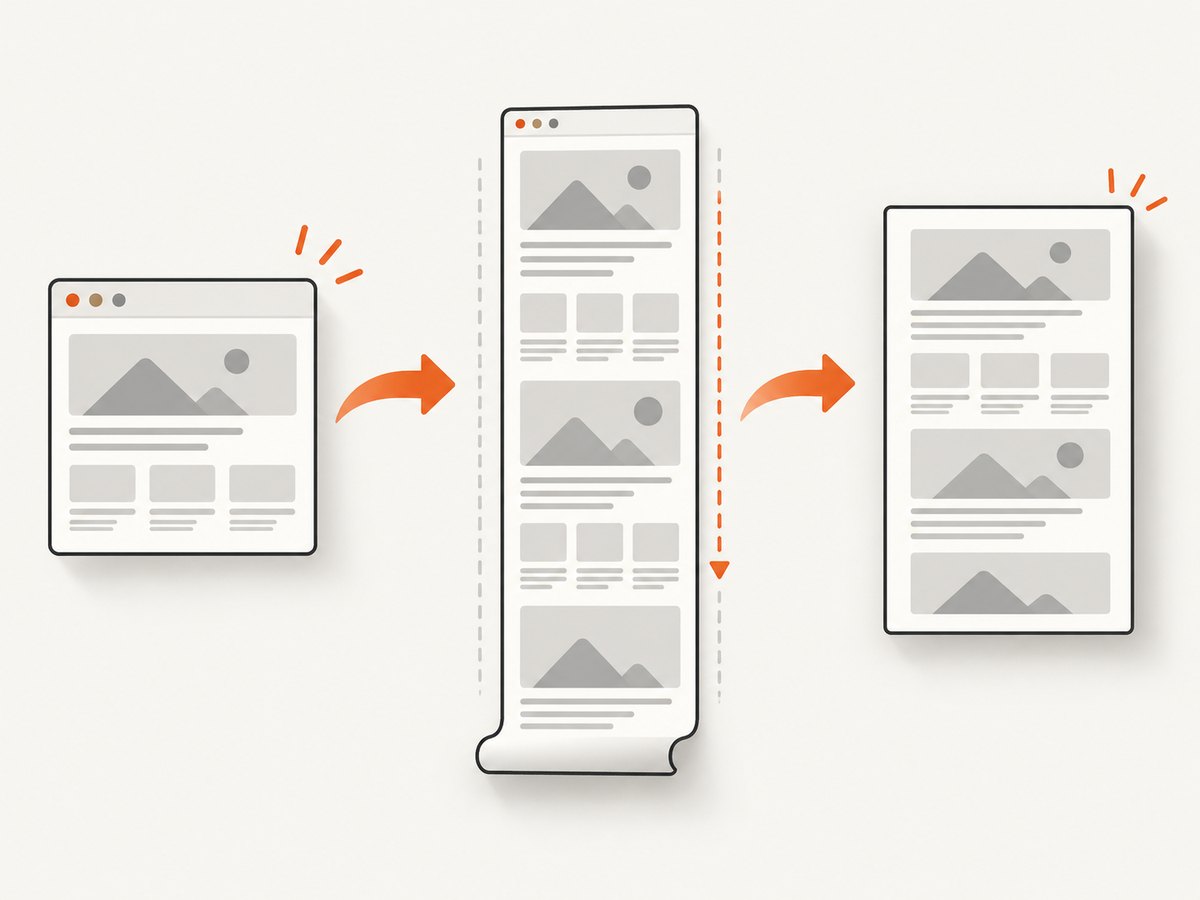
Fastest answer: In Microsoft Edge, press Ctrl+Shift+S, choose Capture full page, then copy or save the result. Edge captures content below the visible viewport and lets you add pen or touch markup before saving.
If you specifically want an extension, install GoFullPage – Full Page Screen Capture from Microsoft Edge Add-ons. Open its toolbar button or press Alt+Shift+P; it captures the page in segments, opens the result in a new tab, and exports an image or PDF.
1. Use Edge’s built-in full-page screenshot
- Open the webpage you want to capture in Microsoft Edge.
- Press Ctrl+Shift+S.
- Select Capture full page.
- Review the complete capture. Use the pen or touch tools if you need annotations.
- Copy the image or save it to your computer.
This method needs no installation and is usually the best choice for a one-off capture or a quick annotated reference.
2. Capture a full page with the GoFullPage Edge extension
Install and pin the extension
- Open the official GoFullPage – Full Page Screen Capture listing in Microsoft Edge Add-ons.
- Choose the option to get or install the extension and accept the permissions shown by Edge.
- Pin the extension so its icon stays visible in the toolbar.
- Open the page you want to capture.
Run a capture
- Click the GoFullPage toolbar icon, or press Alt+Shift+P.
- Leave the tab open while the extension scrolls through the page and captures it in segments.
- Wait for the capture result to open in a new tab.
- Download the result as an image or PDF.
Because the extension stitches segments, pages with sticky headers, animations, lazy-loaded content, or changing ads can require a visual review after capture. For exceptionally large pages, GoFullPage may split the result into multiple images rather than producing one very large file.
3. Edge Screenshot vs. GoFullPage
| Capability | Edge Screenshot | GoFullPage extension |
|---|---|---|
| Installation | None | Required |
| Launch | Ctrl+Shift+S | Toolbar icon or Alt+Shift+P |
| Full-page capture | Built in | Captures and stitches page segments |
| Markup | Pen and touch markup before saving | Review and export from the result tab |
| Export | Copy or save the capture | Image or PDF |
| Very large pages | Review the resulting file size | May split into separate images |
4. Make the capture reliable
- Wait for the page to finish loading. Let images, fonts, and charts appear before starting the capture.
- Close transient UI. Dismiss cookie dialogs, newsletter popups, chat panels, and permission prompts when they obscure content.
- Keep the tab stable. Avoid switching tabs or resizing the window while a segmented capture is running.
- Check lazy-loaded sections. Scroll through the page once first if important images appear only after entering the viewport.
- Review seams. Look for duplicated sticky navigation, missing sections, or animation frames in the stitched result.
- Use PDF for documents. An image is convenient for sharing; PDF is usually easier to print or archive.
5. Common problems and fixes
| Problem | Likely cause | Fix |
|---|---|---|
| The shortcut does nothing | Focus is in a field, another app owns the shortcut, or Edge is not active | Click the page, return focus to Edge, and try Ctrl+Shift+S again. Use the browser menu if the shortcut is intercepted. |
| Only the visible viewport is captured | The visible-area command was chosen instead of full-page capture | Open Edge Screenshot again and explicitly select Capture full page. |
| The extension captures a blank or partial result | The page is still loading, navigation changed during capture, or a script blocked scrolling | Reload, wait for the page to settle, close overlays, and run the extension again. |
| Sticky headers appear repeatedly | The header is fixed while the extension captures multiple segments | Check the result and remove or crop duplicated sections. If you control the page, temporarily disable the fixed header. |
| Images are missing | Images are lazy-loaded or blocked until scrolled into view | Scroll through the page once before capture, confirm images loaded, then retry. |
| The result is split into files | The page is too large for one image | Use the separate images, capture smaller sections, or export a PDF when appropriate. |
| Export is unavailable | The result tab has not finished rendering | Wait for the new tab to finish, then use its image or PDF download control. |
6. Performance, reliability, and file-size considerations
Full-page capture takes longer than a viewport screenshot because the browser must render content below the fold and, for an extension, process several segments. Long pages with video, large images, animated ads, or complex scripts take longer and produce larger files.
- Prefer a viewport capture when you only need the visible state.
- For long documentation pages, consider PDF or several logical section captures instead of one enormous bitmap.
- Use PNG when pixel-accurate text and transparency matter; use JPEG when a smaller photographic file is more useful.
- Verify the final dimensions and file size before uploading to a ticketing system or repository.
- Do not assume a browser extension is suitable for unattended batches. It depends on an interactive Edge session and the page remaining stable.
7. When an extension is the wrong tool
An Edge extension is convenient for manual work. It becomes harder to operate when you need repeatable screenshots for many URLs, a fixed viewport or device profile, custom headers and cookies, element-only captures, scheduled jobs, or server-side processing. Those workflows are better handled by a screenshot API.
8. Or skip the browser setup
ScreenshotNeo provides a website screenshot API and MCP server. Send one GET request with a URL to receive a PNG, JPEG, WebP, or PDF. It can capture full pages with lazy images loaded, select one element by CSS selector, set a viewport or device preset, use dark mode and retina scale, wait for a selector, delay, or network idle, and apply custom CSS or JavaScript.

Before capture, ScreenshotNeo can accept cookie or consent banners like a visitor and remove more than 60 known consent platforms, newsletter popups, and chat widgets; each step can be turned off. Bot checks or CAPTCHAs, blank pages, timeouts, failed loads, and cache hits are not billed, and the response identifies the page verdict and billing status in X-Page-Verdict and X-Billed headers. It also includes an MCP server for AI agents such as Claude and Cursor.
See the ScreenshotNeo API documentation for authentication and the complete option list.
cURL
curl -G "https://api.screenshotneo.com/v1/shot" -d access_key=YOUR_API_KEY --data-urlencode url=https://stripe.com -o shot.webpPython
import requests
r = requests.get("https://api.screenshotneo.com/v1/shot", params={"access_key": "YOUR_API_KEY", "url": "https://stripe.com"}, timeout=90)
open("shot.webp", "wb").write(r.content)
Node.js
const q = new URLSearchParams({ access_key: 'YOUR_API_KEY', url: 'https://stripe.com' }); const res = await fetch(`https://api.screenshotneo.com/v1/shot?${q}`);ScreenshotNeo has 1,000 free shots per month with no card. Paid plans start at $5 for 3,000 shots, and every feature is available on every plan. Create a free ScreenshotNeo account.
9. FAQ
Can Edge capture a page without an extension?
Yes. Press Ctrl+Shift+S and choose Capture full page.
Does GoFullPage save a PDF?
Yes. Its result tab provides image and PDF export.
What shortcut launches GoFullPage?
Alt+Shift+P, after the extension is installed.
Why did GoFullPage create several images?
Exceptionally large pages may exceed what can be stored as one image, so the extension splits the result.
Can I automate Edge extension captures?
The extension is designed for an interactive browser workflow. For unattended or high-volume capture, use an API such as ScreenshotNeo.


