BlogScreenshots on your device
How to Capture a Full Page in Firefox with an Extension
Learn Firefox’s built-in full-page capture, the best extension options, troubleshooting steps, and an API workflow for automated screenshots.
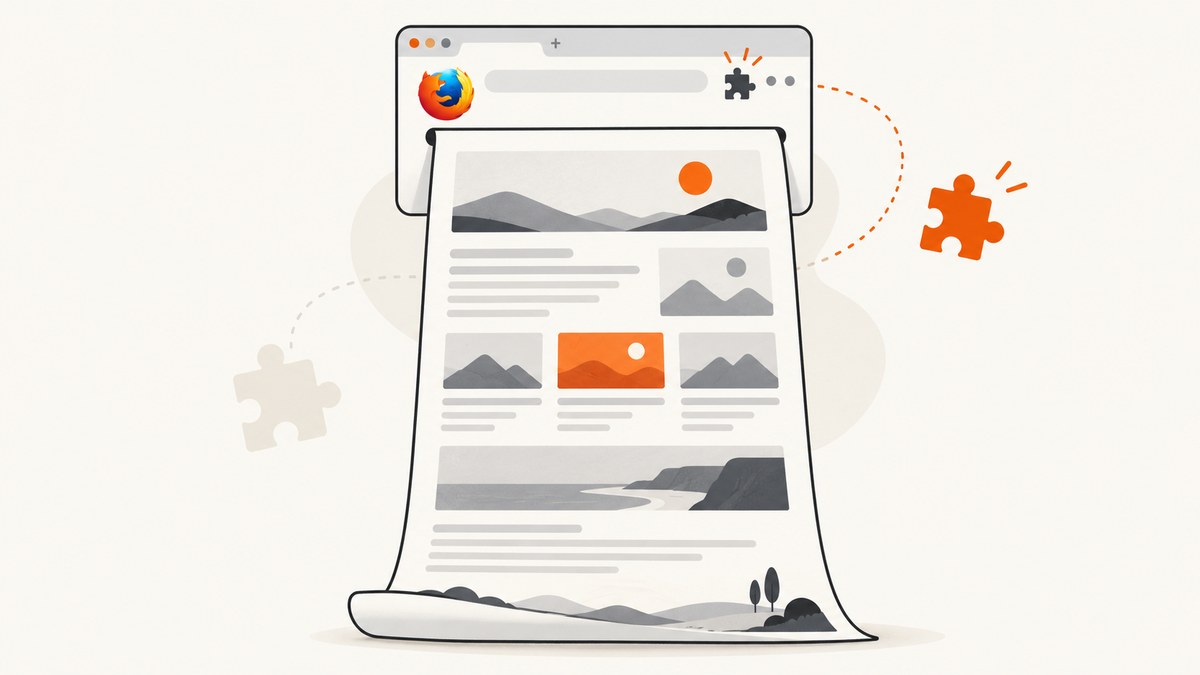
Fastest answer: Firefox can capture an entire scrolling page without an extension. Open the page, right-click an empty area, choose Take Screenshot, select Save full page, then choose Download or Copy. The shortcut is Ctrl+Shift+S on Windows and Linux, or Command+Shift+S on macOS. Mozilla documents this workflow in its Firefox screenshot help.
Use an extension when you need annotations, PDF export, complex nested scrolling, iframe support, configurable delays, or a repeatable toolbar workflow. This guide covers Firefox’s native tool, Developer Tools, extension selection, common failures, and an automated alternative.
1. Use Firefox’s built-in full-page screenshot
- Open the webpage in Firefox desktop.
- Right-click an empty part of the page and choose Take Screenshot. You can also press Ctrl+Shift+S on Windows/Linux or Command+Shift+S on macOS.
- Select Save full page. Choose Save visible when you only need the current viewport.
- Choose Download to save the image, or Copy to place it on the clipboard.
- Press Esc to cancel.
Firefox stitches the page into one tall image, so you do not need to drag a selection down the screen. The full-page option captures content below the fold, including sections you would normally reach by scrolling.
Keep the screenshot command on the toolbar
Open Menu → More Tools → Customize Toolbar, then drag the Screenshot button onto the toolbar. This is useful if you capture pages repeatedly and do not want to use the context menu or keyboard shortcut.
2. When an extension is the better choice
An extension is useful when the native tool does not provide the output or editing controls you need. Compare extensions on these points:

| Requirement | What to check |
|---|---|
| Page structure | Can it handle inner scrollable panels, sticky headers, lazy-loaded content, and embedded iframes? |
| Output | Does it export PNG, JPEG, WebP, or PDF? Can you set quality or paper size? |
| Editing | Are crop, blur, arrows, text, shapes, and clipboard copy available before saving? |
| Privacy | Does processing happen locally? What technical or interaction data does the listing disclose? |
| Compatibility | Does the current Firefox desktop version meet the extension’s requirements? |
Full Page Screenshot – OpenScreenShot
OpenScreenShot is a local-first, open-source option listed by Mozilla Add-ons. It captures a full page, visible area, or selected region and includes arrows, text, shapes, blur, cropping, clipboard copy, and local history. It exports PNG, JPEG, WebP, and PDF. The listing states that desktop Firefox 140 or later is required and that browser-protected pages cannot be captured.
Choose it when local editing and several export formats matter. Check the add-on listing before installation because version numbers and compatibility can change.
GoFullPage – Full Page Screen Capture
GoFullPage starts from a toolbar button or Alt+Shift+P, then opens a result tab where you can download an image or PDF. Its listing describes support for complex pages, inner scrollable elements, and embedded iframes, with PNG, JPEG, and configurable PDF paper sizes. The listing also discloses optional technical and interaction data collection, so review its permissions and privacy details before use.
Page Screenshot
Page Screenshot automatically scrolls vertically from top to bottom and offers image format, quality, and delay settings. Its listing warns that tabs may need to be reloaded before capture and that very wide pages are not horizontally scrolled. Reload the tab first when the extension reports an empty or partial result.
Awesome Screenshot & Screen Recorder
Awesome Screenshot & Screen Recorder supports full-page, visible-area, and selected-area captures, plus annotation and sharing through its service. Mozilla Add-ons warns that accelerated Firefox upgrades can temporarily make it incompatible. If the toolbar button disappears or capture fails after an update, check for a compatible release before changing page settings.
3. Capture a full page with an extension
- Install an extension from Mozilla Add-ons and review its permissions, supported Firefox versions, and data practices.
- Open the target page in a normal content tab. Protected browser pages such as internal Firefox settings may be unavailable to extensions.
- Reload the page if the extension’s listing says a reload is required.
- Click the extension’s toolbar button, or use its documented keyboard shortcut.
- Choose full-page capture rather than visible-area or selected-region capture.
- Wait while the extension scrolls and stitches the page. Keep the tab open until the result appears.
- Export in the format you need, then inspect the top, bottom, and any fixed navigation areas for duplicated or missing content.
Pages with lazy loading
Some pages fetch images only after they approach the viewport. A capture can therefore contain blank image slots if the extension scrolls too quickly. Use an extension delay setting when available, wait for the page to finish loading before starting, and scroll through the page once manually to trigger lazy content.
Nested scrolling and iframes
A page can have a main document scroll plus an independently scrolling panel. The native Firefox tool may not reproduce every nested panel as expected. Prefer an extension that explicitly supports inner scrollable elements and embedded iframes, and verify the resulting image rather than assuming every frame was included.
Sticky headers and fixed widgets
Sticky headers, cookie notices, chat bubbles, and floating controls can appear repeatedly in stitched output. Close overlays before capture when possible. If the extension provides an element-hiding or cleanup feature, use it and then capture again.
4. Developer Tools fallback
Firefox also exposes a screenshot command through Developer Tools. Open DevTools, open Settings, find Available Toolbox Buttons, and enable Take a screenshot of the entire page. Close settings, click the new camera button, and Firefox saves a PNG to Downloads. In the Inspector, use Screenshot Node to capture one selected element instead of the complete page.
5. Why your screenshot only shows the visible area
- Wrong mode: choose Save full page, not Save visible.
- Extension command mismatch: some toolbar buttons default to viewport capture; open the extension’s menu and select full page.
- Protected page: browser UI, extension pages, and other protected documents may block capture.
- Tab was not reloaded: reload before using extensions that require a fresh page.
- Nested scroll container: the content may be inside a panel rather than the document body; use a tool that supports inner scrolling.
- Capture finished early: add a delay, allow lazy images to load, and keep the tab active until stitching completes.
- Page is extremely wide: some extensions scroll vertically but do not include horizontal overflow.
6. Troubleshooting checklist
| Symptom | Likely cause | Fix |
|---|---|---|
| Screenshot button is missing | The button is not on the toolbar or the extension is disabled. | Customize the toolbar, open the Add-ons Manager, and enable the extension. |
| Only the viewport is saved | Visible-area mode was selected. | Run the command again and choose full-page mode. |
| Bottom sections are blank | Lazy-loaded resources were not triggered. | Scroll through the page first or increase the extension’s delay. |
| Iframe content is missing | The tool does not capture embedded frames. | Use a tool that documents iframe support, or capture the frame separately. |
| Repeated header or chat bubble | Fixed-position elements were stitched on every scroll segment. | Hide or close the element before capture, then recapture. |
| Capture fails on a Firefox page | Protected browser pages cannot be accessed by ordinary extensions. | Capture a normal website tab instead, or use a permitted page export. |
| Extension stopped working after Firefox updated | The extension is temporarily incompatible. | Check the Mozilla Add-ons listing for a compatible release or use Firefox’s native tool. |
7. Quality, performance, and reliability tips
- Close animated overlays and pause videos before capture to reduce visual differences between stitched segments.
- Use a consistent window size and zoom level when comparing screenshots over time.
- Let fonts and images finish loading before starting; otherwise later segments may use different layout dimensions.
- For very long pages, expect more processing time and larger files. WebP or JPEG can reduce file size when transparency and lossless detail are unnecessary.
- Review the seam between several segments, especially around sticky navigation, ads, and carousels.
- Save important captures immediately. Browser download folders and extension histories are not substitutes for your own archive.
8. Or skip the browser setup
If you need screenshots in a script, CI job, documentation pipeline, or AI workflow, ScreenshotNeo provides a single HTTP request for a PNG, JPEG, WebP, or PDF. The API can capture full pages, load lazy images, target one CSS-selected element, set a device or viewport, use dark mode and retina scale, apply custom CSS or JavaScript, click an element, wait for a selector, delay, or network idle, block ads and trackers, send headers/cookies/user-agent/Authorization, set timezone and geolocation, resize images, cache with a chosen TTL, create signed links, run async jobs with signed webhooks, capture up to 100 URLs per bulk call, and expose usage and OpenAPI endpoints. See the ScreenshotNeo API documentation for all options.

cURL
curl -G "https://api.screenshotneo.com/v1/shot" -d access_key=YOUR_API_KEY --data-urlencode url=https://stripe.com -o shot.webpPython
import requests

r = requests.get(
    "https://api.screenshotneo.com/v1/shot",
    params={"access_key": "YOUR_API_KEY", "url": "https://stripe.com"},
    timeout=90,
)
r.raise_for_status()
open("shot.webp", "wb").write(r.content)
Node.js
const q = new URLSearchParams({ access_key: 'YOUR_API_KEY', url: 'https://stripe.com' });
const res = await fetch(`https://api.screenshotneo.com/v1/shot?${q}`);
if (!res.ok) throw new Error(`Screenshot failed: ${res.status}`);
const data = Buffer.from(await res.arrayBuffer());
await import('node:fs/promises').then(fs => fs.writeFile('shot.webp', data));
ScreenshotNeo removes cookie and consent banners, newsletter popups, and chat widgets before the shot. Bot checks, blank pages, timeouts, failed loads, and cache hits are not billed; response headers identify the page verdict and whether the request was billed. Its MCP server exposes take_screenshot, get_page_info, and capture_pdf for Claude, Cursor, and other MCP clients. The Free plan includes 1,000 screenshots per month with no card; paid plans start at $5 for 3,000 shots. Create a free ScreenshotNeo account.
9. FAQ
Can Firefox save a webpage as one long image?
Yes. Choose Take Screenshot → Save full page and download the result.
Do I need an extension for a full-page screenshot?
No. Firefox’s built-in screenshot tool handles the basic workflow. Install an extension for annotations, PDF export, nested scrolling, iframe support, or extra format controls.
What is the keyboard shortcut?
Use Ctrl+Shift+S on Windows/Linux or Command+Shift+S on macOS.
Can extensions capture Firefox’s own settings pages?
Usually not. Browser-protected pages are restricted; capture a normal website tab instead.
Which option is best for automated screenshots?
Use an HTTP screenshot API such as ScreenshotNeo when captures must run from code, CI, bulk jobs, or an AI agent rather than from an open desktop tab.


