BlogScreenshots on your device
How to Capture the Full Screen in a Chrome Extension
Build a Chrome extension that lets users select a display, window, or tab, then turns the one-use stream ID into a MediaStream.
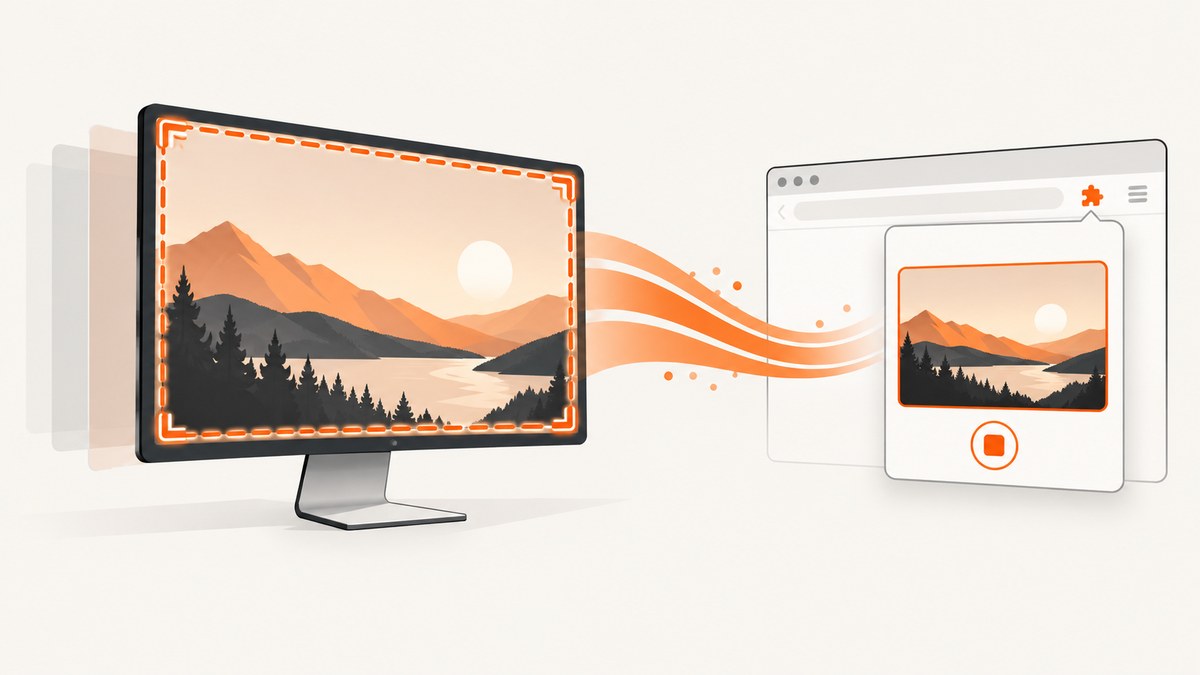
Use chrome.desktopCapture when your extension must let a user choose an entire display, a window, or a browser tab. Call chooseDesktopMedia(), handle an empty stream ID when the picker is canceled, and immediately pass the returned one-use ID to getUserMedia(). The resulting MediaStream can be recorded, previewed, processed, or sent elsewhere.
This guide builds a Manifest V3 extension, explains permissions and security restrictions, and compares desktopCapture with tabCapture, getDisplayMedia(), and pageCapture.
1. Choose the right Chrome capture API
| Requirement | API | Result |
|---|---|---|
| Let the user pick a display, window, or tab | chrome.desktopCapture |
A user-selected live MediaStream |
| Capture only the active tab after the user invokes the extension | chrome.tabCapture |
The visible area of the current tab, with optional tab audio |
| Save a page and its resources as an archive | chrome.pageCapture |
An MHTML file, not a live desktop capture |
Chrome’s desktopCapture API is the direct fit for a selectable full-display, window, or tab picker. Its source types can include video and audio, and the order you provide determines the picker’s tab order.
2. Declare the permission and extension files
Add the desktopCapture permission to manifest.json. Chrome displays the warning “Capture content of your screen,” so explain this capability in your extension’s UI and request only the permission your feature needs.
{
  "manifest_version": 3,
  "name": "Full Screen Capture Demo",
  "version": "1.0.0",
  "description": "Select and preview a display, window, or tab.",
  "permissions": ["desktopCapture"],
  "action": {
    "default_title": "Capture screen"
  },
  "background": {
    "service_worker": "service-worker.js",
    "type": "module"
  }
}
Create a directory containing manifest.json and service-worker.js. Load it at chrome://extensions with Developer mode enabled, then choose Load unpacked.
3. Request a source with chooseDesktopMedia()
The method opens Chrome’s source picker. The callback receives a stream ID. An empty string means that the user canceled the picker; do not pass it to getUserMedia().
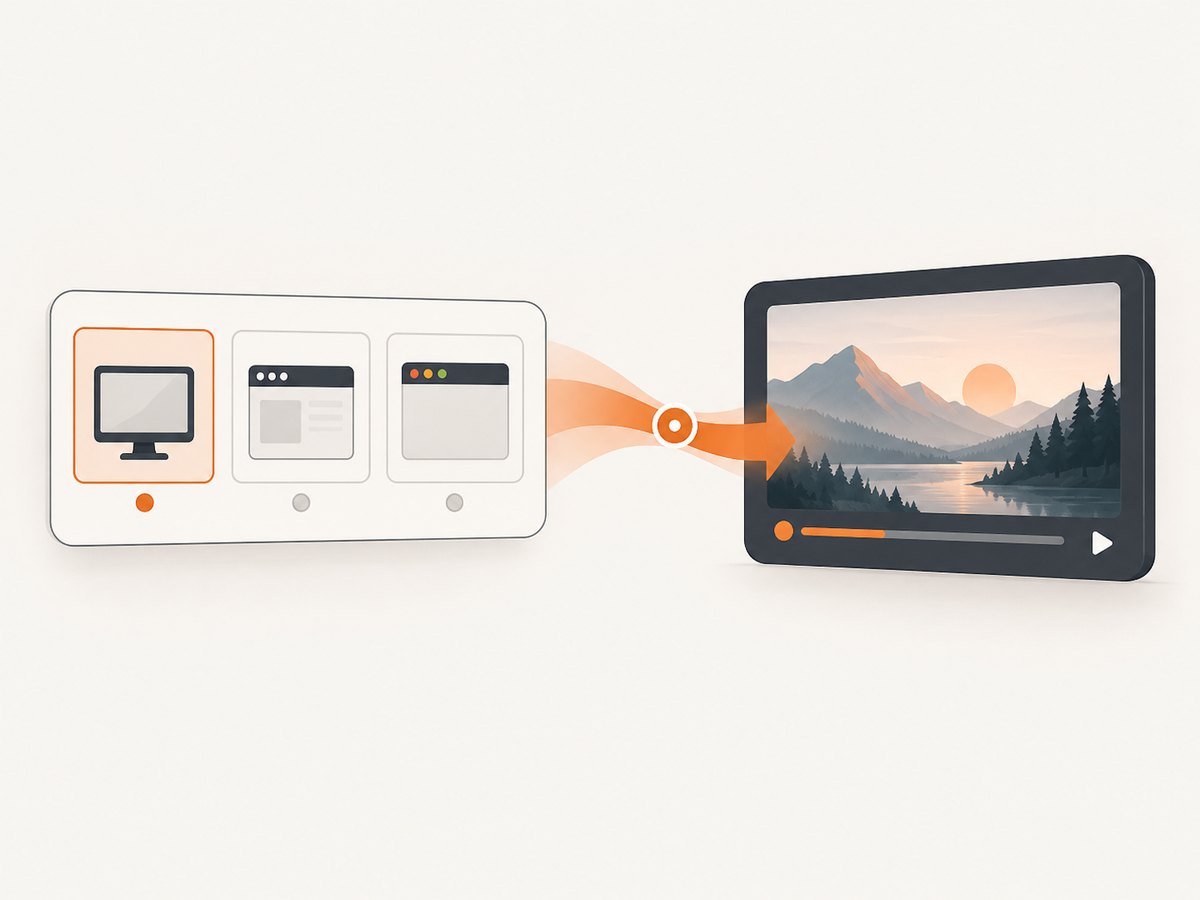
// service-worker.js
chrome.action.onClicked.addListener(async (tab) => {
  if (!tab.id) return;

  chrome.desktopCapture.chooseDesktopMedia(
    ["screen", "window", "tab"],
    tab,
    (streamId) => {
      if (!streamId) {
        // The user canceled the picker.
        chrome.tabs.sendMessage(tab.id, { type: "capture-canceled" });
        return;
      }

      chrome.tabs.sendMessage(tab.id, {
        type: "capture-approved",
        streamId
      });
    }
  );
});
The second argument above is targetTab. It restricts the stream to frames in that tab with the matching security origin. The target tab must use a secure origin such as HTTPS. If you omit targetTab, the stream is usable only by the calling extension.
Because the stream ID is opaque, single-use, and short-lived, send it to the page immediately and create the media stream without delay.
4. Turn the stream ID into a MediaStream
A content script can receive the ID and call navigator.mediaDevices.getUserMedia() with Chrome-specific constraints.
// content.js
chrome.runtime.onMessage.addListener(async (message) => {
  if (message.type === "capture-canceled") {
    console.log("Screen capture canceled");
    return;
  }

  if (message.type !== "capture-approved") return;

  try {
    const stream = await navigator.mediaDevices.getUserMedia({
      audio: false,
      video: {
        mandatory: {
          chromeMediaSource: "desktop",
          chromeMediaSourceId: message.streamId
        }
      }
    });

    const video = document.createElement("video");
    video.autoplay = true;
    video.muted = true;
    video.srcObject = stream;
    document.body.appendChild(video);

    // Stop every track when your feature is finished.
    window.stopCapture = () => {
      stream.getTracks().forEach((track) => track.stop());
      video.remove();
    };
  } catch (error) {
    console.error("Could not create capture stream", error);
  }
});
In a production extension, place the preview in an extension page or side panel rather than modifying arbitrary page content. If you need audio, set audio: true and include "audio" in the source types passed to chooseDesktopMedia().
5. A complete popup implementation
The following version keeps the picker call in the service worker and displays the stream in a popup. Add the popup files to the manifest.
{
  "manifest_version": 3,
  "name": "Full Screen Capture Demo",
  "version": "1.0.0",
  "permissions": ["desktopCapture"],
  "action": {
    "default_title": "Capture screen",
    "default_popup": "popup.html"
  },
  "background": {
    "service_worker": "service-worker.js"
  }
}
// service-worker.js
chrome.runtime.onMessage.addListener((message, sender) => {
if (message.type !== "choose-source" || !sender.tab?.id) return;
chrome.desktopCapture.chooseDesktopMedia(
["screen", "window", "tab"],
sender.tab,
(streamId) => {
chrome.runtime.sendMessage({
type: streamId ? "source-selected" : "source-canceled",
streamId: streamId || null
});
}
);
});<!-- popup.html -->
<!doctype html>
<html>
<body>
<button id="start">Choose screen, window, or tab</button>
<button id="stop" disabled>Stop</button>
<video id="preview" autoplay muted playsinline width="480"></video>
<script src="popup.js"></script>
</body>
</html>// popup.js
const start = document.querySelector("#start");
const stop = document.querySelector("#stop");
const preview = document.querySelector("#preview");
let stream;
start.addEventListener("click", async () => {
const [tab] = await chrome.tabs.query({ active: true, currentWindow: true });
if (!tab?.id) return;
// The service worker uses this tab as targetTab.
await chrome.tabs.sendMessage(tab.id, { type: "unused" }).catch(() => {});
chrome.runtime.sendMessage({ type: "choose-source" });
});
chrome.runtime.onMessage.addListener(async (message) => {
if (message.type === "source-canceled") {
start.disabled = false;
return;
}
if (message.type !== "source-selected") return;
try {
stream = await navigator.mediaDevices.getUserMedia({
audio: false,
video: {
mandatory: {
chromeMediaSource: "desktop",
chromeMediaSourceId: message.streamId
}
}
});
preview.srcObject = stream;
start.disabled = true;
stop.disabled = false;
} catch (error) {
console.error(error);
start.disabled = false;
}
});
stop.addEventListener("click", () => {
stream?.getTracks().forEach((track) => track.stop());
preview.srcObject = null;
stream = undefined;
start.disabled = false;
stop.disabled = true;
});For a real popup, keep the picker and stream creation in the same extension-controlled flow. If the popup closes, move the preview and stream lifecycle to a persistent extension page, side panel, or offscreen document.
6. Recording the captured screen
desktopCapture gives you a live MediaStream; it does not automatically save a file. Use MediaRecorder when you need a WebM recording.
const recorder = new MediaRecorder(stream, {
  mimeType: "video/webm;codecs=vp8,opus"
});
const chunks = [];

recorder.ondataavailable = (event) => {
  if (event.data.size) chunks.push(event.data);
};

recorder.onstop = () => {
  const blob = new Blob(chunks, { type: recorder.mimeType });
  const url = URL.createObjectURL(blob);
  const link = document.createElement("a");
  link.href = url;
  link.download = "screen-capture.webm";
  link.click();
  URL.revokeObjectURL(url);
};

recorder.start(1000);
// Later:
// recorder.stop();
Check supported formats with MediaRecorder.isTypeSupported() and choose a fallback if the preferred codec is unavailable.
7. When to use tabCapture instead
Use chrome.tabCapture when the requirement is specifically the current tab. Chrome requires the capture to begin after a user invocation, such as clicking the extension action. It captures the active tab’s visible area and can provide tab audio.
chrome.action.onClicked.addListener(async (tab) => {
  if (!tab.id) return;
  const streamId = await chrome.tabCapture.getMediaStreamId({
    targetTabId: tab.id
  });
  // Pass streamId to an extension page and call getUserMedia() there.
});
activeTab is temporary access granted after a user gesture and ends when the user navigates away from or closes the tab. It is useful for tab-scoped actions but does not replace desktopCapture for desktop-wide selection.
8. Why getDisplayMedia() may be a different fit
Web pages can use navigator.mediaDevices.getDisplayMedia() for display, window, or tab sharing, but the browser controls the picker and the call must run in an appropriate secure context with a user gesture. For an extension that exposes a selectable source through Chrome’s extension API, desktopCapture provides the direct extension-specific flow.
9. Permission and security checklist
- Declare
desktopCapturein the manifest. - Explain the “Capture content of your screen” warning in your onboarding or capture dialog.
- Request optional permissions at runtime for optional features when your design permits it.
- Treat the stream ID as a secret, short-lived capability. Do not log it or store it.
- Handle cancellation before calling
getUserMedia(). - Stop every media track when recording or processing ends.
- Use a secure target tab origin when passing
targetTab. - Tell users whether audio is captured and how long recordings are retained.
10. Troubleshooting
| Symptom | Cause | Fix |
|---|---|---|
| The picker closes and no stream starts | The user canceled; the callback returned an empty ID. | Check if (!streamId) and show a cancellation state. |
getUserMedia() rejects immediately |
The one-use ID expired or was consumed by another call. | Pass it to getUserMedia() immediately and only once. |
| The target tab cannot be used | The tab is not on a secure origin or does not match the required origin. | Use HTTPS and verify the target tab before requesting the source. |
| No audio is present | Audio was omitted from the source list or constraints. | Include "audio" in chooseDesktopMedia() and request audio in getUserMedia(). |
| The preview is black | The stream was never assigned, tracks ended, or the preview element was blocked from autoplay. | Set video.srcObject, use autoplay muted playsinline, and inspect track states. |
| Capture stops unexpectedly | The user stopped sharing or the selected window/display ended. | Listen for track.onended and reset the UI so the user can select a new source. |
| The popup loses the stream | Popup pages are short-lived and close when focus changes. | Move long-running capture to a side panel, extension page, or offscreen document. |
| The extension cannot load | The manifest has an invalid permission or missing service worker file. | Inspect errors on chrome://extensions and verify file names and manifest JSON. |
11. Performance and reliability
- Large displays produce more pixels and increase CPU, memory, encoding time, and output size. Choose a sensible recorder bitrate and resolution for your use case.
- Do not keep unused tracks alive. Stop them as soon as capture ends.
- Use short
MediaRecordertimeslices when you need progressive upload, but avoid extremely small chunks that create excessive overhead. - Watch
track.onendedandMediaRecorder.onerrorso the UI reflects device or permission changes. - Keep the capture owner in an extension-controlled document with a lifecycle suited to long sessions; a popup can disappear when the user clicks elsewhere.
- Test display, window, and tab sources separately, along with cancellation, navigation, minimized windows, multiple monitors, and audio settings.
12. Or skip the browser setup
If you need a rendered website image or PDF rather than a live desktop stream, ScreenshotNeo provides a single HTTP request. See the ScreenshotNeo API documentation for the available options.
curl -G "https://api.screenshotneo.com/v1/shot" -d access_key=YOUR_API_KEY --data-urlencode url=https://stripe.com -o shot.webpimport requests
r = requests.get("https://api.screenshotneo.com/v1/shot", params={"access_key": "YOUR_API_KEY", "url": "https://stripe.com"}, timeout=90)
open("shot.webp", "wb").write(r.content)const q = new URLSearchParams({ access_key: 'YOUR_API_KEY', url: 'https://stripe.com' });
const res = await fetch(`https://api.screenshotneo.com/v1/shot?${q}`);Cookie banners, newsletter popups, and chat widgets are removed before the shot. Bot checks, blank pages, failed loads, timeouts, and cache hits are never billed. An MCP server lets AI agents take screenshots, and the free plan includes 1,000 screenshots a month with no card; paid plans start at $5 for 3,000. Create a free ScreenshotNeo account.
13. FAQ
Can an extension capture the whole desktop without asking the user?
No. chooseDesktopMedia() requires the user to select a source in Chrome’s picker.
Can I reuse the stream ID?
No. The ID is one-use and expires after a few seconds if unused.
Does pageCapture create a screenshot?
No. pageCapture saves a tab and its resources as MHTML. It does not capture the live desktop.
Which API captures only the current tab?
Use tabCapture after the user invokes the extension.
Can I capture audio?
Yes, when the selected source and constraints include audio. Test each source type because available audio can differ between a display, window, and tab.


