BlogScreenshots on your device
How to Capture the Full Screen in Chrome
Learn the difference between a full-display and full-page screenshot in Chrome, with exact DevTools, Chromebook, Windows, and API steps.

“Full screen” can mean two different things in Chrome: a capture of every pixel on your display, including windows outside Chrome, or a capture of the entire webpage, including content below the visible viewport. Choose the method based on what you need.
- Entire webpage: use Chrome DevTools and choose Capture a full size screenshot.
- Entire display: use your operating system’s screen-capture utility.
Chrome’s built-in full-page command captures the page, not your taskbar, dock, other applications, or a second monitor. Google documents the distinction between a viewport screenshot and a full-size screenshot in its Device Mode documentation.
Choose the capture you actually need
| Goal | Best method | What appears in the result |
|---|---|---|
| Save the complete webpage | Chrome DevTools full-size screenshot | Visible page plus content below the fold |
| Save only the current browser viewport | DevTools Capture screenshot | The emulated viewport only |
| Capture the whole Chromebook display | ChromeOS Screen Capture | Everything on the display |
| Capture the whole Windows display | Snipping Tool Full screen | Everything on the display |
| Automate many webpage captures | Screenshot API or browser automation | Repeatable image or PDF output |

Capture a full webpage with Chrome DevTools
This is the built-in route for a long webpage. It includes content that is not currently visible in the viewport, but it does not include Chrome’s tabs, address bar, desktop, or other applications.
Step-by-step
- Open the webpage in Chrome.
- Open DevTools from Chrome’s menu: More tools → Developer tools. You can also use your platform’s DevTools shortcut.
- Turn on the device toolbar by selecting the phone-and-tablet icon in DevTools if it is not already visible.
- In the device toolbar, open the More options menu.
- Select Capture a full size screenshot.
- Wait for Chrome to finish the capture. The image is downloaded through Chrome’s normal download flow.
Google describes the command this way: “To capture a screenshot of the whole page including the content that isn’t currently visible in the viewport, select Capture a full size screenshot from the same menu.” See the official Chrome DevTools instructions for the current menu wording.
Viewport versus full-size capture
The same menu contains Capture screenshot. That command captures what is currently inside the emulated viewport. Use it when you need a social-card crop, a responsive breakpoint sample, or a screenshot that matches the visible browser area. Use Capture a full size screenshot when the result must include the page below the fold.
Make the result representative
- Set the device toolbar width and height before capturing if responsive layout matters.
- Choose a device preset when you need to reproduce a mobile or tablet viewport.
- Scroll through the page first if it uses lazy-loaded media. Some pages load images only after they approach the viewport.
- Close transient menus, browser permission prompts, and DevTools panels that obscure the page.
- Wait for fonts, images, charts, and animations to finish before starting the capture.
- For a stable visual comparison, disable animations in the page or capture at the same point in the animation cycle each time.
Capture the entire Chromebook display
When you need every pixel on a Chromebook display, use ChromeOS Screen Capture rather than DevTools. Google’s Chromebook Help documents the available controls.
- Press the Screenshot key, or open Screen Capture from the system controls.
- On an external keyboard without a Screenshot key, use Ctrl + Shift + Show windows. Google also documents Ctrl + Shift + F5 for some external keyboards.
- In the capture toolbar, choose Screenshot.
- Select Take a full screen screenshot.
- Review the capture and save or copy it as needed.
Chromebook screenshots are saved in the Downloads folder by default, and Screen Capture settings can change the destination. Google also states that screenshots are automatically copied to the clipboard, which is useful when you need to paste the result directly into a document or message.
Capture the entire Windows display
For Windows 10 or Windows 11, Microsoft’s Snipping Tool has a Full screen mode. Open it with Windows logo key + Shift + S, then choose the full-screen capture option. Microsoft also documents the Print Screen key for placing a static full-screen image on the clipboard. See Microsoft’s Snipping Tool documentation.
- Press Windows + Shift + S.
- Choose the full-screen mode in the Snipping Tool overlay.
- Select the display if Windows asks which screen to capture.
- Open the resulting notification to edit or save the image.
Microsoft describes the mode as “Full screen | Capture the entire screen.” Save-location behavior can vary with Windows settings, so use Save as when the destination matters. The capture includes the display, not just the Chrome webpage.
macOS and Linux considerations
The sources for this guide document Chrome DevTools, ChromeOS, and Windows. macOS and Linux also provide system screenshot utilities, but exact shortcuts and save locations vary by release, desktop environment, keyboard, and configured settings. Check the current documentation for your operating system before standardizing a shortcut in a runbook.
If your requirement is specifically “the whole webpage in Chrome,” the DevTools method above is operating-system independent and avoids those shortcut differences.
Use an extension for repeated full-page work
DevTools is sufficient for an occasional full-page image. A dedicated extension can be more convenient when you repeat the workflow, need export controls, or want editing features. The Chrome Web Store lists GoFullPage – Full Page Screen Capture as a full-page capture extension. Its listing shows version 8.9 in a changelog dated September 24, 2026, along with earlier PDF/image export and capture fixes.
Install extensions only when your organization allows them and review the permissions shown by Chrome. For a one-off capture, the built-in DevTools command avoids an additional installation.
Automate full-page captures
Manual DevTools capture is good for a person at a keyboard. Automation is better for documentation builds, visual regression checks, catalogs, and scheduled URL lists. A browser automation workflow generally needs to:
- Launch a browser at a known viewport and device scale.
- Navigate to the target URL and wait for the page’s meaningful content.
- Handle cookie banners, login state, lazy-loaded content, and consent dialogs.
- Capture the full page or a selected element.
- Store the image with a deterministic name and record failures separately.
For production capture, account for pages that never become idle, images that load only after scrolling, bot checks, redirects, and content that changes between runs. Keep the browser and its dependencies pinned when reproducibility matters.
Or skip the browser setup
ScreenshotNeo provides a website screenshot API and MCP server. One GET request returns a PNG, JPEG, WebP, or PDF. The API accepts a URL and can capture a full page with lazy images loaded, or a single element by CSS selector. It also supports dark mode, 12 device presets, custom viewports, retina scale, custom CSS and JavaScript, clicks before capture, selector waits, delays, network-idle waits, blocked ads and trackers, custom headers/cookies/user agents, authorization, timezone, geolocation, transparent backgrounds, resizing, caching, signed links, asynchronous jobs, bulk capture of up to 100 URLs per call, usage data, and an OpenAPI specification. See the ScreenshotNeo API documentation for parameter details.
cURL
curl -G "https://api.screenshotneo.com/v1/shot" -d access_key=YOUR_API_KEY --data-urlencode url=https://stripe.com -o shot.webpPython
import requests

r = requests.get(
    "https://api.screenshotneo.com/v1/shot",
    params={"access_key": "YOUR_API_KEY", "url": "https://stripe.com"},
    timeout=90,
)
r.raise_for_status()
open("shot.webp", "wb").write(r.content)
Node.js
const q = new URLSearchParams({ access_key: 'YOUR_API_KEY', url: 'https://stripe.com' });
const res = await fetch(`https://api.screenshotneo.com/v1/shot?${q}`);
if (!res.ok) throw new Error(`HTTP ${res.status}`);
const buffer = Buffer.from(await res.arrayBuffer());
await Bun.write('shot.webp', buffer);
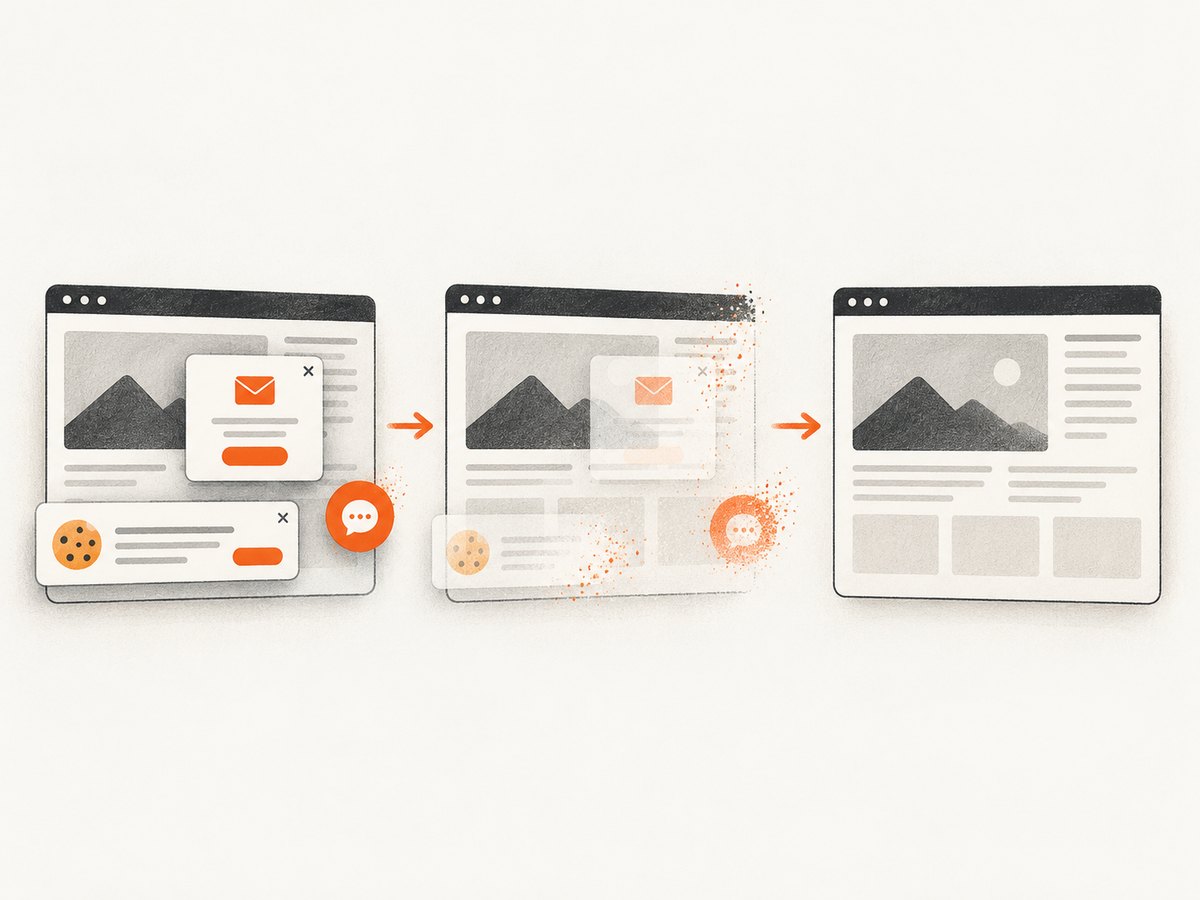
ScreenshotNeo removes cookie and consent banners, newsletter popups, and chat widgets before capture. Bot checks, blank pages, timeouts, failed loads, and cache hits cost nothing; each response reports the result with X-Page-Verdict and X-Billed headers. An MCP server provides take_screenshot, get_page_info, and capture_pdf tools for Claude, Cursor, and other MCP clients.
The Free plan includes 1,000 shots per month with no card. Paid plans start at $5 for 3,000 shots; yearly billing gives two months free, and every feature is included on every plan. Create a free ScreenshotNeo account.
Troubleshooting
| Symptom | Likely cause | Fix |
|---|---|---|
| The image stops at the visible viewport | Viewport capture was selected | Open the device-toolbar More options menu and choose Capture a full size screenshot. |
| The desktop or taskbar is missing | DevTools captures the webpage only | Use ChromeOS Screen Capture, Windows Snipping Tool, or your operating system’s display utility. |
| Images are blank below the fold | Lazy loading did not trigger | Scroll through the page first, wait for media, or use an automated/API capture that supports lazy-image loading. |
| A cookie dialog covers the result | The page requires consent before showing content | Accept or dismiss it before capture, or use ScreenshotNeo’s consent-banner removal. |
| The page never finishes loading | Analytics, ads, streaming, or third-party requests remain open | Wait for a known selector or delay instead of indefinite network idle; block unnecessary resources where your workflow permits. |
| Text changes between captures | Fonts, animations, ads, or live data are nondeterministic | Use a stable test URL, wait for fonts, hide animations, block ads, and record the viewport and timestamp. |
| The API response is not an image | Authentication, URL encoding, or an upstream failure | Check the HTTP status and response headers, URL-encode the target, keep the access key private, and inspect X-Page-Verdict and X-Billed. |
Performance, reliability, and cost notes
- Dimensions: very tall pages create large files. Capture a specific element or resize the output when a full document is unnecessary.
- Repeatability: fix viewport, device scale, timezone, geolocation, cookies, and user agent for comparable results.
- Reliability: define a selector or delay for pages with long-running requests. Separate navigation failures from valid pages that happen to contain an error message.
- Cost: manual Chrome and operating-system captures have no API usage charge. ScreenshotNeo bills only clean shots; failed loads, blank pages, bot checks, timeouts, and cache hits are not billed.
- Throughput: use caching with a TTL you choose, asynchronous jobs with signed webhooks, or bulk capture for up to 100 URLs per call when processing a list.
FAQ
Does Chrome’s full-size screenshot include the address bar?
No. It captures the webpage, including content below the viewport. Use an operating-system full-display capture for the address bar, tabs, taskbar, or other windows.
Can I capture one element instead of the whole page?
Yes. DevTools can capture the current viewport, while ScreenshotNeo supports selecting one element by CSS selector.
Why is my full-page image extremely tall?
A full-page capture includes all page content. Capture a specific element, resize the output, or export a PDF when a document format is more useful.
Can an AI agent take these screenshots?
Yes. ScreenshotNeo includes an MCP server with screenshot, page-info, and PDF tools for MCP clients such as Claude and Cursor.
What should I use for a one-time manual capture?
Use Chrome DevTools for a webpage or your operating system’s Screen Capture/Snipping Tool for the entire display.


