BlogScreenshots on your device
How to Capture Full-Screen Applications with Java Robot
Capture a primary display or any monitor with Java Robot, handle HiDPI and headless systems, and save reliable PNG screenshots.

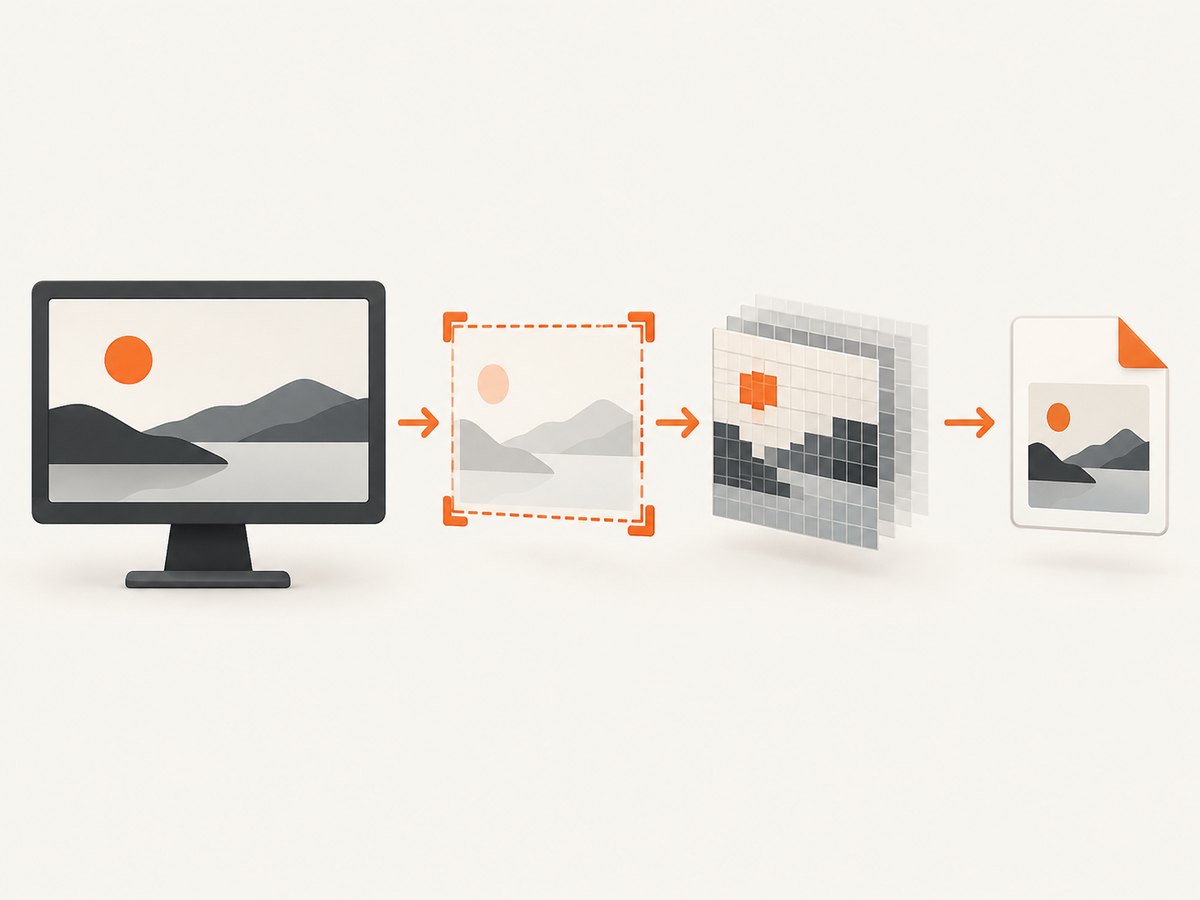
Direct answer: use java.awt.Robot.createScreenCapture(Rectangle) with a rectangle covering the display. For the primary monitor, get its logical size from Toolkit.getDefaultToolkit().getScreenSize(). For another monitor, use that device’s GraphicsConfiguration bounds and construct new Robot(device). Save the returned BufferedImage with ImageIO.write.
The Oracle Robot API reads pixels from a screen rectangle. Capture must run in a graphical session with the required desktop permissions; it cannot work in a headless server.
Capture the primary display
This complete example checks for headless mode, validates the rectangle, captures the whole primary display, and writes a PNG.
import java.awt.AWTException;
import java.awt.Dimension;
import java.awt.GraphicsEnvironment;
import java.awt.Rectangle;
import java.awt.Robot;
import java.awt.Toolkit;
import java.awt.image.BufferedImage;
import java.io.IOException;
import java.nio.file.Files;
import java.nio.file.Path;
import javax.imageio.ImageIO;

public final class FullScreenCapture {
    public static Path capture(Path output) throws AWTException, IOException {
        if (GraphicsEnvironment.isHeadless()) {
            throw new IllegalStateException(
                "A display is required for Robot screen capture");
        }

        Dimension size = Toolkit.getDefaultToolkit().getScreenSize();
        if (size.width <= 0 || size.height <= 0) {
            throw new IllegalStateException("The primary display has no usable size");
        }

        Rectangle screen = new Rectangle(0, 0, size.width, size.height);
        Robot robot = new Robot();
        BufferedImage image = robot.createScreenCapture(screen);

        Path parent = output.toAbsolutePath().getParent();
        if (parent != null) {
            Files.createDirectories(parent);
        }
        ImageIO.write(image, "png", output.toFile());
        return output;
    }

    public static void main(String[] args) throws Exception {
        Path output = Path.of(args.length == 0 ? "screen.png" : args[0]);
        System.out.println("Wrote " + capture(output));
    }
}
Compile and run it in a desktop session:
javac FullScreenCapture.java
java FullScreenCapture capture.png
What the rectangle means
The rectangle uses screen coordinates and must have positive width and height. A primary-display capture normally starts at (0, 0) and uses the width and height returned by the default toolkit. The resulting image dimensions are the rectangle dimensions in logical screen coordinates.
Capture a specific monitor
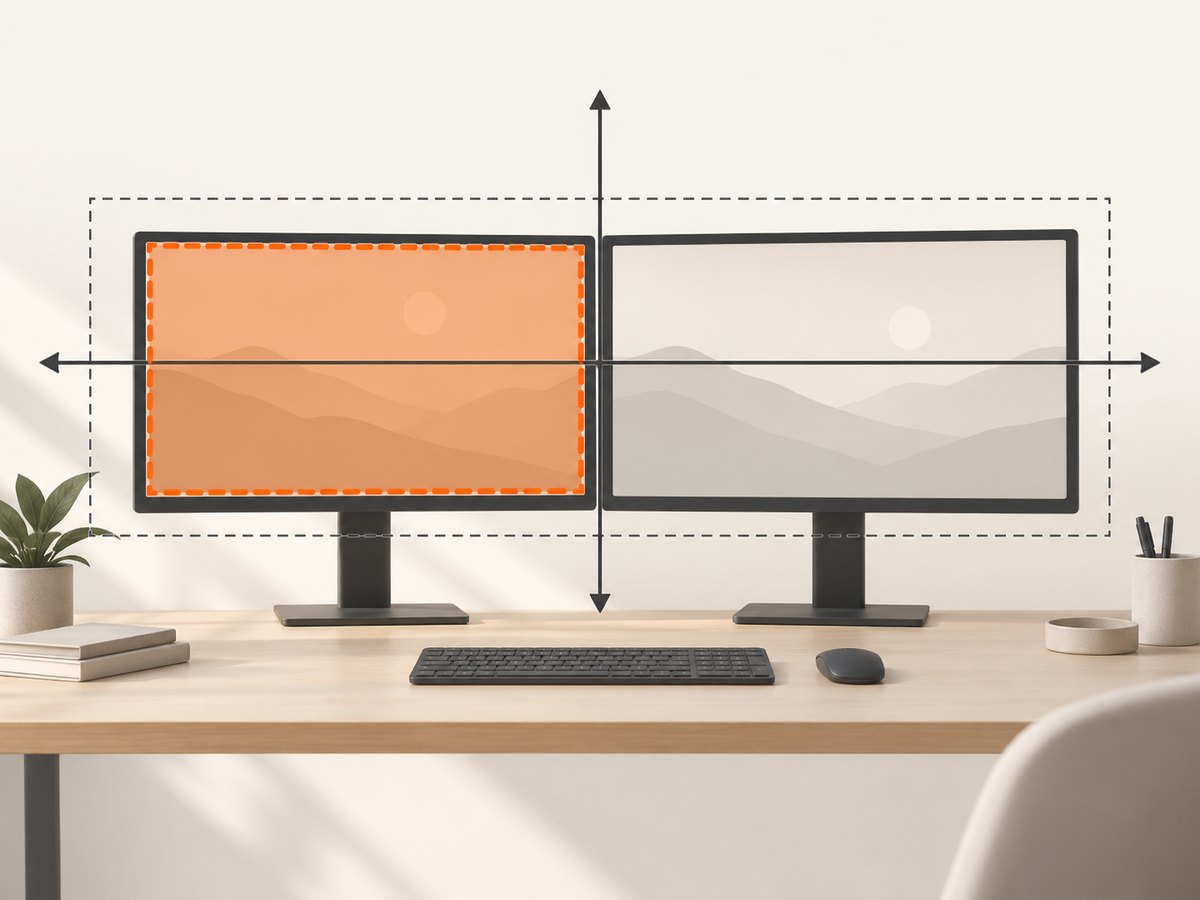
Enumerate the graphics devices, select one, read its configuration bounds, and pass the device to Robot. Do not assume every monitor starts at (0, 0): a display positioned left or above the primary display can have negative coordinates.
import java.awt.GraphicsDevice;
import java.awt.GraphicsEnvironment;
import java.awt.Rectangle;
import java.awt.Robot;
import java.awt.image.BufferedImage;
import java.nio.file.Path;
import javax.imageio.ImageIO;

public final class MonitorCapture {
    public static void capture(int monitorIndex, Path output) throws Exception {
        if (java.awt.GraphicsEnvironment.isHeadless()) {
            throw new IllegalStateException("A graphical desktop is required");
        }

        GraphicsEnvironment environment =
            GraphicsEnvironment.getLocalGraphicsEnvironment();
        GraphicsDevice[] devices = environment.getScreenDevices();
        if (monitorIndex < 0 || monitorIndex >= devices.length) {
            throw new IllegalArgumentException(
                "monitorIndex must be between 0 and " + (devices.length - 1));
        }

        GraphicsDevice device = devices[monitorIndex];
        Rectangle bounds = device.getDefaultConfiguration().getBounds();
        if (bounds.width <= 0 || bounds.height <= 0) {
            throw new IllegalStateException("Selected monitor has no usable bounds");
        }

        Robot robot = new Robot(device);
        BufferedImage image = robot.createScreenCapture(bounds);
        ImageIO.write(image, "png", output.toFile());

        System.out.printf("Captured %s (%d x %d)%n",
            device.getIDstring(), image.getWidth(), image.getHeight());
    }

    public static void main(String[] args) throws Exception {
        int monitor = args.length > 0 ? Integer.parseInt(args[0]) : 0;
        Path output = Path.of(args.length > 1 ? args[1] : "monitor.png");
        capture(monitor, output);
    }
}
Use GraphicsConfiguration.getBounds() rather than a toolkit-wide size when you need one physical device. Display topology can change while a process is running; recreate the device-specific Robot after a monitor is added, removed, or rearranged.
HiDPI and multi-resolution screenshots
On a scaling-enabled desktop, logical coordinates and device pixels can differ. Java 9 and later provide createMultiResolutionScreenCapture(Rectangle). The returned MultiResolutionImage can contain a base image at the requested logical size and a native-resolution variant.
import java.awt.GraphicsEnvironment;
import java.awt.Rectangle;
import java.awt.Robot;
import java.awt.Toolkit;
import java.awt.image.BufferedImage;
import java.awt.image.MultiResolutionImage;
import java.nio.file.Path;
import javax.imageio.ImageIO;

public final class HiDpiCapture {
    public static void main(String[] args) throws Exception {
        if (GraphicsEnvironment.isHeadless()) {
            throw new IllegalStateException("A display is required");
        }

        var size = Toolkit.getDefaultToolkit().getScreenSize();
        Rectangle area = new Rectangle(0, 0, size.width, size.height);
        MultiResolutionImage multi = new Robot()
            .createMultiResolutionScreenCapture(area);

        // The image matching the requested logical dimensions.
        BufferedImage logical = multi.getResolutionVariant(
            (double) area.width, (double) area.height);
        ImageIO.write(logical, "png", Path.of("screen-logical.png").toFile());

        // Select the largest available variant for a pixel-dense archive.
        BufferedImage nativeVariant = multi.getResolutionVariants().stream()
            .map(image -> (BufferedImage) image)
            .max((a, b) -> Integer.compare(
                a.getWidth() * a.getHeight(), b.getWidth() * b.getHeight()))
            .orElse(logical);
        ImageIO.write(nativeVariant, "png",
            Path.of("screen-native.png").toFile());
    }
}| Goal | Choose | Result |
|---|---|---|
| Match the desktop layout and CSS-like logical dimensions | Base or logical variant | Smaller image corresponding to requested user-space size |
| Preserve maximum detail for archival or OCR processing | Native-resolution variant | More device pixels on scaled displays |
Run capture without freezing a Swing or AWT UI
Screen capture may take time, especially when the operating system asks for permission. Keep it off the AWT Event Dispatch Thread and report the result back to the UI thread.
ExecutorService executor = Executors.newSingleThreadExecutor();
executor.submit(() -> {
    try {
        Path file = FullScreenCapture.capture(Path.of("background.png"));
        SwingUtilities.invokeLater(() ->
            statusLabel.setText("Saved " + file));
    } catch (Exception error) {
        SwingUtilities.invokeLater(() ->
            statusLabel.setText("Capture failed: " + error.getMessage()));
    }
});
Use a bounded executor when captures can be requested repeatedly. Avoid starting several simultaneous captures unless you have measured the memory and I/O impact.
Output formats and file handling
- PNG: lossless and generally the safest choice for text, UI edges, and pixel comparison.
- JPEG: smaller for photographic content, but introduces lossy artifacts around text and sharp edges.
- WebP: available only when an installed ImageIO writer supports it; check the return value of
ImageIO.write.
ImageIO.write returns false when no writer exists for the requested format. Treat that as an error instead of silently claiming success:
boolean written = ImageIO.write(image, "png", output.toFile());
if (!written) {
    throw new IOException("No ImageIO writer for PNG");
}
Create the parent directory before writing, use a unique filename for concurrent jobs, and close any stream you open with try-with-resources. A full multi-monitor image can be large; do not keep unnecessary copies in memory.
Headless servers and desktop permissions
Check GraphicsEnvironment.isHeadless() before creating Robot. In a headless environment, Robot construction always throws AWTException. Containers, SSH sessions without a graphical display, CI runners, and Linux servers without an X11 or Wayland desktop commonly fall into this category.
On systems that protect screen recording, the process may need explicit permission. A denied permission can produce SecurityException or undefined image contents. Grant the application the platform’s screen-recording or display-read permission, then restart it if the operating system requires that.
Common errors and fixes
| Symptom | Likely cause | Fix |
|---|---|---|
AWTException: headless environment |
No graphical display is available. | Run inside a real desktop session or use a browser screenshot service for remote pages. Do not try to create Robot in headless mode. |
SecurityException or black/undefined pixels |
Screen-capture permission is missing or denied. | Enable the application’s desktop or screen-recording permission and retry. |
| Only part of a monitor is captured | The rectangle uses the primary screen size or incorrect coordinates. | Use the selected device’s GraphicsConfiguration.getBounds(), including negative x/y values. |
| Image is soft or has unexpected dimensions | HiDPI scaling maps logical coordinates to device pixels. | Use createMultiResolutionScreenCapture and choose the logical or native variant deliberately. |
| UI stops responding | Capture and encoding run on the Event Dispatch Thread. | Move capture and file writing to a worker thread. |
| Capture becomes wrong after docking or undocking | Display topology changed after the Robot was created. |
Enumerate devices again and recreate the device-specific Robot. |
| Output file is missing or empty | Parent directory does not exist, or no ImageIO writer is installed. | Create parent directories and check the boolean result from ImageIO.write. |
| Mouse pointer is absent or present unexpectedly | Cursor drawing is platform-dependent and not universally guaranteed by the API. | Treat cursor inclusion as unresolved until verified on the target OS and desktop. |
Performance and reliability checklist
- Capture only the required monitor or rectangle instead of the entire virtual desktop when possible.
- Run capture and encoding on a worker thread.
- Use PNG for deterministic pixel comparisons; consider JPEG only when artifacts are acceptable.
- Bound the capture queue so repeated requests cannot consume unbounded memory.
- Re-enumerate displays after a topology change.
- Record the rectangle, display ID, image dimensions, Java version, and exception when diagnosing failures.
- Test on each target operating system, desktop environment, scaling setting, and permission policy.
- Expect a larger native HiDPI image to require more memory and disk space.
Or skip the browser setup
Java Robot captures the desktop attached to the process. If your input is a web page and you need a repeatable server-side image, ScreenshotNeo provides a single HTTP request. See the ScreenshotNeo API documentation for all options.
curl -G "https://api.screenshotneo.com/v1/shot" \
  -d access_key=YOUR_API_KEY \
  --data-urlencode url=https://stripe.com \
  -o shot.webp
import requests
r = requests.get(
"https://api.screenshotneo.com/v1/shot",
params={"access_key": "YOUR_API_KEY", "url": "https://stripe.com"},
timeout=90,
)
r.raise_for_status()
open("shot.webp", "wb").write(r.content)const q = new URLSearchParams({
access_key: 'YOUR_API_KEY',
url: 'https://stripe.com'
});
const res = await fetch(`https://api.screenshotneo.com/v1/shot?${q}`);
if (!res.ok) throw new Error(`HTTP ${res.status}`);
const data = Buffer.from(await res.arrayBuffer());
require('fs').writeFileSync('shot.webp', data);Cookie banners, newsletter popups and chat widgets are removed before the shot. Bot checks, blank pages and failed loads are never billed, and the response identifies the page verdict and billing status with X-Page-Verdict and X-Billed headers. ScreenshotNeo also provides an MCP server so AI agents can take screenshots, and includes 1,000 screenshots a month free with no card; paid plans start at $5 for 3,000. Create a free ScreenshotNeo account.
FAQ
Can Robot capture every monitor as one image?
Yes, construct a rectangle covering the virtual desktop coordinates, but verify the combined bounds and negative origins on the target system. Capturing each device separately is usually easier to reason about.
Does Robot capture a minimized or occluded window?
Robot reads pixels from the screen. It does not render a hidden application’s off-screen contents; another window covering the area can appear in the screenshot.
Should I use a native-resolution image in automated tests?
Use the same resolution policy every time. Logical variants make dimensions stable across scaling settings, while native variants preserve detail but can change dimensions with the display scale.
Can I use Java Robot in a Docker container?
Only when the container has access to a graphical desktop and its display permissions. A normal headless container cannot provide the screen pixels Robot requires.
Is the cursor guaranteed to appear?
No. Cursor inclusion is not universally guaranteed by the Robot screen-capture API, so verify it on the operating systems where it matters.


