BlogScreenshots on your device
How to Capture Full-Screen Screenshots in Java
Use Java's Robot API to capture one monitor, every display, or high-DPI variants, with fixes for headless servers and permissions.
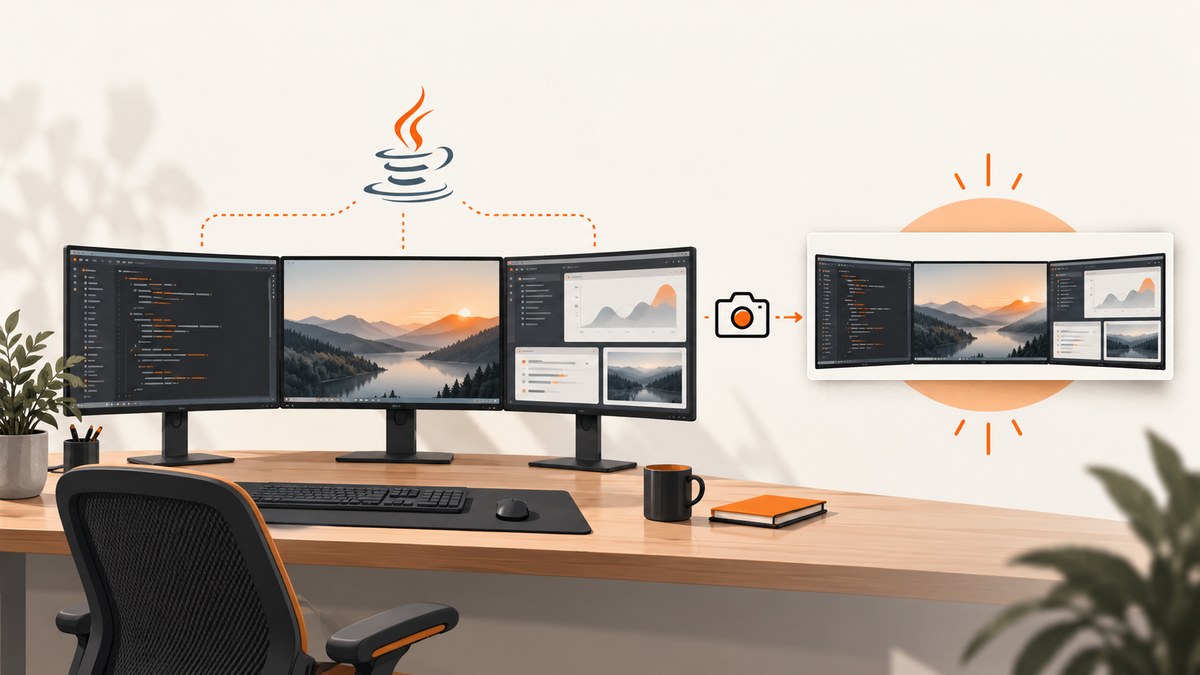
Use java.awt.Robot. Its createScreenCapture(Rectangle) method reads pixels from a screen rectangle and returns a BufferedImage. For one display, capture that display’s bounds. For every monitor, union all GraphicsConfiguration bounds first. On scaled displays, use createMultiResolutionScreenCapture when you need both user-size and native-resolution variants.
1. Capture the primary screen
This complete program captures the default screen and writes a PNG file:
import java.awt.Dimension;
import java.awt.Rectangle;
import java.awt.Robot;
import java.awt.Toolkit;
import java.awt.image.BufferedImage;
import java.io.File;
import javax.imageio.ImageIO;

public class FullScreenShot {
    public static void main(String[] args) throws Exception {
        Robot robot = new Robot();
        Dimension size = Toolkit.getDefaultToolkit().getScreenSize();
        BufferedImage image = robot.createScreenCapture(new Rectangle(size));
        ImageIO.write(image, "png", new File("screenshot.png"));
    }
}
The rectangle is expressed in screen coordinates. Toolkit.getDefaultToolkit().getScreenSize() describes the default display, so this version is appropriate for a single-monitor or primary-display capture.
2. Capture one selected monitor
For a particular display, obtain its GraphicsDevice, create the Robot for that device, and capture the device configuration bounds:
import java.awt.GraphicsConfiguration;
import java.awt.GraphicsDevice;
import java.awt.GraphicsEnvironment;
import java.awt.Rectangle;
import java.awt.Robot;
import java.awt.image.BufferedImage;
import java.io.File;
import javax.imageio.ImageIO;

public class SelectedMonitorShot {
    public static void main(String[] args) throws Exception {
        GraphicsEnvironment environment =
                GraphicsEnvironment.getLocalGraphicsEnvironment();
        GraphicsDevice[] devices = environment.getScreenDevices();

        int monitorIndex = 0; // Change this to select another display.
        if (monitorIndex < 0 || monitorIndex >= devices.length) {
            throw new IllegalArgumentException("Monitor index is out of range");
        }

        GraphicsDevice device = devices[monitorIndex];
        GraphicsConfiguration configuration = device.getDefaultConfiguration();
        Rectangle bounds = configuration.getBounds();

        Robot robot = new Robot(device);
        BufferedImage image = robot.createScreenCapture(bounds);
        ImageIO.write(image, "png", new File("monitor-" + monitorIndex + ".png"));
    }
}
Do not assume that monitor zero is always the display physically leftmost or the display with coordinates beginning at (0, 0). Use the bounds returned by Java.
3. Capture the entire desktop across monitors
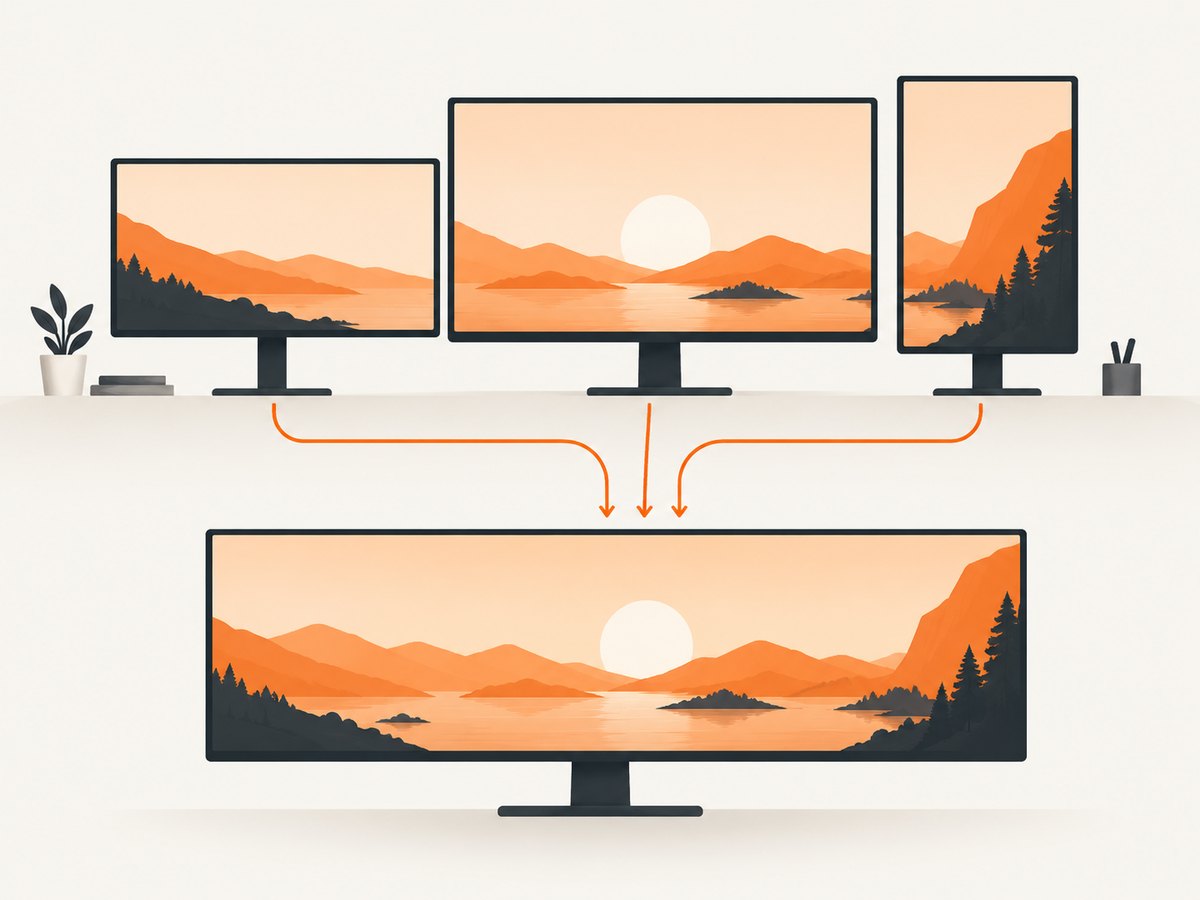
Monitors can have negative coordinates, gaps, or different arrangements. Build the union of every device’s configuration bounds, then capture that rectangle:
import java.awt.GraphicsConfiguration;
import java.awt.GraphicsDevice;
import java.awt.GraphicsEnvironment;
import java.awt.Rectangle;
import java.awt.Robot;
import java.awt.image.BufferedImage;
import java.io.File;
import javax.imageio.ImageIO;

public class AllMonitorsShot {
    public static void main(String[] args) throws Exception {
        GraphicsEnvironment environment =
                GraphicsEnvironment.getLocalGraphicsEnvironment();

        Rectangle desktop = null;
        for (GraphicsDevice device : environment.getScreenDevices()) {
            for (GraphicsConfiguration configuration : device.getConfigurations()) {
                Rectangle bounds = configuration.getBounds();
                desktop = desktop == null
                        ? new Rectangle(bounds)
                        : desktop.union(bounds);
            }
        }

        if (desktop == null || desktop.width <= 0 || desktop.height <= 0) {
            throw new IllegalStateException("No usable screen bounds were found");
        }

        BufferedImage image = new Robot().createScreenCapture(desktop);
        ImageIO.write(image, "png", new File("all-monitors.png"));
    }
}
The resulting image includes the full bounding rectangle. If displays are arranged with a gap, that gap appears in the image. If one display is above or left of another, the union can have negative x or y values; that is valid screen-coordinate data.
4. High-DPI and multi-resolution screenshots
When an application needs resolution variants on a scaled display, call createMultiResolutionScreenCapture(Rectangle). It returns a MultiResolutionImage, which can contain a user-size base image and a native device-resolution image:
import java.awt.GraphicsEnvironment;
import java.awt.Rectangle;
import java.awt.Robot;
import java.awt.image.BufferedImage;
import java.awt.image.MultiResolutionImage;
import java.io.File;
import javax.imageio.ImageIO;

public class HiDpiShot {
    public static void main(String[] args) throws Exception {
        Rectangle bounds = GraphicsEnvironment
                .getLocalGraphicsEnvironment()
                .getDefaultScreenDevice()
                .getDefaultConfiguration()
                .getBounds();

        MultiResolutionImage multi =
                new Robot().createMultiResolutionScreenCapture(bounds);

        int variantNumber = 0;
        for (java.awt.Image variant : multi.getResolutionVariants()) {
            if (variant instanceof BufferedImage buffered) {
                ImageIO.write(buffered, "png",
                        new File("screen-variant-" + variantNumber + ".png"));
                variantNumber++;
            }
        }
    }
}
An unscaled display may provide only one variant. Choose the variant that matches your downstream storage or rendering requirements.
5. Run capture outside the event-dispatch thread
Screen capture can take time, especially when the operating system needs to request permission. Do not run it on Swing’s AWT event-dispatch thread. A simple background-thread pattern is:
new Thread(() -> {
    try {
        Robot robot = new Robot();
        Rectangle bounds = java.awt.GraphicsEnvironment
                .getLocalGraphicsEnvironment()
                .getDefaultScreenDevice()
                .getDefaultConfiguration()
                .getBounds();
        BufferedImage image = robot.createScreenCapture(bounds);
        javax.imageio.ImageIO.write(image, "png",
                new java.io.File("background-shot.png"));
    } catch (Exception error) {
        error.printStackTrace();
    }
}, "screen-capture").start();
6. Runtime requirements and failure modes
| Symptom | Cause | Fix |
|---|---|---|
AWTException from new Robot() |
The process is headless, or the platform disallows low-level input and screen access. | Run in an interactive desktop session with display access. For a server without a desktop, use a browser-based capture service or attach a supported virtual display. |
SecurityException or blank/undefined pixels |
Operating-system screen-recording permission is denied. | Grant the Java runtime or packaged application screen-recording permission, then restart it if the platform requires a restart. |
| Illegal argument or empty output | The rectangle has a non-positive width or height, often because no usable device bounds were found. | Validate width and height before capture and inspect the returned device configuration. |
| Only one monitor appears | The code used Toolkit.getScreenSize(), which describes the default display. |
Union all GraphicsConfiguration.getBounds() rectangles as shown above. |
| Content is cropped or offset | Monitor coordinates differ across platforms or include negative positions. | Capture the union rectangle instead of assuming an origin of (0, 0), and log each device’s bounds during deployment testing. |
| Capture freezes the UI | The operation ran on the event-dispatch thread. | Move capture and file encoding to a worker thread. |
Display topology can change while an application is running. If a monitor is unplugged, resolution changes, or scaling changes, discard cached assumptions and recalculate bounds. Recreate a screen-specific Robot when necessary.
7. PNG, JPEG and other output choices
Robot returns pixels; ImageIO.write chooses the file format. PNG preserves sharp text and does not introduce JPEG artifacts. JPEG can reduce file size for photographic screens but is lossy. Check the boolean return value from ImageIO.write if the format may be configurable:
boolean written = ImageIO.write(image, "png", outputFile);
if (!written) {
    throw new java.io.IOException("No ImageIO writer for the selected format");
}
8. Performance, memory and reliability
- Memory: an ARGB image uses roughly four bytes per pixel before encoder buffers. A large multi-monitor union can therefore consume substantial heap.
- Encoding: PNG encoding is CPU and I/O work. Keep it off the UI thread and write to a destination with enough space.
- Frequency: for repeated captures, reuse a stable worker and avoid capturing a larger rectangle than needed.
- Consistency: the image represents the desktop at capture time; windows can move or animate during the operation.
- Permissions: test the exact runtime, packaging format and operating-system account used in production. Permissions granted to an IDE may not apply to a packaged service.
- Headless deployment:
Robotis a desktop API. A cloud worker without an attached display needs a browser capture architecture or a virtual display rather than a Java screen-pixel API.
9. Testing checklist
- Test one monitor and at least two monitors.
- Test a monitor positioned left or above the primary display.
- Test mixed scaling and high-DPI settings.
- Test after unplugging or reconnecting a display.
- Test the packaged runtime with screen-recording permissions.
- Verify that output dimensions, format and file permissions match your application requirements.
10. Or skip the browser setup
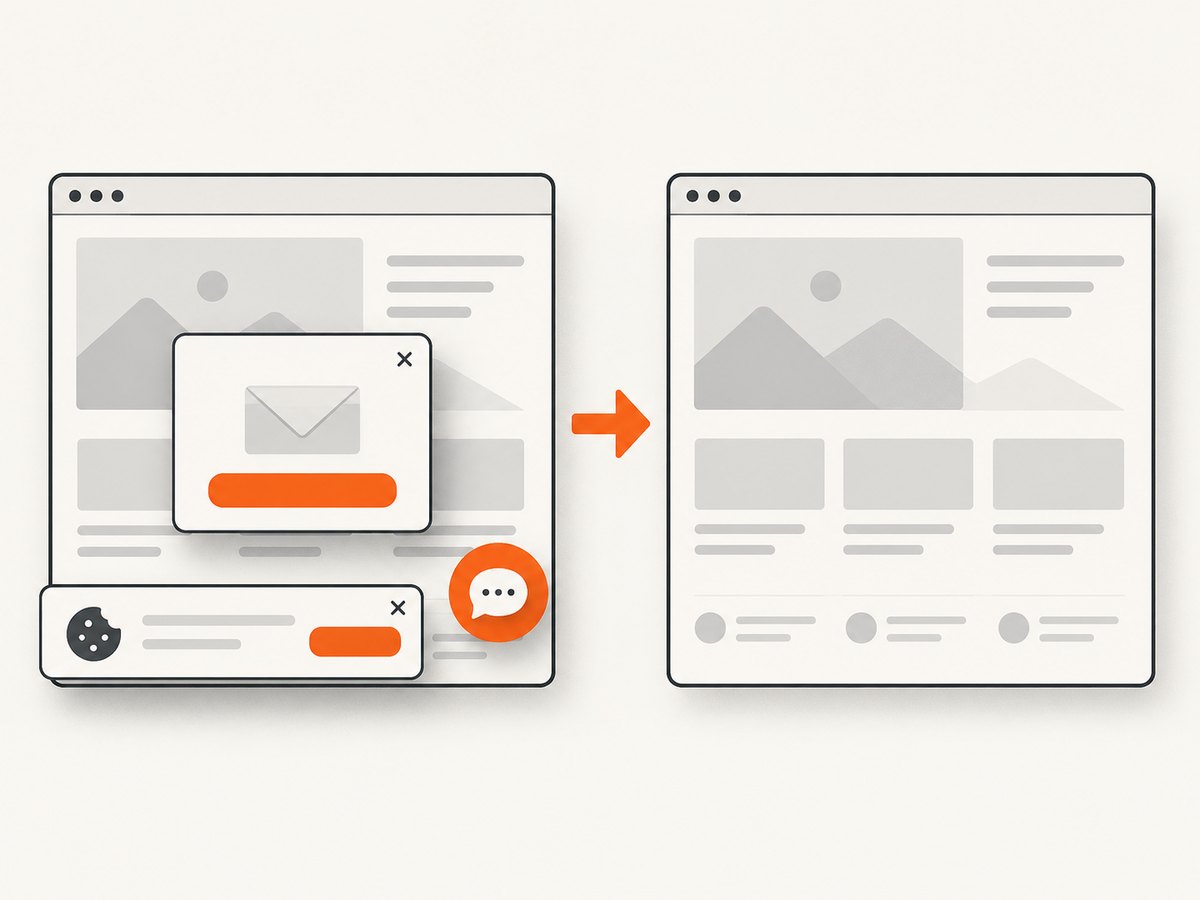
If your goal is a screenshot of a web page rather than the pixels of an interactive desktop, ScreenshotNeo provides a single HTTP capture endpoint. It removes cookie banners, newsletter popups and chat widgets before the shot; bot checks, blank pages and failed loads are never billed; and its MCP server lets AI agents take screenshots.
See the ScreenshotNeo API documentation for request options. This is a web-page capture API, so it does not replace Robot when you need the local desktop, but it avoids managing a browser on a server.
curl -G "https://api.screenshotneo.com/v1/shot" -d access_key=YOUR_API_KEY --data-urlencode url=https://stripe.com -o shot.webpimport requests
r = requests.get("https://api.screenshotneo.com/v1/shot", params={"access_key": "YOUR_API_KEY", "url": "https://stripe.com"}, timeout=90)
open("shot.webp", "wb").write(r.content)const q = new URLSearchParams({ access_key: 'YOUR_API_KEY', url: 'https://stripe.com' });
const res = await fetch(`https://api.screenshotneo.com/v1/shot?${q}`);ScreenshotNeo includes full-page capture with lazy images loaded, element capture by CSS selector, device presets and custom viewports, retina scale, custom CSS and JavaScript, waits, blocking rules, headers, cookies, user agents, timezone and geolocation, resizing, caching, signed links, asynchronous jobs, bulk capture and a usage API. Clean shots are the only billable results; the response identifies the page verdict and billing status in X-Page-Verdict and X-Billed headers. The free plan includes 1,000 screenshots a month with no card, and paid plans start at $5 for 3,000. Create a free ScreenshotNeo account.
11. FAQ
Can Java capture a browser window instead of the whole screen?
Yes, but Robot captures a rectangle of pixels. You must know the window’s screen bounds and account for movement, scaling and overlapping windows.
Does Robot work on a headless Linux server?
Not by itself. A headless environment commonly causes AWTException. Use an interactive display, a supported virtual display, or a web screenshot architecture.
Which method handles Retina or other scaled displays?
Use createMultiResolutionScreenCapture when you need resolution variants. The regular method is sufficient when one pixel resolution is all you need.
Why does a second monitor have negative coordinates?
The virtual desktop coordinate system can place a display left of or above the primary display. Negative coordinates are valid; union the device bounds rather than clamping them.
Can I make the capture transparent?
No. A screen capture records the composited desktop pixels, including the desktop background behind transparent application windows.


