BlogScreenshots on your device
How to Capture a Full Web Page in Windows 10
Capture an entire scrolling webpage in Windows 10 with Edge Screenshot, compare alternatives, fix common issues, and automate captures with ScreenshotNeo.
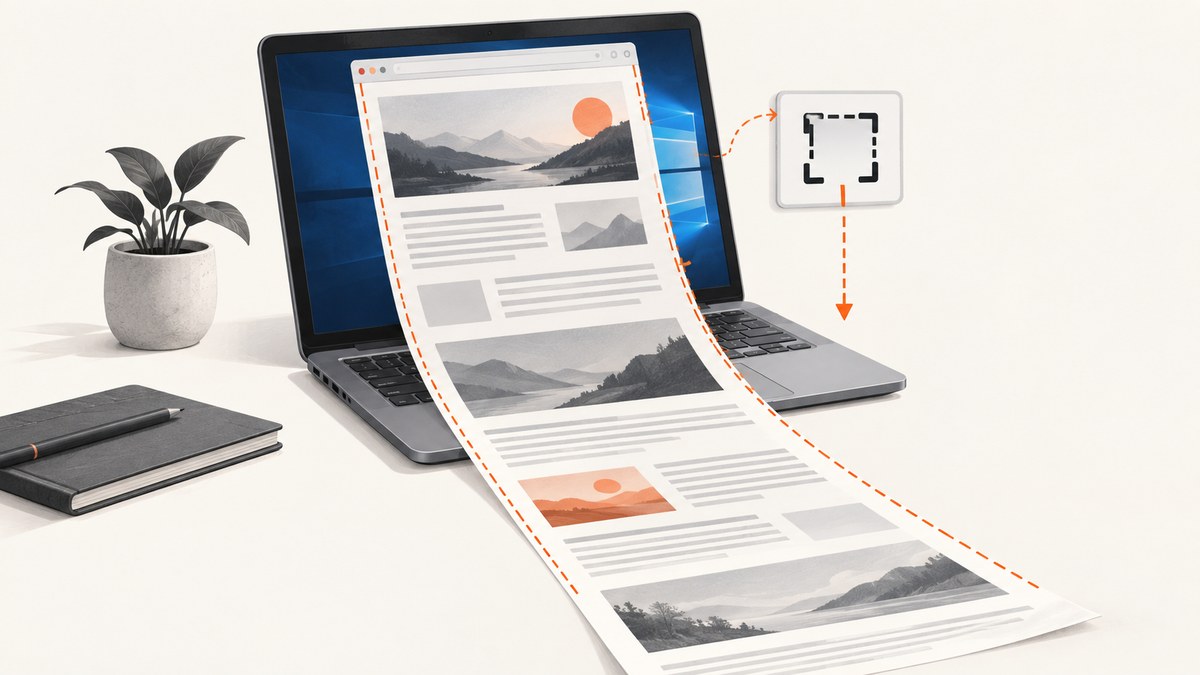
To capture a full web page in Windows 10, use Microsoft Edge’s built-in Screenshot feature (previously called Web Capture). Open the page, press Ctrl+Shift+S, choose the full-page option, then copy or save the result. This captures content below the visible viewport, including long pages. Microsoft documents Screenshot as supporting full-page and selected-area captures, with markup available before you copy or save.
This guide explains the exact Edge workflow, how it differs from Snipping Tool, what to do when a page does not capture correctly, and how to automate captures. For a repeatable API workflow, ScreenshotNeo can render a URL as PNG, JPEG, WebP, or PDF without browser setup.
1. Capture a full webpage with Microsoft Edge
- Open Microsoft Edge on your Windows 10 computer.
- Navigate to the webpage you want to capture and wait for the content you need to appear.
- Start Screenshot with one of these documented entry points:
- Press Ctrl+Shift+S.
- Right-click on the page and choose Screenshot.
- Open Edge’s Settings and more menu and select Screenshot.
- In the capture overlay, select the option for the full page, rather than a selected area.
- Review the long image. Use the markup tools if you need to draw, highlight, or annotate.
- Choose Copy to place the image on the clipboard, or Save to write it to a file.
The full-page option is the correct choice for an article, documentation page, receipt, landing page, or other document that extends below the fold. The area option is better when you only need one component, such as a chart or form.
Keyboard shortcut versus menus
The shortcut is fastest when you capture pages often. The context-menu and Settings and more entries are useful when a keyboard shortcut is intercepted by another application or when you are teaching the workflow to someone else. Microsoft’s Edge policy documentation says that, when the Screenshot policy is enabled or left unconfigured, the command appears in the context menu, the Settings and more menu, and through Ctrl+Shift+S.
What “full page” includes
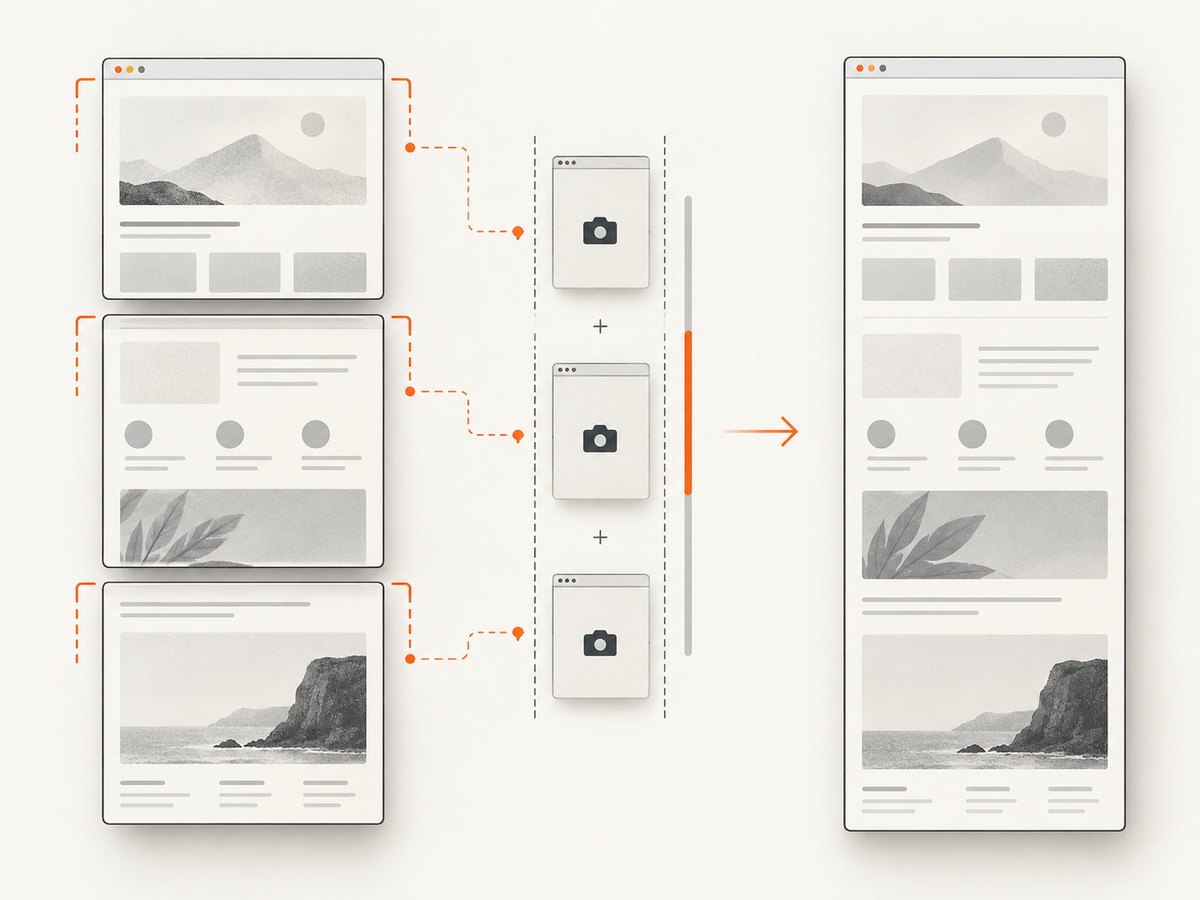
Edge stitches the page content beyond the current viewport into one image. It is designed for long or moving webpages, but a page can still behave differently when content is inside an embedded frame or a nested scrolling region. Do not assume that every independently scrolling panel inside an embedded application will be expanded into the outer page image.
2. Save, copy, and mark up the result
After Edge renders the capture, inspect the complete image before saving it. Long pages can make small defects easier to miss, such as a lazy image that has not loaded or a section that changes while the browser is stitching the page.
- Copy: sends the image to the clipboard so you can paste it into an editor, ticket, email, or document.
- Save: stores the capture as an image file through Edge’s save control.
- Markup: lets you annotate the result before copying or saving. Use this for review comments, bug reports, or teaching material.
For archival work, save the original capture first and make a marked-up copy afterward. This preserves an unmodified reference if you later need to compare the page again.
3. Edge Screenshot versus Windows Snipping Tool
Windows 10 includes Snipping Tool, but its documented modes are different from Edge’s webpage capture. Press Windows+Shift+S to open the Snipping Tool overlay, then choose a freeform, rectangular, window, or full-screen snip.
| Task | Best built-in tool | Reason |
|---|---|---|
| Entire webpage, including content below the fold | Edge Screenshot | It offers a full-page webpage capture. |
| Visible rectangle on the screen | Snipping Tool | Its rectangular mode is quick for a region. |
| One application window | Snipping Tool | Use its window mode. |
| Everything currently visible on the monitor | Snipping Tool | Use its full-screen mode. |
A full-screen snip does not automatically scroll a webpage. If you need the document below the viewport, return to Edge Screenshot and select full page.
4. When Edge full-page capture is the right choice
Edge Screenshot is a good fit when you need a one-off image and the page is publicly reachable in the browser. It requires no extension, script, API key, or separate capture program. It also keeps the workflow close to the page: open, capture, review, save.
Use another workflow when you need any of the following:
- Scheduled captures of many URLs.
- A consistent viewport, device scale, timezone, or geolocation.
- Authenticated requests with custom headers or cookies.
- Automatic removal of cookie banners, newsletter popups, and chat widgets.
- Images or PDFs generated by a build pipeline or backend service.
- Retries, webhooks, usage reporting, or a cache shared by multiple workers.
For browser alternatives, current interfaces change frequently. A secondary guide has described Firefox’s right-click Take Screenshot followed by Save full page. It has also described Chrome approaches including print-to-PDF, the developer tools full-size screenshot command, and extensions such as GoFullPage. Check the current browser documentation and version before publishing an internal procedure based on those menus.
5. Troubleshooting a missing or incomplete capture
Screenshot is not in the menu
First try Ctrl+Shift+S. If that does nothing, open Settings and more and look for Screenshot. An organization policy can disable the feature, so a managed Windows device may require an administrator to enable it. Updating Edge can also restore menu differences caused by an old build.
The result contains only the visible viewport
You probably selected an area capture or used Snipping Tool. Restart Edge Screenshot and explicitly choose full page. A normal screen snip cannot scroll a document for you.
Images or sections are blank
Many sites load images lazily as you scroll. Wait for the page to finish loading, scroll through important sections once, and then capture again. If the site replaces content while you scroll, pause animations or use a stable print/PDF or automated workflow.
A cookie banner or chat bubble covers the page
Dismiss the banner and close the widget before starting the capture. If the controls are difficult to select, use the browser’s site settings or an automated capture service that can remove common overlays before rendering.
An embedded panel is cut off
Edge captures the outer document, but a nested frame or independently scrolling panel may not expand. Look for an export function inside that application, capture the panel separately, or use an automation workflow that targets the element directly.
The page changes between captures
Dynamic ads, rotating carousels, live data, and consent dialogs can produce different pixels each time. Wait for a stable state, disable motion where the site allows it, and record the page URL and capture time with the image.
6. Or skip the browser setup
ScreenshotNeo provides a website screenshot API for PNG, JPEG, WebP, and PDF output. One GET request returns the rendered result. Its capture options include full-page pages with lazy images loaded, CSS-selector element capture, dark mode, device presets, custom viewports, retina scale, PDF paper and margin controls, custom CSS and JavaScript, click actions, selector hiding, selector or network-idle waits, request and resource blocking, custom headers and cookies, user agents, Authorization, timezone, geolocation, transparent backgrounds, resizing, caching with a chosen TTL, signed links, asynchronous jobs with signed webhooks, bulk capture for up to 100 URLs per call, usage reporting, and an OpenAPI specification.

cURL: see the ScreenshotNeo documentation for all parameters.
curl -G "https://api.screenshotneo.com/v1/shot" -d access_key=YOUR_API_KEY --data-urlencode url=https://stripe.com -o shot.webpPython:
import requests

r = requests.get(
    "https://api.screenshotneo.com/v1/shot",
    params={"access_key": "YOUR_API_KEY", "url": "https://stripe.com"},
    timeout=90,
)
r.raise_for_status()
open("shot.webp", "wb").write(r.content)
Node.js:
const q = new URLSearchParams({ access_key: 'YOUR_API_KEY', url: 'https://stripe.com' });
const res = await fetch(`https://api.screenshotneo.com/v1/shot?${q}`);
if (!res.ok) throw new Error(`HTTP ${res.status}`);
const fs = await import('node:fs/promises');
await fs.writeFile('shot.webp', Buffer.from(await res.arrayBuffer()));
Cookie banners, popups, and chat widgets are removed before the shot. Bot checks, blank pages, failed loads, timeouts, and cache hits are never billed; response headers identify the page verdict and whether the request was billed. ScreenshotNeo also has an MCP server with take_screenshot, get_page_info, and capture_pdf tools so Claude, Cursor, and other MCP clients can capture pages. The Free plan includes 1,000 screenshots each month with no card, and paid plans start at $5 for 3,000 shots.
Create a free ScreenshotNeo account to get 1,000 screenshots a month with no card.
7. Automating full-page captures reliably
For a service or script, treat a screenshot request as a rendering job rather than a simple file download. Use an explicit timeout, check the HTTP status, preserve response headers, and write the binary body without text conversion.
- Choose a stable URL: include the canonical page address and any required query parameters.
- Set rendering controls: select a viewport or device preset, full-page mode, a wait condition, and a format.
- Handle failures: retry transient network errors with backoff, but do not blindly retry a page that consistently returns a bot check or blank verdict.
- Validate output: check that the response is an image or PDF and that its size is plausible for the page.
- Cache intentionally: use a TTL when the source does not change often. Cache keys should include the URL and every visual option that affects the result.
For large batches, ScreenshotNeo supports bulk capture of up to 100 URLs per call. Asynchronous jobs and signed webhooks are useful when rendering time is longer than an interactive request budget. A signed link can serve an image directly in a public <img> tag without exposing your API key.
8. Performance, reliability, and cost considerations
Performance
Full-page images are larger than viewport screenshots. WebP is often a practical default when your consumers support it; JPEG is useful for photographic pages, while PNG preserves sharp text and transparency. Loading every lazy image improves completeness but increases rendering work. Capture only a CSS-selected element when you do not need the entire document.
Reliability
Wait for a selector when a specific component indicates readiness, use a delay for pages with predictable animation, or wait for network idle when the page finishes through network activity. Hide unstable selectors such as rotating ad slots. Keep the source URL, options, timestamp, and verdict with each artifact so a later comparison is explainable.
Cost
Manual Edge and Snipping Tool captures have no per-image API charge. An automated service is valuable when developer time, repeatability, cleanup, and batch processing matter. ScreenshotNeo bills only clean shots; bot checks, blank pages, timeouts, failed loads, and cache hits cost nothing. Its plans are Free (1,000 shots/month), Starter ($5 for 3,000), Growth ($15 for 15,000), Pro ($39 for 60,000), Scale ($99 for 250,000), and Business ($249 for 1,000,000). Yearly billing gives two months free, and every feature is included on every plan.
9. Checklist for a complete Windows 10 webpage screenshot
- Open the target URL in Edge.
- Wait for important content and images to load.
- Start Screenshot with Ctrl+Shift+S, the context menu, or Settings and more.
- Select full page, not selected area.
- Review the top, middle, and bottom of the rendered image.
- Dismiss overlays or repeat after closing them.
- Annotate only after preserving an original copy.
- Save or copy the final image and record its URL.
10. Frequently asked questions
Can Windows 10 take a scrolling screenshot?
Yes. In Edge, use Screenshot and choose full page. Snipping Tool’s documented modes capture the screen, a window, or a selected region; they do not provide the same webpage-scrolling workflow.
What was Edge Screenshot called before?
Microsoft previously called the feature Web Capture. Current instructions use the name Screenshot, although older help pages and videos may still use Web Capture.
Does full-page capture create a PDF?
Edge Screenshot creates an image capture. Use the browser’s print workflow for a PDF, or use ScreenshotNeo’s PDF endpoint options when you need controlled paper size, margins, orientation, or page ranges.
Can I capture a page that requires custom headers or cookies?
The manual Edge workflow uses your current browser session. For repeatable authenticated requests, an API such as ScreenshotNeo can send custom headers, cookies, user agents, and Authorization values.
How do I capture many URLs?
Manual capture is practical for a few pages. For a list, use an automated API with retries, caching, and batch support; ScreenshotNeo accepts up to 100 URLs in one bulk capture call.


