BlogScreenshots on your device
How to Capture Full Web Pages on Different Devices
Learn how to capture an entire scrolling webpage on iPhone, Android, Edge and Windows, plus an API workflow for automated screenshots.

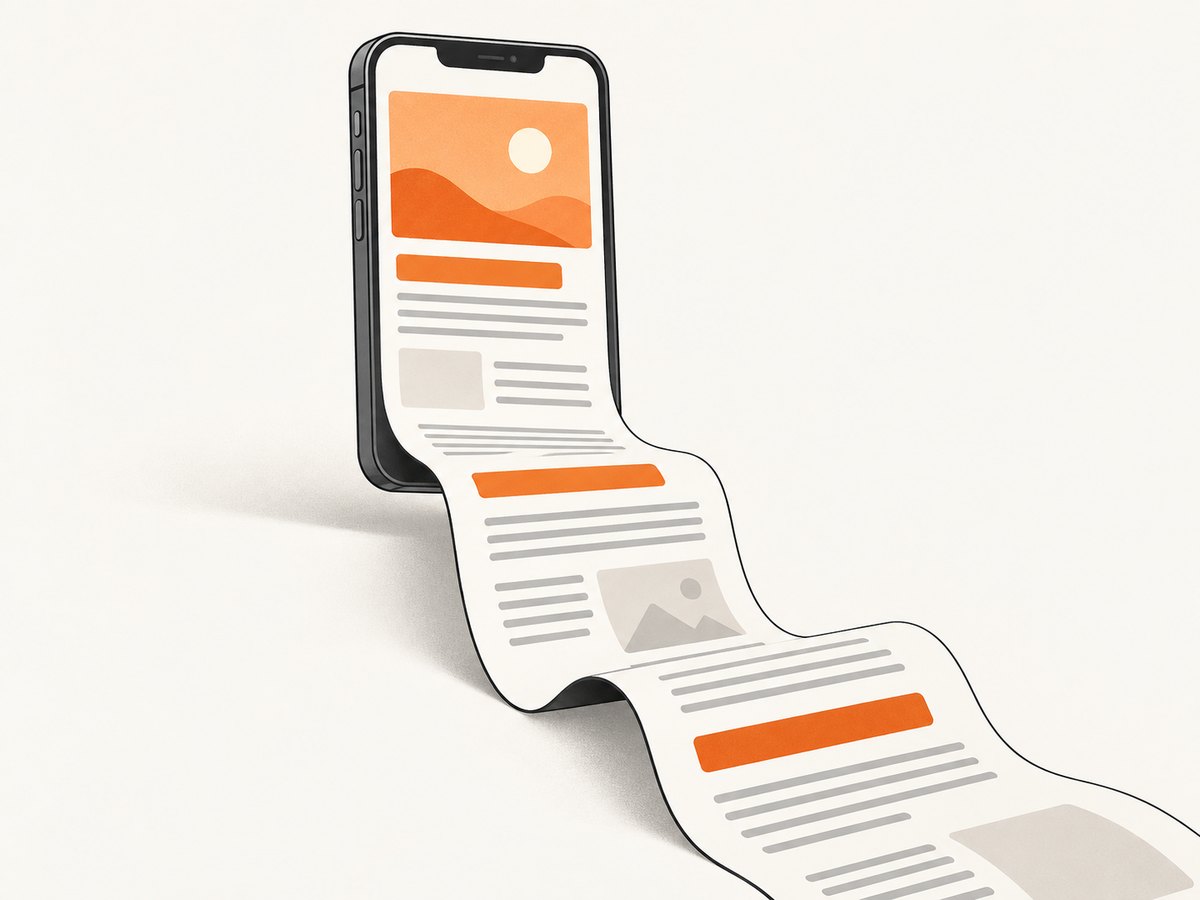
A normal screenshot captures only the pixels currently visible on your display. A full-page capture includes the content below the fold, so you get one image or PDF containing the entire webpage. The exact workflow depends on your device and software version.
For a quick answer: use Full Page in Safari on iPhone, Capture more on Android 12 or later, or Screenshot in Microsoft Edge on desktop. Windows Snipping Tool’s Full screen mode captures the display, not a scrolling webpage. If you need repeatable captures in code, use a browser automation script or a screenshot API such as ScreenshotNeo.
What a full webpage screenshot includes
A full webpage screenshot stitches the page’s scrollable content into one result. It can include navigation, hero sections, articles, tables and footers that are not visible at once. This differs from a full-display screenshot, which records every pixel on your monitor or phone at one moment. It also differs from a selected-area capture, which records only a rectangle you draw.
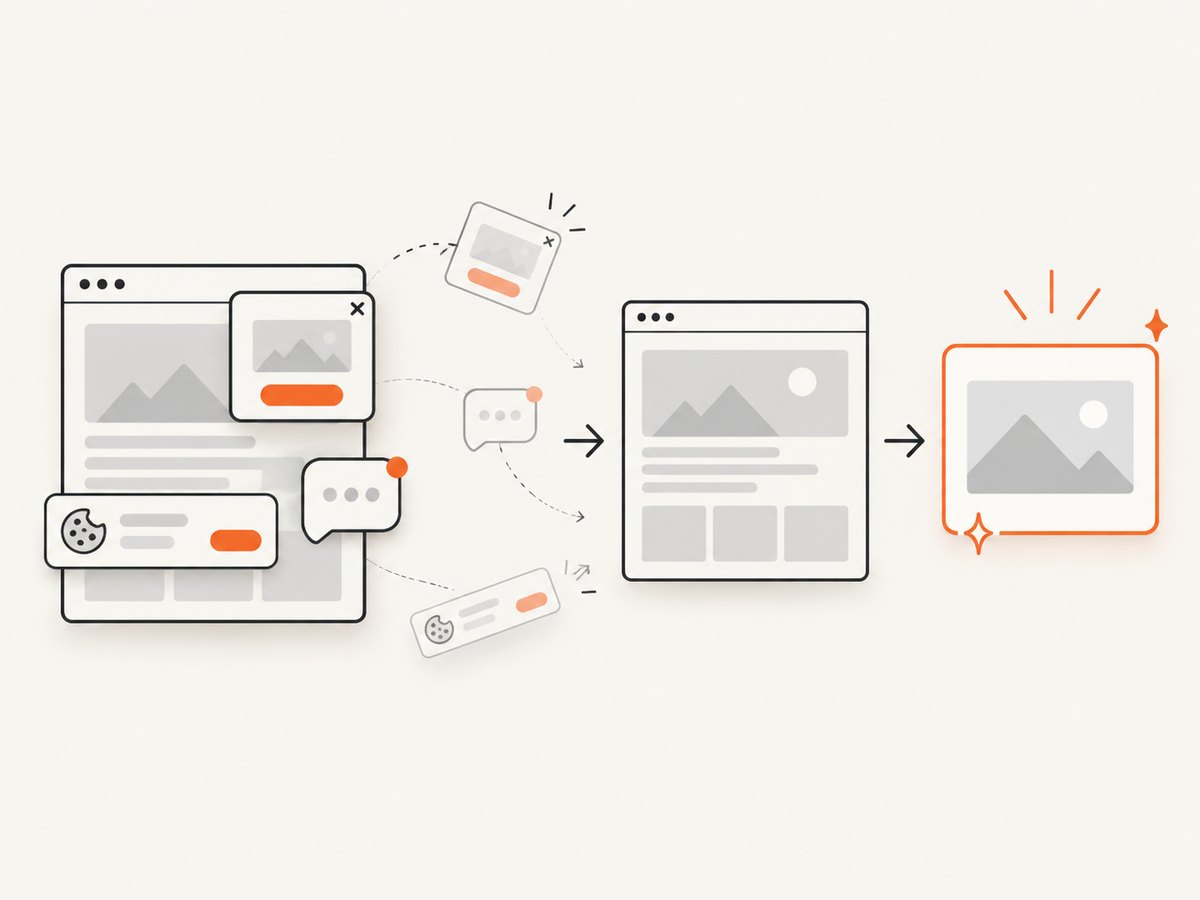
Long pages can contain lazy-loaded images, sticky headers, animations, cookie dialogs and infinite-scroll sections. Built-in tools handle some of these cases, but they do not all behave the same way. Before capturing, dismiss overlays, wait for important content to load and scroll through the page if images appear only after scrolling.
How to capture a full webpage on iPhone
Safari can save a capture that extends beyond the iPhone display. Apple describes this workflow as: “Capture content beyond your iPhone screen: Tap Full Page.”
- Open the webpage in Safari.
- Take a screenshot. On Face ID models, press and quickly release the side button and volume-up button together. On models with a Home button, press and quickly release the Home and side buttons together.
- Tap the screenshot preview when it appears.
- Select Full Page at the top of the editor.
- Drag the preview to inspect the captured page. Use the crop handles if you need only part of it.
- Choose a save destination. Apple documents saving a full-page capture to Photos or saving it as a PDF to Files through the screenshot save options. See Apple’s screenshot instructions for the current interface.
iPhone limitations and fixes
- Full Page is missing: The option is associated with supported document or webpage views, including Safari pages. Try opening the URL directly in Safari instead of an embedded browser inside another app.
- The bottom of the page is absent: Wait for the page to finish loading, then take a new screenshot. Some content is inserted only after you scroll.
- The result is a PDF: That is an expected save route for full-page captures. If you need a raster image, use the available Photos option or export the PDF to an image with a separate tool.
- A cookie banner covers the page: Accept or reject it before taking the screenshot, then repeat the capture.
How to take a scrolling screenshot on Android
On Android 12 and later, the system screenshot editor can extend a capture on most screens that allow scrolling. Google calls the control Capture more.
- Open the webpage or screen you want to capture.
- Press the power and volume-down buttons together.
- Tap Capture more at the bottom of the screenshot preview.
- Use the crop guidelines to choose how far down the page to include.
- Save, edit or share the resulting image.
Google states that this works on devices running Android 12 and later on most screens that allow you to scroll. It is not guaranteed for every app or page. If the control is missing, check your phone manufacturer’s support instructions because Android interfaces differ between vendors. Google’s reference is available at Android Help.
Android edge cases
- No Capture more button: Confirm the device runs Android 12 or later and that the current screen supports the system scrolling capture API. Some apps intentionally disable it.
- Only the visible area saves: The page may be inside a non-scrollable web view, or the app may block extended screenshots. Open the URL in a browser and try again.
- Images are blank in the lower section: Scroll through the page once to trigger lazy loading, then return to the top and capture.
- The capture stops early: The screen may contain nested scroll regions. Capture the relevant region separately or use a desktop/API workflow that can target the document.
How to screenshot an entire webpage in Microsoft Edge
Microsoft Edge has a built-in Screenshot feature for webpages. Microsoft describes it this way: “Unlike other screenshot capabilities, Screenshot lets you grab a screenshot of a full webpage, even the parts you would have to scroll to see.”
- Open the webpage in Edge.
- Open Screenshot from the right-click menu or Edge Settings, or press Ctrl+Shift+S.
- Choose the full-page capture option.
- Review the result, then copy or save it.
Edge can also capture a selected area. The exact menu location and behavior may vary by device, market and browser version, so use the command search or Settings if the shortcut does not open the tool. Microsoft’s current documentation is on Microsoft Edge Support.
Making Edge captures accurate
- Close consent dialogs, chat bubbles and newsletter popups before launching Screenshot.
- Wait for fonts, images and charts to finish loading. A full-page tool may otherwise record placeholders.
- For pages with lazy images, scroll from top to bottom once, pause at each section, then return to the top and capture.
- Check sticky navigation. Some pages repeat a fixed header in every stitched segment; if that happens, use a selected-area capture or an automated browser script with custom CSS.
Windows Snipping Tool: full screen versus full webpage
Windows 10 and 11 Snipping Tool documents freeform, rectangle, window and full-screen snips. Full screen means the entire display at that moment. It does not document a scrolling full-page webpage mode.
Use Snipping Tool when you need the visible desktop, an application window or a selected rectangle. For an entire webpage, open it in Edge and use Edge Screenshot instead. This distinction prevents a common mistake: a full-screen image can look complete while omitting everything below the fold.
Which method should you choose?
| Situation | Best route | Output | Limit to remember |
|---|---|---|---|
| Safari webpage on iPhone | Screenshot → Full Page | Image or PDF save route | Full Page is available only in supported views |
| Scrollable screen on Android 12+ | Screenshot → Capture more | Extended screenshot for editing or sharing | Works on most, not all, scrollable screens |
| Webpage on desktop | Microsoft Edge Screenshot | Copy or saved image | Behavior varies by browser version and device |
| Entire monitor or app window | Windows Snipping Tool | Display screenshot | Not a documented scrolling webpage capture |
| Repeatable or automated captures | Browser automation or ScreenshotNeo API | PNG, JPEG, WebP or PDF | Requires setup or an API key |
Automating a full-page capture with a browser
For scheduled reports, visual regression checks or many URLs, a script gives you consistent viewport and output settings. Playwright is a common choice because it can request a full-page screenshot after the browser renders the document.
import { chromium } from 'playwright';

const browser = await chromium.launch();
const page = await browser.newPage({ viewport: { width: 1440, height: 900 }, deviceScaleFactor: 1 });
await page.goto('https://example.com', { waitUntil: 'networkidle' });
await page.screenshot({ path: 'page.png', fullPage: true });
await browser.close();
Install it with npm install playwright. In production, add an explicit wait for a selector that proves the page is ready, handle navigation errors, and set a timeout. Full-page screenshots can become very tall; use a reasonable viewport, hide animated elements with CSS, and consider capturing sections separately when an image exceeds downstream size limits.
Browser automation options to plan for
- Viewport: Set width and height to reproduce desktop, tablet or mobile layouts.
- Device scale factor: Increase it for sharper retina-style output, while watching memory usage.
- Waiting: Wait for a selector, a fixed delay or network idle. Network idle alone may never occur on analytics-heavy pages.
- Authentication: Supply cookies or headers before navigation for private pages.
- Overlays: Inject CSS to hide consent banners, chat widgets and sticky controls.
- Lazy loading: Scroll incrementally before the final capture so deferred images render.
Or skip the browser setup
ScreenshotNeo returns a clean full-page screenshot from one GET request. The API supports PNG, JPEG, WebP and PDF, and its full-page mode loads lazy images. The same endpoint accepts options for device presets or custom viewports, retina scale, dark mode, element-only capture, custom CSS and JavaScript, selector or network-idle waits, click actions, hidden selectors, blocked ads and trackers, headers, cookies, user agents, authorization, timezone, geolocation, transparent backgrounds, resizing, caching, signed links, asynchronous jobs, webhooks and bulk capture of up to 100 URLs per call. See the ScreenshotNeo API documentation for parameter names and response details.
curl -G "https://api.screenshotneo.com/v1/shot" -d access_key=YOUR_API_KEY --data-urlencode url=https://stripe.com -o shot.webpimport requests
r = requests.get("https://api.screenshotneo.com/v1/shot", params={"access_key": "YOUR_API_KEY", "url": "https://stripe.com"}, timeout=90)
open("shot.webp", "wb").write(r.content)const q = new URLSearchParams({ access_key: 'YOUR_API_KEY', url: 'https://stripe.com' });
const res = await fetch(`https://api.screenshotneo.com/v1/shot?${q}`);Cookie banners, popups and chat widgets are removed before the shot. Bot checks, blank pages and failed loads are never billed; response headers identify the page verdict and whether it was billed. ScreenshotNeo also provides an MCP server so Claude, Cursor and other MCP clients can call take_screenshot, get_page_info and capture_pdf. The Free plan includes 1,000 screenshots each month with no card, and paid plans start at $5 for 3,000. Create a free ScreenshotNeo account.
Troubleshooting checklist
| Symptom | Likely cause | Fix |
|---|---|---|
| Only the visible viewport appears | You used a display screenshot | Use Full Page, Capture more or Edge Screenshot |
| Full-page control is unavailable | Unsupported app, browser or OS version | Open the URL in Safari, Chrome/Edge or another supported browser |
| Bottom sections are blank | Lazy loading or unfinished requests | Scroll once, wait for images, then recapture |
| Consent dialog is included | Overlay was present at capture time | Dismiss it manually or use an API that removes consent platforms |
| Capture is extremely tall | Long article, repeated feed or infinite scroll | Capture a bounded section, set a maximum height, or save a PDF |
| Automation times out | Long-running scripts, ads or never-ending connections | Use selector waits, block unnecessary resources and set a finite timeout |
| Text looks blurry | Low device scale factor or resized output | Use a larger viewport scale and avoid repeated image recompression |
Performance, reliability and cost considerations
Full-page work consumes more memory and time than a viewport screenshot because the browser must render and stitch more content. Narrow mobile layouts may create taller images than desktop layouts. Block nonessential ads, trackers and media when they are not part of the page you are documenting. Cache stable URLs when appropriate, and use asynchronous jobs or webhooks for large batches.
For local automation, retry transient navigation failures with a bounded backoff and record the URL, viewport, browser version and timestamp alongside each image. For an API, inspect HTTP status and response headers, set a client timeout longer than the expected page load, and distinguish a clean capture from a bot check, blank page, timeout or cache hit. ScreenshotNeo reports the page verdict and billing decision in X-Page-Verdict and X-Billed headers, and failed or unusable captures are not billed.
FAQ
Is a full-page screenshot the same as a scrolling screenshot?
They describe the same goal: one capture containing content beyond the visible viewport. “Scrolling screenshot” often refers to the phone feature that extends a normal screenshot.
Can I capture a page that requires login?
Built-in phone tools capture whatever is already visible after you sign in. Automated tools need an authenticated browser context, cookies or authorization headers, subject to the site’s access rules.
Should I save a full webpage as an image or PDF?
Use an image for visual review, sharing or image-based tests. Use PDF when selectable text, print layout or a multipage document matters.
Why does an infinite-scroll page never finish?
There is no fixed end for an infinite feed. Capture a defined range, stop after a chosen number of scrolls, or target one element instead of requesting the entire document.


