BlogScreenshots on your device
How to Capture a Full Webpage With Greenshot
Learn Greenshot’s Internet Explorer full-page workflow, current browser alternatives, troubleshooting, and an API option for automated captures.
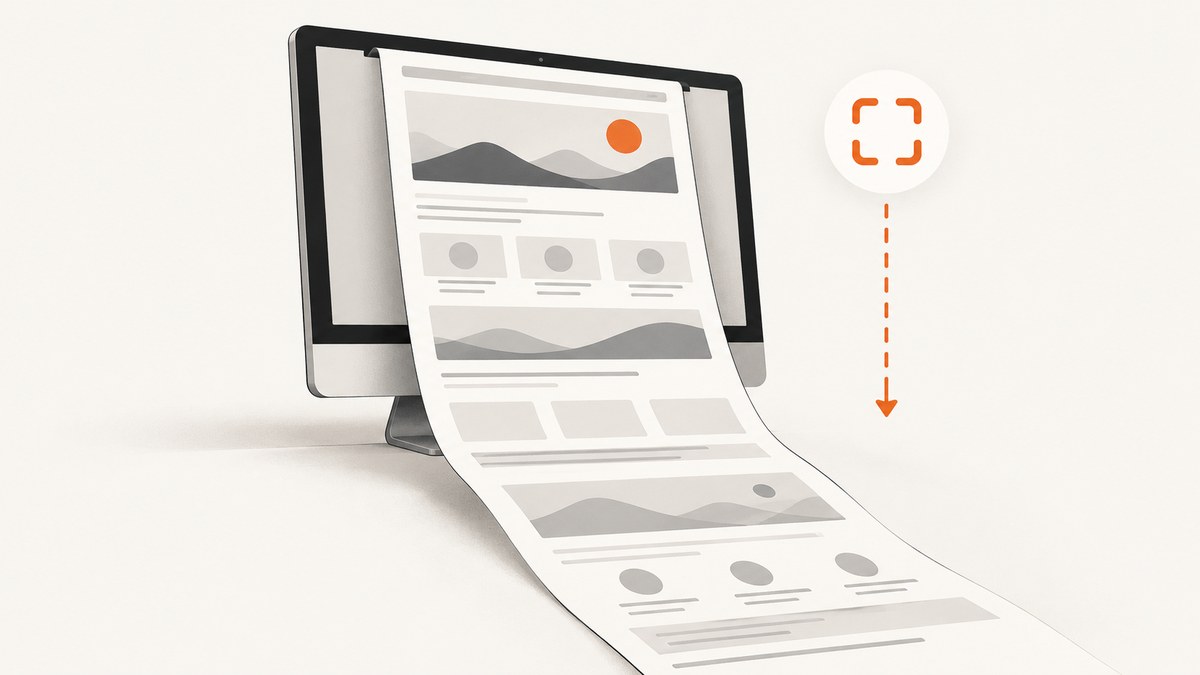
Greenshot can capture a complete webpage, but its documented webpage mode is tied to Internet Explorer. Open the page in Internet Explorer, leave Greenshot running in the notification area, then choose the Internet Explorer tab from Greenshot’s context menu or press Ctrl+Shift+Print. Greenshot creates the capture for editing or saving. This is different from a normal region, window, or full-screen capture, which only records the visible screen area.
For a current browser, Microsoft Edge has a built-in full-page command: press Ctrl+Shift+S, then choose Capture full page. Edge’s tool includes content below the visible viewport, making it the practical fallback when Internet Explorer is unavailable.
Greenshot’s documented full-webpage method
Use these steps when you specifically need Greenshot’s Internet Explorer workflow:
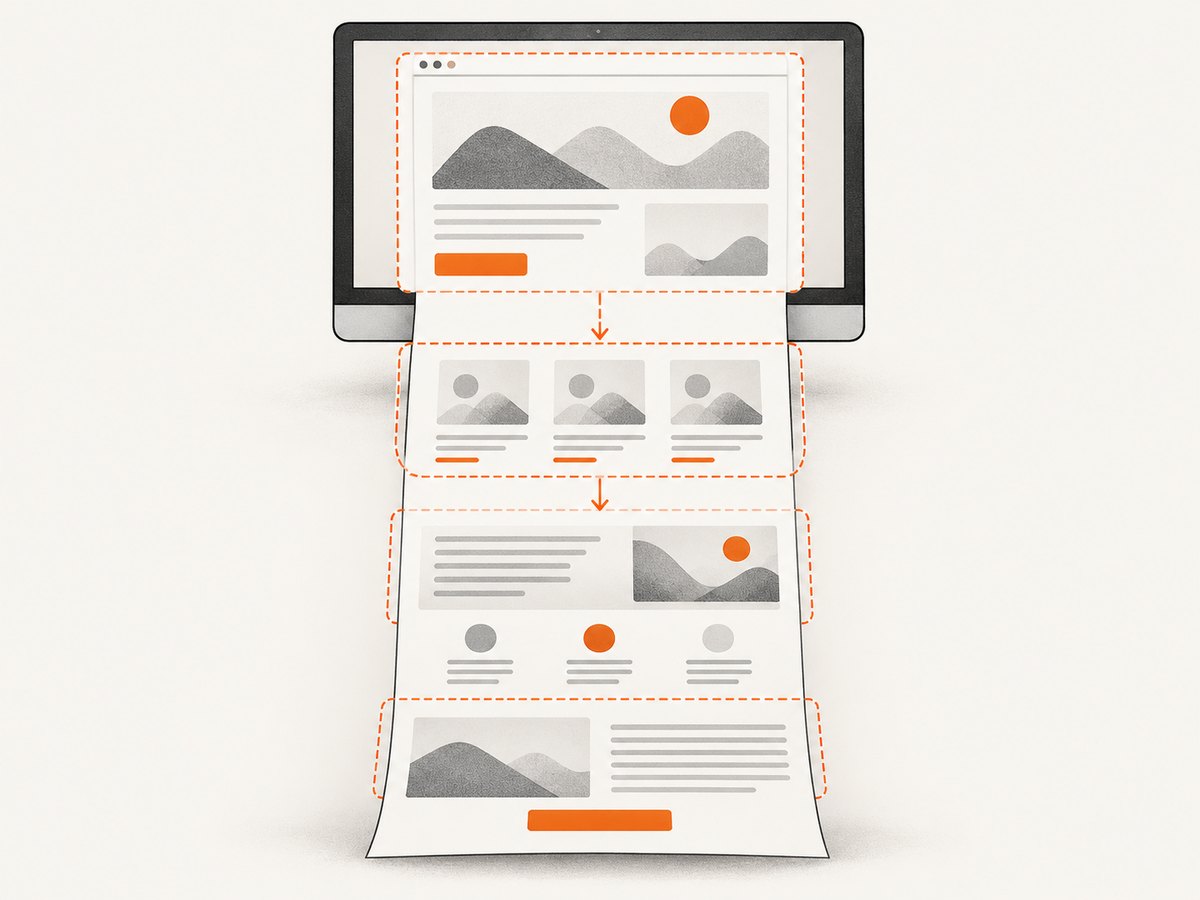
- Open the webpage in Internet Explorer.
- Check that Greenshot is running. Its icon should be visible in the Windows notification area.
- Right-click the Greenshot icon and select the Internet Explorer tab. Alternatively, press Ctrl+Shift+Print while the target Internet Explorer tab is active.
- Wait for the capture to be created. Depending on your Greenshot output settings, it opens in the editor, copies to the clipboard, saves to a file, or is sent to another configured destination.
- Review the image from top to bottom. Annotate or crop it in Greenshot’s editor if needed, then save it in the format required by your workflow.
Greenshot describes this mode as creating a screenshot of a webpage currently opened in Internet Explorer. The shortcut applies to the active Internet Explorer page, so activate the correct tab before using it. Greenshot’s documentation also recommends PNG when full transparency support matters.
Greenshot shortcuts and what they actually capture
| Shortcut | Capture | Full scrolling webpage? |
|---|---|---|
| Select a screen region | No | |
| Shift+Print | Last selected region | No |
| Alt+Print | Active window | No |
| Ctrl+Print | Full screen | No |
| Ctrl+Shift+Print | Active Internet Explorer tab/page | Yes, through the documented webpage mode |
A region capture ends where you stop dragging. An active-window capture ends at the window boundary. A full-screen capture ends at the monitor’s visible pixels. None of these ordinary modes follows a document below the bottom edge of the screen. Use the Internet Explorer tab command for Greenshot’s webpage-specific behavior.
Preparing the page before capture
A full-page image is only useful if the page is in the state you intend to document. Before pressing the shortcut:
- Close menus, developer tools, browser find bars, and unrelated windows.
- Set the browser zoom to the level that makes text readable without changing the page layout unexpectedly.
- Wait for images, charts, fonts, and client-rendered content to finish loading.
- Dismiss cookie notices or sign-in prompts if they obscure the content you need.
- Confirm the correct tab and URL. The shortcut captures the active Internet Explorer page.
- For a transparent result, choose PNG. JPEG does not preserve transparency.
Pages with sticky headers, animated ads, infinite scrolling, or content that loads only after interaction can produce a capture that differs from what you see at first glance. Scroll through the visible page once before capturing when you need to trigger lazy-loaded content, then allow the page to settle.
Current-browser fallback: Microsoft Edge
Greenshot’s official help documents the webpage mode for Internet Explorer; it does not document a universal scrolling workflow for Chrome, Firefox, or current Edge. If you use a current browser, Edge’s built-in Screenshot feature is the clearest documented alternative:
- Open the webpage in Microsoft Edge.
- Press Ctrl+Shift+S.
- Choose Capture full page.
- Review the resulting capture and save or copy it.
Microsoft states that this command captures the entire webpage, including content beyond the visible screen. Browser-native tools are often preferable for modern pages because they understand the current browser’s document surface, while Greenshot’s normal desktop modes remain screen-based.
Choosing the right output format
| Format | Use it when | Trade-off |
|---|---|---|
| PNG | You need lossless text, diagrams, or transparency | Larger files than JPEG in many cases |
| JPEG | You need a compact photographic image | Lossy compression and no transparency |
| WebP | Your destination supports modern web images | Some legacy tools may not accept it |
| You need a document for printing or review | Layout and pagination differ from one long image |
For a long webpage containing small type, PNG generally keeps edges and text cleaner. If the image is going into a web page and your tooling supports it, WebP can reduce transfer size. Choose based on the consuming system rather than changing format after repeated recompression.
Common problems and fixes
The Internet Explorer option is missing
Cause: Greenshot’s documented webpage entry is specific to Internet Explorer, which may not be installed or available on your Windows version.
Fix: Use Microsoft Edge’s Ctrl+Shift+S → Capture full page workflow, or use an automated screenshot service described below.
Ctrl+Shift+Print captures the screen instead
Cause: Greenshot is not running, the hotkey was changed, or the active window is not an Internet Explorer tab.
Fix: Confirm the notification-area icon, activate the target tab, and check Greenshot’s hotkey settings. You can also right-click the icon and select the Internet Explorer tab manually.
The result stops at the bottom of the monitor
Cause: A region, window, or full-screen command was used instead of the webpage-specific command.
Fix: Use Ctrl+Shift+Print in Internet Explorer or Edge’s full-page command. A normal desktop capture cannot infer that the document continues below the viewport.
Images or charts are missing
Cause: Lazy loading, slow network requests, blocked resources, or script-rendered content.
Fix: Wait until the page settles, scroll through it to trigger lazy loading, reload once, and capture again. If the content requires a click or login, perform that action before the capture.
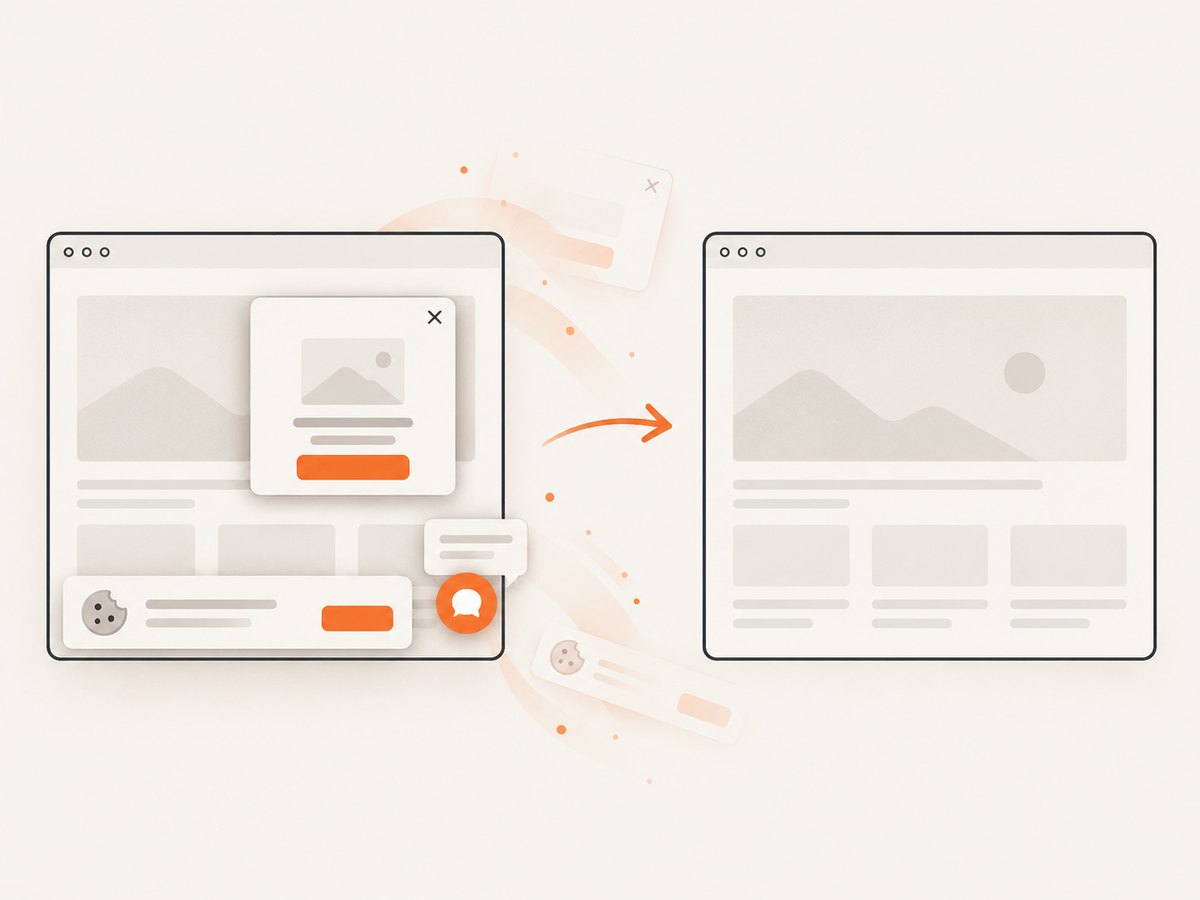
The page contains a cookie banner, chat bubble, or newsletter popup
Cause: The overlay is part of the live page at capture time.
Fix: Close it manually before capturing. If it returns on every load or must be removed consistently across many URLs, use a capture workflow with explicit consent and element-hiding controls.
Text is unreadable in the final image
Cause: The webpage is very wide or the image was resized too aggressively.
Fix: Capture at a suitable browser zoom, preserve PNG for text-heavy pages, and avoid enlarging a compressed JPEG. For documentation, consider splitting a very long page into logical sections or exporting a PDF.
The capture contains moving or inconsistent content
Cause: Animations, rotating banners, live dashboards, or time-dependent data changed during capture.
Fix: Pause media where possible, wait for a stable state, and repeat the capture at a known time. Screenshots are snapshots, so live content can change between the top and bottom of a long page.
Or skip the browser setup
If you need repeatable captures from a script, CI job, documentation pipeline, or many URLs, ScreenshotNeo provides a website screenshot API. One GET request returns PNG, JPEG, WebP, or PDF. It can capture a full page with lazy images loaded, a single element by CSS selector, a chosen viewport or device preset, and more.
See the ScreenshotNeo API documentation for the complete parameter list. A minimal request looks like this:
curl -G "https://api.screenshotneo.com/v1/shot" -d access_key=YOUR_API_KEY --data-urlencode url=https://stripe.com -o shot.webpimport requests
r = requests.get("https://api.screenshotneo.com/v1/shot", params={"access_key": "YOUR_API_KEY", "url": "https://stripe.com"}, timeout=90)
open("shot.webp", "wb").write(r.content)const q = new URLSearchParams({ access_key: 'YOUR_API_KEY', url: 'https://stripe.com' });
const res = await fetch(`https://api.screenshotneo.com/v1/shot?${q}`);ScreenshotNeo removes cookie and consent banners, newsletter popups, and chat widgets before the shot. Bot checks, blank pages, timeouts, failed loads, and cache hits are not billed, and response headers identify the page verdict and billing result. The service also has an MCP server with take_screenshot, get_page_info, and capture_pdf tools for Claude, Cursor, and other MCP clients.
For larger workflows, relevant options include custom CSS and JavaScript, click-before-capture actions, waits for selectors or network idle, blocked ads and trackers, custom headers, cookies, user agents and Authorization, timezone and geolocation, transparent backgrounds, image resizing, selectable cache TTL, signed links, asynchronous jobs with signed webhooks, bulk capture of up to 100 URLs per call, a usage API, and an OpenAPI specification. The API accepts parameter names used by other screenshot services, which can simplify migration.
Plans include 1,000 screenshots per month free with no card; paid plans start at $5 for 3,000 screenshots. Every feature is available on every plan. Create a free ScreenshotNeo account.
Performance, reliability, and cost considerations
- Desktop capture: Best for an occasional manual image when you can inspect the result immediately.
- Browser full-page capture: Convenient for one-off work in a modern browser, but still depends on the page finishing its own loading and scripts.
- API capture: Better for repeated URLs, scheduled jobs, CI, and consistent options such as viewport, waits, headers, and output format.
- Long pages: Full-page images can become very tall and memory-heavy. PDF or sectioned captures may be easier to view and distribute.
- Cost: Greenshot and Edge do not add a per-capture API charge. ScreenshotNeo bills only clean shots; failed loads, blank pages, bot checks, timeouts, and cache hits are not billed.
- Reliability: Record the URL, capture time, viewport, and output format with each artifact. For API jobs, inspect the response verdict and billing headers instead of assuming every HTTP response represents a usable page.
Frequently asked questions
Does Greenshot capture a full webpage in Chrome?
Greenshot’s documented webpage-specific mode is for Internet Explorer. Its ordinary Chrome-style screen captures do not automatically scroll through the document. Use Edge’s full-page command or an automated API.
What is the Greenshot shortcut for a full webpage?
With the target page open in Internet Explorer, press Ctrl+Shift+Print.
Should I save a full-page capture as PNG?
Use PNG when you need lossless text, diagrams, or transparency. JPEG may be smaller for photographic content.
Can I automate Greenshot captures?
Greenshot is primarily a desktop workflow. For repeatable automation, use a browser automation script or an API such as ScreenshotNeo with waits, selectors, headers, cookies, and asynchronous jobs.
How do I capture only one element instead of the whole page?
Greenshot’s documented method targets the webpage. For selector-based automation, ScreenshotNeo can capture one element by CSS selector.


