BlogScreenshots on your device
How to Capture a Java JPanel Screenshot with Robot
Capture a visible Java JPanel with Robot, convert Swing coordinates correctly, handle high-DPI and headless cases, and save a reliable PNG.
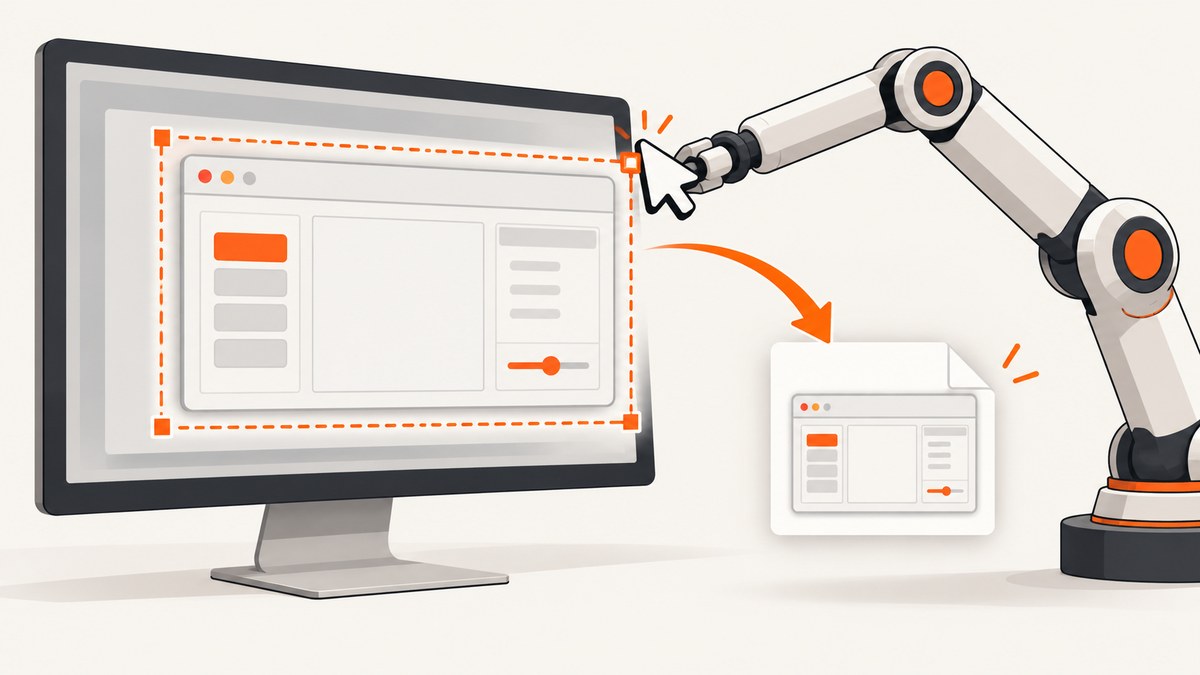
Use java.awt.Robot.createScreenCapture(Rectangle) when you need the pixels currently visible on the desktop. A JPanel reports its position relative to its parent, so convert its local origin to screen coordinates before creating the rectangle. Capture after the window is realized, laid out, visible, and settled, and run the capture on a worker thread rather than Swing’s event-dispatch thread (EDT).
Oracle describes createScreenCapture as creating an image from pixels read from the screen. That makes Robot a desktop capture API, not a way to render an abstract Swing component tree.
Complete example: capture a visible JPanel
The following program creates a window, waits until the panel is showing, converts (0,0) to screen coordinates, captures the panel, and writes a PNG.
import java.awt.AWTException;
import java.awt.BorderLayout;
import java.awt.Color;
import java.awt.Point;
import java.awt.Rectangle;
import java.awt.Robot;
import java.awt.image.BufferedImage;
import java.io.IOException;
import java.nio.file.Path;
import javax.imageio.ImageIO;
import javax.swing.JFrame;
import javax.swing.JLabel;
import javax.swing.JPanel;
import javax.swing.SwingUtilities;

public class JPanelRobotScreenshot {
    static BufferedImage captureVisiblePanel(JPanel panel) throws AWTException {
        if (!panel.isShowing() || panel.getWidth() <= 0 || panel.getHeight() <= 0) {
            throw new IllegalStateException("Panel must be showing with a positive size");
        }
        Point topLeft = new Point(0, 0);
        SwingUtilities.convertPointToScreen(topLeft, panel);
        Rectangle bounds = new Rectangle(
                topLeft.x, topLeft.y, panel.getWidth(), panel.getHeight());
        return new Robot().createScreenCapture(bounds);
    }

    static void savePng(BufferedImage image, Path output) throws IOException {
        if (!ImageIO.write(image, "png", output.toFile())) {
            throw new IOException("No PNG writer is available");
        }
    }

    public static void main(String[] args) throws Exception {
        JPanel panel = new JPanel(new BorderLayout());
        panel.setBackground(new Color(30, 40, 60));
        panel.add(new JLabel("Robot capture", JLabel.CENTER), BorderLayout.CENTER);

        JFrame frame = new JFrame("Capture demo");
        frame.setDefaultCloseOperation(JFrame.DISPOSE_ON_CLOSE);
        frame.add(panel);
        frame.setSize(500, 240);
        SwingUtilities.invokeAndWait(() -> {
            frame.setLocationByPlatform(true);
            frame.setVisible(true);
        });

        // Do not block the EDT while Robot asks the desktop for pixels.
        Thread worker = new Thread(() -> {
            try {
                BufferedImage image = captureVisiblePanel(panel);
                savePng(image, Path.of("panel.png"));
            } catch (AWTException | IOException | RuntimeException ex) {
                ex.printStackTrace();
            } finally {
                SwingUtilities.invokeLater(frame::dispose);
            }
        });
        worker.start();
        worker.join();
    }
}
Compile and run it with javac JPanelRobotScreenshot.java && java JPanelRobotScreenshot. The output file is panel.png in the process working directory. In production, use an application-specific output path and handle failures according to your job or test runner.
How the coordinate conversion works
- Create a point at the panel’s local origin:
new Point(0, 0). - Call
SwingUtilities.convertPointToScreen(point, panel). The point is mutated to desktop screen coordinates. - Use the converted point with
panel.getWidth()andpanel.getHeight()to construct theRectangle. - Pass that rectangle to
Robot.createScreenCapture.
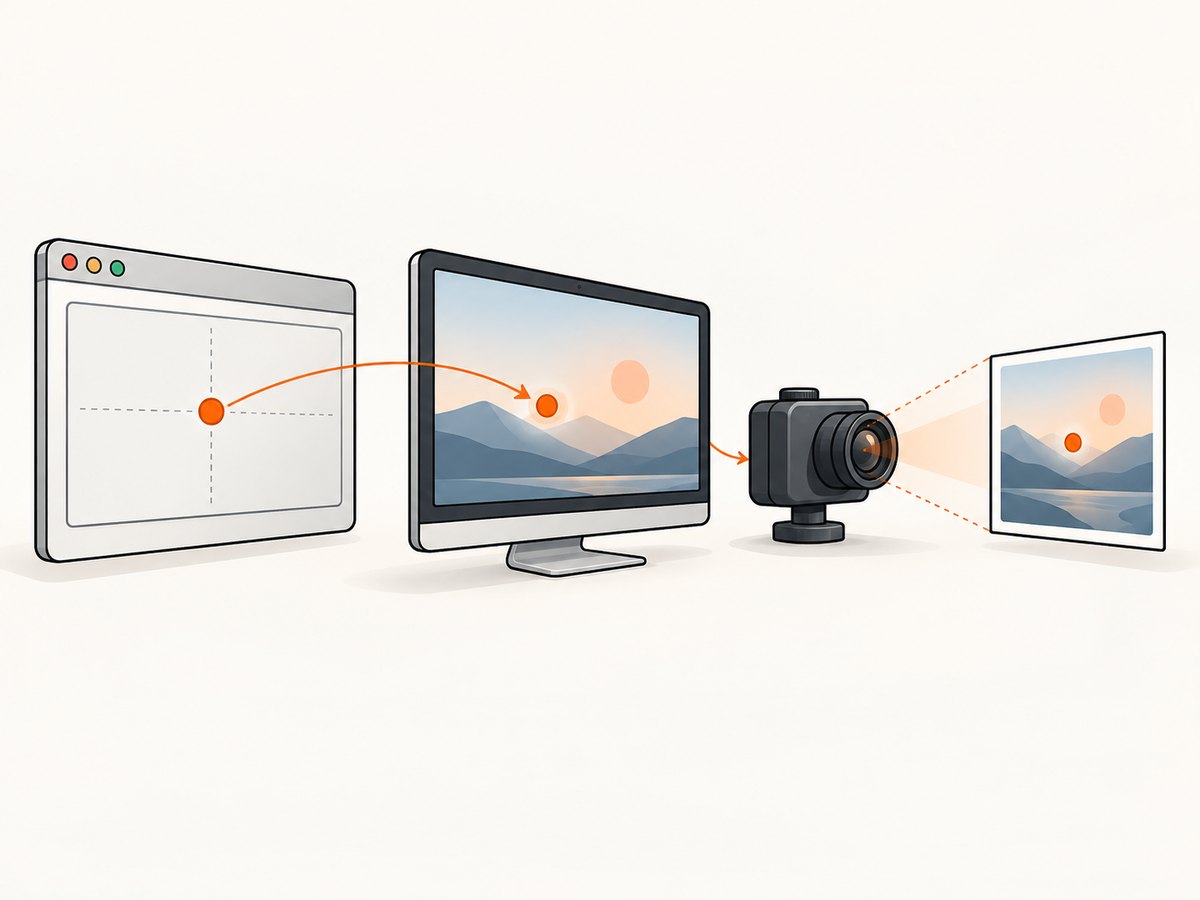
panel.getLocation() alone is parent-relative and is therefore wrong for Robot. Window decorations are outside the panel; capturing the frame instead requires converting the frame or its content pane and choosing the desired bounds explicitly.
Desktop capture versus Swing rendering
Robot reads desktop pixels. Another window can cover the panel, a compositor can apply scaling, and the operating system can restrict access to window contents. If you need the pixels a user can see, these effects are part of the result.
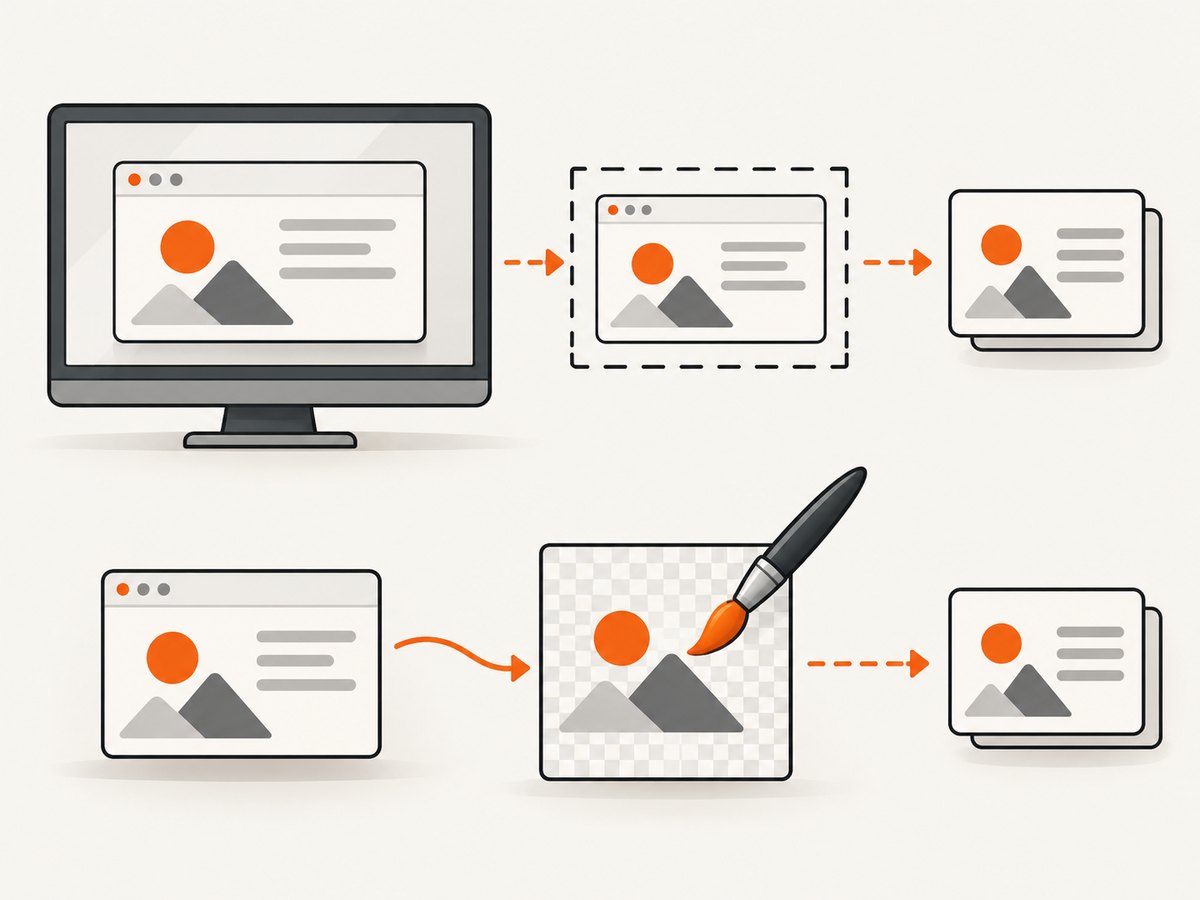
If you only need Swing’s rendered component hierarchy, paint it into an off-screen image instead:
import java.awt.Graphics2D;
import java.awt.image.BufferedImage;
import java.io.IOException;
import java.nio.file.Path;
import javax.imageio.ImageIO;
import javax.swing.JPanel;

static BufferedImage renderPanel(JPanel panel) throws IOException {
    int width = panel.getWidth();
    int height = panel.getHeight();
    if (width <= 0 || height <= 0) {
        throw new IllegalStateException("Panel must have a positive size");
    }
    BufferedImage image = new BufferedImage(width, height, BufferedImage.TYPE_INT_ARGB);
    Graphics2D graphics = image.createGraphics();
    try {
        panel.printAll(graphics);
    } finally {
        graphics.dispose();
    }
    if (!ImageIO.write(image, "png", Path.of("panel-rendered.png").toFile())) {
        throw new IOException("No PNG writer is available");
    }
    return image;
}
Off-screen rendering avoids occlusion and native window decorations, and can fit a display-less workflow when the component can be laid out and painted. It does not prove that the desktop displayed the same pixels.
High-DPI and multiple displays
Screen coordinates and device pixels differ across operating systems and display settings. Robot coordinates may use a shared virtual desktop or device-specific systems. For a particular monitor, construct Robot with new Robot(graphicsDevice) and keep the rectangle in that device’s coordinate system.
On Java 9 and later, createMultiResolutionScreenCapture(Rectangle) can return a base image and a native device-resolution variant. Select the variant whose dimensions match the device pixels when you need a high-DPI asset. On older runtimes, use createScreenCapture and inspect the resulting dimensions on each target platform.
var images = new Robot().createMultiResolutionScreenCapture(bounds);
BufferedImage nativeImage = images.getResolutionVariants()
        .stream()
        .max((a, b) -> Integer.compare(a.getWidth() * a.getHeight(),
                                         b.getWidth() * b.getHeight()))
        .orElse(images.getResolutionVariant(bounds.width, bounds.height));
Threading, permissions, and runtime constraints
- Create and update Swing components on the EDT.
- Run Robot capture on a worker thread; capture can take time and may wait for permission prompts.
new Robot()throwsAWTExceptionwhen low-level desktop control is unavailable. It always fails in a headless graphics environment.createScreenCapturecan throwSecurityExceptionwhen desktop access is denied. Operating-system permissions and coverage vary.- A rectangle with a nonpositive width or height causes
IllegalArgumentException. - Capture only after layout and painting have settled. For dynamic content, coordinate a model-level “ready” signal rather than relying on an arbitrary sleep.
Saving and choosing an image format
Robot returns a BufferedImage. ImageIO.write(image, "png", file) uses a registered PNG writer and returns false if no suitable writer exists. PNG preserves pixels and is a practical default for UI tests and documentation. JPEG is smaller for photographic content but introduces lossy changes; WebP availability depends on installed ImageIO plugins.
Troubleshooting
| Symptom | Cause | Fix |
|---|---|---|
| Black or blank image | Panel is hidden, covered, off-screen, not painted, or desktop access is restricted. | Check isShowing(), positive dimensions, visibility, and permissions. Use printAll when desktop pixels are not required. |
| Image starts at the wrong location | Parent-relative coordinates were passed to Robot. | Convert (0,0) with SwingUtilities.convertPointToScreen. |
| Clipped or unexpected dimensions | Window decorations, display scaling, or a different virtual-screen coordinate system. | Log the converted point and bounds, target the correct GraphicsDevice, and consider the multi-resolution API. |
AWTException or failure on CI |
No display session, headless Java, or desktop-control policy. | Provide a permitted desktop environment for real screen capture, or use off-screen Swing rendering. |
| EDT freezes | Capture was called from an event handler. | Move Robot and file I/O to a worker thread; post only UI updates back to the EDT. |
IllegalArgumentException |
Width or height is zero or negative. | Lay out the component first and validate both dimensions. |
| PNG is missing | Bad output path, permissions, or no ImageIO writer. | Check the parent directory, catch IOException, and test the boolean result from ImageIO.write. |
Performance, reliability, and cost considerations
- Capture only the rectangle needed; full-screen images consume more memory and I/O.
- Reuse a
Robotinstance for a batch on the same device when appropriate, instead of constructing one per frame. - Keep file encoding and uploads off the EDT as well as capture.
- For deterministic tests, control window position, scale, theme, animation, and other windows that could occlude the panel.
- Robot has no service-level retry or billing semantics. Add bounded retries for transient permission or display failures, and record the exception and rectangle for diagnosis.
- There is no task-specific benchmark in the cited API documentation; measure on the operating systems, display scales, and image sizes you support.
Or skip the browser setup
If your goal is a URL screenshot rather than pixels from a local Swing desktop, ScreenshotNeo provides a website screenshot API and MCP server. It accepts one GET request and returns PNG, JPEG, WebP, or PDF. Cookie and consent banners are accepted and removed before capture, along with more than 60 known consent platforms, newsletter popups, and chat widgets. Bot checks, blank pages, failed loads, timeouts, and cache hits are not billed, and response headers report the page verdict and billing status. Its MCP tools let Claude, Cursor, and other MCP clients call take_screenshot, get_page_info, and capture_pdf.
See the ScreenshotNeo API documentation for all options.
curl -G "https://api.screenshotneo.com/v1/shot" \
  -d access_key=YOUR_API_KEY \
  --data-urlencode url=https://stripe.com \
  -o shot.webp
import requests
r = requests.get(
"https://api.screenshotneo.com/v1/shot",
params={"access_key": "YOUR_API_KEY", "url": "https://stripe.com"},
timeout=90,
)
r.raise_for_status()
open("shot.webp", "wb").write(r.content)const q = new URLSearchParams({
access_key: 'YOUR_API_KEY',
url: 'https://stripe.com'
});
const res = await fetch(`https://api.screenshotneo.com/v1/shot?${q}`);
if (!res.ok) throw new Error(`HTTP ${res.status}`);
const data = Buffer.from(await res.arrayBuffer());
require('fs').writeFileSync('shot.webp', data);The service includes full-page and element capture, device presets or custom viewports, retina scale, dark mode, custom CSS and JavaScript, waits, request blocking, headers, cookies, user agents, timezone and geolocation, transparent backgrounds, resizing, caching with a chosen TTL, signed links, asynchronous jobs with signed webhooks, bulk capture, a usage API, and an OpenAPI specification. Existing parameter names used by other screenshot APIs also work.
Free usage includes 1,000 screenshots each month with no card. Paid plans start at $5 for 3,000 screenshots; every feature is on every plan. Create a free ScreenshotNeo account.
FAQ
Can Robot capture a JPanel that is not visible?
No. Robot reads desktop pixels. Render the component with printAll when it does not need to be visible.
Should capture run on the EDT?
No. Keep Swing changes on the EDT and perform Robot, encoding, and file I/O on a worker.
Why is my panel location negative?
A negative screen coordinate can be valid when a monitor is arranged to the left or above the primary display. Use the converted coordinates as returned and verify the target device.
Does Robot work in a headless Docker container?
Not for real desktop capture. Robot construction fails in a headless graphics environment; use a display session or off-screen rendering.
How do I capture only a child component?
Pass that child component to the same conversion-and-bounds method. Its origin is converted independently of its parent.


