BlogScreenshots on your device
How to Capture a Java Panel With Open Combo Boxes
Capture a Swing panel and its open JComboBox dropdowns with Java Robot, correct EDT timing, screen coordinates, and reliable troubleshooting.

Use java.awt.Robot.createScreenCapture(Rectangle) when the screenshot must include the dropdowns exactly as they appear on screen. Open each JComboBox on Swing’s event dispatch thread (EDT), wait until the popup windows are visible, then capture the union of the panel window and popup windows from a worker thread. A component render with Component.printAll(Graphics) is suitable when you need an off-screen rendering of the component tree, but it does not reliably represent a popup displayed in a separate window.
For standard Swing look and feels, Oracle documents that the popup list portion of a combo box is implemented as a JPopupMenu. The final lightweight-versus-heavyweight popup choice still belongs to the combo box and look and feel, so discover visible popup windows at capture time instead of assuming a fixed implementation. JComboBox API
Complete Java example
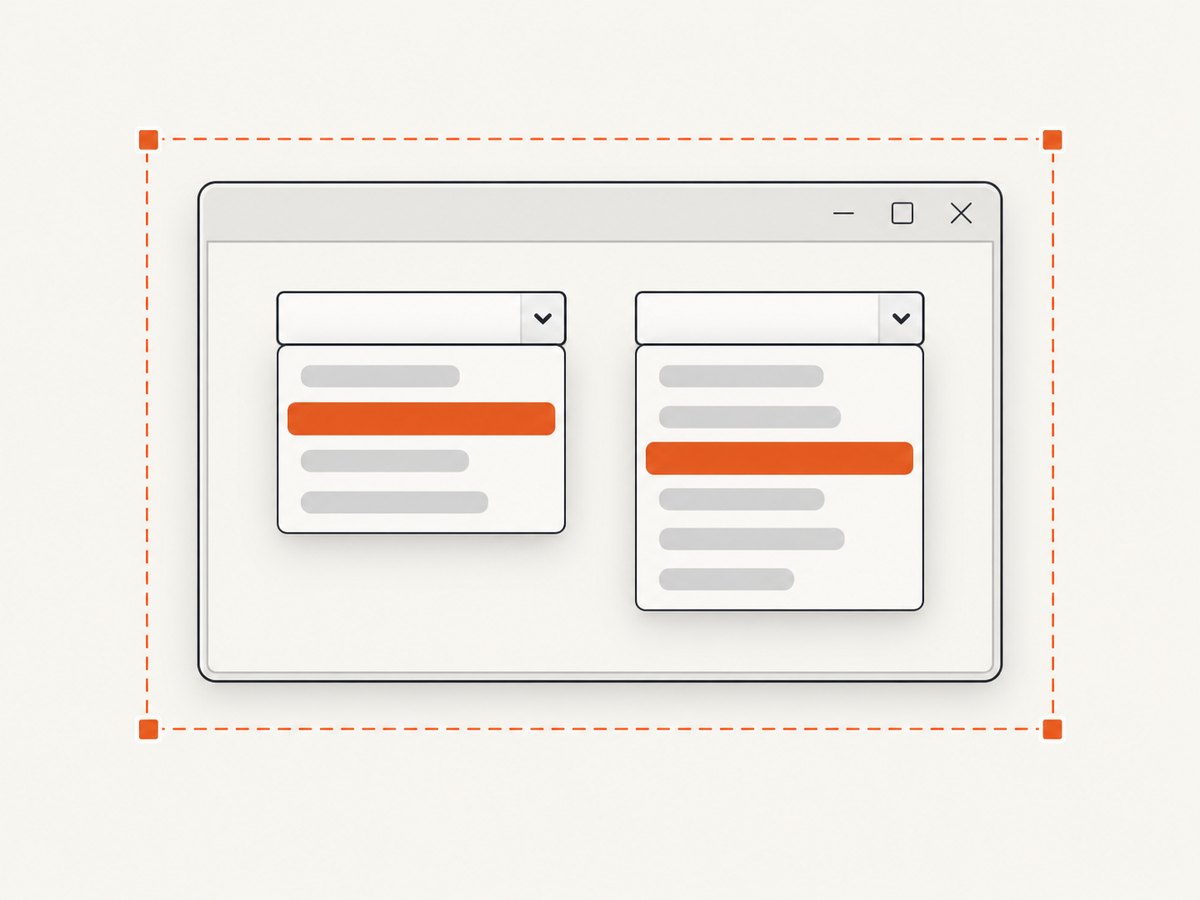
The example creates a frame with two combo boxes, opens both popups on the EDT, finds every visible window that overlaps the frame area, and captures their combined screen rectangle. The capture runs off the EDT because screen capture can block UI work.
import javax.imageio.ImageIO;
import javax.swing.*;
import java.awt.*;
import java.awt.image.BufferedImage;
import java.io.File;
import java.util.ArrayList;
import java.util.List;

public class CaptureOpenComboBoxes {
    public static void main(String[] args) throws Exception {
        final JFrame[] frameRef = new JFrame[1];
        final JComboBox<String>[] combos = new JComboBox[2];

        SwingUtilities.invokeAndWait(() -> {
            JFrame frame = new JFrame("Open combo box capture");
            frame.setDefaultCloseOperation(WindowConstants.DISPOSE_ON_CLOSE);

            JPanel panel = new JPanel(new GridLayout(0, 1, 8, 8));
            combos[0] = new JComboBox<>(new String[]{"Small", "Medium", "Large"});
            combos[1] = new JComboBox<>(new String[]{"Red", "Green", "Blue"});
            panel.setBorder(BorderFactory.createEmptyBorder(20, 20, 20, 20));
            panel.add(new JLabel("Size"));
            panel.add(combos[0]);
            panel.add(new JLabel("Color"));
            panel.add(combos[1]);

            frame.setContentPane(panel);
            frame.pack();
            frame.setLocationByPlatform(true);
            frame.setVisible(true);
            frameRef[0] = frame;
        });

        // UI changes belong on the EDT.
        SwingUtilities.invokeAndWait(() -> {
            combos[0].setPopupVisible(true);
            combos[1].setPopupVisible(true);
        });

        // Give the event queue a chance to paint and show popup windows.
        // This is intentionally a short synchronization aid, not a universal delay guarantee.
        EventQueue.invokeAndWait(() -> { });

        // Screen capture belongs on a worker thread, not the EDT.
        Rectangle captureBounds = findCaptureBounds(frameRef[0]);
        Robot robot = new Robot();
        BufferedImage image = robot.createScreenCapture(captureBounds);
        ImageIO.write(image, "png", new File("open-combos.png"));

        SwingUtilities.invokeAndWait(() -> frameRef[0].dispose());
        System.out.println("Saved open-combos.png: " + captureBounds);
    }

    private static Rectangle findCaptureBounds(JFrame frame) throws Exception {
        Rectangle result = frame.getBounds(); // screen coordinates for a top-level window

        // Include visible popup windows created by Swing's popup system.
        for (Window window : Window.getWindows()) {
            if (!window.isVisible() || window == frame) {
                continue;
            }
            Rectangle popup = window.getBounds();
            if (popup.width > 0 && popup.height > 0) {
                result = result.union(popup);
            }
        }

        if (result.width <= 0 || result.height <= 0) {
            throw new IllegalStateException("The capture rectangle is empty: " + result);
        }
        return result;
    }
}
Compile and run it with:
javac CaptureOpenComboBoxes.java
java CaptureOpenComboBoxes
The window enumeration is deliberately conservative: it includes every visible non-frame window. In a larger application, filter by owner, class, title, or intersection with the frame if unrelated windows may be visible.
Why Robot is the right API for a visible dropdown
Robot.createScreenCapture(Rectangle) reads pixels from the desktop in screen coordinates. That includes heavyweight popup windows and lightweight popups after they have been painted. The rectangle must cover the panel and every open dropdown. Oracle also documents that screen coordinates depend on the virtual desktop and that high-DPI environments can expose multiple resolutions. See the Robot API.
| Method | Captures | Use it when | Limitation |
|---|---|---|---|
Robot.createScreenCapture |
Actual desktop pixels | The open popup must appear exactly as displayed | Needs screen access and correct coordinates |
Component.printAll(Graphics) |
A component and its child tree | You need an off-screen component render | A popup displayed outside that tree may not be included |
Component.printAll(Graphics) is useful for exporting a panel without a desktop. It is not a substitute when the requirement is “what the user sees,” because a combo popup can be implemented as a separate popup window. Component.printAll documentation
Opening one or more combo boxes reliably
Open a specific combo box
SwingUtilities.invokeAndWait(() -> {
    comboBox.setPopupVisible(true);
});
showPopup() is another documented option. Use setPopupVisible(true) when the desired state is explicit and showPopup() when you are expressing an action.
Wait for painting without blocking the EDT
invokeAndWait ensures that the requested UI operation has run on the EDT. A second empty invokeAndWait lets earlier queued work complete, but no fixed sleep is universally reliable across platforms and look and feels. If your application has an animation, asynchronous model update, or custom popup, wait on an application-level condition such as isShowing(), a property-change event, or a latch signaled after the popup is displayed.
CountDownLatch popupShown = new CountDownLatch(1);
SwingUtilities.invokeLater(() -> {
    comboBox.setPopupVisible(true);
    if (comboBox.isPopupVisible()) {
        popupShown.countDown();
    }
});
popupShown.await(2, TimeUnit.SECONDS);
For a custom look and feel, verify the actual visible windows rather than relying only on isPopupVisible().
Choosing and validating the capture rectangle
- Frame bounds:
frame.getBounds()gives the top-level window rectangle in screen coordinates. - Component location:
component.getLocationOnScreen()converts a component position to screen coordinates after it is showing. - Popup bounds: enumerate visible
Window.getWindows()entries and union the bounds of popup windows. - Multiple monitors: the virtual desktop may contain negative x or y coordinates. Do not clamp coordinates to zero.
- Empty rectangles: width and height must both be positive or
RobotthrowsIllegalArgumentException.
Point p = comboBox.getLocationOnScreen();
Rectangle comboOnScreen = new Rectangle(p, comboBox.getSize());
System.out.println(comboOnScreen);
If you need a margin around the result, expand after calculating the union and keep the expanded rectangle on the intended device. For a capture spanning monitors, create the Robot for the default screen or the relevant GraphicsDevice, then verify behavior on the target desktop configuration.
High-DPI and multi-monitor details
Display scaling can make logical component sizes differ from the native pixel dimensions. Oracle provides createMultiResolutionScreenCapture for environments where both a scaled base image and a native-resolution variant are useful. Select the image variant your file format and downstream processing expect. Test with the same monitor arrangement and scaling used in production because popup placement and coordinate conversion are display dependent.
Component rendering alternative
Choose component rendering when no desktop is available, such as a headless build or server-side export. The basic pattern is:
BufferedImage image = new BufferedImage(
    panel.getWidth(), panel.getHeight(), BufferedImage.TYPE_INT_ARGB);
Graphics2D graphics = image.createGraphics();
try {
    panel.printAll(graphics);
} finally {
    graphics.dispose();
}
ImageIO.write(image, "png", new File("panel.png"));
This renders the panel and its subcomponents. It does not establish that a popup shown separately from the component tree will be included, so use Robot for an open dropdown visible on the desktop.
Troubleshooting
| Symptom | Cause | Fix |
|---|---|---|
| Dropdown missing | Capture ran before the popup was painted, or bounds covered only the frame | Open the popup on the EDT, synchronize with an application-level visibility condition, then union visible popup-window bounds. |
IllegalArgumentException |
Rectangle has nonpositive width or height | Check getBounds() and reject empty rectangles before calling createScreenCapture. |
AWTException |
Low-level screen control is unavailable | Run in a desktop session with an available graphics device; do not expect Robot to work in a headless environment. |
SecurityException |
Screen access is denied by the runtime or operating system | Grant the process screen-recording or desktop-capture permission and retry. |
| Capture is offset on a second monitor | Logical and virtual screen coordinates were mixed | Use screen coordinates from getLocationOnScreen() and top-level window bounds; preserve negative virtual coordinates. |
| Only one combo opens | Opening the second popup closes the first under the look and feel | Check isPopupVisible() after each operation. If the UI permits only one popup, capture each state separately or use a custom popup implementation. |
| Blank or stale pixels | Capture happened during repaint or before the window became displayable | Require isShowing(), flush pending EDT work, and capture from a worker thread after the visible-state condition is true. |
| Works locally but fails in CI | CI has no display or has different scaling and window-manager rules | Use component rendering for headless output, or provide a real desktop session and validate coordinates on that environment. |
Performance and reliability checklist
- Keep all Swing mutations and popup operations on the EDT.
- Keep
Robotcapture and image encoding off the EDT so the interface remains responsive. - Capture the smallest rectangle that contains the panel and popups to reduce memory and encoding time.
- Reuse a
Robotinstance for repeated captures when the display device is unchanged. - Close popups and dispose frames after capture to avoid leaking windows in test suites.
- Record the display configuration, scaling, look and feel, and popup visibility state when diagnosing intermittent failures.
- Use PNG when exact pixels and transparency matter; choose another format only after confirming the required fidelity.
Or skip the browser setup
The Java technique above is for a desktop Swing UI. If the thing you need is a web page screenshot, ScreenshotNeo provides a single HTTP request and also supports an MCP server for AI agents. Before capture, it accepts cookie or consent banners and removes more than 60 known consent platforms, newsletter popups, and chat widgets; each step can be turned off. Only clean shots are billed: bot checks, blank pages, timeouts, failed loads, and cache hits cost nothing, and the response reports the result with X-Page-Verdict and X-Billed headers.
See the ScreenshotNeo API documentation for the full option set, including full-page capture, CSS-selector element capture, device presets, dark mode, retina scale, custom CSS and JavaScript, waits, request blocking, cookies, headers, geolocation, PDFs, caching, signed links, async jobs, bulk capture, and usage reporting.
curl -G "https://api.screenshotneo.com/v1/shot" -d access_key=YOUR_API_KEY --data-urlencode url=https://stripe.com -o shot.webpimport requests
r = requests.get("https://api.screenshotneo.com/v1/shot", params={"access_key": "YOUR_API_KEY", "url": "https://stripe.com"}, timeout=90)
open("shot.webp", "wb").write(r.content)const q = new URLSearchParams({ access_key: 'YOUR_API_KEY', url: 'https://stripe.com' });
const res = await fetch(`https://api.screenshotneo.com/v1/shot?${q}`);An MCP server lets Claude, Cursor, and other MCP clients call take_screenshot, get_page_info, and capture_pdf. The Free plan includes 1,000 screenshots per month with no card; paid plans start at $5 for 3,000 shots. Create a free ScreenshotNeo account.
FAQ
Can I capture a combo popup with printAll?
Use printAll for a component-tree render. Use Robot when the popup must match the visible desktop.
Why should capture leave the EDT?
Screen capture and image encoding can take time. Running them on the EDT can freeze repainting and event processing.
Does every look and feel use a separate popup window?
No. Standard look and feels commonly use JPopupMenu, but the final lightweight or heavyweight choice is implementation dependent.
Can this run without a monitor?
Robot requires screen access. For headless environments, render the component off-screen or provide a virtual desktop.


