BlogScreenshots on your device
How to Capture a Long Screenshot in Windows
Capture an entire webpage on Windows with Firefox or Chrome, understand Snipping Tool limits, and automate clean full-page images with ScreenshotNeo.
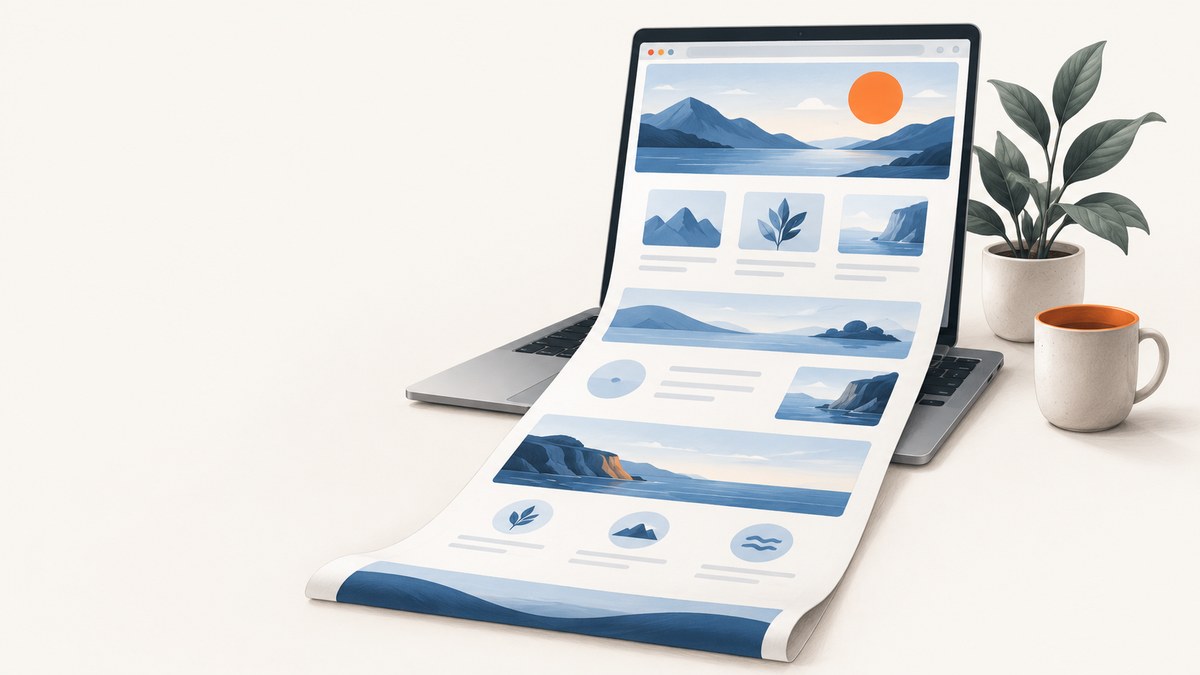
For a long webpage, use Firefox’s built-in full-page screenshot or Chrome DevTools’ full-size capture. Windows Snipping Tool captures a visible region, window or screen, but Microsoft’s current documentation does not describe a scrolling-page mode. A webpage that extends below the viewport is a different problem from a long view inside a desktop application.
Choose the right method
| Need | Use | What to expect |
|---|---|---|
| One long webpage image with the fewest steps | Firefox Save full page | Built-in browser tool saves or copies the entire page. |
| One long webpage image in Chrome | Chrome DevTools Capture a full size screenshot | Captures content beyond the current viewport. |
| Visible area, window or whole screen | Windows Snipping Tool | Static capture modes; no documented scrolling mode. |
| Readable document rather than an image | Microsoft Edge print workflow | Creates print output; this is not an Edge full-page screenshot command. |
The distinction matters: Firefox and Chrome methods are intended for webpages, while Snipping Tool is intended for static screen captures. Microsoft documents freeform, rectangle, window and full-screen modes for Snipping Tool, but not scrolling capture (Microsoft Support).
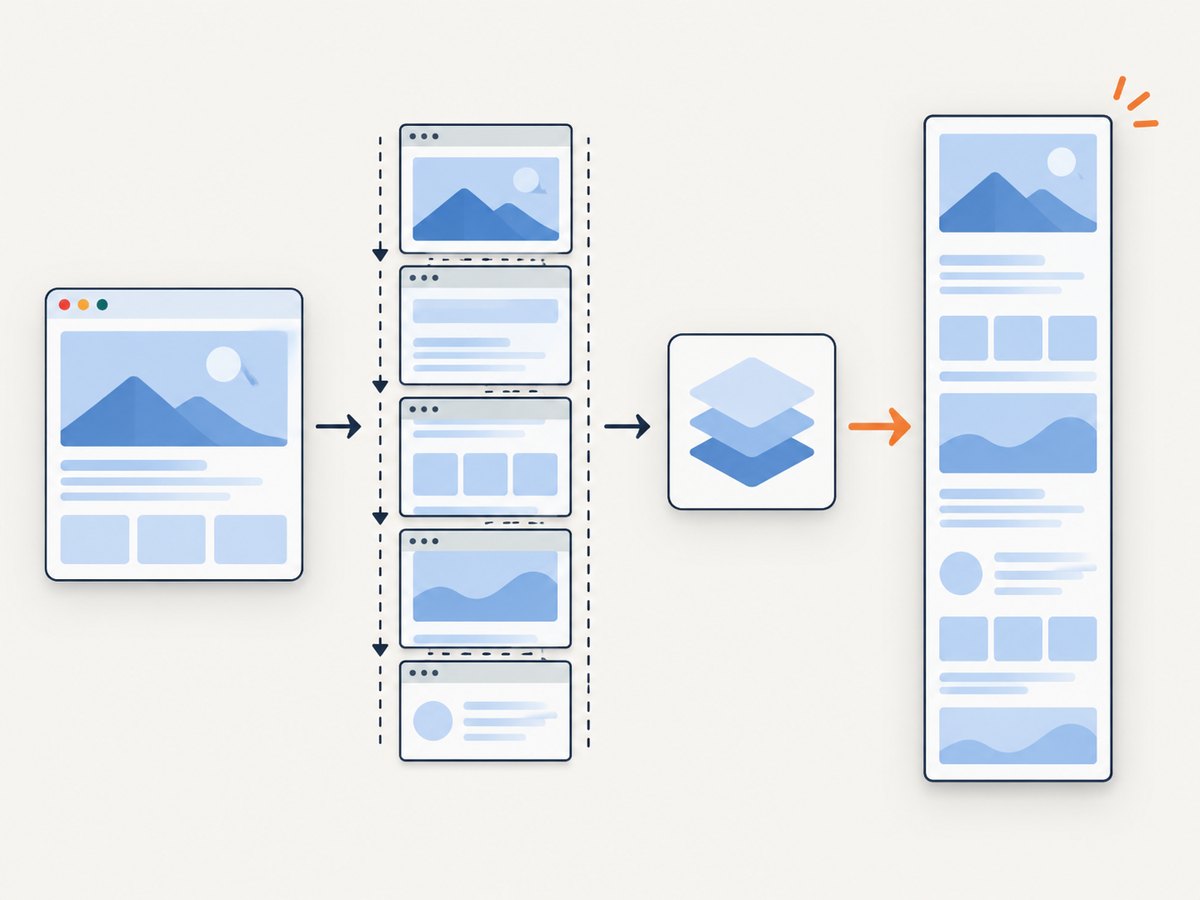
Method 1: Firefox Save full page
- Open the webpage in Firefox and wait for the content you need to appear.
- Right-click an empty part of the page and select Take Screenshot. You can also press Ctrl + Shift + S.
- In the screenshot interface, select Save full page.
- Select Download to save an image, or Copy to place it on the clipboard.
Firefox also provides Save visible for the current viewport and a region-selection mode. Mozilla’s support guide documents these controls and the shortcut (Mozilla Support).
When Firefox captures the wrong height
- Scroll through the page once before capturing if content loads only after scrolling.
- Close expanded menus, chat panels or cookie dialogs that you do not want in the image.
- For an infinite-scroll feed, stop loading at the point you want; a full-page command may otherwise continue while the page grows.
- If a sticky header repeats over every section, use the page’s print view or custom capture tooling when a single clean image is required.
Method 2: Chrome DevTools full-size screenshot
- Open the webpage in Chrome.
- Open DevTools with F12, Ctrl + Shift + I, or the browser menu.
- Turn on the device toolbar by selecting the phone/tablet icon, or press Ctrl + Shift + M.
- Open the device toolbar’s More options menu.
- Choose Capture a full size screenshot.
Chrome’s developer documentation places this command in device mode and describes it as capturing the whole page, including content outside the viewport (Chrome for Developers).
Useful Chrome adjustments
- Choose a viewport preset or enter a custom width before capture when responsive layout matters.
- Use the device toolbar to inspect mobile breakpoints, but remember that the resulting image reflects the selected viewport.
- Disable extensions that inject banners or overlays if they obscure content.
- For pages that lazy-load images, scroll through the page first so those resources are requested.
Method 3: Windows Snipping Tool for visible captures
Press Windows logo key + Shift + S, then choose a mode. Snipping Tool supports freeform, rectangle, window and full-screen captures. The result opens in Snipping Tool, where it can be edited, saved or shared (Microsoft Support).
Use it when the content fits in a visible region or when you need several manually selected sections. It is not a documented scrolling-page solution. For a long desktop-app view, capture separate visible sections or use that application’s export or print function if available.
Method 4: Print a page from Microsoft Edge
If the goal is a readable or printable document instead of one image, open Edge’s print workflow. Microsoft also describes Immersive Reader as a clutter-reduction option for printing when a site supports it; availability varies by website (Microsoft Support). Treat this as document output, not evidence of an Edge full-page screenshot feature.
Capturing long pages reliably
Wait for dynamic content
Modern pages may render content after the initial load, fetch data as you scroll, or replace placeholders with images. Wait for the page to settle, scroll through lazy sections, and close transient overlays before taking the capture.
Handle consent banners and overlays
Cookie dialogs, newsletter popups and chat widgets can become part of the image. Dismiss them manually, use a reader or print view, or use an automated screenshot service that can remove them before capture.
Know the limits of a “full page” command
- Infinite-scroll pages may have no final height.
- Virtualized lists may render only the rows near the viewport.
- Sticky navigation can repeat or cover content.
- Cross-origin frames and protected content may not behave like ordinary page elements.
- Very tall pages can produce large images that are difficult to open or share.
Troubleshooting checklist
| Symptom | Likely cause | Fix |
|---|---|---|
| The capture stops near the top | Content is still loading or the page uses lazy rendering. | Wait, scroll through the page, then capture again. |
| Images are blank | Images load only when they approach the viewport, or requests failed. | Scroll the page first; check connectivity and reload. |
| A cookie banner covers the page | The consent dialog was still open. | Accept or reject it before capture, or remove it with an automated workflow. |
| A chat bubble appears in every image | A support widget is injected by the site. | Close it, hide its selector with custom tooling, or use a service that removes chat widgets. |
| Chrome’s command is missing | DevTools device toolbar is not enabled, or the menu is open in the wrong pane. | Enable device mode, then open its More options menu. |
| The result is several separate screenshots | Snipping Tool was used for a page taller than the viewport. | Use Firefox Save full page or Chrome Capture a full size screenshot. |
| The desktop application cannot scroll-capture | The app has no browser-style full-page surface. | Capture sections manually or use the app’s export/print feature. |

Automating full-page screenshots
For repeated captures, browser menus become difficult to operate consistently. Automation should define the target URL, viewport or device, full-page behavior, wait condition, authentication, cookies, output format and failure handling. Record whether a capture was complete so downstream systems do not mistake an error image for a valid result.
Or skip the browser setup
ScreenshotNeo provides a website screenshot API and MCP server. One GET request returns a PNG, JPEG, WebP or PDF. It supports full-page capture with lazy images loaded, CSS-element capture, device presets or custom viewports, retina scale, dark mode, custom CSS and JavaScript, click actions, selector hiding, selector/delay/network-idle waits, request and resource blocking, headers, cookies, user agents, authorization, timezone, geolocation, transparent backgrounds, resizing, caching, signed links, async jobs, bulk capture and usage reporting. See the ScreenshotNeo API documentation for parameter details.
Cookie and consent banners are accepted like a visitor before capture, and more than 60 known consent platforms, newsletter popups and chat widgets are removed. Bot checks, blank pages, timeouts, failed loads and cache hits are not billed; response headers identify the page verdict and whether the request was billed.
curl -G "https://api.screenshotneo.com/v1/shot" -d access_key=YOUR_API_KEY --data-urlencode url=https://stripe.com -o shot.webpimport requests
r = requests.get("https://api.screenshotneo.com/v1/shot", params={"access_key": "YOUR_API_KEY", "url": "https://stripe.com"}, timeout=90)
open("shot.webp", "wb").write(r.content)const q = new URLSearchParams({ access_key: 'YOUR_API_KEY', url: 'https://stripe.com' });
const res = await fetch(`https://api.screenshotneo.com/v1/shot?${q}`);An MCP server provides take_screenshot, get_page_info and capture_pdf tools for Claude, Cursor and other MCP clients. The Free plan includes 1,000 shots per month with no card; paid plans start at $5 for 3,000 shots. Sign up for the free ScreenshotNeo plan.
Performance, reliability and cost notes
- Performance: Full-page captures take longer on pages with many images, scripts or lazy sections. Waiting for a specific selector or network idle can be more reliable than an arbitrary short delay.
- Reliability: Use retries for transient network failures, preserve response status and verdict headers, and avoid treating blank or challenge pages as successful captures.
- Cost: Browser-based local captures have no API charge but consume your machine’s time and resources. ScreenshotNeo bills only clean shots; bot checks, blank pages, timeouts, failed loads and cache hits cost nothing. A chosen cache TTL can reduce repeated work.
- Output: Use WebP or JPEG for smaller images when lossless PNG is unnecessary; use PDF when the reader needs pagination or printing.
FAQ
Can Windows Snipping Tool take a scrolling screenshot?
Microsoft’s documented Snipping Tool modes are freeform, rectangle, window and full screen. They do not include a documented scrolling capture mode.
What is the easiest way to capture a full webpage?
In Firefox, right-click the page, choose Take Screenshot and select Save full page. In Chrome, use DevTools device mode and choose Capture a full size screenshot.
Can I capture a long page in an app such as a document editor?
Not with one universal Windows command. Capture visible sections or use the application’s own export or print function.
Why is my full-page image missing content?
Dynamic pages may not have loaded every section. Scroll through lazy content, wait for images and overlays to settle, then capture again.
When should I use a PDF instead of a long image?
Choose PDF when pagination, text selection or printing matters. Choose an image when you need a single visual artifact for sharing or display.


