BlogScreenshots on your device
How to Capture Part of a Webpage on Windows
Capture a visible section or a full scrolling webpage on Windows with Snipping Tool, Edge Screenshot, or ScreenshotNeo.
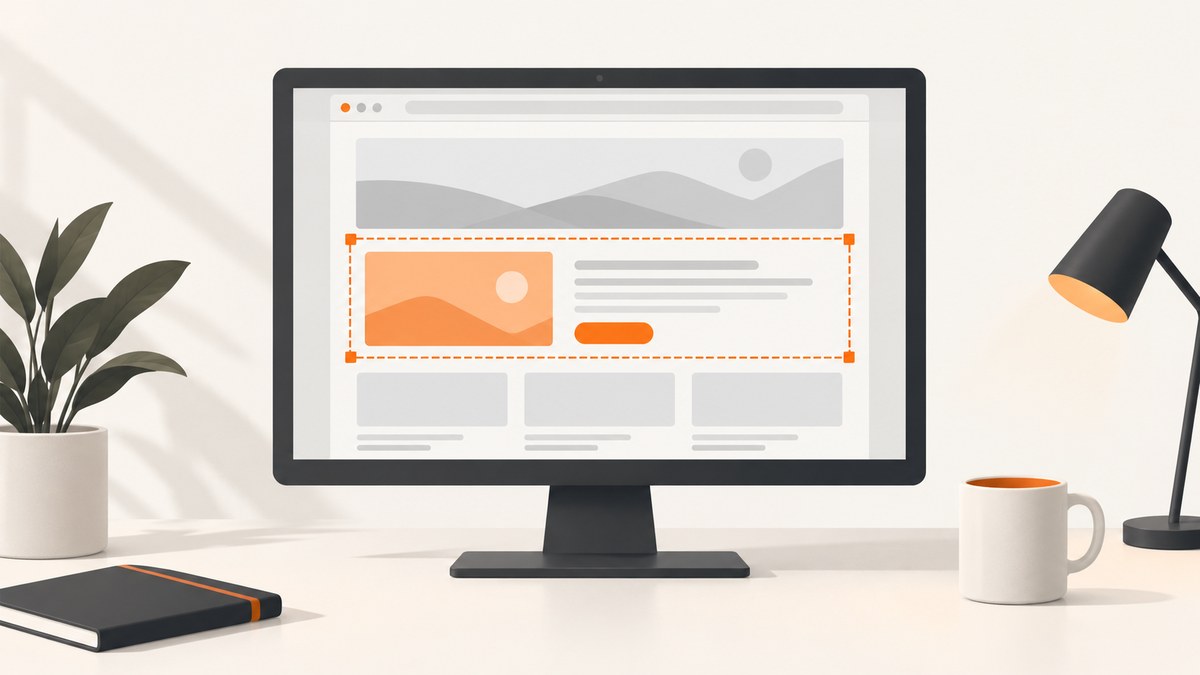
Fastest answer: press Windows+Shift+S, choose Rectangular snip or Freeform snip, and drag over the part of the webpage you need. Select the notification to open the capture in Snipping Tool, where you can copy, save, annotate, or share it.
For a webpage-aware capture in Microsoft Edge, right-click the page and choose Screenshot, or press Ctrl+Shift+S. Select an area, or choose full-page capture when the content continues below the fold.
1. Capture part of a webpage with Windows Snipping Tool
Snipping Tool works with any browser because it captures the visible Windows screen rather than depending on browser features.
- Open the webpage and scroll until the content you need is visible.
- Press Windows+Shift+S. Microsoft documents this shortcut as “Take a screenshot of part of your screen.”
- Choose Rectangular snip for a box or Freeform snip for an irregular outline.
- Drag around the webpage content, then release the pointer.
- Select the notification that appears to open the result in Snipping Tool.
- Copy it to the clipboard, save it as an image, annotate it, or share it.
Rectangular versus freeform snips
| Mode | Use it when |
|---|---|
| Rectangular snip | You need a clean box around text, an image, a chart, or a form. |
| Freeform snip | You need to outline an irregular shape or exclude nearby page content. |
A normal snip captures only what is currently visible in the viewport. It does not automatically scroll through a long page.
2. Capture a selected webpage area in Microsoft Edge
Edge’s Screenshot/Web capture tool is useful when the selection should follow webpage content or when you need markup and full-page capture. Microsoft describes Screenshot as a way to capture a full page or selected area, including long webpages, then copy or save the result.
- Open the page in Microsoft Edge.
- Right-click anywhere on the page and choose Screenshot, or press Ctrl+Shift+S. Microsoft’s command list names this command
web_capture. - Choose the selected-area or capture-area option.
- Drag over the content you want.
- Use the pen or touch markup tools if needed.
- Copy the image or save it to a file.
Capture a full scrolling webpage in Edge
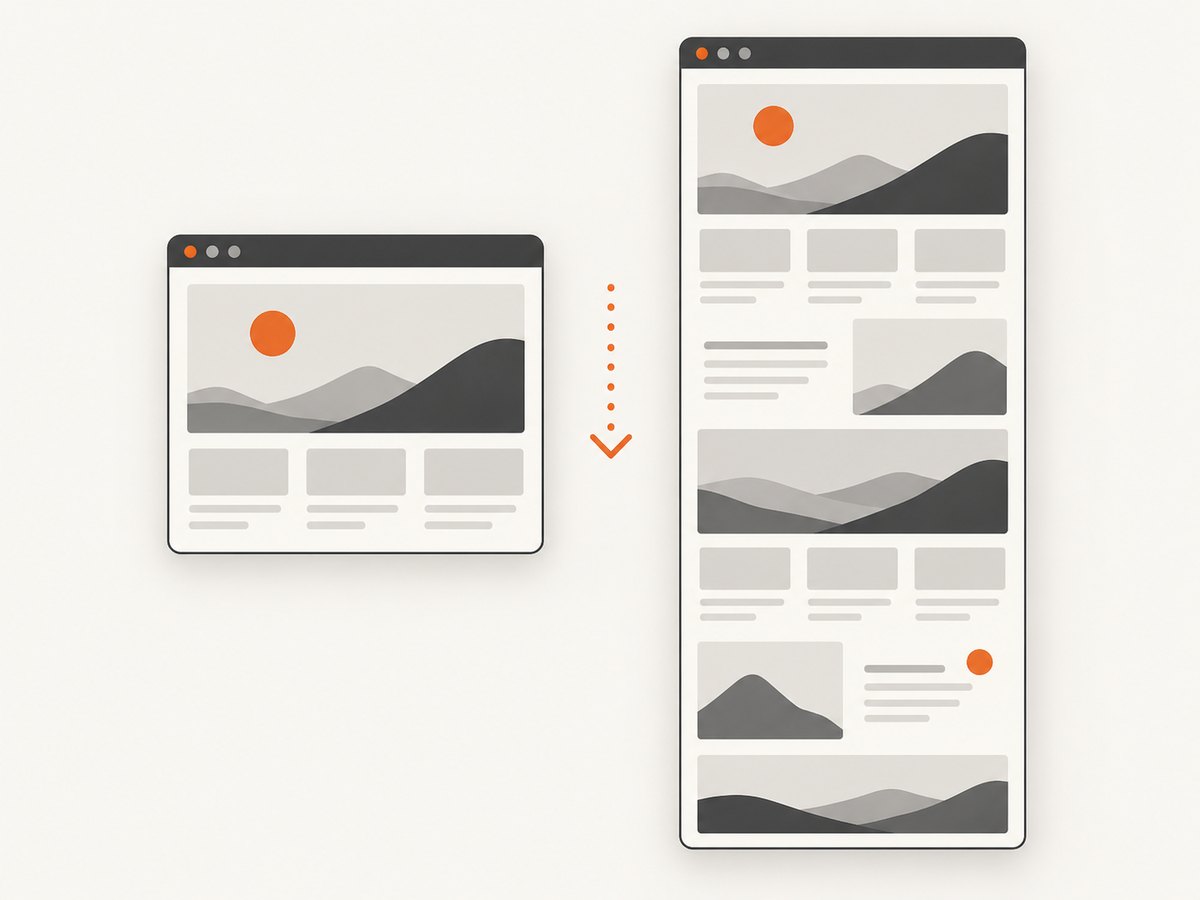
When the required content extends below the visible viewport, choose Edge’s full-page capture option instead of dragging a viewport-sized rectangle. Edge can include sections that require scrolling. Review the result before saving because very long pages may contain lazy-loaded or interactive content that changes as the page is captured.
3. Choose the right Windows method
| Need | Best method | Why |
|---|---|---|
| Fast visible rectangle | Windows+Shift+S | Works in any browser and takes a screen-level selection. |
| Irregular outline | Snipping Tool Freeform | Lets you draw the capture boundary. |
| Webpage-aware selected area | Edge Screenshot | Runs inside Edge and supports markup before export. |
| Content below the fold | Edge full-page Screenshot | Captures a long webpage rather than only the current viewport. |
4. Make the capture readable
- Zoom the browser to a useful level before selecting the area.
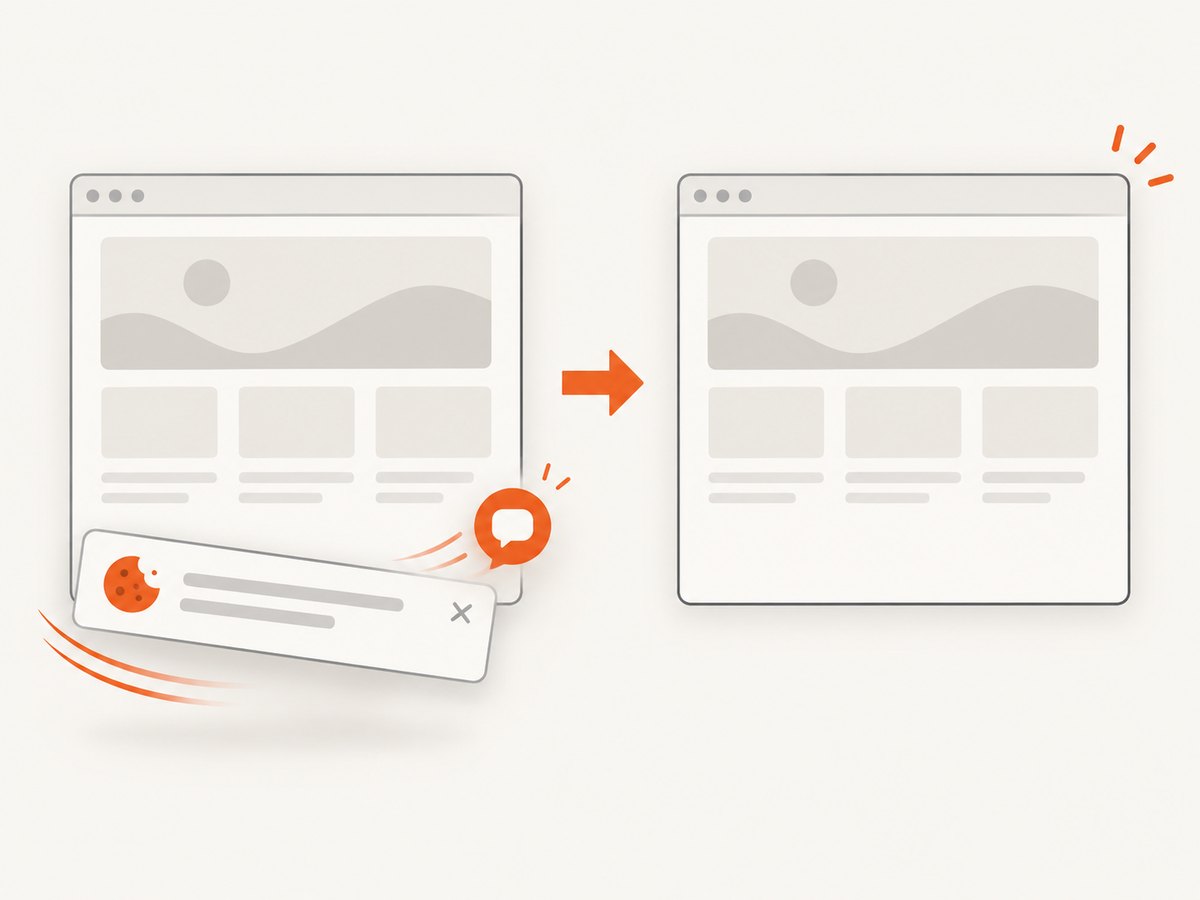
- Close cookie notices, chat bubbles, newsletter popups, and menus that cover the content.
- Scroll so the heading or surrounding context is visible when the image will be shared.
- For documentation, capture the smallest area that still explains the point.
- Use Edge or Snipping Tool markup to draw attention to a control or value, then save a copy of the unmarked capture if you may need it later.
5. Common problems and fixes
| Problem | Cause | Fix |
|---|---|---|
| Windows+Shift+S does nothing | The shortcut was intercepted, Snipping Tool is unavailable, or the keyboard combination was mistyped. | Open Snipping Tool from the Start menu and use New. If it works there, check Windows keyboard and notification settings. |
| The capture contains only the visible viewport | Screen snipping does not scroll. | Use Edge Screenshot full-page capture, or take several viewport captures and combine them in an editor. |
| Edge Screenshot is missing | You are using another browser, or the command is not available in the current Edge build or menu. | Use Windows+Shift+S, or update Edge and try the right-click menu or Ctrl+Shift+S again. |
| The wrong area was selected | The page moved while dragging or the boundary was too tight. | Press Esc, reposition the page, and repeat the selection. For precise work, zoom first. |
| Text is blurry | The browser zoom or display scaling made the source content small. | Increase page zoom before capture, or capture a larger area and crop afterward. |
| Cookie banner or chat widget covers the content | The overlay is part of the live page. | Dismiss it before capture, or use a capture service that removes common consent and chat overlays. |
| Full-page capture misses images | Images are lazy-loaded or require scrolling to appear. | Scroll through the page first, wait for images to load, then retry. For repeatable automation, use a tool with lazy-image loading. |
6. Repeatable captures and automation
Windows and Edge are ideal for occasional manual captures. A screenshot API is more suitable when a job must run repeatedly, capture many URLs, use a fixed viewport, or produce files in a build pipeline. Keep the target URL, viewport, output format, and wait strategy fixed so results are comparable. Pages that require login, geolocation, custom headers, or JavaScript interactions need a browser automation or screenshot service rather than a screen shortcut.
7. Or skip the browser setup
ScreenshotNeo is a website screenshot API and MCP server. One GET request returns a PNG, JPEG, WebP, or PDF. It can capture a full page, a CSS-selected element, a chosen viewport or device preset, dark mode, retina output, and more. See the ScreenshotNeo API documentation for all options.
cURL
curl -G "https://api.screenshotneo.com/v1/shot" -d access_key=YOUR_API_KEY --data-urlencode url=https://stripe.com -o shot.webpPython
import requests
r = requests.get("https://api.screenshotneo.com/v1/shot", params={"access_key": "YOUR_API_KEY", "url": "https://stripe.com"}, timeout=90)
open("shot.webp", "wb").write(r.content)
Node.js
const q = new URLSearchParams({ access_key: 'YOUR_API_KEY', url: 'https://stripe.com' });
const res = await fetch(`https://api.screenshotneo.com/v1/shot?${q}`);
ScreenshotNeo removes cookie and consent banners, newsletter popups, and chat widgets before capture. Bot checks, blank pages, timeouts, failed loads, and cache hits are not billed, and the response reports the page verdict and billing status in X-Page-Verdict and X-Billed headers. Its MCP server provides take_screenshot, get_page_info, and capture_pdf tools for Claude, Cursor, and other MCP clients. The Free plan includes 1,000 screenshots per month with no card; paid plans start at $5 for 3,000 screenshots.
Create a free ScreenshotNeo account and start with 1,000 screenshots a month at no charge.
8. Performance, reliability, and cost notes
- Screen snips are immediate because they capture pixels already rendered on your display.
- Full-page browser captures take longer on pages with lazy images, animations, ads, or slow third-party resources.
- For repeatable results, wait for a known selector or for network activity to settle before capturing.
- API captures add network and page-load time, but remove manual repetition and can run in bulk.
- ScreenshotNeo supports caching with a chosen TTL, async jobs with signed webhooks, bulk capture of up to 100 URLs per call, and a usage API. Only clean shots are billed.
9. FAQ
What is the shortcut to capture part of my screen?
Press Windows+Shift+S, then select Rectangular snip or Freeform snip.
Can I crop a webpage screenshot?
Yes. Drag only around the required area with Snipping Tool, or capture first and crop the saved image in an editor.
How do I take a scrolling screenshot in Edge?
Open Screenshot with right-click or Ctrl+Shift+S, then choose full-page capture.
Does Windows screen snipping work in Chrome or Firefox?
Yes. Windows+Shift+S captures the visible screen regardless of which browser displays the page.
Can I capture one HTML element instead of a rectangle?
Manual screen tools select pixels. For a CSS selector, use a browser automation workflow or ScreenshotNeo’s element capture option.


