BlogScreenshots on your device
How to Capture Partial Tkinter Canvas Screenshots Correctly
Capture the exact Tkinter Canvas region you need by choosing screen pixels or Canvas PostScript, then translating coordinates correctly.
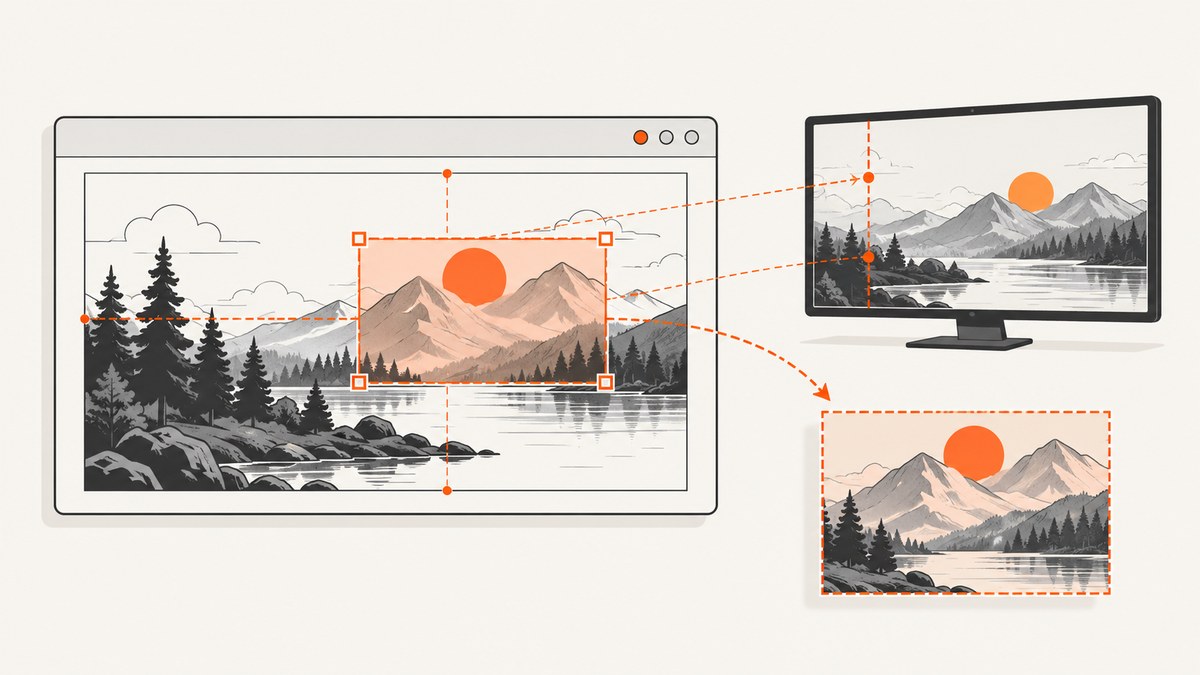
Short answer: use PIL.ImageGrab.grab(bbox=...) when you need the pixels currently displayed on screen. Use Canvas.postscript(x=..., y=..., width=..., height=...) when you need Canvas drawing content independent of desktop pixels. A scrolled Canvas has separate drawing, widget, and screen coordinate systems, so translate between them before building an ImageGrab crop.
Tkinter’s Canvas API documents Canvas coordinate conversion, item bounding boxes, and PostScript export. Pillow’s ImageGrab API documents screen-region capture with bbox=(left, top, right, bottom).
1. Decide which output you need
| Requirement | Use | Result |
|---|---|---|
| Match what the user sees, including rendered colors and overlays | ImageGrab.grab |
Pixels from a desktop rectangle; save directly as PNG, JPEG, or another Pillow format |
| Export Canvas drawing content without desktop composition | Canvas.postscript |
PostScript representation of a Canvas region |
| PNG/JPEG from a PostScript export | postscript, then a separate raster conversion step |
Raster output after conversion |
These are different operations. postscript() does not return a screenshot or PNG. A screen capture can include window overlap, desktop scaling, and operating-system capture restrictions.
2. Capture a visible Canvas region as screen pixels
The screen crop rectangle is measured from the top-left of the desktop. First let Tk settle, then get the Canvas screen origin with winfo_rootx() and winfo_rooty(). Add offsets relative to the widget.
import tkinter as tk
from PIL import ImageGrab

root = tk.Tk()
root.title("Partial Canvas capture")
canvas = tk.Canvas(root, width=600, height=400, background="white")
canvas.pack()

# Example drawing.
canvas.create_rectangle(40, 40, 260, 180, fill="#4f46e5", outline="")
canvas.create_oval(300, 100, 500, 300, fill="#f59e0b", outline="")
canvas.create_text(300, 350, text="Canvas content", fill="black")

root.update_idletasks()
root.update()

# Widget-relative crop: x0, y0, width, height.
x0, y0 = 20, 30
crop_width, crop_height = 320, 220
left = canvas.winfo_rootx() + x0
top = canvas.winfo_rooty() + y0
right = left + crop_width
bottom = top + crop_height

image = ImageGrab.grab(bbox=(left, top, right, bottom))
image.save("canvas-part.png")
root.destroy()
The right and bottom values are exclusive in the usual Pillow rectangle convention. Keep the crop inside the displayed widget unless you intentionally want neighboring desktop pixels.
Capture the entire displayed Canvas
root.update_idletasks()
left = canvas.winfo_rootx()
top = canvas.winfo_rooty()
right = left + canvas.winfo_width()
bottom = top + canvas.winfo_height()
ImageGrab.grab(bbox=(left, top, right, bottom)).save("canvas-visible.png")
3. Capture a scrolled Canvas correctly
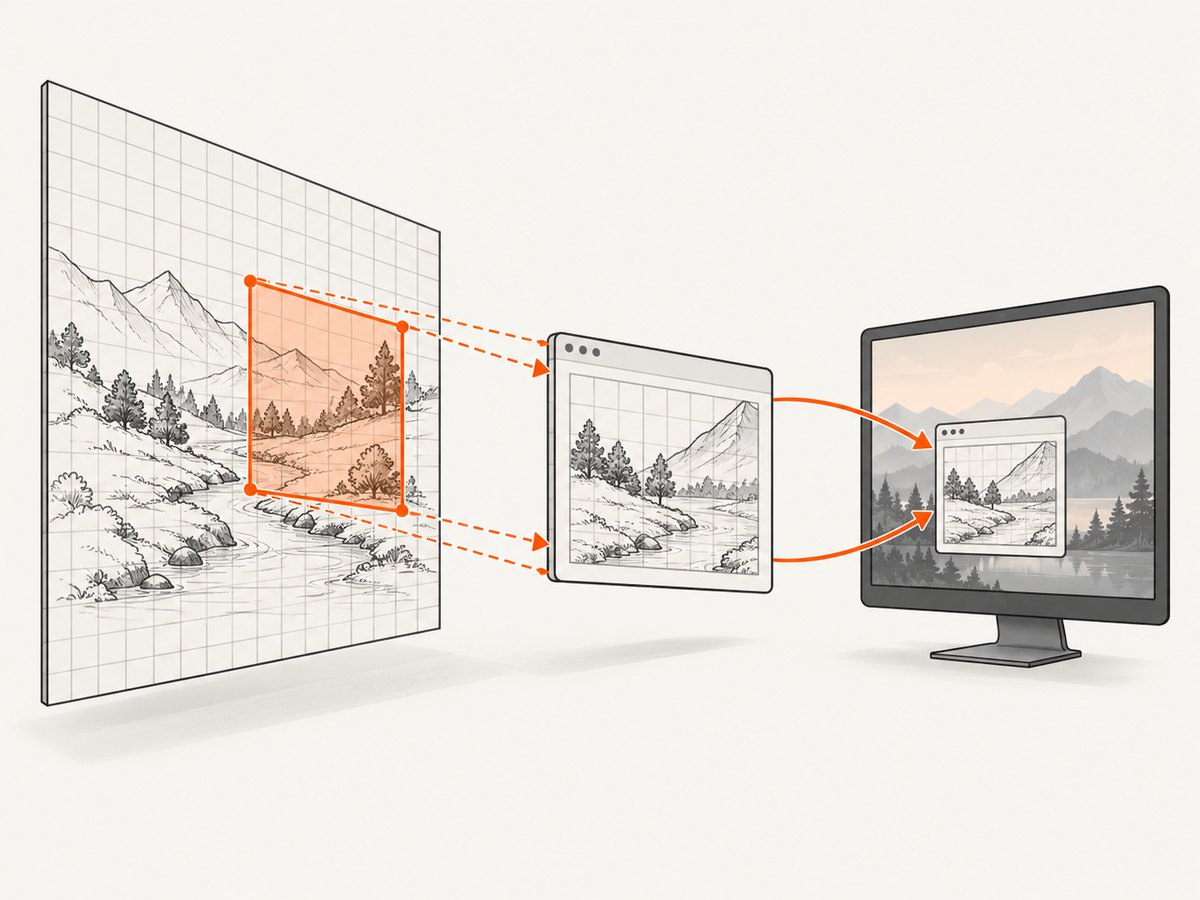
Canvas drawing coordinates describe the virtual document. Widget coordinates describe the visible control. Screen coordinates describe the desktop. Scrolling changes the translation between the first two; moving the window changes the translation to the third.
If your desired region is specified in Canvas coordinates, convert its corners with canvasx() and canvasy() at the displayed position, then add the Canvas’s screen origin. For a region that is already visible, the following helper converts a Canvas-space rectangle to a screen-space bbox.
def canvas_region_to_screen_bbox(canvas, x, y, width, height):
    """Convert Canvas document coordinates to a desktop bbox.

    The coordinates must describe content currently visible in the viewport.
    """
    root = canvas.winfo_toplevel()
    root.update_idletasks()
    root.update()

    # canvasx/canvasy map a displayed widget position to Canvas coordinates.
    # Invert that relationship by finding where the requested Canvas point
    # appears in the widget. A small binary-free scan is unnecessary when the
    # view is represented by the Canvas scrollregion: use the view origin.
    view_x = canvas.canvasx(0)
    view_y = canvas.canvasy(0)
    widget_x = x - view_x
    widget_y = y - view_y

    left = canvas.winfo_rootx() + round(widget_x)
    top = canvas.winfo_rooty() + round(widget_y)
    return (left, top, left + round(width), top + round(height))

# Example: capture a 300x180 document region at Canvas coordinates (500, 250).
bbox = canvas_region_to_screen_bbox(canvas, 500, 250, 300, 180)
ImageGrab.grab(bbox=bbox).save("scrolled-region.png")
Only capture a document rectangle that is currently inside the viewport. If part of it is outside the viewport, scroll in controlled steps, capture each visible tile, and assemble the result, or use PostScript export for the Canvas content.
Use canvasx and canvasy when starting from widget positions
# A point 25 pixels from the visible widget's top-left:
document_x = canvas.canvasx(25)
document_y = canvas.canvasy(25)
print(document_x, document_y)
Do not pass these document values directly to ImageGrab.grab. They need the widget-to-screen translation shown above.
4. Export a bounded Canvas region as PostScript
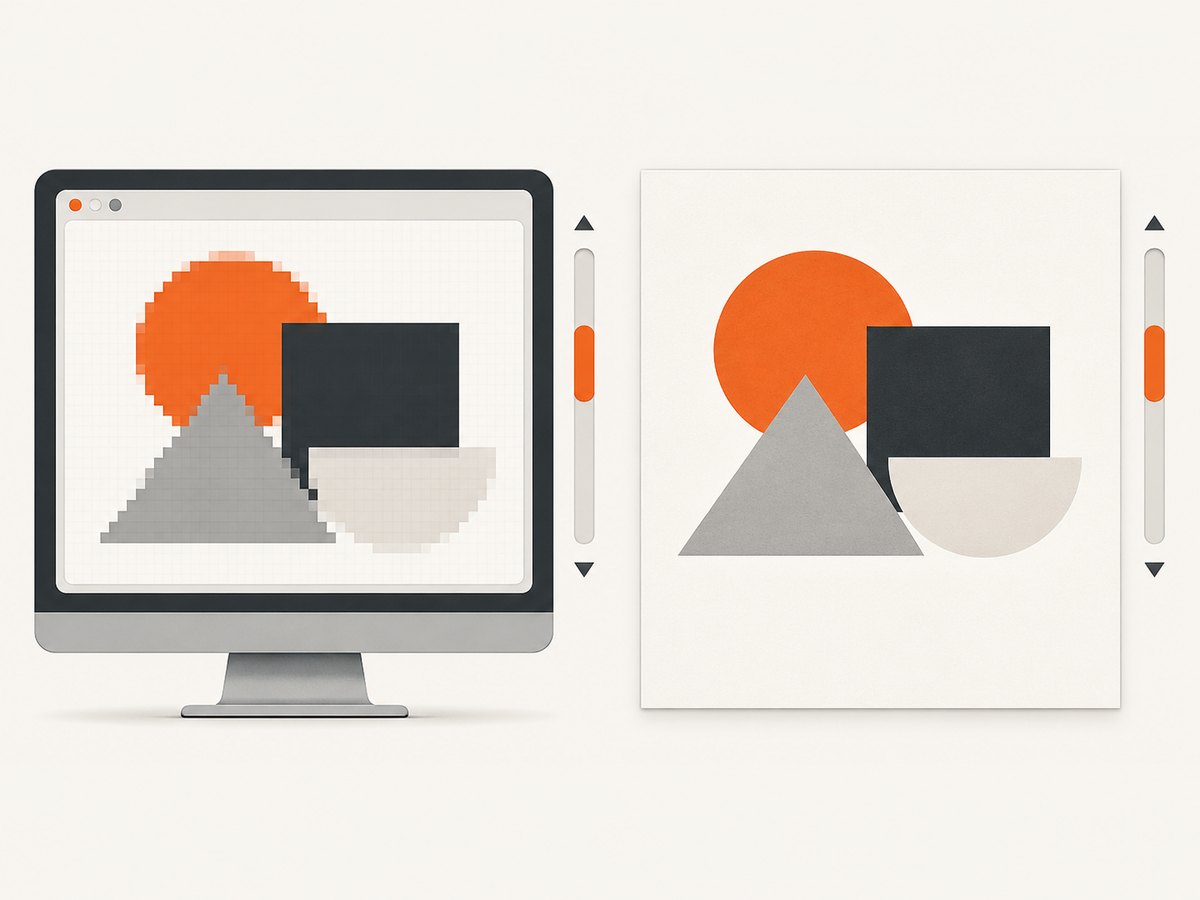
PostScript uses Canvas content coordinates, so scrolling does not require constructing a desktop rectangle. The export is a Canvas drawing representation, not a desktop screenshot.
import tkinter as tk

root = tk.Tk()
canvas = tk.Canvas(root, width=600, height=400, background="white")
canvas.pack()
canvas.create_rectangle(40, 40, 260, 180, fill="#4f46e5", outline="")
canvas.create_oval(300, 100, 500, 300, fill="#f59e0b", outline="")
root.update_idletasks()
root.update()

x, y = 40, 40
width, height = 220, 140
canvas.postscript(
    file="canvas-region.eps",
    colormode="color",
    x=x,
    y=y,
    width=width,
    height=height,
)
root.destroy()
Without file, postscript() returns the PostScript text. The documented options include x, y, width, height, and colormode; the default export area is the visible Canvas area. Convert the resulting PostScript separately when a PNG or JPEG is required.
5. Understand Canvas bounding boxes
# Bounding box of all items, or of selected item IDs/tags.
box = canvas.bbox("all")
print(box)  # (x1, y1, x2, y2) in Canvas coordinates
Canvas.bbox() returns an approximate item bounding box in Canvas coordinates and may include a few extra pixels. It is not a screen rectangle. For a screen capture, translate the result through the current scroll position and widget screen origin before passing it to Pillow.
6. Platform and image-mode details
- macOS Retina: Pillow documents that
bboxcaptures are 2× by default. On Pillow versions that provide it, usescale_down=Truewhen you need 1× output dimensions. - Image mode: Pillow documents RGBA on macOS and RGB elsewhere. Normalize before code that assumes one mode:
image = image.convert("RGB"). - Permissions: Desktop capture can require operating-system screen-recording permission. Grant it to the Python host or IDE if the image is blank or rejected.
- Window state: A covered, minimized, off-screen, or not-yet-rendered window may not produce the intended pixels. PostScript avoids desktop occlusion for Canvas drawing content.
- Multiple monitors: Screen coordinates can be negative or use a monitor-specific origin. Use the values returned by
winfo_rootx()andwinfo_rooty(); do not assume the primary monitor starts at (0, 0).
7. Troubleshooting checklist
| Symptom | Cause | Fix |
|---|---|---|
| Crop is shifted after scrolling | Canvas coordinates were used as screen coordinates | Use canvas.canvasx(0)/canvasy(0) to find the view origin, then add winfo_rootx()/winfo_rooty(). |
| Image includes the wrong desktop area | Widget-relative offsets were omitted or origin was measured before layout | Call update_idletasks() and update(), then add offsets to the widget’s screen origin. |
| PostScript file is not a PNG | postscript() exports PostScript |
Use ImageGrab for pixels, or run the PostScript through a separate raster converter. |
| Export is blank or too small | Canvas has not rendered or dimensions were not supplied | Call update(); provide explicit x, y, width, and height. |
| Edges contain a few extra pixels | bbox() is approximate |
Apply a small intentional adjustment after inspecting the result. |
| Retina output dimensions are doubled | macOS Retina scaling | Use scale_down=True where supported, or resize explicitly. |
| Capture is black, blank, or permission-denied | Desktop capture permission or window visibility problem | Enable screen-recording permission, keep the window visible, or switch to PostScript. |
Code errors on scale_down or window |
Installed Pillow is older than the API option | Check the installed Pillow documentation/version and avoid unsupported options. |
8. Performance, reliability, and cost considerations
- Performance: capture only the required rectangle; large full-screen images consume more memory and take longer to encode. PostScript avoids desktop compositing but still scales with the exported drawing.
- Reliability: wait for geometry and rendering before measuring. Keep the target window visible for ImageGrab. Prefer PostScript for repeatable Canvas-content exports that must not depend on other windows.
- Coordinate safety: log the computed
bboxand image size during development. This quickly exposes monitor-origin, scrolling, and Retina mistakes. - Cost: local Tkinter and Pillow captures have no API usage charge. The tradeoff is that your process must manage desktop permissions, window state, encoding, and any PostScript conversion.
9. Or skip the browser setup
For browser pages rather than a local Tkinter window, ScreenshotNeo provides a single GET request that returns PNG, JPEG, WebP, or PDF. See the ScreenshotNeo API documentation.
curl -G "https://api.screenshotneo.com/v1/shot" -d access_key=YOUR_API_KEY --data-urlencode url=https://stripe.com -o shot.webpimport requests
r = requests.get("https://api.screenshotneo.com/v1/shot", params={"access_key": "YOUR_API_KEY", "url": "https://stripe.com"}, timeout=90)
open("shot.webp", "wb").write(r.content)const q = new URLSearchParams({ access_key: 'YOUR_API_KEY', url: 'https://stripe.com' });
const res = await fetch(`https://api.screenshotneo.com/v1/shot?${q}`);ScreenshotNeo accepts cookie and consent banners before capture and removes more than 60 known consent platforms, newsletter popups, and chat widgets. Bot checks, blank pages, timeouts, failed loads, and cache hits are not billed, and response headers identify the page verdict and billing result. Its MCP server provides take_screenshot, get_page_info, and capture_pdf for Claude, Cursor, and other MCP clients. The Free plan includes 1,000 screenshots per month with no card; paid plans start at $5 for 3,000.
Create a free ScreenshotNeo account and start with 1,000 screenshots a month without a card.
10. FAQ
Can ImageGrab capture Canvas content that is outside the viewport?
No. It captures desktop pixels. Scroll and capture tiles, or export the Canvas with PostScript.
Should I use bbox('all') for a screenshot crop?
Use it to discover item bounds in Canvas coordinates, then translate those bounds to screen coordinates. It is approximate and may include a small margin.
Why does PostScript appear vertically different?
PostScript uses a lower-left origin while X uses an upper-left origin. Tk transforms the Canvas coordinates during export.
How do I guarantee a 1× image on a Retina Mac?
Use Pillow’s documented scale_down=True option when available, then verify the saved dimensions.
Which method preserves desktop chrome and overlays?
ImageGrab captures the displayed screen rectangle. PostScript exports Canvas drawing content without desktop chrome.


