BlogScreenshots on your device
How to Capture Only the Primary Monitor with WinAppDriver or WebDriver
WinAppDriver and WebDriver do not select one monitor directly. Capture the app or crop a full desktop screenshot using the primary display bounds.
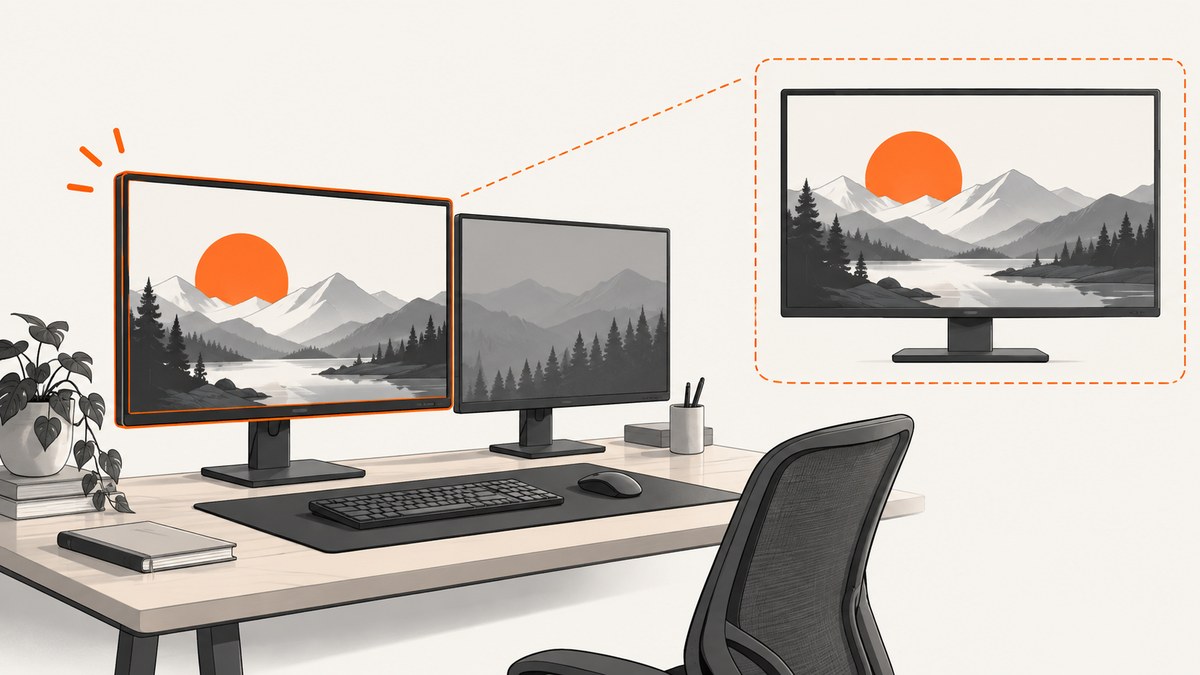
If you ask, “How do I take a screenshot of only the primary monitor with WinAppDriver?” the direct answer is: WinAppDriver and standard WebDriver do not provide a documented primary-monitor-only switch for a full desktop screenshot. A desktop or root session can span both monitors. Use an application or element screenshot when possible; otherwise capture the desktop and crop the bitmap to the primary monitor’s display rectangle.
WinAppDriver is a Selenium-like automation service for UWP, WinForms, WPF and Win32 applications on Windows 10 PCs. Its API includes an element screenshot endpoint, but the desktop screenshot endpoint does not expose a monitor selector. See the WinAppDriver feature list and the two-monitor screenshot discussion.
Choose the right capture method
| Method | Best for | Popups and overlays | Window occlusion | Monitor and DPI concerns | Complexity |
|---|---|---|---|---|---|
| Application screenshot | The app under test | Usually excludes unrelated desktop pixels | Depends on the driver and application surface | Usually simpler than desktop cropping | Low |
| Element screenshot | A control, panel or page element | Excludes unrelated windows | Driver-specific | Element coordinates are handled by the driver | Low |
| Full desktop plus crop | Evidence spanning the primary display | Includes overlays unless you remove them | Captures whatever is visible | Requires runtime bounds, DPI awareness and coordinate conversion | Medium |
| Windows screen capture | Popups, flyouts and overlays that are part of the evidence | Includes them by design | Captures the screen surface | Still requires correct display geometry | Medium |
Selenium describes its screenshot operation as capturing the “current browsing context.” Window positioning is a separate operation; positioning a window on the primary display does not turn a desktop screenshot into a primary-monitor selector. Read Selenium’s window and screenshot documentation.
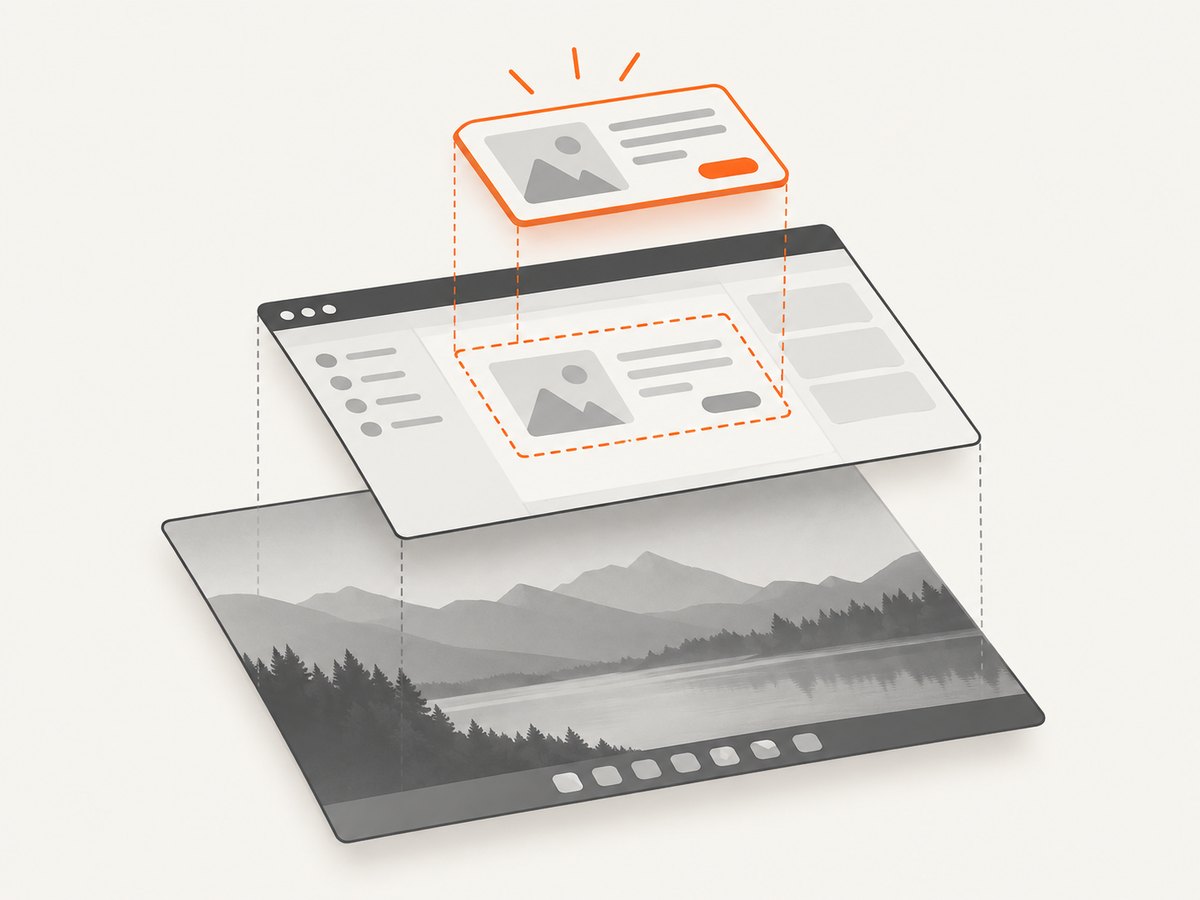
Option 1: capture the application or element
Prefer this when your test target is represented by a WinAppDriver session or element. It avoids unrelated pixels from another monitor and is less sensitive to how the virtual desktop is arranged.
WinAppDriver element screenshot endpoint
GET /session/:sessionId/element/:elementId/screenshotIn a Selenium language binding, locate the window or control and call its screenshot method. The exact method name varies by binding, but the operation maps to the element endpoint above. Save the returned PNG bytes directly; do not apply a monitor crop unless the element screenshot is itself a virtual-desktop image.
When an application screenshot is insufficient
Use a desktop or screen capture when the requirement includes another process’s popup, a flyout, a tooltip or a system overlay. Because screen capture intentionally broadens the captured surface, crop it afterward if only the primary monitor belongs in the artifact. Microsoft’s UI Automation CLI distinguishes window capture from screen capture for this reason: screen capture includes popups, flyouts and overlays. See the Windows UI Automation capture guidance.
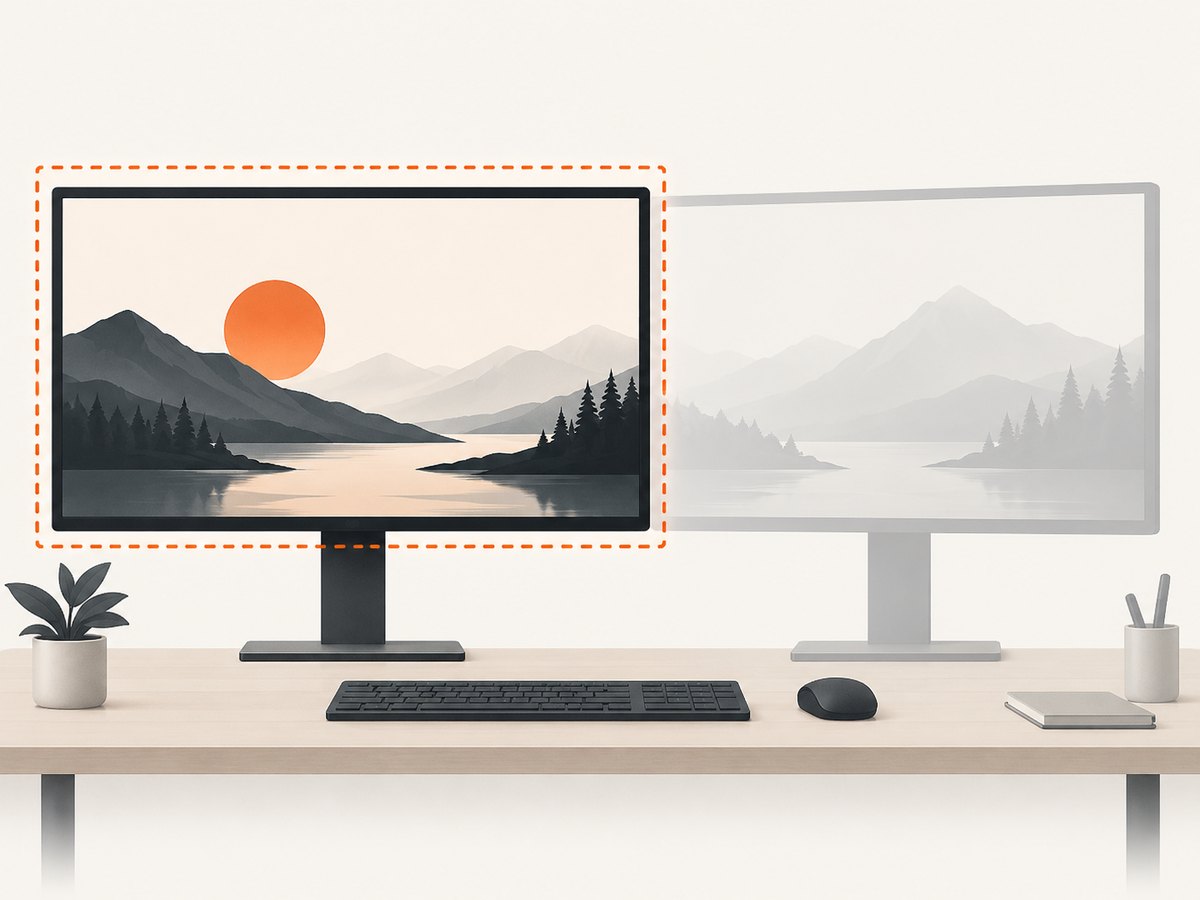
Option 2: capture the desktop and crop to the primary monitor
- Call the normal WebDriver or WinAppDriver screenshot method.
- Decode the PNG into an image object.
- Query the primary display bounds at runtime.
- Convert display coordinates into screenshot pixel coordinates.
- Intersect the rectangles and crop only the intersection.
- Save the cropped image and log the bounds, image dimensions and DPI-awareness mode.
Do not assume that the primary monitor starts at (0,0). Windows permits a secondary display to be left of the primary, producing negative virtual-desktop coordinates. Portrait displays and mixed DPI scaling also change the rectangle dimensions and coordinate mapping.
C# pattern with WinAppDriver
using System;
using System.Drawing;
using System.Drawing.Imaging;
using OpenQA.Selenium.Appium;
using SixLabors.ImageSharp;
using SixLabors.ImageSharp.PixelFormats;
using SixLabors.ImageSharp.Processing;

// session is an AppiumDriver<WindowsElement> or compatible WinAppDriver session.
var shot = session.GetScreenshot();
using var full = Image.Load<Rgba32>(shot.AsByteArray);

// Obtain this at runtime in the Windows desktop test process.
// Screen.PrimaryScreen.Bounds is in virtual-screen coordinates.
var primary = System.Windows.Forms.Screen.PrimaryScreen.Bounds;

// This assumes the screenshot image uses the same origin and scale as the
// display bounds. If your driver returns a differently scaled image, apply
// an explicit DPI conversion before constructing crop.
var imageRect = new Rectangle(0, 0, full.Width, full.Height);
var crop = Rectangle.Intersect(
    imageRect,
    new Rectangle(primary.Left, primary.Top, primary.Width, primary.Height));

if (crop.Width <= 0 || crop.Height <= 0)
    throw new InvalidOperationException("Primary monitor is outside screenshot bounds");

using var onlyPrimary = full.Clone(ctx => ctx.Crop(crop));
onlyPrimary.Save("primary.png");
The snippet is an implementation pattern. ImageSharp, Selenium and WinAppDriver package APIs can differ by version. The important parts are obtaining the bounds at runtime, intersecting rectangles and checking for an empty result. If the screenshot is a bitmap of the virtual desktop with a nonzero origin or a different scale, translate and scale the primary rectangle before cropping.
Coordinate and DPI checklist
- Record
Screen.PrimaryScreen.Bounds, the virtual-screen bounds and the decoded image width and height. - Confirm whether the process is DPI-aware. Windows may virtualize coordinates for an unaware process.
- Test a secondary monitor positioned left of the primary, above it and below it.
- Test mixed scaling such as 100% on one display and 150% on another.
- Test portrait orientation, where width and height are reversed relative to landscape.
- Verify the crop visually once in each supported display arrangement.
Complete troubleshooting guide
The screenshot still contains the second monitor
Cause: You captured the desktop but did not crop, or the crop rectangle was based on an assumed origin. Fix: query the primary display bounds at runtime, intersect them with the decoded image rectangle and save the cropped bitmap.
The crop is empty or throws an out-of-bounds error
Cause: Display coordinates and image coordinates use different origins or scales. Fix: log both rectangles, determine the virtual-desktop origin used by the driver, apply the DPI scale, then intersect. Treat a nonpositive intersection as a configuration error.
The image is shifted or has the wrong size
Cause: Mixed DPI, display scaling or a portrait monitor. Fix: use a DPI-aware process, calculate scale factors from the screenshot dimensions and virtual-screen dimensions, and test each monitor arrangement.
A popup is missing
Cause: An application or element screenshot captures only the target surface. Fix: use screen or desktop capture when the popup is required, then crop to the primary display if necessary.
The app is covered by another window
Cause: Desktop screenshots capture visible pixels, not an unobscured rendering of every application. Fix: use an application or element screenshot when the driver supports it, or arrange the test so the target window is visible before capture.
GetScreenshot fails or returns a blank image
Cause: The session is not attached to the expected window, the application has not finished rendering, or the driver cannot capture the current surface. Fix: wait for a deterministic UI condition, verify the session’s current window and element, and capture the element or application surface instead of the desktop where possible.
Performance, reliability and cost considerations
- Performance: Element or application captures usually process fewer pixels than a full virtual desktop followed by image decoding and cropping. For repeated tests, avoid desktop capture when the evidence does not need it.
- Reliability: Runtime geometry is more reliable than hard-coded coordinates. Log display bounds, image size, DPI mode and the final crop rectangle with each artifact.
- Determinism: Close unrelated windows and disable animations where your test policy allows. Wait for a stable application state before taking the shot.
- Portability: The element approach maps cleanly across Selenium bindings. Desktop cropping depends on Windows display APIs and therefore needs Windows-specific code.
- Storage: Crop before uploading or attaching artifacts when only the primary display is relevant; this reduces file size and avoids exposing unrelated pixels.
- Cost: A local WinAppDriver capture has no ScreenshotNeo API charge. If you use a hosted screenshot API, account for capture volume, image format and caching behavior.
Or skip the browser setup
For website screenshots rather than Windows desktop evidence, ScreenshotNeo returns a PNG, JPEG, WebP or PDF from one request. It handles the browser session for you:
curl -G "https://api.screenshotneo.com/v1/shot" -d access_key=YOUR_API_KEY --data-urlencode url=https://stripe.com -o shot.webpimport requests
r = requests.get("https://api.screenshotneo.com/v1/shot", params={"access_key": "YOUR_API_KEY", "url": "https://stripe.com"}, timeout=90)
open("shot.webp", "wb").write(r.content)const q = new URLSearchParams({ access_key: 'YOUR_API_KEY', url: 'https://stripe.com' });
const res = await fetch(`https://api.screenshotneo.com/v1/shot?${q}`);See the ScreenshotNeo API documentation for options such as viewport and device presets, full-page capture, element selectors, custom CSS and JavaScript, waits, blocked resources, headers, cookies, geolocation, PDF output and caching. Cookie banners, newsletter popups and chat widgets are removed before the shot. Bot checks, blank pages and failed loads are never billed, and response headers identify the page verdict and billing result. An MCP server lets AI agents call take_screenshot, get_page_info and capture_pdf. The Free plan includes 1,000 screenshots a month with no card; paid plans start at $5 for 3,000.
Create a free ScreenshotNeo account and start with 1,000 screenshots per month at no charge.
FAQ
Can Selenium select the primary monitor directly?
Not through the documented screenshot API. Selenium captures the current browsing context; monitor selection and window positioning are separate concerns.
Should I crop before or after saving the PNG?
Decode the PNG, crop the image object, then save the cropped result. This avoids coordinate mistakes caused by treating compressed bytes as raw pixels.
Is an element screenshot always better?
It is cleaner when the required evidence is inside one application element. Use desktop or screen capture when system overlays or cross-process popups are part of the evidence.
Why can a negative monitor coordinate be valid?
Windows arranges displays in a virtual coordinate space. A monitor placed left or above another display has negative Left or Top values.
Does moving the browser window to the primary monitor solve this?
It can place the window there, but it does not change what a desktop screenshot endpoint captures. Crop the desktop image or capture the window or element instead.


