How to Capture Screenshots of Private Web Content
Capture logged-in pages safely with Firefox, native tools, and ScreenshotNeo. Handle blocked screenshots, sensitive data, full-page captures, and automation.
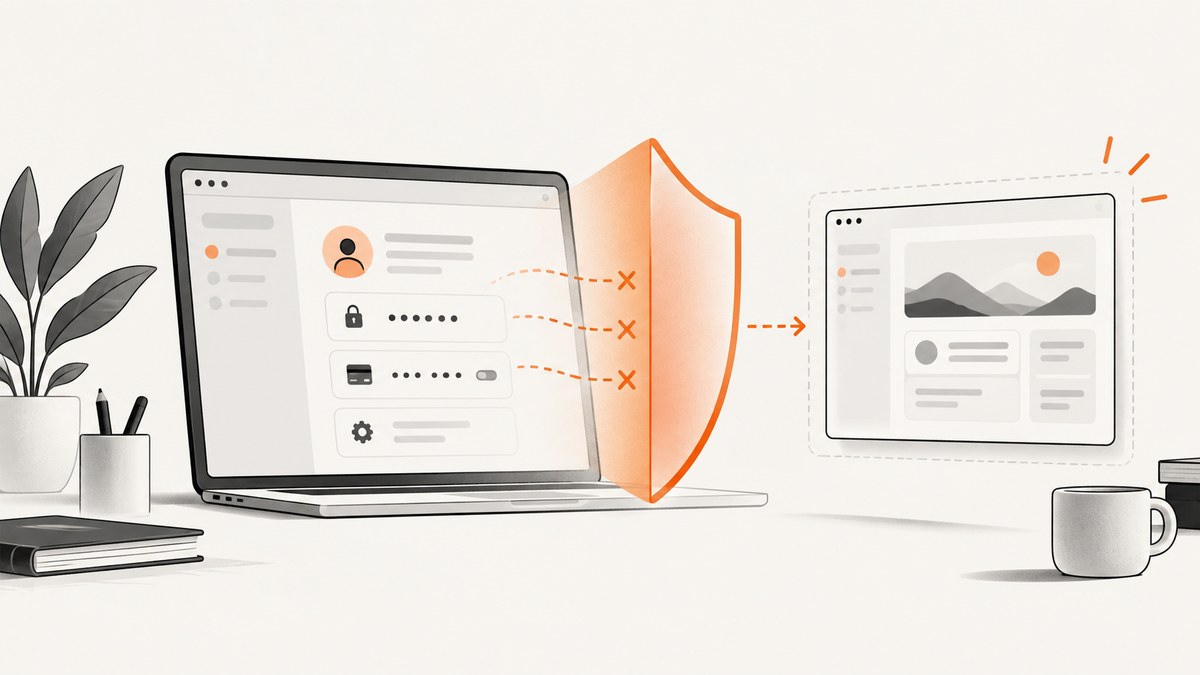
A private or logged-in page can be captured, but the safest method depends on your authorization, browser policy, and what the image may disclose. Keep the authenticated session open, capture only the required area, inspect the result, and store it where access is controlled.
Choose the right capture method
| Need | Best starting point | Important limitation |
|---|---|---|
| One logged-in page or element | Firefox Developer Tools | The screenshot contains everything visible in the selected page or element. |
| A small region or browser window | Native operating-system capture | Notifications, tabs, and other visible content can be included accidentally. |
| Automated captures from a server | ScreenshotNeo | You must provide an authorized session using the supported request options. |
| Blocked capture | Use the site’s approved export, print, or sharing feature | Enterprise, DRM, and operating-system controls may prohibit screenshots. |
Before you capture private content
- Confirm that you are authorized to view and capture the page. Do not use a screenshot to bypass access controls.
- Leave the required authenticated session open. Check that the account, workspace, and record shown are the intended ones.
- Close unrelated tabs and hide notifications. A native screen capture can include anything visible on the desktop.
- Decide whether you need a full page, the current viewport, one element, or a small region. A narrower capture reduces accidental disclosure.
- Plan where the file will be stored. Use an access-controlled location and delete temporary copies when policy permits.
Capture a full page in Firefox
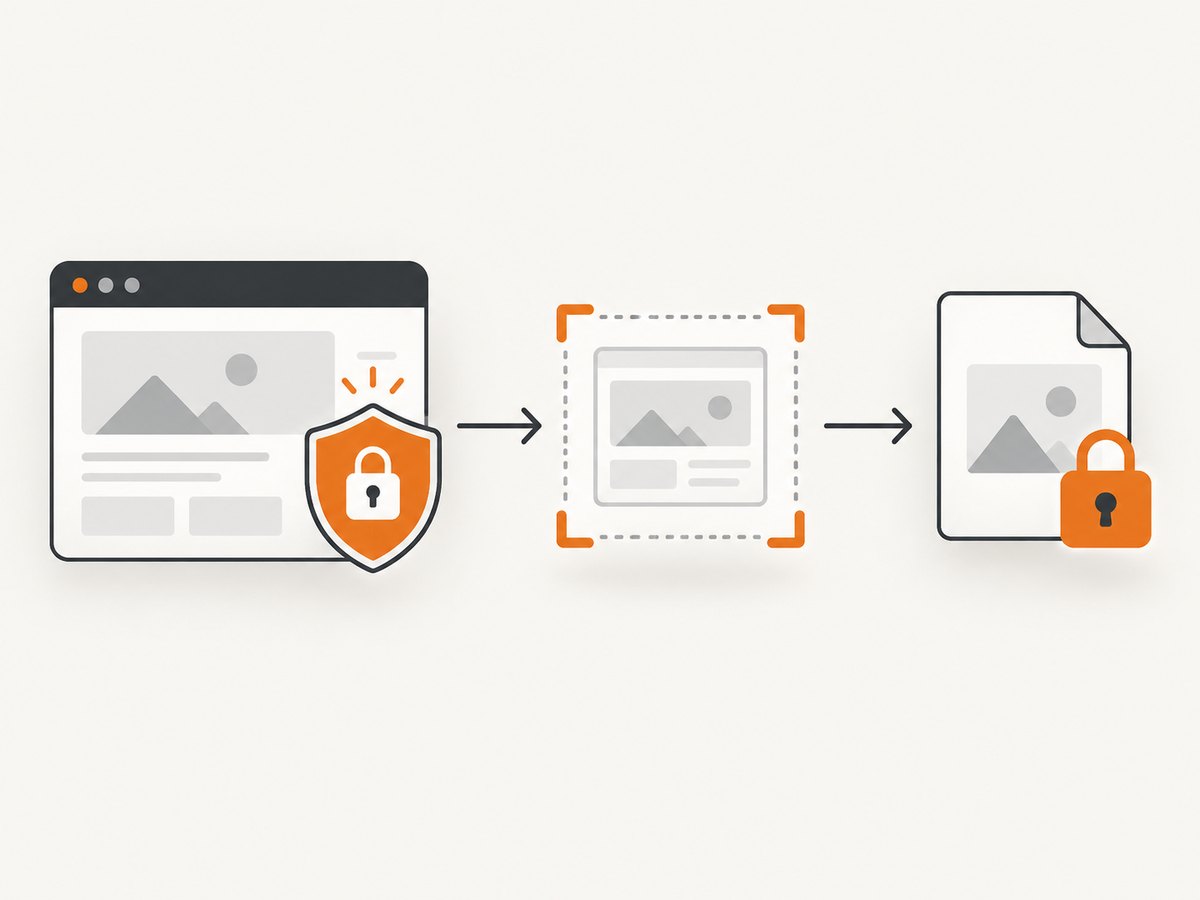
Firefox Developer Tools can capture the complete page in an authenticated session, including content below the fold.
- Open the private page and sign in normally.
- Open Developer Tools with
F12orCtrl+Shift+I(Windows/Linux) orCmd+Option+I(macOS). - Open the Developer Tools options menu and enable the full-page screenshot toolbox button.
- Choose the screenshot button. Firefox saves the image to your Downloads folder.
- Open the saved file and verify that lazy-loaded content, account context, and sensitive fields are correct.
If the page uses lazy loading, scroll through it first so content has a chance to load. A full-page image can still differ from what you see if the application fetches data only after interaction.
Capture one private element with Firefox
- Open Developer Tools and select the Inspector.
- Use the element picker to select the table, message, chart, or other element you need.
- Open the element’s context menu and choose Screenshot Node.
- Inspect the output for clipped text, hidden overflow, and sensitive neighboring content.
Element capture is useful for a single invoice or dashboard panel because it avoids exporting the rest of the account page. It can fail when an element is rendered inside a shadow tree, canvas, iframe, or virtualized list; in those cases, capture the containing region or use the application’s export.
Use Firefox’s :screenshot helper
Firefox’s Web Console includes a :screenshot helper. It can set a delay, device-pixel ratio, filename, and clipboard output. Run it only in the authorized tab.
:screenshot --fullpage --delay 2000 --dpr 2 private-page.pngFor a viewport capture, omit --fullpage. A delay helps pages that render after navigation, but it does not guarantee that a background request has completed. Use the browser’s normal download destination unless your organization provides a safer location.
Capture a region or window with native tools
Use your operating system’s region or window capture when you need a small, deliberate crop. Select the browser window or rectangle, then check the result for account names, URLs, notifications, and other tabs. Region capture is often safer than a full-monitor image because it limits unrelated disclosure.
Native capture does not change the page’s authorization state. It simply records pixels currently displayed, so overlays, loading states, and partially rendered components may appear in the result.
When screenshots are blocked
Managed Chrome can enforce screenshot-prevention rules on configured sites. The policy applies to screenshots taken with keyboard shortcuts and by apps or extensions using the Chrome API. It is available for managed users with Chrome Enterprise Premium on Windows and Mac; screen-share prevention is supported on Windows.
The Screen Capture API is also user-mediated. getDisplayMedia() presents a picker, and controls such as displaySurface, monitorTypeSurfaces, and selfBrowserSurface help reduce accidental sharing of an entire monitor or the current tab.
const stream = await navigator.mediaDevices.getDisplayMedia({
  video: {
    displaySurface: "browser",
    selfBrowserSurface: "exclude",
    monitorTypeSurfaces: "exclude"
  },
  audio: false
});

const track = stream.getVideoTracks()[0];
const settings = track.getSettings();
console.log(settings.displaySurface);
track.stop();
This code still requires an explicit user selection and does not override enterprise, DRM, application, or operating-system controls. If capture is blocked, use an approved export, print-to-PDF, or sharing function supplied by the site or administrator. Do not attempt to bypass the control.
Private browsing does not make screenshots private
Private Browsing mainly changes history and site-data handling. It does not guarantee that an image, clipboard entry, download, backup, or recipient is private. Mozilla documents that screenshots taken while browsing privately appear in the normal downloads list. Treat the image itself as sensitive data.
Extensions also have access implications. Chrome recommends requesting only the minimum data an extension needs. Safari web extensions require permission to access and update pages; in Safari 17 and later, a granted site permission can extend across profiles, private browsing, and browsing without a profile. Install extensions only from trusted sources, review host permissions, and prefer a local browser tool when uploading page contents is unnecessary.
Inspect and protect the image
- Check names, email addresses, account numbers, private messages, tokens, notification banners, and browser tabs.
- Confirm that the URL, tenant, project, and date are the intended ones.
- Crop or cover unrelated data before sharing. Redaction should be opaque and permanent in the exported file.
- Remove metadata or clipboard copies when your policy requires it.
- Store the final image in an access-controlled location and delete temporary files when permitted.
Automate authenticated captures with ScreenshotNeo
For repeatable server-side captures, ScreenshotNeo provides a GET endpoint that returns PNG, JPEG, WebP, or PDF. Use an authorized session represented by the supported custom headers, cookies, user agent, or Authorization settings; see the ScreenshotNeo documentation for the exact request options and parameter names.
The service supports full-page captures with lazy images loaded, CSS-selector element captures, custom CSS and JavaScript, click actions, waits for a selector, delays and network idle, request and resource blocking, timezone and geolocation, transparent backgrounds, resizing, caching with a chosen TTL, signed links, asynchronous jobs with signed webhooks, bulk capture of up to 100 URLs per call, usage reporting, and PDF controls such as paper size, margins, landscape mode, and page ranges.
cURL
curl -G "https://api.screenshotneo.com/v1/shot" -d access_key=YOUR_API_KEY --data-urlencode url=https://stripe.com -o shot.webpPython
import requests
r = requests.get("https://api.screenshotneo.com/v1/shot", params={"access_key": "YOUR_API_KEY", "url": "https://stripe.com"}, timeout=90)
open("shot.webp", "wb").write(r.content)
Node.js
const q = new URLSearchParams({ access_key: 'YOUR_API_KEY', url: 'https://stripe.com' }); const res = await fetch(`https://api.screenshotneo.com/v1/shot?${q}`);Replace the example URL with a page you are authorized to capture. Keep the API key on your server, never in browser code or a public image URL. For private pages, configure the session inputs documented by ScreenshotNeo and verify that your cookies or tokens are scoped to the intended host.
Or skip the browser setup
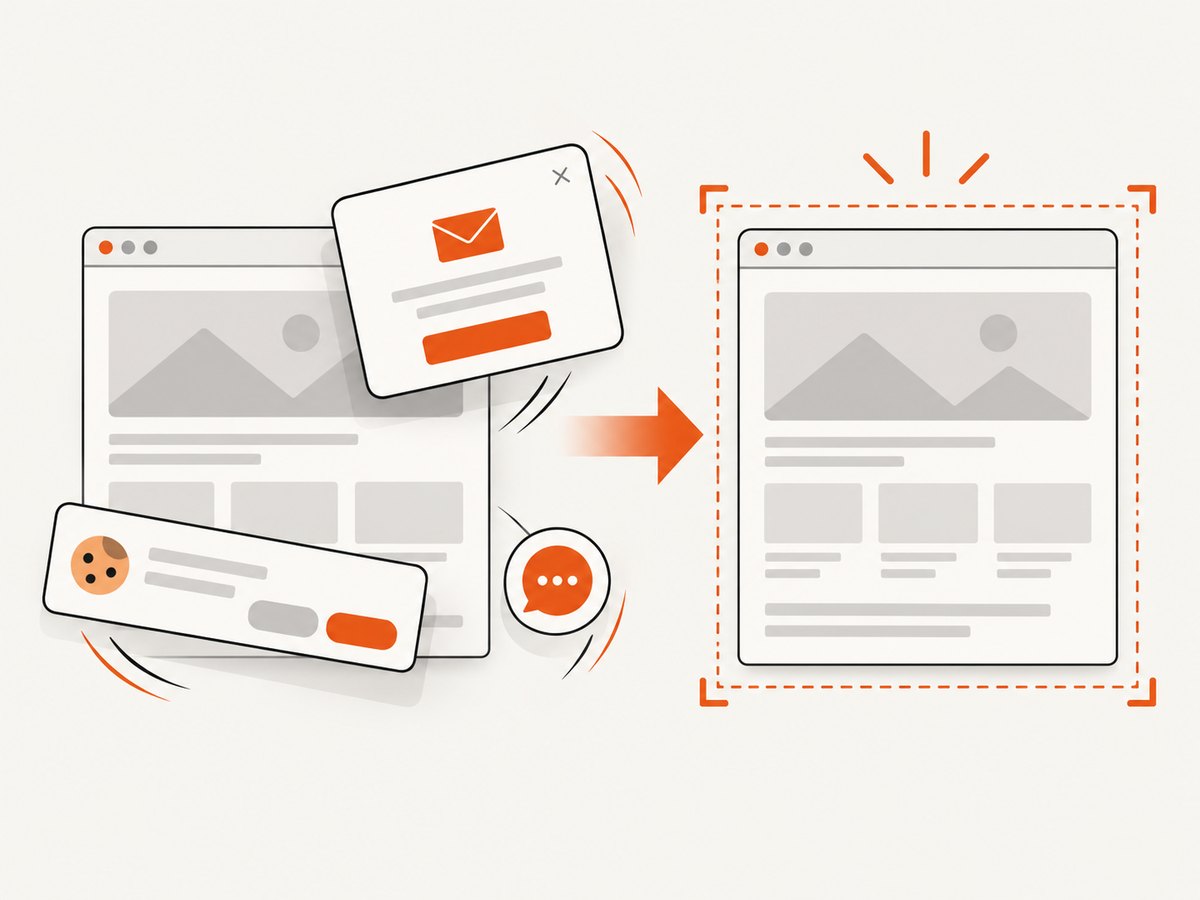
ScreenshotNeo accepts the page request and handles the capture flow for you. Cookie banners, newsletter popups, and chat widgets are removed before the shot. Bot checks, blank pages, timeouts, failed loads, and cache hits are never billed; response headers report the page verdict and whether the request was billed. Its MCP server lets Claude, Cursor, and other MCP clients use take_screenshot, get_page_info, and capture_pdf.
There is a free plan with 1,000 screenshots per month and no card. Paid plans start at $5 for 3,000 shots; every feature is available on every plan. Review the docs, then create a free ScreenshotNeo account.
Troubleshooting
| Problem | Likely cause | Fix |
|---|---|---|
| The image is black or blank | DRM, a managed-browser policy, a failed load, or a page that has not rendered. | Use the site’s approved export or print flow; otherwise wait for rendering and check the browser console. Do not bypass a policy. |
| Only the visible viewport was captured | Viewport capture was selected instead of full page. | Use Firefox full-page capture or the ScreenshotNeo full-page option. |
| Content is missing below the fold | Lazy loading or virtualized content. | Scroll through the page first, wait for the content, or capture the specific element. |
| The element is clipped | Overflow, transforms, shadow DOM, iframe, or a changing layout. | Capture a containing element or region, remove transient overlays, and retry after layout settles. |
| The screenshot shows the wrong account | An expired, shared, or incorrect session. | Sign out, sign in to the intended account, confirm the tenant, and capture again. |
| A native capture includes secrets | Notifications, tabs, or clipboard previews were visible. | Close unrelated windows, disable notifications temporarily, crop tightly, and inspect before sharing. |
| An automated request is denied | Missing or expired cookies, headers, or Authorization data. | Refresh the authorized session and configure the supported ScreenshotNeo authentication options from the docs. |
| A capture is billed unexpectedly | The page produced a clean result rather than a failed or cache response. | Review the X-Page-Verdict and X-Billed response headers and adjust caching or waits. |
Performance, reliability, and cost
- Reduce work: Capture one element or a region when a full document is unnecessary. Use a reasonable device-pixel ratio and output format.
- Wait deliberately: A selector, network-idle condition, or short delay is more predictable than an arbitrary long sleep. Avoid waiting for network idle on pages with continuous analytics traffic.
- Control dependencies: Block ads, trackers, or unneeded resource types when they are not part of the capture. Keep required API and image requests enabled.
- Use caching carefully: A TTL reduces repeated work for unchanged pages, but private or frequently changing content may require a short TTL or no cache.
- Make retries safe: Retry transient navigation failures with a limit, and record the URL, account context, timestamp, and verdict. Never retry a request with credentials that may have expired without refreshing authorization.
- Watch disclosure: Higher resolution and full-page output increase the amount of sensitive data that must be protected, even when the request itself succeeds.
FAQ
Can I screenshot a logged-in page?
Yes, when you are authorized and the authenticated session is active. The screenshot includes whatever private data is visible, so inspect and protect it before sharing.
Does incognito prevent screenshots from being saved?
No. Private browsing does not guarantee privacy for downloads, clipboard contents, backups, or recipients; Firefox documents normal-download behavior for private screenshots.
How do I capture only one dashboard card?
Use Firefox Inspector and Screenshot Node, a native region capture, or ScreenshotNeo’s CSS-selector element capture.
What should I do when a company blocks screenshots?
Use an approved export, print-to-PDF, or sharing function, or ask the administrator. Enterprise and DRM controls should not be bypassed.
Can an API capture private content without my cookies?
No. An automated service needs an authorized representation of the session, such as supported cookies, headers, or Authorization data. Keep those credentials server-side and scope them narrowly.