BlogScreenshots on your device
How to Capture a Specific Screen Area With PyQt
Capture a precise desktop rectangle in PyQt with QScreen.grabWindow(), including coordinates, high-DPI scaling, multi-monitor layouts, and troubleshooting.
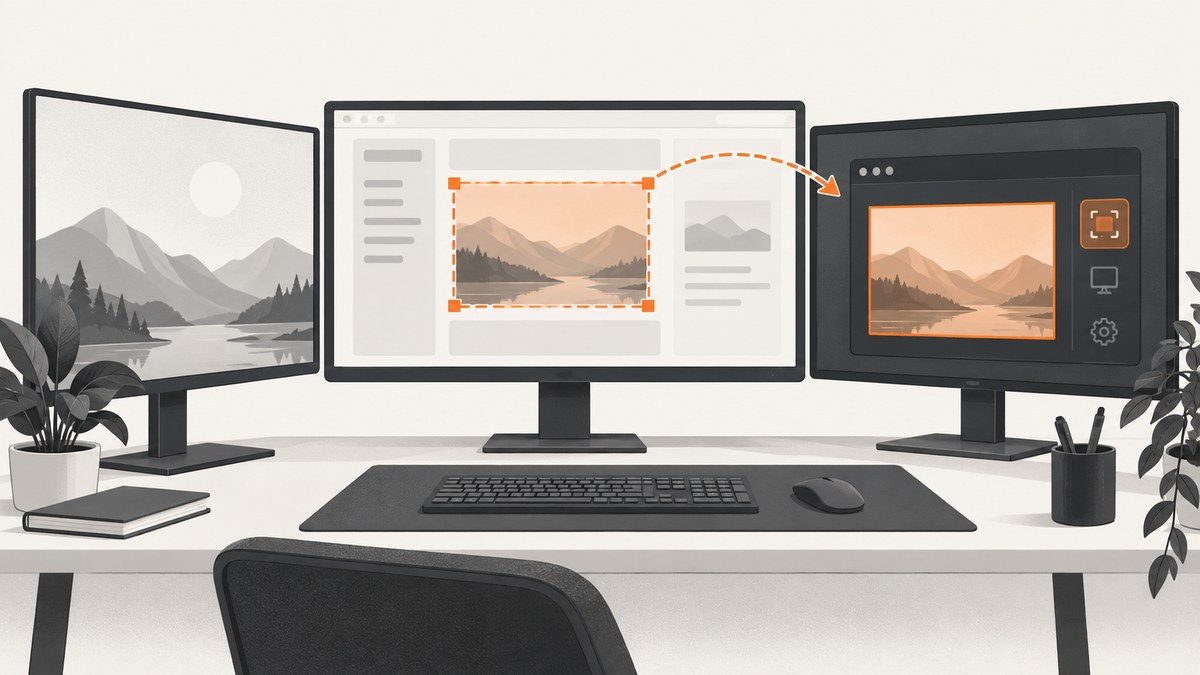
Use QScreen.grabWindow(0, x, y, width, height) to capture one visible rectangle. It returns a QPixmap that you can save as PNG, JPEG, or another supported image format. The rectangle uses device-independent coordinates, and the coordinate origin depends on the operating system. On high-DPI displays, the saved pixel dimensions can be larger than the requested logical dimensions.
The smallest complete PyQt6 example is:
from PyQt6.QtGui import QGuiApplication

app = QGuiApplication([])
screen = QGuiApplication.primaryScreen()
if screen is None:
    raise RuntimeError("No screen is available")

x, y, width, height = 100, 100, 400, 300
pixmap = screen.grabWindow(0, x, y, width, height)
if pixmap.isNull():
    raise RuntimeError("Screen grab returned a null pixmap")

if not pixmap.save("region.png", "PNG"):
    raise RuntimeError("Could not save the captured region")
Qt documents grabWindow(0) without coordinates as the portable way to grab an entire screen. For a sub-area, validate the rectangle and account for monitor geometry before calling the method.
1. Install PyQt and choose a screen
Install PyQt6 in a virtual environment:
python -m venv .venv
# macOS/Linux
. .venv/bin/activate
# Windows PowerShell: .venv\\Scripts\\Activate.ps1
python -m pip install PyQt6
QScreen is part of Qt GUI, so a QGuiApplication is sufficient for a command-line capture script. A widgets application can use QApplication instead.
To inspect every connected display:
from PyQt6.QtGui import QGuiApplication

app = QGuiApplication([])
for index, screen in enumerate(app.screens()):
    print(index, screen.name(), screen.geometry(), screen.devicePixelRatio())
Use primaryScreen() for the main display, or select a screen by index, name, or the screen containing a point. The screen’s geometry() is expressed in the coordinate system expected by Qt for that display.
2. Capture and save a validated rectangle
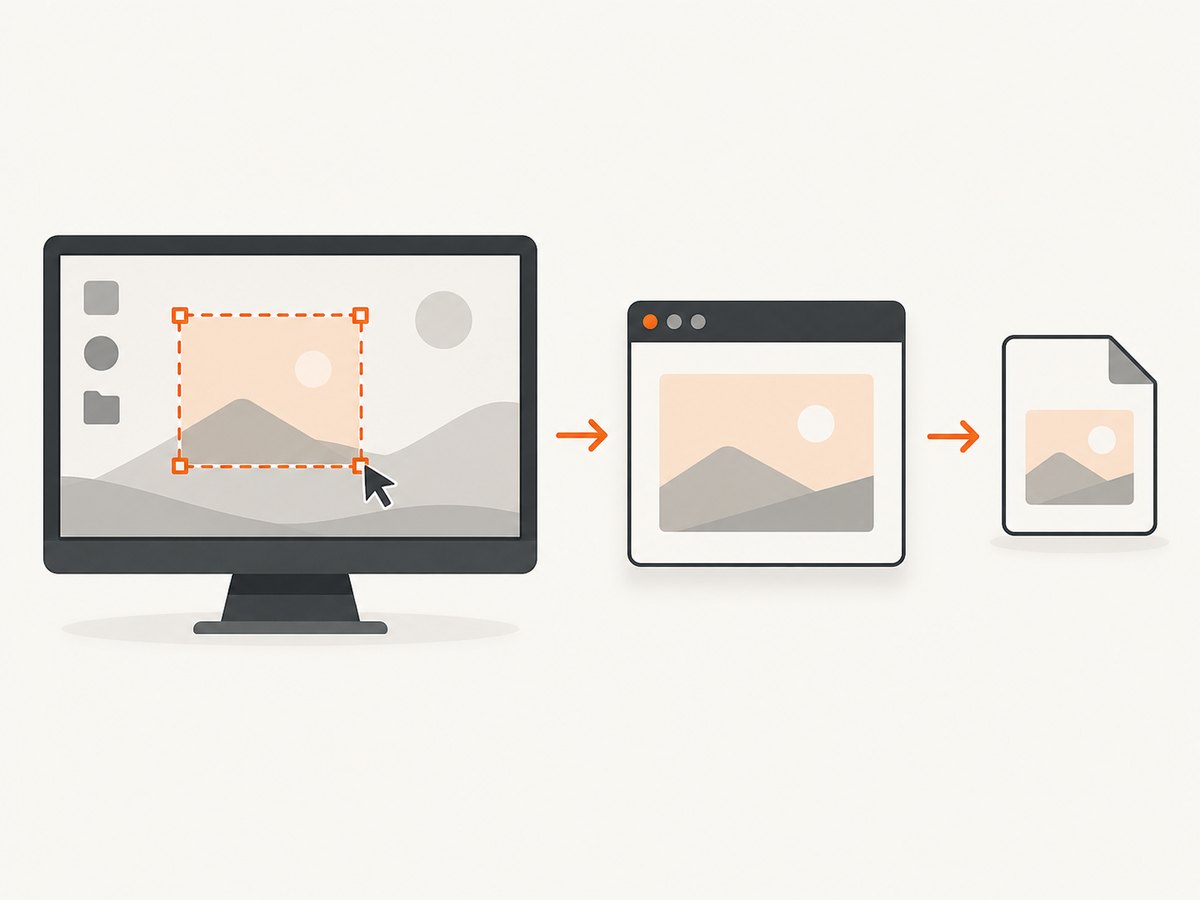
A production script should reject empty sizes and keep the requested area inside the selected display. Intersecting with screen.geometry() prevents unsafe out-of-bounds grabs when a user drags a selection past an edge.
from pathlib import Path
from PyQt6.QtCore import QRect
from PyQt6.QtGui import QGuiApplication


def capture_region(output: str, x: int, y: int, width: int, height: int) -> None:
    app = QGuiApplication.instance() or QGuiApplication([])
    screen = app.primaryScreen()
    if screen is None:
        raise RuntimeError("No screen is available")
    if width <= 0 or height <= 0:
        raise ValueError("width and height must be positive")

    requested = QRect(x, y, width, height)
    visible = requested.intersected(screen.geometry())
    if visible.isEmpty():
        raise ValueError(
            f"Rectangle {requested} does not intersect {screen.geometry()}"
        )
    if visible != requested:
        raise ValueError(
            f"Rectangle extends outside the screen: requested={requested}, "
            f"screen={screen.geometry()}"
        )

    pixmap = screen.grabWindow(0, visible.x(), visible.y(),
                               visible.width(), visible.height())
    if pixmap.isNull():
        raise RuntimeError("Screen grab returned a null pixmap")

    Path(output).parent.mkdir(parents=True, exist_ok=True)
    if not pixmap.save(output):
        raise OSError(f"Could not save {output}")

    print({
        "file": output,
        "logical_size": [visible.width(), visible.height()],
        "pixmap_size": [pixmap.width(), pixmap.height()],
        "device_pixel_ratio": pixmap.devicePixelRatio(),
    })


if __name__ == "__main__":
    capture_region("captures/region.png", 100, 100, 400, 300)
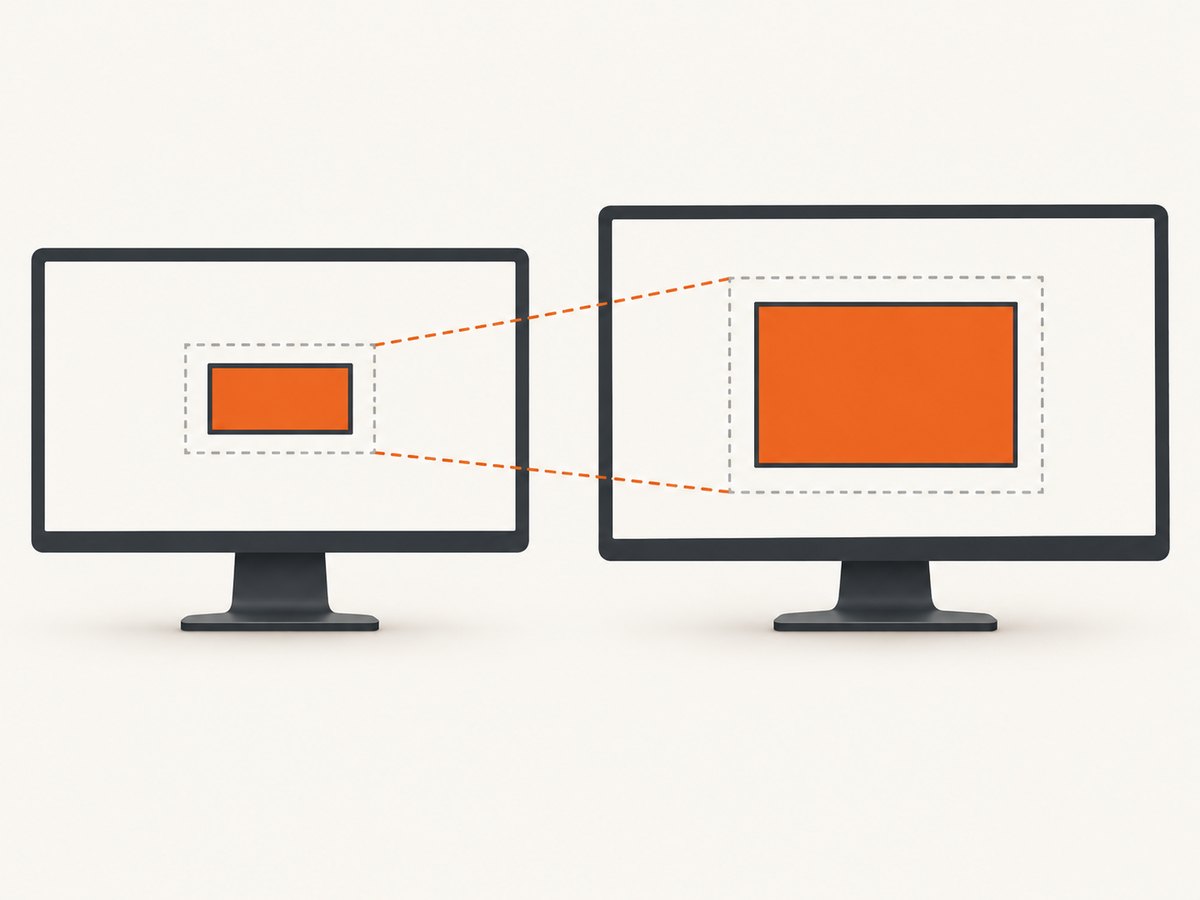
Call pixmap.devicePixelRatio() and pixmap.size() when you need the physical output dimensions. A retina or other scaled display can return more physical pixels than the requested 400 × 300 logical rectangle.
3. Understand coordinates on multiple monitors
| Platform | Zero-window grab coordinates | Practical rule |
|---|---|---|
| Windows | Screen-local coordinates | Use coordinates relative to the selected screen. |
| X11/Linux | Screen-local coordinates | Use the selected screen’s expected local coordinate space. |
| macOS | Virtual-desktop-relative coordinates | Convert a point from your desktop selection into the selected screen’s coordinate origin. |
Qt’s QScreen documentation describes these origin differences. If your selection tool reports a virtual-desktop point on macOS, subtract screen.geometry().topLeft() before passing the coordinates for that screen. Always inspect the geometry returned by Qt instead of hard-coding monitor positions.
from PyQt6.QtCore import QPoint


def virtual_to_screen_local(screen, point: QPoint) -> QPoint:
    # Needed when your selection point is expressed relative to the
    # virtual desktop and the target platform requires screen-local values.
    return point - screen.geometry().topLeft()
Do not assume that the top-left display is at (0, 0). A monitor can be placed to the left or above another display, producing negative virtual coordinates.
4. Build a drag-to-select PyQt tool
For an interactive selector, show a transparent full-screen widget, record the mouse press and release positions, normalize the rectangle, then call grabWindow. The example below captures the primary display and writes the selected area.
import sys
from PyQt6.QtCore import QPoint, QRect, Qt
from PyQt6.QtGui import QGuiApplication, QPainter, QPen
from PyQt6.QtWidgets import QApplication, QWidget


class RegionSelector(QWidget):
    def __init__(self):
        super().__init__()
        self.screen = QGuiApplication.primaryScreen()
        if self.screen is None:
            raise RuntimeError("No screen is available")
        self.setGeometry(self.screen.geometry())
        self.setWindowFlags(
            Qt.WindowType.FramelessWindowHint |
            Qt.WindowType.WindowStaysOnTopHint |
            Qt.WindowType.Tool
        )
        self.setWindowOpacity(0.25)
        self.start = QPoint()
        self.end = QPoint()
        self.dragging = False
        self.setCursor(Qt.CursorShape.CrossCursor)

    def mousePressEvent(self, event):
        if event.button() == Qt.MouseButton.LeftButton:
            self.start = event.position().toPoint()
            self.end = self.start
            self.dragging = True
            self.update()

    def mouseMoveEvent(self, event):
        if self.dragging:
            self.end = event.position().toPoint()
            self.update()

    def mouseReleaseEvent(self, event):
        if event.button() != Qt.MouseButton.LeftButton or not self.dragging:
            return
        self.end = event.position().toPoint()
        self.dragging = False
        local_rect = QRect(self.start, self.end).normalized()
        if local_rect.isEmpty():
            self.close()
            return

        # Add the overlay's screen origin to obtain the screen geometry point.
        screen_rect = local_rect.translated(self.geometry().topLeft())
        self.hide()
        pixmap = self.screen.grabWindow(
            0, screen_rect.x(), screen_rect.y(),
            screen_rect.width(), screen_rect.height()
        )
        if pixmap.isNull() or not pixmap.save("selected-region.png", "PNG"):
            raise RuntimeError("Could not save selected-region.png")
        self.close()

    def paintEvent(self, event):
        painter = QPainter(self)
        painter.fillRect(self.rect(), Qt.GlobalColor.black)
        if self.dragging:
            rect = QRect(self.start, self.end).normalized()
            painter.setCompositionMode(QPainter.CompositionMode.CompositionMode_Clear)
            painter.fillRect(rect, Qt.GlobalColor.transparent)
            painter.setCompositionMode(QPainter.CompositionMode.CompositionMode_SourceOver)
            painter.setPen(QPen(Qt.GlobalColor.white, 2))
            painter.drawRect(rect)


app = QApplication(sys.argv)
selector = RegionSelector()
selector.show()
sys.exit(app.exec())
This simple selector covers one display. A multi-monitor selector should create one overlay per screen or use a virtual-desktop overlay, then convert the final rectangle into the coordinate system required by the chosen QScreen. Hide the overlay before grabbing so its dimming layer is not included.
5. What the capture contains
- Visible pixels:
grabWindowreads the desktop image. Another window covering your rectangle appears in the result. - Cursor: Qt documents that the mouse cursor is generally not captured.
- Overlays: Menus, notifications, video frames, and other compositor output can be present if they are visible at capture time.
- Application content: If you need an off-screen image of your own widget regardless of desktop overlap, use the widget’s rendering or grab facilities for your Qt version instead of a screen grab.
6. Still images versus continuous capture
QScreen.grabWindow is a one-shot still-image API. It is appropriate for screenshots, bug reports, thumbnails, and user-selected regions. Qt Multimedia’s QScreenCapture is a separate API for continuous capture through a media capture session. Current Qt documentation describes an FFmpeg backend requirement and, on Wayland, an operating-system selection flow through the XDG Desktop Portal and PipeWire. Those requirements apply to the multimedia stream API, not automatically to a single grabWindow call.
7. Troubleshooting
| Symptom | Likely cause | Fix |
|---|---|---|
pixmap.isNull() is true |
No usable screen, invalid rectangle, or platform capture restriction. | Check primaryScreen(), validate positive dimensions, intersect with screen.geometry(), and try a small in-bounds rectangle. |
| Image is shifted on macOS | Virtual-desktop coordinates were passed where the selected screen’s origin was required. | Inspect screen.geometry().topLeft() and convert the selection point before grabbing. |
| Only part of the requested area appears | The rectangle crosses a monitor boundary or extends outside the display. | Split the request per screen or reject/intersect out-of-bounds rectangles. |
| Output dimensions are unexpectedly large | High-DPI scaling and the pixmap device-pixel ratio. | Read devicePixelRatio(); resize only if a fixed physical size is required. |
| The selector appears in the screenshot | The overlay was still visible during capture. | Call hide(), allow the event loop to process the hide, then grab. |
| A different window appears in the result | The API captures visible desktop pixels, not an isolated application surface. | Move or hide the covering window, or use a widget-specific rendering method. |
| Wayland permissions or a picker appear | You are using Qt Multimedia screen capture on Wayland. | Complete the portal selection flow and ensure PipeWire/ScreenCast support; do not apply these streaming requirements to every still grab. |
| Saved file cannot be opened | Unsupported format, unwritable path, or a failed save. | Use a known extension such as .png, create the parent directory, and check the boolean result of pixmap.save(). |
8. Performance, reliability, and cost considerations
- Capture cost: A single local grab is usually bounded by the compositor and image encoding. Avoid repeatedly encoding huge full-screen images when a smaller rectangle is sufficient.
- Memory: High-DPI screenshots contain more physical pixels. Release or reuse pixmaps in loops and save directly when possible.
- Timing: Hide selection overlays and wait for the window system to repaint before grabbing. For animated content, capture after the desired frame is visible.
- Reliability: Log the selected screen name, geometry, requested rectangle, pixmap size, and device-pixel ratio. These values make coordinate bugs reproducible.
- Security: A desktop screenshot can contain passwords, tokens, notifications, or personal data. Restrict output permissions and avoid writing captures to shared locations.
9. Or skip the browser setup
If your goal is a website image rather than the pixels currently displayed on your desktop, ScreenshotNeo captures a URL through one API request. The API accepts options for full-page shots, element selectors, device presets, retina scale, custom CSS and JavaScript, waits, headers, cookies, blocking, caching, PDFs, and more. See the ScreenshotNeo API documentation for the complete parameter list.
cURL
curl -G "https://api.screenshotneo.com/v1/shot" \\
  -d access_key=YOUR_API_KEY \\
  --data-urlencode url=https://stripe.com \\
  -o shot.webp
Python
import requests

r = requests.get(
    "https://api.screenshotneo.com/v1/shot",
    params={"access_key": "YOUR_API_KEY", "url": "https://stripe.com"},
    timeout=90,
)
r.raise_for_status()
open("shot.webp", "wb").write(r.content)
Node.js
const q = new URLSearchParams({
  access_key: 'YOUR_API_KEY',
  url: 'https://stripe.com'
});
const res = await fetch(`https://api.screenshotneo.com/v1/shot?${q}`);
if (!res.ok) throw new Error(`HTTP ${res.status}`);
require('fs').writeFileSync('shot.webp', Buffer.from(await res.arrayBuffer()));
Cookie banners, newsletter popups, and chat widgets are removed before the shot. Bot checks, blank pages, failed loads, timeouts, and cache hits are not billed; response headers identify the page verdict and billing status. ScreenshotNeo also provides an MCP server so Claude, Cursor, and other MCP clients can take screenshots, inspect pages, and capture PDFs. The Free plan includes 1,000 screenshots each month with no card, and paid plans start at $5 for 3,000 shots.
Create a free ScreenshotNeo account to try the API without a card.
10. FAQ
Can I capture a rectangle without opening a visible window?
Yes. A QGuiApplication plus QScreen.grabWindow is enough for a one-shot capture, provided the operating system permits screen access.
Why does the PNG have more pixels than my requested width?
Qt requests the rectangle in device-independent units. The returned pixmap can contain more physical pixels on a high-DPI display; use its device-pixel ratio to interpret the dimensions.
Does PyQt capture the mouse pointer?
Generally no. Qt’s QScreen documentation states that the mouse cursor is generally not grabbed.
How do I record the screen instead of taking one image?
Use the separate Qt Multimedia QScreenCapture path with a media capture session and its platform requirements.
Can one call capture an area spanning two monitors?
Do not assume that it can safely do so. Treat each display as its own QScreen, split the rectangle, and combine the resulting images if a cross-monitor composite is required.
Primary references: Qt QScreen documentation and QScreen::grabWindow.


