BlogScreenshots on your device
How to Capture a Screenshot of a Minimized Java Window
Java Robot captures visible screen pixels, not hidden minimized windows. Restore the window or render owned Swing components offscreen with printAll().
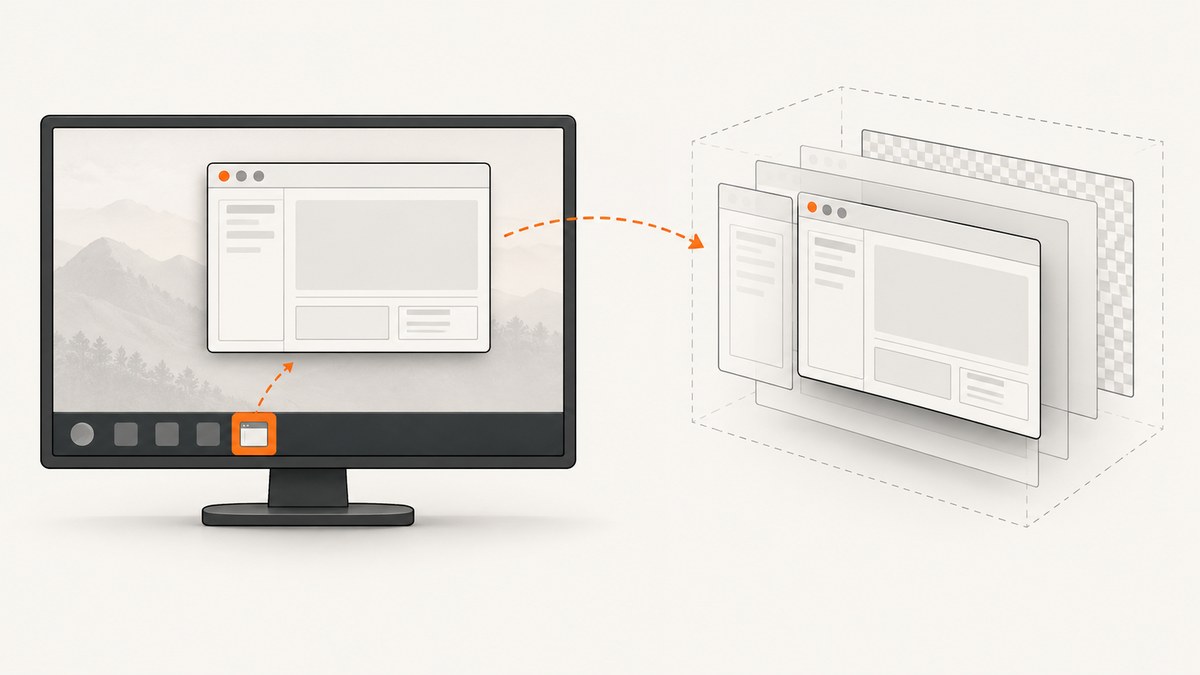
Short answer: java.awt.Robot reads pixels that are currently present on a display. A minimized window has no visible pixels to read, so Robot does not provide a supported way to recover its hidden contents. For a faithful desktop screenshot, restore and expose the window before calling createScreenCapture(Rectangle). If your application owns the Swing component tree and only needs its UI content, render that tree into a BufferedImage with printAll(Graphics) instead.
Those approaches produce different images. Robot includes desktop pixels, occlusion, window chrome, and whatever is visible around the application. Swing printing renders component content without requiring the window to be visible, but it is not a capture of the desktop and may differ for native-backed controls, embedded browsers, video, or custom rendering.
1. Choose the capture target
| Need | Use | Window must be visible? | What you get |
|---|---|---|---|
| Exactly what a user sees on the desktop | Robot.createScreenCapture |
Yes. Restore, expose, and avoid occlusion. | Screen pixels, including chrome and surrounding desktop. |
| Only an owned Swing UI | JComponent.printAll into a BufferedImage |
No, when the component has valid size and layout. | Rendered component, border, and children. |
| JavaFX, heavyweight AWT peers, embedded browsers, video, or native controls | Validate the exact toolkit, JDK, OS, and control. | Often yes for faithful pixels. | No universal offscreen-fidelity guarantee. |
Oracle documents Robot as reading pixels from a rectangle in screen coordinates; its API does not promise access to hidden minimized-window contents. Oracle documents printAll as component printing, and its Swing tutorial uses it to print a complete UI and its subcomponents. See the Robot API, JComponent API, and Oracle UI printing tutorial.
2. Capture desktop pixels after restoring the window
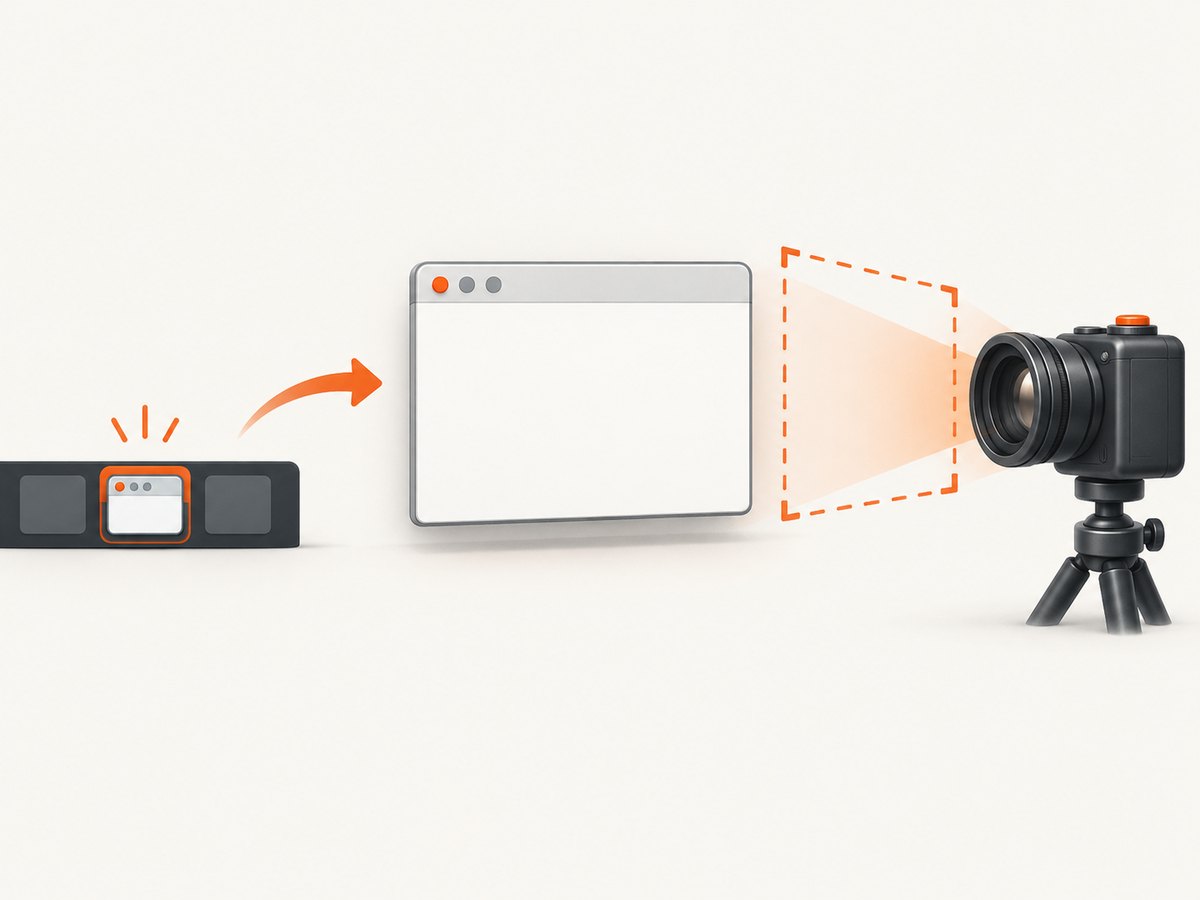
This example owns the Swing window, restores it if minimized, brings it forward, waits briefly for the desktop to repaint, then captures the window bounds. Run the capture away from the event dispatch thread because screen capture can take time.
import javax.swing.*;
import java.awt.*;
import java.awt.image.BufferedImage;
import java.io.File;
import javax.imageio.ImageIO;

public class RestoredWindowScreenshot {
    public static void main(String[] args) throws Exception {
        final JFrame frame = new JFrame("Capture target");
        SwingUtilities.invokeAndWait(() -> {
            JPanel panel = new JPanel(new BorderLayout(12, 12));
            panel.setBorder(BorderFactory.createEmptyBorder(24, 24, 24, 24));
            panel.add(new JLabel("This window will be captured"), BorderLayout.CENTER);
            panel.add(new JButton("Example"), BorderLayout.SOUTH);
            frame.setContentPane(panel);
            frame.setSize(640, 400);
            frame.setLocationByPlatform(true);
            frame.setDefaultCloseOperation(WindowConstants.DISPOSE_ON_CLOSE);
            frame.setVisible(true);
        });

        // A minimized JFrame cannot provide desktop pixels. Restore and expose it first.
        SwingUtilities.invokeAndWait(() -> {
            frame.setExtendedState(frame.getExtendedState() & ~Frame.ICONIFIED);
            frame.setVisible(true);
            frame.toFront();
            frame.requestFocus();
        });

        Thread.sleep(250); // allow repaint and window-manager activation
        Rectangle bounds = frame.getBounds();
        Robot robot = new Robot();
        robot.setAutoDelay(0);
        BufferedImage image = robot.createScreenCapture(bounds);
        ImageIO.write(image, "png", new File("window.png"));

        SwingUtilities.invokeLater(frame::dispose);
    }
}
Important details
- Do not assume another process can be restored portably. Java SE does not define a cross-platform API that finds an arbitrary native window, unminimizes it, and exposes it. If you own the Swing
JFrame, keep a reference and change its state as shown. For another application, use an operating-system window-management API or an automation tool, then pass the resulting screen rectangle to Robot. - Capture coordinates are screen coordinates.
frame.getBounds()is suitable for a top-level window on the same virtual desktop, but verify behavior with multiple monitors and negative coordinates. - Occlusion matters. Robot records whatever is actually visible. A different window, lock screen, notification, or screen saver can appear in the image.
- Window decorations are included. To capture only the client area, use the component-rendering method below or calculate the client bounds with platform-specific code.
3. Render an owned Swing component offscreen
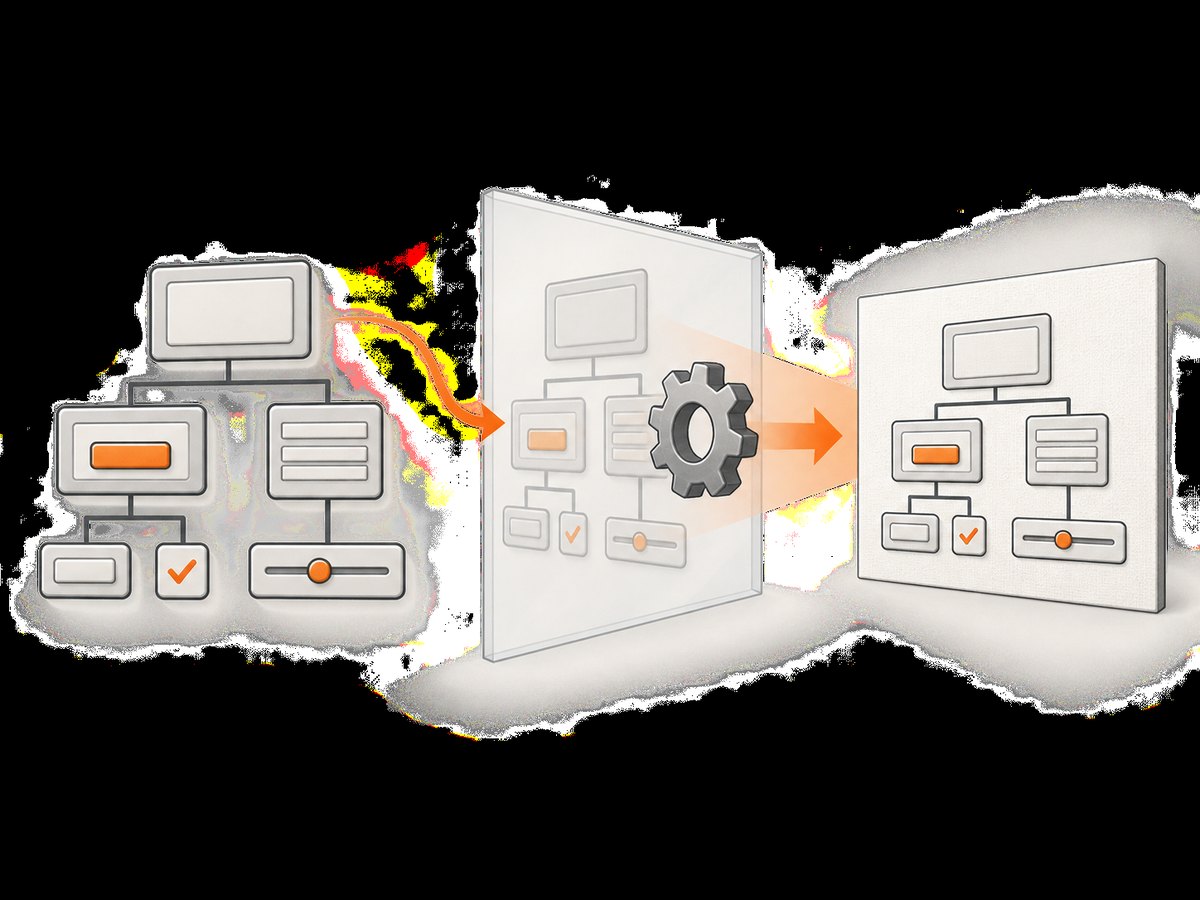
When the goal is the application UI rather than desktop pixels, render the component tree to a BufferedImage. The component needs useful dimensions and layout. This method avoids the minimized state, but it does not guarantee identical output for native-backed or hardware surfaces.
import javax.swing.*;
import java.awt.*;
import java.awt.image.BufferedImage;
import java.io.File;
import javax.imageio.ImageIO;

public class OffscreenSwingScreenshot {
    public static void main(String[] args) throws Exception {
        JPanel panel = new JPanel(new BorderLayout(12, 12));
        panel.setBorder(BorderFactory.createEmptyBorder(24, 24, 24, 24));
        panel.add(new JLabel("Rendered without showing a window"), BorderLayout.CENTER);
        panel.add(new JButton("Example"), BorderLayout.SOUTH);
        panel.setSize(640, 400);

        // Establish layout before painting. For complex trees, call doLayout recursively
        // or place the root in a sized container and validate it.
        panel.doLayout();
        BufferedImage image = new BufferedImage(
                panel.getWidth(), panel.getHeight(), BufferedImage.TYPE_INT_ARGB);
        Graphics2D graphics = image.createGraphics();
        try {
            graphics.setColor(panel.getBackground());
            graphics.fillRect(0, 0, image.getWidth(), image.getHeight());
            panel.printAll(graphics);
        } finally {
            graphics.dispose();
        }
        ImageIO.write(image, "png", new File("component.png"));
    }
}
printAll invokes printing for the component and its children. Use print(Graphics) when you specifically need the component, border, and child painting semantics documented by Swing. Disable animations and provide deterministic model data if the image is used in tests or generated repeatedly.
4. High-DPI displays and multiple monitors
- Robot also provides
createMultiResolutionScreenCapture(Rectangle). On a display with a scaling transform, it can return a base-size image and a native device-resolution variant. Select the variant that matches your output requirement. - Map the target window to the correct graphics device before capture. A virtual desktop can contain monitors with different scaling factors and coordinates such as negative X values.
- Compare the resulting image dimensions with the requested rectangle. Logical coordinates and physical pixels can differ on high-density displays.
- For component rendering, choose the image dimensions and graphics scale explicitly if you need a fixed pixel size.
5. Permissions, headless systems, and platform limits
Robot can throw AWTException when low-level input or screen access is unavailable, including in a headless environment. Desktop capture may also be denied by the operating system; Oracle notes that the result can be undefined when permission has not been granted. On X11, capture can depend on XTEST support.
Run desktop capture in a real graphical session with the required screen-recording permission. If your service runs in CI, a virtual display may be required, but the exact setup is platform-specific. An offscreen Swing render can work in more environments, provided every component in the tree supports that rendering path.
6. Troubleshooting
| Symptom | Likely cause | Fix |
|---|---|---|
| Image shows the desktop behind the app, or a blank area | The target was minimized or occluded when Robot ran. | Restore, expose, focus, and wait for repaint before capturing. Robot cannot recover hidden pixels. |
java.awt.AWTException: headless environment |
No graphical display is available. | Run with a desktop/virtual display for Robot, or use offscreen Swing rendering. |
| Security or permission error; black or undefined image | The OS denied screen capture. | Grant the application screen-recording permission and retry in the same desktop session. |
| Window is restored but capture is stale | Capture happened before the window manager or Swing repaint completed. | Wait briefly, call paintImmediately only when appropriate, and capture outside the EDT. |
| Wrong monitor or shifted rectangle | Mixed-DPI or virtual-desktop coordinate mismatch. | Inspect each GraphicsDevice, log bounds and scale, and test every monitor layout. |
| Offscreen image is zero-sized or clipped | The component was never sized or laid out. | Set explicit dimensions, validate/layout the tree, then render. |
| Buttons or embedded content differ offscreen | Native peers, browsers, video, or custom painting require a visible surface. | Use a restored Robot capture and validate the exact component, toolkit, JDK, and OS. |
| Capture freezes the application | Robot work was performed on the event dispatch thread. | Move capture and file I/O to a worker thread; marshal only UI state changes to Swing’s EDT. |
7. Reliability and performance checklist
- Capture only after the window is restored, focused, and exposed.
- Keep UI mutations on the EDT, but perform Robot capture and image encoding on a worker thread.
- Use a deterministic window size, location, theme, font set, and test data.
- Record the JDK, operating system, display scale, monitor arrangement, and toolkit for reproducibility.
- Prefer offscreen rendering for repeatable component snapshots; prefer Robot when desktop context and native pixels are required.
- Release
Graphics2Dobjects, dispose temporary windows, and write files outside the EDT. - For large full-screen images, account for memory used by the raster and PNG encoding. JPEG or WebP can reduce output size when alpha and lossless pixels are unnecessary.
8. Or skip the browser setup
If the thing you need is a screenshot of a web page rather than a Java desktop window, ScreenshotNeo provides a single HTTP request that returns PNG, JPEG, WebP, or PDF. Its browser handles consent banners before capture and removes more than 60 known consent platforms, newsletter popups, and chat widgets. Bot checks, blank pages, timeouts, failed loads, and cache hits are not billed, and response headers report the page verdict and billing status. ScreenshotNeo also has an MCP server with take_screenshot, get_page_info, and capture_pdf tools for Claude, Cursor, and other MCP clients.
See the ScreenshotNeo API documentation for all options. This is a web capture service, so it does not retrieve pixels from an arbitrary minimized native Java window.
curl -G "https://api.screenshotneo.com/v1/shot" -d access_key=YOUR_API_KEY --data-urlencode url=https://stripe.com -o shot.webpimport requests
r = requests.get("https://api.screenshotneo.com/v1/shot", params={"access_key": "YOUR_API_KEY", "url": "https://stripe.com"}, timeout=90)
open("shot.webp", "wb").write(r.content)const q = new URLSearchParams({ access_key: 'YOUR_API_KEY', url: 'https://stripe.com' });
const res = await fetch(`https://api.screenshotneo.com/v1/shot?${q}`);There are 1,000 screenshots a month free with no card; paid plans start at $5 for 3,000. Create a free ScreenshotNeo account.
9. FAQ
Can Robot screenshot a minimized JFrame?
Not faithfully. Robot captures screen pixels, and minimized content is not on the screen. Restore and expose the frame first.
Can I capture another application’s minimized window with Java alone?
There is no portable Java SE API that finds, restores, and exposes arbitrary native windows. Use the target application’s own rendering API or an OS-specific window-management layer.
Does printAll create a desktop screenshot?
No. It renders the Swing component tree into the supplied graphics context. Desktop occlusion, window chrome, and unrelated applications are not included.
Why does offscreen rendering fail for an embedded browser or video?
Those controls may depend on native or hardware-backed surfaces. Validate the exact control and platform; use a visible Robot capture when faithful screen pixels are required.
Should screenshot tests use Robot or printAll?
Use printAll for deterministic component snapshots and Robot for end-to-end desktop verification, including window management and native rendering.


