BlogScreenshots on your device
How to Capture a Screenshot in wxPython on Windows
Capture the Windows desktop or a wxPython window with ScreenDC, MemoryDC, and SaveFile, including multi-monitor, DPI, errors, and a ScreenshotNeo option.
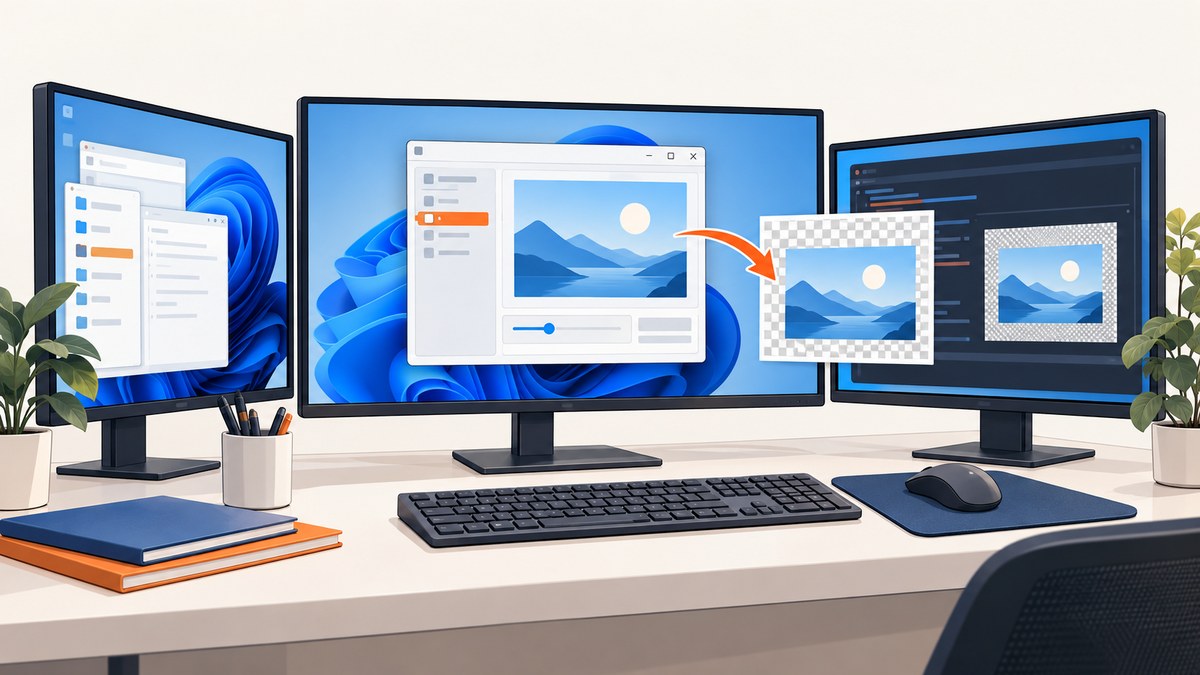
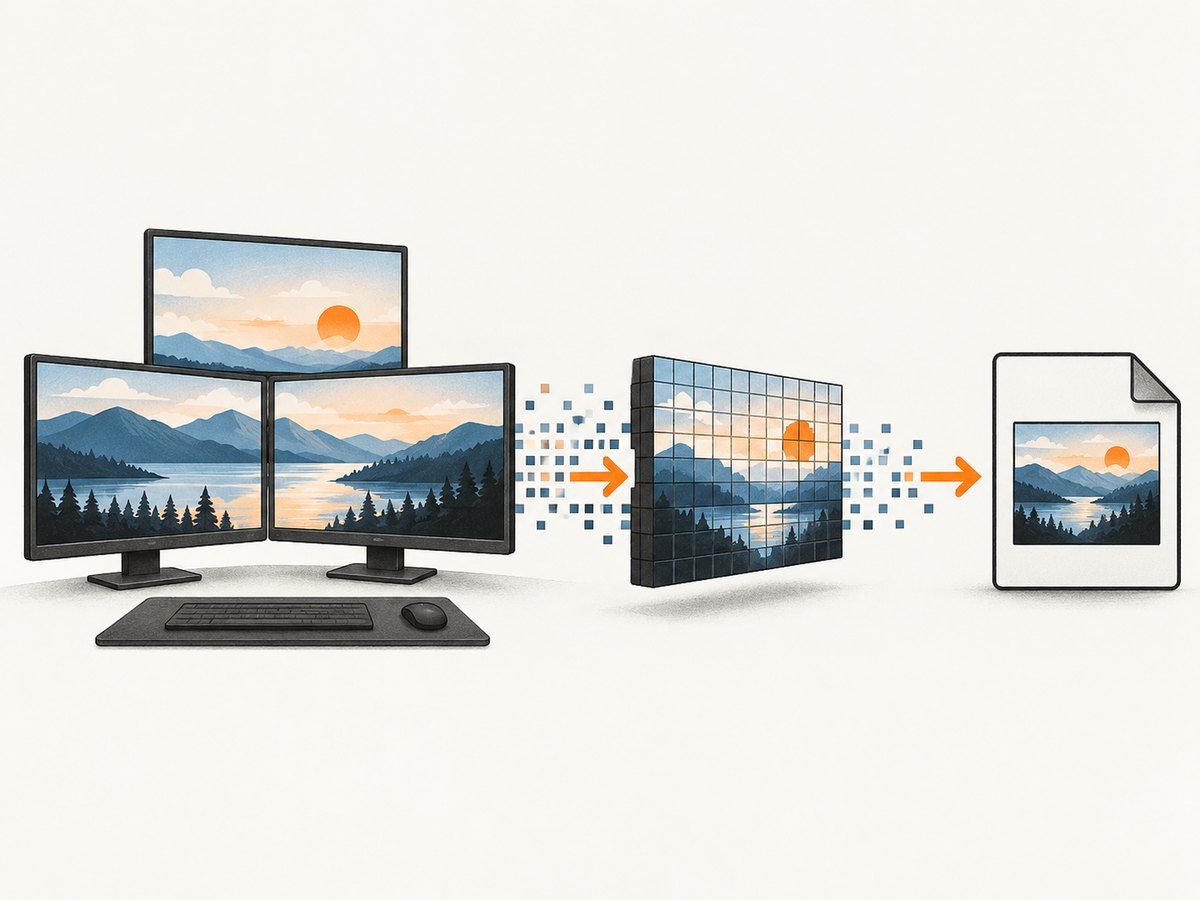
Direct answer: For a screenshot of the visible Windows desktop in wxPython, create a wx.ScreenDC, allocate a wx.Bitmap, select it into a wx.MemoryDC, copy pixels with Blit, deselect the bitmap, and save it with wx.Bitmap.SaveFile. This captures the wxPython desktop as it is currently displayed, including the virtual area covered by multiple monitors.
import wx

app = wx.App(False)
screen = wx.ScreenDC()
width, height = screen.Size.Get()
bitmap = wx.Bitmap(width, height)
memory = wx.MemoryDC()
memory.SelectObject(bitmap)
memory.Blit(0, 0, width, height, screen, 0, 0)
memory.SelectObject(wx.NullBitmap)

ok = bitmap.SaveFile("screenshot.png", wx.BITMAP_TYPE_PNG)
if not ok:
    raise OSError("Could not save screenshot.png")
The workflow follows the wxPython screen-shot example. The wx.Bitmap documentation specifies the bitmap and SaveFile APIs. The wiki describes examples tested with Python 3.x, wxPython 4.x, and Windows 10; verify behavior on the Windows release, monitor layout, and scaling configuration you deploy.
1. Install wxPython on Windows
Install wxPython into the Python environment that will run the capture:
py -m pip install wxPythonSave the first program as desktop_shot.py and run:
py desktop_shot.pyA successful run writes screenshot.png in the current working directory. Because this is a desktop capture, the target display must be visible and the pixels must already have been painted.
2. Capture a selected desktop rectangle
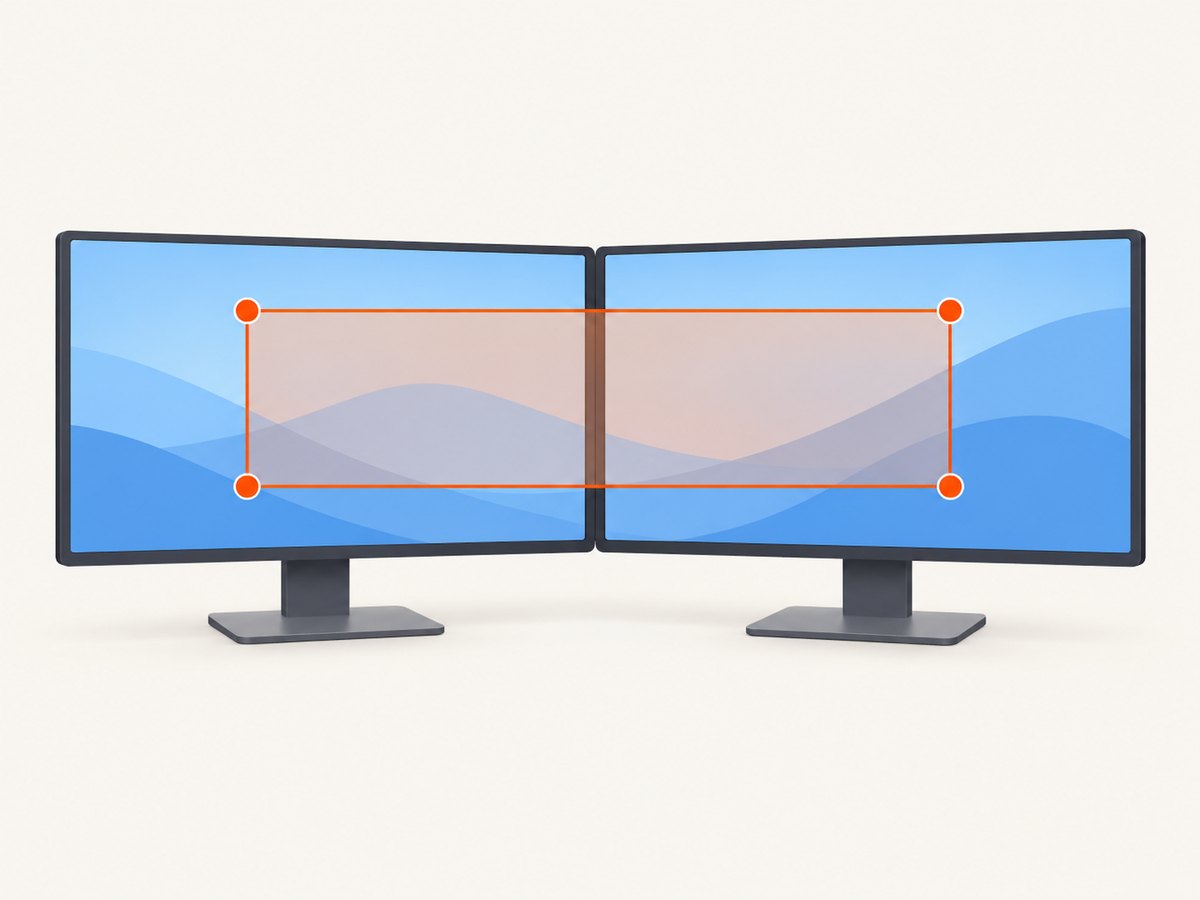
wx.ScreenDC represents the virtual screen. On a multi-monitor system, a display to the left or above the primary monitor can have negative coordinates. Do not assume that every rectangle begins at (0, 0).
import wx


def capture_rect(filename, x, y, width, height):
    if width <= 0 or height <= 0:
        raise ValueError("width and height must be positive")

    screen = wx.ScreenDC()
    bitmap = wx.Bitmap(width, height)
    memory = wx.MemoryDC()
    memory.SelectObject(bitmap)
    try:
        copied = memory.Blit(0, 0, width, height, screen, x, y)
        if not copied:
            raise RuntimeError("The desktop rectangle could not be copied")
    finally:
        memory.SelectObject(wx.NullBitmap)

    if not bitmap.SaveFile(filename, wx.BITMAP_TYPE_PNG):
        raise OSError(f"Could not save {filename}")


app = wx.App(False)
# Use the actual virtual-screen origin when selecting a monitor or region.
capture_rect("region.png", 0, 0, 1200, 800)
For a specific monitor, inspect its geometry rather than hard-coding the origin:
import wx

app = wx.App(False)
display = wx.Display(0)
if not display.IsOk():
    raise RuntimeError("Display 0 is not available")

geometry = display.GetGeometry()
capture_rect(
    "monitor-0.png",
    geometry.x,
    geometry.y,
    geometry.width,
    geometry.height,
)
The display geometry can contain negative x or y values. Keep the source coordinates and bitmap dimensions consistent.
3. Capture a wxPython window
Choose the device context according to what you need:
| Requirement | Context | What it represents |
|---|---|---|
| Visible desktop pixels | wx.ScreenDC |
The virtual screen across monitors |
| Window client area | wx.ClientDC |
The client area outside an EVT_PAINT handler |
| Whole window | wx.WindowDC |
The client area plus window decorations |
The wx.WindowDC documentation describes whole-window capture, while the device-context types are summarized in the wx.DC documentation. A screen or window capture records current visible pixels. The window must be shown, unobscured, and fully redrawn.
import wx


class CaptureFrame(wx.Frame):
    def __init__(self):
        super().__init__(None, title="Capture example", size=(700, 450))
        panel = wx.Panel(self)
        wx.StaticText(panel, label="This visible client area can be captured", pos=(30, 30))
        self.Centre()

        self.Bind(wx.EVT_CLOSE, self.on_close)
        wx.CallAfter(self.capture_client)

    def capture_client(self):
        width, height = self.GetClientSize()
        if width <= 0 or height <= 0:
            raise RuntimeError("The client area has no size")

        source = wx.ClientDC(self)
        bitmap = wx.Bitmap(width, height)
        memory = wx.MemoryDC(bitmap)
        try:
            if not memory.Blit(0, 0, width, height, source, 0, 0):
                raise RuntimeError("Could not copy the client area")
        finally:
            memory.SelectObject(wx.NullBitmap)

        if not bitmap.SaveFile("client-area.png", wx.BITMAP_TYPE_PNG):
            raise OSError("Could not save client-area.png")

    def on_close(self, event):
        self.Destroy()


app = wx.App(False)
frame = CaptureFrame()
frame.Show()
app.MainLoop()
Use wx.WindowDC(self) when the requirement includes the frame border and title bar. If you need the application’s logical drawing rather than whatever is currently visible, render that drawing model directly into a bitmap; a desktop grab can include other windows, occlusion, and transient state.
4. Save PNG, JPEG, or another bitmap format
SaveFile takes a filename and an image type. Always check its Boolean return value.
formats = {
    "shot.png": wx.BITMAP_TYPE_PNG,
    "shot.jpg": wx.BITMAP_TYPE_JPEG,
    "shot.bmp": wx.BITMAP_TYPE_BMP,
}

for filename, image_type in formats.items():
    if not bitmap.SaveFile(filename, image_type):
        raise OSError(f"Could not save {filename}")
PNG is a practical default for interface screenshots because it preserves sharp edges and does not introduce JPEG compression artifacts. Choose the format your downstream workflow requires.
5. Multi-monitor and high-DPI details
- Virtual coordinates:
wx.ScreenDCspans the virtual desktop. A monitor left of or above the primary display may use negative coordinates. Obtain the real monitor rectangle withwx.Display(index).GetGeometry(). - Scaling: Windows display scaling and wxPython device-context scale factors can affect the relationship between logical coordinates, physical pixels, and bitmap dimensions. The wx.MemoryDC documentation and wx.Bitmap documentation describe scale information.
- Mixed-DPI displays: Test the exact monitor arrangement and scaling settings used by your application. There is no single coordinate rule that covers every Windows DPI-awareness mode and wxPython build.
- Redraw timing: Capture after the frame is shown and after the relevant painting or layout work has completed.
wx.CallAfteris useful for deferring a capture until the event loop has processed initial display work.
6. A reusable capture helper
from pathlib import Path
import wx


def save_bitmap(bitmap, path):
    path = Path(path)
    path.parent.mkdir(parents=True, exist_ok=True)
    if not bitmap.SaveFile(str(path), wx.BITMAP_TYPE_PNG):
        raise OSError(f"Could not save {path}")


def capture_screen(path="screenshot.png"):
    screen = wx.ScreenDC()
    width, height = screen.Size.Get()
    if width <= 0 or height <= 0:
        raise RuntimeError("The virtual screen has no usable size")

    bitmap = wx.Bitmap(width, height)
    memory = wx.MemoryDC()
    memory.SelectObject(bitmap)
    try:
        if not memory.Blit(0, 0, width, height, screen, 0, 0):
            raise RuntimeError("Screen pixels could not be copied")
    finally:
        memory.SelectObject(wx.NullBitmap)

    save_bitmap(bitmap, path)


app = wx.App(False)
capture_screen("output/desktop.png")
7. Troubleshooting
The image is blank or contains the wrong window
Cause: A screen capture copies current desktop pixels, so the target may be hidden, covered, minimized, or not yet redrawn.
Fix: Show and raise the frame, wait for layout and paint processing, then capture. Use a client or window device context when you need a specific wxPython window rather than the desktop.
The left side of a monitor is missing
Cause: The monitor has a negative virtual-screen origin, but the capture used (0, 0).
Fix: Read wx.Display(index).GetGeometry() and pass its x and y values to Blit.
The output has the wrong size on a scaled display
Cause: Logical coordinates and physical pixels differ under Windows scaling or mixed-DPI setups.
Fix: Keep the source DC, bitmap dimensions, and coordinates in the same scale model. Check the result on the deployment monitors and review wxPython’s bitmap and memory-DC scale properties.
SaveFile returns false
Cause: The destination may be unwritable, the directory may not exist, or the requested image type may not match the filename.
Fix: Create the directory first, use an absolute path while diagnosing, check permissions, and raise an error when the Boolean result is false.
Blit fails or raises an assertion
Cause: The bitmap may have zero dimensions, the source rectangle may be outside the virtual screen, or the memory DC may not have the bitmap selected.
Fix: Validate positive dimensions, use real display geometry, select the bitmap before copying, and deselect it with wx.NullBitmap afterward.
The capture includes another application
Cause: wx.ScreenDC records the desktop, not the logical contents of your application.
Fix: Keep the target visible and unobscured, capture the frame with a window DC, or render your own drawing model directly into a bitmap.
8. Performance, reliability, and cost
A full virtual-desktop bitmap can be large, especially when several high-resolution monitors are included. Capture only the required rectangle or client area when possible, avoid taking screenshots in a tight loop on the UI thread, and save to a fast local destination. For repeated captures, consider whether the application can render its own content directly instead of copying the entire desktop.
For reliable automation, treat each stage separately: confirm the source dimensions, copy pixels, deselect the bitmap, save the file, and check both Blit and SaveFile results. Record the monitor geometry and scaling configuration when diagnosing differences between machines.
9. Or skip the browser setup
wxPython is appropriate when you need pixels from a Windows desktop or a visible local window. If you need screenshots of websites, [ScreenshotNeo](https://screenshotneo.com) provides a single HTTP request and supports PNG, JPEG, WebP, and PDF output. Its API documentation is at screenshotneo.com/docs/.
curl -G "https://api.screenshotneo.com/v1/shot" -d access_key=YOUR_API_KEY --data-urlencode url=https://stripe.com -o shot.webpimport requests
r = requests.get(
"https://api.screenshotneo.com/v1/shot",
params={"access_key": "YOUR_API_KEY", "url": "https://stripe.com"},
timeout=90,
)
r.raise_for_status()
open("shot.webp", "wb").write(r.content)
const q = new URLSearchParams({ access_key: 'YOUR_API_KEY', url: 'https://stripe.com' });
const res = await fetch(`https://api.screenshotneo.com/v1/shot?${q}`);
if (!res.ok) throw new Error(`Screenshot failed: ${res.status}`);
const data = await res.arrayBuffer();
await Bun.write('shot.webp', data); // or write the ArrayBuffer with your Node.js file API
ScreenshotNeo removes cookie and consent banners, newsletter popups, and chat widgets before capture; each cleanup step can be disabled. Bot checks or CAPTCHAs, blank pages, timeouts, failed loads, and cache hits are not billed, and response headers identify the page verdict and billing result. It also offers an MCP server with take_screenshot, get_page_info, and capture_pdf tools for Claude, Cursor, and other MCP clients. One thousand screenshots per month are free with no card; paid plans start at $5 for 3,000 shots. Create a free ScreenshotNeo account.
10. FAQ
Can wxPython capture a minimized window?
A screen or window DC captures displayed pixels. A minimized or covered window may not provide the pixels you expect. Restore and expose it, or render the application content into a bitmap.
Should I use ScreenDC or ClientDC?
Use ScreenDC for desktop coordinates and monitor regions. Use ClientDC for a wxPython window’s client area, and WindowDC when decorations are required.
Why must the bitmap be deselected?
The memory DC owns the selected drawing surface while it is selected. Deselect it with wx.NullBitmap before saving or reusing the bitmap.
Does this capture the entire virtual desktop?
When sized from wx.ScreenDC().Size, it captures the virtual screen area. For a single monitor or region, use that display’s geometry and account for negative origins.
Which format should I choose?
PNG is a strong default for crisp interface content. Use JPEG when your workflow specifically needs it, and pass the matching wxPython bitmap type to SaveFile.


