BlogScreenshots on your device
How to Capture Screenshots in C# Windows Forms
Capture a visible WinForms form, client area, or screen rectangle in C# with CopyFromScreen, save PNG files, and handle DPI and disposal safely.
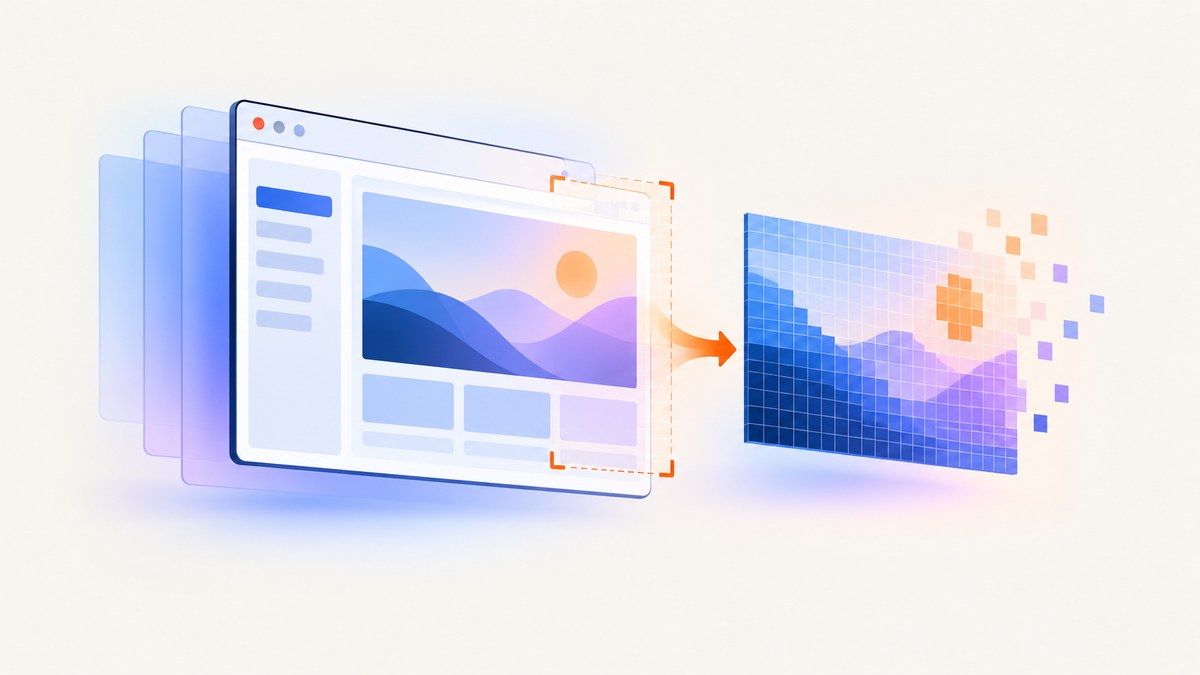
Use Bitmap, Graphics.FromImage, and Graphics.CopyFromScreen to capture pixels from a visible Windows Forms window. For a whole form, copy from the form’s screen location and size. For a client area or arbitrary rectangle, convert the target to screen coordinates and use the same width and height for the bitmap.
Microsoft documents CopyFromScreen as a bit-block transfer of color data from the screen to a drawing surface. The method captures the rendered desktop pixels in the selected rectangle, so the target must be visible.
1. Capture a visible Windows Forms window
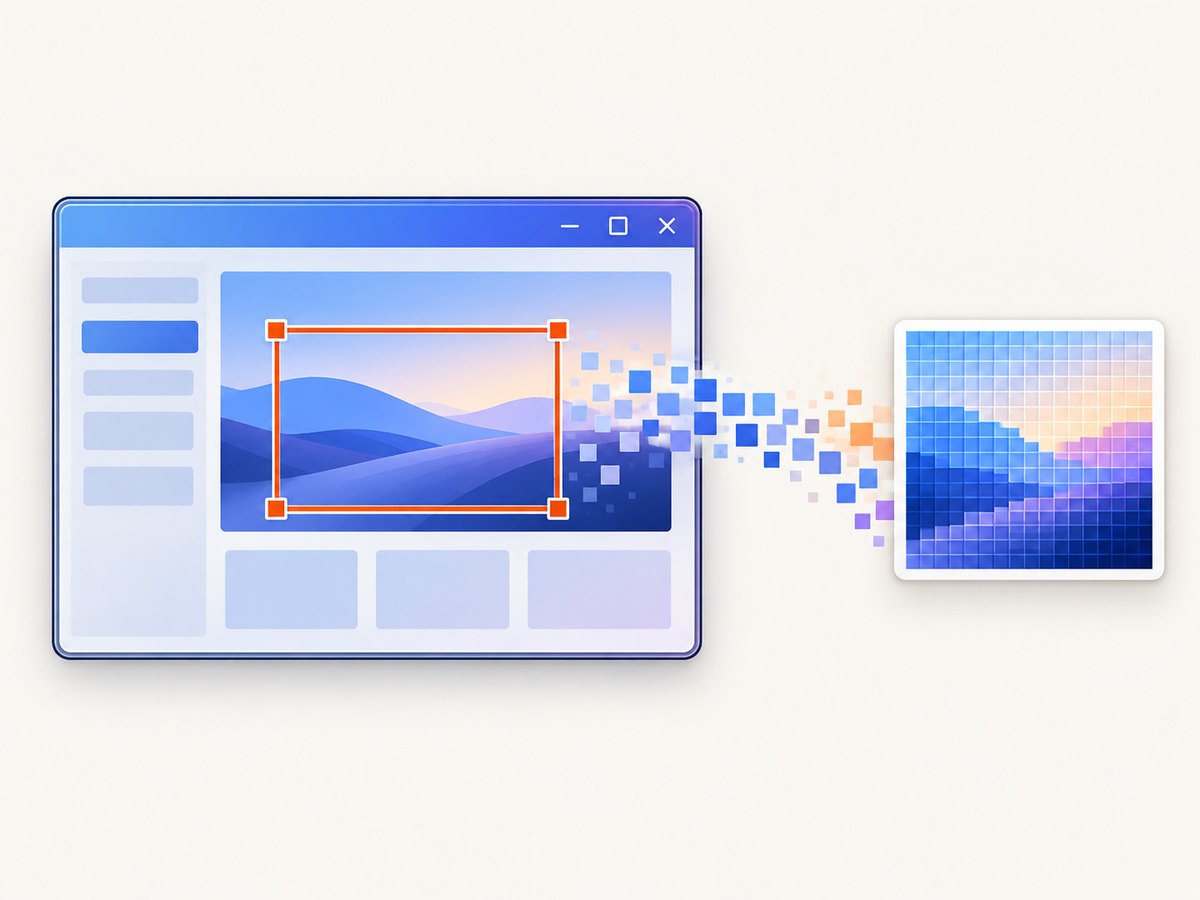
This complete example adds a button to a form, captures the entire visible form including its border and title bar, and writes a PNG beside the executable.
using System;
using System.Drawing;
using System.Drawing.Imaging;
using System.IO;
using System.Windows.Forms;

namespace WinFormsScreenshot
{
    public sealed class MainForm : Form
    {
        private readonly Button captureButton = new Button
        {
            Text = "Capture form",
            AutoSize = true,
            Location = new Point(20, 20)
        };

        public MainForm()
        {
            Text = "Screenshot demo";
            ClientSize = new Size(520, 300);
            Controls.Add(captureButton);
            captureButton.Click += CaptureButton_Click;
        }

        private void CaptureButton_Click(object? sender, EventArgs e)
        {
            string path = Path.Combine(
                AppContext.BaseDirectory,
                "form-shot.png");

            using (Bitmap image = CaptureForm())
            {
                image.Save(path, ImageFormat.Png);
            }

            MessageBox.Show($"Saved to {path}");
        }

        private Bitmap CaptureForm()
        {
            var bitmap = new Bitmap(Width, Height);
            using (Graphics graphics = Graphics.FromImage(bitmap))
            {
                graphics.CopyFromScreen(
                    Location,
                    Point.Empty,
                    Size);
            }

            return bitmap;
        }

        [STAThread]
        public static void Main()
        {
            ApplicationConfiguration.Initialize();
            Application.Run(new MainForm());
        }
    }
}
The source point is the form’s upper-left screen coordinate. Point.Empty places the copied pixels at the bitmap’s origin, and Size defines the copied rectangle. The caller owns the returned Bitmap and must dispose it after saving, displaying, printing, or processing it.
2. Capture only the client area
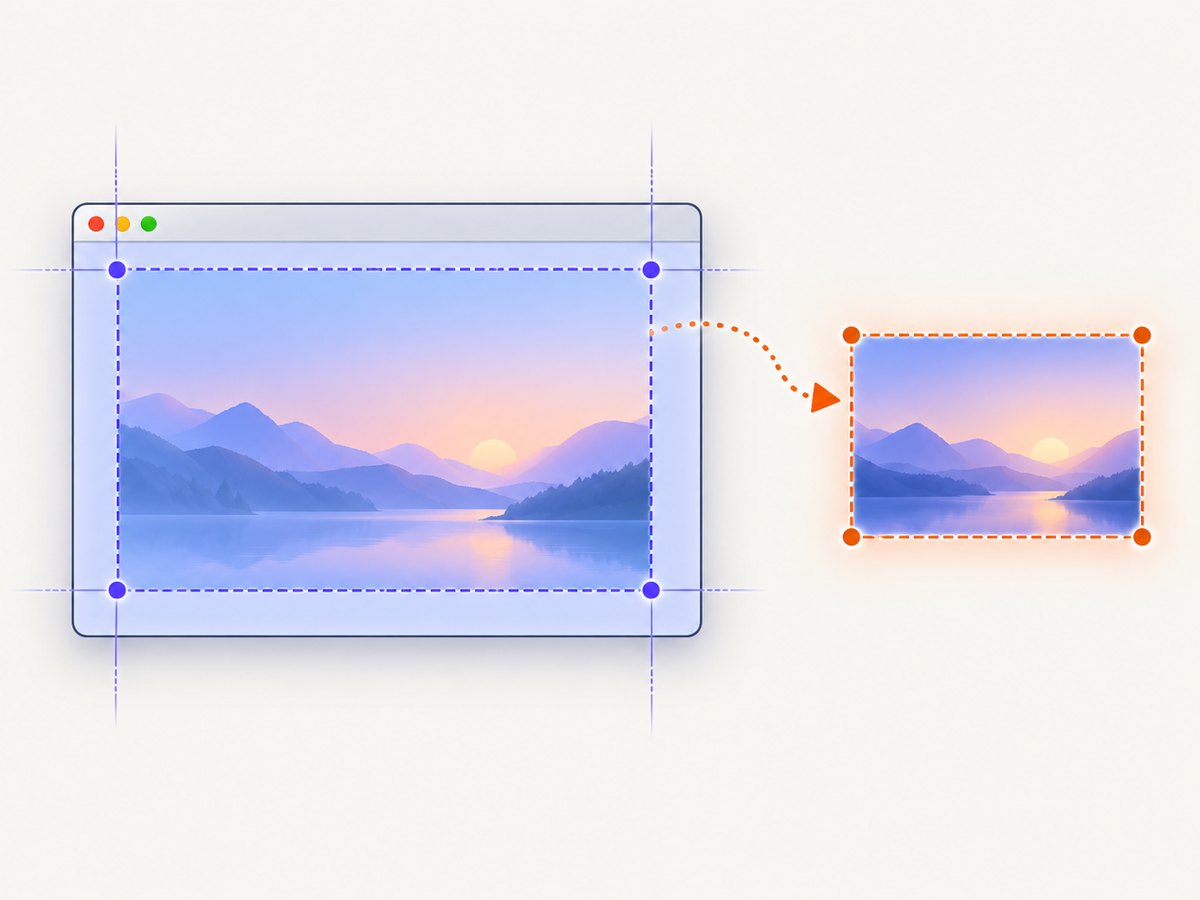
The client area excludes the title bar and borders. Convert the client origin to screen coordinates, then allocate a bitmap using ClientSize.
private Bitmap CaptureClientArea()
{
    Point clientTopLeftOnScreen = PointToScreen(Point.Empty);
    var bitmap = new Bitmap(ClientSize.Width, ClientSize.Height);

    using (Graphics graphics = Graphics.FromImage(bitmap))
    {
        graphics.CopyFromScreen(
            clientTopLeftOnScreen,
            Point.Empty,
            ClientSize);
    }

    return bitmap;
}

private void SaveClientArea()
{
    using (Bitmap image = CaptureClientArea())
    {
        image.Save("client-area.png", ImageFormat.Png);
    }
}
Keep the source rectangle and bitmap dimensions identical. A mismatch can clip content or leave unused pixels.
3. Capture an arbitrary selected rectangle
For a rectangle selected by the user, store its coordinates in screen space. This helper works for any visible monitor area.
using System.Drawing;
using System.Drawing.Imaging;

private static Bitmap CaptureRectangle(Rectangle area)
{
    if (area.Width <= 0 || area.Height <= 0)
        throw new ArgumentException("The capture rectangle must have a positive size.", nameof(area));

    var bitmap = new Bitmap(area.Width, area.Height);
    using (Graphics graphics = Graphics.FromImage(bitmap))
    {
        graphics.CopyFromScreen(
            area.Location,
            Point.Empty,
            area.Size);
    }

    return bitmap;
}

// Coordinates supplied here are screen coordinates, not form-client coordinates.
using (Bitmap image = CaptureRectangle(new Rectangle(100, 100, 800, 600)))
{
    image.Save("selection.png", ImageFormat.Png);
}
A drag-to-select UI normally records the mouse-down and mouse-up points, normalizes negative width or height, and passes the resulting screen rectangle to this method.
4. Save PNG, JPEG, or another format
using (Bitmap image = CaptureForm())
{
    image.Save("shot.png", ImageFormat.Png);
    image.Save("shot.jpg", ImageFormat.Jpeg);
    image.Save("shot.webp", ImageFormat.Webp);
}
PNG is a practical default for interface screenshots because it preserves text and sharp edges without JPEG artifacts. Compare formats on your actual images when file size matters. Always specify the format when the filename extension alone is not enough.
5. Display the capture in a PictureBox
private void ShowCapture(PictureBox pictureBox)
{
    Bitmap next = CaptureForm();
    Image? previous = pictureBox.Image;
    pictureBox.Image = next;
    previous?.Dispose();
}
Do not dispose the bitmap while the PictureBox still uses it. Dispose the previous image when replacing it, and dispose the final image when the control or form closes.
6. Capture a control
For a control that is currently visible, convert its client origin to screen coordinates and use its client dimensions.
private static Bitmap CaptureControl(Control control)
{
    if (!control.IsHandleCreated || !control.Visible)
        throw new InvalidOperationException("The control must be visible and have a window handle.");

    Point origin = control.PointToScreen(Point.Empty);
    var bitmap = new Bitmap(control.ClientSize.Width, control.ClientSize.Height);

    using (Graphics graphics = Graphics.FromImage(bitmap))
    {
        graphics.CopyFromScreen(origin, Point.Empty, control.ClientSize);
    }

    return bitmap;
}
This captures what is rendered on the desktop. It does not ask the control to repaint hidden, minimized, or covered content.
7. CopyPixelOperation
CopyFromScreen also has overloads accepting CopyPixelOperation. Normal screenshots should use the default copy operation. Other raster operations are useful for deliberate visual effects such as inversion, not for ordinary captures.
8. Full virtual desktop and multiple monitors
To capture every monitor, use SystemInformation.VirtualScreen. Its location can be negative when a monitor is positioned left of or above the primary display.
Rectangle virtualDesktop = SystemInformation.VirtualScreen;
using (Bitmap image = CaptureRectangle(virtualDesktop))
{
    image.Save("all-monitors.png", ImageFormat.Png);
}
Ensure the rectangle dimensions fit available memory. A large multi-monitor bitmap can be substantially larger than a single-window capture.
9. DPI scaling and coordinate mistakes
- Use screen coordinates for the source point passed to
CopyFromScreen. - Use
PointToScreenwhen converting a form or control client origin. - Allocate the bitmap with the same physical pixel dimensions as the source rectangle.
- Test on the monitor and Windows scaling settings your application supports; mixed-DPI layouts can expose coordinate conversion errors.
- Do not infer a screen rectangle from control coordinates without converting it to screen space.
10. Visibility limitations
CopyFromScreen reads the rendered desktop surface. Another window covering the target can appear in the capture. A minimized form, an occluded region, or content that has not been rendered to the desktop may not produce the pixels you expect. For hidden-window or application-level rendering, use an API designed for that capture model instead of treating CopyFromScreen as an off-screen renderer.
11. Resource handling and reliability checklist
- Dispose every
Graphicsobject, usually with ausingstatement. - Dispose every returned
Bitmapafter its last use. - Validate rectangle width and height before allocating.
- Do capture and file I/O on a worker task when taking many screenshots, while collecting UI coordinates on the UI thread.
- Create the destination directory before saving and handle permission or locked-file exceptions.
- Capture after layout and painting have completed if the screenshot must include newly changed controls.
12. Troubleshooting
| Symptom | Likely cause | Fix |
|---|---|---|
| Screenshot contains another window | The target was covered on the desktop. | Bring the form to the front and capture while visible, or use an application-specific/off-screen rendering API. |
| Minimized form is blank or stale | No current desktop pixels exist for the minimized window. | Restore and show the form before capture. |
| Only part of the form appears | Source rectangle and bitmap dimensions differ. | Use Size with Width/Height, or ClientSize with a client-origin point. |
| Capture is offset | Client coordinates were passed as screen coordinates. | Convert with PointToScreen(Point.Empty). |
| Negative-size exception | A selection was dragged upward or leftward. | Normalize the two drag points into a rectangle with positive width and height. |
| OutOfMemoryException | The requested bitmap is too large or many images remain undisposed. | Reduce the capture area, save and dispose promptly, and avoid retaining old bitmaps. |
| Access denied while saving | The directory is not writable or the file is locked. | Save to a user-writable path, create the directory, and close previous streams. |
| Text looks blurry | The capture is being scaled after copying, or DPI coordinates are wrong. | Capture at the source pixel dimensions and avoid an extra resize step. |
13. Performance, reliability, and cost
Capture time and memory use grow with pixel count. A small control is cheaper to process than the entire virtual desktop. Reuse a capture workflow, dispose bitmaps quickly, and save asynchronously when taking a series of images. PNG encoding preserves UI detail but can produce larger files than lossy formats.
The desktop method has no ScreenshotNeo API charge because it runs locally, but it only represents pixels available on the current Windows desktop. A remote website capture service is useful when the target is a URL rather than a local WinForms window, or when you need repeatable browser rendering without managing a browser process.
14. Or skip the browser setup
For URL screenshots, ScreenshotNeo returns a PNG, JPEG, WebP, or PDF from one GET request. See the ScreenshotNeo API documentation for the complete option list.
curl -G "https://api.screenshotneo.com/v1/shot" -d access_key=YOUR_API_KEY --data-urlencode url=https://stripe.com -o shot.webpimport requests
r = requests.get("https://api.screenshotneo.com/v1/shot", params={"access_key": "YOUR_API_KEY", "url": "https://stripe.com"}, timeout=90)
open("shot.webp", "wb").write(r.content)const q = new URLSearchParams({ access_key: 'YOUR_API_KEY', url: 'https://stripe.com' });
const res = await fetch(`https://api.screenshotneo.com/v1/shot?${q}`);Before capture, ScreenshotNeo accepts cookie or consent banners and removes more than 60 known consent platforms, newsletter popups, and chat widgets; each step can be turned off. Bot checks, blank pages, timeouts, failed loads, and cache hits are not billed, and response headers identify the page verdict and whether the request was billed. Its MCP server provides take_screenshot, get_page_info, and capture_pdf for Claude, Cursor, and other MCP clients. The Free plan includes 1,000 screenshots per month without a card; paid plans start at $5 for 3,000 shots.
Create a free ScreenshotNeo account to try URL capture.
15. FAQ
Can I capture a form that is partly outside the screen?
Only the rendered desktop pixels in the requested rectangle are available. Move or resize the form, or use an application-level rendering approach for content that is not visible.
Should I capture the form or its client area?
Use the form’s Location and Size for the complete visible window. Use PointToScreen(Point.Empty) and ClientSize for content without borders.
Why return a Bitmap instead of saving inside the helper?
A returned bitmap can be displayed, printed, encoded, or inspected in memory. The caller also controls its lifetime and disposal.
Can CopyFromScreen capture a web page without opening a browser?
No. It copies the Windows desktop. For a URL, use a browser automation workflow or a URL screenshot API such as ScreenshotNeo.


