BlogScreenshots on your device
How to Capture Screenshots in C#
Capture a screen region with CopyFromScreen, let users select windows with Windows.Graphics.Capture, or use ScreenshotNeo for website screenshots.

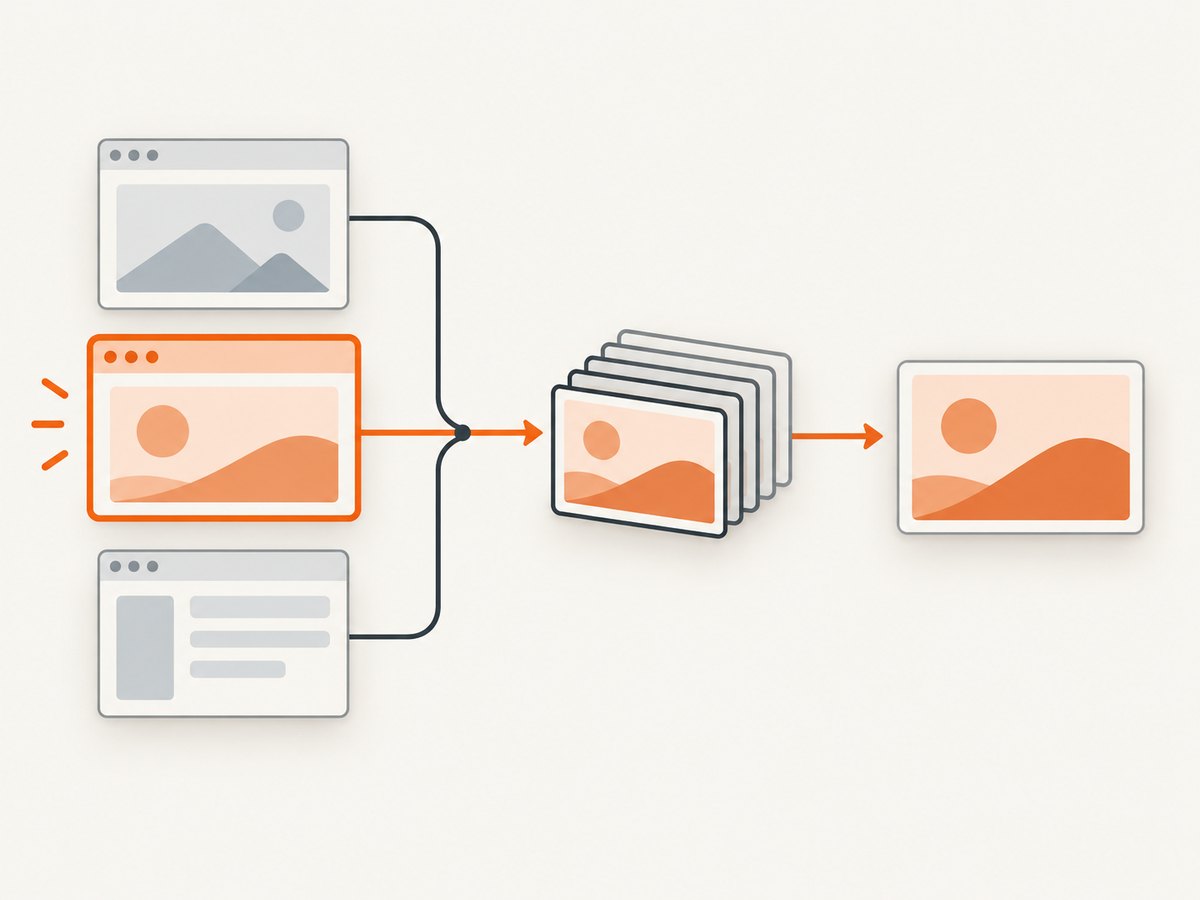
For a fixed rectangle in a Windows Forms app, use Graphics.CopyFromScreen. It copies desktop pixels directly into a bitmap. If the user must choose a display or application window, use Windows.Graphics.Capture, which provides a system picker and capture session.
This guide covers both approaches, their options and limitations, saving PNG files, multi-monitor coordinates, error handling, and a hosted alternative for website screenshots.
1. Capture a fixed screen region with CopyFromScreen
CopyFromScreen performs a bit-block transfer from the screen to a Graphics drawing surface. You provide the source point, destination point, and rectangle size. The example below creates a bitmap and saves it as PNG.
using System;
using System.Drawing;
using System.Drawing.Imaging;

static class ScreenCapture
{
    public static void SaveScreenRegion(
        string path, int x, int y, int width, int height)
    {
        if (width <= 0 || height <= 0)
            throw new ArgumentOutOfRangeException("Capture dimensions must be positive.");

        using var bitmap = new Bitmap(width, height);
        using (var graphics = Graphics.FromImage(bitmap))
        {
            graphics.CopyFromScreen(
                sourceX: x,
                sourceY: y,
                destinationX: 0,
                destinationY: 0,
                blockRegionSize: new Size(width, height));
        }

        bitmap.Save(path, ImageFormat.Png);
    }

    static void Main()
    {
        SaveScreenRegion("region.png", 100, 100, 1200, 800);
        Console.WriteLine("Saved region.png");
    }
}
In a Windows Forms project, add a reference to System.Drawing.Common when your target framework requires it. The destination point (0, 0) places the copied pixels at the bitmap’s upper-left corner. Microsoft documents the method and its parameters in the CopyFromScreen API reference.
Choosing coordinates
xandyare desktop coordinates for the upper-left source pixel.widthandheightare the copied rectangle’s dimensions in pixels.- On a multi-monitor desktop, the virtual desktop can extend left or above the primary display, so valid coordinates may be negative.
- Keep the complete rectangle inside the actual desktop bounds. An invalid request can raise
Win32Exception.
Capturing a Windows Forms control’s screen rectangle
Rectangle screenRect = myPanel.RectangleToScreen(myPanel.ClientRectangle);
ScreenCapture.SaveScreenRegion(
    "panel.png",
    screenRect.X,
    screenRect.Y,
    screenRect.Width,
    screenRect.Height);
This captures what is visibly painted on the screen. It does not render a minimized, occluded, or off-screen window as if it were visible.
2. Let the user select a window or display with Windows.Graphics.Capture
Use Windows.Graphics.Capture when the target should be chosen through the Windows picker. The documented flow is:

- Check
GraphicsCaptureSession.IsSupported()at runtime. - Open
GraphicsCapturePickerand let the user select a display or application window. - For a WinUI 3 desktop app, associate the picker with the owner window handle before showing it.
- Create a frame pool and capture session for the returned
GraphicsCaptureItem. - Start the session, receive frames, and encode a selected frame as PNG, JPEG, or another format.
Microsoft’s screen capture overview describes this picker, frame-pool, and session workflow. The API was introduced for Windows 10 version 1803 and is documented for Windows desktop devices and Windows Mixed Reality immersive headsets. Always keep the support check because availability can vary by device.
using Windows.Graphics.Capture;

if (!GraphicsCaptureSession.IsSupported())
{
    throw new PlatformNotSupportedException(
        "Windows.Graphics.Capture is not supported on this device.");
}

// In a desktop UI app, create GraphicsCapturePicker, associate it
// with your owner window, and await PickSingleItemAsync().
// Use the returned GraphicsCaptureItem to create a Direct3D-backed
// frame pool and GraphicsCaptureSession, then process a frame into
// an image file.
The picker displays a system capture indication around the active target. Consult the GraphicsCapturePicker reference and GraphicsCaptureSession reference for the exact UI framework and interop setup.
3. CopyFromScreen or Windows.Graphics.Capture?
| Requirement | Best fit | Reason |
|---|---|---|
| Known rectangle and minimal code | CopyFromScreen |
Copies a caller-specified region directly into a bitmap. |
| User chooses a display or app window | Windows.Graphics.Capture |
Provides a system picker and capture session. |
| Capture indication and consent flow | Windows.Graphics.Capture |
Uses the documented Windows capture experience. |
| Simple Windows Forms utility | CopyFromScreen |
Requires only a bitmap and Graphics object. |
| Streaming or repeated frame processing | Windows.Graphics.Capture |
Its frame pool and session are designed for received frames. |
4. Format, DPI, and capture options
PNG, JPEG, and WebP
PNG preserves lossless pixels and is useful for UI tests or text. JPEG reduces file size for photographic content but introduces compression artifacts. Select an encoder that your target framework supports; the capture APIs provide pixels, while your code chooses the output format.
DPI and scaling
The rectangle is measured in desktop pixels. Per-monitor scaling can make logical control dimensions differ from physical capture dimensions. Convert a control’s screen rectangle with RectangleToScreen, and verify the resulting bitmap dimensions on systems with mixed display scaling.
Cursor and overlays
The copied image contains pixels currently shown in the selected region. Cursor visibility, window occlusion, notifications, and other overlays depend on what Windows presents at capture time. Neither API should be treated as a guaranteed way to render hidden application content.
5. Troubleshooting
| Symptom | Cause | Fix |
|---|---|---|
Win32Exception from CopyFromScreen |
The rectangle is outside the virtual desktop or dimensions are invalid. | Enumerate the installed screens, validate the full rectangle, and reject zero or negative sizes. |
| Image is black or incomplete | The window is minimized, occluded, protected, or not presenting pixels normally. | Capture a visible region, restore the window, or use the target application’s own export API. |
| Picker never opens | The device does not support the API, or the desktop picker lacks its owner window association. | Check GraphicsCaptureSession.IsSupported() and associate GraphicsCapturePicker with the desktop window before displaying it. |
| Wrong monitor or offset | Virtual desktop coordinates were treated as primary-monitor coordinates. | Use each display’s bounds and preserve negative X or Y values when present. |
| File cannot be saved | The destination directory is missing or not writable, or the file is locked. | Create the directory, use an application-writable path, and dispose the bitmap before reopening the file. |
| High memory usage | Large bitmaps or unprocessed frame-pool frames are retained. | Dispose each bitmap and graphics object, process only the frame needed for a still image, and avoid unnecessary copies. |
6. Performance and reliability
- Capture only the required rectangle; bitmap memory grows with
width × height × 4bytes for a typical 32-bit pixel format, before encoder overhead. - Reuse buffers for repeated captures where practical, but dispose resources deterministically.
- Do not block the UI thread while waiting for picker interaction or frame processing. Use the asynchronous picker and frame callbacks provided by the Windows capture workflow.
- Check support and handle cancellation. A user can close the picker without selecting a target.
- Save to a temporary file and then replace the final file if consumers must never observe a partially written image.
- For unattended website captures, desktop APIs add screen-session, display, and window-state dependencies. A browser screenshot API avoids those dependencies.
7. Or skip the browser setup
If the target is a website rather than the current Windows desktop, ScreenshotNeo returns a screenshot or PDF from one GET request. It removes cookie and consent banners, newsletter popups, and chat widgets before capture. Bot checks, blank pages, failed loads, timeouts, and cache hits are not billed, and response headers identify the page verdict and billing result. Its MCP server provides take_screenshot, get_page_info, and capture_pdf tools for AI agents.
See the ScreenshotNeo API documentation for all options.
cURL
curl -G "https://api.screenshotneo.com/v1/shot" -d access_key=YOUR_API_KEY --data-urlencode url=https://stripe.com -o shot.webpPython
import requests

r = requests.get(
    "https://api.screenshotneo.com/v1/shot",
    params={"access_key": "YOUR_API_KEY", "url": "https://stripe.com"},
    timeout=90,
)
r.raise_for_status()
open("shot.webp", "wb").write(r.content)
Node.js
const q = new URLSearchParams({ access_key: 'YOUR_API_KEY', url: 'https://stripe.com' });
const res = await fetch(`https://api.screenshotneo.com/v1/shot?${q}`);
if (!res.ok) throw new Error(`Screenshot failed: ${res.status}`);
const data = Buffer.from(await res.arrayBuffer());
require('node:fs').writeFileSync('shot.webp', data);
ScreenshotNeo includes full-page capture with lazy images loaded, CSS element capture, dark mode, device presets and custom viewports, retina scale, PDF settings, custom CSS and JavaScript, waits, request blocking, headers, cookies, user agents, timezone, geolocation, resizing, caching, signed links, asynchronous jobs, bulk capture, usage reporting, and an OpenAPI specification. It accepts the parameter names used by other screenshot APIs, which helps when switching.
There is a free plan with 1,000 screenshots per month and no card. Paid plans start at $5 for 3,000 screenshots; every feature is available on every plan. Create a free ScreenshotNeo account.
8. FAQ
Can I capture only one control?
Yes. Convert the control’s client rectangle to screen coordinates with RectangleToScreen, then pass that rectangle to CopyFromScreen.
Does CopyFromScreen capture a minimized window?
No. It copies the pixels currently presented in a desktop rectangle, so minimized or obscured content may be absent.
Which API lets the user pick a window?
Windows.Graphics.Capture provides the system picker for selecting a display or application window.
Should a web service use these desktop APIs?
Usually no. A service should use a browser-based capture API or an automated browser so it does not depend on an interactive Windows desktop session.
How do I know whether Windows.Graphics.Capture is available?
Call GraphicsCaptureSession.IsSupported() at runtime and provide a fallback or an explanatory error when it returns false.


