BlogScreenshots on your device
How to Capture Screenshots from Minimized Browser Windows
Learn when to capture page content or a browser window, with Playwright, Selenium, and Windows methods for minimized and occluded browsers.
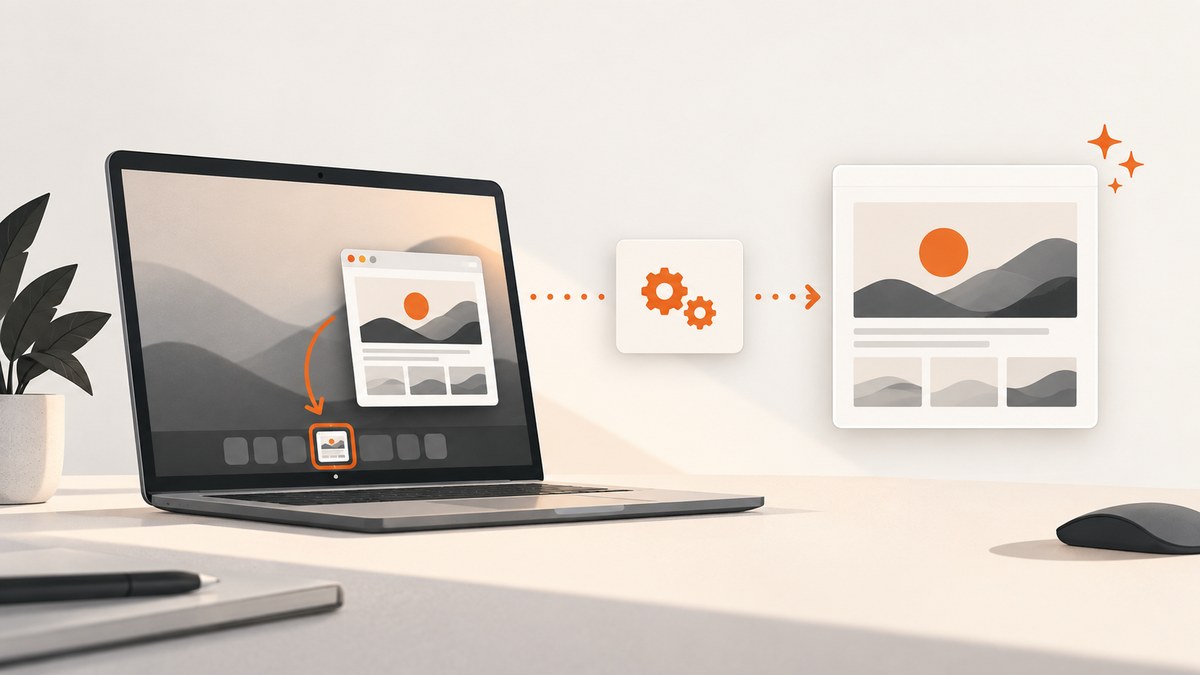
Capturing a minimized browser window depends on what you need in the image. If you need the webpage itself, use browser automation and capture the rendered page directly. A headless browser can do this without a visible window, so minimizing a desktop window is irrelevant. If you need the browser application—including tabs, the address bar, browser chrome, or a desktop overlay—you need a window or screen-capture API. Those tools have different behavior when a window is covered or minimized.
The practical rule is simple:
- Webpage content: use Playwright or Selenium screenshots.
- Browser frame or desktop pixels: use a Windows window-capture method.
- Covered window: Windows Graphics Capture (WGC) is documented for occluded windows, with a PrintWindow fallback in Microsoft’s UI automation tool. Test the exact browser, Windows build, session, and minimized state you depend on.
1. Decide whether you need a page or a window
A page screenshot contains the rendered document: HTML, CSS, images, canvas content, and selected elements. It does not include the browser’s tabs or address bar. Playwright’s page.screenshot() and Selenium WebDriver’s screenshot endpoint operate on the current browsing context, which is the page rather than the surrounding desktop window. See the Playwright screenshot documentation and Selenium screenshot documentation.
A window screenshot captures pixels belonging to a desktop window. It can include browser chrome, menus, tooltips, and other overlays. It may require the target to be foregrounded, and a screen capture can capture whatever is actually in front. Microsoft’s Windows UI automation guidance describes WGC for occluded windows and PrintWindow as a fallback, but it does not guarantee identical results for every minimized Chrome, Edge, or Firefox window in every session. Read the Microsoft window-capture guidance for the behavior of the tool you choose.
| Goal | Recommended method | Does it include browser chrome? | Visibility caveat |
|---|---|---|---|
| Capture a webpage in the background | Headless Playwright | No | No visible window required |
| Capture one element | Playwright locator screenshot or Selenium element screenshot | No | Page must load the element |
| Capture a full page, including below the fold | Playwright full-page screenshot | No | Lazy content may need scrolling or waits |
| Capture tabs, address bar, or the browser frame | Windows window or screen capture | Yes | Foreground, occlusion, and minimization are environment-dependent |
| Capture a menu or tooltip as displayed on screen | Screen/window capture | Usually | The target may need to be brought forward |
2. Capture webpage content with headless Playwright
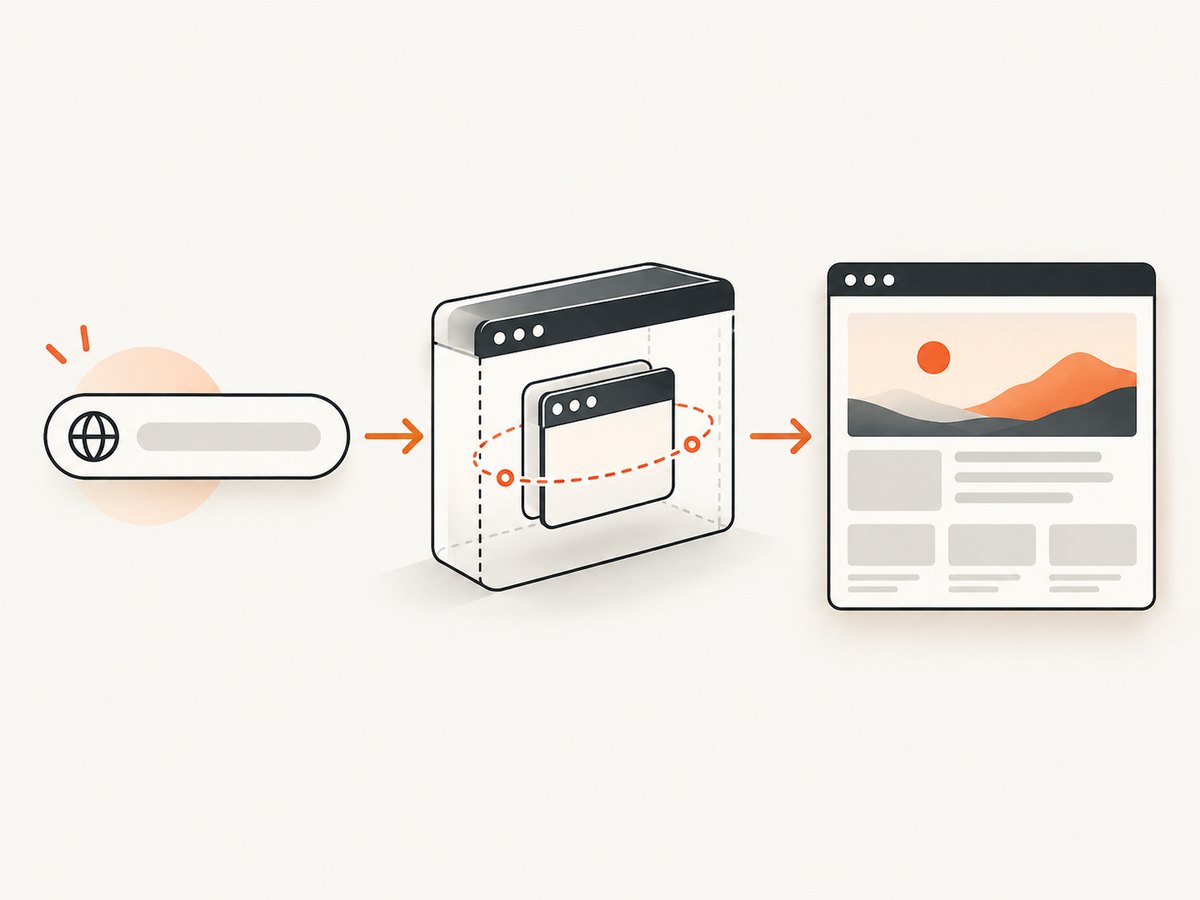
Playwright launches browsers headlessly by default. This is usually the most reliable unattended solution because it does not depend on a normal browser window remaining visible or unminimized. Install it with Node.js:
mkdir screenshot-demo
cd screenshot-demo
npm init -y
npm install playwright
npx playwright install chromium
Create capture.mjs:
import { chromium } from 'playwright';

const browser = await chromium.launch({ headless: true });
const page = await browser.newPage({
  viewport: { width: 1440, height: 900 },
  deviceScaleFactor: 1
});

await page.goto('https://example.com', {
  waitUntil: 'networkidle',
  timeout: 60_000
});

await page.screenshot({
  path: 'page.png',
  fullPage: true,
  animations: 'disabled'
});

await browser.close();
Run it with node capture.mjs. Use fullPage: true for the entire document. For a viewport-only image, omit that option. To capture one element, wait for it and use its locator:
const chart = page.locator('#revenue-chart');
await chart.waitFor({ state: 'visible', timeout: 15_000 });
await chart.screenshot({ path: 'chart.png' });
Make the capture deterministic
- Set a fixed viewport and device scale factor.
- Wait for a meaningful condition such as a selector, rather than relying only on a fixed delay.
- Disable animations when visual stability matters.
- Use a test account or authenticated context for private pages.
- Scroll through pages whose images load lazily before taking a full-page shot.
- Close cookie dialogs, chat widgets, and transient popups in your test setup when they are not part of the desired output.
A page can report networkidle while a JavaScript application is still rendering. Combine navigation with an application-specific selector:
await page.goto('https://example.com/dashboard', { waitUntil: 'domcontentloaded' });
await page.locator('[data-ready="true"]').waitFor({ state: 'visible', timeout: 30_000 });
await page.screenshot({ path: 'dashboard.png', fullPage: true });
3. Capture webpage content with Selenium
Selenium also captures the current browsing context rather than the desktop frame. Minimization behavior is specific to the window manager, so do not assume that minimizing is universally safe or universally broken. For unattended page captures, run the browser headlessly.
python -m venv .venv
. .venv/bin/activate
pip install selenium
Python example:
from selenium import webdriver
from selenium.webdriver.chrome.options import Options
from selenium.webdriver.common.by import By
from selenium.webdriver.support.ui import WebDriverWait
from selenium.webdriver.support import expected_conditions as EC

options = Options()
options.add_argument('--headless=new')
options.add_argument('--window-size=1440,900')

driver = webdriver.Chrome(options=options)
try:
    driver.get('https://example.com')
    WebDriverWait(driver, 30).until(
        EC.presence_of_element_located((By.TAG_NAME, 'body'))
    )
    driver.save_screenshot('page.png')
finally:
    driver.quit()
For an element screenshot, locate the element and call element.screenshot('element.png'). For a full document, browser and driver support varies; a scripted scroll-and-stitch workflow or Playwright’s full-page option may be more predictable.
4. Capture the browser window on Windows
Use a desktop capture path when the output must show browser chrome or pixels outside the webpage. Microsoft’s Windows UI automation screenshot command uses Windows.Graphics.Capture when available and falls back to PrintWindow. WGC is documented to capture an occluded window, meaning another window can cover it. That documentation is not a blanket promise that every minimized browser is captured identically across all Windows versions, graphics drivers, browsers, and session types.
Occluded versus minimized
An occluded window is still present but covered by another window. A minimized window is reduced by the window manager and may no longer have a normal drawable surface. Test these states separately:
- Capture the browser while visible.
- Cover it with another window and capture again.
- Minimize it and capture again.
- Repeat after reconnecting to the session, locking the workstation, and running under the account used in production.
Record the browser version, Windows build, GPU mode, session type, and capture API. If the image is black, stale, or belongs to another window, treat that as a failed capture and retry or switch to page automation.
When the target must be foregrounded
Menus, popups, and tooltips are rendered as on-screen overlays. A screen-capture method may bring the target forward, and Microsoft’s guidance says it can fail if the target does not actually reach the foreground. Do not use a foreground-dependent method in a multi-user desktop where moving a window would disrupt the operator. Prefer a headless page capture when the overlay itself is not required.
5. A practical decision workflow
- Define the output: page, element, full document, browser frame, or desktop pixels.
- Choose the smallest capture surface: an element screenshot is cheaper and less fragile than a full window.
- Use headless Playwright or Selenium for page content: this removes the minimized-window problem.
- Use Windows capture for chrome and overlays: verify occluded and minimized behavior on the target machine.
- Wait for state: use selectors, application readiness flags, or explicit delays for animations.
- Validate the result: check image dimensions, file type, nonzero size, and expected page markers.
- Retry safely: use a bounded retry count and save diagnostics such as browser logs and a failure screenshot.
6. Or skip the browser setup
ScreenshotNeo provides a website screenshot API when you need the webpage rather than the browser’s desktop frame. One GET request returns PNG, JPEG, WebP, or PDF. The API accepts options for full-page capture with lazy images loaded, CSS-selector element capture, dark mode, device presets and custom viewports, retina scale, custom CSS and JavaScript, clicks, selector or network-idle waits, blocked resources, headers, cookies, user agents, authorization, timezone, geolocation, transparent backgrounds, resizing, caching, signed links, asynchronous jobs, webhooks, bulk capture, and usage reporting. See the ScreenshotNeo documentation for parameter details.
curl -G "https://api.screenshotneo.com/v1/shot" -d access_key=YOUR_API_KEY --data-urlencode url=https://stripe.com -o shot.webpimport requests
r = requests.get("https://api.screenshotneo.com/v1/shot", params={"access_key": "YOUR_API_KEY", "url": "https://stripe.com"}, timeout=90)
open("shot.webp", "wb").write(r.content)const q = new URLSearchParams({ access_key: 'YOUR_API_KEY', url: 'https://stripe.com' });
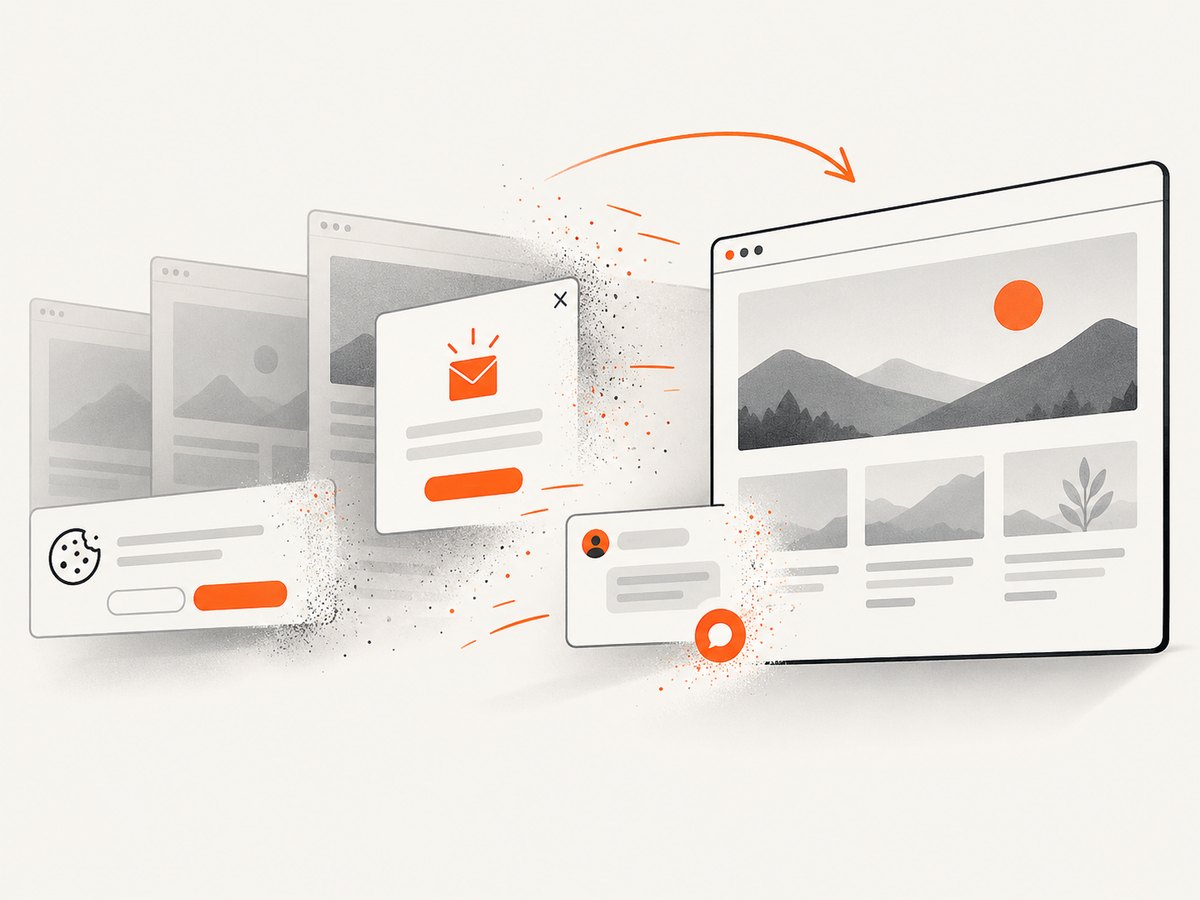
const res = await fetch(`https://api.screenshotneo.com/v1/shot?${q}`);Cookie banners, newsletter popups, and chat widgets are removed before the shot. Bot checks, blank pages, timeouts, failed loads, and cache hits are never billed; response headers report the page verdict and whether the request was billed. ScreenshotNeo also has an MCP server with take_screenshot, get_page_info, and capture_pdf tools for Claude, Cursor, and other MCP clients. The free plan includes 1,000 screenshots each month with no card; paid plans start at $5 for 3,000 shots. Create a free ScreenshotNeo account.
7. Troubleshooting
The screenshot is only the visible viewport
Cause: viewport capture was requested. Fix: use Playwright’s fullPage: true, or use ScreenshotNeo’s full-page option.
The page is blank or missing content
Cause: capture occurred before client-side rendering, an authentication redirect occurred, or resources were blocked. Fix: wait for a page-specific selector, inspect the final URL, provide required cookies or headers, and record console and network errors.
Lazy-loaded images are absent
Cause: images load only after scrolling into view. Fix: scroll in stages before capture, wait for image completion, or use an API option that loads lazy images.
The minimized-window image is black, stale, or empty
Cause: the window manager, graphics driver, browser, session, or capture API does not expose a drawable minimized surface. Fix: test an occluded (covered but not minimized) state, use WGC where supported, verify the PrintWindow fallback, or switch to headless page capture.
The wrong window appears
Cause: a screen capture captured the foreground desktop rather than the intended target. Fix: identify the window by handle, verify its title and process, and ensure it is foregrounded when the selected API requires that.
A menu or tooltip is missing
Cause: the overlay disappeared before capture or the target never reached the foreground. Fix: open the overlay immediately before capture, add a short controlled wait, and verify foreground status.
Selenium fails after minimizing
Cause: minimization behavior depends on the window manager. Fix: run Chrome or another supported browser headlessly for page content, or use a dedicated desktop capture API for the application window.
8. Performance, reliability, and cost
Headless page screenshots avoid desktop compositing and usually scale more easily across workers. Reuse a browser process when taking many captures, but create isolated contexts for different cookies, users, or viewport settings. Limit concurrency to what the machine’s CPU, memory, and network can sustain. Full-page images and high device scale factors consume more memory than viewport or element captures.
Window capture adds variables that page automation does not: foreground ownership, remote desktop sessions, GPU composition, locked screens, display scaling, and window-manager behavior. Treat a capture as successful only after validating the pixels. For production jobs, use bounded retries, timeouts, deterministic waits, and a fallback path.
With ScreenshotNeo, caching can avoid repeated browser work when an acceptable TTL is configured. Async jobs and signed webhooks help move long captures out of a request timeout, while bulk capture supports up to 100 URLs per call. Only clean shots are billed; bot checks, blank pages, timeouts, failed loads, and cache hits cost nothing. Review the response’s X-Page-Verdict and X-Billed headers when reconciling usage.
9. Capture checklist
- Have you decided whether browser chrome is required?
- For page content, have you tried a headless browser?
- Are viewport, scale factor, color scheme, timezone, and geolocation fixed?
- Are you waiting for the application to be ready?
- Have you accounted for lazy images, consent banners, popups, and chat widgets?
- For Windows capture, did you test visible, occluded, and minimized states?
- Does the production session match the test session?
- Do you validate dimensions, file size, and expected content?
- Do retries have a limit and a diagnostic path?
FAQ
Can Playwright screenshot a minimized browser?
Playwright screenshots the page context. In headless mode there is no visible browser window to minimize, which is preferable when you need webpage content.
Can Selenium capture a browser’s tabs and address bar?
WebDriver screenshots target the current browsing context, not the complete desktop window. Use a Windows window-capture method for browser chrome.
Is an occluded window the same as a minimized window?
No. Occluded means covered while still open; minimized means reduced by the window manager. WGC documentation addresses occlusion, while minimized behavior must be verified in your exact environment.
What should I use for an unattended service?
Use headless Playwright, Selenium, or a screenshot API for webpage content. Reserve desktop capture for cases that genuinely require browser chrome or on-screen overlays.


