BlogScreenshots on your device
How to Capture Screenshots Silently with Java Robot
Capture authorized desktop screenshots with Java Robot, handle permissions and multi-monitor setups, and learn when a screenshot API is simpler.
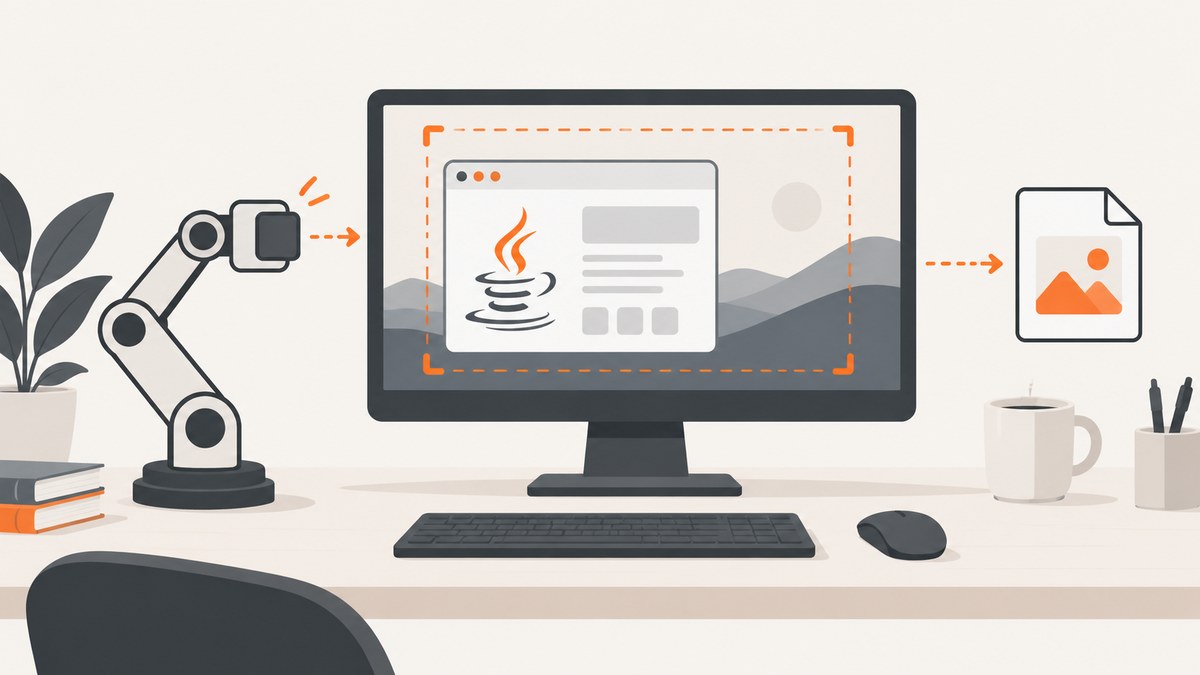
Short answer: Java’s java.awt.Robot can capture pixels from an authorized desktop without opening a screenshot dialog or playing a sound. Create a Robot, pass a positive-size screen-coordinate Rectangle to createScreenCapture, then save the returned BufferedImage with ImageIO. “Silently” is not a permission bypass: macOS, Linux desktop environments and managed systems can require approval, deny capture, or return unusable pixels.
The API documentation describes createScreenCapture as creating an image containing pixels read from the screen. See the Oracle Robot API and Oracle ImageIO API.
1. Minimal single-screen screenshot
This complete program captures the default screen dimensions reported by Toolkit and writes a PNG in the current directory.

import java.awt.Rectangle;
import java.awt.Robot;
import java.awt.Toolkit;
import java.awt.image.BufferedImage;
import java.io.File;
import javax.imageio.ImageIO;

public class Screenshot {
    public static void main(String[] args) throws Exception {
        Robot robot = new Robot();
        Rectangle bounds = new Rectangle(Toolkit.getDefaultToolkit().getScreenSize());
        BufferedImage image = robot.createScreenCapture(bounds);
        boolean written = ImageIO.write(image, "png", new File("screenshot.png"));
        if (!written) {
            throw new IllegalStateException("No PNG writer is available");
        }
    }
}
Compile and run it with:
javac Screenshot.java
java Screenshot
The file is created only after the capture succeeds. ImageIO.write returns false when no writer exists for the requested format, so checking the result prevents a silent failure.
2. What “silently” can and cannot mean
Robot does not show a Java screenshot dialog by itself. It also does not guarantee that the operating system will remain silent or permit the operation. Desktop security controls can block access to pixels outside your application, request interactive approval, or produce undefined image contents when permission is missing.
- Use this only on machines and screens you are authorized to capture.
- Do not use it to evade consent prompts, notification controls, endpoint security, or operating-system privacy settings.
- On macOS, review the system controls for application access to screen and system-audio recording. The exact prompt and settings location depends on the macOS version; Apple documents the controls in its screen-recording permissions guide.
- In CI, containers, SSH sessions, and servers without a graphical session, Java may be headless and unable to construct a
Robot.
3. Capture a region instead of the whole display
A rectangle is expressed in screen coordinates. Its width and height must both be positive.
import java.awt.Rectangle;
import java.awt.Robot;
import java.awt.image.BufferedImage;
import javax.imageio.ImageIO;
import java.io.File;

public class RegionScreenshot {
    public static void main(String[] args) throws Exception {
        Robot robot = new Robot();
        Rectangle region = new Rectangle(100, 100, 1200, 800);
        BufferedImage image = robot.createScreenCapture(region);
        if (!ImageIO.write(image, "png", new File("region.png"))) {
            throw new IllegalStateException("No PNG writer is available");
        }
    }
}
The first two values are the x and y coordinates; the next two are width and height. A negative x or y can be valid on a multi-monitor desktop when a display is positioned to the left or above the primary display. A negative width or height is invalid.
4. Select a monitor on a multi-display system
Use GraphicsEnvironment to inspect available devices and their bounds. Constructing Robot with a GraphicsDevice associates it with that screen.
import java.awt.GraphicsDevice;
import java.awt.GraphicsEnvironment;
import java.awt.Rectangle;
import java.awt.Robot;
import java.awt.image.BufferedImage;
import javax.imageio.ImageIO;
import java.io.File;

public class MonitorScreenshot {
    public static void main(String[] args) throws Exception {
        GraphicsDevice[] devices = GraphicsEnvironment
                .getLocalGraphicsEnvironment()
                .getScreenDevices();

        for (int i = 0; i < devices.length; i++) {
            Rectangle bounds = devices[i].getDefaultConfiguration().getBounds();
            System.out.printf("%d: x=%d y=%d width=%d height=%d%n",
                    i, bounds.x, bounds.y, bounds.width, bounds.height);
        }

        int monitorIndex = 0;
        GraphicsDevice device = devices[monitorIndex];
        Rectangle bounds = device.getDefaultConfiguration().getBounds();
        Robot robot = new Robot(device);
        BufferedImage image = robot.createScreenCapture(bounds);

        if (!ImageIO.write(image, "png", new File("monitor-" + monitorIndex + ".png"))) {
            throw new IllegalStateException("No PNG writer is available");
        }
    }
}
Some systems expose one combined virtual coordinate space; others report per-device bounds. Always inspect the returned rectangles instead of assuming the primary display starts at (0, 0).
5. High-DPI and multi-resolution captures
On scaled displays, logical user coordinates and native device pixels can differ. Java provides createMultiResolutionScreenCapture(Rectangle), which can return a user-sized base image and a native-resolution variant. If sharpness matters, explicitly choose which variant to save.
import java.awt.Rectangle;
import java.awt.Robot;
import java.awt.Toolkit;
import java.awt.image.BufferedImage;
import java.awt.image.MultiResolutionImage;
import javax.imageio.ImageIO;
import java.io.File;

public class HiDpiScreenshot {
    public static void main(String[] args) throws Exception {
        Robot robot = new Robot();
        Rectangle bounds = new Rectangle(Toolkit.getDefaultToolkit().getScreenSize());
        MultiResolutionImage multi = robot.createMultiResolutionScreenCapture(bounds);

        BufferedImage base = multi.getResolutionVariant(bounds.width, bounds.height);
        if (!ImageIO.write(base, "png", new File("screenshot-base.png"))) {
            throw new IllegalStateException("No PNG writer is available");
        }
    }
}
The requested size in getResolutionVariant is a selection hint. Inspect the available variants when you need to guarantee that the saved file is the native-resolution image rather than the logical-size image.
6. Keep capture work off the AWT event-dispatch thread
Screen capture can take time, especially when permission acquisition involves user interaction. Do not call it from the Swing or AWT event-dispatch thread. Run it in a worker and publish the result back to the UI.
import java.awt.Rectangle;
import java.awt.Robot;
import java.awt.Toolkit;
import java.awt.image.BufferedImage;
import javax.imageio.ImageIO;
import java.io.File;
import java.util.concurrent.ExecutorService;
import java.util.concurrent.Executors;

public class BackgroundScreenshot {
    public static void main(String[] args) throws Exception {
        ExecutorService executor = Executors.newSingleThreadExecutor();
        executor.submit(() -> {
            try {
                Robot robot = new Robot();
                Rectangle bounds = new Rectangle(Toolkit.getDefaultToolkit().getScreenSize());
                BufferedImage image = robot.createScreenCapture(bounds);
                if (!ImageIO.write(image, "png", new File("background.png"))) {
                    throw new IllegalStateException("No PNG writer is available");
                }
            } catch (Exception e) {
                e.printStackTrace();
            }
        });
        executor.shutdown();
    }
}
7. Choosing PNG, JPEG or another format
PNG preserves exact pixels and is a good default for text, code and interfaces. JPEG can produce much smaller files for photographic content but introduces lossy artifacts. Java’s built-in writers vary by runtime; check the boolean result from ImageIO.write. For a format not provided by your runtime, install an ImageIO plugin and verify that the writer is available before capture jobs depend on it.
8. Troubleshooting
| Symptom or exception | Likely cause | Fix |
|---|---|---|
AWTException: headless environment |
No usable graphical desktop is available. | Run in an authorized desktop session, configure a real display for CI, or use a server-side capture service. |
SecurityException |
The desktop or security manager denied screen access. | Grant the application’s screen-recording permission where appropriate, then restart if the OS requires it. Do not attempt to bypass the control. |
| Image is blank or contains undefined pixels | Permission was not granted or the desktop compositor restricts capture. | Check OS privacy settings, confirm the process is attached to the intended session, and test a small region. |
| Black or wrong monitor | Coordinates were assumed instead of read from the device configuration, or scaling was ignored. | Print every device’s bounds and use Robot(GraphicsDevice) with that device’s rectangle. |
IllegalArgumentException |
The rectangle has zero or negative width or height. | Validate dimensions before calling createScreenCapture. |
| No output file and no exception | No writer was available for the requested format and the return value was ignored. | Check the boolean result from ImageIO.write. |
| UI freezes | Capture ran on the event-dispatch thread. | Move capture and encoding to a worker thread. |
| Capture works locally but not over SSH | The SSH process has no access to the interactive desktop display. | Run in the logged-in desktop session or use a browser/server screenshot workflow. |
9. Reliability and performance considerations
- Permission state: Treat permission as an external dependency. Check it during startup and report a clear actionable error.
- Capture size: Full-screen and native-resolution images consume more memory and take longer to encode than small regions. Capture only the area you need.
- Encoding: PNG encoding can be CPU and disk intensive for large displays. Keep image work off UI threads and write to a durable destination.
- Repeated captures: Reuse a worker or bounded executor rather than creating unlimited threads. Close or shut down resources cleanly.
- Consistency: If another application is animating, the screenshot can represent an intermediate frame. Pause your own UI where possible and capture at a known point.
- Automation:
Robotcaptures the desktop, not a web page’s DOM. Browser windows, scaling, overlays and other applications can affect the pixels.
10. When Java Robot is the wrong tool
Use Robot when you need pixels from an authorized interactive desktop: a native application, a visible browser window, or a particular monitor region. It is a poor fit for headless servers, deterministic web-page rendering, element-level capture, or scheduled jobs that cannot depend on a logged-in desktop.
For web pages, a browser screenshot API avoids desktop-display setup and can return a consistent image from a URL. The key comparison points are capture scope, permission requirements, headless support, monitor and scaling behavior, and whether you need a still image or continuous recording. Robot provides still images; it is not a video-recording API.
11. Or skip the browser setup
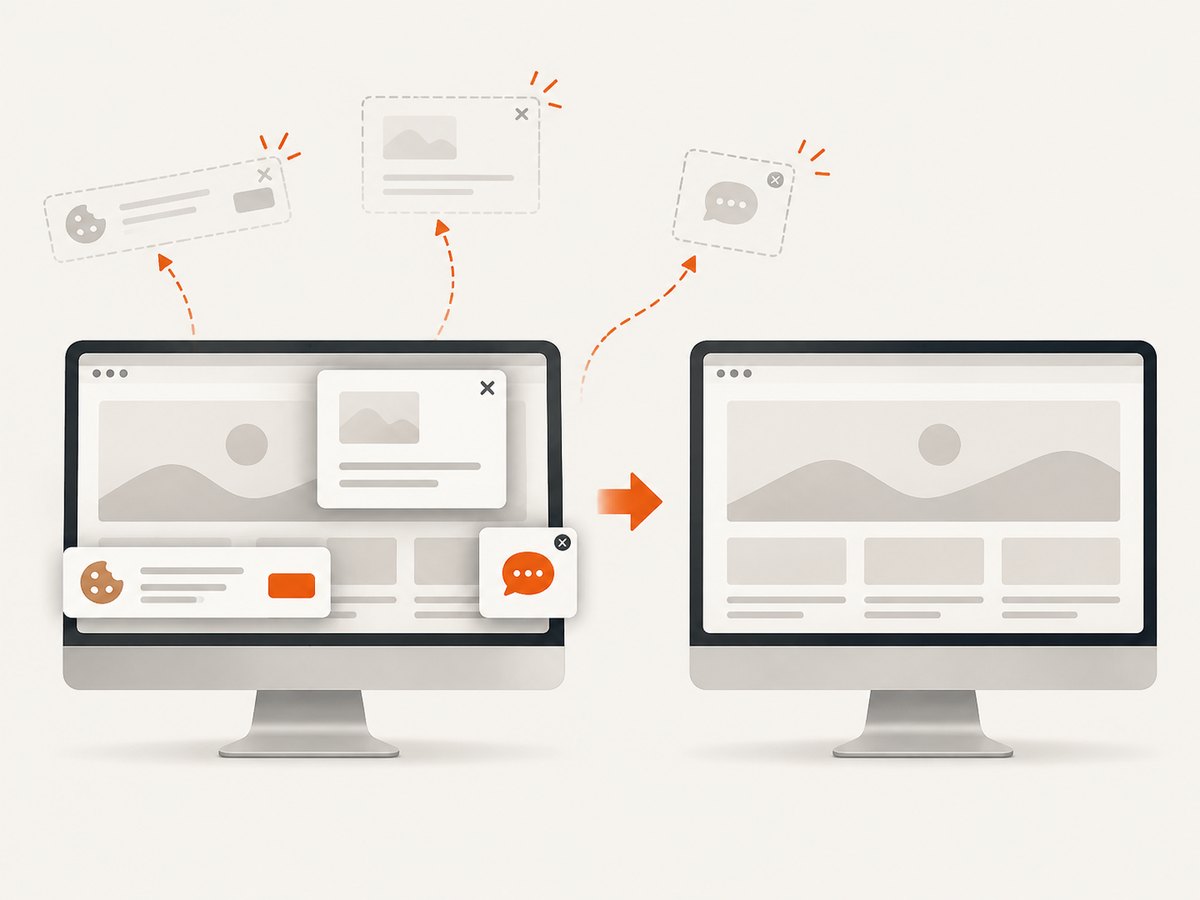
If your target is a URL rather than the physical desktop, ScreenshotNeo provides a single-request screenshot API. Its cleanup steps accept cookie or consent banners and remove more than 60 known consent platforms, newsletter popups and chat widgets before capture; each step can be disabled. Bot checks, blank pages, timeouts, failed loads and cache hits are not billed, and the response identifies the result with X-Page-Verdict and X-Billed headers.
See the ScreenshotNeo API documentation for the complete option list, including full-page capture, lazy-image loading, CSS selectors, dark mode, device presets, retina scale, PDF output, custom CSS and JavaScript, waits, request blocking, cookies, headers, geolocation, caching, signed links, asynchronous jobs, bulk capture and usage reporting.
cURL
curl -G "https://api.screenshotneo.com/v1/shot" -d access_key=YOUR_API_KEY --data-urlencode url=https://stripe.com -o shot.webpPython
import requests
r = requests.get("https://api.screenshotneo.com/v1/shot", params={"access_key": "YOUR_API_KEY", "url": "https://stripe.com"}, timeout=90)
open("shot.webp", "wb").write(r.content)
Node.js
const q = new URLSearchParams({ access_key: 'YOUR_API_KEY', url: 'https://stripe.com' }); const res = await fetch(`https://api.screenshotneo.com/v1/shot?${q}`);ScreenshotNeo also has an MCP server with take_screenshot, get_page_info and capture_pdf tools for Claude, Cursor and other MCP clients. The free plan includes 1,000 screenshots each month with no card; paid plans start at $5 for 3,000. Create a free ScreenshotNeo account.
12. Practical checklist
- Confirm that the desktop and every captured window are authorized.
- Check that the process is not headless.
- Request the required OS screen-capture permission.
- Print monitor bounds instead of assuming coordinates.
- Validate rectangle width and height.
- Keep capture and encoding off the event-dispatch thread.
- Check the return value of
ImageIO.write. - Choose PNG for exact UI pixels and JPEG for photographic output where loss is acceptable.
- Use a web screenshot service when a physical desktop is unnecessary.
13. FAQ
Does Java Robot capture without showing a dialog?
Java does not open its own screenshot dialog, but the operating system may show a permission prompt or block access. There is no cross-platform guarantee of invisible capture.
Can Robot capture a browser tab without capturing the rest of the screen?
Robot captures a screen rectangle. You must know the tab’s on-screen coordinates and ensure other windows do not cover it; it does not select a browser DOM element.
Why is my screenshot larger or smaller than the monitor resolution?
Display scaling can create logical and native pixel sizes. Use the multi-resolution API when you need to choose explicitly between those variants.
Can I use Robot in Docker?
Only when the container has a usable graphical display and the required permissions. A normal headless container cannot construct a functioning Robot.
Does Robot record video?
No. It returns still images. A recording workflow must capture frames repeatedly and encode them with a separate video tool.


