How to Capture Screenshots of Websites That Block Access
Capture clear evidence of 403, Cloudflare 1020, CAPTCHA, login and blank pages, then troubleshoot authorized automated screenshots safely.

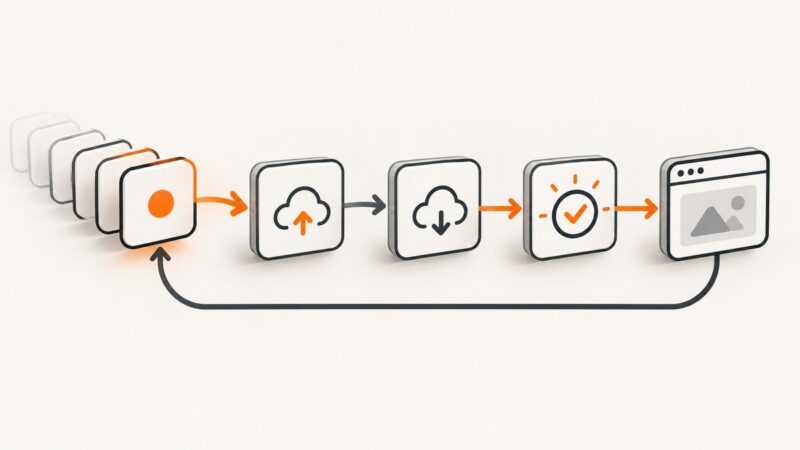
When a website blocks access, capture the page you can actually see. Keep the complete browser message in frame, preserve the original file, and record the URL and time. A screenshot documents the denial; it does not grant access or explain the rule by itself.
This guide covers browser screenshots first, then authorized automated capture. It explains what to retain for a 403, Cloudflare 1020, CAPTCHA, login prompt, blank page, or timeout; how to use valid session cookies; and how to recognize when an automation service is receiving the site’s challenge instead of the intended content.
1. Capture the denial in your normal browser
- Open the page in the browser and wait until the error, challenge, or login message is fully visible.
- Use your operating system’s normal screenshot command. On Windows, use Snipping Tool or Win+Shift+S. On macOS, use Shift+Command+4 or Shift+Command+5. On Linux, use the desktop screenshot utility or its configured shortcut.
- Include the browser address bar when possible. Keep explanatory text, status codes, timestamps, Ray IDs, and request identifiers visible.
- Save the unedited original as PNG or another lossless format. Make a separate cropped copy only if support asks for one.
- Write down the exact URL, UTC time, browser and version, device or network, and the action that led to the block.
Do not refresh repeatedly or crop away the evidence. A challenge can change between requests, and a cropped image may omit the identifier the site owner needs.

What to preserve for common responses
| What you see | What to keep | What it means |
|---|---|---|
| HTTP 403 or “Access denied” | Full message, URL, time, and any request ID | The server or an intermediary refused the request. The status alone does not identify the rule. |
| Cloudflare Error 1020 | The complete page and Ray ID | Cloudflare defines 1020 as access denied by a Cloudflare firewall rule. If you are not the owner, Cloudflare says to provide the owner with a screenshot of the 1020 message (official guidance). |
| CAPTCHA or “verify you are human” | The challenge state and surrounding instructions | The site is asking for an anti-bot check. It may be expected behavior, a broken integration, or a signal that automation is disallowed. |
| Login screen | Sign-in URL, visible tenant or account context, and time | The page requires an authenticated session. A screenshot of the login screen is not proof that the protected page is unavailable. |
| Blank or white page | Whole browser window, address bar, console or network error if available | The page may have failed to load, rendered after the capture, or returned content that blocks automated browsers. |
2. Send useful evidence to the site owner
Contact the website owner, administrator, or support team through the channel listed on the site. Attach the original screenshot and provide:
- the exact URL and UTC timestamp;
- the visible status, error code, Ray ID, or request identifier;
- your browser, operating system, and network type;
- whether the page works in another browser or on another network;
- the business reason you need access and the approved route you are requesting.
Ask the owner to check firewall or security events and to provide an allow-listed route, a supported login flow, or a human handoff if one is required. For Cloudflare 1020, the owner can search Security Events using the Ray ID or client IP. Do not claim that the screenshot proves which firewall rule fired; only the owner can confirm that.
3. Check whether the block is specific to your browser or network
Use low-risk comparisons that do not attempt to defeat a control:
- Open the same URL in a current, ordinary browser with JavaScript enabled.
- Try the site’s documented sign-in flow if you have an account.
- Record whether the result changes on a permitted network or device, without using a proxy to evade a restriction.
- Check the site’s status page and support notices.
If the normal browser succeeds but an automated capture receives a challenge, blank page, or 403, treat the difference as a block signal. More wait time will not solve a login screen or a bot challenge. Use the site owner’s approved automation route, an allow-list, or a human-in-the-loop step.
4. Fix a broken CAPTCHA in a normal browser
When a CAPTCHA widget itself does not display or submit, follow the provider’s ordinary troubleshooting steps. Google recommends updating the browser, enabling JavaScript, and disabling conflicting plugins; contact the site webmaster if the integration remains broken (Google reCAPTCHA Help). Capture the broken widget and its console or network error if the owner requests diagnostic detail.
Do not automate solving a CAPTCHA or present bypassing it as a routine fix. AWS describes a live view that lets an end user take control and solve a challenge when a workflow is authorized (AWS guidance).
5. Automated screenshots: what the browser can actually reach
A screenshot API controls a browser session. It can capture only the response that session is allowed to render. Cloudflare Browser Run’s screenshot endpoint processes HTML and JavaScript before capture and documents valid session cookies as the way to access pages that require login (Cloudflare documentation).

For an authorized workflow, supply a valid session cookie or supported authentication header, wait for the application to render, and capture the resulting page. Cookies prove an existing session; they do not establish permission or defeat a firewall, CAPTCHA, or account policy.
Minimal browser automation example (Playwright)
import { chromium } from 'playwright';

const browser = await chromium.launch();
const context = await browser.newContext({
  // Use only cookies obtained through the site's normal login flow.
  storageState: process.env.STORAGE_STATE || undefined
});
const page = await context.newPage();
await page.goto('https://example.com/protected', {
  waitUntil: 'networkidle',
  timeout: 60_000
});
await page.screenshot({ path: 'blocked-or-authorized.png', fullPage: true });
await browser.close();
If the output is a CAPTCHA, 403, login page, or blank image, save that result as evidence. Browserless lists those outcomes, along with missing elements, as signs that a site may be blocking automation (Browserless documentation).
Options that matter in an authorized capture
| Need | Configuration | Failure to expect |
|---|---|---|
| Authenticated page | Valid session cookies or the site’s supported auth header | Login screen, redirect loop, or 401/403 |
| JavaScript application | Wait for a selector, a documented delay, or network idle | Blank shell or missing content |
| Lazy-loaded content | Scroll or use a full-page mode that loads lazy images | Missing images below the fold |
| Stable layout | Fixed viewport, device preset, timezone, locale, and user agent | Different responsive layout or date formatting |
| Evidence of a denial | Capture the full viewport and response metadata | Cropped error code or lost request ID |
6. Or skip the browser setup
ScreenshotNeo provides a one-request website screenshot API and MCP server. It can render the response its browser session is permitted to reach, including a denial page when the target blocks automation. Cookie banners, newsletter popups, and chat widgets are removed before the shot; bot checks, blank pages, timeouts, failed loads, and cache hits are identified in response headers and are not billed as clean shots.
See the complete parameter reference in the ScreenshotNeo docs. The same request works with the common screenshot API parameter names, which helps when switching an existing integration.
cURL
curl -G "https://api.screenshotneo.com/v1/shot" -d access_key=YOUR_API_KEY --data-urlencode url=https://stripe.com -o shot.webpPython
import requests

r = requests.get(
    "https://api.screenshotneo.com/v1/shot",
    params={"access_key": "YOUR_API_KEY", "url": "https://stripe.com"},
    timeout=90,
)
r.raise_for_status()
open("shot.webp", "wb").write(r.content)
Node.js
const q = new URLSearchParams({ access_key: 'YOUR_API_KEY', url: 'https://stripe.com' });
const res = await fetch(`https://api.screenshotneo.com/v1/shot?${q}`);
if (!res.ok) throw new Error(`HTTP ${res.status}`);
const buffer = Buffer.from(await res.arrayBuffer());
await Bun.write('shot.webp', buffer);
Replace the URL with a page you are authorized to capture. For a protected page, provide valid cookies or headers through the API’s request options; those credentials must come from the site’s normal login or an owner-approved integration.
Useful ScreenshotNeo capture controls
- Viewport and device: choose one of 12 device presets or set any viewport, with retina scale for high-density output.
- Page scope: capture the viewport, a full page with lazy images loaded, or one element selected by CSS.
- Rendering: dark mode, transparent background, custom CSS, custom JavaScript, click an element, hide selectors, and waits for a selector, delay, or network idle.
- Network and identity: block ads, trackers, requests, or resource types; set custom headers, cookies, user agent, Authorization, timezone, or geolocation.
- Output: PNG, JPEG, WebP, or PDF with paper size, margins, landscape mode, and page ranges; resize images after capture.
- Operations: choose a cache TTL, create signed links for public
<img>tags, submit async jobs with signed webhooks, capture up to 100 URLs per bulk call, and read usage through the usage API. - Automation for agents: the MCP server exposes
take_screenshot,get_page_info, andcapture_pdffor Claude, Cursor, and other MCP clients.
Every response identifies the result with X-Page-Verdict and X-Billed headers. A CAPTCHA, bot check, blank page, timeout, failed load, or cache hit can therefore be distinguished from a clean shot without guessing from the image alone.
7. Troubleshooting blocked automated captures
| Symptom | Likely cause | Fix |
|---|---|---|
| 403 or Cloudflare 1020 | The service’s browser is denied by a firewall rule | Save the response, Ray ID, and headers; ask the owner for an allow-list or approved route. Do not keep increasing retries. |
| CAPTCHA screenshot | Automation was challenged | Use the normal user flow or an owner-approved human handoff. Do not describe CAPTCHA bypass as a configuration setting. |
| Login page | No valid session or an expired cookie | Log in through the supported flow and pass a current, authorized session cookie; verify the redirect and account context. |
| Blank or partially rendered image | Capture happened before JavaScript or lazy assets finished | Wait for a stable selector or network idle, increase the bounded timeout, and use full-page loading where appropriate. |
| Missing consent dialog or popup | The capture service removed it | Check the page verdict and configure the consent, popup, or chat-removal step if you need to document that element itself. |
| Different content from a human browser | Viewport, user agent, locale, timezone, cookies, or geolocation differ | Match the authorized browser context and record those settings with the evidence. |
| Repeated transient failures | Origin timeout, overloaded page, or unstable third-party asset | Use bounded retries with backoff, a deterministic wait condition, and caching where a fresh render is not required. |
8. Reliability, performance, and cost
Reliability
Use a stable selector instead of a fixed sleep when the application exposes one. Keep timeouts finite, record the URL and capture parameters, and store the original response headers with the image. For evidence, retain failed and denied results rather than discarding them: the denial may be the important observation.
Performance
Full-page captures, lazy-image loading, PDFs, custom scripts, and network-idle waits take longer than a viewport image. Reuse a chosen viewport and cache stable pages with a TTL. Bulk capture is useful for up to 100 URLs per call; asynchronous jobs and signed webhooks prevent long-running work from blocking a request thread.
Cost
ScreenshotNeo bills only clean shots. Bot checks or CAPTCHAs, blank pages, timeouts, failed loads, and cache hits cost nothing, and the X-Billed header states the result. Plans are Free: 1,000 shots/month with no card; Starter: $5 for 3,000; Growth: $15 for 15,000; Pro: $39 for 60,000; Scale: $99 for 250,000; Business: $249 for 1,000,000. Yearly billing gives two months free, and every feature is on every plan.
9. Evidence checklist
- Original, uncropped screenshot.
- Full URL and UTC timestamp.
- Visible status, error code, Ray ID, or request identifier.
- Browser, operating system, viewport, and network context.
- Whether a normal signed-in browser could load the page.
- For automation: request parameters, response headers, verdict, and billed status.
- Support ticket or owner response describing the approved next step.
FAQ
Does a screenshot prove that the site is down?
No. It proves what one browser session saw at one time. The owner must inspect logs, firewall events, and origin health.
Can I screenshot a page that requires login?
Yes, when you have permission and provide a valid session through the site’s supported flow. A screenshot API cannot create authorization.
Should I retry a CAPTCHA until it disappears?
No. Treat a persistent CAPTCHA as an automation restriction and use the site’s normal flow, a human handoff, or an approved allow-list.
Why keep a screenshot of a blank page?
A blank result can show that rendering failed or that automation was blocked. Keep it with the headers and timestamp so the owner can investigate.
Where can I start with ScreenshotNeo?
You can create an account and get 1,000 screenshots a month free with no card at the ScreenshotNeo free sign-up. Cookie banners, popups, and chat widgets are removed before the shot; bot checks, blank pages, and failed loads are never billed; and the MCP server lets AI agents take screenshots.