BlogScreenshots on your device
How to Capture Screenshots with the Windows BitBlt API
Learn how to capture a screen or window with Win32 BitBlt, include layered windows, save a BMP, handle errors, and avoid common GDI leaks.
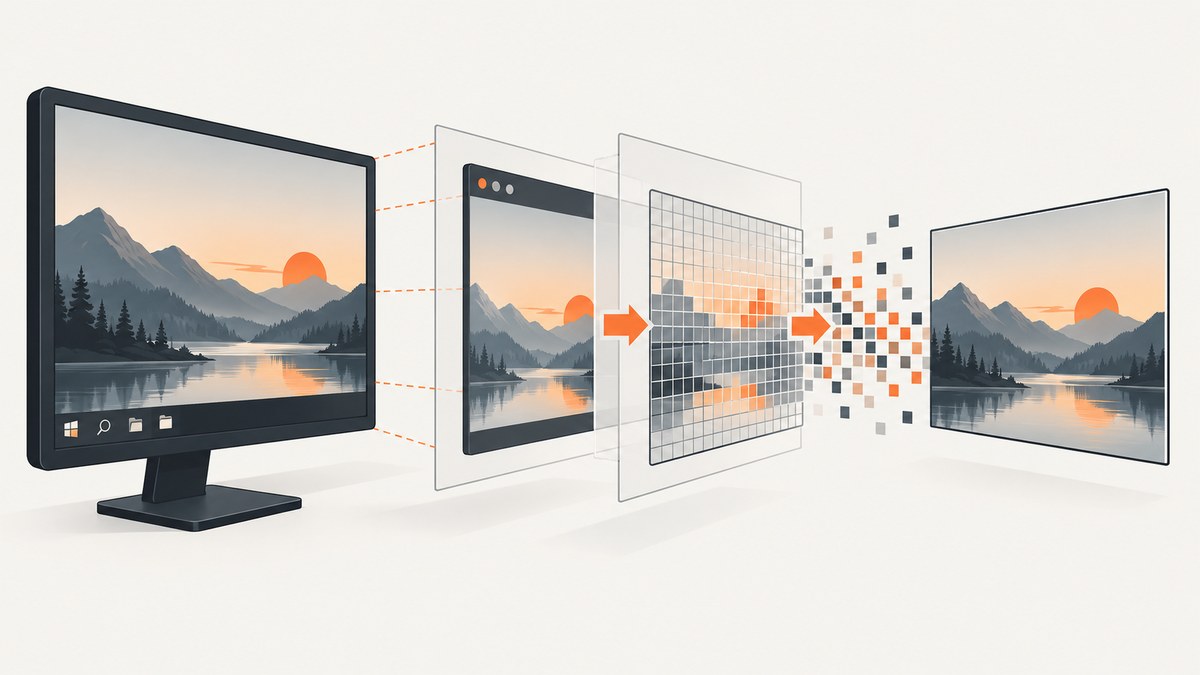
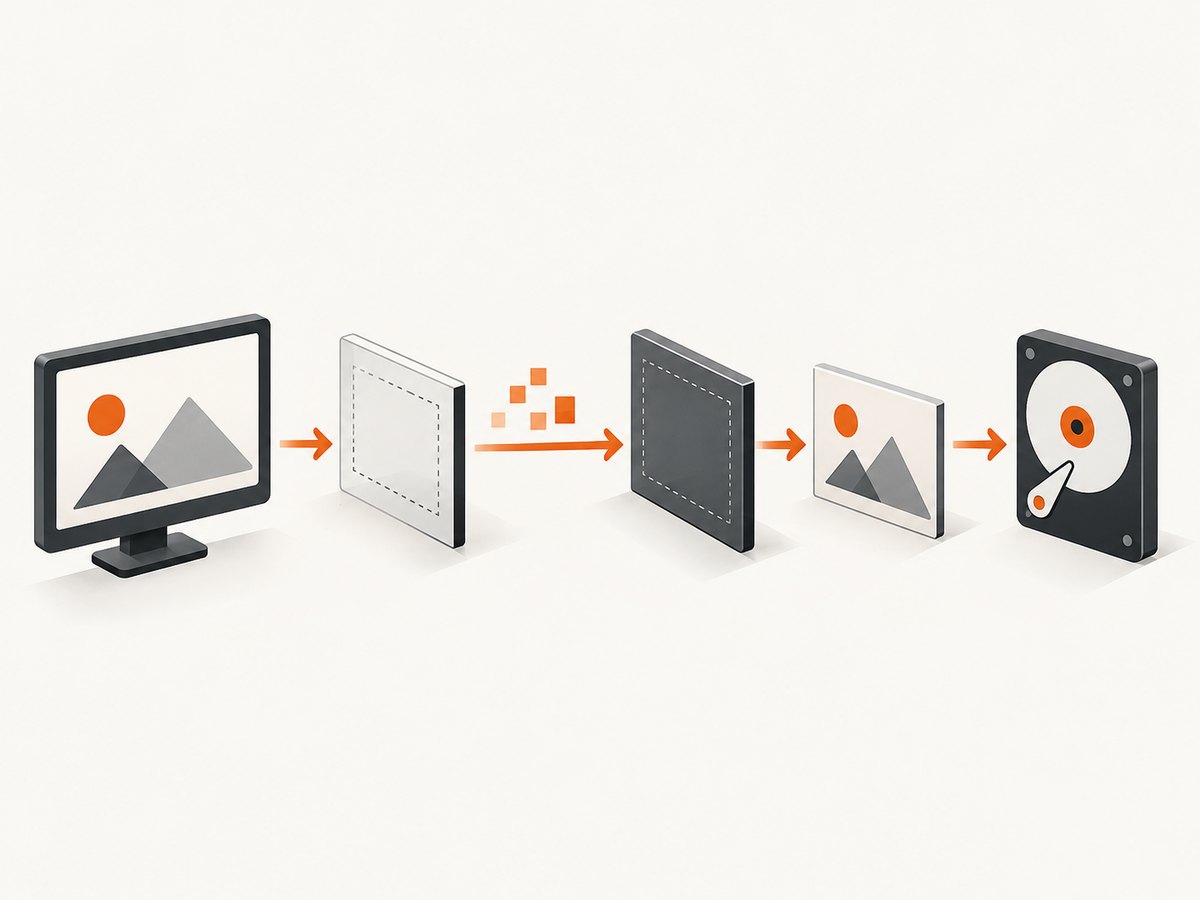
BitBlt captures pixels by copying a rectangle from a source device context (DC) into a destination DC. For a full-screen capture, obtain the source DC with GetDC(NULL). For a window client area, use GetDC(hwnd). Create a compatible memory DC, create a compatible bitmap from the original source DC, select the bitmap into the memory DC, then call BitBlt with SRCCOPY. Add CAPTUREBLT when layered windows should be included.
This article shows a complete C++/Win32 implementation that writes a BMP file, explains each handle and cleanup step, and covers black captures, monochrome bitmaps, multi-device failures, DPI, and long-running capture processes.
What BitBlt does
Microsoft defines BitBlt as a bit-block transfer of color data from a rectangle in one device context to another. It receives DC handles, not bitmap handles. The source bitmap must be selected into the source DC, and the destination bitmap must be selected into the destination DC.
| Goal | Source DC | Size | Raster operation |
|---|---|---|---|
| Entire virtual desktop | GetDC(NULL) |
SM_XVIRTUALSCREEN, SM_YVIRTUALSCREEN, SM_CXVIRTUALSCREEN, SM_CYVIRTUALSCREEN |
SRCCOPY | CAPTUREBLT |
| One window client area | GetDC(hwnd) |
GetClientRect |
SRCCOPY or SRCCOPY | CAPTUREBLT |
| Known rectangle on the desktop | GetDC(NULL) |
Your rectangle width and height | SRCCOPY |
CAPTUREBLT includes layered windows above the target. Microsoft notes that it generally cannot be used with printing DCs. See the BitBlt reference for raster-operation details.
Complete C++ example: capture the virtual desktop to a BMP
The following program captures all monitors as one image and saves screenshot.bmp. Build it as a Windows desktop C++ program and link against GDI32, which is normally included by Windows.h project settings.
#define WIN32_LEAN_AND_MEAN
#include <windows.h>
#include <cstdio>
#include <cstdlib>

static bool SaveBitmapToBmpFile(HBITMAP bitmap, HDC referenceDC, const char* path) {
    BITMAP bm{};
    if (GetObject(bitmap, sizeof(bm), &bm) != sizeof(bm)) {
        return false;
    }

    BITMAPINFOHEADER bi{};
    bi.biSize = sizeof(BITMAPINFOHEADER);
    bi.biWidth = bm.bmWidth;
    bi.biHeight = bm.bmHeight; // bottom-up DIB
    bi.biPlanes = 1;
    bi.biBitCount = 32;
    bi.biCompression = BI_RGB;

    const DWORD rowBytes = static_cast<DWORD>(bm.bmWidth) * 4;
    const DWORD imageBytes = rowBytes * static_cast<DWORD>(bm.bmHeight);
    BYTE* pixels = static_cast<BYTE*>(std::malloc(imageBytes));
    if (!pixels) {
        return false;
    }

    BITMAPINFO info{};
    info.bmiHeader = bi;
    if (GetDIBits(referenceDC, bitmap, 0, static_cast<UINT>(bm.bmHeight),
                  pixels, &info, DIB_RGB_COLORS) == 0) {
        std::free(pixels);
        return false;
    }

    BITMAPFILEHEADER fileHeader{};
    fileHeader.bfType = 0x4D42; // "BM"
    fileHeader.bfOffBits = sizeof(BITMAPFILEHEADER) + sizeof(BITMAPINFOHEADER);
    fileHeader.bfSize = fileHeader.bfOffBits + imageBytes;

    FILE* file = nullptr;
    if (fopen_s(&file, path, "wb") != 0 || !file) {
        std::free(pixels);
        return false;
    }

    const bool ok = fwrite(&fileHeader, sizeof(fileHeader), 1, file) == 1 &&
                   fwrite(&bi, sizeof(bi), 1, file) == 1 &&
                   fwrite(pixels, imageBytes, 1, file) == 1;
    fclose(file);
    std::free(pixels);
    return ok;
}

int main() {
    // The virtual desktop includes every monitor, including monitors left or above
    // the primary display, so the origin can be negative.
    const int x = GetSystemMetrics(SM_XVIRTUALSCREEN);
    const int y = GetSystemMetrics(SM_YVIRTUALSCREEN);
    const int width = GetSystemMetrics(SM_CXVIRTUALSCREEN);
    const int height = GetSystemMetrics(SM_CYVIRTUALSCREEN);
    if (width <= 0 || height <= 0) {
        std::fprintf(stderr, "Invalid virtual-screen dimensions\n");
        return 1;
    }

    HDC sourceDC = GetDC(nullptr);
    if (!sourceDC) {
        std::fprintf(stderr, "GetDC failed: %lu\n", GetLastError());
        return 1;
    }

    HDC memoryDC = CreateCompatibleDC(sourceDC);
    if (!memoryDC) {
        std::fprintf(stderr, "CreateCompatibleDC failed: %lu\n", GetLastError());
        ReleaseDC(nullptr, sourceDC);
        return 1;
    }

    // Create this bitmap from sourceDC, not memoryDC. A fresh memory DC starts
    // with a 1-by-1 monochrome bitmap.
    HBITMAP bitmap = CreateCompatibleBitmap(sourceDC, width, height);
    if (!bitmap) {
        std::fprintf(stderr, "CreateCompatibleBitmap failed: %lu\n", GetLastError());
        DeleteDC(memoryDC);
        ReleaseDC(nullptr, sourceDC);
        return 1;
    }

    HGDIOBJ oldBitmap = SelectObject(memoryDC, bitmap);
    if (!oldBitmap || oldBitmap == HGDI_ERROR) {
        std::fprintf(stderr, "SelectObject failed: %lu\n", GetLastError());
        DeleteObject(bitmap);
        DeleteDC(memoryDC);
        ReleaseDC(nullptr, sourceDC);
        return 1;
    }

    const DWORD rasterOp = SRCCOPY | CAPTUREBLT;
    if (!BitBlt(memoryDC, 0, 0, width, height, sourceDC, x, y, rasterOp)) {
        std::fprintf(stderr, "BitBlt failed: %lu\n", GetLastError());
        SelectObject(memoryDC, oldBitmap);
        DeleteObject(bitmap);
        DeleteDC(memoryDC);
        ReleaseDC(nullptr, sourceDC);
        return 1;
    }

    const bool saved = SaveBitmapToBmpFile(bitmap, sourceDC, "screenshot.bmp");

    // Restore the original selection before deleting the bitmap.
    SelectObject(memoryDC, oldBitmap);
    DeleteObject(bitmap);
    DeleteDC(memoryDC);
    ReleaseDC(nullptr, sourceDC);

    if (!saved) {
        std::fprintf(stderr, "Could not write screenshot.bmp\n");
        return 1;
    }

    std::puts("Saved screenshot.bmp");
    return 0;
}
The sample follows Microsoft’s Capturing an Image pattern: capture into a compatible memory DC, then read the resulting bitmap into a DIB before writing the file.
Build the example
cl /std:c++17 /EHsc bitblt_capture.cpp Gdi32.libRun the resulting executable from a directory where it can create screenshot.bmp.
Capture a single window
GetDC(hwnd) returns a DC for the window’s client area. Obtain the dimensions with GetClientRect, then use the same memory-DC and bitmap sequence. The source coordinates are relative to that client area.
RECT client{};
if (!GetClientRect(hwnd, &client)) {
    // Handle GetLastError().
}
const int width = client.right - client.left;
const int height = client.bottom - client.top;
HDC sourceDC = GetDC(hwnd);
// CreateCompatibleDC(sourceDC), CreateCompatibleBitmap(sourceDC, width, height),
// SelectObject, then:
BOOL ok = BitBlt(memoryDC, 0, 0, width, height,
                 sourceDC, 0, 0, SRCCOPY | CAPTUREBLT);
// Restore the old bitmap, DeleteObject, DeleteDC, and ReleaseDC(hwnd, sourceDC).
This captures the client area. It does not automatically include the title bar, borders, or other non-client regions. If you need a complete window frame, define the source rectangle and DC strategy explicitly rather than assuming that GetDC(hwnd) covers it.
Choosing the raster operation
| Value | Use |
|---|---|
SRCCOPY |
Normal pixel copy from source to destination. |
SRCCOPY | CAPTUREBLT |
Normal copy while including layered windows above the target. |
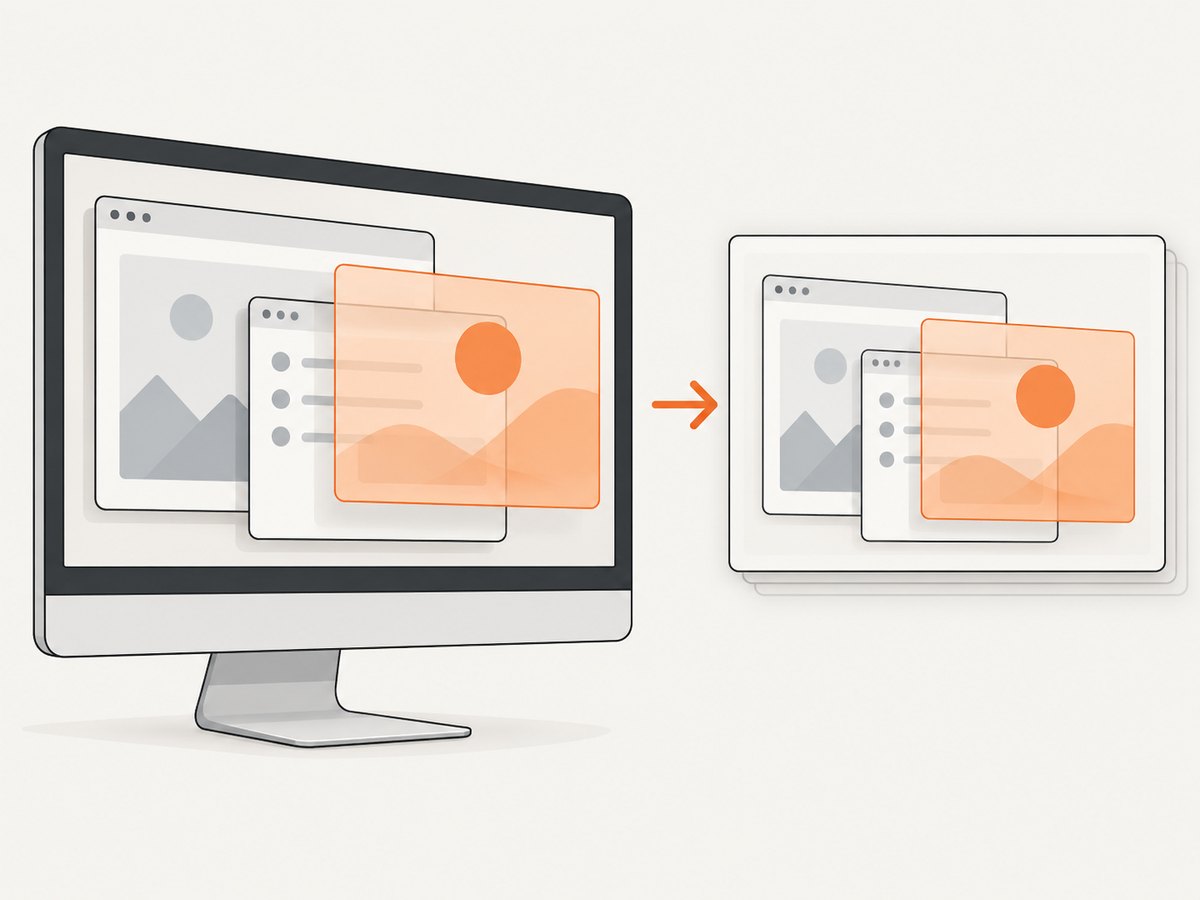
Use CAPTUREBLT when overlays implemented as layered windows must appear. If a capture includes an unexpected overlay, first verify whether that overlay is layered and whether including it is desired.
Device-dependent bitmap versus DIB
CreateCompatibleBitmap returns a device-dependent bitmap (DDB) whose color format matches the device associated with the supplied DC. Microsoft specifically warns that passing a new memory DC to CreateCompatibleBitmap can produce a monochrome bitmap because a new memory DC starts with a 1-by-1 monochrome bitmap. Always create the bitmap from the original display or window DC, as the example does. See the CreateCompatibleBitmap reference.
Use a DIB when you need predictable pixel memory, image encoding, or transfer between devices. A common path is:
- Capture into a compatible bitmap.
- Call
GetDIBitsto copy pixels into a 24-bit or 32-bit DIB buffer. - Encode that buffer as BMP, PNG, or another format.
Direct transfers between DCs representing different devices can fail. Microsoft recommends converting the memory bitmap to a DIB and using SetDIBits or StretchDIBits when crossing devices.
Coordinates, monitors, and DPI
- For one primary display,
SM_CXSCREENandSM_CYSCREENprovide the primary dimensions. - For all monitors, use
SM_XVIRTUALSCREEN,SM_YVIRTUALSCREEN,SM_CXVIRTUALSCREEN, andSM_CYVIRTUALSCREEN. The virtual origin can be negative. - Keep the source coordinates and destination dimensions consistent. A mismatch can crop or shift the result.
- Decide whether your process is DPI aware before calculating window rectangles. DPI virtualization can make logical window coordinates differ from physical pixels.
Error handling and resource cleanup
Check every function that can fail:
| Call | Failure result | Action |
|---|---|---|
GetDC |
NULL |
Stop and inspect GetLastError. |
CreateCompatibleDC |
NULL |
Release the source DC and stop. |
CreateCompatibleBitmap |
NULL |
Delete the memory DC and release the source DC. |
SelectObject |
NULL or HGDI_ERROR |
Do not use the destination; clean up handles. |
BitBlt |
Zero | Call GetLastError, then restore and release everything. |
GetDIBits |
Zero | Do not write the buffer as an image; free it and clean up. |
Restore the object previously returned by SelectObject before calling DeleteObject(bitmap). Delete the bitmap, delete the compatible DC, and release DCs obtained with GetDC. GDI handles are limited resources; leaks may degrade a process that captures repeatedly.
Troubleshooting
The screenshot is black
- Check the Boolean return from
BitBltand logGetLastError(). - Confirm that the source DC is valid and that width and height are positive.
- Try
SRCCOPY | CAPTUREBLTif the missing content is a layered window. - If the source and destination DCs represent different devices, convert through a DIB instead of relying on a direct transfer.
The screenshot is monochrome
Create the bitmap with CreateCompatibleBitmap(sourceDC, width, height), where sourceDC is the display or window DC. Do not pass the fresh memory DC.
Layered content is missing
Add CAPTUREBLT to the raster operation: SRCCOPY | CAPTUREBLT. It is intended to include layered windows above the captured target.
The capture is shifted or cropped on a multi-monitor setup
Use the virtual-screen metrics and pass SM_XVIRTUALSCREEN and SM_YVIRTUALSCREEN as source coordinates. Monitors positioned left or above the primary display produce negative coordinates.
CreateCompatibleBitmap or BitBlt fails intermittently
Log each return value and GetLastError, verify dimensions, and inspect handle cleanup. Long-running processes should restore every selected object and release every DC on every error path.
The file is created but cannot be opened
Check the return values from GetDIBits and each fwrite. Ensure the output directory is writable and that the calculated row stride and image size match the bitmap dimensions.
Performance, reliability, and cost notes
- Capture only the rectangle you need. Smaller bitmaps require less memory and less conversion work.
- Reuse a compatible memory DC and appropriately sized bitmap when taking repeated captures, but recreate them when the dimensions change.
- Keep the capture and encoding steps separate.
BitBltfills the bitmap; DIB extraction and image encoding add their own work. - Use deterministic cleanup on success and failure. GDI leaks accumulate across captures.
- BitBlt itself has no service charge because it is a local Win32 API. Your costs are application CPU, memory, storage, and any later image-processing or upload work.
Or skip the browser setup
BitBlt is for pixels already rendered on a Windows desktop. If your input is a web page and you need a repeatable server-side screenshot, ScreenshotNeo provides a single HTTP request that returns PNG, JPEG, WebP, or PDF. Its capture flow accepts cookie and consent banners before the shot and removes more than 60 known consent platforms, newsletter popups, and chat widgets. Bot checks, blank pages, timeouts, failed loads, and cache hits are not billed, and each response identifies the result with X-Page-Verdict and X-Billed headers. It also includes an MCP server with take_screenshot, get_page_info, and capture_pdf tools for AI agents.
See the ScreenshotNeo API documentation for all options.
cURL
curl -G "https://api.screenshotneo.com/v1/shot" -d access_key=YOUR_API_KEY --data-urlencode url=https://stripe.com -o shot.webpPython
import requests

r = requests.get(
    "https://api.screenshotneo.com/v1/shot",
    params={"access_key": "YOUR_API_KEY", "url": "https://stripe.com"},
    timeout=90,
)
r.raise_for_status()
open("shot.webp", "wb").write(r.content)
Node.js
const q = new URLSearchParams({ access_key: 'YOUR_API_KEY', url: 'https://stripe.com' });
const res = await fetch(`https://api.screenshotneo.com/v1/shot?${q}`);
if (!res.ok) throw new Error(`Screenshot failed: ${res.status}`);
const data = Buffer.from(await res.arrayBuffer());
await require('node:fs').promises.writeFile('shot.webp', data);
The Free plan includes 1,000 screenshots each month with no card. Paid plans start at $5 for 3,000 shots, and every feature is available on every plan. Create a free ScreenshotNeo account.
FAQ
Does BitBlt capture a bitmap handle directly?
No. It copies pixels between DCs. Select the source and destination bitmaps into their respective DCs first.
Which flag is the normal screenshot operation?
SRCCOPY is the normal copy. Add CAPTUREBLT when layered windows should be included.
Why should the bitmap come from the source DC?
A new memory DC begins with a 1-by-1 monochrome bitmap. Creating the compatible bitmap from the display or window DC preserves the source color format.
What must be released after a capture?
Restore the old selected bitmap, delete the captured bitmap, delete the compatible DC, and release every DC obtained from GetDC.
When should I use a DIB?
Use a DIB when you need direct pixel access, predictable encoding, or a transfer between DCs associated with different devices.


